

Stuck with a massive PDF that refuses to upload, share, or open smoothly? You're not alone! Large PDF files can slow down workflows, cause errors, and make even simple tasks, like emailing or printing, frustrating. Many users only realize the need to split a PDF when deadlines are tight, and file size becomes a sudden obstacle.
Splitting the document into smaller parts not only improves accessibility but also makes handling individual sections much easier. In this guide, you'll learn the simplest and most reliable methods to split large PDF files without losing quality.
In this article
- What You'll Do in This Guide
- Pick Your Route for Splitting Large PDF Files
- Local Quick Start: Split by Size, Pages, or Chapters
- Page-Level Split (When Each Page Holds Two Slides)
- Online Quick Start (When Limits Allow)
- Maintaining Output Hygiene: Names, Folders, and Structure
- Practical Playbooks You Can Copy
- Speed & Reliability Tips for Large PDFs
- Troubleshooting Common PDF Splitting Issues
Part 1. What You'll Do in This Guide
Managing an oversized PDF doesn't have to be complicated. This guide walks you through simple, practical methods for splitting large PDF files into more manageable parts. Below is a quick look at what you will learn in this guide:
1. Split a Large PDF by Size, Page Count, or Bookmarks
You'll learn how to divide a PDF by setting a target file size and splitting every page. Furthermore, you will learn how to select custom page ranges or use top-level bookmarks to separate chapters automatically.
2. Create Multiple Files That Fit Email or Upload Limits
You'll discover how to generate several smaller PDFs that comply with common upload restrictions. This will ensure your files can be shared through email, LMS platforms, work portals, or cloud services without errors.
3. Choose Between Local Tools and Online PDF Splitters
You'll understand when it's best to use offline software for large or sensitive files and when online PDF splitters are best. This also includes split large PDF online free tools, which are the fastest and most convenient solution.
Part 2. Pick Your Route for Splitting Large PDF Files
Before the PDF splits large files into small, it helps to quickly decide which method suits your file type, privacy needs, and workflow. Some tools excel at handling massive documents with full control, while others are perfect when you just need a quick, no-install solution.
Local Tools (Privacy & Control): Best for splitting large PDFs without limits, preserving bookmarks, or running batch jobs.
Online Tools (Convenience): Ideal for fast tasks when your document isn't sensitive and fits the site's size limits. They are perfect for splitting large PDF files online with convenience.
Part 3. Local Quick Start: Split by Size, Pages, or Chapters
One of the best local tools for quickly splitting large PDFs with precision and full control is PDFelement. It handles oversized documents smoothly, preserves formatting, and offers multiple advanced split modes that many basic editors lack. Whether you're managing lengthy manuals or organizing chapters into separate documents, this tool ensures your outputs remain clean and structured, unlike free online PDF splitters for large files.
Menu Path: Organize → Split → Split PDF
Detailed Guide to Split Large PDF Files With PDFelement
As discussed, PDFelement allows its users to precisely split their long documents by offering different options. Let us have a look at the step-by-step guide to use this tool in the section below:
Step 1Import PDF and Access Organize Section
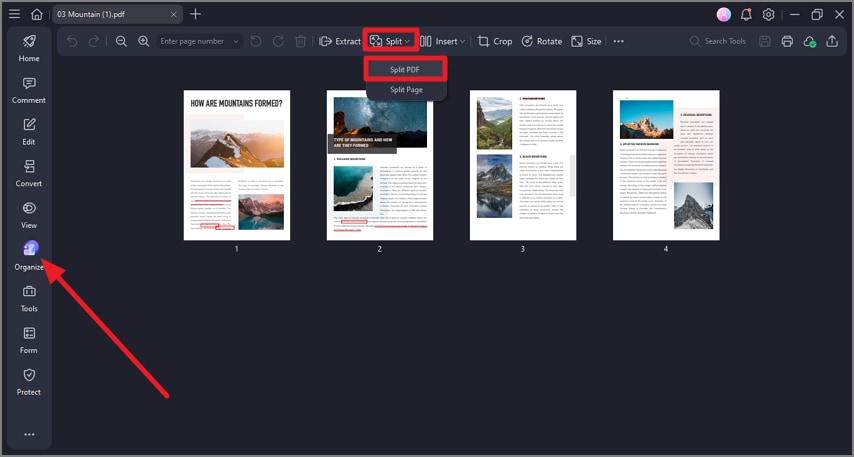
After launching PDFelement on your device, import the large document that you want to split. Now, head to the toolbar on the left and select the "Organize" option. Next, head to the toolbar at the top and click on the "Split" option. From the expanded options, click on the "Split PDF" option.
Step 2Select Split Type and Split
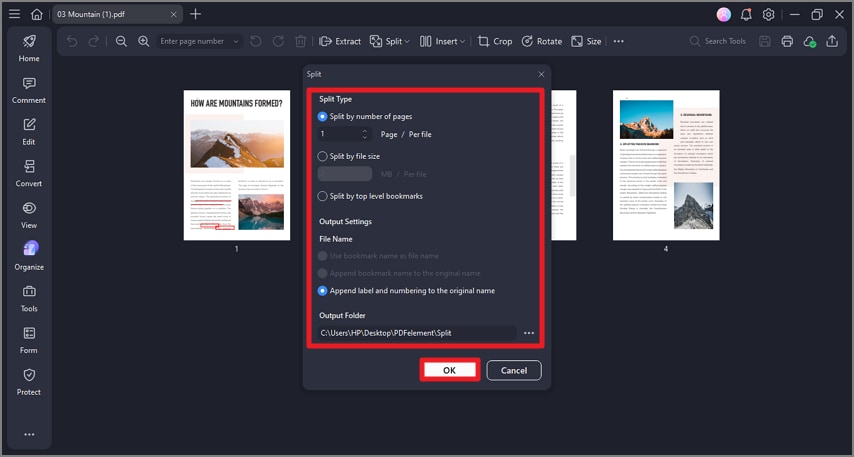
In the following small window, select the "Split Type" by choosing the required radio button. Moving forward, select the file name and output folder according to your preferences. Once done, press the "OK" button to execute the process.


 G2 Rating: 4.5/5 |
 100% Secure
Step 3Review the Split PDFs
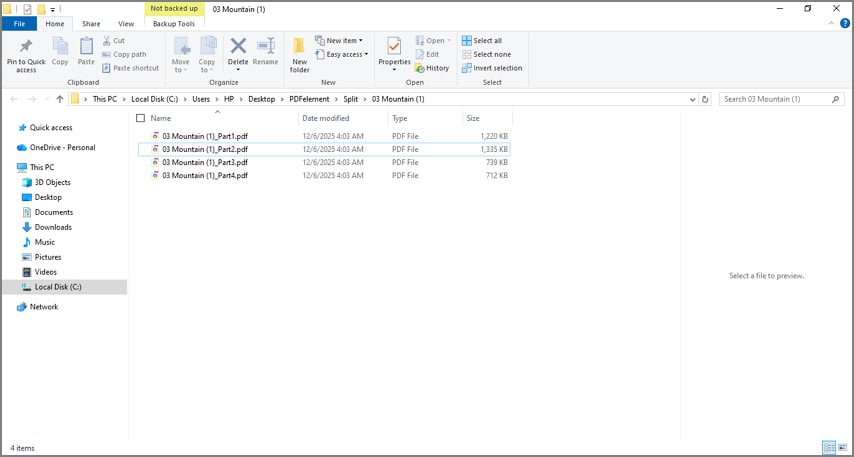
Once the PDFs are split, review them in the designated folder and open them accordingly to check the result.
When to Use Which
Email/Upload Limits: If you're working with strict email or upload limits, you should split the PDF by file size to ensure each part meets the platform's requirements.
Manuals or Course Packs: For handling manuals, reports, or course packs, splitting the document by bookmarks gives you clean, chapter-based files.
Even Page Distribution: If you need evenly distributed sections, the most straightforward option is to split the PDF every "N" pages.
Part 4. Page-Level Split (When Each Page Holds Two Slides)
Sometimes a large PDF isn't just big, it's formatted in a way that makes splitting difficult, especially when each page contains two slides or two scanned pages side by side. Before applying size-based or page-based splitting, or using a PDF split online large file tool, you may need to separate these combined pages cleanly. PDFelement's Page-Level Split feature lets you divide each page vertically or horizontally, ensuring every slide becomes an individual page for cleaner organization and easier processing.
Menu Path: Organize → Split → Split Page
How to Perform Page-Level Split Using PDFelement
After learning about how to use Split for different types, let us have a look at how to use PDFelement to perform page-level split:
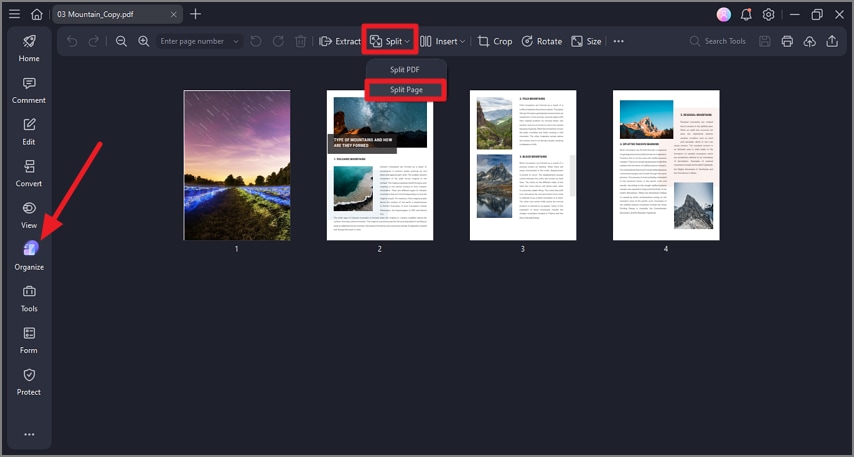
Step 1Import Document and Choose Split Page
After importing the document to the tool's interface, head to the toolbar on the left and click "Organize." Now move to the toolbar at the top and select "Split Page" after pressing "Split."
G2 Rating: 4.5/5 |100% Secure
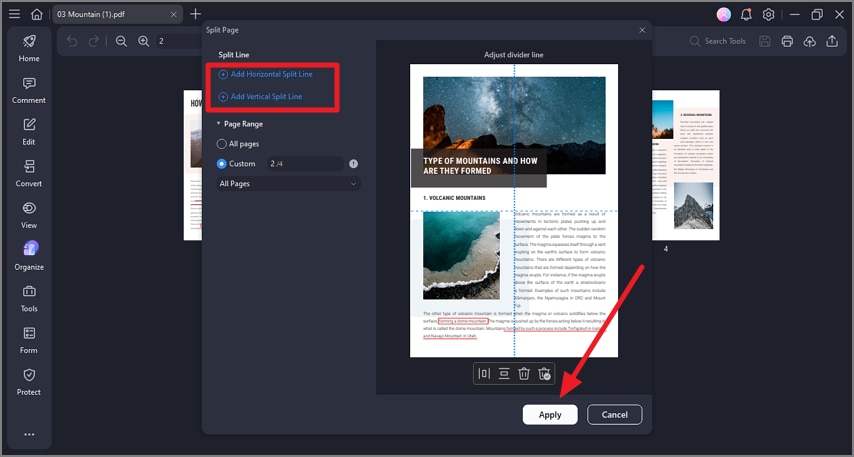
Step 2Select Split Line and Apply
In the following interface, choose "Add Horizontal Split Lines" to split horizontally and "Add Vertical Split Lines" to split vertically. Adjust the marker on the screen and select the page ranges before pressing the "Apply" button.
Use Case: Perfect for cleanly cutting 2-up scans before you split a large PDF by size or by pages.
Part 5. Online Quick Start (When Limits Allow)
When you need a fast, no-install solution for splitting PDFs and your file falls within the platform's upload limits, try using HiPDF. It's ideal for quick tasks involving non-sensitive documents, especially when you're looking for options like "online PDF splitter for large files." The tool offers a smooth experience without requiring sign-ups or software downloads.
Best For
HiPDF works best for users who want immediate results without installing desktop software and whose files aren't confidential.
If your document fits the platform's size allowance, the tool provides a quick, dependable way to divide a large PDF into smaller parts.
Why Choose HiPDF
Clean, Modern Interface: HiPDF offers a straightforward, beginner-friendly layout that makes splitting large PDFs quick and frustration-free.
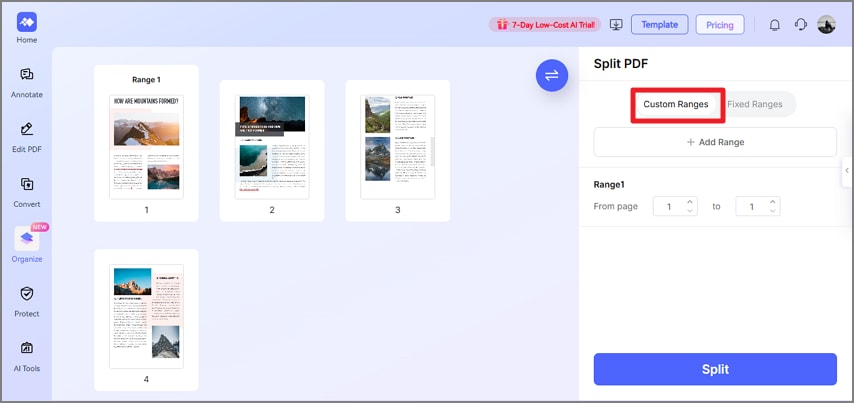
Custom Ranges: You can select specific page ranges, when you only need to extract certain chapters, sections, or page sets.
Fixed Ranges: HiPDF lets you split the file every "N" page, giving you evenly sized chunks without manual setup.
Quick Online Tasks: Works perfect when you need an online PDF splitter for large files or want to split large PDFs online for free without installing software.
Steps for Splitting Large PDF with HiPDF
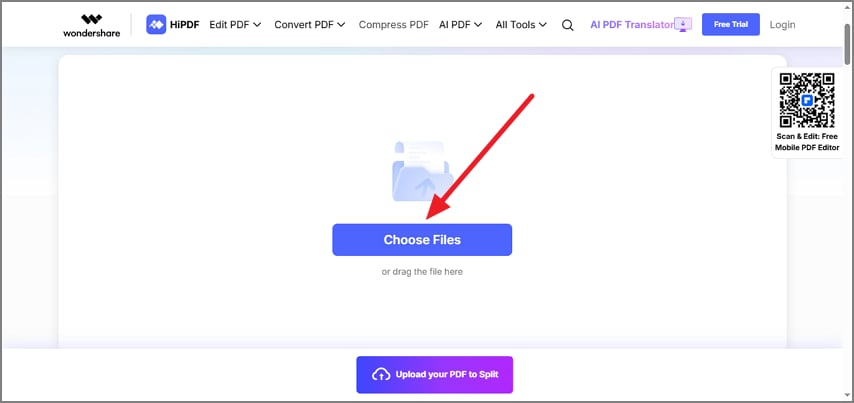
Step 1
Begin by accessing the tool on your web browser and clicking the "Choose Files" option to upload the document.
Step 2
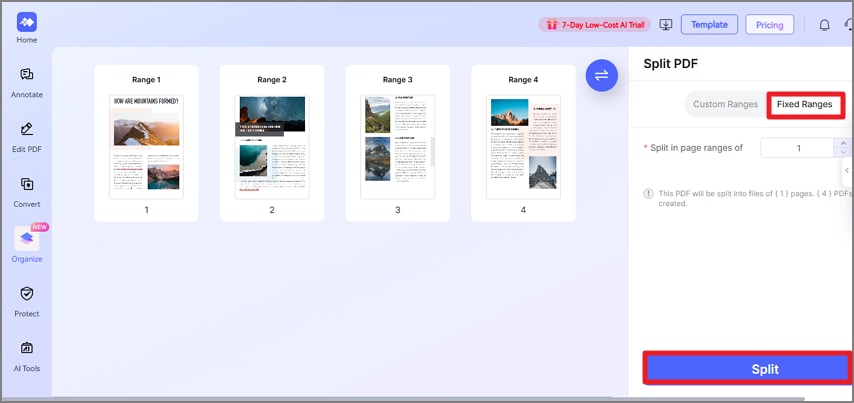
Access the "Custom Range" section on the right to enter exact page ranges for the split.
Step 3
Alternatively, access the "Fixed Range" section to enter intervals for the split. Once done, press the "Split" button to execute the process.
Step 4
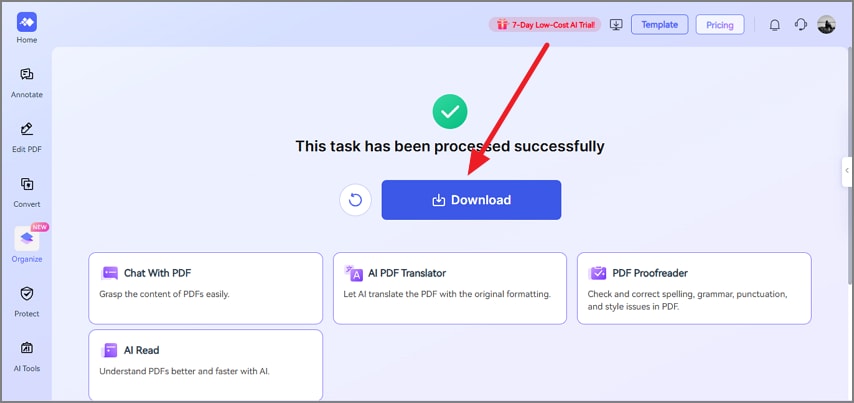
After the document is successfully split, click the "Download" button to successfully save the split files to your device.
Notes and Tips
- For very large uploads, ensure a stable internet connection; if you hit time or size caps, split once by a coarse range and repeat.
- Keep filenames tidy by renaming downloads immediately (e.g., Report_part1, Report_part2).
- Double-check page order after splitting, especially when using bookmarks or custom ranges, to avoid misaligned content.
- Compress output files if the PDF needs to meet strict upload or email limits.
- Always back up the original PDF before splitting, so you can recover it if something goes wrong.
Part 6. Maintaining Output Hygiene: Names, Folders, and Structure
After splitting a large PDF, keeping your output organized is just as important as the splitting itself. This is especially critical when handling multiple projects, client files, or chaptered documents.
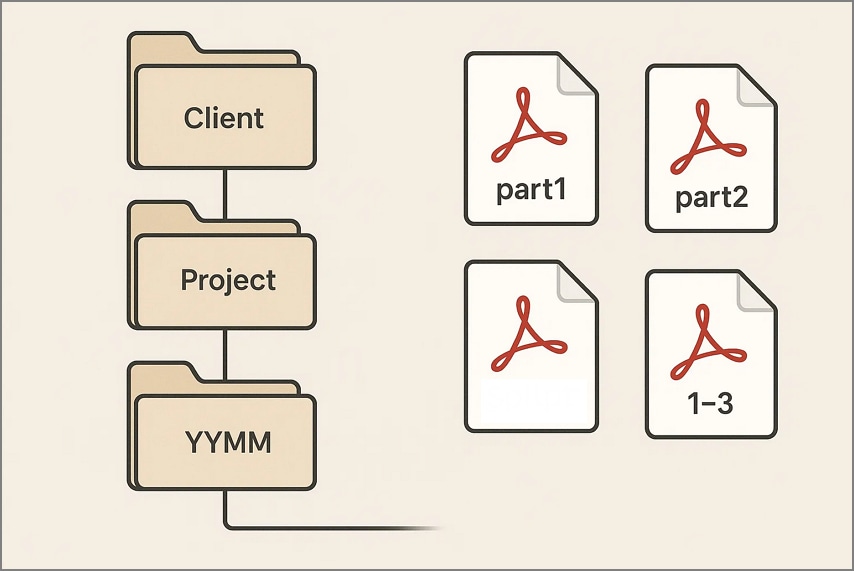
Folder Pattern: Organize outputs in a structured hierarchy, such as/Client /Project/YYMM/Split_Outputs/ to keep files neat and easily accessible.
Naming Templates: Use consistent naming conventions like {filename}_ part{index}, {filename} _{range}, or {bookmark} for chapter-based splits to avoid confusion.
Preserve Structure: When splitting PDFs, especially large ones, choose tools that maintain bookmarks, hyperlinks, and metadata, ensuring the integrity of your original document.
G2 Rating: 4.5/5 |100% Secure
Part 7. Practical Playbooks You Can Copy
When it comes to splitting large PDFs, having ready-to-use workflows can save time and prevent errors. Depending on your document type and sensitivity, you can follow these tested playbooks to achieve consistent, organized results quickly:
Upload/Email Cap: Use a local tool like PDFelement to split your PDF by file size. This ensures each output file stays under 20 MB, making it suitable for email or platform uploads.
Chapters to Separate PDFs: For manuals or reports, split the PDF by top-level bookmarks using PDFelement. Name each output file using the {bookmark} format for easy identification of chapters.
Long Document into Modules: Divide extensive documents into fixed chunks, such as every 50 pages, using PDFelement. Name the resulting files with a consistent pattern like {filename}_part{index} to maintain order and clarity.
Online Quick Fix (Non-Sensitive): If your file isn't confidential and fits the site's size limits, use a free online PDF splitter like HiPDF. For larger or sensitive documents, switch to a local tool to maintain privacy and control.
Part 8. Speed & Reliability Tips for Large PDFs
Working with very large PDFs can strain your system and slow down the splitting process. By following a few best practices, you can ensure faster processing and avoid errors while splitting large PDFs:
Close unnecessary applications and background processes to free up CPU and RAM. Storing your PDFs on an SSD rather than an HDD can also significantly speed up read/write operations.
Run OCR (Optical Character Recognition) on scanned PDFs before splitting. This helps maintain chapter or bookmark logic and ensures text-based searches work properly.
Optimize or compress the PDF after splitting to reduce file size without losing image or font quality. This is especially useful for emailing or uploading multiple files.
For ultra-long documents, first split by bookmarks to preserve chapters, then refine further by size or page count to meet limits.
Avoid extremely large batch splits in one go; break the process into smaller sections to reduce the chance of errors or crashes.
Part 9. Troubleshooting Common PDF Splitting Issues
Even with reliable tools, a PDF split of a large file can sometimes produce unexpected results. Knowing common symptoms and their fixes helps save time and ensures your outputs remain accurate. Mentioned below are some of the troubleshooting methods you must follow:
Parts Still Too Big: Re-run using a smaller file size cap in PDFelement and optimize images to reduce overall file weight efficiently.
Chapters Didn't Separate: Ensure all bookmarks are top-level and consistently applied in PDFelement. Reapply the split to correctly extract each chapter.
Wrong Page Ranges: Remember page ranges are inclusive (1–10 includes page ten) and verify your selections in PDFelement before running the split.
Online Keeps Timing Out: Try splitting by staged ranges using HiPDF online tools. Large uploads often exceed site limits for PDF split online large file tasks.
Files Scattered: Set a dedicated output folder before starting your split in PDFelement. Apply a clear naming template like {filename}_part{index} consistently.
People Also Ask
-
How do I split a large PDF quickly without losing bookmarks?
The fastest way is to use a tool like PDFelement, which preserves bookmarks and metadata. Simply select "Split by Top-Level Bookmarks" to keep chapters intact. -
Can I split a large PDF online for free safely?
Yes, platforms like HiPDF allow free online splitting for non-sensitive documents. Avoid uploading confidential files, as online tools may not guarantee full privacy. -
What's a reliable way to split a large PDF into multiple files by size?
Using PDFelement, you can split by file size to ensure each output meets email or upload limits. This method prevents oversized parts while maintaining document quality. -
Which free online PDF splitter for large files works with minimal limits?
Tools like HiPDF handle larger PDFs efficiently, though they still have upload caps. For extremely large documents, local tools like PDFelement are safer and faster. -
When should I switch from PDF split online large file to a local tool?
Switch to a local tool when your file exceeds online limits, contains sensitive information, or requires batch splitting. PDFelement is perfect for large, confidential, or complex PDFs that need precise control.
To sum up, this article provided a complete guide on splitting large PDF files efficiently. Choose your method based on file size, sensitivity, and deadlines. Local tools like PDFelement offer precise control, letting you split by size, pages, or bookmarks with predictable results. Online tools are ideal for quick, free tasks when privacy isn't an issue. Always keep outputs organized with smart folders and clear naming for a clean workflow.

