Adding proper margins to a PDF is far more essential than you think, as it directly impacts your thinking. Margins are essentially white space on both sides of the page to separate the content from the edges, keeping the user's focus on the content. As documents are used both online and in print format, choosing the right margins matters.
In this comprehensive article, we will cover different procedures to add margins to PDFs based on file format. Furthermore, you will also be given some efficient tips to improve your outcome efficiently, so read this guide to the end.
In this article
- Why Add Margins? Understanding The Reasons
- A Short Checklist Before Adding Margins to PDFs
- Method 1: Add Clean White Space with PDFelement Page Margins
- Method 2: Make Room for Notes, Stamps, or E-Sign
- Method 3: Prep for Binding/Hole-Punch
- Free & Online Options – When Installation is Difficult
- Margin Presets (Copy-and-Use Options To Go With)
- Layout Tips That Improve Results [Must-Learn]
- Frequently Asked Questions
Part 1. Why Add Margins? Understanding The Reasons
To improve your document's readability and structure, let's explore why margins PDF play such an important role:
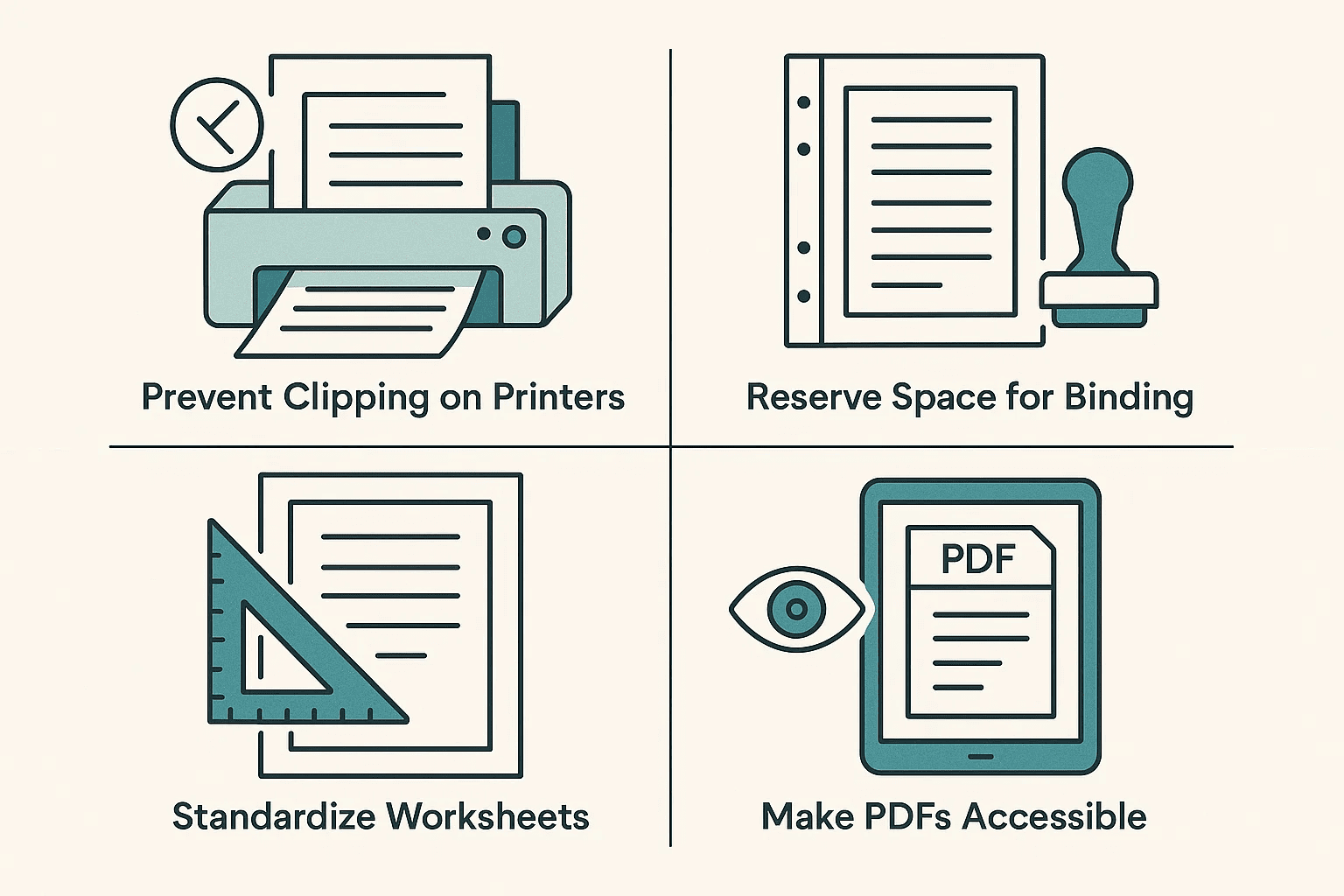
- Prevent Clipping on Printers: By adding spaces at both edges of the page, it gives breathing room for easier focus on the main contextual data.
- Reserve Space for Binding: It gives you extra space to add holes for binding or to insert official comments or stamps without messing with the format.
- Standardize Worksheets: This technique standardizes worksheets by placing all textual data in a "live area," making documents easier to read.
- Make PDFs Accessible: By choosing different margin ratios for various screen sizes, make them easier to access and manage.
Part 2. A Short Checklist Before Adding Margins to PDFs
It is essential to keep the right margin strategy from the start. For that, it is best to go through the following checklist before taking toll at a PDF editing tool:

- Page Size Needed: At first, decide your target file format, like A4, Letter, or Legal, as every format requires different dimensions.
- Margin Plan: Decide whether you want all 4 margins to be equal or if your file requires asymmetrical margins (unequal margins).
- Pages to Add Margins To: You should determine beforehand that you want the margins on all pages or some specific pages.
- Odd/Even Mirroring: In case your PDF is double-sided, choose the margin types, binding, and fold lines that align perfectly across facing pages.
Part 3. Method 1: Add Clean White Space with PDFelement Page Margins
Consider yourself a teacher who bought a 200-page workbook for your class. When printing the test batch, you discover that all the content was unaligned, and there was no room to add comments. Rather than asking publishers for a new version, we recommend using PDFelement, which lets you instantly add margins according to desired needs.
This tool gives the option of selecting the desired page range by offering the "All Pages" and "Custom" options. You can also perform OCR for converting scannable PDFs into searchable files. Users can also edit their PDFs by adding multiple images and texts into their files. It also allows users to convert their files into various other formats, including Word, Excel, PPT, and HTML files.
Extensive Steps on How to Add Consistent Margins Using PDFelement
Are you exploring how to add a margin to a PDF, follow the guide below to add consistent margins to your PDF:
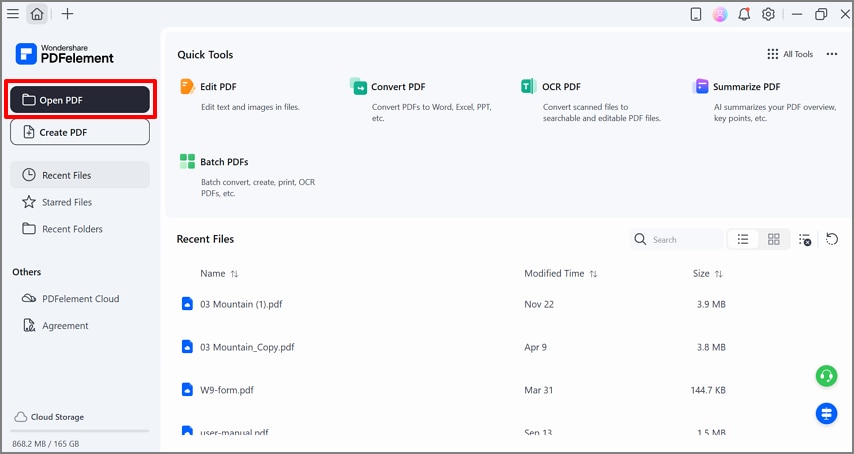
Step 1Select the Open PDF Button to Insert a PDF File
Upon entering the PDFelement tool, click on the "Open PDF" button to open the desired PDF file.
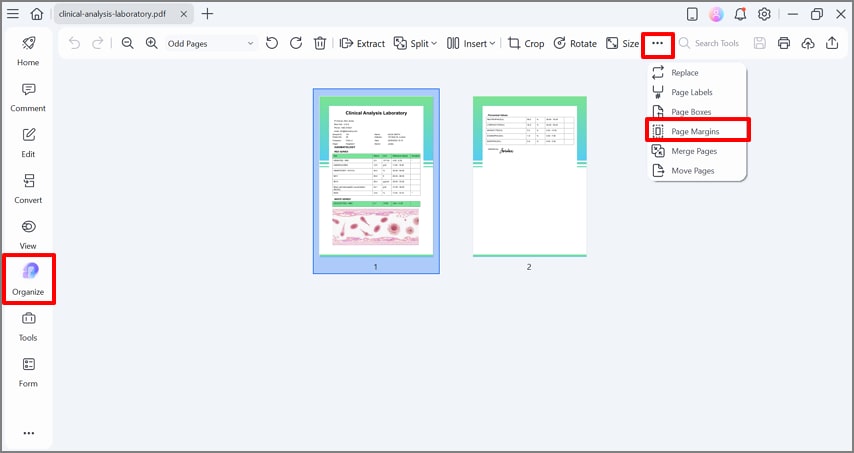
Step 2Choose the Organize Menu to Access the Page Margins Option
After opening the PDF, click on the "Organize" option in the left tab. Afterwards, tap on the "3 Dots" to select the "Page Margins" option in the drop-down menu.


 G2 Rating: 4.5/5 |
 100% Secure
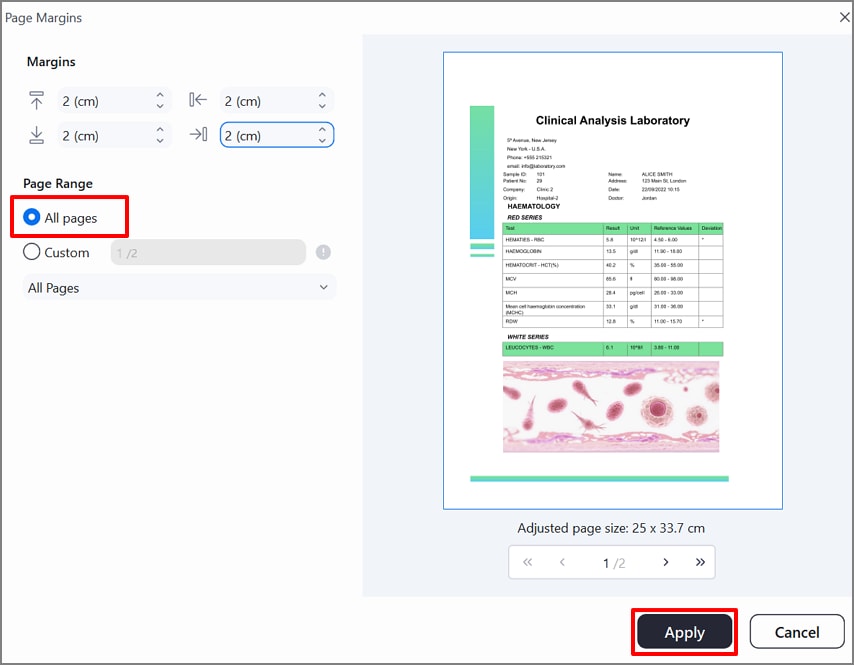
Step 3Choose Page Range and Select the Apply button
Here, toggle the desired "Page Range," and add the same numbers in the "Margin" menu to achieve consistent margins. After previewing the margins on the page, hit the "Save" button to get the margins added to the PDF.
Step 4Save The Updated File to the Device Folder
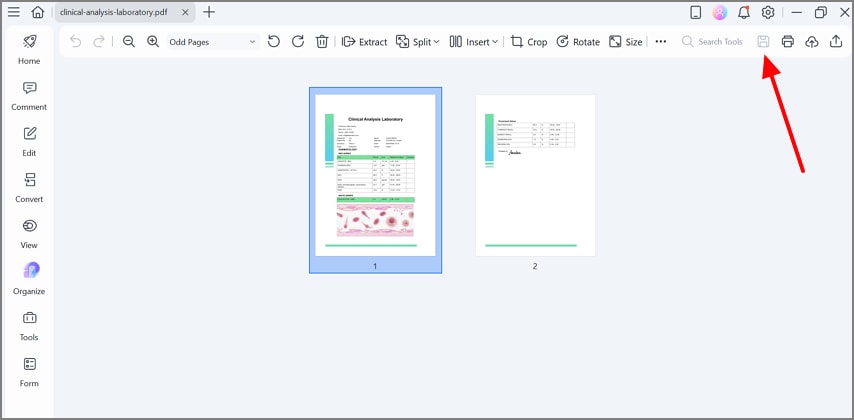
Now, hit the "Save" icon on the top right of the interface to save the updated file to the device.
Tips For Better Results
To get the best and accurate margin to PDF results, follow the tips listed below:
- Skim Several Pages: After applying margins, skim all the pages from first to last to ensure that all the margins are perfectly aligned.
- Use Consistent Units: While adding margins to the file, make sure you use consistent units for all margins so you don't disturb the overall alignment.
- Save an Extra Copy: Before adding margins, ensure you keep an extra copy of the PDF file, so if you mistakenly ruin the format, you have an extra backup.
- Quick Test Print: Upon adding margins to the file, print the PDF file for trial to make sure all the context is completely aligned in the middle.
Part 4. Method 2: Make Room for Notes, Stamps, or E-Sign
You might aim to annotate the file further, such as adding extra working space to easily add markups and signs in that place. This playbook is beneficial, especially when you are working with worksheets, legal forms, and contracts that need multiple edits. You can easily select wider margins using the efficient PDFelement "Page Margins" feature. Let's explore this detailed guide to add margins to PDF:
Step 1Choose the Organize tab to Open the Page Margin
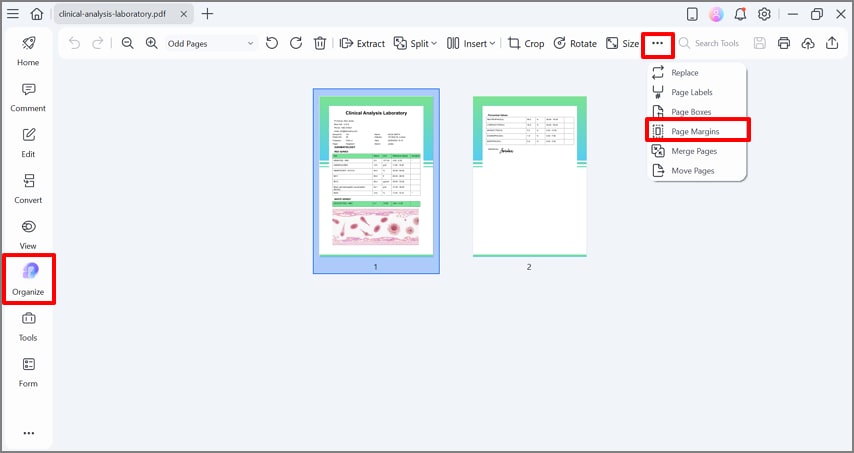
Upon entering PDFelement, click on the "Open PDF" button. Afterwards, click on the "Organize" tab and tap on the three dots to select the "Add Margins" option from the menu.
G2 Rating: 4.5/5 |100% Secure
Step 2Choose Margin Size and Select Page Range
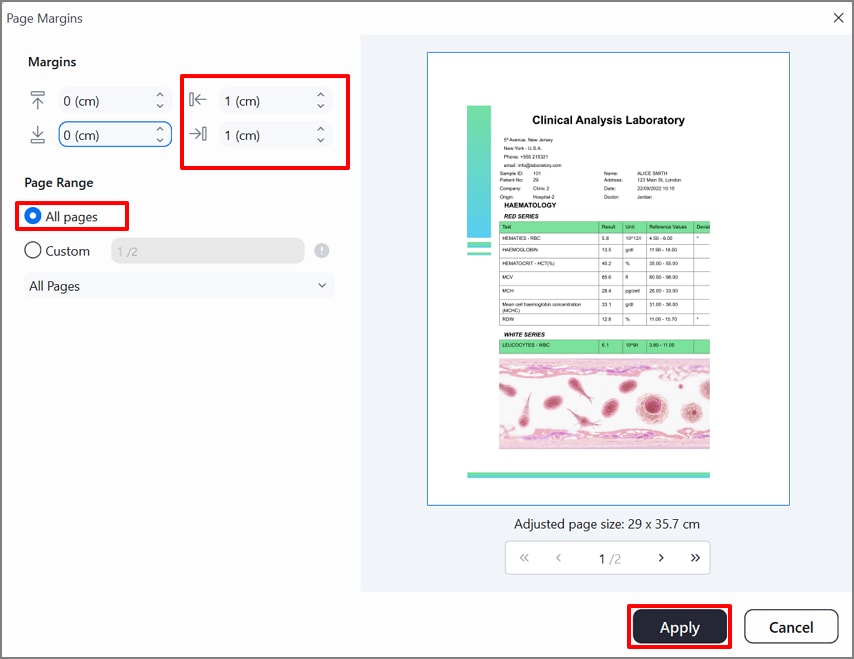
Set the "Margins" for the right and bottom sides to 10mm/1cm and toggle the "All Pages" option. Once done, click on the "Apply" button to save the margin changes.
Step 3Add Comments and Hit the Save Button
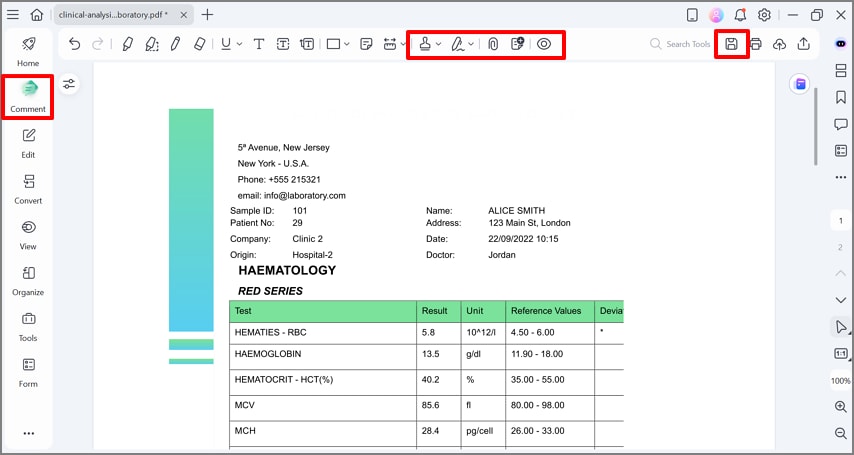
Click on the "Comment" option from the left tab of the interface. Here, you can add signatures or stamps and hit the "Save" icon to get the annotated file saved to the device.
G2 Rating: 4.5/5 |100% Secure
Part 5. Method 3: Prep for Binding/Hole-Punch
When PDFs are being used for printing purposes, it is important to add extra margins to their sides. If the file is double-sided, you should adjust your margins for binding and hole-punching. To know how it can be adjusted properly, explore the detailed guide to add margins for binding and punching purposes:
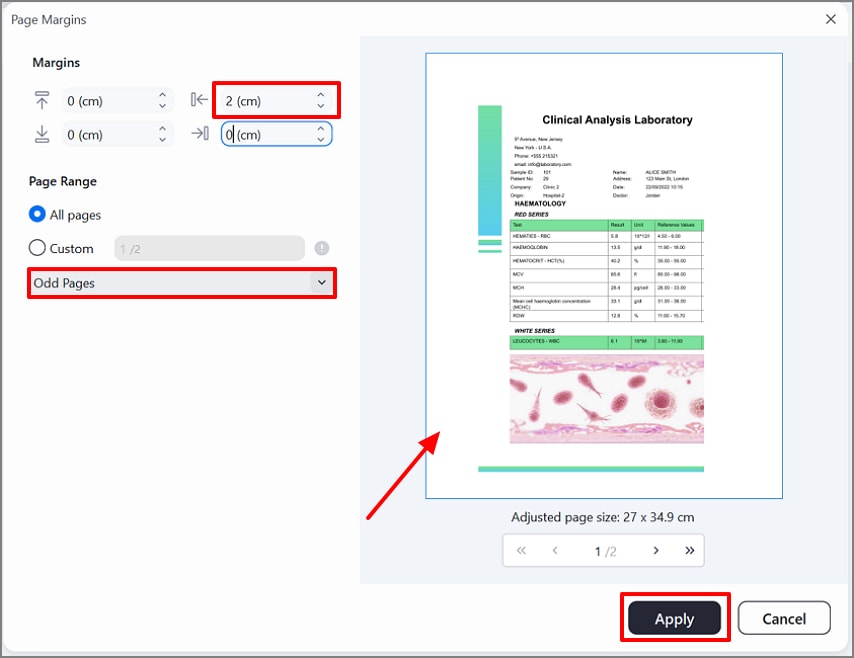
Step 1Choose Desired Page Margin for Odd Pages
Initiate by accessing the "Page Margins" feature from the "Organize" tab in PDFelement. Consequently, set the margin to "2cm" for the left side and enable the "Odd Pages" option before hitting the "Apply" button.
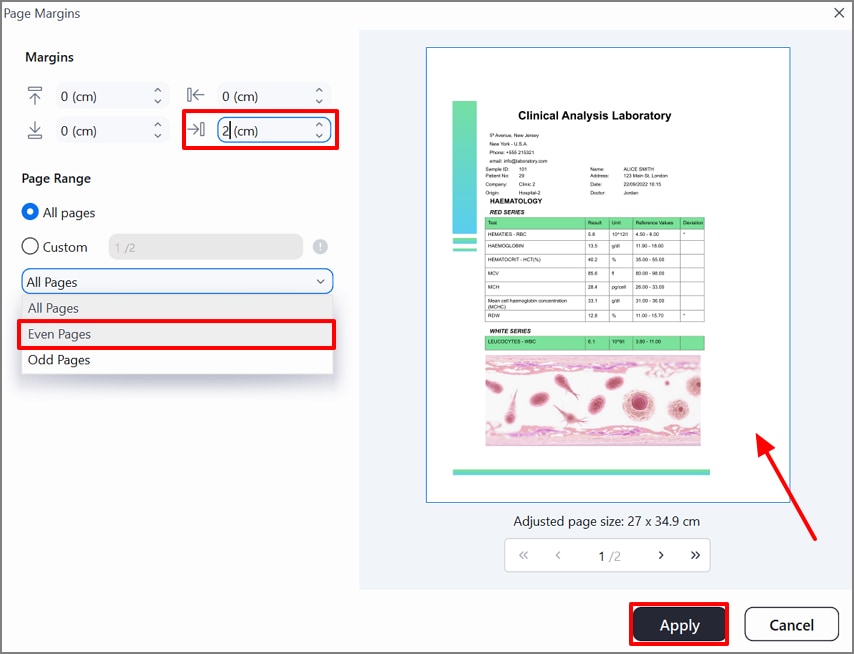
Step 2Select the Right Margin Ratio for Even Pages
Choose the right margin to 2cm and select the "Even Pages" option before hitting the "Apply" button to save the changes.
G2 Rating: 4.5/5 |100% Secure
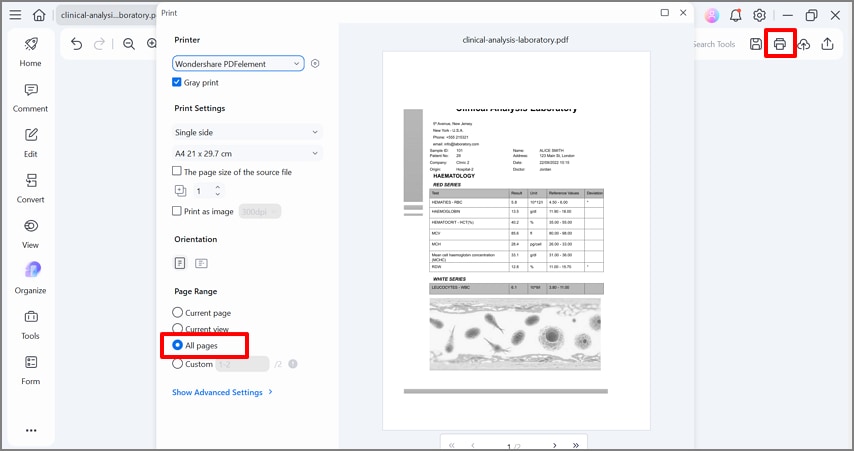
Step 3Apply to the Whole Document and Print a Sample
After previewing the result, click on the "Print" option and enable the "All Pages" option within the Page range menu. Furthermore, always try to print 1 or 2 samples of the PDF to ensure its complete accuracy before printing the whole batch.
Part 6. Free & Online Options – When Installation is Difficult
If your device doesn't have enough storage space, opt for an online tool. While choosing an online tool, ensure you choose online sites that say "PDF add margins" or "expand canvas/whitespace." Furthermore, always prefer tools that give you a live preview to examine the generated outcome.
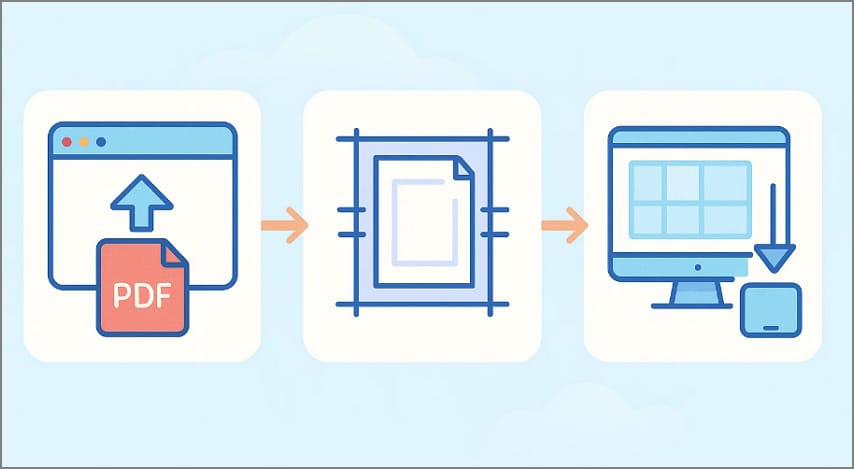
Typical Workflow for Using Online Free Options
Step 1
Initiate by choosing a reliable web tool and entering the desired PDF into the device.
Step 2
Choose the "Margin Values" and ensure to choose "All Pages" page range for the PDF.
Step 3
Preview the edited outcome and hit the "Download" button to save it to your device.
Key Caveats
Always remember that these are online tools that do not guarantee your data safety. Thus, avoid uploading highly confidential data files even if the site claims to be highly safe. Furthermore, some tools also lack advanced options and only offer limited basic features like choosing margin values.
Part 7. Margin Presets (Copy-and-Use Options To Go With)
After exploring the procedure to add a margin to a PDF, you are unsure about the exact margin sizes. To help you with this, we have provided a quick breakdown of some margin presets that you can simply copy and use:
| Use Cases | Top | Bottom | Left | Right |
| General Handout | 15 mm | 15 mm | 15 mm | 15 mm |
| Teacher Worksheets with Notes | 15 mm | 15 mm | 15 mm | 25 mm |
| Two-Sided Binding (Mirror) | 15 mm, outer | 15 mm, outer | 25 mm, inner | 25 mm, inner |
| Stamp/Sign Area at Bottom | 15 mm | 30 mm | 15 mm | 15 mm |
| Legal/Contract Document | 20 mm | 20 mm | 20 mm | 20 mm |
| Workbook/Manual (Thick Binding) | 15 mm | 15 mm | 30 mm, inner | 15 mm, outer |
Part 8. Layout Tips That Improve Results [Must-Learn]
Let's move on to smart layout tips that refine your design to boost your outcome for both printing and online viewing:
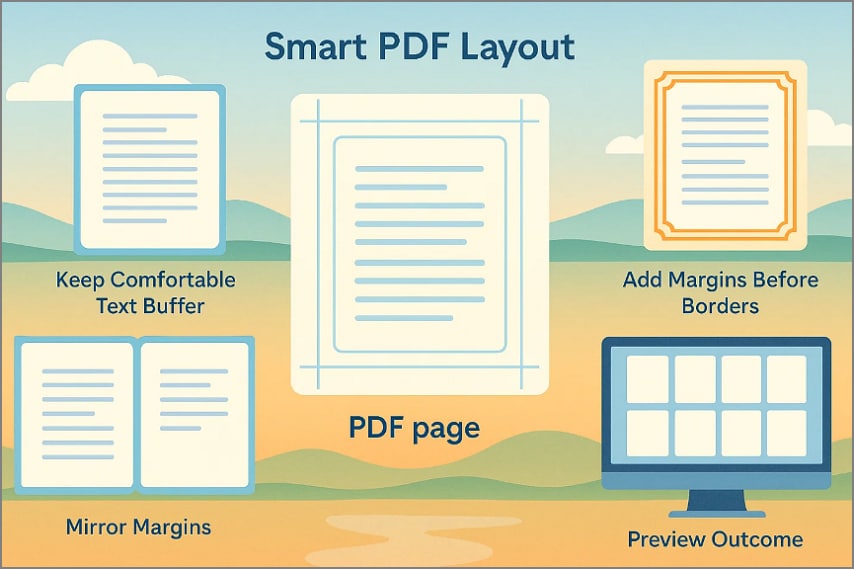
- Keep Comfortable Text Buffer: Ensure you keep the body text of the PDF and other elements like page numbers at least 10-12mm away from margins.
- Add Margins Before Decorative Borders: If you want to add decorative frames, then try to add a margin before them to ensure the proper alignment.
- Mirror Margins: When having 2-sided pages, mirror the inner and outer margins to accurately align them throughout the document.
- Verify Page Sizes: Before you add margins, confirm if the pages are of the same size, as mixed pages can lead to irregular margins.
- Preview Outcome: After adjusting the margins, make sure you preview the overview of the newly edited, margined files to ensure every element equally aligns.
Part 9. Frequently Asked Questions
-
How do I add margins to a PDF?
To add margins, open PDFelement and navigate to the "Organize" tab. Afterwards, choose the "Manage Margins" option, and look for the "Page Range" before hitting the "Apply" button. -
Can I add margins to all pages at once?
Yes, easily add margins to all pages by simply toggling the "All Pages" option with the "Apply" dialogue. You can even select the page sizes between "Even" and "Odd" pages. -
How much margin is enough for printing?
Selecting the margin size for PDF files depends on the type of files. Normally, you can use a 12-15mm margin for normal PDFs, but if you aim for bidding, then use +6-10 mm for inner pages. -
Can I do this online for free?
Absolutely, you can use online tools for free to add margin to PDF files. However, always try a test preview and ensure the tool provides privacy, and don't use your confidential data. -
Will margins change my text?
No, it did not disturb the textual content of your file, as margins are added on both sides. It just adds some white spaces in the corners of the PDF file for safer printing.
Conclusion & Next Steps
Summing up, if you want to boost readability and space from note-taking, then you should add margins to the PDF. For this purpose, we recommend using PDFelement, which lets you add margins by simply accessing "Page Margins" in its Organize tab. However, opt for online tools if you require some quick fixes. Furthermore, always ensure to print a 2-page proof for examination before printing the final outcome.