

With macOS 27 Golden Gate, Shortcuts can start from a plain-language request, while Siri AI can work with content visible onscreen. The September 14, 2026, release is limited to Apple silicon Macs. That shift matters when picking a PDF tool for everyday work.
Preview is useful for markup and signatures, but editing existing PDF text or exporting to Word requires more. PDFelement V13 covers those tasks with a Liquid Glass-ready Mac design and companion apps for iPhone and iPad. Its AI tools also help with summarizing, translating, and reviewing longer documents.
In this article
Part 1. The Key Updates in macOS 27
macOS 27 spreads its changes across design, Siri, and automation rather than a single app. None is specifically a PDF feature, but each affects how PDF tools fit into the Mac experience. The table below summarizes the key macOS 27 updates and what each one changes for PDF workflows:
| Update | What Changed | Why It Matters for PDF Work |
| A Refined Liquid Glass Design | Readability fixes, uniform toolbars, sharper icons, and a system-wide transparency slider | An app that adopts the design sits naturally beside Finder |
| Smarter Siri | Siri AI is more conversational and has its own app with synced history | Requests now span apps, so Siri support matters more |
| Visual Intelligence | New to macOS, it turns on-screen selections into answers or actions | A deadline in an open PDF can become a Calendar event |
| Easier Shortcuts Creation with Natural Language | Describe a Shortcut to build an editable automation from a plain sentence | Repetitive file chores no longer require the Shortcuts editor |
Part 2. What to Look for in a PDF Tool for macOS 27
Those four updates raise expectations for any PDF tool running on Golden Gate. Simply opening PDFs is not enough when Preview already handles that well. A better choice comes down to the practical capabilities below, from interface compatibility to editing and AI support:
- Stay Compatible With Apple Silicon: macOS 27 installs on Apple silicon Macs alone, so the app should be optimized for those chips and keep its iPhone and iPad versions current. A recent design update shows the developer is keeping pace with Apple.
- Use AI for Document Tasks: Look for AI that answers questions about a PDF, summarizes long files, and translates them without breaking the layout. For agreements, clause-level risk review can save a careful first read.
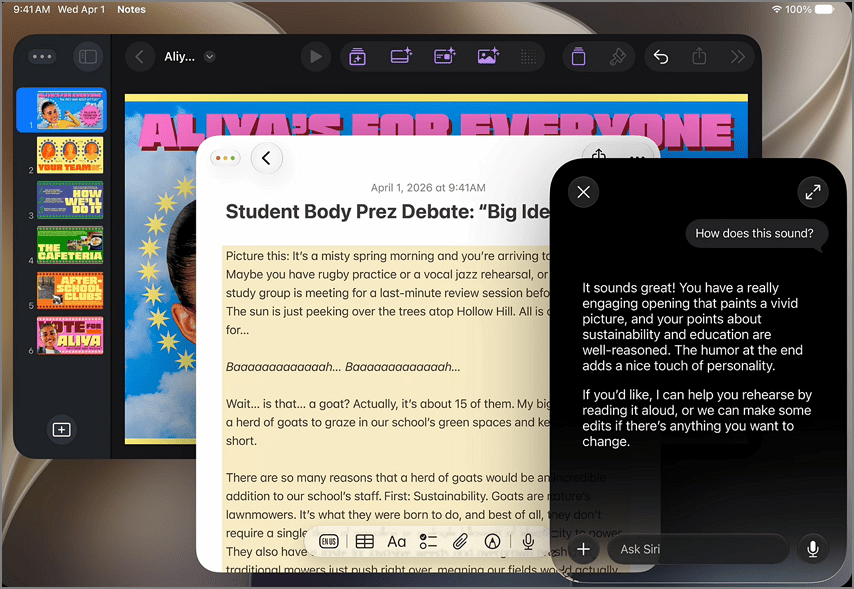
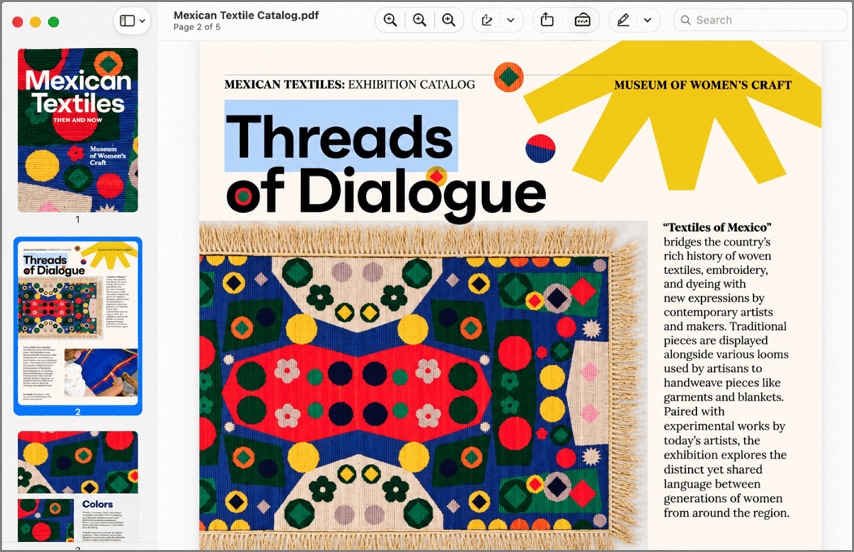
- Handle the Entire PDF Workflow: On macOS 27, markup lives in Preview, search in Spotlight, and automation in Shortcuts, while Word conversion needs another app. One app that edits, converts, signs, and protects removes those handoffs.
Part 3. Why PDFelement V13 Is a Must-Have PDF Tool for macOS 27
Measured against those three checks, PDFelement V13 addresses each area with features built for current Mac workflows. Here is how its key features support editing, AI assistance, and cross-device PDF work:
Designed for the New Mac Experience
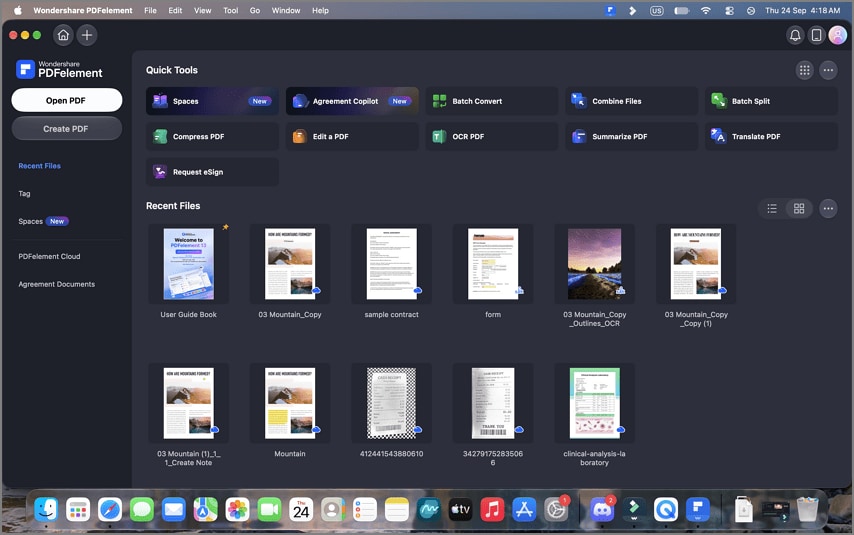
Its interface is the first thing you notice in a PDF tool you open daily, and V13 adopts Liquid Glass natively on the Mac. Menus and sidebars pick up the translucent layers of Apple's own apps, so the workspace looks current beside Golden Gate's refreshed windows.
Seamless Experience Across Apple Devices
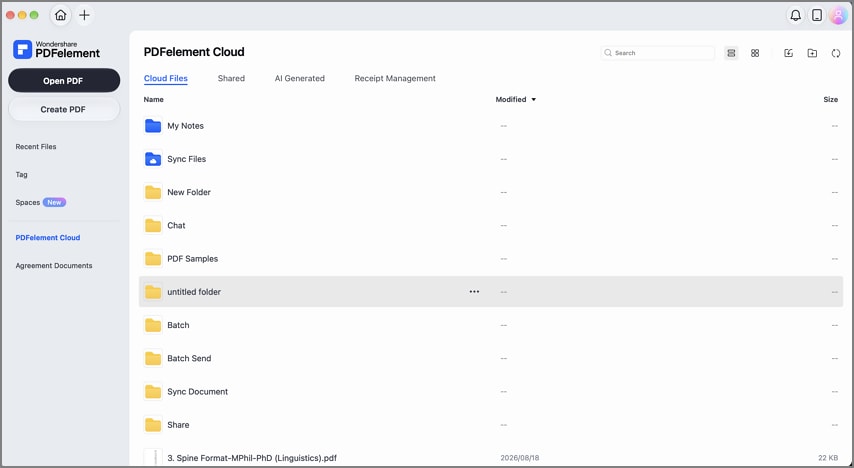
That consistency carries over to the PDFelement apps for iPhone and iPad, which Wondershare has already moved to the Liquid Glass look. Files saved to PDFelement Cloud follow you between devices, along with your signatures and stamps. On iPad, Apple Pencil Pro shortcut gestures speed up highlighting and note-taking.
Bring AI into Your PDF Workflow
V13 expands its AI tools with AI Space, a workspace built for studying, research, and document analysis. Find out more about how these features influence the perfect AI PDF workspace for users on macOS 27.
1. AI Q&A on Any PDF
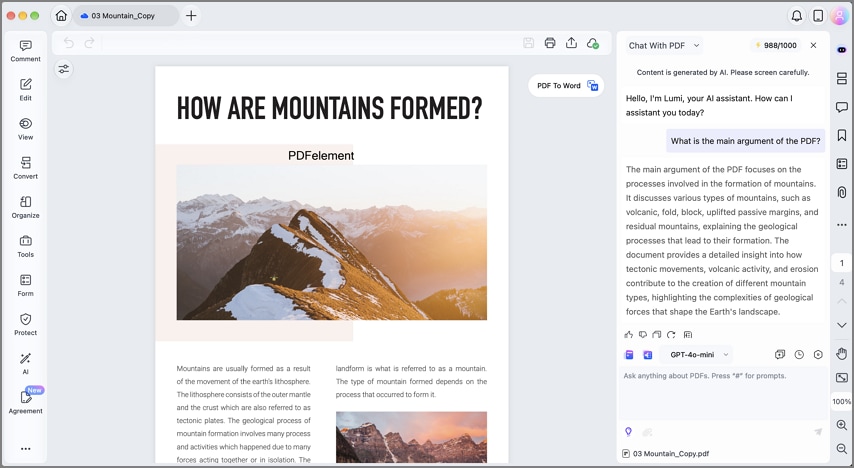
The simplest entry point is a conversation with the file itself. AI Q&A answers questions about an open PDF, or several PDFs at once. Response settings adjust language, tone, and format, and you can choose the AI model behind the chat.
2. Summarization with AI
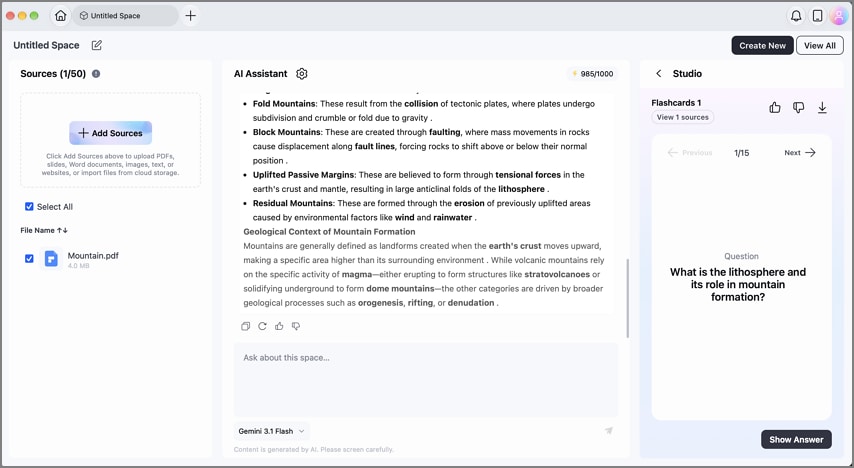
When a document is too long to question line by line, summarization gives you the overview first. V13 condenses one PDF or several into key points, abstracts, and keywords, and the result can become an outline, a mind map, a podcast, or quizzes.
3. Full-Document Translation
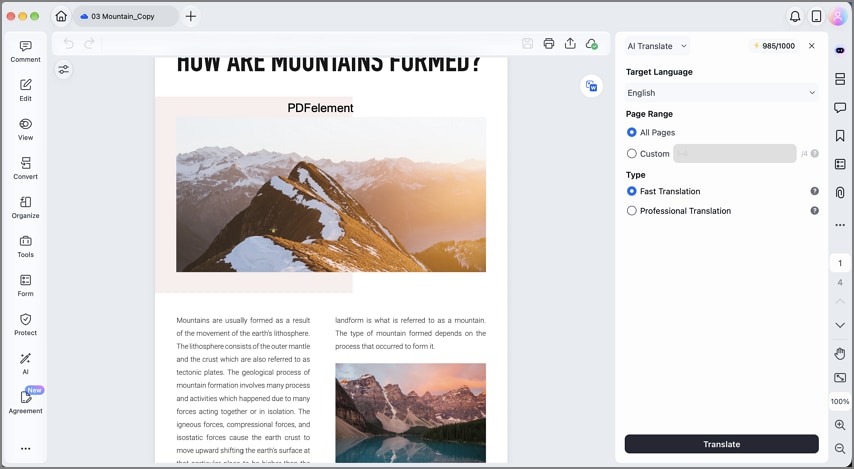
Material in another language is the next hurdle for any PDF tool, and V13 translates entire PDFs into more than 50 languages. A fast mode suits quick reading, a professional mode aims for detailed accuracy, and the translated file keeps its formatting. You can translate several PDFs in one batch, and selected passages translate in the sidebar.
4. AI Space for Mixed Document Types
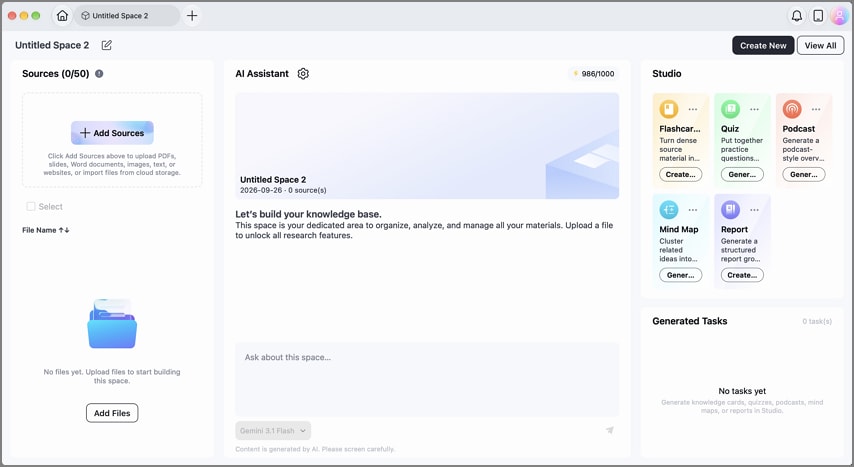
Some projects involve more than one file type, and AI Space brings them together in a single workspace. It accepts PDFs, images, YouTube links, and Word, text, or PowerPoint files, then answers questions across all of them with cited sources. The same material can become flashcards, quizzes, mind maps, reports, or a podcast.
5. Agreement Copilot for Contracts
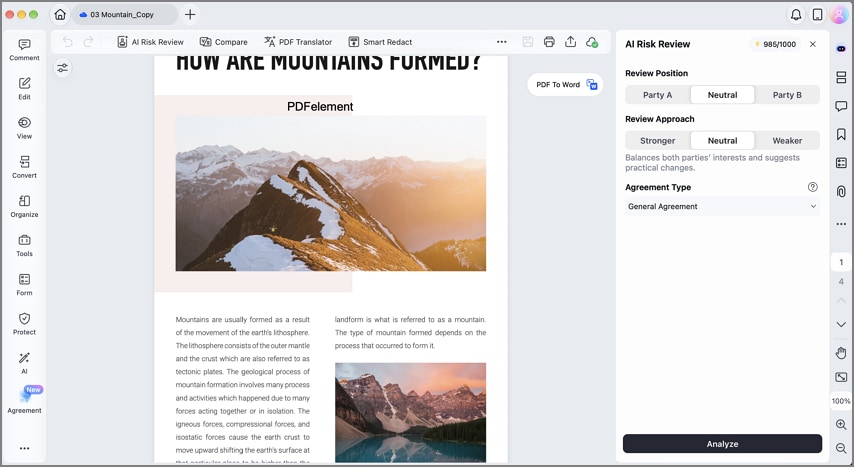
Beyond study and research material, Agreement Copilot includes a dedicated contracts module. AI Risk Review flags risky clauses, explains why each one matters, and links every finding to the original text. Agreement Compare highlights changes between two versions, bilingual translation keeps clauses aligned, and the module also handles redaction and signature requests.
Part 4. Users Who Should Install PDFelement V13 on macOS 27
Study and business work draw on different parts of V13, so the case for installing it depends on the PDFs you handle most. Students mostly read and organize, while office teams mostly sign, protect, and review.
For Students
From the first skim of a paper to the week before an exam, most study time goes into reading and revision. Each common study task maps to a specific tool in V13:
- Summarize Research: Pull out the main findings first, then ask questions about the methods or results.
- Annotate Textbooks: Highlight useful passages, underline key terms, cross out text, add shapes, or leave sticky notes beside important sections.
- Convert PDFs: Convert a PDF to Word when an assignment needs changes. Handouts can also be saved as PowerPoint, Excel, EPUB, or image files.
- Organize Course Files: Create an AI Space for each course, add readings, slides, and lecture videos, then use that material to make flashcards or practice quizzes.
For Professionals
Office work leans less on reading and more on moving documents safely between colleagues, clients, and partners. For small and midsize businesses in particular, a PDF tool has to cover these routine jobs:
- Sign PDFs: Add electronic signatures directly to a PDF or send the document to other people when their signatures are required.
- Convert Office Files: Turn Word, Excel, and PowerPoint files into PDFs for sharing, or convert PDFs back when content needs updating.
- Protect PDFs: Add passwords to limit opening, printing, or editing. Redaction can also find sensitive terms and black out matching information.
- Review Contracts: Legal and HR teams can use AI Risk Review to flag clauses in employment or supplier agreements before deciding what needs closer legal review.
For Anyone Who Works with PDFs Regularly
Beyond students and professionals, V13 also works well for people who deal with PDFs regularly. It keeps editing, conversion, signatures, and document review in one place. For someone who only reads the occasional PDF or adds a few notes, though, Preview may already be enough.
Frequently Asked Questions
Can I convert PDF to Word on macOS 27?
macOS 27 has no built-in PDF-to-Word converter, because Apple's Preview guide lists only image formats and PDF as export options. PDFelement turns PDFs into editable Word, Excel, and PowerPoint files, with OCR for scanned pages.
Can I edit scanned PDFs on macOS 27?
A scanned PDF holds page images rather than text, so any PDF tool needs OCR before editing. PDFelement's AI-powered OCR recognizes those words in 27 languages while preserving the original formatting.
Does PDFelement work on macOS 27?
Wondershare's Mac requirement starts at macOS 11, which puts macOS 27 Golden Gate within range. Version 13 also adopts Liquid Glass, so the interface matches the new system.
Does macOS 27 have a built-in PDF editor?
Preview comes closest, with markup, signatures, form filling, merging, and password protection. Rewriting existing text is beyond Preview, so a dedicated app such as PDFelement handles that job.
Final Takeaway
The latest Mac update raises expectations for everyday apps through Liquid Glass, Siri, Visual Intelligence, and smarter Shortcuts. A capable PDF tool should support Apple silicon, keep essential tasks together, and apply AI across complete documents. For students and professionals seeking a smoother PDF workflow after upgrading, PDFelement V13 is a practical option worth considering.


 G2 Rating: 4.5/5 |
 100% Secure




