

Among macOS 27 AI features, Siri AI can answer questions about any open PDF. This Apple Intelligence support makes long reports and contracts easier to understand at first. Dense PDFs often contain jargon, crowded tables, and details across many different pages.
Built-in AI helps with reading, but later PDF tasks need dedicated tools too. These tasks include corrections, comments, signatures, and other changes after reading the document. PDFelement V13 adds cited AI answers, AI Space, and editing tools for completion.


 G2 Rating: 4.5/5 |
 100% Secure
In this article
Part 1. The AI Capabilities Built Into macOS 27
macOS 27 offers Siri AI and Visual Intelligence for reading open PDF documents. Both features help users understand and interact with PDF content on their Mac. Siri AI remains in beta, starts in English, and has varying usage limits.
Siri AI: A More Context-Aware Assistant
Siri AI goes beyond voice commands by understanding content shown on screen. It can recognize information displayed inside an open PDF on your Mac. You can ask Siri about difficult terms, sections, conclusions, or other details. Apple confirms Siri can answer questions about PDFs displayed on your Mac screen. This screen awareness helps you understand complex PDF content with less effort.

Visual Intelligence
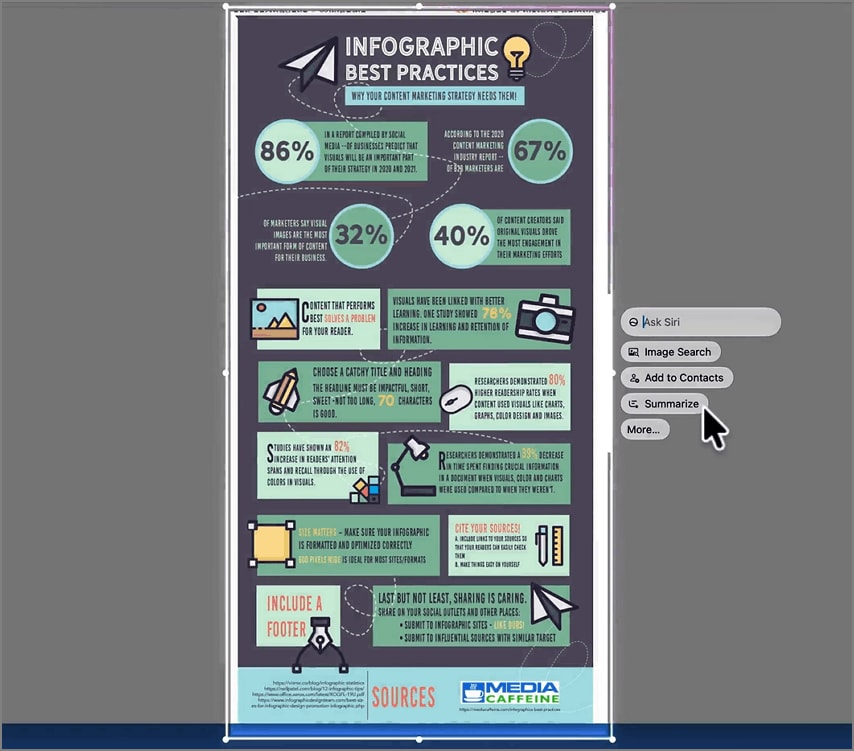
Visual Intelligence lets you focus on one window or selected screen area. Use "Command + Shift + Space" to capture a window for further questions. For selected areas, press "Command + Shift + 6" and choose the content. Then use "Ask Siri" to summarize, translate, or explain the captured content.
Part 2. What These AI Capabilities Do for PDF Reading
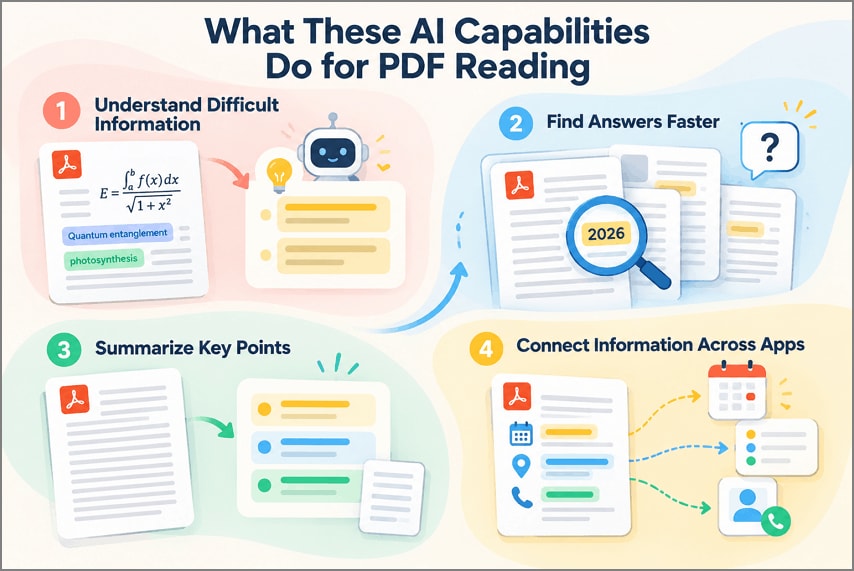
These macOS 27 AI features help speed up your first PDF read. Below are the four main ways they improve common PDF reading tasks:
- Understand Difficult Information More Quickly: Siri AI explains complex terms, formulas, and clauses in plain language. You can also ask follow-up questions for more useful details.
- Find Answers Without Reading the Entire PDF: Ask Siri AI for dates, totals, or facts within PDFs. This saves time spent searching through every page for answers.
- Summarize Information and Extract Key Points: Visual Intelligence can summarize text captured from an open PDF. Writing Tools can also turn your notes into clear points. Apple Writing Tools can summarize selected text into summaries or lists.
- Connect Information Across Apps: PDF dates, addresses, and phone numbers can support quick actions. Add Calendar events or reminders without typing the same information.
Part 3. The Next Step After Understanding a PDF
Reading and understanding a PDF is often only the first step. Documents may still require text edits, annotations, signatures, conversions, or other changes that need dedicated PDF tools. Siri AI uses screen content and broad knowledge to provide useful answers. For contracts or exams, choose answers that cite the PDF content directly.
Part 4. From Reading to Complete PDF Workflows
Released in September 2026, PDFelement V13 continues where macOS 27 AI stops. It provides document-based answers along with a complete set of editing tools. These tools support single files, larger projects, and later document editing tasks.
Understand and Analyze PDFs with AI
The AI panel works with your open PDF instead of captured screenshots. Its four AI features support questions, summaries, translations, and other reading needs.
1. AI Q&A for Specific Answers
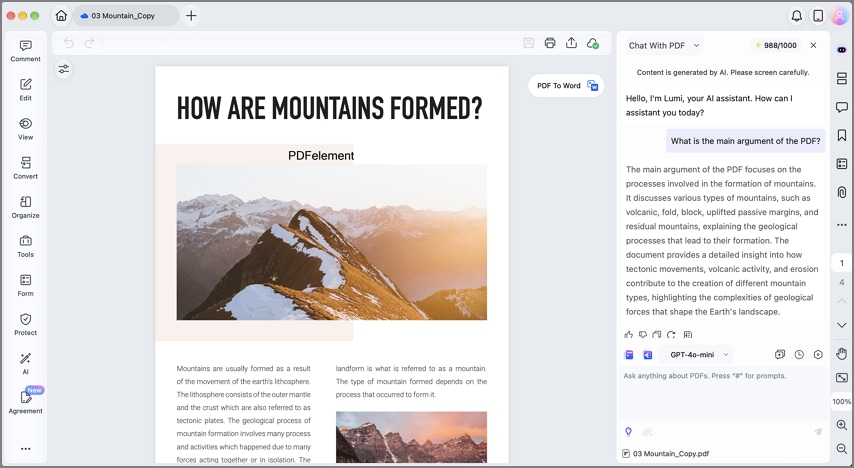
AI Q&A provides direct answers to specific questions about your open PDF. Ask about renewal dates, sample sizes, totals, terms, or other document details. Choose GPT-4o, GPT-4o mini, Gemini 2.5 Pro, or DeepSeek V4 Pro.
2. AI Chat Across Several PDFs
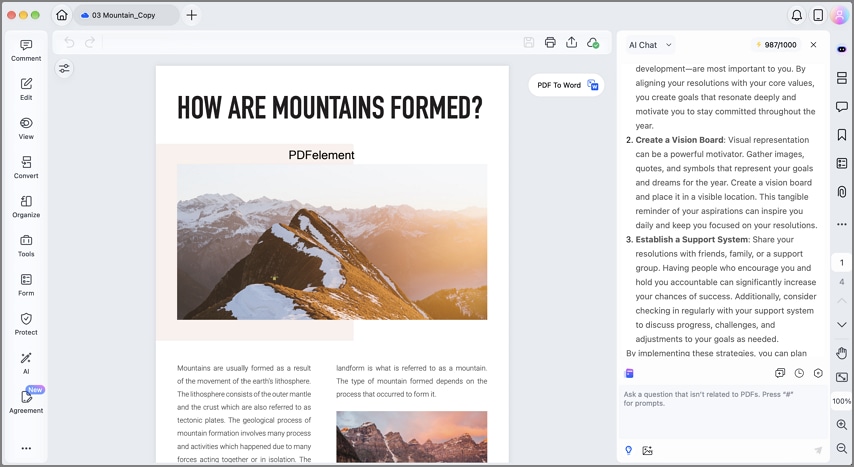
AI Chat lets you chat with multiple PDFs in one single conversation. Adjust tone, industry, format, and response language to shape each AI reply.
3. One-Click Summaries
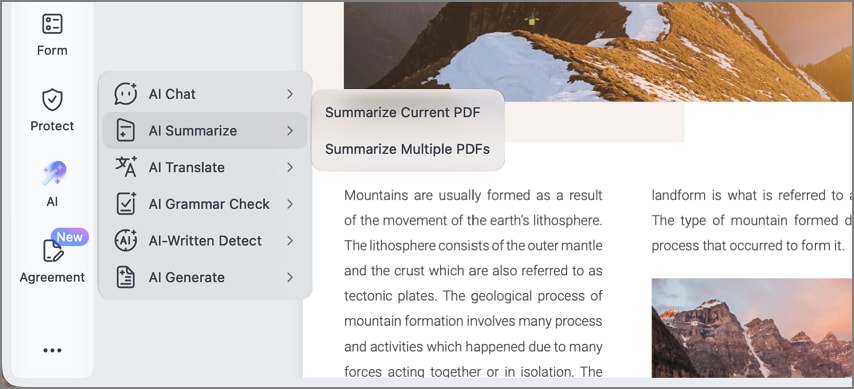
Choose the "AI Summarize" option to create a quick document overview. You can regenerate or copy the summary for your next reading task. Turn results into mind maps or AI Knowledge Cards for quick review.
4. Translation While You Read
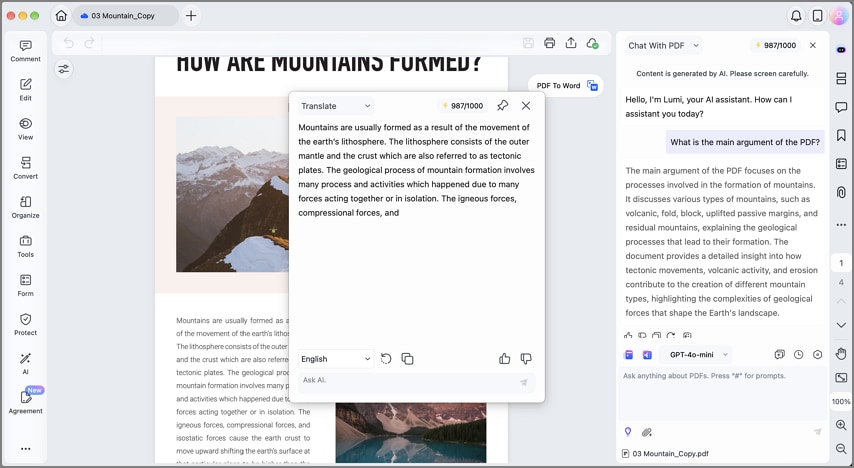
Select PDF text and choose "Translate" to view results without switching pages. Translated text appears in the AI Sidebar and supports saving as notes. The "AI Translation" feature offers Fast Translation and Professional Translation modes. Full-document translation supports more than 70 languages while keeping the original PDF layout intact.
Work with Multiple Documents in AI Space
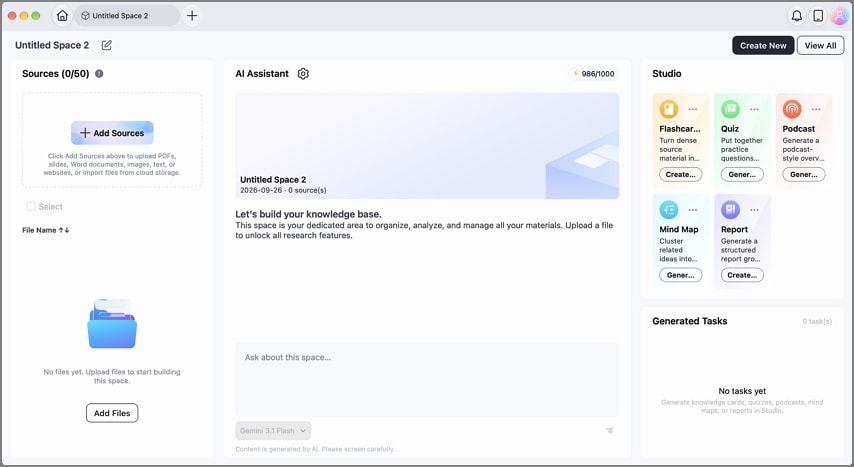
AI Space brings multiple PDFs and other supported files into one workspace. It helps you study courses, case files, or projects from several sources. Below are the four main stages for working with files in AI Space:
- Upload: Add PDFs, Office files, images, notes, and YouTube links to one Space.
- Ask: Answers come from those sources alone, each linked to the passage behind it.
- Summarize: A combined summary shows the shape of a topic before you read any file closely.
- Generate: The same material becomes flashcards and quizzes for study, or mind maps, reports, and podcasts for sharing.
Editing and Other Features
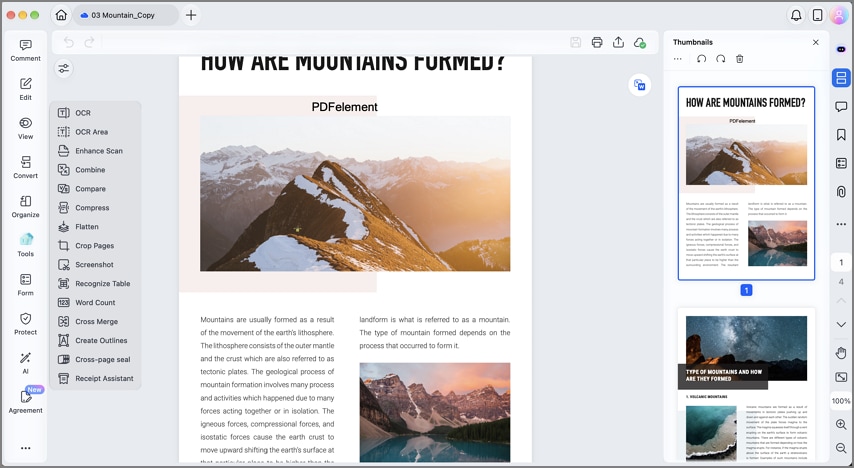
PDFelement V13 provides essential tools for changing PDFs after reading and review. Let's explore the main features for editing, organizing, converting, and signing PDFs:
- Edit: Modify text, fonts, images, and links without converting your PDF file.
- Annotate and Sign: Add highlights, comments, signatures, or request signatures from other people.
- Convert and OCR: Convert PDFs to Office formats and recognize scans in more than 40 languages.
- Compress and Protect: Reduce PDF size and add passwords for better document protection.
Final Takeaway
macOS 27 AI features help users understand PDF content during the first read. Siri AI answers screen questions, while Visual Intelligence summarizes or translates captured content. These features support PDF reading, but editing requires tools built for document changes.
PDFelement V13 provides cited answers, AI Space, editing, signing, and conversion features. It connects PDF reading and analysis with the tools needed to finish documents.
G2 Rating: 4.5/5 |100% Secure




