

macOS 27 Golden Gate brings a refined Liquid Glass design with smoother interface elements. Users can adjust transparency and tint levels to create a more comfortable viewing experience. These improvements mainly focus on readability, helping text remain clear against detailed or busy backgrounds.
For PDFs, macOS 27 Liquid Glass improves how content appears around toolbars and sidebars. This clearer interface can make reading, annotating, and navigating long PDF documents feel easier. PDFelement V13 follows this refreshed design while providing essential tools for everyday PDF work.


 G2 Rating: 4.5/5 |
 100% Secure
In this article
Part 1. Liquid Glass Explained
Liquid Glass arrived in June 2025 across macOS Tahoe 26 and other Apple platforms. This Apple design uses translucent material to reflect surroundings while keeping content clear and focused.
Liquid Glass Changes in macOS 27
The macOS 27 Liquid Glass update brings changes across 4 interface areas. These updates affect how documents and nearby controls appear across your screen.
1. Improved Readability
Apple adjusted Liquid Glass contrast and layering to separate controls from busy backgrounds. Refined window shadows also help interface elements remain clear against surrounding visual content. App icons receive darker edges and brighter highlights for better visual distinction too.
2. Customizable Appearance: From Ultra-Clear to Fully Tinted
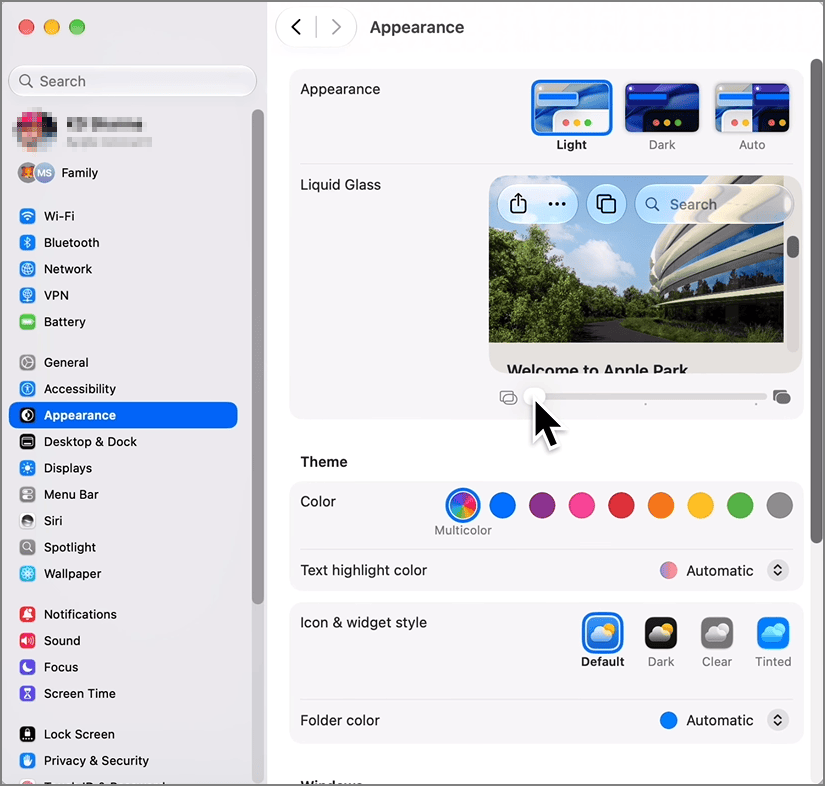
A new Liquid Glass slider appears within Appearance settings for visual customization options. Users can move between clearer and more tinted glass effects based on preference. Apple confirms the slider ranges from ultra-clear glass to a fully tinted appearance for users. One setting controls the glass appearance across windows, widgets, and the Dock together.
3. Uniform Toolbars
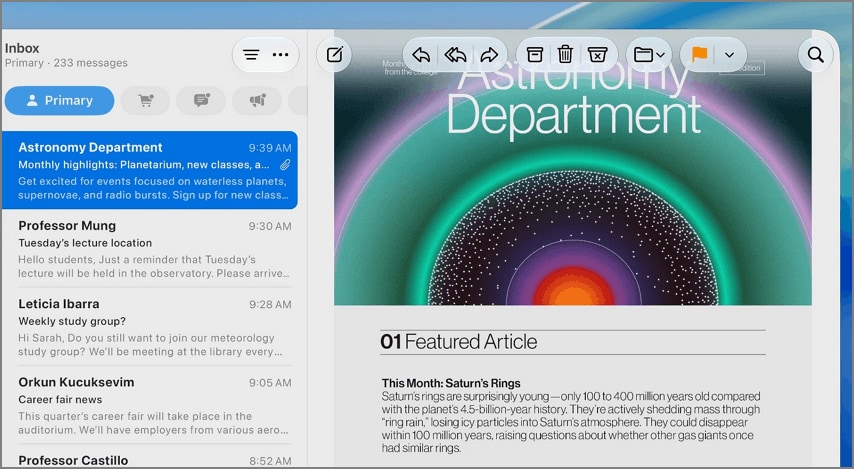
Toolbars now use a consistent design across the top area of app windows. Their frosted glass appearance helps controls remain distinct from the content underneath them. Apple says the scroll edge effect maintains contrast when content moves beneath toolbar controls during scrolling. A continuous bar appears beneath controls when content scrolls behind the toolbar area.
4. Edge-to-Edge Sidebars
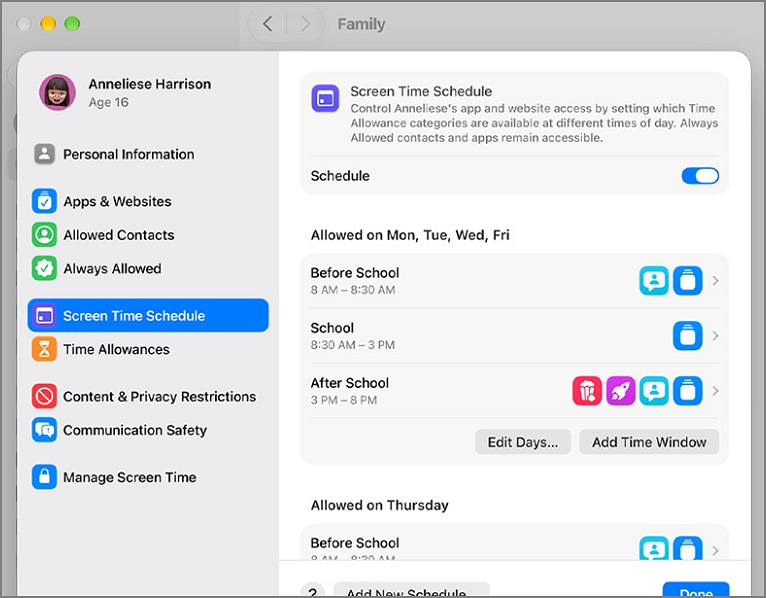
Sidebars now extend toward window edges for a cleaner and more unified layout. This design removes some visual separation between sidebars and the surrounding window frame. Combined with uniform toolbars, sidebars create a more consistent frame across app windows.
Part 2. Why Liquid Glass Matters for PDF Software
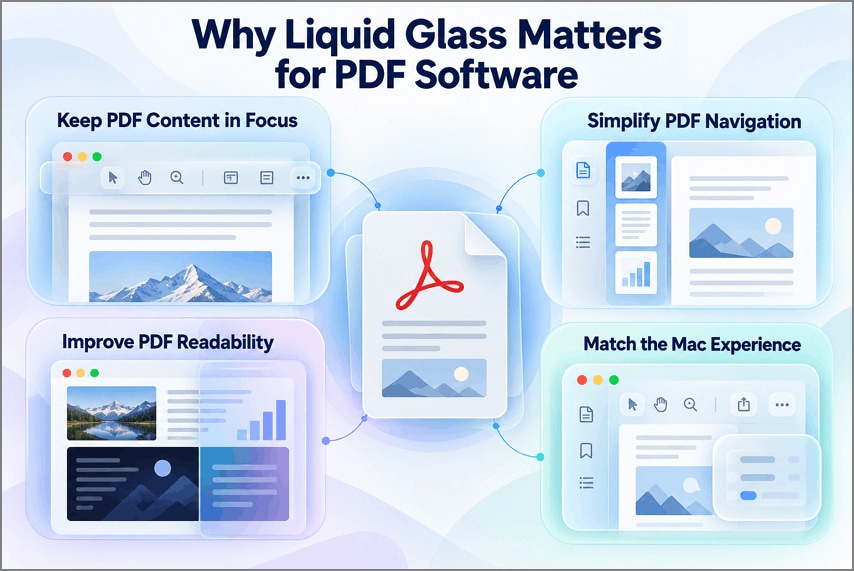
macOS 27 Liquid Glass refinements have greater importance when working with PDFs. Below are the four main ways these changes affect everyday PDF work:
- Keep PDF Content in Focus: Frosted toolbars separate controls from PDF pages and reduce visual distractions underneath.
- Make PDF Navigation More Intuitive: Edge-to-edge sidebars organize thumbnails, bookmarks, and outlines for easier document navigation.
- Improve Readability Across Different PDF Layouts: Tinted glass improves contrast across PDFs containing photos, charts, and dark backgrounds.
- Create a More Consistent Mac PDF Experience: Matching system design makes PDF apps feel consistent with the wider Mac interface.
Part 3. How PDFelement V13 Adapts to the Liquid Glass Experience
The native Liquid Glass design brings the PDF workspace closer to macOS. PDFelement V13 adopts these visual changes across its workspace and interface elements. Its toolbars match system styling while keeping PDF controls easy to identify.
Panels follow the refreshed design without pulling attention away from document content. Page views maintain clear separation between PDFs and the surrounding interface controls. This integration helps users edit, annotate, convert, and manage PDFs with less friction.
More Than a New Look: Essential PDF Features in One Workspace
A refreshed interface matters most when useful PDF tools remain within reach. V13 keeps essential PDF tasks together, reducing the need for extra apps.
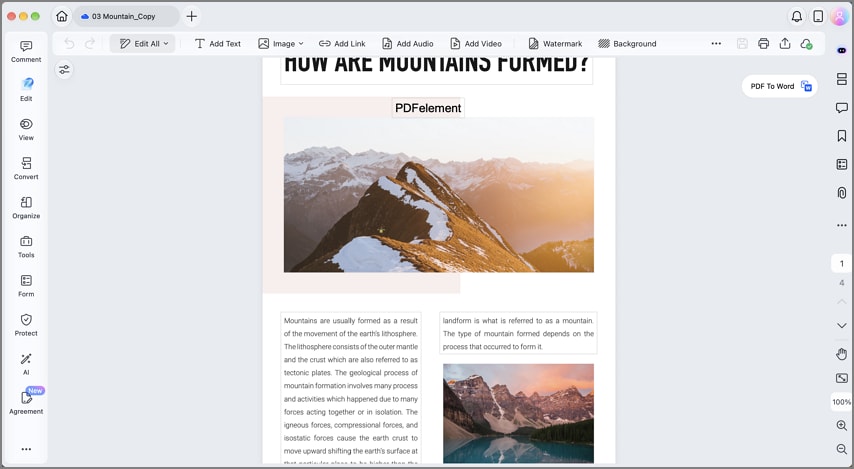
1. Edit PDFs
Edit PDF text with custom fonts and styles that match the existing document design. Replace or extract images, then add links to websites or other PDF pages.
2. Convert PDFs
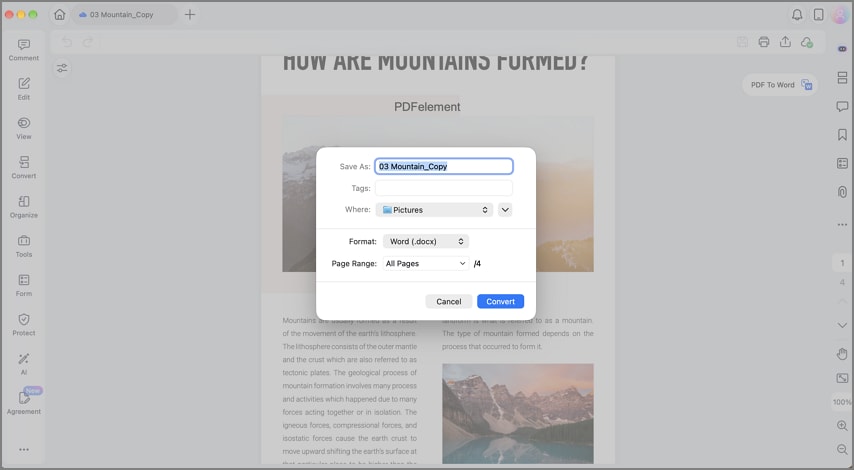
You can convert PDFs into Word, Excel, PowerPoint, EPUB, HTML, and RTF formats. Common image formats are also supported for flexible document conversion and sharing. Batch conversion handles multiple files, while other documents can become PDFs in PDFelement.
3. OCR Scanned Documents
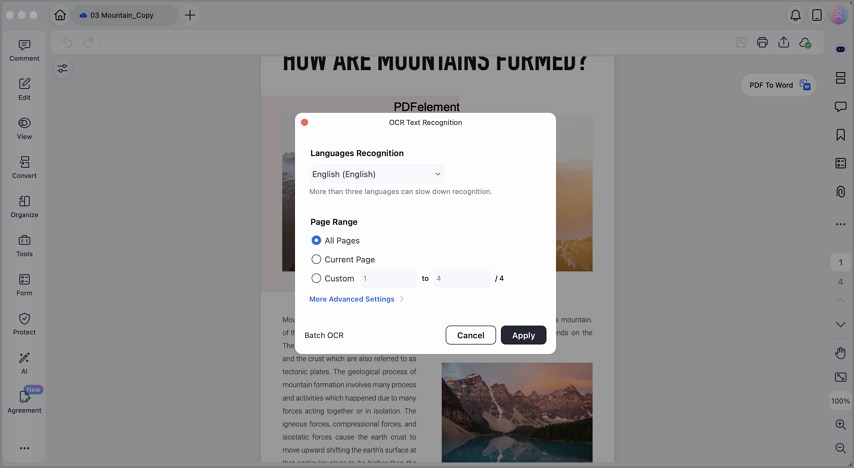
OCR recognizes text in more than 30 languages while preserving document layouts, tables, and formatting. Convert several scanned files into searchable or editable PDFs through one batch process.
4. Annotate and Sign
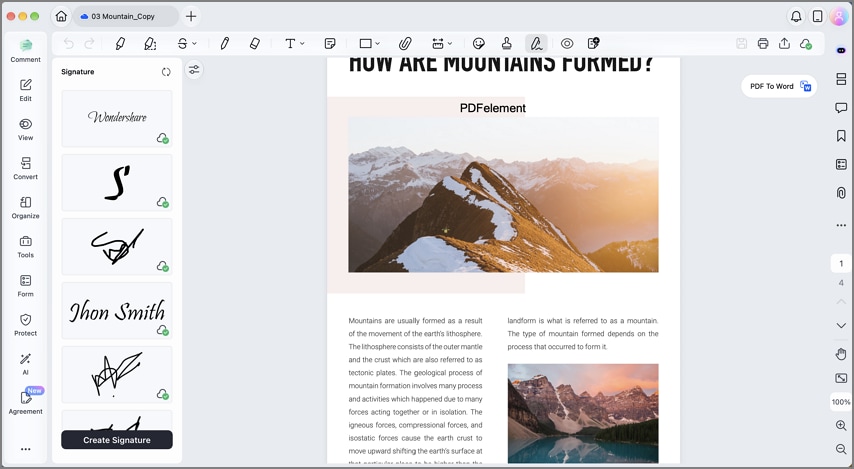
Mark PDFs with highlights, underlines, strikethroughs, shapes, comments, and sticky notes for reviews. Add electronic signatures to documents or send PDFs to collect signatures from others.
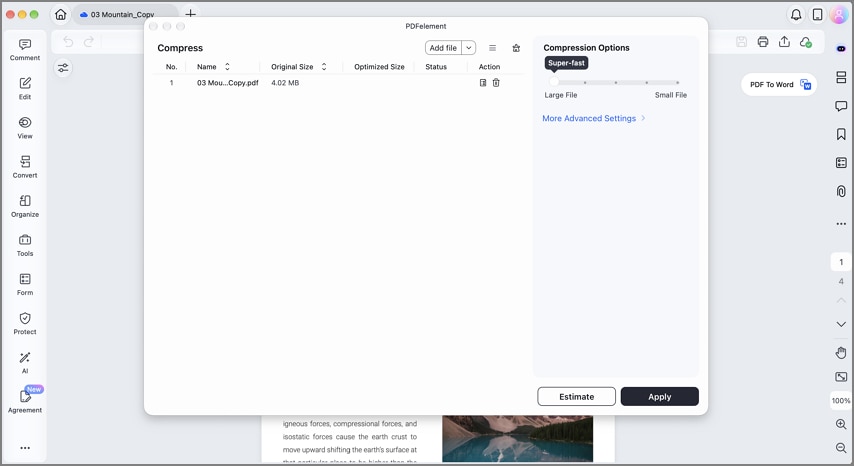
5. Compress PDFs
Reduce large PDF sizes for easier email sharing, uploading, storage, and file management. Preview the estimated size before compression or process multiple PDF files in batches.
Frequently Asked Questions
What is Liquid Glass in macOS 27?
Liquid Glass is Apple's translucent interface material that reflects and refracts surrounding screen content. macOS 27 adds frosted toolbars, edge-to-edge sidebars, and controls for adjusting glass transparency levels.
Can I turn off Liquid Glass in macOS 27?
You cannot disable Liquid Glass, but the tinted setting makes panels more opaque. Reduce Transparency also adds solid backgrounds through the Accessibility settings on your Mac.
How do I adjust the Liquid Glass effect?
Open System Settings, select Appearance, then move the Liquid Glass slider as needed. Choose a clearer or tinted effect while checking the preview against your wallpaper.
Why does Liquid Glass look too transparent in macOS 27?
Busy wallpapers can show through Liquid Glass and make interface elements appear too transparent. Choose a stronger tint or select "Increase Contrast" to make controls easier to distinguish.
Final Takeaway
macOS 27 Liquid Glass keeps Apple's translucent design while making content easier to read. Frosted toolbars and edge-to-edge sidebars help documents remain clear and focused during everyday work. Users can adjust the glass appearance or choose Reduce Transparency for solid backgrounds instead.
PDFelement V13 adopts this Mac design while keeping essential PDF tools within one workspace. Editing, conversion, OCR, signing, and compression make V13 useful for handling PDF tasks.
G2 Rating: 4.5/5 |100% Secure


![[Tool & Tip] How To Highlight PDF on Mac Permanently and Temporarily](https://images.wondershare.com/pdfelement/images2026/pdf-like-article-3.png)

