

You're reading a research paper, report, or PDF on your Mac and come across a section that's difficult to understand. Instead of copying the text into another AI tool, macOS 27 lets you use Visual Intelligence to ask Siri AI about what's on your screen.
This can be useful when you want to quickly understand a difficult paragraph, identify key information, ask about a chart, or get an explanation of something in a research paper. When your task grows from asking about one part of a document to working with entire documents or multiple files, a dedicated tool such as PDFelement can take the workflow further.


 G2 Rating: 4.5/5 |
 100% Secure
In this article
What Is Visual Intelligence on macOS 27?
Visual Intelligence is an Apple Intelligence feature that lets you interact with content displayed on your Mac screen through Siri AI. Visual Intelligence lets your Mac understand what's on your screen and helps you ask questions or take action based on that content.
You can select a window or a specific part of the screen and ask questions, search for information, or take available actions based on what is shown.

What Can Visual Intelligence Do with Documents?
Depending on the content and available actions, you can use Visual Intelligence to:
- Ask questions about what is shown on screen.
- Get explanations of unfamiliar content.
- Ask for a summary of selected text.
- Find specific information.
- Explore information related to an image or document.
- Translate or clarify content through an AI prompt.
- Take certain actions based on the information on screen, such as adding events to your calendar.
Visual Intelligence is particularly useful when you encounter something on screen that you want to understand without leaving the document you're currently viewing.
What Questions Can You Ask About a Document?
The usefulness of Visual Intelligence depends partly on how you frame your question. Instead of simply asking an open-ended question such as "What is this?", you can give Siri a more specific task.
| What you want to do | Example question |
| Get an overview | What is this document about? |
| Summarize content | Summarize this section in three bullet points. |
| Explain a paragraph | Explain this paragraph in simple terms. |
| Identify key information | What are the key findings? |
| Clarify a term | What does this term mean in this context? |
How to Use Visual Intelligence to Analyze a Document on macOS 27?
Before using Visual Intelligence, make sure your Mac supports Apple Intelligence and that Siri and the device language are set to a supported configuration. Apple currently lists Mac models with M1 or later, as well as MacBook Neo, among the compatible hardware for Siri AI on macOS 27; availability can vary by language and region.
For the latest requirements, see Apple's Mac User Guide.

Method 1: Select a Specific Part of a Document
If you only want to analyze one paragraph, chart, image, or section of a document, you can select that part of the screen.
- Open the document you want to analyze.
- Press Shift-Command-6.
- Click and drag over the part of the screen you want Visual Intelligence to examine.
- Enter your question in the Ask Siri field.
- Review the response and continue with another question if needed.
Method 2: Analyze an Entire Window
If you want Siri to consider an entire document window rather than manually drawing a selection, macOS 27 provides another shortcut.
- Open the document.
- Press Shift-Command-Space.
- Select the window you want Siri to examine.
- Enter a question in the Ask Siri field.
- Review the answer or choose an available action.
Method 3: Use Visual Intelligence from the Screenshot Toolbar
You can also access Visual Intelligence through the Mac screenshot workflow.
- Press Shift-Command-5 to open the screenshot toolbar.
- Choose the Visual Intelligence option when available.
- Select the content you want to examine.
- Ask Siri a question about the selected content.
Go Beyond Quick Questions When Analyzing PDFs
Visual Intelligence is useful when you want to quickly understand something you're currently viewing on your Mac. You can select a paragraph, chart, image, or part of a document and ask Siri about it. But document analysis often doesn't stop with a single question. This is where Wondershare PDFelement can be useful.
With PDFelement's AI Space feature, you can bring the materials you need into one workspace instead of working with each document separately. It supports PDFs as well as other materials such as Word, PowerPoint, images, and text files.
Once your materials are added, AI Space can generate an overview to help you quickly understand what you've uploaded. You can then continue the conversation and ask follow-up questions about the materials.
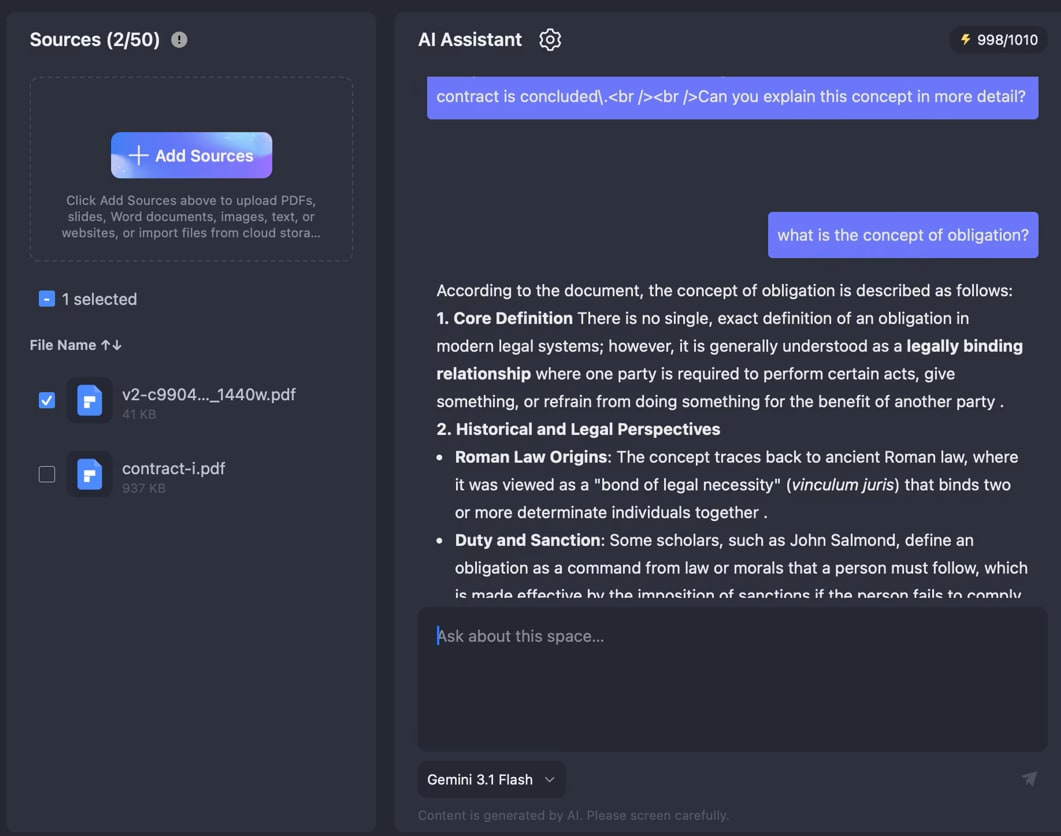
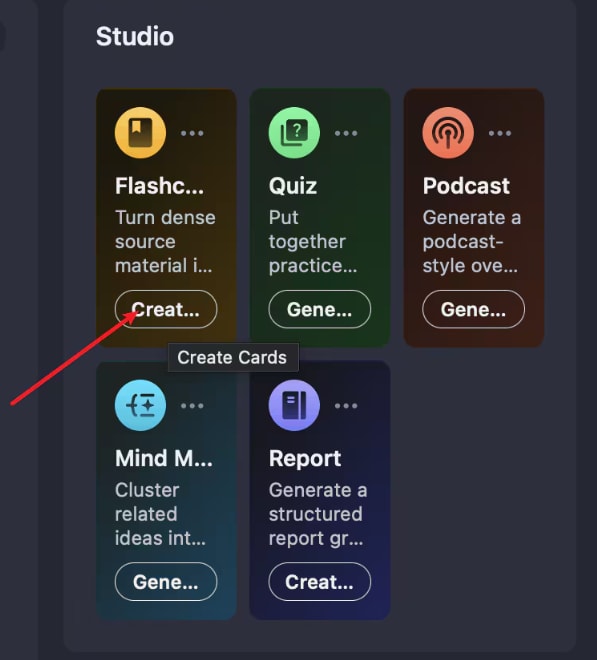
The workflow can also go beyond simply getting answers. Based on the materials you've added, AI Space can turn the content into different formats, such as quizzes, flashcards, mind maps, reports, and podcasts. This can help you review what you've learned.
Once you've finished analyzing a PDF, you may still need to work with the document itself. PDFelement also provides tools for common PDF tasks, including:
- Edit PDF: Modify text, images, and other document content.
- Annotate PDF: Add highlights, comments, text boxes, shapes, and other annotations.
- Convert PDF: Convert PDFs to formats such as Word, Excel, PowerPoint, and image files.
- Organize PDF: Merge, split, reorder, rotate, or manage PDF pages.
- OCR PDF: Make scanned PDFs searchable and editable with OCR.
Final Takeaway
macOS 27 makes it easier to interact with documents directly from your screen. With Visual Intelligence, you can select content from a document and ask Siri questions about what you're viewing, making it useful for quick, contextual document analysis.
When you need to explore deeper document analysis, PDFelement provides another choice.
G2 Rating: 4.5/5 |100% Secure




