

If your PDF will not open, looks broken, or gets rejected during upload, the right fix depends on the problem. Some files only need a quick online repair attempt. Others are better handled in a local desktop workflow.
This guide compares the best PDF repair tools for common real-world scenarios, including files that will not open, files that open but still fail validation, and damaged PDFs you would rather test locally first.

In this article
- Quick Answer
- Before You Try to Repair a PDF
- Top PDF Repair Tools
- Which Tool Is Best for Your Situation?
- How to Choose the Right PDF Repair Tool
- Why Some PDFs Can Be Repaired and Others Cannot
- Why a PDF Can Open Locally but Still Fail During Upload
- When to Stop Repairing and Get a Fresh Copy
- Frequently Asked Questions About PDF Repair
Quick Answer
If you want a free online first try, start with PDF24. If the file is sensitive or you want to test it locally first, PDFelement is the better fit because it lets you try opening the damaged PDF on desktop and save a fresh copy if it works. If the PDF opens locally but still fails during upload, PDFRepair.io is one of the clearest specialized options for that scenario.


 G2 Rating: 4.5/5 |
 100% Secure
Before You Try to Repair a PDF
A lot of corrupted PDF searches start with a file that is not permanently broken. Two minutes of basic checking can save time and help you pick the right tool faster.
- Download the file again if it came from a browser, email attachment, or message app.
- Try another PDF viewer to rule out a viewer or compatibility problem.
- Check the file size. A 0 KB PDF or a file that is much smaller than expected is often a failed save or transfer.
- Look for the original Word, Excel, scan, or sender copy. A fresh export is often safer than repeated repair attempts.
G2 Rating: 4.5/5 |100% Secure
Top 6 PDF Repair Tools
1. PDF24
Best for: free online first attempts
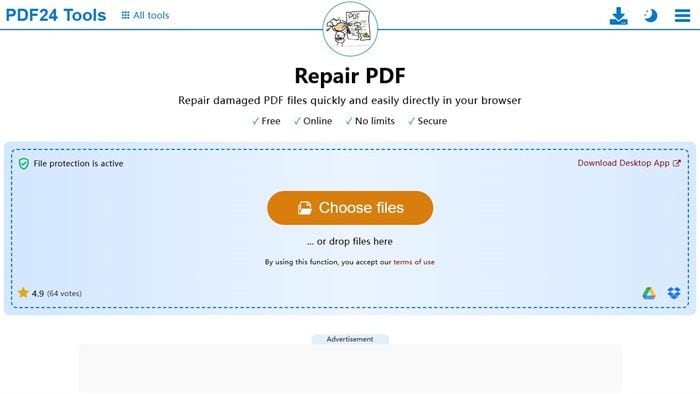
PDF24 is one of the easiest places to start if you want a browser-based repair attempt without paying first. The page is simple, the upload flow is obvious, and it works well as a quick yes-or-no test for non-sensitive files.
Why it stands out
- free online workflow
- easy for non-technical users
- no desktop install required
- states that files are transferred over SSL and deleted after one hour
What to know before you use it
- it is still an online upload workflow
- not every damaged PDF can be repaired
- confidential files are usually better handled locally
2. PDFelement
Best for: desktop-based repair attempts and follow-up PDF work
PDFelement ranks near the top here for a practical reason. It can try to open some damaged PDFs on desktop. If the file opens, you can save a fresh copy right away and continue with editing, converting, reorganizing pages, or OCR in the same workflow. Whether that works depends on how severe the damage is.
Simple way to try it in PDFelement
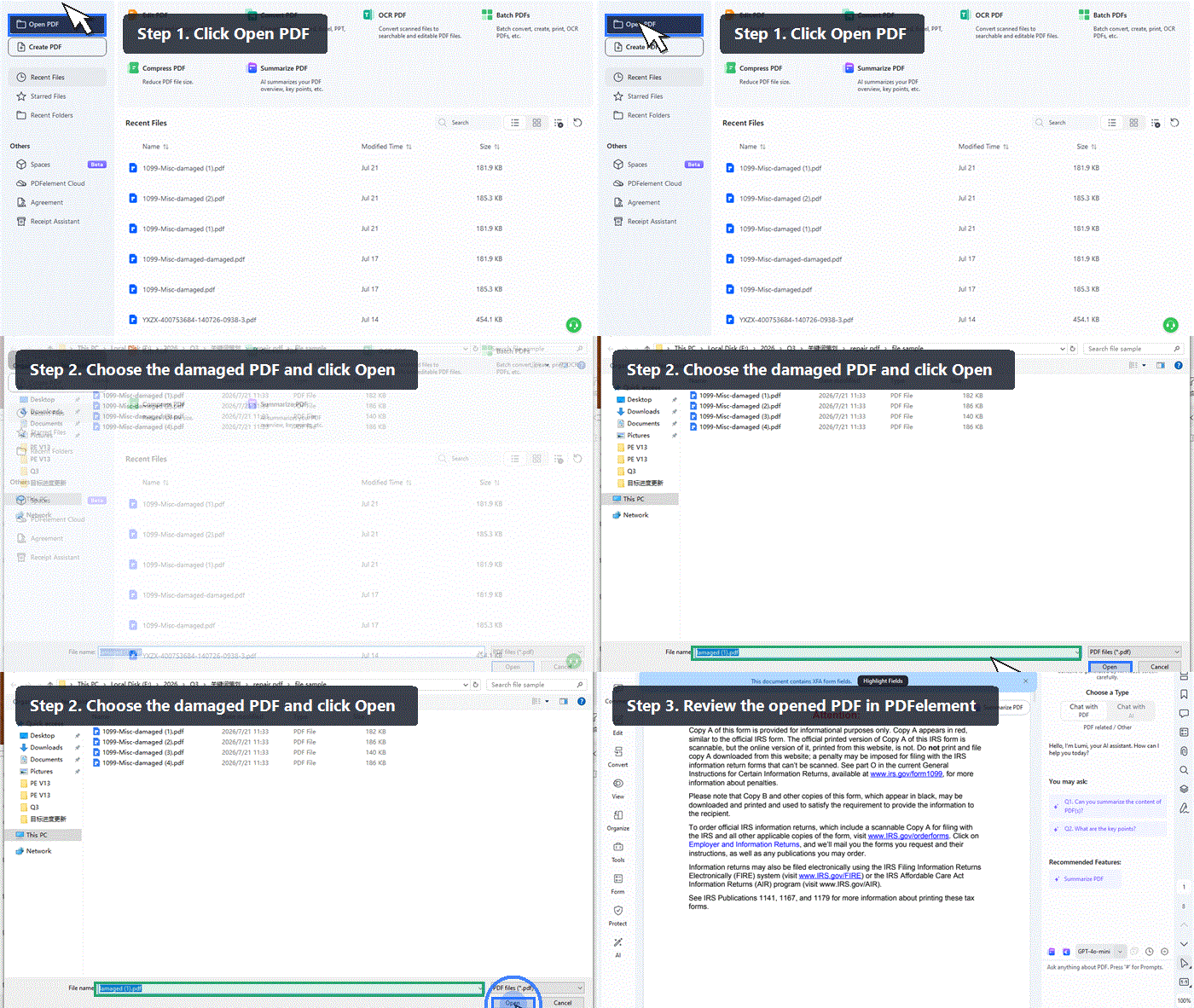
01of 04Open PDFelement and click Open PDF
Launch the desktop app and start with the damaged file you want to test.
02of 04Select the damaged PDF and let the app try to load it
If the PDF still contains enough readable structure, the file may open successfully.
03of 04Save a fresh copy right away if the file opens
That gives you a cleaner version to test again in another viewer or upload portal.
04of 04Continue with the next task you actually need
Once the file opens, you can edit text, convert the PDF, reorganize pages, or run OCR on image-based pages.
G2 Rating: 4.5/5 |100% Secure
3. iLovePDF Repair PDF
Best for: simple mainstream online repair
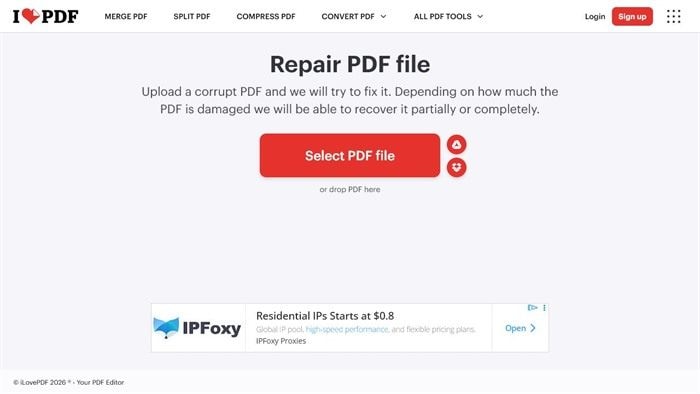
iLovePDF is one of the best-known browser-based PDF toolsets, so the repair workflow feels familiar to users who already merge, compress, or convert PDFs online. It is easy to understand and quick to test.
Why it stands out
- familiar mainstream brand
- simple browser workflow
- easy for users who already rely on online PDF tools
- clearly states that recovery may be partial or complete depending on the damage
What to know before you use it
- it is still an online upload workflow
- badly damaged files may only be partly recoverable
- if you want a local-first workflow, a desktop option may fit better
4. PDFRepair.io
Best for: upload-rejected PDFs and strict validation problems
PDFRepair.io is more specialized than a general fix my PDF tool. It is especially relevant when the PDF opens in a local viewer but still fails court filing, school submission, government upload, or another strict portal workflow.
That includes situations where the system reports an invalid PDF structure, rejects the upload outright, or flags the file even though it still looks normal on your computer.

Why it stands out
- directly targets upload-rejected PDFs
- better fit for invalid structure and portal validation scenarios
- clearer scenario positioning than many generic repair pages
- useful when the real problem is not just opening the file
What to know before you use it
- it is more specialized than a general repair tool
- it is not the best first choice for every broken PDF
- it does not guarantee approval from every court, agency, or portal
5. Sejda
Best for: lightweight online repair with clear guardrails
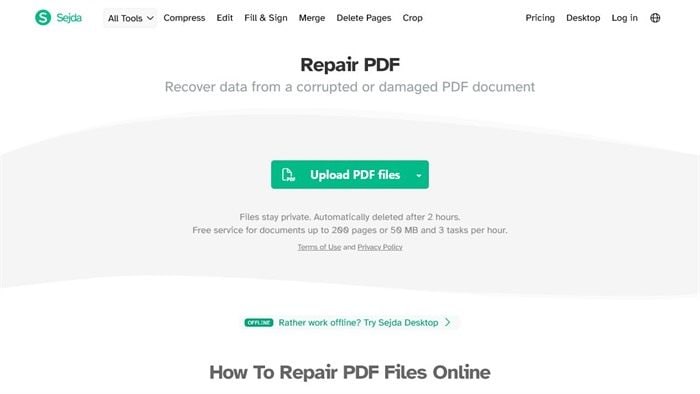
Sejda is another solid browser-based choice for users who want a straightforward online repair workflow and clearer file-handling notes. It also points users to Sejda Desktop if a local workflow fits better.
Why it stands out
- clear step-by-step online workflow
- states that files stay private and are automatically deleted after a limited time
- also offers a desktop alternative
- good fit for lightweight browser-based repair attempts
What to know before you use it
- the free service has file size, page count, and task limits
- Sejda notes that the repaired PDF may not contain all original content
- confidential files may still be better handled locally
6. PDF2Go
Best for: easy online repair from almost any device
PDF2Go is a practical online repair option when you want to upload a broken PDF and try a quick fix without installing software. It works best as a general browser-based attempt, not as a highly specialized repair path.

Why it stands out
- simple two-step browser workflow
- easy to use from desktop or mobile
- good backup option after PDF24 or iLovePDF
- convenient for common repair problems
What to know before you use it
- it is still an upload-based service
- it is less specialized for strict validation failures
- it is better for general repair attempts than deep structural recovery
Which Tool Is Best for Your Situation?
| Scenario | Best First Choice | Second Choice | Why This Order Makes Sense |
| If your PDF will not open at all | PDF24 | PDFelement | Start with a free browser-based attempt, then move to a local desktop workflow if you want to test the file without uploading it again. |
| If your PDF opens but looks broken | PDFelement | Sejda | A desktop workflow is often more practical when the file is partially readable and you may want to save a fresh copy or keep working with the document. |
| If your PDF opens locally but gets rejected during upload | PDFRepair.io | PDFelement | This is often a structure or compatibility problem, not a basic open-or-not-open issue, so a specialized validation-focused tool is the better starting point. |
| If your file is sensitive or confidential | PDFelement | Use online tools only if policy allows | A local desktop workflow is usually the safer choice for privacy-sensitive files. |
| If you want a fast free first attempt | PDF24 | iLovePDF | Both are easy browser-based options, but PDF24 is the strongest first try for a simple free repair attempt. |
This comparison is meant to shorten the decision process. In real use, the best tool depends on whether the file fails everywhere, only fails during upload, or needs a safer local workflow.
G2 Rating: 4.5/5 |100% Secure
How to Choose the Right PDF Repair Tool
Choose a desktop workflow if
- the file is sensitive or confidential
- you want to test whether the damaged PDF can still open locally
- you may want to save a fresh copy if the file opens
- repair is only one step in a larger edit, convert, OCR, or organize workflow
Choose an online tool if
- you want a fast first attempt
- the file is not highly sensitive
- you do not want to install software
- you mainly need a quick yes-or-no repair try
Choose a specialized repair tool if
- the PDF opens locally but still gets rejected during upload
- the system reports an invalid PDF structure error
- the file is for court filing, school submission, government upload, or another strict portal
G2 Rating: 4.5/5 |100% Secure
Why Some PDFs Can Be Repaired and Others Cannot
Not every corrupted PDF is the same problem. One file may be incomplete, another may still contain the content but have damaged structure, and a third may only fail in one viewer or one upload system.
- Incomplete or truncated file: interrupted downloads, broken email attachments, and transfer issues can leave the PDF only partly saved.
- Structural damage: some files still contain readable content, but their internal references or end-of-file data are damaged. Those are the cases where repair tools have the best chance to help.
- Compatibility or rendering issue: forms, layers, scanners, fonts, and older export methods can make a PDF look broken even when some apps can still read it.
If the file opens in one viewer but not another, test compatibility before assuming true corruption. If the file is 0 KB, obviously incomplete, or you still have the original source file, a fresh copy is often the better answer.
Why a PDF Can Open Locally but Still Fail During Upload
This is one of the most misunderstood repair scenarios. A PDF may open in Acrobat, Chrome, Preview, or another local viewer and still fail in a court filing system, school portal, government upload, or enterprise workflow.
- the PDF header, cross-reference data, or end-of-file structure may be damaged even though the pages still display
- the portal may reject unsupported form, layer, attachment, or compatibility elements
- damage introduced during export, flattening, merging, printing to PDF, or transfer may not stop local viewing but still fail validation
If the PDF opens locally, saving a fresh copy from a desktop app can sometimes help because it may rewrite enough of the file structure to give you a cleaner version. If the problem is clearly an upload rejection, a specialized path such as PDFRepair.io usually makes more sense than a generic repair PDF attempt.
When to Stop Repairing and Get a Fresh Copy
Sometimes the best repair decision is to stop. Repeated repair attempts are not always the safest or fastest answer.
- Stop if the file size is clearly wrong, such as 0 KB or far smaller than expected.
- Stop if the original Word, Excel, scan, CAD, or design source file still exists.
- Stop if the sender can resend the original file or export a fresh PDF.
- Stop if repeated repair attempts start changing layout, form behavior, or page content.
- Stop if the document is for court, tax, compliance, or another deadline-sensitive submission where a fresh export is safer.
If you can get the original source file or a clean resend, that is often better than stacking multiple repair attempts on the same damaged PDF.
Frequently Asked Questions About PDF Repair
Can every damaged PDF be repaired?
No. Some damaged PDFs can be partially or fully recovered, but others are too badly broken to repair. In practice, success depends on whether enough of the original file structure and content still remain.
What is the best tool to repair a PDF file?
It depends on the problem you are solving. PDF24 is a strong free online first try, PDFelement is a better fit when you want to test the file locally and keep working if it opens, and PDFRepair.io is one of the clearest options when the PDF opens locally but still fails during upload.
Is online PDF repair safe?
It depends on the service, the file, and your privacy requirements. Many online tools explain upload encryption and file deletion practices, but sensitive, regulated, or confidential documents are still usually better handled in a local desktop workflow whenever possible.
What does invalid PDF structure mean?
It usually means the file can still look readable on screen, but part of the internal PDF structure does not meet what a stricter validator expects. Common examples include broken cross-reference data, damaged end-of-file information, or other structural issues introduced during export, merging, or transfer.
Why does my PDF open on my computer but still fail during upload?
A local viewer may be forgiving enough to display the pages even when the file is still structurally damaged. Upload portals are often stricter and may reject invalid structure, compatibility issues, or problematic form and layer content.
How do I know whether the PDF is corrupted or the viewer is the problem?
Try the file in another viewer and, if possible, on another device. If it only fails in one app, the problem may be the viewer, file association, or compatibility. If it fails everywhere, the PDF itself is more likely to be damaged.
Can PDFelement repair every corrupted PDF?
No. PDFelement desktop can try to open some damaged PDFs, but success depends on how severe the damage is. The practical value is that if the file opens, you can save a fresh copy and continue with the next task in the same desktop workflow.
Can saving a new copy fix a damaged PDF?
Sometimes. If a desktop app can still open the PDF, saving a fresh copy may rewrite enough of the file structure to help with future opening or upload attempts. It will not recover content that is already missing, and it can still change forms, layers, or layout in some cases.
Is a 0 KB PDF worth repairing?
Usually no. A 0 KB PDF usually means the file content was never saved correctly or the transfer failed completely. In that case, a fresh export or resend is normally the better answer.
G2 Rating: 4.5/5 |100% Secure




