

Double-clicking a PDF and staring at a blank window for 30 seconds is a familiar frustration. The usual advice is to compress it, but that sometimes works and sometimes changes nothing. A large PDF can be slow for two separate reasons, and only one responds to compression. Identifying the cause turns guesswork into a quick fix.
The 4 approaches cover most cases, from splitting a long document to opening it in a better-suited application. The sections below explain what makes these files slow, which documents cause the most trouble, and how to choose the right method for your situation.


 G2 Rating: 4.5/5 |
 100% Secure
In this article
Part 1. Why Large PDF Files Are Difficult to Open
A large PDF can be difficult to open for two reasons, which is why the same fix doesn't work for every document. The first is file size. The document containing 100 megabytes of data naturally takes longer to read from storage or transfer over a network.
The second is rendering complexity, the processing required to turn a document's contents into visible pages. A PDF’s size is not always a good clue to how quickly it will open. The smaller file may still take its time if the pages contain layered artwork, detailed graphics, or other elements that require extra work to display.
The PDF Association explains that ISO 32000 standardizes PDF, a specification covering document elements such as graphics, fonts, annotations, and interactive features. These elements can differ considerably between files, helping explain why documents of similar sizes do not always perform the same way. Here are the 5 factors that commonly contribute to slower PDF performance:
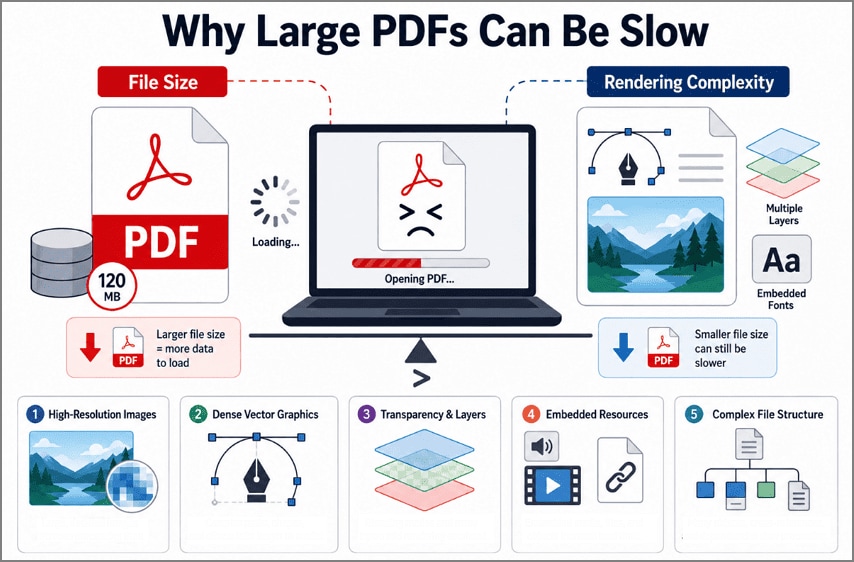
- High-Resolution Images: Scanned pages can contain substantial image data that must be decoded before appearing on screen.
- Vector Density: Engineering drawings, maps, and technical illustrations may contain thousands of paths and shapes for the viewer to render.
- Transparency and Layers: Overlapping graphical elements require additional processing to produce the finished page.
- Embedded Resources: Fonts, annotations, form fields, attachments, and other content increase what the viewer needs to process.
- File Structure: The way objects and supporting information are arranged can influence how efficiently a PDF viewer accesses its contents.
These factors explain why 2 documents with similar file sizes can behave very differently. A big size PDF may slow down because it contains a lot of data, while another file may take longer because its pages are more complex. The cause of the slowdown helps determine which fix will work best.
Part 2. When Large PDFs Become Hard to Open
Not every large PDF becomes difficult to open for the same reason. Document type often reveals where the extra load comes from. The PDF Association’s latest 2026 guidance shows that modern PDFs can contain rich media, 3D models, graphics, and other complex resources, while its guidance on scanned PDFs confirms that scanned pages may consist largely of image data. The following 4 document types are especially likely to cause trouble:
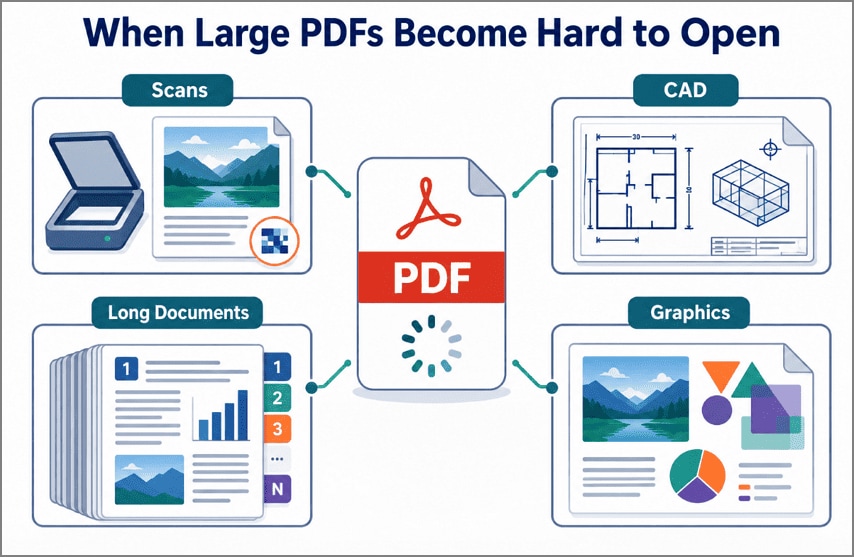
- Scanned Documents: Each scanned page adds image data to the PDF. When there are many pages or the scans use a high resolution, the file can become large quite quickly.
- Engineering Drawings and CAD Exports: File size can be misleading here. One drawing may contain thousands of tiny lines and shapes that take time to appear on screen.
- Long Reports, Manuals, and eBooks: With a long document, the problem builds page by page. Photos, diagrams, charts, and fonts all contribute to the final load.
- Graphic Heavy Marketing Documents: Think brochures, portfolios, or catalogs packed with large photos and layered designs. There is simply more on each page for the PDF reader to display.
Part 3. What to Do When a PDF Is Too Large
The 4 methods below are meant for different situations. Some make the file smaller, one changes how an online PDF loads, and another lets you work with the original as it is.
Method 1: Split a Large PDF into Smaller Files
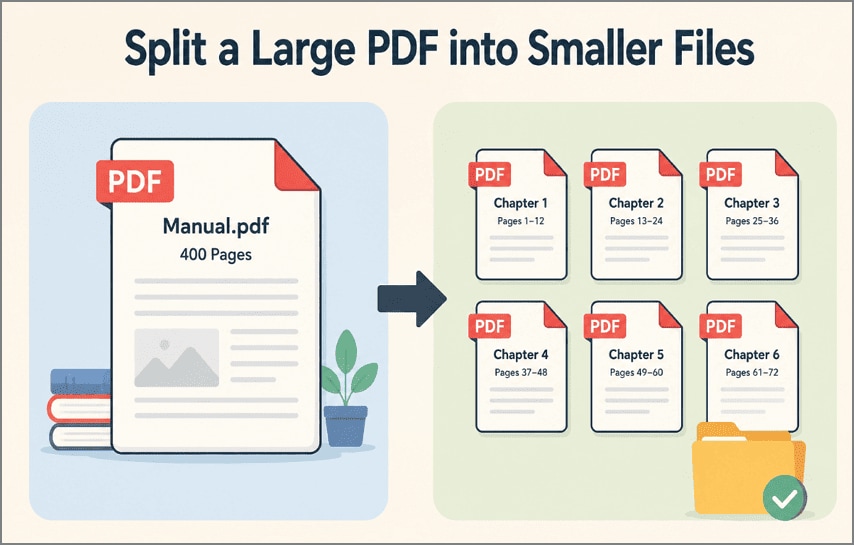
A 400-page PDF can be a pain when the only thing you need is a 112-page chapter buried somewhere inside it. Rather than opening the full manual again and again, take those 12 pages out and save them on their own. You now have a much smaller PDF for everyday use, while the original stays untouched.
It is easier to pass around too, especially when nobody else needs the remaining pages. Manuals are an obvious example, but the same trick comes in handy with textbooks, reports, scanned paperwork, and any other PDF where most pages rarely get used.
Limitations
- Complex pages may still load slowly even after splitting the PDF.
- Multiple smaller files can become harder to organize and manage.
- Splitting is inconvenient when you frequently need the complete document.
Method 2: Compress the PDF
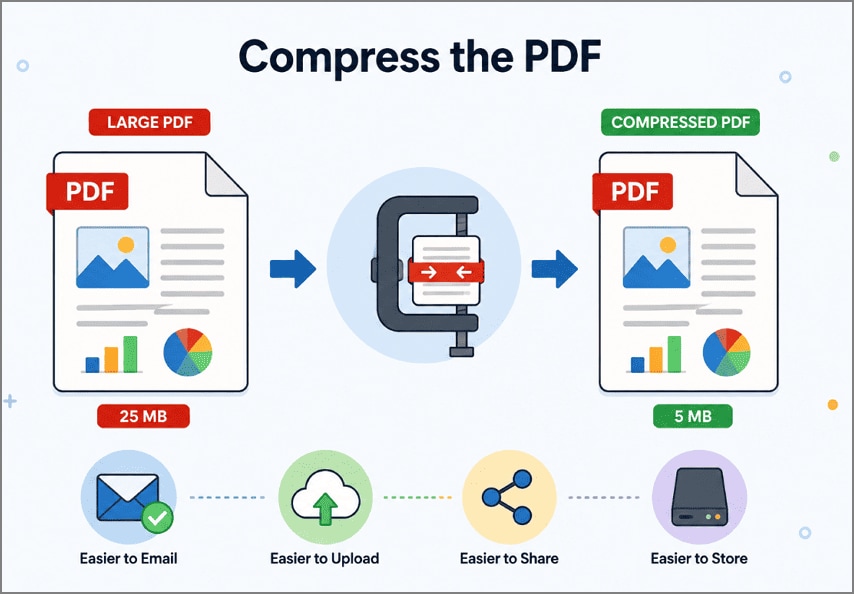
Compressing a PDF cuts down its file size while leaving the document itself usable. Images may be reduced or optimized, and data the file does not need can be removed. The text, pages, and layout stay in place, although stronger compression can make images look less sharp.
Moreover, compression helps when a PDF is too large to email, upload, share, or store comfortably. It is particularly handy for scanned paperwork, where every page may be an image. Portfolios, presentations, reports, and PDFs with plenty of photos or graphics can benefit as well.
Limitations
- Strong compression can make images, scans, and graphics look noticeably softer.
- Text inside scanned pages may become harder to read after compression.
- Compression may provide limited savings for already optimized PDF files.
Method 3: Use Fast Web View for Large PDFs Online
Fast Web View, also called a linearized PDF, restructures a large PDF so the first page can display while the remaining content downloads. Unlike compression, it changes how PDF data is arranged rather than reducing file size. This makes it particularly useful for PDFs hosted online.
Adobe Acrobat supports Fast Web View through its save settings, allowing compatible PDFs to be optimized for faster page-by-page loading from web servers. The following steps will guide you on how to try this method:
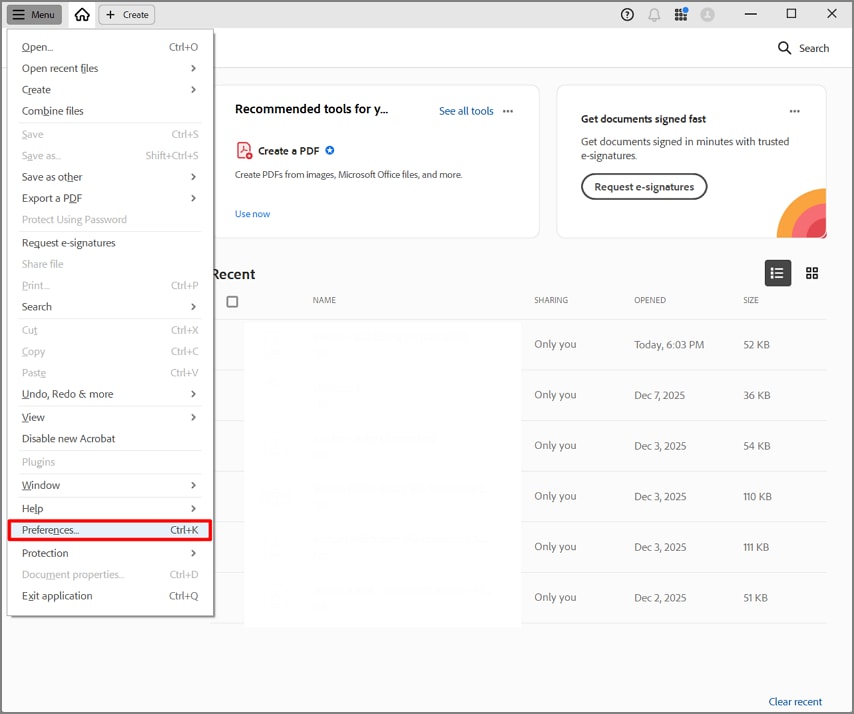
Step 1. Open Preferences
Open the “Menu” in Adobe Acrobat and select “Preferences” to access the application settings.
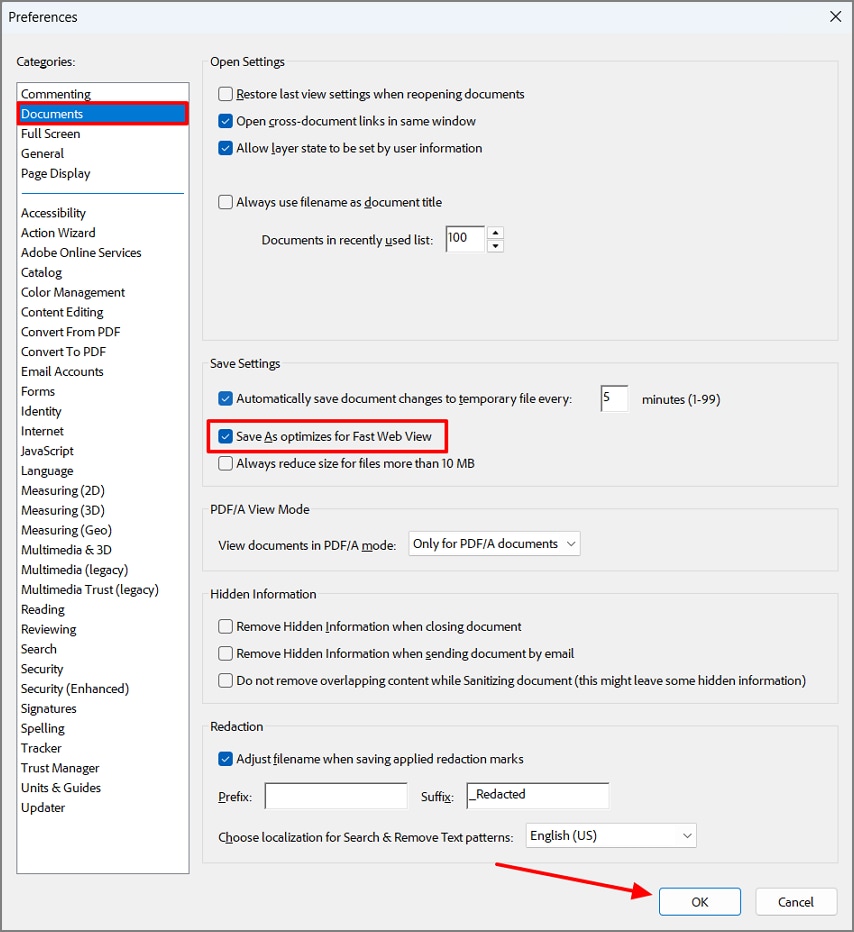
Step 2. Enable Fast Web View
Select “Documents,” then find “Save Settings” and check “Save As optimizes for Fast Web View.” Click “OK” to apply the setting. PDFs subsequently saved with Save As can then be optimized for Fast Web View.
Method 4: Open Large PDFs with a Dedicated PDF Reader
Large PDFs are not always easy to work with. You open one in the browser, wait for the pages to appear, and then hit another pause as you scroll further down. Files packed with scans, photos, or hundreds of pages can be especially troublesome. In cases like these, PDFelement gives you another way to open the document and work through its pages.
There are also times when simply opening the PDF differently is not enough. If file size is getting in the way, compression can make the document smaller for sending, uploading, or storing. If you only need one chapter or a handful of pages, splitting the PDF may be more useful. PDFelement has a few other features worth trying too:
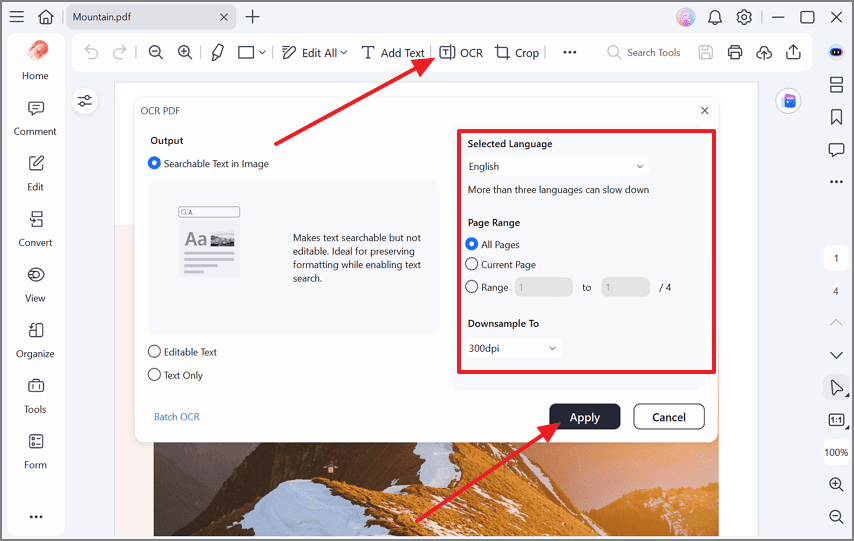
OCR for Scanned PDFs
PDFelement includes OCR for scanned and image-based PDFs, allowing you to turn static page images into searchable or editable text. You can choose different OCR modes, languages, and page ranges depending on how you want to use the document.
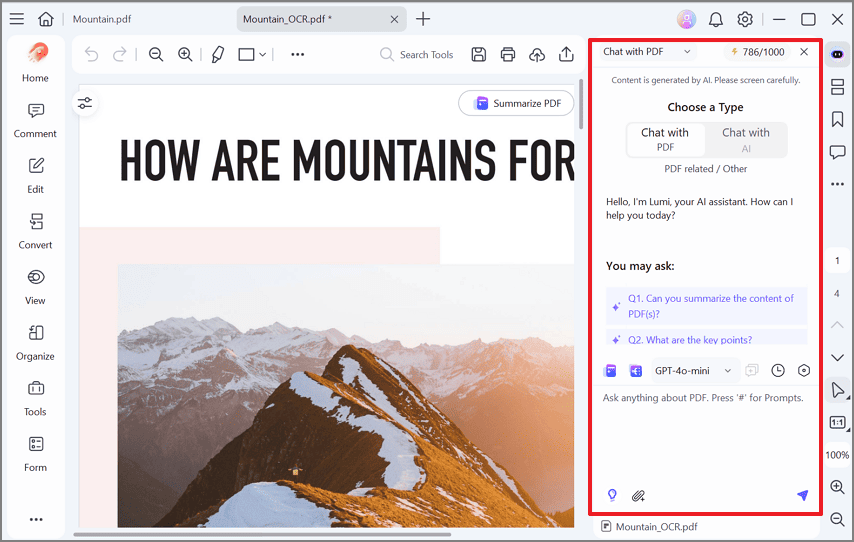
AI-Powered PDF Analysis
The “Chat with PDF” feature helps you work through lengthy documents more efficiently. It can summarize the PDF, answer questions about its content, and help identify important information without reading every page manually.
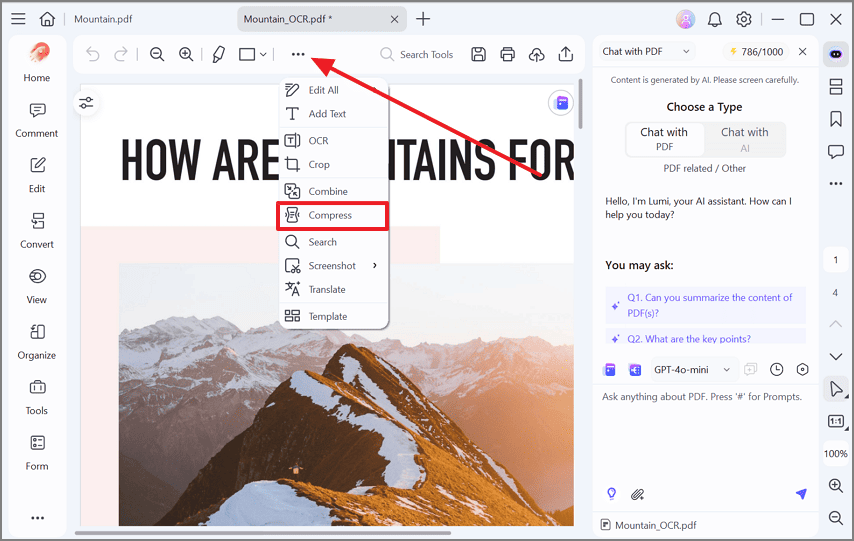
Built-In PDF Compression
PDFelement’s built-in PDF compression feature reduces overall file size by optimizing elements such as images and other embedded data while preserving the document’s content and layout. It is especially useful for image-heavy reports, scanned PDFs, presentations, and other large files that need to be emailed, uploaded, shared, or stored more efficiently.
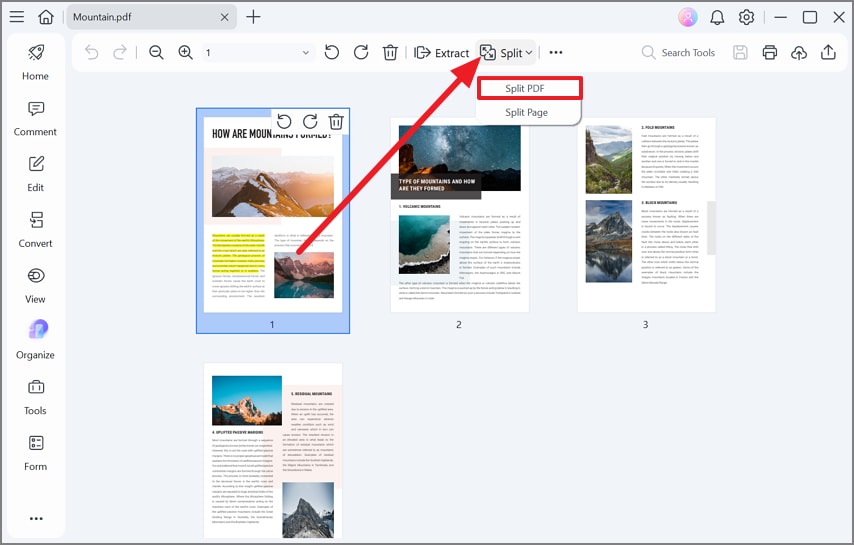
Split Large PDFs Into Smaller Files
You do not have to keep every page together in one oversized document. PDFelement’s Split PDF tool can separate a PDF by page ranges, page count, or selected sections. It is useful for pulling out individual chapters, reports, or records while leaving the original document available when you need it.
G2 Rating: 4.5/5 |100% Secure
Part 4. Choosing the Right Method
If a PDF file too big to handle is also taking ages to open, start with what is causing the slowdown rather than automatically compressing it. Some files need to be split, while others are better handled through a different viewer or web optimization. Use the table below to see which method fits each problem:
| Situation | Best Solution |
| The file is too large to email or upload | Compress the PDF |
| You need only a chapter or section | Split into smaller files |
| The document is hosted online and slow to load | Enable Fast Web View |
| The file is already on your device | Open in a dedicated reader |
| Pages are visually complex, such as CAD drawings | Use a dedicated reader, since compression will not help |
| The document is scanned with no searchable text | Run OCR in a dedicated reader |
Frequently Asked Questions
Why does my PDF open slowly?
Either the file is large in bytes, or its pages are complex to render. Scanned images, dense vector graphics, and transparency effects all slow display regardless of how many megabytes the document occupies.
Can I open a large PDF without compressing it?
Yes. Compression is not required to open a PDF. If the browser keeps hanging on the file, download it and try it in a PDF reader instead. Keep the original size if viewing is your only concern; shrink it when sending or uploading becomes the problem.
Is Fast Web View the same as compressing a PDF?
Fast Web View and compression are entirely different operations with different goals. Compression removes data to reduce size, whereas Fast Web View reorders the existing data so page one displays first, leaving the file marginally larger.
What should I do if Chrome cannot open a large PDF?
Download the file instead of previewing it in the tab, then open it in a desktop PDF application. Browser viewers have memory limits that very large documents exceed.
Will compressing a PDF reduce quality?
Images and scanned pages lose clarity at higher compression levels, while text usually remains sharp. Compressing a copy rather than the original keeps the full-quality version available.
Final Takeaway
Slow PDFs are not always caused by file size. Compression helps oversized scans, while splitting works for lengthy documents and linearization improves online viewing. A complex PDF with detailed graphics instead needs a capable reader. PDFelement keeps the job in one place: open the PDF, edit what you need, run OCR on scanned pages, shrink the file when necessary, or use AI to work through a long document.
G2 Rating: 4.5/5 |100% Secure




