

In this article
- How to download a website as a PDF
- What it means to save a website as a PDF
- Which website-to-PDF method should be used
- How to save one webpage as a PDF in a browser
- How to convert a website URL to PDF online
- How to download multiple webpages or URLs as PDF
- Can an entire website be downloaded as one PDF
- Website as PDF vs. website for offline reading
- How to save a long or dynamic webpage as PDF
- Common problems when saving websites as PDFs
- How HiPDF and PDFelement help with website-to-PDF workflows
- Best practices before downloading website content as PDF
- Most common use cases
Webpages often contain important information that users want to preserve for offline reading, sharing, printing, or later reference. Some people only need one article saved as a PDF, while others need to capture multiple URLs or even archive a larger website.
That is why there is no single workflow that fits every download website as PDF task. Browser print options work well for simple pages, while URL-to-PDF tools are more convenient for public links. Full-site export tools are better suited to documentation archives, audits, and large preservation jobs.
This guide explains the best workflows for saving websites as PDFs while avoiding common formatting, access, and file-size problems.


 G2 Rating: 4.5/5 |
 100% Secure
Part 1. How Do You Download a Website as a PDF?
Downloading a website as a PDF depends on how much content needs to be saved and what kind of website you are dealing with.
- For one webpage: Open the page in a browser and choose Print > Save as PDF.
- For public URLs: Use an online URL-to-PDF or HTML-to-PDF converter.
- For multiple pages or an entire website: Use a batch URL or full-site export tool.
- For offline browsing: Download the website as HTML or ZIP instead of PDF.
After saving webpage content as PDF, PDFelement can help organize, compress, annotate, merge, bookmark, OCR, and protect the final files.
Part 2. What it Means to Save a Website as a PDF
Before choosing a method, it helps to identify the goal. Saving a website as a PDF can mean different things, depending on whether you need one page, many URLs, or a larger archive.
| Goal | Best Use |
|---|---|
| One webpage as a PDF | Articles, receipts, reports, forms |
| Multiple URLs as PDFs | Research pages, documentation sections |
| Entire website as one PDF | Audits, archives, legal preservation |
| Offline website copy | Browsing a site offline with links intact |
Part 3. Which Website-to-PDF Method Should Be Used?
Different needs call for different workflows. If the goal is only to save the current page, a browser method is enough. If the job is broader, a stronger export workflow makes more sense.
| User Need | Best Method | Why |
|---|---|---|
| Save the current webpage quickly | Browser Save as PDF | Fast and simple |
| Convert a public URL online | HTML or URL-to-PDF tool | No software installation needed |
| Save a long webpage | Full-page capture or adjusted print settings | Better layout handling |
| Convert many URLs | Batch URL-to-PDF tool | Faster than manual export |
| Export the full website | Full-site PDF workflow | Better for archives |
| Offline browsing | Website downloader or ZIP | Preserves site structure |
| Organize PDFs afterward | PDFelement | Useful for editing and cleanup |
Part 4. How to Save One Webpage as a PDF in a Browser?
Capturing a webpage as a PDF in a browser is one of the fastest ways to preserve online content. If you only need one article, form, order page, or report, this method is usually enough.
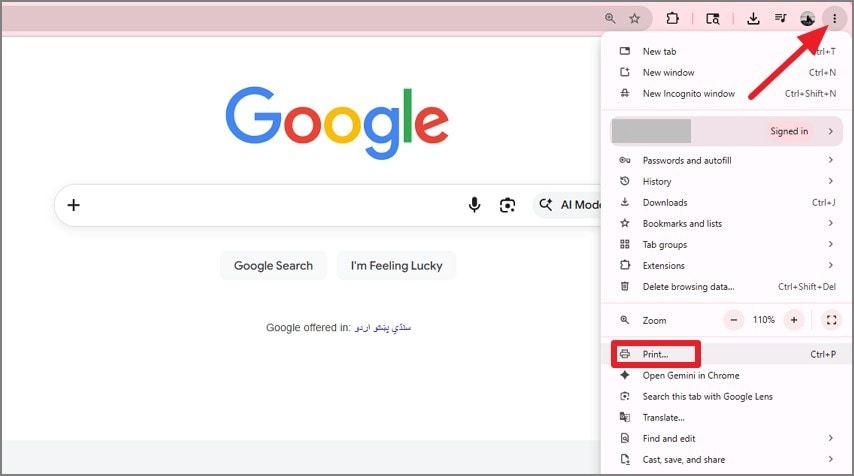
Step 1Open the webpage and choose Print
Make sure the page is fully loaded. Then click the browser’s Three Dots menu and choose Print.
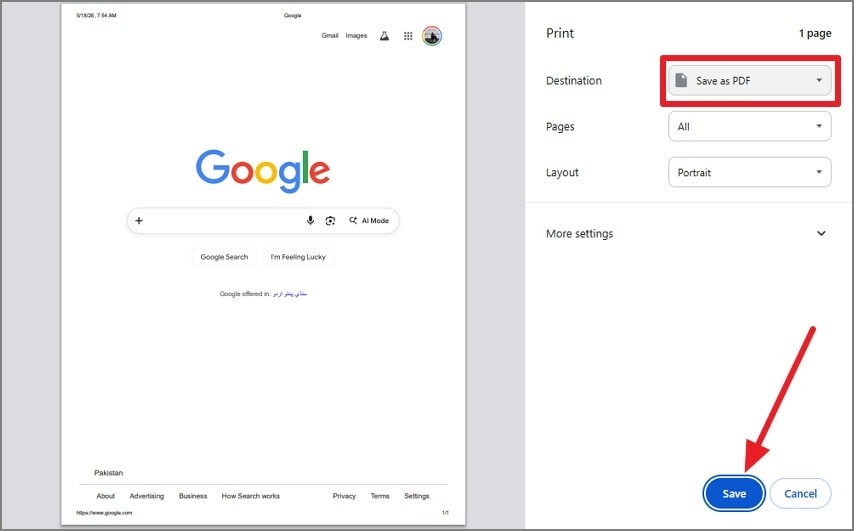
Step 2Select Save as PDF and review the settings
Choose Save as PDF from the destination menu. Check the page size, orientation, margins, scale, and any other print options before saving the page.
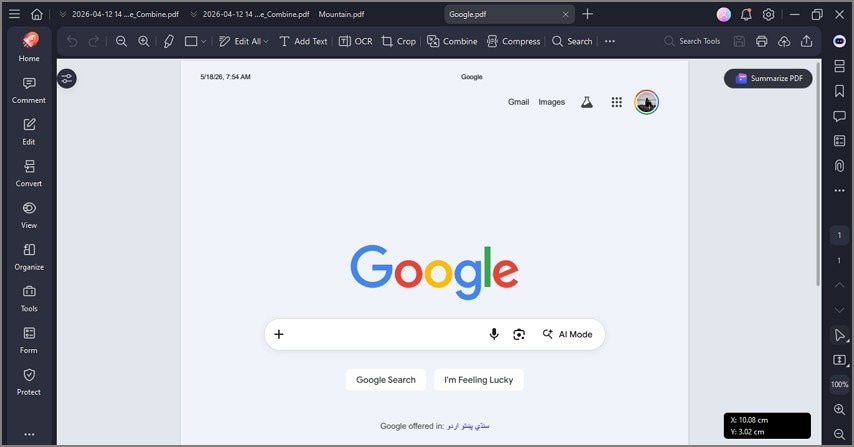
Step 3Open the result and review the output
Open the saved PDF afterward in PDFelement and check page breaks, images, and any missing sections.
Part 5. How to Convert a Website URL to PDF Online?
Converting a public website URL to PDF online is a simple way to preserve readable content in a fixed format.
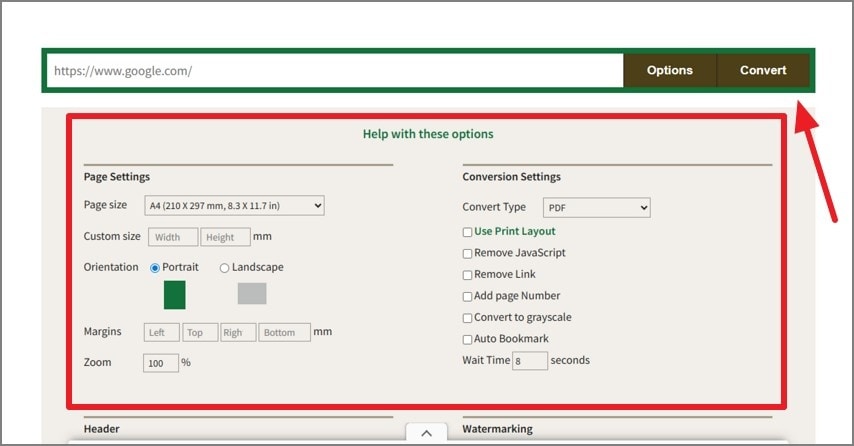
Step 1Paste the public link into a converter
Open an online URL-to-PDF tool, copy the webpage link, paste it into the converter, and press Convert. Many tools use a browser rendering engine and let users choose page size, orientation, margins, backgrounds, and headers or footers.
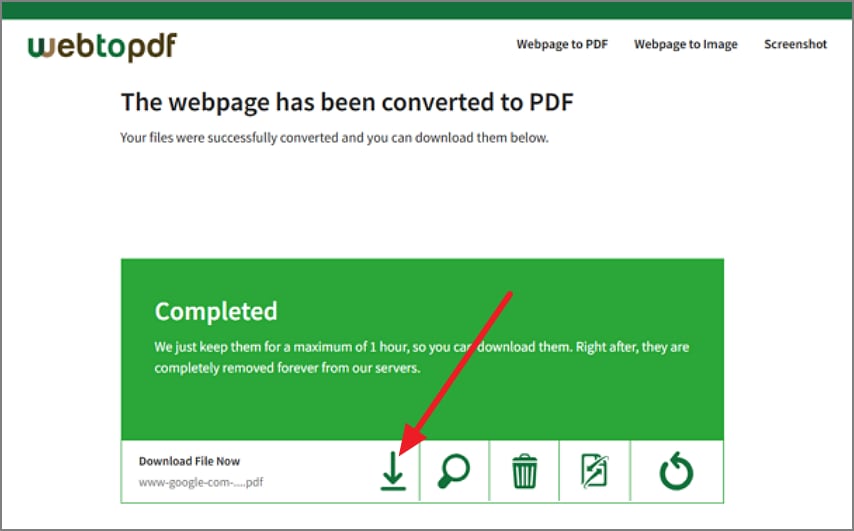
Step 2Download the converted PDF
Once the conversion finishes, press the Download button to save the PDF to your device.
Step 3Clean up the PDF if needed
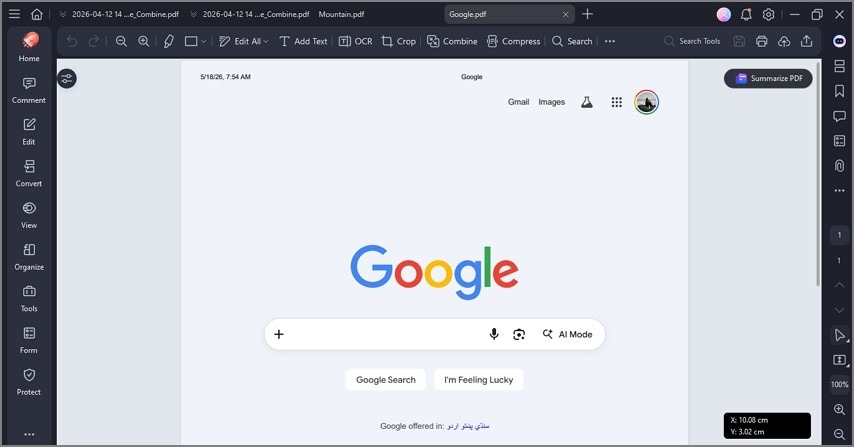
Import the downloaded file into PDFelement for further cleanup. You can compress large files, remove unnecessary pages, and add annotations after conversion.
Part 6. How to Download Multiple Webpages or URLs as PDF?
If one page is not enough, users often want to save several links together and keep the material organized. This is where batch workflows become more useful than ordinary browser printing.
- Avoid browser print for multiple pages because it slows the workflow down.
- Prefer batch URL tools when handling several webpages at once.
- Check the output settings to confirm whether the tool creates one combined PDF or separate files.
- Review file-size limits, page limits, and tool restrictions before exporting.
- Use HiPDF for quick and simple URL-to-PDF conversion tasks.
- Use PDFelement to merge, organize, compress, and refine the final PDFs.
Part 7. Can an Entire Website Be Downloaded as One PDF?
In some cases, yes. Full-site crawling tools can export an entire website as one PDF, but this is much more complex than saving a single webpage.
- Full-site PDF export tools can crawl multiple pages and compile them into one PDF, depending on the tool and website structure.
- This works best for small static sites such as documentation pages or simple informational websites.
- Large, dynamic, or login-protected sites often fail to export properly because access and rendering are restricted.
- Most tools also have crawl-depth limits and page exclusion rules that affect the final output quality.
- PDFelement can help merge, organize, compress, and bookmark the final document if multiple PDFs are generated instead of one file.
Part 8. Website as PDF vs Website for Offline Reading - Which is Better?
Saving a website as a PDF and downloading a site for offline use are two different tasks. One produces a fixed document, while the other tries to preserve site structure and navigation.
| Goal | Best Format | Common Use |
|---|---|---|
| Save webpage for printing | Articles, invoices, reports | |
| Archive documentation | Combined PDFs | Compliance or audits |
| Browse offline with links | HTML or ZIP | Offline viewing |
Offline website copies preserve navigation and assets, while PDFs work better for sharing, printing, annotation, and long-term records.
Part 9. How to Save a Long or Dynamic Webpage as PDF?
Long or dynamic webpages need a little more preparation before saving, especially if the page contains lazy-loaded sections, dashboards, tables, or script-driven content.
- Let the page fully load before saving so all content renders completely.
- Switch to landscape mode when handling wide tables or data-heavy layouts.
- Enable background graphics if the page design depends on colors or visual formatting.
- Use an online converter with JavaScript rendering or a full-page capture option when necessary.
- For logged-in or restricted pages, use browser print-to-PDF after authentication.

Part 10. What are the Common Problems When Saving Websites as PDFs?
Different issues can appear depending on how the page is built and which conversion method is used. These are some of the most common problems and their likely fixes.
The PDF is missing images or styles
Likely cause: Background graphics are disabled, external assets are blocked, print CSS changes the layout, or the converter has limited rendering support.
Fix: Enable background graphics, try a different browser, or switch to a stronger URL-to-PDF tool.
The online converter cannot access the page
Likely cause: Login requirements, paywalls, session-based content, or robots rules block access.
Fix: Use browser Save as PDF after logging in, or export only content you are permitted to access.
The PDF file becomes too large
Likely cause: Long content, high-resolution images, or a full-site export creates a very heavy file.
Fix: Compress the file, remove unnecessary pages, or split the content into smaller PDFs.
The website PDF needs editing or organization
Likely cause: Browser or converter output is only a raw capture of the page.
Fix: Use PDFelement to annotate, merge, reorder, delete pages, add bookmarks, compress, protect, or OCR the final PDF.
Part 11. How HiPDF and PDFelement Help with Website-to-PDF Workflows
HiPDF HTML to PDF is a convenient online option for converting a public webpage into a PDF. It supports URL-to-PDF, HTML file conversion, and HTML code rendering, which makes it useful for quick browser-based workflows.
- Combine separately saved webpages or multiple URL exports into a single organized document.
- Clean up unwanted pages such as blank sections, repeated headers, or irrelevant content.
- Reduce file size for long pages, image-heavy content, or full-site exports.
- Add notes, highlights, and comments for academic, legal, marketing, or audit use.
- Convert non-searchable webpage PDFs into editable and searchable text when needed.
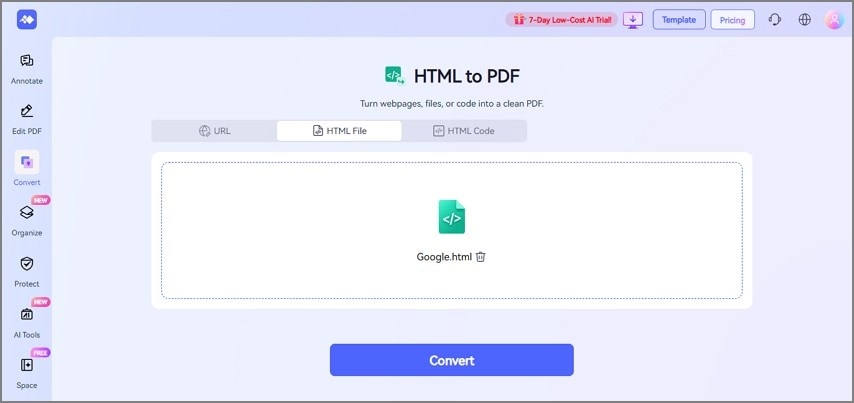
If a public webpage, HTML file, or HTML code needs to be converted into a PDF online, HiPDF can handle the initial conversion step. After that, Wondershare PDFelement can be used to merge, edit, compress, organize, bookmark, and prepare the final PDF for long-term storage and professional use.
G2 Rating: 4.5/5 |100% Secure
Part 12. What are The Best Practices Before Downloading Website Content as PDF?
A few preparation steps can improve the final result before you download website content as PDF.
- Confirm whether you need one webpage, multiple URLs, or a complete website archive before starting.
- Check whether the webpage is public, restricted, or protected behind account login.
- Remove cookie banners, popups, overlays, and chat widgets so they do not clutter the final PDF.
- Choose A4 or Letter page size based on regional standards and the intended viewing audience.
- Use landscape orientation for dashboards, spreadsheets, charts, and wide layouts.
Part 13. What Are the Most Common Use Cases?
Downloading a website as a PDF is useful across many professional and academic workflows. PDFs are easier to store, print, share, and archive than live webpages in many cases.
| Use Case | Why PDF Works Well |
|---|---|
| Saving online articles or research pages | Keeps readable copies available offline for reference |
| Archiving receipts or order pages | Preserves transaction records in a fixed and printable document format |
| Saving legal or compliance pages | Maintains static copies of important terms |
| Collecting competitor pages for marketing review | Helps organize competitor research for analysis |
Frequently Asked Questions
-
How do I download a website as a PDF?
Most browsers include a Print or Save as PDF feature for webpage downloads. Online URL-to-PDF tools can also convert public webpages into PDF documents. -
Can I save an entire website as one PDF?
Some full-site export tools can crawl multiple pages and combine them into PDF format. Results usually work best on smaller static websites rather than complex dynamic platforms. -
How do I save a webpage as a PDF in Chrome?
Chrome includes a built-in Print option that supports Save as PDF output. The webpage can be exported directly through the browser print settings menu. -
Can I save a webpage as a PDF on a Mac?
macOS supports webpage-to-PDF saving through browser print functions and the system PDF menu. Safari and other browsers can create PDFs without requiring additional software. -
Why does my webpage PDF look different from the website?
Websites often apply print-specific layouts, remove backgrounds, or reorganize content during PDF generation. Missing assets, scaling issues, or blocked scripts may also change the appearance. -
Can I save a page that requires a login?
Login-protected pages usually cannot be accessed by public online converters. Browser print-to-PDF methods work better after successful authentication inside the active session. -
How do I save a long scrolling webpage as a PDF?
Let the full page load and scroll through it once so lazy-loaded content appears properly. Full-page capture or advanced rendering tools may improve results for very long pages. -
How do I convert multiple URLs into one PDF?
Use a batch URL-to-PDF workflow or export pages separately and then merge them afterward in a PDF editor such as PDFelement. -
What is the difference between downloading a website and saving it as a PDF?
Downloading a website preserves HTML files, assets, and navigation for offline browsing. PDF conversion creates a fixed document designed for printing, sharing, annotation, and archiving. -
How do I compress or edit a website PDF after downloading it?
PDFelement can reduce file size, reorganize pages, add comments, create bookmarks, and apply OCR when needed after export. -
Can PDFelement help after I save a website as a PDF?
Yes. PDFelement helps manage and refine website PDFs after they are downloaded or converted, including merging, compressing, annotating, organizing, and more.
Conclusion
Saving a website as a PDF can mean very different things depending on whether you need one page, several public URLs, or a larger archive. Browser Save as PDF works well for quick single-page exports, while online tools help with public link conversion and specialized workflows handle broader site capture.
Before using the final file, review formatting, images, links, page breaks, and file size carefully. For better post-export management, Wondershare PDFelement helps with merging, compressing, annotating, bookmarking, OCR, and general cleanup.


![All the Methods to Convert a PDF to Black and White [2026]](https://images.wondershare.com/pdfelement/images2026/pdf-like-article-3.png)

