

In this article
- Can one convert QFX to PDF
- What is a QFX file
- QFX vs PDF: what actually happens during conversion
- Which QFX to PDF method should be used
- How to import QFX into Quicken and print or export to PDF
- How to use a QFX to PDF converter
- How to convert QFX to CSV or Excel first, then save as PDF
- Things to check before converting QFX to PDF
- How PDFelement helps after you create a QFX PDF report
- What issues occur when converting QFX to PDF
- Best practices to consider for QFX PDF reports
Many users expect a QFX file to open like a normal bank statement after downloading it from a bank. Instead, the file often looks unreadable because QFX is a financial data format designed for software such as Quicken, not for direct viewing.
This creates confusion when a readable transaction report or printable statement-style PDF is needed. Converting QFX to PDF solves that problem by turning machine-readable transaction data into a clean, shareable report format.
This guide explains safe and practical ways to convert QFX files into PDF reports, including Quicken workflows, trusted converters, and CSV or Excel-based cleanup before export.
Part 1. Can One Convert QFX to PDF?
A QFX file is not a readable document. It is a Quicken Financial Exchange file that contains raw banking transaction data. To turn it into a PDF, the data must first be imported or parsed into a financial program or converter, then exported as a readable report.
- Import the QFX file into Quicken and print or export a transaction report as PDF.
- Use a trusted QFX-to-PDF converter that generates a statement-style report.
- Convert QFX to CSV or Excel first, clean or filter the transactions, and then export to PDF.
After the report is created, PDFelement can help merge reports, compress files, annotate transactions, and archive financial documents securely.
Part 2. What Is a QFX File?
QFX stands for Quicken Financial Exchange. It is commonly downloaded from banks or financial institutions and used to import transaction data into software like Quicken through Web Connect.
A typical QFX file may include:
- Transaction dates
- Merchant or description details
- Amounts for debits and credits
- Account balance information
- Bank or financial institution identifiers
- Account metadata
A Quicken Web Connect file is not meant to be read like a statement. It is structured data designed for software processing and should be treated as sensitive financial information.
Part 3. QFX vs PDF: What Actually Happens During Conversion?
QFX and PDF serve completely different purposes, so proper conversion requires more than simply changing the file extension.
QFX as financial data
- A QFX file stores machine-readable banking transactions used by financial software such as Quicken.
- It is structured for importing account activity rather than direct reading or printing.
PDF as readable output
- A PDF is designed for human viewing, sharing, printing, and archiving.
- It presents transaction information in a formatted statement or report layout.
Misconception
A common mistake is assuming that renaming .qfx to .pdf creates a real conversion. It does not. The data remains unreadable because no parsing or formatting happens.
Real conversion process
Proper QFX-to-PDF conversion means extracting the transaction data and organizing it into tables, statements, or financial reports that are readable in PDF format.

Part 4. Which QFX to PDF Method Should Be Used?
Although both files may contain financial information, QFX and PDF work in very different ways. Choosing the right workflow depends on whether speed, control, privacy, or long-term archiving matters most.
| User Need | Best Method | Why It Works |
|---|---|---|
| You already use Quicken | Import QFX into Quicken → Export PDF report | Uses the official financial workflow |
| You want a quick report | Trusted QFX to PDF converter | Fast conversion into a readable statement |
| You need to filter the data first | Convert QFX → CSV or Excel → PDF | Allows cleanup and customization |
| You handle sensitive banking data | Quicken or local software | Reduces privacy risk |
| You need long-term records | Create PDF → organize in PDFelement | Helps with archiving and protection |
| You received an unknown QFX file | Verify the source first | Prevents security risks |


 G2 Rating: 4.5/5 |
 100% Secure
Part 5. How to Import QFX into Quicken and Print or Export to PDF?
Quicken provides a structured workflow for turning transaction data into a clean, printable PDF report.
Step 1Import the QFX file into Quicken
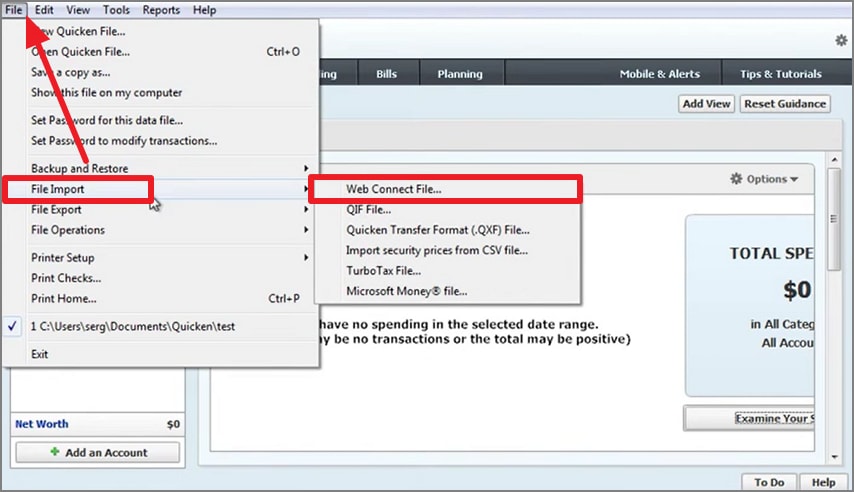
Open Quicken, go to File, choose File Import, and then select the Web Connect option to load the QFX file.
Step 2Preview the imported transactions
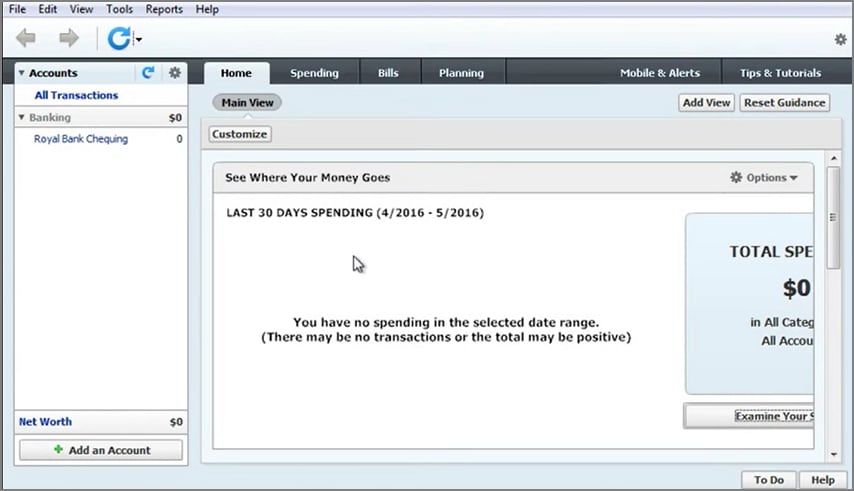
Once the file is imported, review the transactions and report details in the interface.
Step 3Print, export, or save the report as PDF
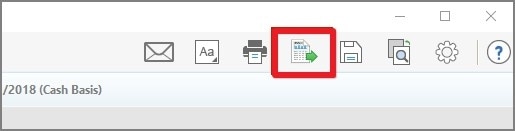
Use the Print, Export, or Save as PDF option depending on the features available. Review the generated PDF carefully to confirm the dates, amounts, and descriptions are accurate.
Step 4Use PDFelement for final management
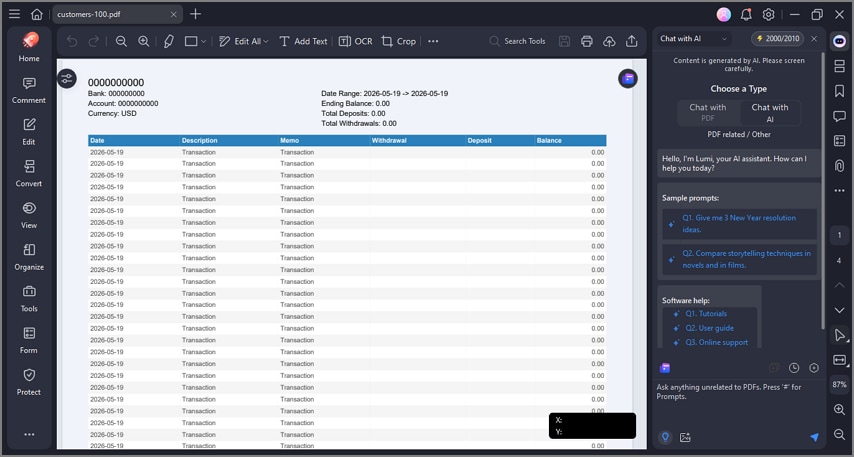
Import the PDF into PDFelement if you need additional editing, annotations, compression, or document security such as password protection.
Part 6. How to Use a QFX to PDF Converter?
A QFX-to-PDF converter can be a practical option for users who want a quick way to turn raw transaction data into a readable report. Even so, data safety and output accuracy still matter.
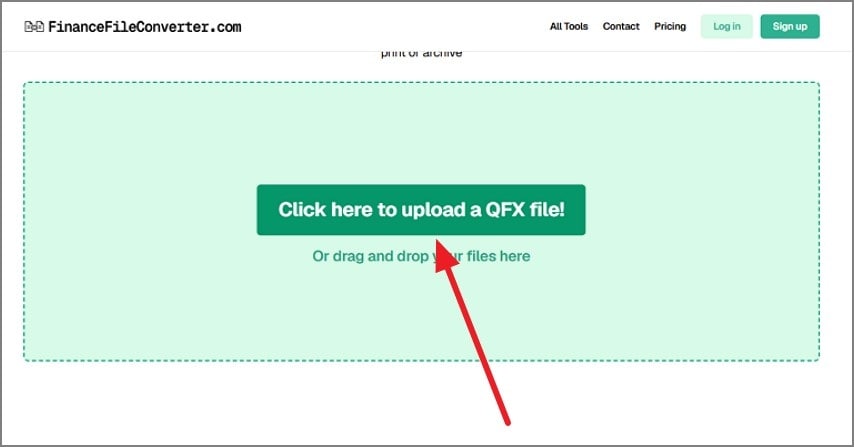
Step 1Upload the QFX file to the converter
Open the converter, click the upload button, and add the QFX file.
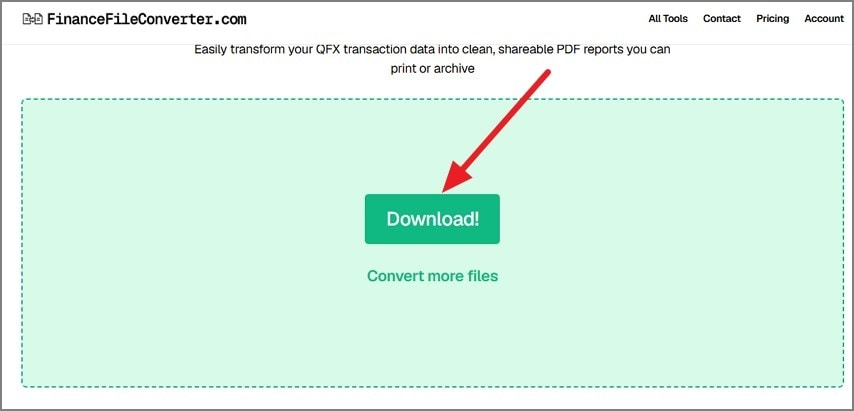
Step 2Download the converted PDF
After the file is processed, click Download to save the converted PDF report.
Part 7. How to Convert QFX to CSV or Excel First, Then Save as PDF?
Converting QFX to CSV or Excel first gives users more control over the transaction data. This workflow is useful when records need to be cleaned, categorized, filtered, or reformatted before creating the final PDF.
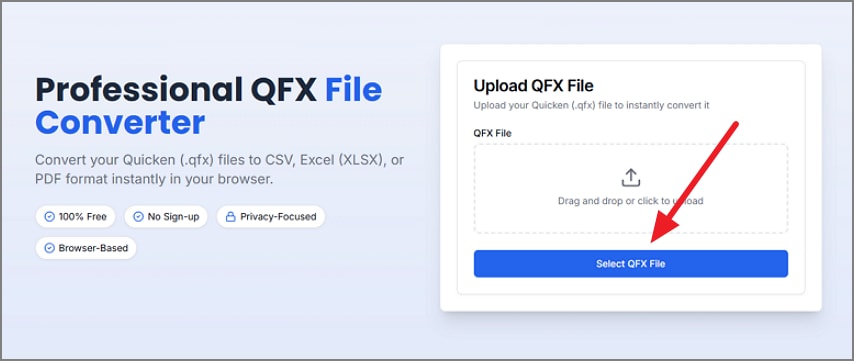
Step 1Upload the QFX file to a conversion tool
Open the conversion tool in a browser and click the button to select and upload the QFX file.
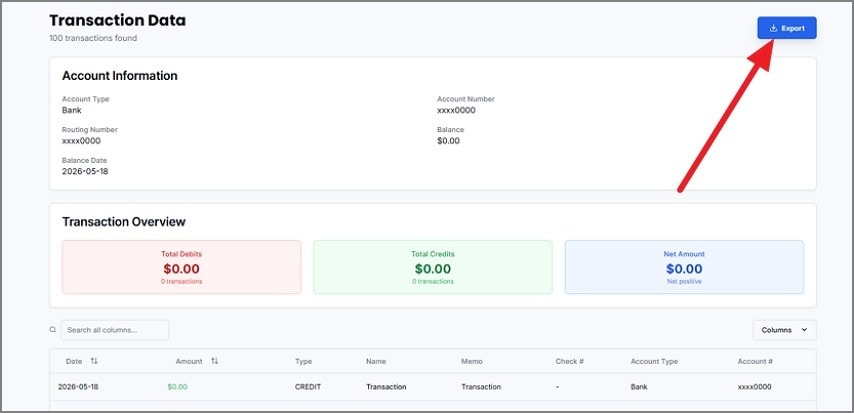
Step 2Export the file as CSV or Excel
After conversion finishes, review the sheet and export it to your device.
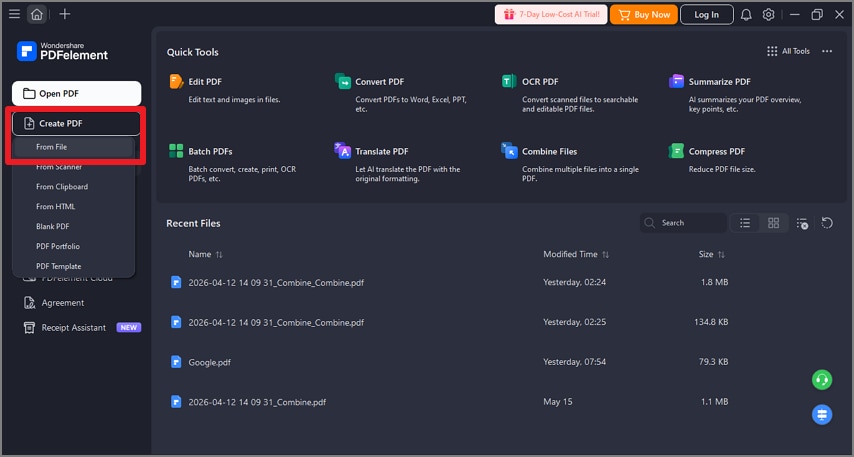
Step 3Create a PDF from the spreadsheet file
Open the spreadsheet and create a PDF from it using the available export or PDF-creation workflow.
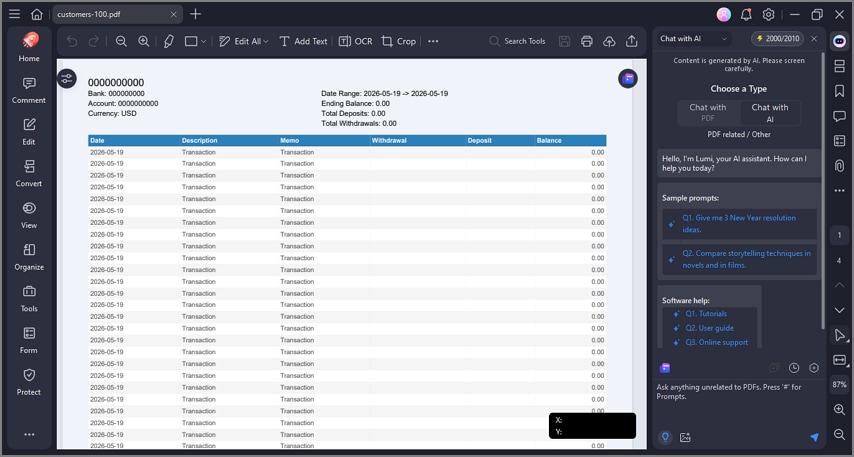
Step 4Review and refine the final report
Check transaction details such as dates, categories, descriptions, and memo fields. Use PDFelement if you need to organize, edit, annotate, or compress the final PDF.
Part 8. What are The Things to Check Before Converting QFX to PDF?
Privacy and financial data security should be treated as a top priority before any QFX-to-PDF workflow begins.
- Confirm that the QFX file came from a trusted bank or a reliable Quicken workflow.
- Do not upload QFX files containing private banking data to unfamiliar websites.
- Check whether the converter processes files locally or on a remote server.
- Examine whether the generated PDF includes account numbers or other confidential details.
- Mask or remove sensitive identifiers before sharing the PDF with accountants or third parties.
- Use password protection or permission settings when storing or sending confidential financial PDFs.
- Keep both the original QFX file and the final PDF report in secure folders or protected cloud storage.
Part 9. How PDFelement Helps After You Create a QFX PDF Report
PDFelement becomes useful after QFX transaction data has already been turned into a readable PDF report. Although it does not directly parse or open QFX files, it helps improve and organize the final financial documents.
Its tools support editing, annotation, compression, OCR, page organization, and document protection. That makes it practical for people handling monthly transaction reports, tax files, or annual financial archives.
- Merge monthly or account-level reports: Combine multiple transaction PDFs into one organized file.
- Annotate tax and audit files: Add comments, highlights, or text boxes for bookkeeping and tax preparation.
- Compress large financial PDFs: Reduce file size for extensive transaction reports or scanned statement attachments.
- Protect sensitive financial reports: Use passwords and permissions to restrict unauthorized access.
- Organize pages and add bookmarks: Improve navigation for long reports or multi-account archives.
- OCR scanned bank statement PDFs: Turn scanned pages into searchable and selectable text.
G2 Rating: 4.5/5 |100% Secure
Part 10. What Issues Occur When Converting QFX to PDF?
The process does not always go smoothly. Some technical or formatting problems can appear during conversion or export.
The QFX file will not open in a PDF tool
Cause: QFX is not a document format.
Fix: Import it into Quicken or convert it to CSV or Excel first.
The file will not import into Quicken
Cause: The bank export may be wrong, incomplete, or corrupted.
Fix: Re-download the QFX file from the bank and try again.
The PDF is missing transactions
Cause: The date range was incorrect or the import was incomplete.
Fix: Regenerate the report with the full transaction history.
Part 11. Which Best Practices to Consider for QFX PDF Reports?
A few best practices can make sure financial documents remain accurate, secure, and useful over time.
- Make sure the converter or workflow comes from a trusted financial source.
- Always preserve the original QFX file for future use, reconciliation, or audit.
- Use the PDF version mainly for viewing, printing, sharing, and archiving.
- Filter, edit, or categorize transactions before exporting to CSV or Excel when cleanup is needed.
- Use logical and descriptive file names so the documents stay easy to identify later.
- Keep financial PDF reports in secure, protected, or encrypted storage.
- Never upload sensitive QFX data to an untrusted online conversion tool.
- Review the final PDF carefully to confirm that all transactions and amounts are present.
FAQs
-
Can I convert QFX to PDF directly?
QFX cannot be converted directly like a normal document. It must first be imported or parsed into a readable transaction report before export as PDF. -
What is a QFX file?
A QFX file is a Quicken Financial Exchange format used to store banking transaction data for import into financial software. -
Is QFX the same as OFX?
They are closely related, but QFX is Quicken’s enhanced version of OFX with additional financial institution data. -
Can I open QFX without Quicken?
Yes, but only through compatible converters or financial software that can properly parse QFX data. -
Is it safe to upload a QFX file to an online converter?
Only if the converter is trusted and clearly explains how it handles sensitive financial data. Many QFX files contain private banking information. -
Can I convert QFX to CSV or Excel first?
Yes. Converting QFX to CSV or Excel first can make reviewing, cleaning, and organizing transactions easier before the final PDF export. -
Why does my QFX file not import into Quicken?
The file may be corrupted, incomplete, or exported in an unsupported way. An outdated Quicken version or a bank-side format issue can also cause the problem. -
What information is included in a QFX file?
It typically includes transaction dates, descriptions, balances, account details, and financial institution identifiers. -
Can PDFelement open QFX files directly?
No. QFX files must first be converted into PDF or another readable format before they can be managed in PDFelement. -
How can PDFelement help after I create a QFX PDF report?
PDFelement helps merge reports, compress large files, add bookmarks, annotate transactions, and secure financial PDFs for long-term storage.
Conclusion
QFX-to-PDF conversion means turning financial transaction data into a readable and printable report. The main options are exporting reports from Quicken, using a trusted QFX-to-PDF converter, or converting QFX to CSV or Excel first for more control.
After the PDF is created, PDFelement can help merge, annotate, compress, organize, and protect the final report. Keeping both the original QFX file and the finished PDF is the safest long-term practice.


![All the Methods to Convert a PDF to Black and White [2026]](https://images.wondershare.com/pdfelement/images2026/pdf-like-article-3.png)

