

In this article
- How to turn a PDF into a QR code
- How to prepare, create, and test a PDF QR code
- What a PDF QR code is
- PDF link vs. PDF upload
- How to create a QR code for a PDF online
- How to create a QR code from a PDF link
- Static vs. dynamic PDF QR codes
- How PDFelement helps with PDF QR codes
- How to add a QR code to an existing PDF
- Best practices before printing a PDF QR code
- Common problems when turning a PDF into a QR code
- When to use PDF QR codes
- When to avoid a public PDF QR code
- FAQs
Sharing a PDF sounds simple until the file link becomes too long, breaks after an update, or opens a permission error on someone else’s phone. That is why many people look for a PDF to QR code workflow that feels faster, cleaner, and easier to scan from print or screen.
In most cases, the QR code does not contain the PDF itself. It points to a link where the PDF is stored. That is what makes it useful for menus, flyers, brochures, handouts, packaging, resumes, and other materials that need quick mobile access.
This guide explains how to create a QR code for a PDF, compare upload and link-based methods, avoid common access problems, and use Wondershare PDFelement to prepare or update the PDF before sharing.
Part 1. Quick Answer — How Do You Turn a PDF into a QR Code?
To turn a PDF into a QR code, upload the PDF to a QR code generator or paste in a public PDF URL. The QR code stores a link, not the PDF file itself. If you need to change the destination later, use a dynamic QR code. If the PDF will stay the same, a static QR code is often enough.
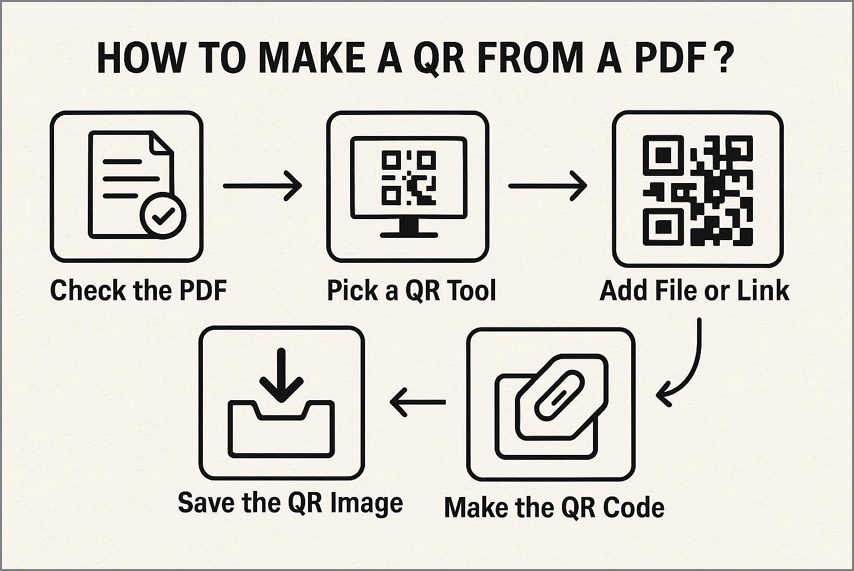
Part 2. How to Prepare a PDF, Make the QR Code, and Test It Properly?
Many users rush through the process and only discover problems after printing or sharing the code. A simple workflow helps you avoid broken links, permission issues, and poor scan performance.
Step 1 Check the PDF before creating the QR code
Review the page order, file size, filename, embedded links, and sharing permissions. If the document is too large or restricted, scanners may hit slow loading or sign-in errors.
Step 2 Choose the right sharing method
Decide whether to use a direct PDF upload, a public PDF URL, Wondershare PDFelement sharing, or a dynamic QR platform. The best option depends on whether your PDF is already hosted and whether it may change later.
Step 3 Generate the QR code
Create the code using your chosen tool and follow its on-screen instructions. If the platform supports customization, keep the styling simple enough for reliable scanning.
Step 4 Save the QR code in the right format
Export the code in a format that suits your use case. PNG is common for screen use, while SVG can be more flexible for print scaling.
Step 5 Test the QR code on multiple devices
Scan the code with different phones to confirm that it opens the correct PDF without sign-in prompts, dead links, or missing content.
Part 3. What is a PDF QR Code?
A PDF QR code is a scannable code that points users to a PDF file through a URL. It usually does not contain the full document. Maximum QR code data capacity is 2,953 bytes in binary mode, so most PDF QR codes rely on links, often shortened or dynamically managed.
People use PDF QR codes to open documents quickly on mobile devices without typing long URLs. They also help reduce printed pages and make it easier to move readers from posters, menus, signs, and handouts to digital content.
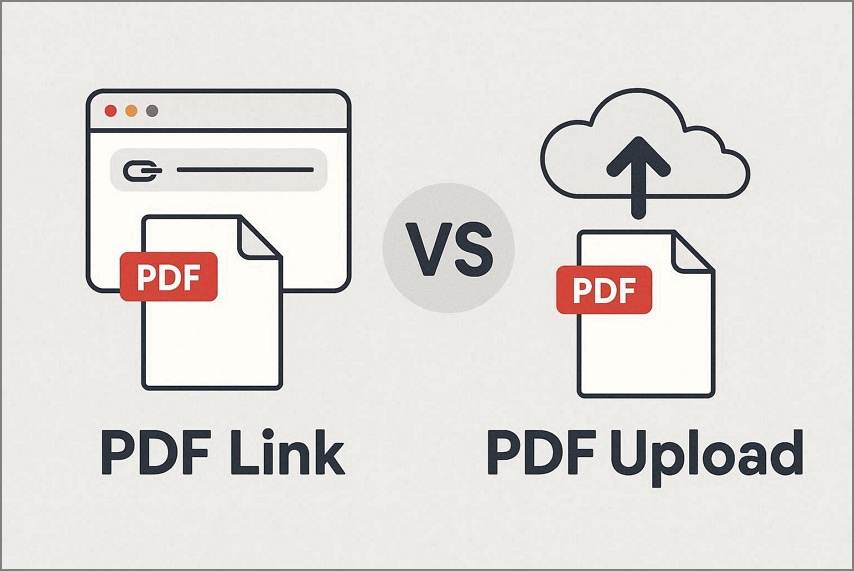
Part 4. PDF Link vs PDF Upload: Which QR Code Method Should You Use?
Different situations call for different ways to connect a PDF to a QR code. Instead of guessing inside a QR generator, match the method to the real sharing scenario.
| User Situation | Recommended Method | Why It Fits Best |
|---|---|---|
| Public PDF URL | Create a QR code from the existing link | Quick setup with no extra upload needed |
| PDF stored only on your computer | Upload the PDF to a QR tool | The code needs an online file destination |
| PDF may change later | Use a dynamic PDF QR code | You can update the linked file without reprinting |
| Quick device-to-device sharing | Use Wondershare PDFelement QR sharing | Lets a phone open the PDF quickly from another screen |
| QR code needed inside another PDF | Generate a QR image, then add it in Wondershare PDFelement | Places the code neatly inside the existing page layout |
Part 5. How to Create a QR Code for a PDF Online?
Online tools make it easy to create a scannable code for a PDF. ME-QR is one example workflow. Before you begin, check the platform’s file-size limits, account requirements, watermark policies, design options, and whether it supports static or dynamic codes.
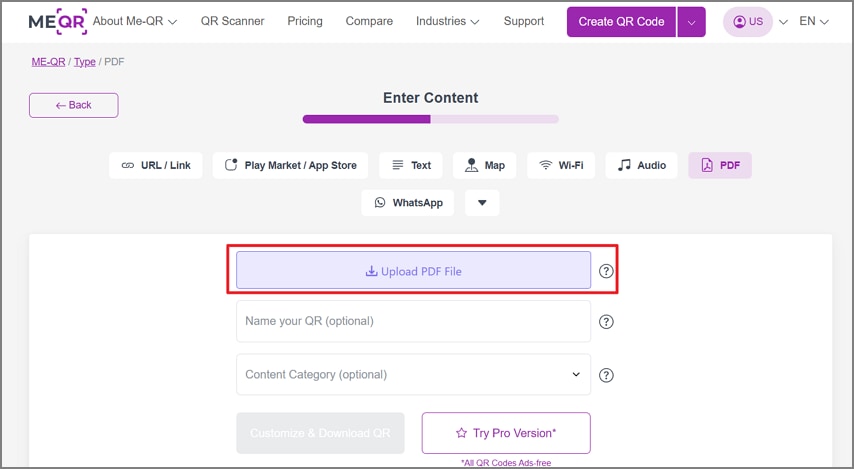
Step 1 Upload the PDF file
Open ME-QR, click Upload PDF File, and choose the PDF you want to share. When you upload a PDF directly, the platform stores the file so the QR code can open it. If you paste a link instead, that link must already be publicly accessible.
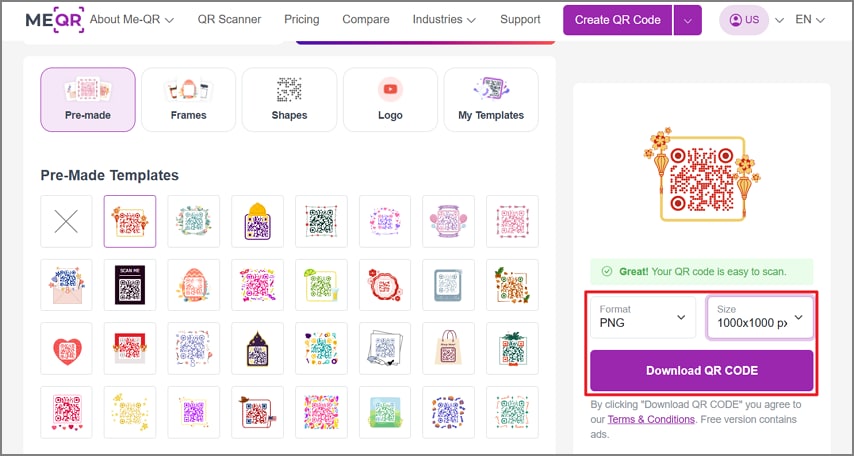
Step 2 Customize the QR code
Choose a template, set a suitable size and output format, and adjust the visual style. Keep branding light so the code still scans reliably.
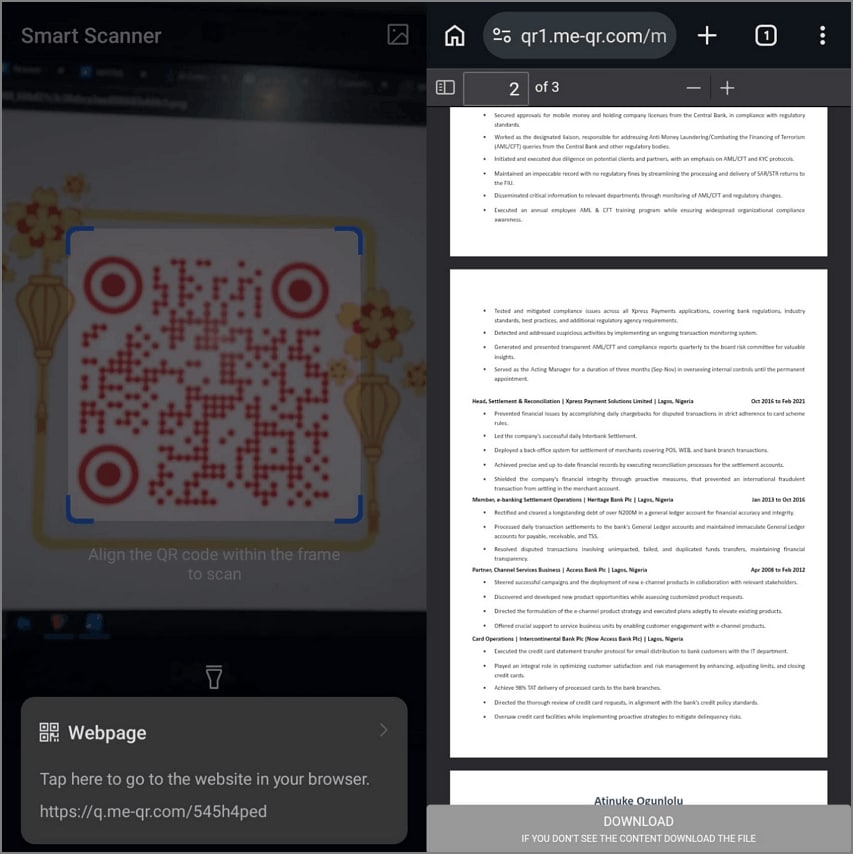
Step 3 Download and test the QR code
Download the generated code, then scan it on another device to confirm that it opens the correct PDF.
Part 6. How to Create a QR Code from a PDF Link?
If your PDF already has a shareable link, you can skip the upload step and create a QR code from the link directly. Tools like Wondershare PDFelement can help you prepare the document and copy a sharing link first.
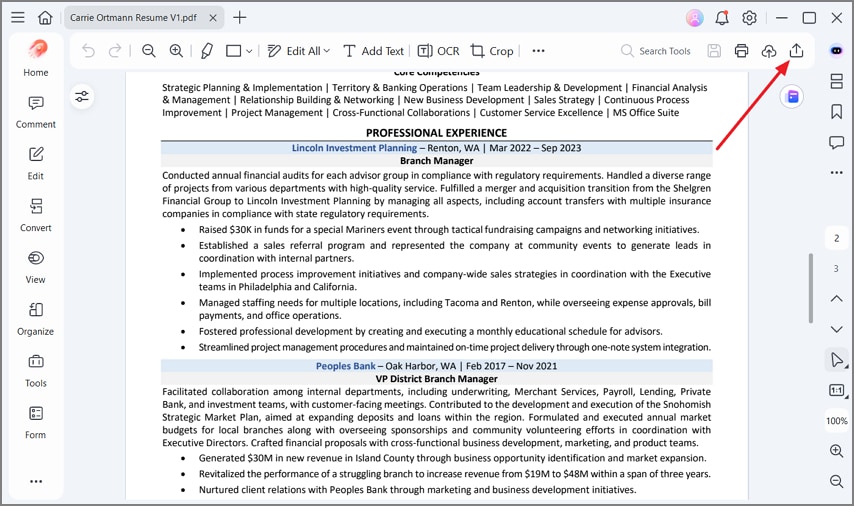
Step 1 Open the PDF and access the share option
Open your file in a tool such as Wondershare PDFelement that supports PDF sharing by link. Then click the Share icon.
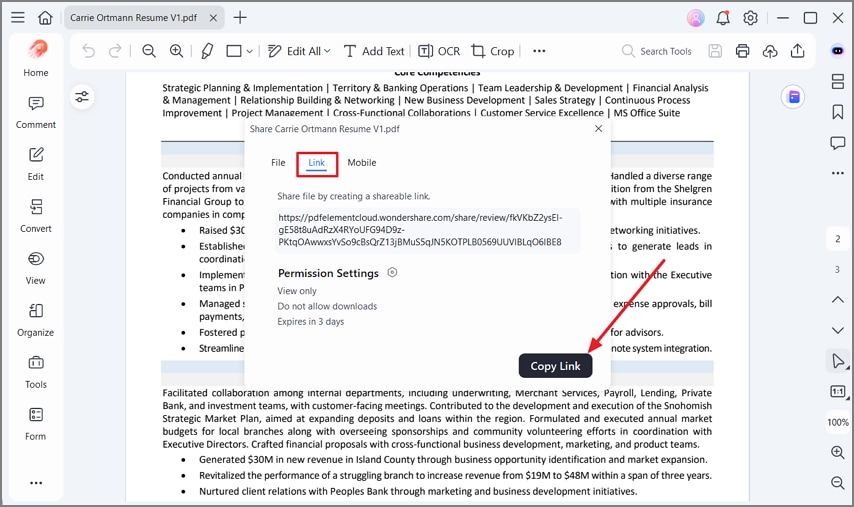
Step 2 Copy the PDF link
Choose the Link tab and click Copy Link to copy the shareable PDF URL.
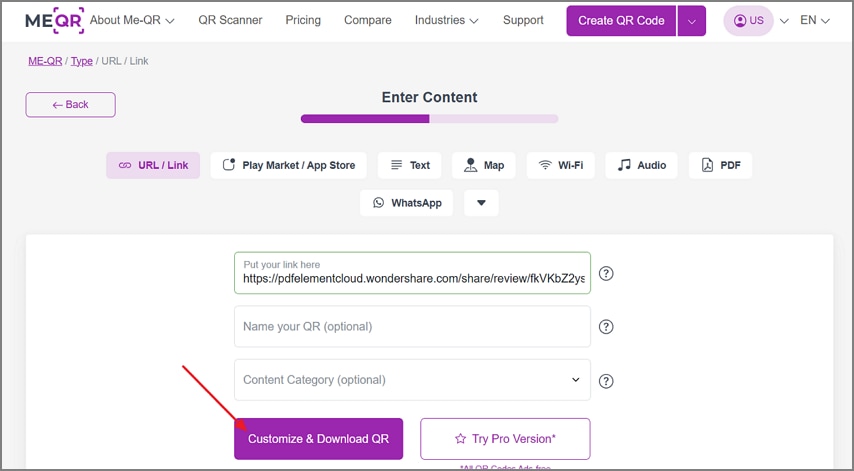
Step 3 Paste the link into a QR generator and test it
Open a QR code generator, paste the copied link, generate the code, and test it on multiple devices.
Part 7. Static vs Dynamic PDF QR Code: Which One Is Better?
Choosing between static and dynamic QR codes matters because it affects whether you can update the destination, track scans, or keep the same printed code after editing the file.
| Aspect | Static PDF QR Code | Dynamic PDF QR Code |
|---|---|---|
| How it Works | Fixed direct PDF link | Editable redirect link |
| Best Use Cases | One-time, never-changing files | Files that may change or update |
| Printing and Reuse | Needs a new print if the link changes | Same print can still work after PDF changes |
| Scan Analytics | No tracking available | Can track scans, time, location, and device |
| Expiration | Usually no expiration | May expire on free plans |
| Account and Cost | Often free and account-free | Often tied to a paid plan |
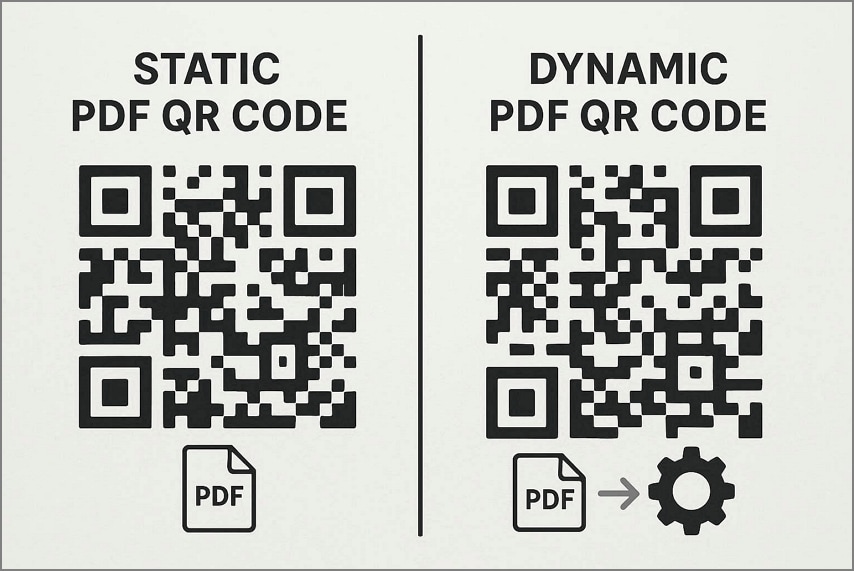
If your PDF may change later, a static QR code can become useless fast. For printed materials that need to keep working after updates, a dynamic QR code is usually the better choice.
Part 8. How PDFelement Helps with PDF QR Codes?
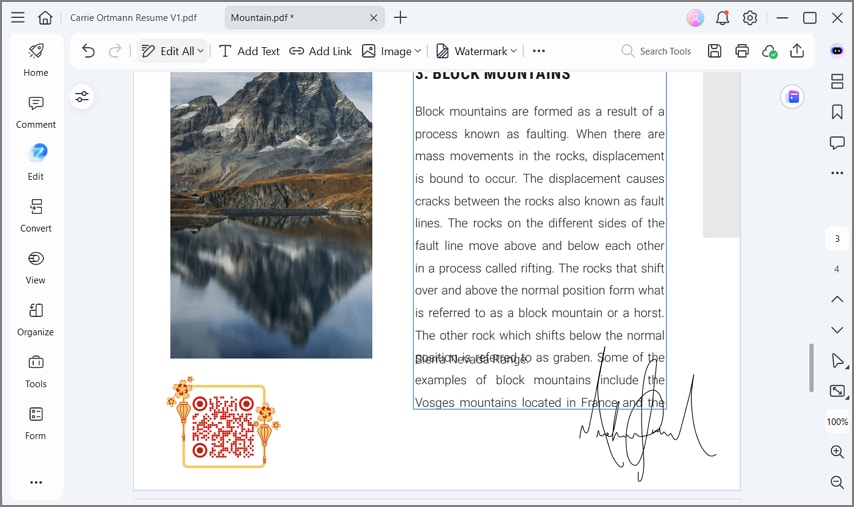
Wondershare PDFelement helps most before the QR code is created. It can prepare the PDF so the file behind the code is easier to open, cleaner to read, and better organized for sharing.
If a document is too large, cluttered, or unfinished, the QR code may work technically while still creating a poor reader experience. Preparing the file first makes the final workflow feel more reliable.
Key ways Wondershare PDFelement fits this workflow
- Clean document layout: Scanned reports and busy documents can be made easier to read before sharing.
- Organized study material: Lecture notes and handouts can be arranged more clearly for students.
- Event handout preparation: Workshop guides and conference booklets can look more polished before printing.
- Menu and brochure updates: Visual consistency is easier to maintain across customer-facing PDFs.
- Team document sharing: Internal guidelines and policy files can feel more trustworthy when the PDF is prepared well.


 G2 Rating: 4.5/5 |
 100% Secure

Part 9. How to Add a QR Code to an Existing PDF?
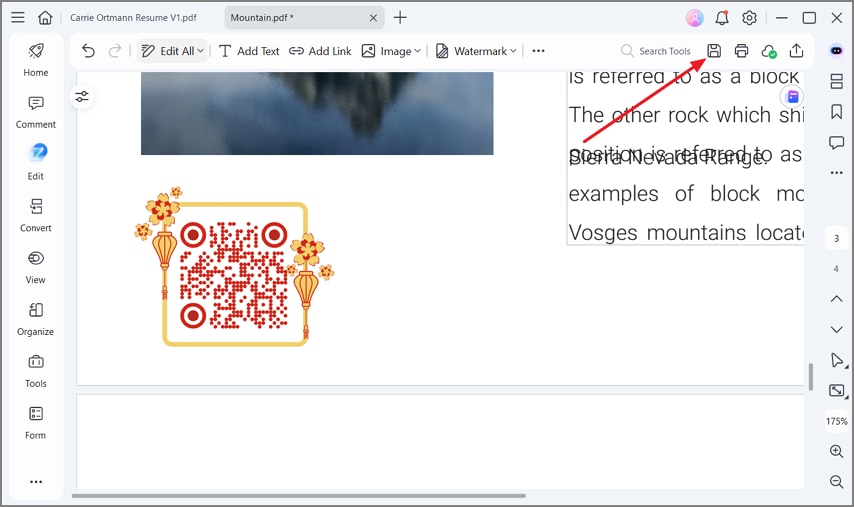
Sometimes the document is already finished, but you still want readers to scan a QR code from inside the PDF itself. In that case, generate the QR code as an image first, then place it into the PDF with a PDF editor such as Wondershare PDFelement.
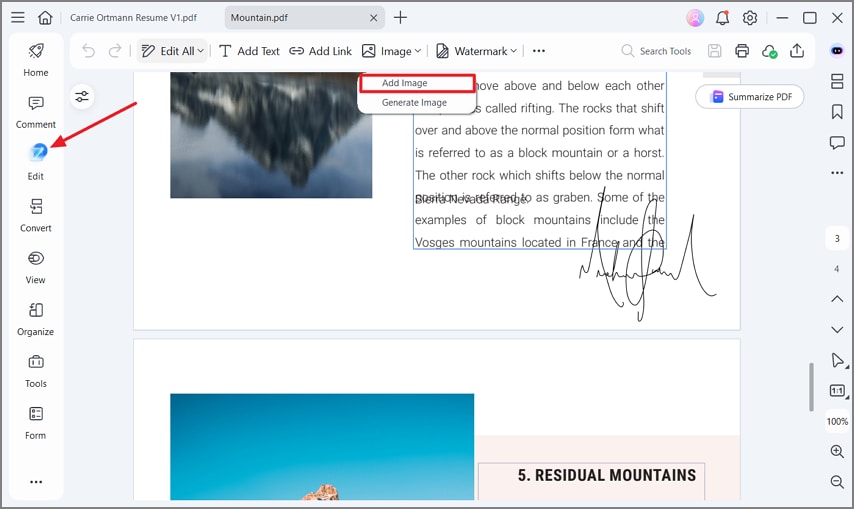
Step 1 Add the QR code image to the PDF
Save the generated QR code as an image. Open the PDF in Wondershare PDFelement, choose Edit, then use the Image or Add Image option to insert the QR code.
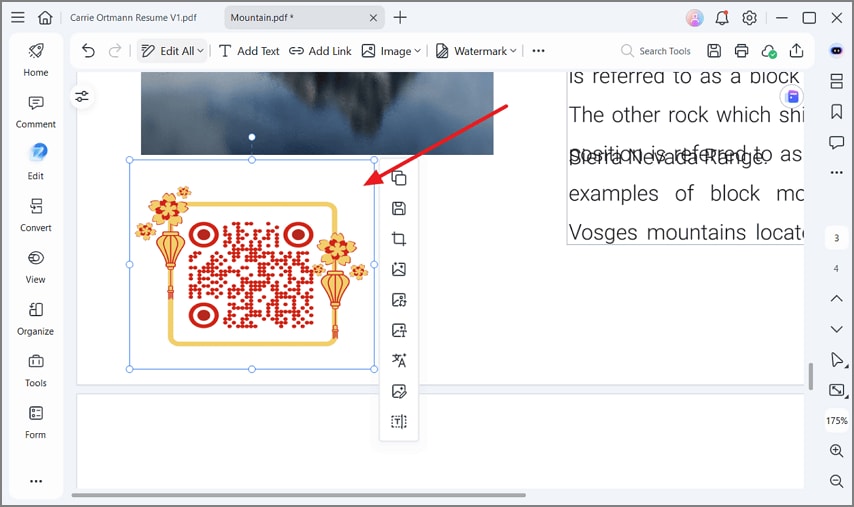
Step 2 Position and resize the QR code
Move the code to a clean area of the page and resize it so it remains readable without covering important document content.
Step 3 Save and test the edited PDF
Save the PDF, reopen it, and scan the placed QR code from another device to verify it still works well.
Part 10. What are the Best Practices Before Printing a PDF QR Code?
Printed QR codes can fail even when the digital version works perfectly. Before printing, make sure the final design supports clear scanning in real-world conditions.
- Use at least a 40% contrast ratio between the foreground and background colors.
- Keep clear space around the code so nothing interferes with scanning.
- Print the code at least 2 × 2 cm for scanning from about 25 cm away.
- Place the code on flat areas where paper will not bend or curve too much.
- Add a short callout so people understand why they should scan the QR code.
- Test a printed sample on different phones before printing a large batch.
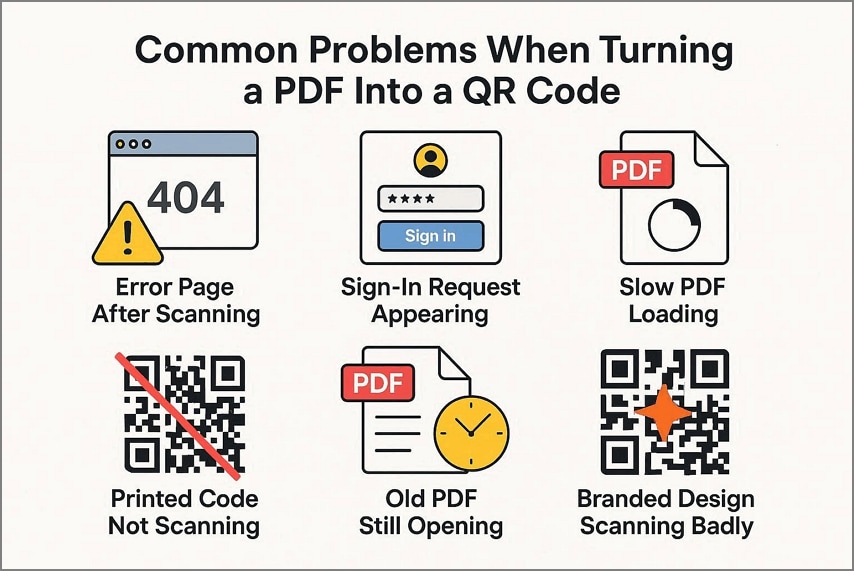
Part 11. What are the Problems Users Face While Turning a PDF into a QR Code?
QR workflows often fail for practical reasons rather than technical ones. These are the most common issues users run into.
Error page after scanning
A QR code may open an error page if the linked PDF address is broken. Test the link in a private browser window and correct the permissions or destination if needed.
Sign-in request appearing
If the PDF is stored behind restricted cloud permissions, scanners may see a login page. Change the sharing settings to public access or use a host designed for open sharing.
Slow PDF loading
PDFs over 5MB may load several seconds slower on 4G networks. Compress the file to under 2MB where possible before generating the QR code.
Printed code not scanning
Small size, poor contrast, or weak print quality can make a QR code unreadable. Increase the size, improve contrast, leave proper margins, and test again.
Old PDF still opening
If the destination changed but the QR code still opens an older version, use a dynamic QR setup or replace the file at the same URL instead of changing the link entirely.
Branded design scanning badly
Heavy styling may look attractive but reduce scan reliability. Keep the design simple, preserve strong contrast, and avoid covering important code areas.
Part 12. When Should You Use PDF QR Codes?
PDF QR codes work well when readers need fast access to documents from printed materials, packaging, displays, or presentations.
| Place | Example Documents |
|---|---|
| Restaurant | Menus, specials lists |
| Events | Schedules, conference handouts |
| Products | Manuals, packaging inserts |
| Education | Worksheets, syllabi, reading lists |
| Marketing | Business brochures, product catalogs |
| Real Estate | Property flyers, listing documents |
| HR | Forms, policies, onboarding documents |
| Career | Resumes, portfolios, presentation decks |
| Safety | Instruction sheets, safety guides |
Part 13. When Should Users Avoid a Public PDF QR Code?
Public QR codes are a poor fit for sensitive PDFs such as contracts, medical records, identity documents, or other private files. Even if the code is convenient, the sharing model may be too open.
For sensitive documents, use controlled access, passwords, permissions, and private delivery methods instead. A dynamic PDF QR code still needs careful access control if the linked document contains private information.
FAQs
-
Does a QR code store the PDF file inside the code?
No. A PDF QR code usually stores a URL, not the file itself. Maximum QR storage is limited, so links are the standard method. -
How do I create a QR code for a PDF link?
Copy the public PDF link, paste it into a QR code generator, and download the generated code. -
Can I make a QR code for a PDF for free?
Yes. Many tools offer free static QR codes. Dynamic QR codes with tracking and editable destinations are often part of paid plans. -
Can I update the PDF after printing the QR code?
Yes, if you use a dynamic QR code service that lets you change the destination later. Static QR codes usually require reprinting when the link changes. -
How do I make a PDF QR code that scans well when printed?
Use strong contrast, enough size, clear margins around the code, and test printed samples on multiple phones. -
Can I turn a PDF into a QR code?
Yes. Upload the PDF to a QR platform or paste in its public link, then generate and test the code. -
Can tools like Wondershare PDFelement create or share PDFs with QR codes?
Wondershare PDFelement can help prepare and share PDFs by link. You can then connect that shareable PDF to a QR code generator. -
Why does my PDF QR code ask people to sign in?
The linked PDF probably has restricted sharing settings. Change access to a public or appropriate shared mode before distributing the QR code. -
What is the difference between a static and dynamic PDF QR code?
A static QR code keeps one fixed link. A dynamic QR code lets you update the destination later without replacing the printed code. -
How do I add a QR code to an existing PDF?
Create the QR code as an image first, then insert that image into the PDF with a PDF editor.
Conclusion
Converting a PDF to a QR code is usually a matter of choosing the right source method, generating a clean code, and testing it before sharing or printing. Static QR codes are suitable for fixed files, while dynamic QR codes are better when the destination may change later.
A tool such as Wondershare PDFelement can support the workflow by helping you prepare, refine, and place PDFs more effectively before they are shared through QR access.


![All the Methods to Convert a PDF to Black and White [2026]](https://images.wondershare.com/pdfelement/images2026/pdf-like-article-3.png)

