

In this article
- Can users export PDFs directly from Krita
- Why to always save .KRA files first
- Which are the best formats to export from Krita before PDF
- How to convert one Krita artwork into a PDF
- How to turn multiple Krita pages into one PDF with PDFelement
- How to make a PDF for a Krita comic, portfolio, or assignment
- When should one use Scribus instead
- How PDFelement helps after exporting from Krita
- How to avoid large PDF files
- Which common problems occur when converting Krita art to PDF
- Best practices before sharing a Krita PDF
A common problem for Krita users is finishing a great piece of artwork and then needing to share it as a PDF for submission, printing, schoolwork, or client review. Krita is a powerful digital painting app, but it does not offer a direct Krita to PDF export option.
That can confuse new users at first. In practice, the workflow is simple: export the artwork as an image, then convert it into PDF format. This guide walks through the full process for turning Krita artwork into a professional PDF.
Part 1. Can Users Export PDFs Directly from Krita?
No. Krita does not currently support saving artwork directly as a PDF. The software can open PDF files in some workflows, but it does not provide a built-in export-to-PDF option for finished art.
Workaround: how Krita to PDF conversion actually works
Step 1Save the .kra file first
Keep the original project fully editable with all layers, masks, and details intact.
Step 2Export the artwork as an image
Export the finished work from Krita in a format such as PNG or JPG.
Step 3Convert the exported image into PDF
Use a PDF tool such as PDFelement or a layout app like Scribus to turn the exported image into a structured PDF document.
For more layout-heavy projects such as comics and print documents, Scribus can be a better final-stage tool. For fast everyday conversion, PDFelement is a simpler workflow for turning images into PDFs.
Part 2. Why To Always Save .KRA Files First?
Always save the original .kra file before exporting anything else. KRA is Krita’s editable project format and keeps the layers, effects, and editable structure of the artwork.
Once the work is exported as an image or turned into PDF, it becomes flattened. Users cannot recover layers from a PDF, so keeping the original .kra file is essential for future edits, revisions, or re-exporting at a different size.

Part 3. Which Are The Best Formats to Export from Krita Before PDF?
Choosing the right export format before creating the PDF affects quality, file size, and how the work behaves in later tools.
| Format | Best Use | Notes |
|---|---|---|
| PNG | High-quality artwork | Best for clarity and transparency |
| JPG | Small file sharing | Slight quality loss due to compression |
| TIFF | Print-quality images | Large but very detailed |
| PSD | Editing in other tools | Useful for Photoshop users |
| KRA | Original Krita file | Always keep for editing |


 G2 Rating: 4.5/5 |
 100% Secure
Part 4. How to Convert One Krita Artwork into a PDF?
Follow these steps to preserve image quality and keep the final PDF clean and shareable.
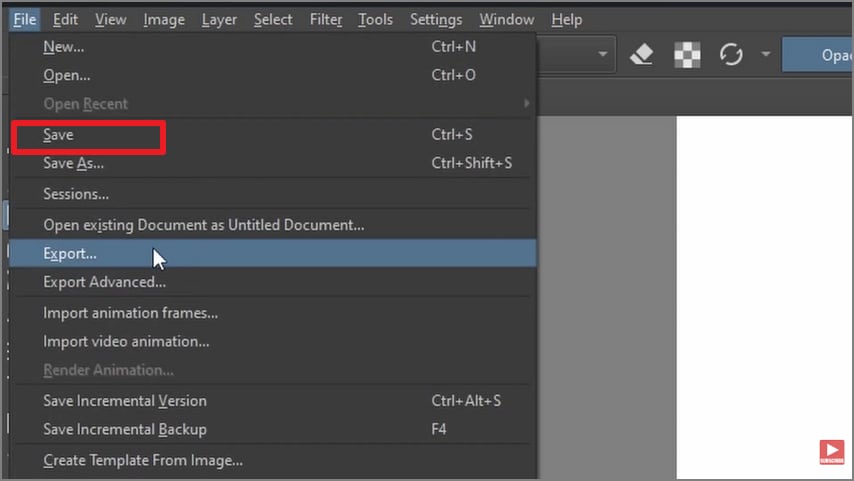
Step 1Save the .kra project file
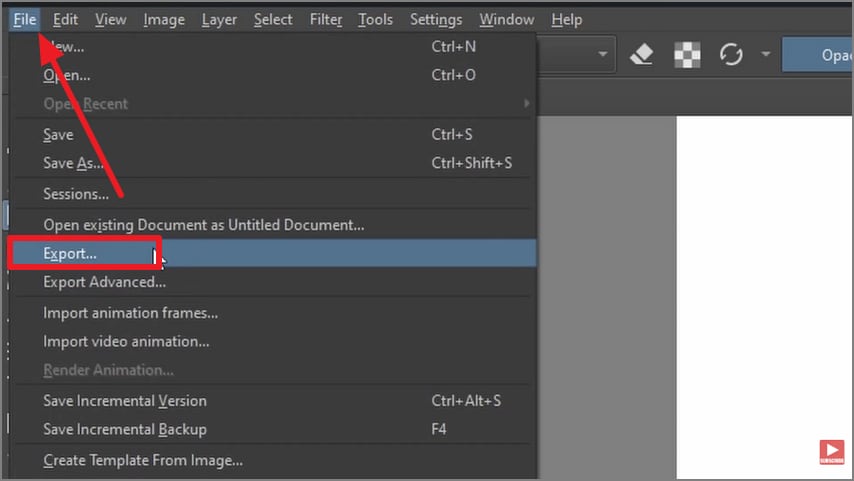
Go to the top-left File menu and click Save after the artwork is completed. This preserves the original Krita project for later editing.
Step 2Export the artwork as PNG or JPG
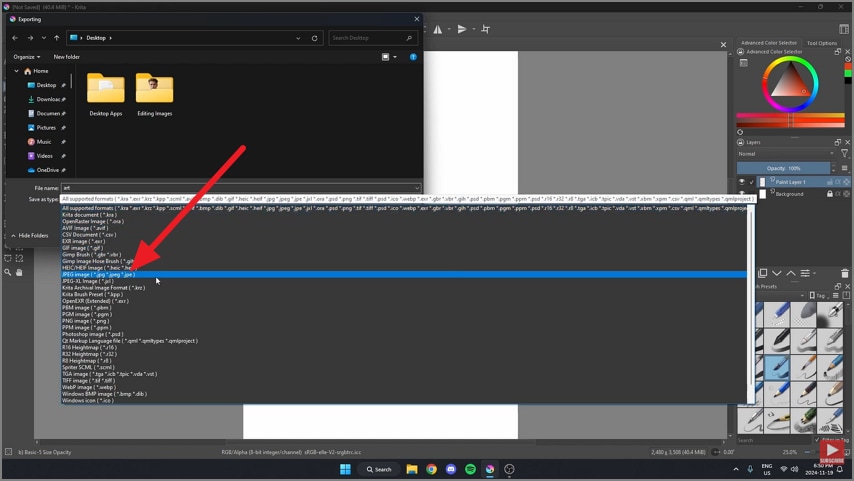
Open the File menu again, choose Export, name the file, and select a format such as PNG or JPG. Then click Save to export the artwork as an image.
Step 3Open the image in PDFelement
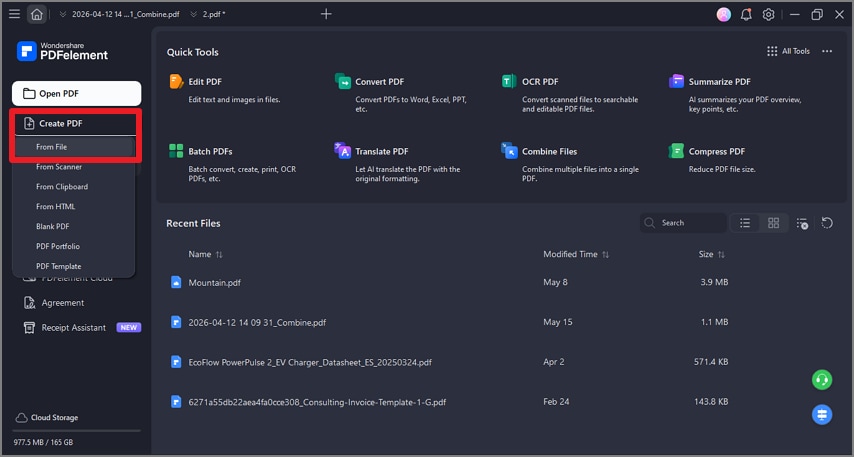
Launch PDFelement, choose Create PDF on the home screen, and select From File to import the exported image.
Step 4Create the PDF from the image
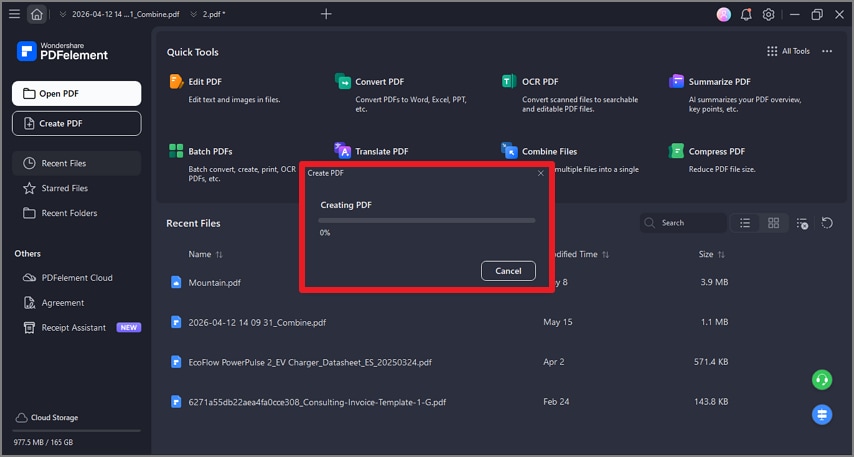
Once the file is imported, the tool creates the PDF automatically.
Step 5Check page orientation and page settings
Review the page size, orientation, and other properties to make sure the art displays correctly.
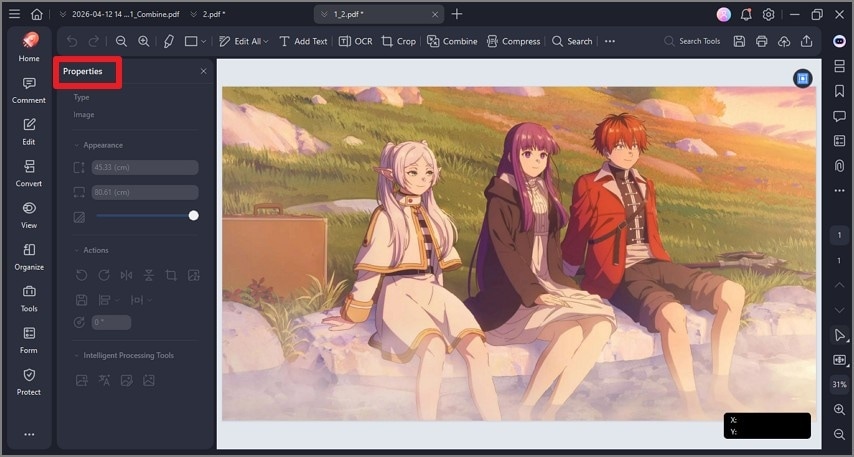
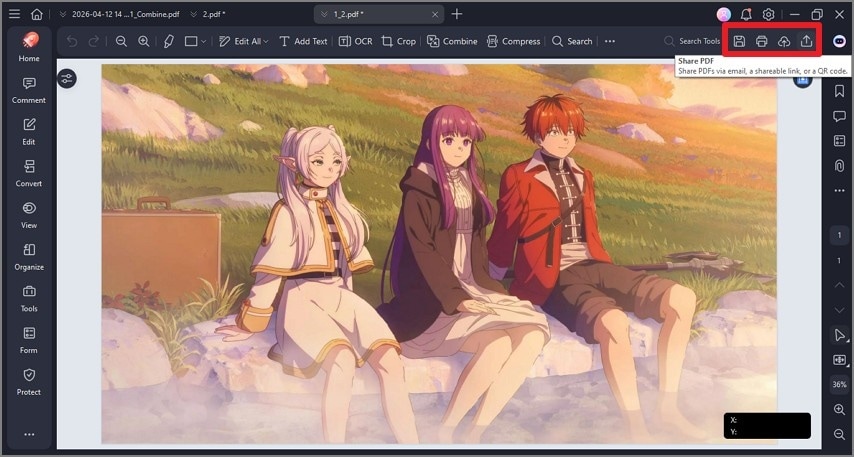
Step 6Save and share the final PDF
When everything looks right, click the Save icon to export the PDF locally or use Share to send it to the needed platform.
Part 5. How to Turn Multiple Krita Pages into One PDF with PDFelement?
Multi-page PDFs are common for comics, portfolios, assignments, and storyboard projects. Since Krita does not directly assemble those pages into PDF format, each page should be exported separately and merged afterward.
Step 1Save each page as a separate file
Save each Krita artwork as a separate image file and rename them in sequence, such as page-01.png, page-02.png, and so on.
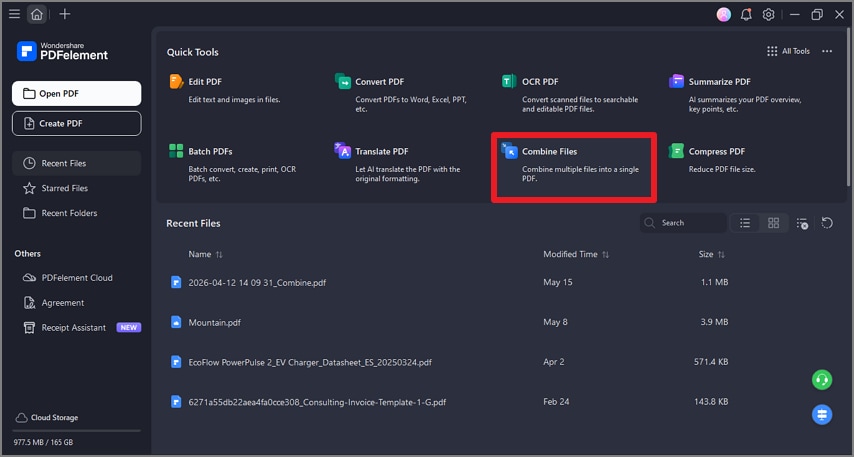
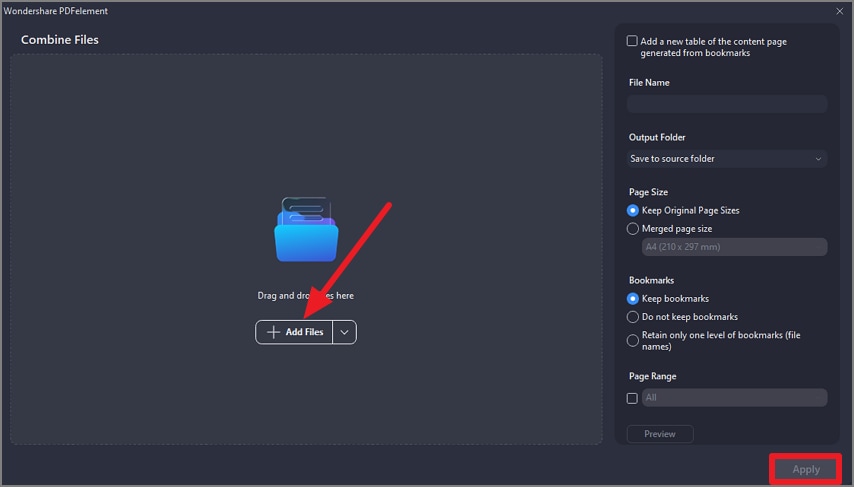
Step 2Choose the combine-files workflow in PDFelement
Open PDFelement and select Combine Files from the homepage.
Step 3Add the exported image files
Click Add Files, import the exported images, review page size and orientation, and then apply the settings.
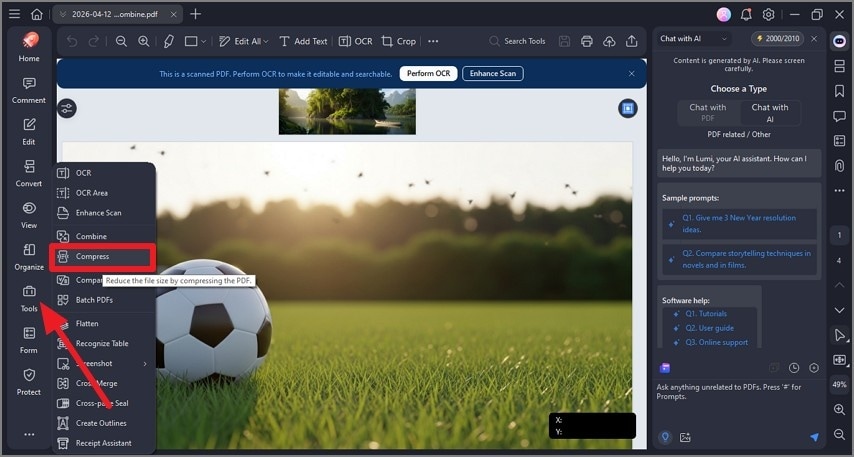
Step 4Compress the file if it becomes too large
If the PDF grows too large because of high-resolution images, go to Tools and choose Compress.
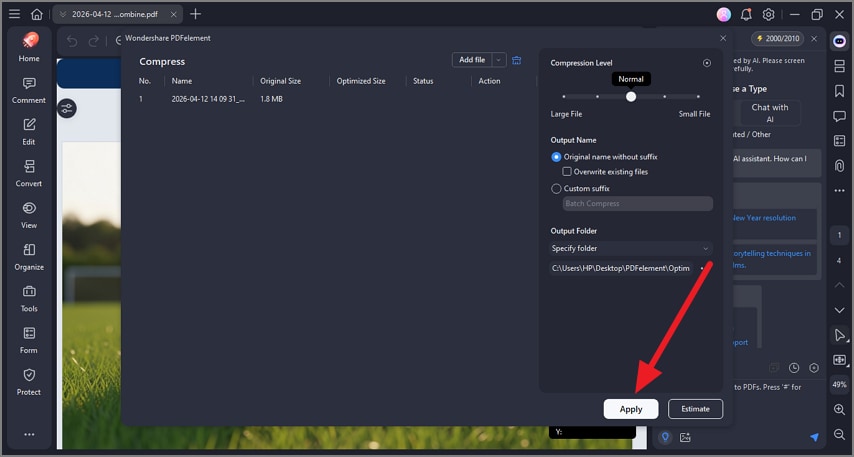
Step 5Choose a compression level and apply it
Adjust the compression slider based on your quality needs, then click Apply.
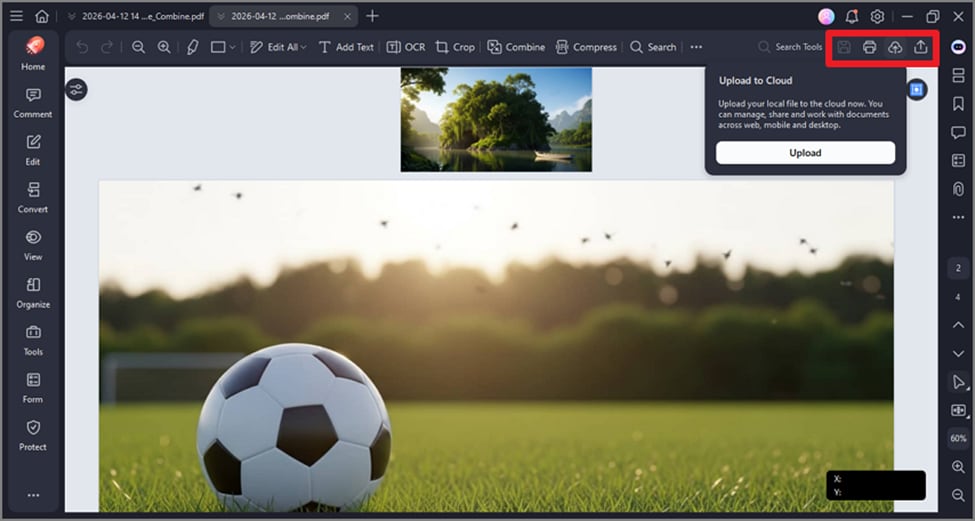
Step 6Finish editing and export the combined PDF
Add thumbnails, annotations, or bookmarks if needed, then export or share the combined document.
Part 6. How to Make a PDF for a Krita Comic, Portfolio, or Assignment?
A clean Krita PDF can improve the presentation of comics, portfolios, assignments, and client-facing work. A little organization before export makes the final document feel much more professional.
- Set the final page size before exporting artwork from Krita.
- Export every page at the same dimensions and resolution.
- Save pages in a clear order, such as image-01, image-02, and image-03.
- Import all exported images into PDFelement and merge them into one multi-page PDF.
- Preview the finished PDF on both desktop and mobile before submission.
- Use PDFelement for page reordering, page removal, comments, password protection, and final sharing or printing optimization.
Part 7. When Should One Use Scribus Instead?
Krita is excellent for digital painting, illustrations, and comics, but some projects need stronger page-layout controls. In those cases, Scribus may be the better final-stage tool.
| Situation | Why Scribus May Work Better |
|---|---|
| Brochures and magazines | Better tools for arranging text, images, columns, and page layouts |
| Books and multi-page documents | Easier management of long documents with multiple sections and pages |
| Print-focused projects | More control over page organization and professional document formatting |
| Mixed text and image layouts | Stronger support for combining artwork, captions, tables, and written content |
Part 8. How PDFelement Helps After Exporting from Krita?
After Krita artwork is exported, PDFelement helps organize those image files into a clean, shareable PDF for printing, submitting, or presenting.
| Feature | How It Helps with Krita-to-PDF Workflow |
|---|---|
| Create a PDF from Krita Exports | Import PNG, JPEG, or TIFF files exported from Krita and convert them into PDF pages |
| Combine Multiple Images into One PDF | Useful for comics, art books, portfolios, assignments, and multi-page storyboard projects |
| Reorder, delete, rotate, or extract pages | Lets users adjust page order, remove unwanted pages, or extract selected ones |
| Compress Large PDF Files | Reduces file size when high-resolution Krita artwork creates very large PDFs |
G2 Rating: 4.5/5 |100% Secure
Part 9. How to Avoid Large PDF Files?
Krita artwork can produce very large PDFs, especially when the exported images are high resolution. A few simple adjustments can help control file size.
- Lower the export DPI when full print-level resolution is not necessary.
- Use compression tools such as PDFelement to reduce file size without excessive quality loss.
- Export artwork in common formats such as PNG or JPG instead of unusual formats.
- Remove duplicate or unwanted images before building the final PDF.
Part 10. Which Common Problems Occur When Converting Krita Art to PDF?
Users often run into a few predictable issues during Krita-to-PDF conversion. Understanding the cause behind each one helps make the workflow smoother.
No direct PDF export in Krita
Likely cause: Krita does not include a standard built-in PDF export option for finished artwork.
Fix: Export the artwork as PNG or JPEG first, then convert it into PDF with a tool like PDFelement.
Layers are not preserved in PDF
Likely cause: PDF output is flattened and does not preserve Krita’s layered editing structure.
Fix: Keep the original .kra file for editing and use the PDF only for sharing or printing.
Pages appear in the wrong order
Likely cause: Files were imported without clear numbering or consistent naming.
Fix: Rename files in numbered order or rearrange pages manually in the PDF tool.
Blurry output in the final PDF
Likely cause: Low-resolution export settings or overly aggressive compression.
Fix: Export at higher resolution and avoid strong compression until it is actually necessary.
Part 11. What Are The Best Practices Before Sharing a Krita PDF?
A few final checks can improve quality and prevent mistakes before the file is submitted or shared.
- Keep the original .kra file for future editing and revisions.
- Make sure all exported images use consistent dimensions across the project.
- Review page order and page layout before exporting the final PDF.
- Preview the PDF on another device to check how it displays.
- Use a clear and recognizable file name for easier identification later.
FAQs
-
Can Krita export directly to PDF?
No. Krita does not currently provide a direct export-to-PDF feature for finished artwork. -
How do I convert a Krita file to PDF?
Export the Krita artwork as images first, then convert those images into a PDF using a tool like PDFelement. -
Can I convert a .kra file directly to PDF?
No. Krita does not provide a direct .kra-to-PDF workflow, so the artwork should first be exported as an image. -
What format should I export from Krita before making a PDF?
PNG and JPG are the most practical choices. PNG is usually better for quality, while JPG can help keep the file smaller. -
How do I make a multi-page PDF from Krita drawings?
Export each page separately, then use a combine-files workflow in PDFelement to merge them into one PDF. -
Why does my Krita PDF become too large?
High-resolution artwork can create very large PDFs. Compression tools in PDFelement can reduce the size while keeping the file usable. -
Will a PDF keep Krita layers?
No. The artwork becomes flattened when exported into PDF format, so the original layered .kra file should always be retained. -
Can I make a print-ready PDF from Krita?
Yes. Export the artwork as a high-quality image first, then convert and prepare it in a PDF tool for print-ready output. -
How can PDFelement help after exporting from Krita?
It can combine multiple exported images, reorder pages, compress large files, add notes, and prepare cleaner PDFs for portfolios or assignments. -
Should I keep the original .kra file after making a PDF?
Yes. The original .kra file should always be kept for future editing, layer access, and recovery if the PDF needs to be rebuilt.
Conclusion
Krita does not provide direct PDF export, but the artwork can still be turned into a clean PDF through a simple export-and-convert workflow. Save the original .kra file first, export the art as PNG or JPG, and then use a PDF tool to build the final document.
For single pages, this process is quick. For comics, portfolios, and assignments, PDFelement helps combine pages, reorder them, compress the file, and make the final PDF easier to share professionally.


![All the Methods to Convert a PDF to Black and White [2026]](https://images.wondershare.com/pdfelement/images2026/pdf-like-article-3.png)

