

Sharing a PDF file across platforms gets easier when the file size is manageable. Splitting a PDF into two files is often necessary when documents become too large. It is also essential when the document is difficult to share due to its large size. Dividing a file also offers readability and better organization.
This action is also essential when you need to share just the relevant section of the PDF. However, a robust PDF management tool is essential to keep the file quality intact. This article explores the tool that offers splitting without deteriorating the quality.
In this article
- What Problem Are You Solving?
- What to Navigate: A Scenario-Based Idea to Navigation
- Recipe A — Split a PDF into Two Files: Clean 50/50 or Custom Ranges
- Recipe B — Split a Single PDF Page into Two Pages: Cut in Half
- Recipe C — Reverse Jobs: Join or 2-Up
- Free/Online Alternatives For Splitting PDFs
- Output Settings that Keep You Organized in Split PDF
- Quality Check of 30 Seconds
Part 1. What Problem Are You Solving?
When working with PDFs, users often face different organizational or formatting challenges. The following section explores the ways splitting a PDF into 2 files can ease your tasks:
Splitting a Whole Document into Two Files
This solves the issue of oversized or cluttered PDFs by dividing them into two clean sections. You can try separating the first half and the second half for easier sharing or printing.
Splitting One PDF Page into Two Pages
Splitting into 2 pages helps when a single scanned page contains two side-by-side pages. Cutting it in half creates 2 readable, properly sized individual pages.
Reverse Tasks Like Joining Files or Placing Two Pages on One Sheet
Sometimes users need to merge two separate PDF files into one or combine two pages onto a single sheet for compact printing.
Note: PDFelement supports both file-level splitting ("Split PDF") and page-level splitting ("Split Page"), while online tools can perform similar tasks but may lack precision and require file uploads.
Part 2. What to Navigate: A Scenario-Based Idea to Navigation
When using PDFelement for splitting, there is a specific navigation for every task. The following table offers a quick look at what to click for each scenario while splitting PDF in two:
| What You Need to Do | Where to Click / Tool Path | Type |
| Create 2 separate PDFs from 1 file | Organize > Split > Split PDF | File-level split |
| Cut a single PDF page in half (vertical or horizontal) | Organize > Split > Split Page | Page-level split |
| Join 2 PDF files into 1 document | Organize Pages > Insert/Append > Save | Merge |
| Place 2 PDF pages on 1 sheet (2-up layout) | Export > Layout Options or Print Dialog > 2-Up | 2-page layout |


 G2 Rating: 4.5/5 |
 100% Secure
Part 3. Recipe A — Split a PDF into Two Files: Clean 50/50 or Custom Ranges
As mentioned, you need a good quality PDF management tool to divide the file without losing its quality. PDFelement is a decent tool that offers file splitting, among many other organizational tools. It allows you to divide a file into 2 for better PDF handling. You can either split the file by the number of pages or by top-level bookmarks.
It also allows users to divide a PDF by file size, ensuring enhanced shareability. Once the file has been split, it can be exploited in the desired folder of your device. The following section explains how you can split PDF in two using various methods on PDFelement:
Method 1: Split by Number of Pages
The following section guides you on splitting a PDF by the number of pages on PDFelement:
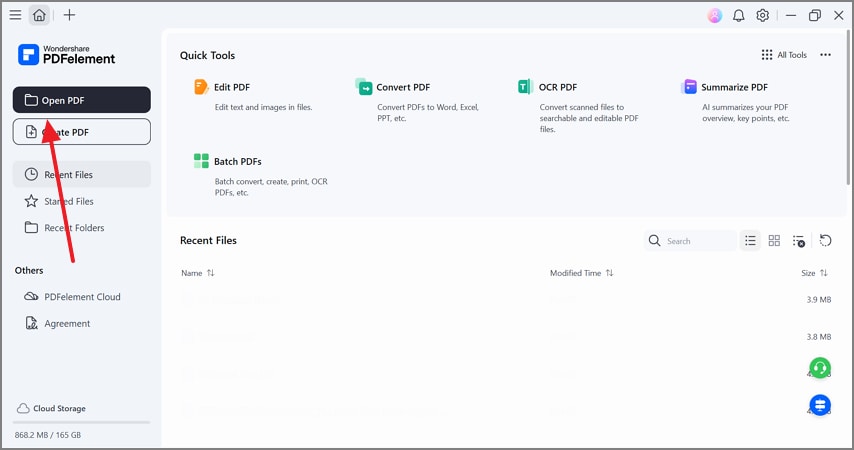
Step 1Open the Desired PDF on PDFelement
To begin with, select the "Open PDF" button and import the file that needs to be split.
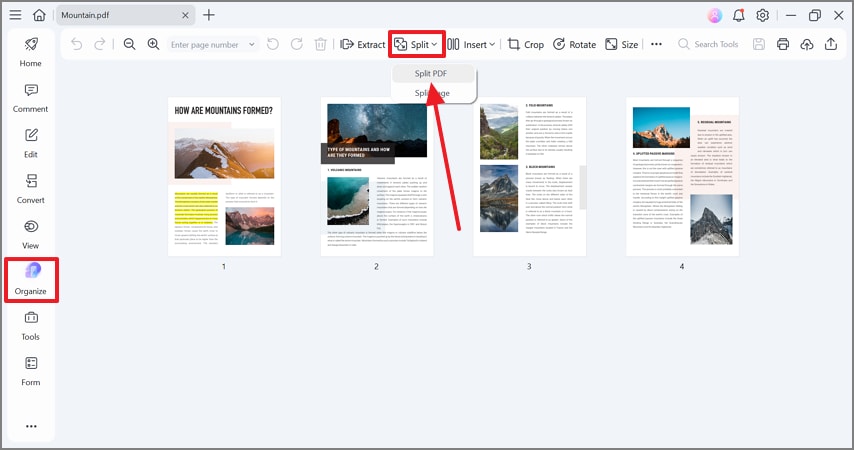
Step 2Split PDF in the Organization Tab
Now, enter the "Organize" mode from the left sidebar and expand the "Split" menu. Using the extended menu, click the "Split PDF" option to continue.
G2 Rating: 4.5/5 |100% Secure
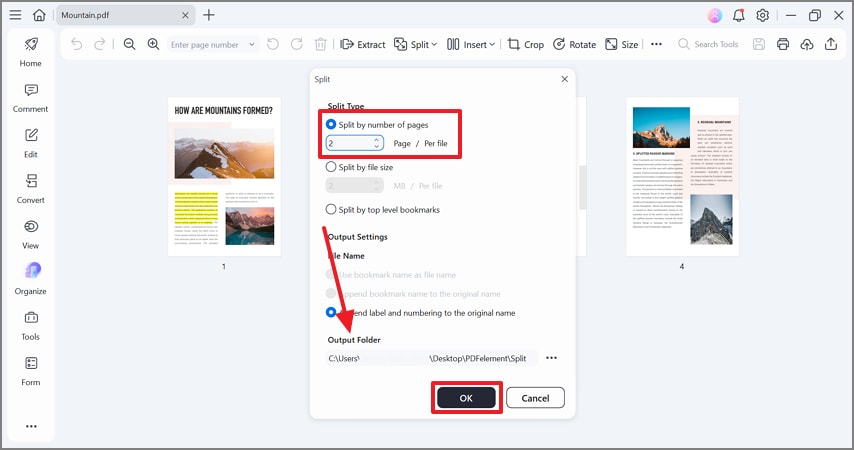
Step 3Split the File by Number of Pages
Using the Split window, select the "Split by Number of Pages" option and pick the "Output Folder" for the file. Once done, hit the "OK" button to save the split files in the selected location on your device.
Method 2: Split by File Size
To learn how to split PDF in 2 parts by its size on PDFelement, follow this guide:
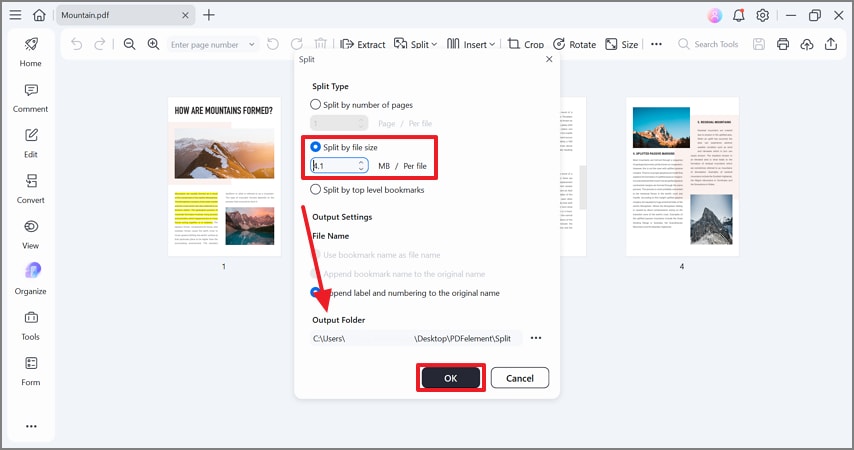
Step 1Select the Splitting Size of the File
In the "Split" window, select the "Split by File Size" option and enter the file size division manually. You can also use the arrows for file size selection. Choose the "Output Folder" and hit the "OK" button to save the split file in the selected folder.
Method 3. Split the File by Chapters
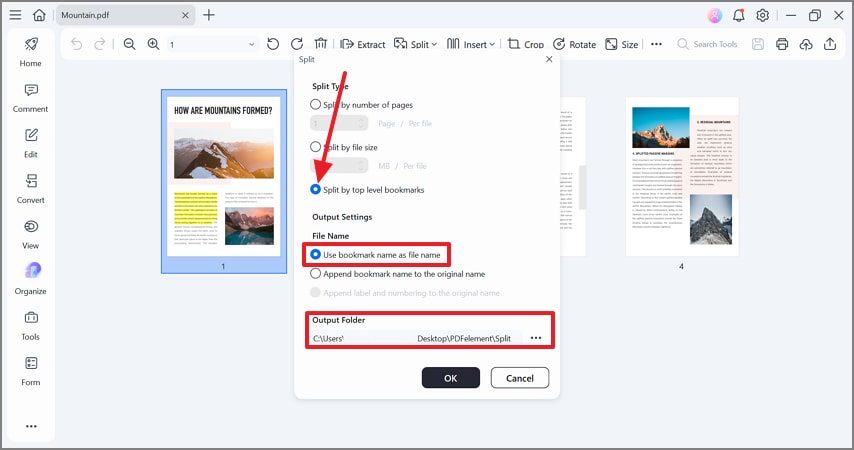
When looking for better retention of the file, splitting your file by bookmarks is a better approach. For this, you first need to add chapter-wise bookmarks to your PDF. Once the file is ready, you can use the bookmark name as the file name. You also have the choice of appending the bookmark name to the original file name. The following section explains how to divide a PDF into two by chapters using PDFelement:
Step 1Split the PDF File by Top-Level Bookmarks
When the "Split" window opens, select the "Split by Top-Level Bookmarks" option and pick the desired file name from the respective field. Next, choose the "Output Folder" and use the "OK" button to save the PDF in the chosen location.
Pro Tip: Create a consistent naming pattern, such as [filename]_part1 and [filename]_part2, to keep your split files organized.
G2 Rating: 4.5/5 |100% Secure
Part 4. Recipe B — Split a Single PDF Page into Two Pages: Cut in Half
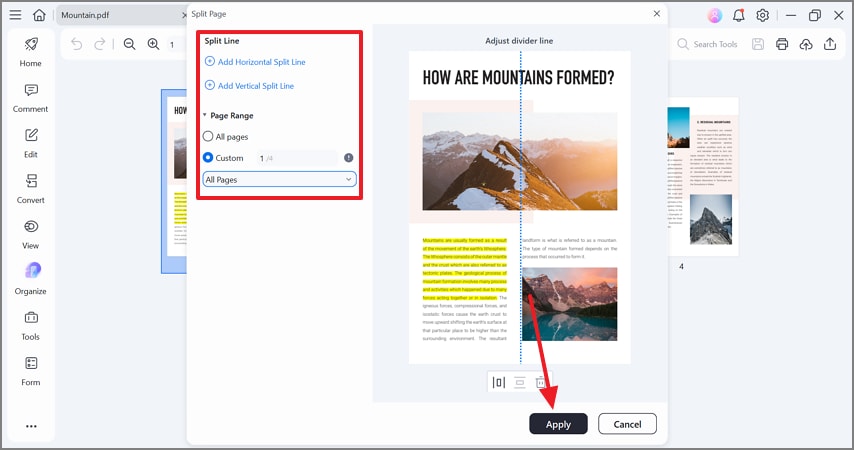
For a better layout of the page, PDFelement allows you to split a PDF page into two. You have the choice to divide a page horizontally or vertically for a tailored result. Besides cutting the page from the middle, you can move the divider and split at any point. PDFelement offers a customized page range setting to help you split just the desired number of pages.
You can cut all pages, even or odd pages, or enter a custom page number for execution. Once the page is split, it appears as 2 separate pages in the PDF. If you want to learn how to split a document's page on PDFelement, follow this guide:
Step 1Select the Split Page Option
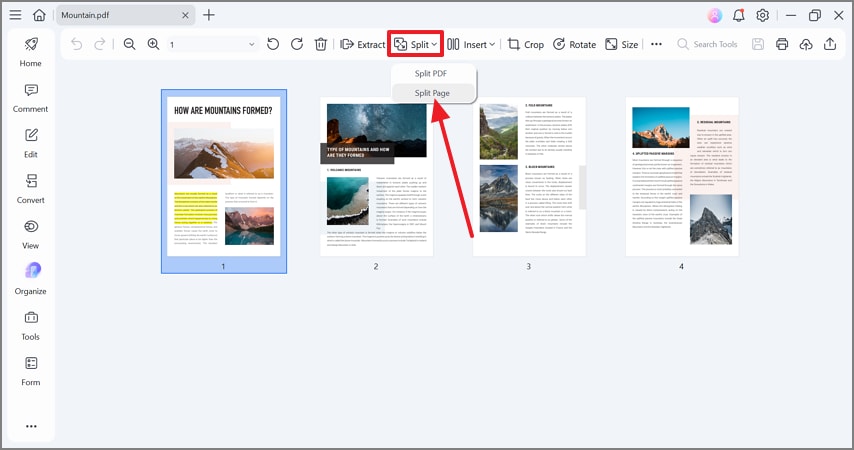
In the "Organize" mode, expand the "Split" menu and select the "Split Page" option to continue to the next window.
Step 2Set the Split Line and Page Range
When the "Split Page" window opens, select the "Split Line" as vertical or horizontal. Under the "Page Range" menu, select the pages that need to be split and hit the "Apply" button to save the changes.
G2 Rating: 4.5/5 |100% Secure
Step 3Save the PDF File with Split Pages
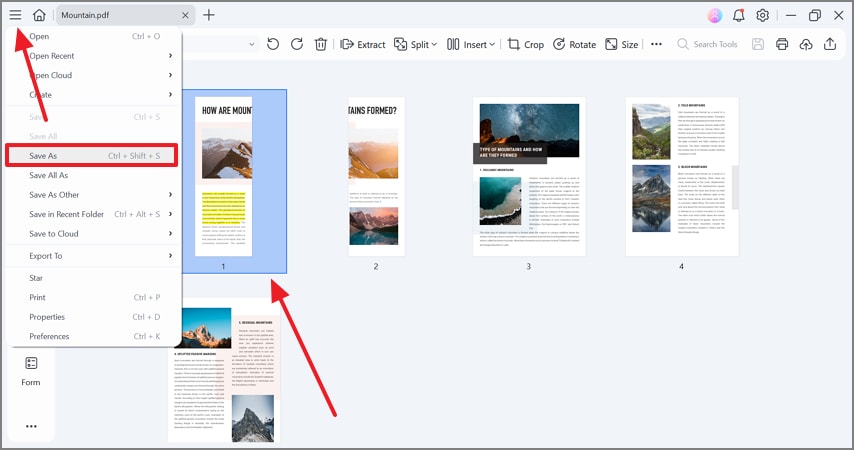
Once you have cut the pages of your file, access the "Menu" icon from the top left and select the "Save As" button to save the file to your device.
Typical Uses: split 2-page PDF scans printed on one sheet, divide a PDF page into two, fix 2-up lecture slides into single pages.
Part 5. Recipe C — Reverse Jobs: Join or 2-Up
PDFelement is a versatile PDF management tool that offers splitting and merging under a single roof. You have the option of combining multiple files or pages into 1. If you want to learn how to execute both actions on PDFelement, follow this guide:
Method 1: Combine PDF Files into One
Using the Combine Files feature, you can merge multiple PDFs into one. Once combined, users can change the file name and location as well. This tool enables you to add a new table of contents generated from the bookmarks of the merged files. The following steps explain how to combine two PDF pages into one page using PDFelement:
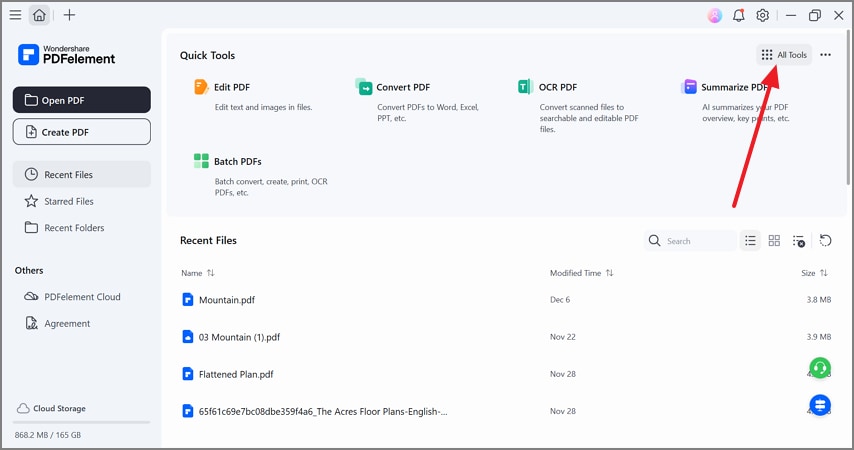
Step 1Select the All Tools Option from the Main Interface
To begin, select the "All Tools" option from the top right to access all features.
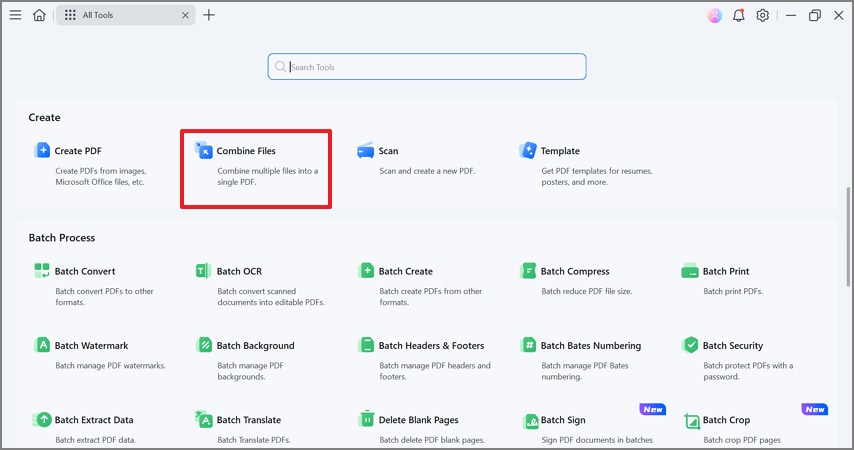
Step 2Select the Combine Files Feature
Now, click the "Combine Files" feature to open a new window.
G2 Rating: 4.5/5 |100% Secure
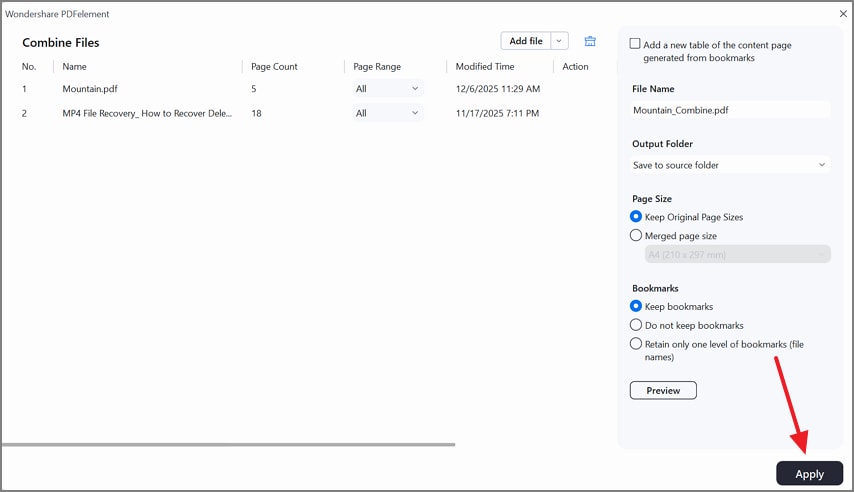
Step 3Import Files and Merge
Import the PDF files from your device that need to be merged and pick your desired settings from the right panel. Once done, select the "Apply" button to merge the files and save them in the desired location.
Method 2: Merge Pages to Get a Handout PDF
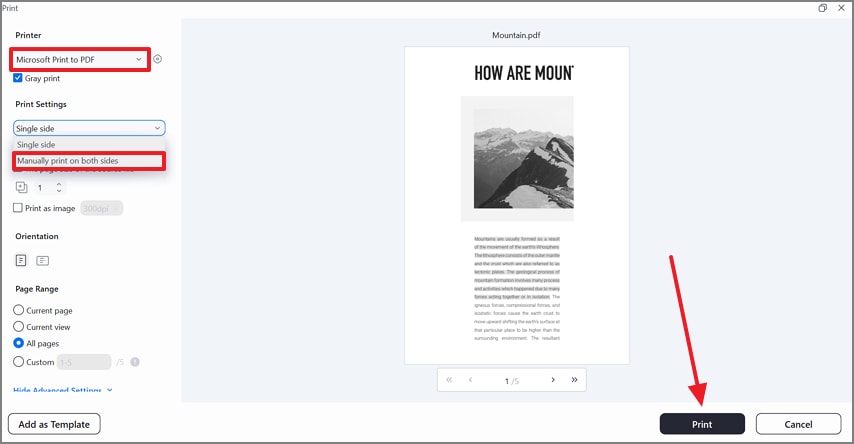
While printing a PDF file, you can merge 2 pages to get an easy-to-handle PDF page. Using the Print window, you can access extensive page settings. The following section explores how to merge pages for printing o PDFelement:
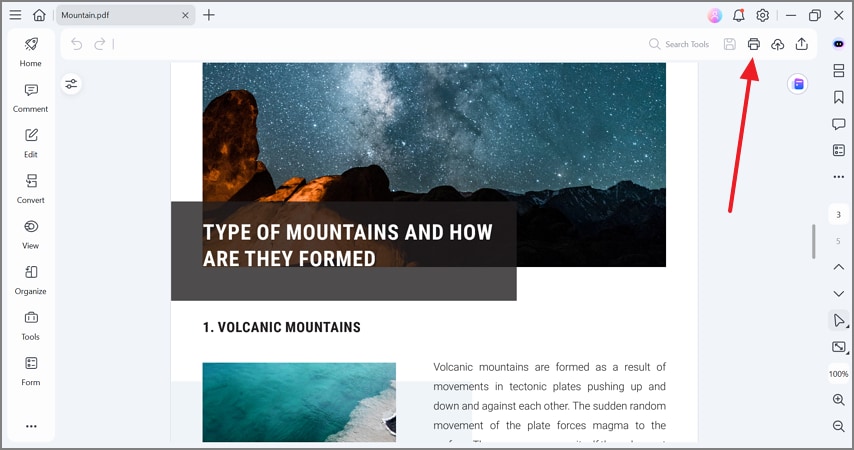
Step 1Select the Print PDF Feature
To begin with, open the PDF and select the "Print" option from the top right of the screen or enter the "Ctrl +P" keys.
Step 2Select the Printer and Enter Advanced Settings
When the Print window opens, select "Microsoft Print to PDF" as the printer. Now, expand the Print Settings menu to select the "Manually Print on Both Sides" option. Once you have selected other print settings, select the "Print" button to continue.
Method 3: Separate PDF Pages as Separate Files
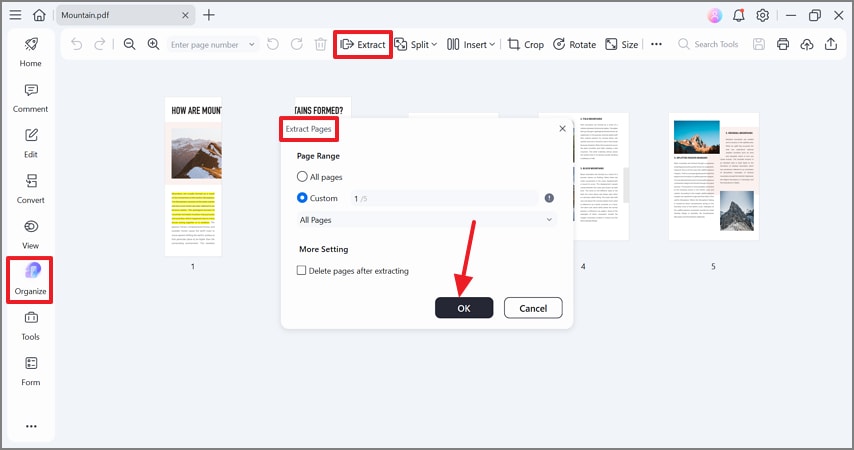
PDFelement's versatility enables users to extract pages of a PDF file and treat them as separate files. You can select the number of pages for extraction for tailored outcomes. To learn how to split 2 two-page PDF into 1 file on PDFelement, follow the guide below:
Step 1Extract PDF Pages as Separate Files
In the "Organize" tab, select the "Extract" option at the top to reveal a window. Using this window, select the pages for extraction and hit the "OK" button to apply changes. You can also delete the extracted pages from the original file if needed.
Part 6. Free/Online Alternatives For Splitting PDFs
Although PDFelement serves as a comprehensive PDF solution, it is okay to look for alternatives. The following table explores tools like PDFelement and when they are the best choices for splitting a PDF in two files:
| Option | Explanation |
| Online PDF Splitters (e.g., online2pdf) | You can split PDFs online through online2pdf-style tools, which work well for small non-sensitive documents. |
| Limitations & Trade-offs | These services often impose size limits, page restrictions, privacy concerns, and sometimes cause unwanted rasterization issues. |
| Desktop Software Advantage | Desktop tools avoid file uploads entirely and provide precise page-level splits with strong file-level control. |
G2 Rating: 4.5/5 |100% Secure
Part 7. Output Settings that Keep You Organized IN Split PDF
While splitting PDF files, following certain tips can help you make the results look organized. The following section explores the output settings for a better PDF outlook:
- Choose a Clear Output Folder: Always select a dedicated folder before running any splits. This keeps all the generated files organized and easy to find.
- Use Consistent File Naming: Name files clearly, such as filename_part1, filename_part2, or filename_range. Consistent naming makes it easy to identify each section.
- Label Chapter-Based Splits: Include chapter names in the filename when splitting by chapters. This helps quickly recognize which part belongs to which chapter.
Part 8. Quality Check of 30 Seconds
To ensure the best quality output, you do a quick quality check after making a PDF with two pages in one. The following steps will help you make sure of a good PDF layout:
- Open Outputs: Open both resulting files and confirm the start and end pages are correct. Remember that inclusive ranges like 1–10 include page 10.
- Verify Split Page Cut: After using Split Page, zoom in to ensure the divider hasn't cropped any text, edges, or diagrams.
- Adjust Divider if Needed: If anything looks cut off, simply re-run Split Page and move the divider line by a few pixels for a cleaner result.
People Also Ask
-
How do I split a PDF into two equal files quickly?
You can split a PDF into two equal files using desktop tools or online splitters that allow page-range selection. Simply select the midpoint pages and run the split to create two separate files instantly. -
Can I split a PDF page in two without cropping quality?
Yes, page-level split tools let you cut a page in half without reducing resolution. This ensures both new pages retain the original text and image quality. -
How do I split PDF into two files for email size limits?
Check the file size first and divide the PDF into smaller parts using page ranges or sections. Each resulting file will meet email attachment limits while preserving content. -
How do I join two PDF files in one afterward?
You can merge two PDF files using a "Combine" or "Insert/Append" feature in PDF software. This creates a single, continuous PDF without losing formatting or content. -
Can I put 2 PDF pages on one page for a handout?
Yes, most PDF tools and print dialogs offer a 2-up or booklet layout option. This lets you place two pages on a single sheet for compact handouts.
Conclusion
Splitting a PDF into two files in PDFelement helps keep your document neat and well-organized. Use the Split PDF tool in PDFelement when you need to divide a file by page range, file size, or bookmarks. Choose the Split Page feature when you want to cut a single page vertically or horizontally using its adjustable divider.
For reverse tasks, PDFelement lets you merge two PDFs or place two pages together in a 2-up layout. The desktop version provides stronger privacy and precise control, while the online version works well for small, non-sensitive files.

