

Many people get stuck when a PDF arrives that needs a signature, but they don't have Adobe Acrobat or a paid subscription. Instead of manual printing, you can handle signatures digitally with other advanced tools.
However, most people are still looking for how to sign a PDF without Adobe with ease. This article provides a detailed guide to signing a PDF using an efficient, intuitive PDF editing tool. So, if you are also the one who wants to add signatures to their file for free, then go through this guide to the end.
In this article
- Can You Sign A PDF Without Adobe?
- What You Need to Sign a PDF Without Adobe
- How To Add a Signature to A PDF Without Adobe Using PDFelement
- Signing PDFs Someone Else Set You (Without Adobe)
- Electronic Signatures vs. Digital Signatures (Brief Clarification)
- Free vs. Paid Ways to Sign a PDF Without Adobe
- Common Problems When Signing PDFs Without Adobe (And Fixes)
Part 1. Can You Sign A PDF Without Adobe?
Absolutely, you can add a signature without Adobe, as long as it is not the only option used to add digital signatures. There are numerous other tools available that can handle uploading a PDF, placing a signature, and saving a signed copy just as effectively.
Why Users Look for Non-Adobe Solutions
Prior to discussing how to sign a PDF without Adobe, it's worth discussing why users are seeking non-Adobe solutions:
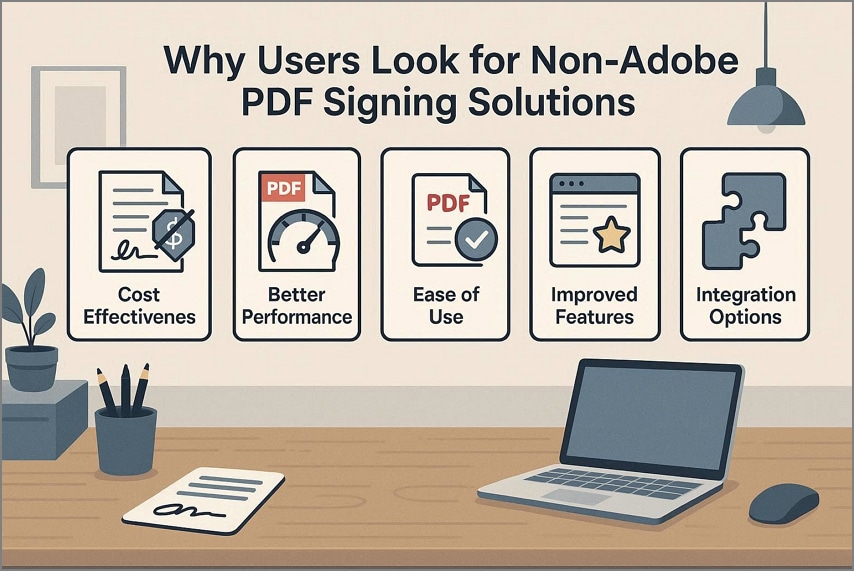
- Cost Effectiveness: Adobe's full PDF tools are usually subscription‑based, which can feel expensive. So, users opt for free or low-cost, effective alternatives to streamline signing.
- Installation Restrictions: In most offices and co-working spaces, downloading any software is not allowed. In this scenario, users prefer online tools that allow them to sign PDFs without modifying system settings.
- Prefer Simpler Tools: Rather than a full-featured suite, users need only simple features such as adding a signature, date, or initials. Users typically opt for tools that focus solely on signature features and require no skill.
- Cross-Platform Flexibility: Many users work across different devices, so they prefer tools that work across all operating systems. Web‑based PDF tools often provide a consistent experience everywhere, making it easier to sign documents.
- Privacy Control: Some users are uncomfortable linking documents to large ecosystems or cloud accounts. Rather, they prefer smaller tools that give them more control over where files are stored or deleted.
What matters most here is the tool's capability, not its brand name. If the tool lets you upload the PDF, add a signature, and save it back to the device, that is best. Furthermore, if it keeps the layout and format consistent, it can perform as well as the big-name editing tool.


 G2 Rating: 4.5/5 |
 100% Secure
Part 2. What You Need to Sign a PDF Without Adobe
Here we have listed some preparations to know for learning how to add a signature to a PDF without Adobe:
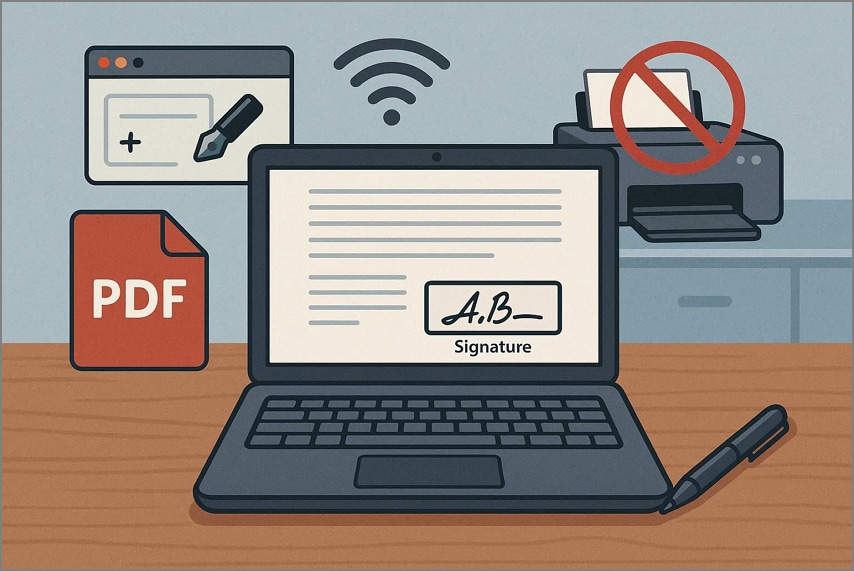
- PDF Document: First, you need a PDF file that requires your instant signature. This PDF can be sent to you or exported to a platform such as Word, Docs, or another app.
- PDF Editor: Secondly, choose a PDF editor that lets you add an electronic signature. Furthermore, ensure that the tool lets you save or export the PDF while maintaining its format.
- No Printers: Since all processes are digital, you don't need to print the file first. Users simply need a PC and a stable internet to add a signature instantly.
Overall, you don't need to convert a PDF to another format; you simply open and e-sign the file. Furthermore, it is not necessary to use Adobe Acrobat, as numerous advanced PDF editing tools are available.
Part 3. How To Add a Signature to A PDF Without Adobe Using PDFelement
One night, you have won a deal on an urgent project and have to sign the contract immediately. You have to sign the PDF and send the contract for confirmation, but you don't have Adobe Acrobat. Rather than panicking, you can use alternative PDF editing tools, such as PDFelement. This is an independent PDF editor that provides built-in electronic signature tools.
You can add e-signatures by typing your name, drawing with a mouse, or uploading a signature image. The key benefit is that it can convert the scanned document into an editable file using its efficient OCR feature. Furthermore, users can add a PDF exported from any source, including Word and Docs.
An Extensive Guide on How to Use PDFelement For Adding Signature
After getting well aware of its key features, let's dive into its detailed guide to know how to add a signature to a PDF without Adobe:
G2 Rating: 4.5/5 |100% Secure
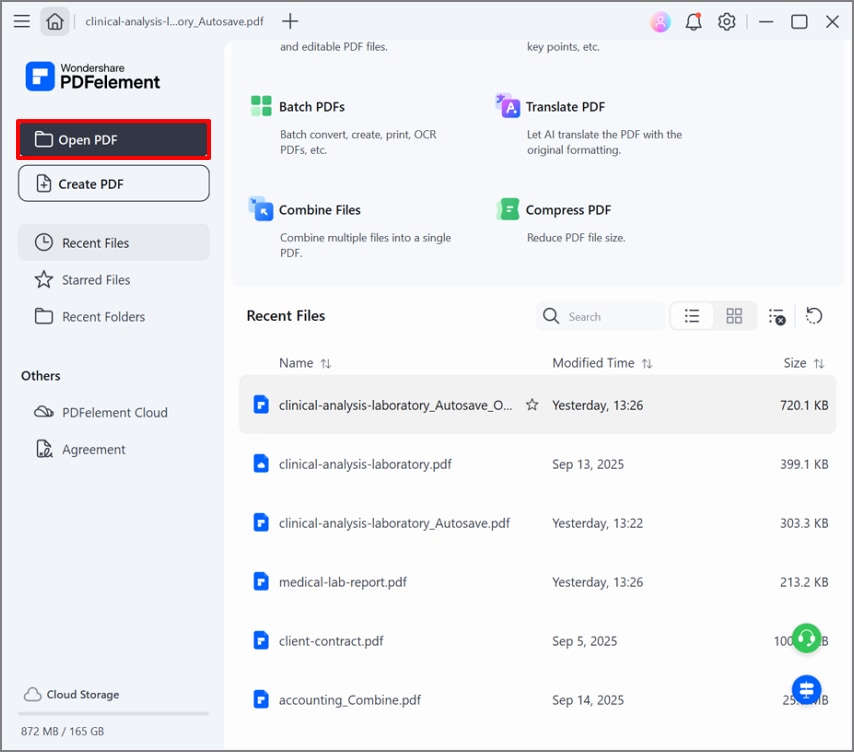
Step 1Insert The Desired PDF in the PDFelement Tool
Upon entering the tool, click on the "Open PDF" button to import the targeted PDF contract from the device folder.
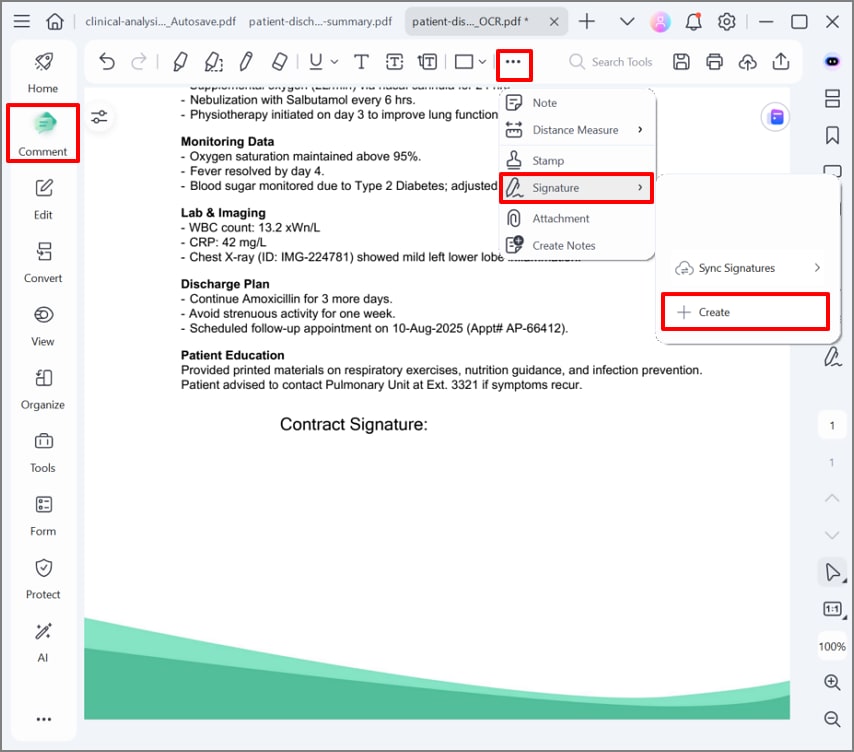
Step 2Access Create Option in Comment Option
As you open the targeted PDF file, click on the Comment option from the left sidebar. Afterwards, hit the 3 Dots, select the "Signature" option, and then hit the "+Create" option.
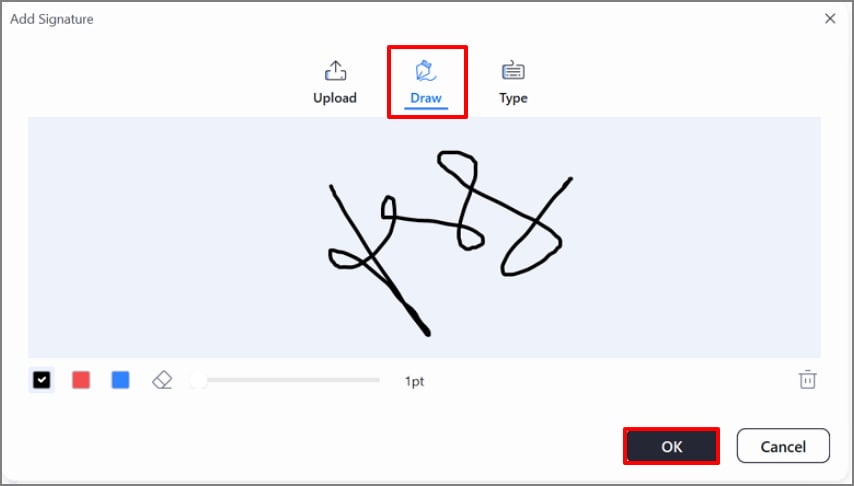
Step 3Create a Signature for Your PDF File
Here, click on the "Draw" option to draw your signature and hit the "OK" button. Here, you can also upload already taken signature image or type your name, whichever is easier for you.
Step 4Position the Sign and Render to the Device
Lastly, place the sign in the desired, properly designated section and hit the "Save" icon to export the signed file to the device.
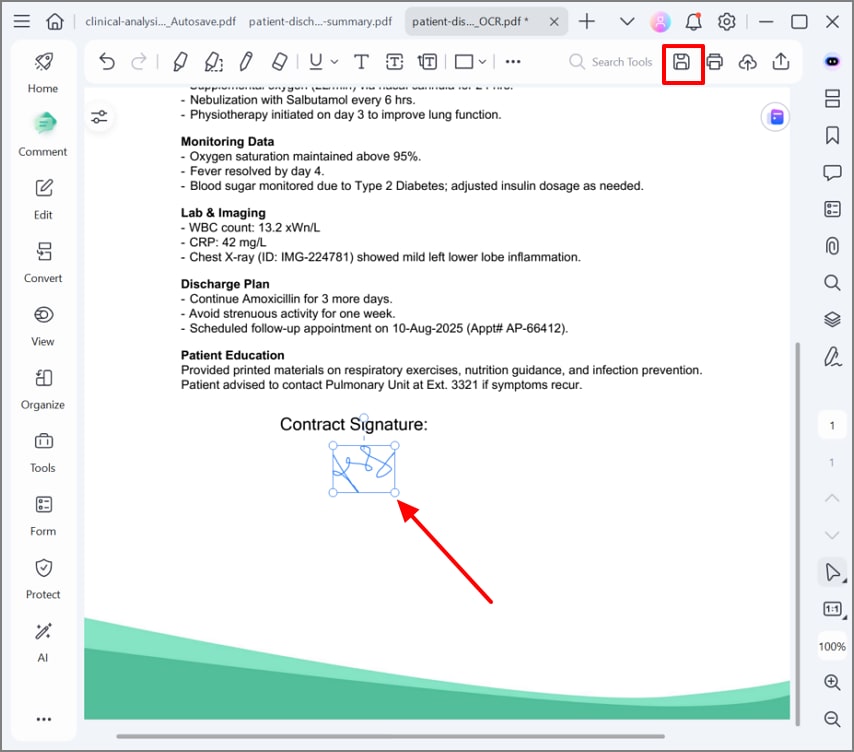
This intuitive workflow will produce a signed PDF without requiring Adobe Acrobat. The PDF is now ready to share; you can send the signed document directly via a shareable link or a mobile QR code.
G2 Rating: 4.5/5 |100% Secure
Part 4. Signing PDFs Someone Else Sent You (Without Adobe)
Suppose someone sent you the onboarding contract via email, so you simply sign the PDF file and resend it. The PDF was initially created using other platforms such as Word, Google Docs, and Adobe. Now you want to sign that document without corrupting the overall format.
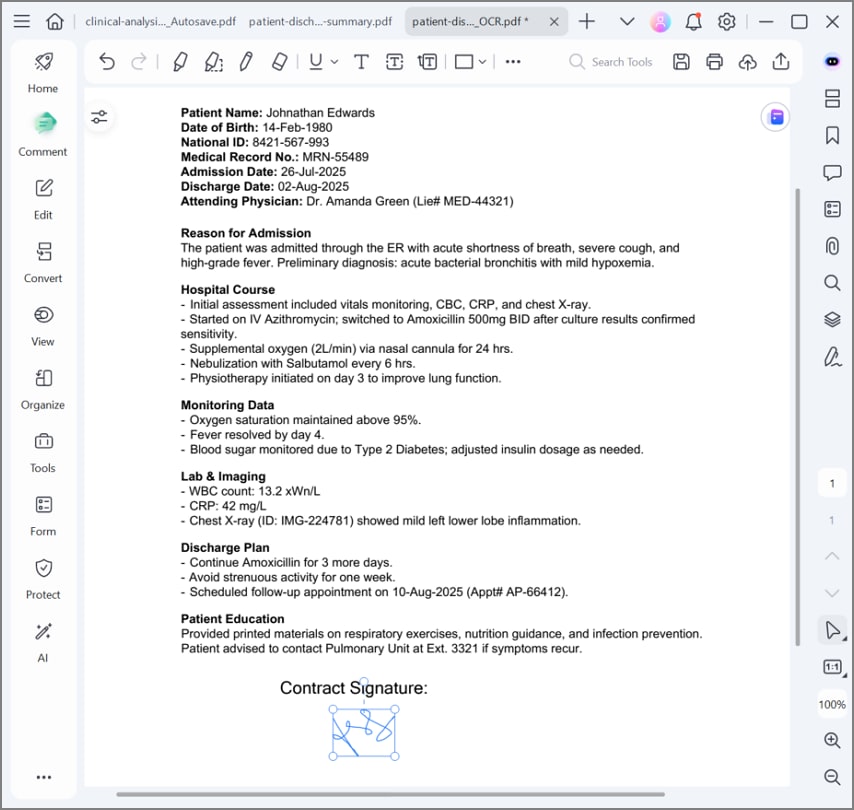
To explore how to sign a PDF without Adobe, you can upload the PDF to editing tools like PDFelement, which offers various signature options. Here, simply access the Signatures option to add a desired signature without altering the file format and page layouts.
Part 5. Electronic Signatures vs. Digital Signatures (Brief Clarification)
It is necessary to have a better understanding of signature types to ensure an efficient workflow. So, let's explore a quick comparison to know how to sign a PDF without Adobe:
| Aspects | Electronic Signatures | Digital Signatures |
| Typical Usage | Every day, PDFs and routine agreements | High‑security or highly regulated documents |
| How it Works | Typed, drawn, or image‑based signature showing intent to sign | Uses cryptography and a digital certificate to secure the document |
| Security Level | Basic to moderate security | Strong security, tamper‑evident, integrity checks |
| Identity Verification | Often relies on email, account login, or simple checks | Identity tied to a certificate issued by a trusted authority |
| When Needed | Most users sign PDFs without Adobe for contracts, forms, HR docs, etc | When higher assurance or compliance is required |
| Legal Validity | Generally valid in many jurisdictions | Designed to meet stricter legal and compliance standards |
| Tool Support | Widely supported by common PDF editors and online signing services | Supported by specialized tools handling cryptographic keys |
So, mostly users who want to sign a PDF without a PDF reader are dealing with everyday tasks like freelance contracts or HR forms. In these scenarios, the main goal is to sign, so they mostly opt for e-signatures to speed up workflows. However, if you are dealing with some official government contracts, then you need to use certificate-based digital signatures. In both scenarios, it's not necessary to use Adobe Acrobat to add signatures.
G2 Rating: 4.5/5 |100% Secure
Part 6. Free vs. Paid Ways to Sign a PDF Without Adobe
For a better understanding of how to sign PDF without Adobe, explore the limitations of free tools:
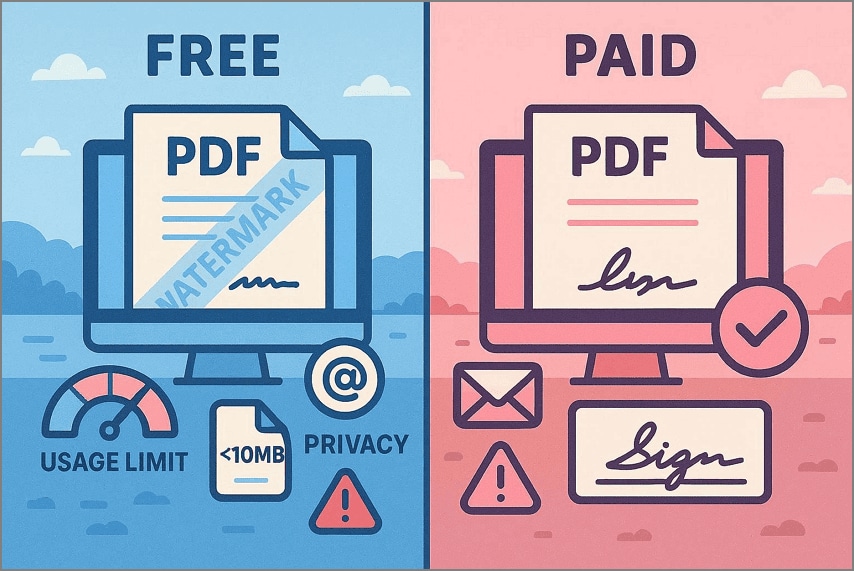
- Watermarks: Many free tools add a small logo to the sides of images for marketing purposes. This will make the PDF look unprofessional and give clients a bad impression.
- Usage Limits: Free trials of tools typically limit the number of tasks you can complete per month. Once you hit the limit, you have to wait until next month or upgrade to a higher plan.
- Page or File Size Limit: Most tools only let you sign the PDF up to a limited number of pages or file size. If you are dealing with a larger file, you need to compress it first to reach the exact limit.
- Log-in Required: A lot of tools require logging in first and accept their email marketing feature. This can add an extra step and can be inconvenient to users who need quick solutions.
- Privacy Restrictions: Some free services retain your files longer and use them for analytics. To gain greater control, you may need to switch to a paid option.
When Upgrading Makes Sense
Now, if you are a professional who needs frequent PDF signing and works with larger files, it's worth the upgrade. You can opt for an advanced desktop solution like PDFelement, designed for professional use. Furthermore, these tools provides batch processing and lets you convert the files into numerous file formats efficiently.
G2 Rating: 4.5/5 |100% Secure
Part 7. Common Problems When Signing PDFs Without Adobe (And Fixes)
Now we have listed some common issues that users usually face while knowing how to add a signature to a PDF without Adobe:
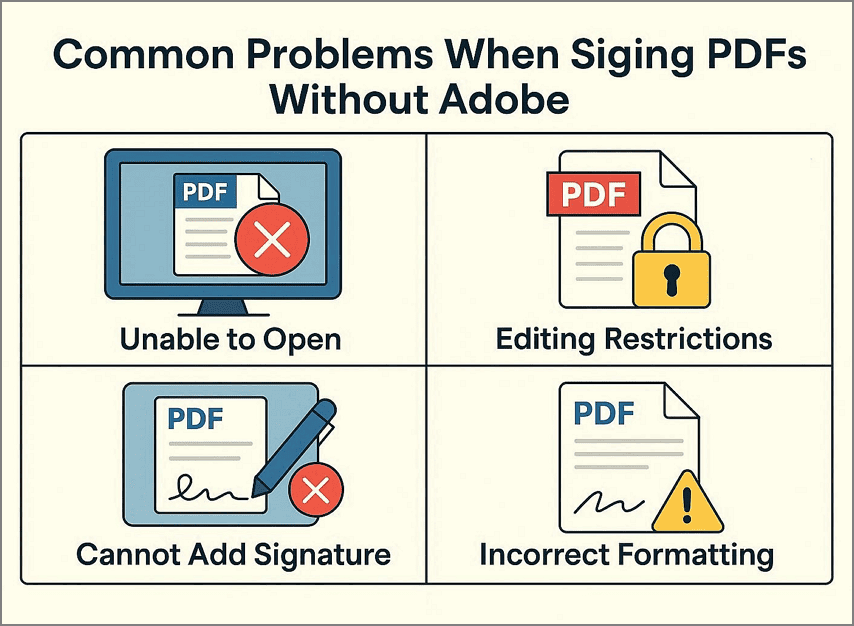
- Signature Not Appearing: This issue often occurs when the PDF editor fails to embed the signature properly. To avoid this error, always reopen the file to verify whether it is signed.
- Read-Only PDFs: Sometimes, files become a read-only format after flattening the PDF document. So, always ensure that all other sections are editable by using tools that lock only signed areas.
- Not Signed PDF: In most cases, the signature is present, but the recipient is complaining that it is missing. So, ask the viewer to open the PDF file in a compatible PDF viewer and check the signature panel.
- Wrongly Placed Sign: By using the drag-and-drop feature, you sometimes wrongly place the signature. Always use the move and undo tools to reposition the signature to the designated area.
However, note that the listed issues are entirely related to incorrect workflow usage, so don't confuse them with tool-related errors.
Frequently Asked Questions
-
Can I sign a PDF without Adobe Reader?
Yes, you can sign a PDF using online eSignature platforms or built‑in apps on both Windows and macOS. Many of these tools allow you to draw signatures and download the signed PDF file in minutes. -
How do I add a signature to a PDF without Adobe?
You can add a signature by uploading the PDF file to the editing tool. Afterward, draw or write the signature and save the file to the device for future use. -
Is a PDF signed without Adobe legally valid?
In many countries, electronic signatures created in compliant eSignature tools are legally valid. Reputable platforms provide audit trails, encryption, and authentication options, enabling signed PDFs to be used for contracts. -
Do I need special software to sign PDFs?
Yes, basic singing can be done in any modern browser using online tools. However, to cater to advanced editing, you need to use dedicated eSignature software, but it is not mandatory for everyday documents. -
Can I sign PDFs on Windows or Mac without Adobe?
Yes, you can sign PDFs on both OS using tools like PDFelement, which provides wider compatibility. While exploring how to sign a PDF without Adobe, know that this tool offers more advanced features like OCR and batch processing.
Wrap-up: The Easiest Way to Sign PDFs Without Adobe
Concluding it, now you can sign a PDF with any PDF editing tool without requiring Adobe Reader. For your ease, this article covers all basic information about how to sign a PDF without Adobe. So, we recommend using PDFelement, which provides a fully digital and intuitive workflow to add signatures instantly.




