

A client sends an urgent contract that needs your signature within minutes, but there is no printer or scanner in sight. This situation is increasingly common as paperwork continues to move fully online. Knowing how to sign a PDF document without printing saves time, reduces hassle, and keeps workflows moving smoothly.
Instead of dealing with physical pages, modern PDF tools allow you to add secure electronic signatures directly on your device. Whether you are working from home, handling business agreements, or approving forms on the go, digital signing offers a faster and more practical solution. This guide explains reliable methods to sign PDFs efficiently without ever touching paper.
In this article
- Why You Don't Need to Print a PDF to Sign it Anymore
- What "Signing a PDF Without Printing" Actually Means
- Choosing the Right No-Print Signing Method
- What You Need to Sign a PDF Without Printing
- How to Sign a PDF Without Printing Using PDFelement
- Signing a PDF Someone Else Sent You
- How to Sign PDF Forms Without Printing
- Is Signing a PDF Without Printing Legally Acceptable?
- Common Problems When Signing PDFs Without Printing
Part 1. Why You Don't Need to Print a PDF to Sign it Anymore
The traditional print–sign–scan routine once felt unavoidable, but it no longer fits how documents move today. Digital workflows now prioritize speed, accuracy, and remote accessibility, making paper-based signing an unnecessary slowdown. Here's why printing a PDF to sign it is no longer required:
- Built-In Electronic Signature Support: Modern PDF tools show how to sign a PDF without printing by allowing you to add legally accepted electronic signatures directly to the document, eliminating physical handling.
- Faster Turnaround Time: Signing digitally reduces a multi-step workflow to just a few clicks, helping documents get approved and returned within minutes.
- Remote and Device-Friendly Access: PDFs can be signed on laptops, tablets, or smartphones, making it easy to complete documents from anywhere.
- Improved Document Quality and Security: Digital signatures prevent scanning errors, keep text sharp, and often include tamper-evident protection for added trust.
Common Situations Where Printing is Impractical
- Remote Work and Distributed Teams: When working from home or collaborating across locations, access to printers and scanners is limited, making digital signing the most practical option.
- Urgent Approvals and Tight Deadlines: Time-sensitive documents often need immediate action, and printing can cause unnecessary delays when approvals are required within minutes.
- Mobile or Travel Scenarios: While traveling or working on the move, carrying printing equipment is unrealistic, but PDFs can still be signed easily on mobile devices.
- Paperless Business Workflows: Many organizations now operate digitally, where printing breaks efficiency and contradicts sustainability goals.
Most organizations now accept a signed PDF that contains a valid electronic or digital signature applied directly within the file. Instead of requiring ink, they look for clear signer intent, document integrity, and traceability. This change explains how to sign a PDF without printing using trusted PDF tools that keep documents secure and readable.


 G2 Rating: 4.5/5 |
 100% Secure
Part 2. What "Signing a PDF Without Printing" Actually Means
Before choosing tools or following step-by-step instructions, it's important to understand what "signing a PDF without printing" truly involves. Many users expect one universal method, but paperless signing actually covers two distinct approaches. Understanding this difference also clarifies how to sign a document without printing correctly, based on whether convenience or security matters more.
Electronic Signatures
Electronic signatures are the most common paperless option and are widely used for everyday documents. They can be typed, drawn with a mouse or touchscreen, or added as an image of a handwritten signature. This method focuses on speed and ease, making it ideal for forms, agreements, and internal approvals where advanced verification is not required.
Digital Signatures
Digital signatures offer a higher level of security and authenticity. They rely on certificate-based encryption to verify the signer's identity and protect the document from unauthorized changes. This method is often required for legal, financial, or compliance-related documents where proof of integrity and signer verification is essential.
The Difference
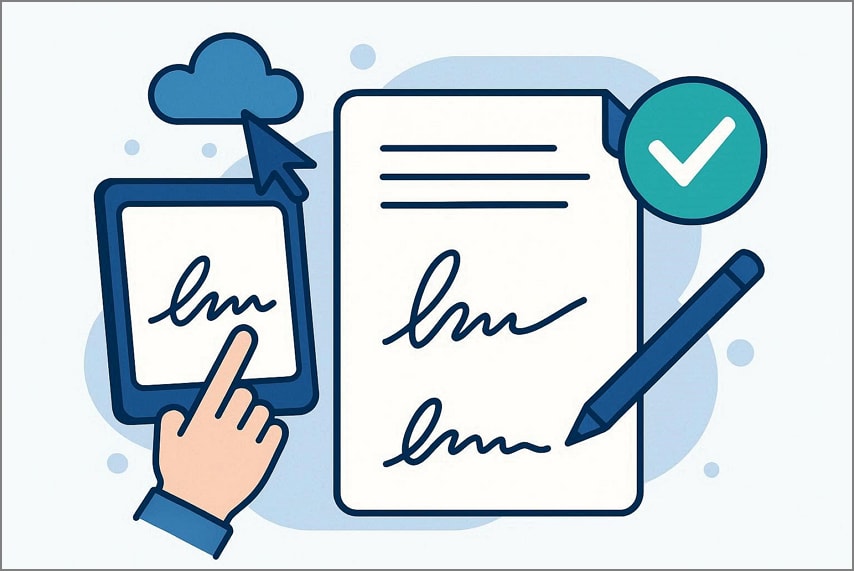
When people talk about avoiding printing, they usually mean using electronic signatures, which let you type, draw, or insert a signature directly into a PDF for quick approvals. Both electronic and digital signatures keep documents fully digital.
Electronic signatures remove the need for paper, while digital signatures add encryption and verification to ensure authenticity, integrity, and legal recognition. This allows PDFs to be signed, shared, and stored securely without ever printing a physical copy.
G2 Rating: 4.5/5 |100% Secure
Part 3. Choosing the Right No-Print Signing Method
Not every document or situation requires the same signing approach. If you're wondering how I can sign a PDF without printing, the right choice depends on how quickly you need to sign, the level of security required, and the tools you have at hand. Here's a quick guide to help you decide which no-print signing method works best for your needs:
1. Fast Sign-and-Send: Electronic Signature
When speed matters, electronic signatures let you type, draw, or insert a signature instantly, making approvals and submissions quick and hassle-free.
2. Verification or Integrity Needed: Digital Signature
For legal, financial, or compliance documents, digital signatures ensure authenticity and protect the file from unauthorized changes.
3. No Scanner, Using a Computer: PDF Editor Tools
If you don't have a scanner, PDF editors with built-in signing tools let you sign directly on your device without printing.
4. Flexible Solution: PDFelement
PDFelement supports both electronic and digital signatures, so you can choose the method that fits each document's requirements.
Part 4. What You Need to Sign a PDF Without Printing
Before you begin, it's important to understand how to sign a PDF document without printing and what essentials you'll need to make the process smooth and fully digital. Having the right setup ensures efficiency, security, and accuracy. Mentioned below are the requirements for signing a PDF without printing it:
G2 Rating: 4.5/5 |100% Secure
- PDF Document: You need the PDF file you want to sign, whether it's fillable or non-fillable. This ensures you can place your signature in the correct location without printing.
- Device Access: A computer, tablet, or smartphone is required to open, view, and sign the PDF digitally. Any modern device with PDF support will work.
- PDF Tool with Signing Features: A reliable PDF editor that supports electronic and digital signatures is essential for a smooth paperless signing workflow.
With PDFelement, signing PDFs becomes straightforward. You can create electronic signatures directly within the PDF, eliminating the need for printing, scanning, or converting files. This makes it ideal for quick approvals, remote work, or any scenario where printing isn't practical. Users can also save signature templates for repeated use, streamlining workflows and ensuring consistency across multiple documents.
PDFelement also supports digital signatures for documents that require higher security and authenticity. Using certificate-based encryption ensures that signed PDFs remain tamper-proof and legally valid. For anyone looking to fully understand how to sign a document without printing, PDFelement provides an all-in-one solution, combining convenience, flexibility, and compliance in a single platform.
Part 5. How to Sign a PDF Without Printing Using PDFelement
With PDFelement, users get the ability to sign documents using both methods. The tool allows you to generate an electronic signature as well as a digital signature. Both methods are discussed in detail in the section below:
Method 1. Electronic Signature
This method lets you draw and type the signature into the document effortlessly within the tool. It also allows you to import an image and add it as a signature to the document. To learn how to apply an electronic signature to your document with PDFelement, read the steps mentioned below:
Step 1Begin By Importing Document and Accessing Comment
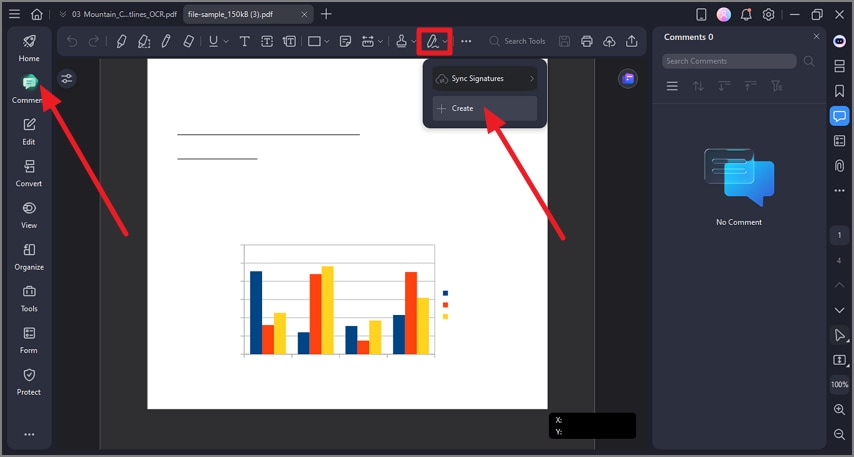
To start the process, launch PDFelement on your device and head to the toolbar on the left. Now select the "Comment" option and head to the toolbar at the top. Press the "Signature" icon and expand it to select "Create."
Step 2Create Signature and Save
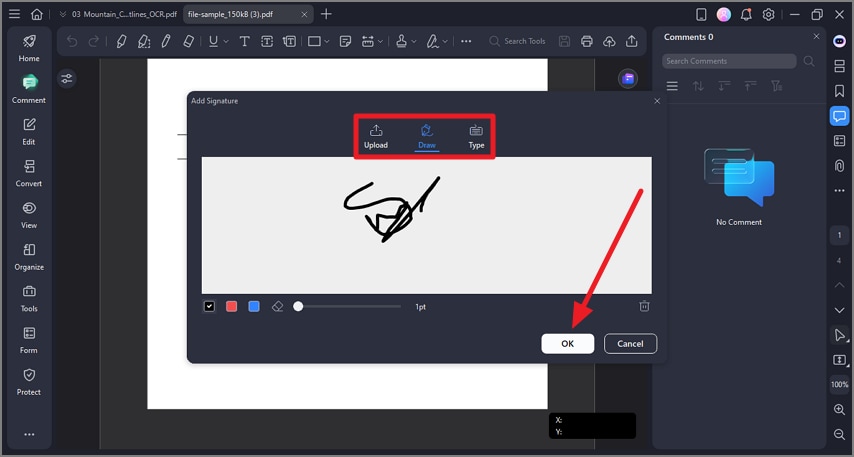
In the following small window, create the signature by typing and drawing on the screen. You can also upload a picture of the signature from your device. Customize the signature according to your preferences and hit the "OK" button to save it.
G2 Rating: 4.5/5 |100% Secure
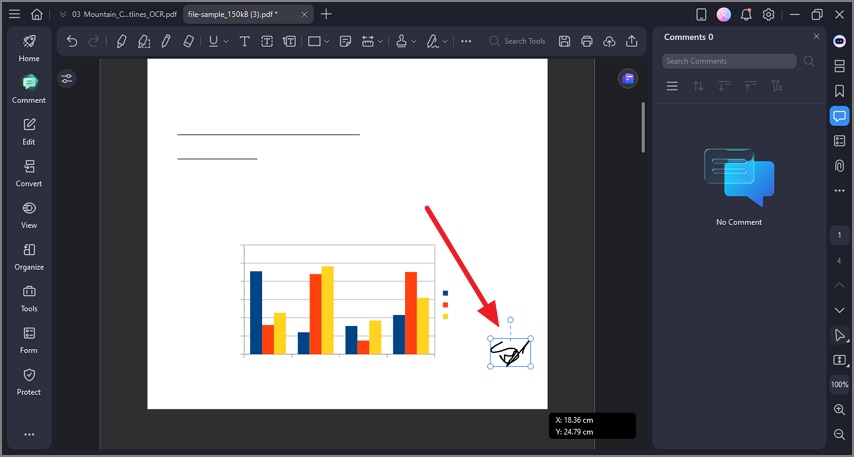
Step 3Place the Signature on the Document
Now, place the signature on the document wherever you want and adjust the size according to your preferences. Once the signature is done, save and export the document to your device.
Method 2. Digital Signature
With PDFelement, you get the ability to sign the document digitally using a digital ID. You can create a new ID or use an already existing ID. Furthermore, you can validate the signature within the document in no time. Follow the steps mentioned next to learn how to sign a document without printing using this tool:
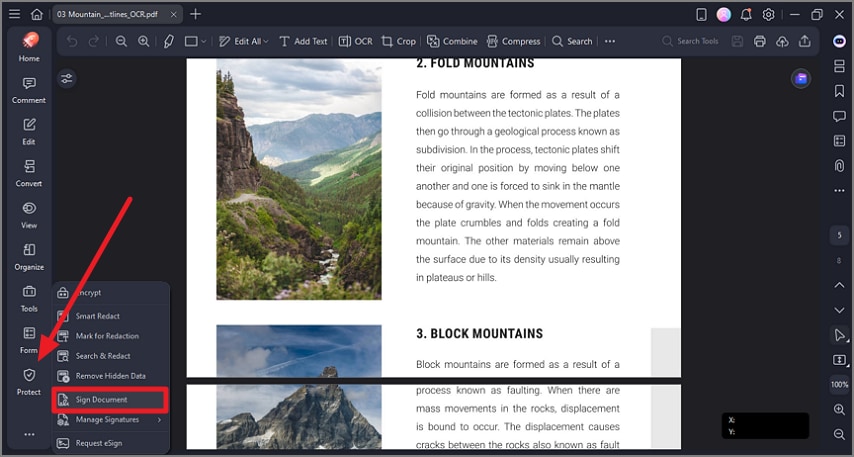
Step 1Import the Document and Access the Protect Tool
Start by opening PDFelement and uploading the PDF you need to sign. After the file loads, move to the left-side toolbar and click the "Protect" option. From the expanded menu, select "Sign Document" to continue.
G2 Rating: 4.5/5 |100% Secure
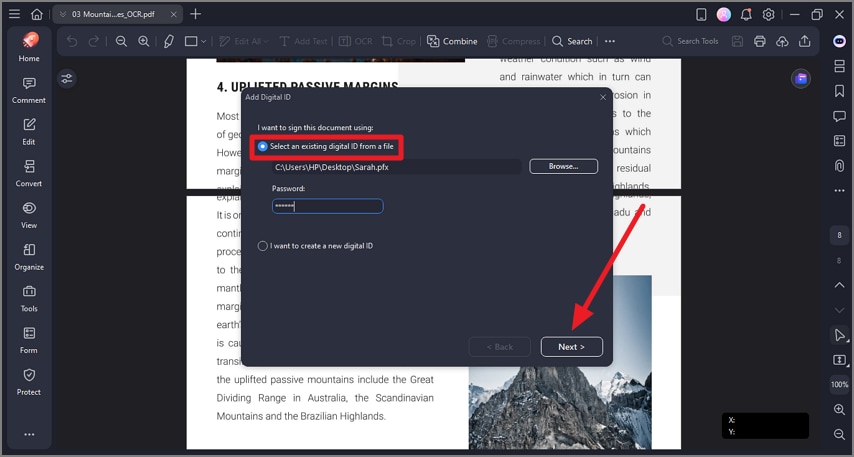
Step 2Choose the Signing ID Option
On the next screen, select the option indicating you already have an existing signing ID. Once selected, click "Next" to move forward.
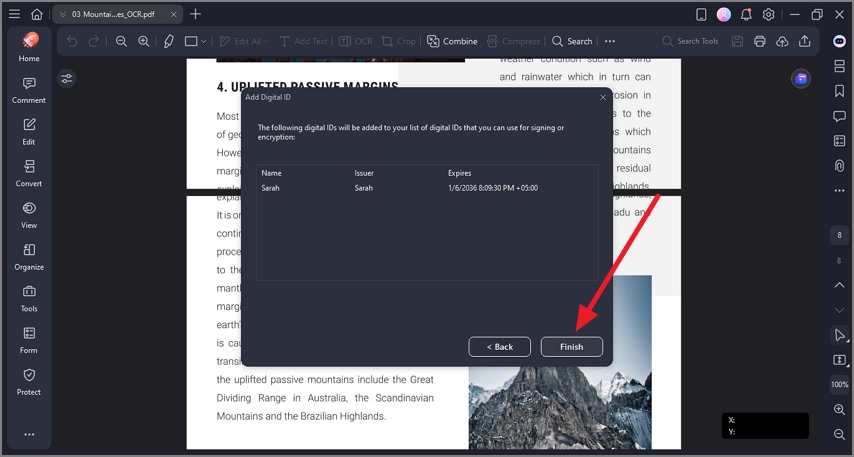
Step 3Select the Required ID
From the available list, choose the appropriate ID and then click the "Finish" button to proceed.
Step 4Apply the Signature to the Document
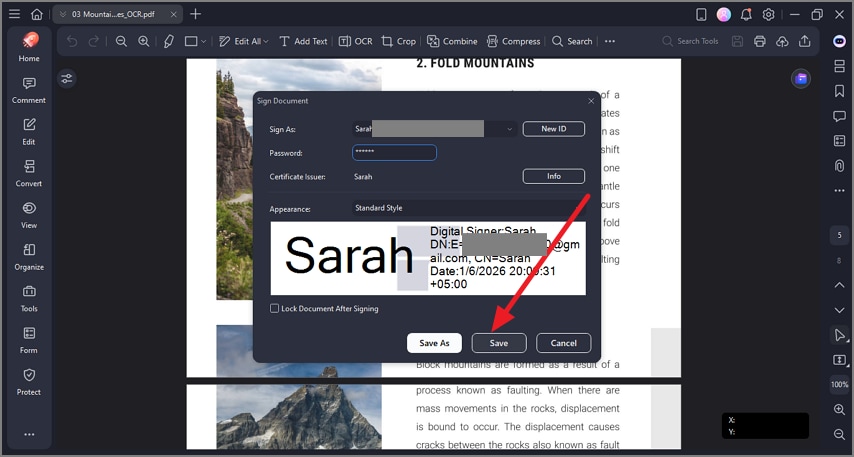
Preview the signature, enter the password linked to the ID, and confirm the action. Click "Save" to digitally sign the PDF.
Step 5Review the Signed Document
After the signature is applied, review the document to ensure proper placement. Finally, save the signed file to your device or share it directly with the recipient.
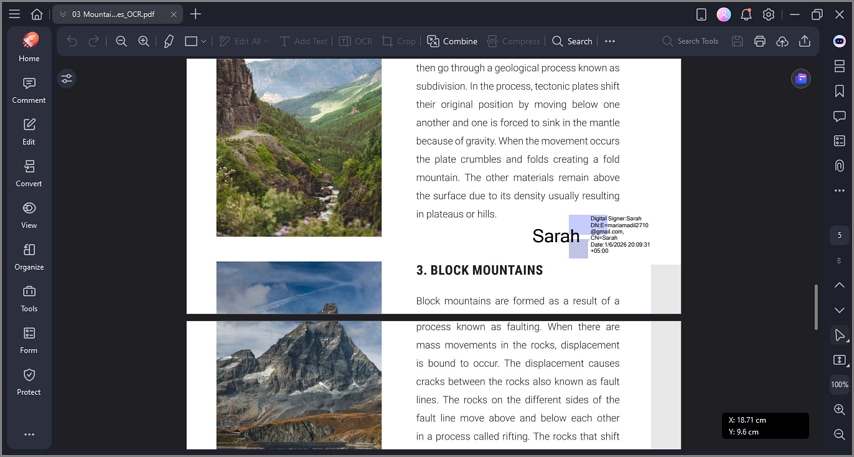
The document remains completely digital from start to finish, allowing you to sign, save, and share it without printing or scanning. This ensures faster processing, cleaner files, and a smooth paperless workflow suitable for modern professional and remote work environments.
Part 6. Signing a PDF Someone Else Sent You
When you receive a PDF from another person, knowing how to sign a PDF without printing keeps the workflow efficient and fully digital. This approach is especially useful in remote work, client agreements, or administrative approvals, allowing you to complete documents quickly without paper. Here are typical scenarios where you might need to sign someone else's PDF:
- Email Contracts and Forms: PDFs sent via email often require your signature for agreements, approvals, or acknowledgments without the hassle of printing and scanning.
- PDFs Created in Other Tools: Documents generated in Word, Adobe, or other software can be signed digitally without altering the original formatting.
- Maintaining Original Content: Signing electronically allows you to add your signature without changing the layout, text, or embedded elements of the original document.
- Time-Sensitive Approvals: Quick turnaround requirements make digital signing ideal when documents need to be returned promptly.
- Remote or Mobile Signing: PDFs received while traveling or away from the office can be signed on mobile devices, keeping workflows uninterrupted.
With PDFelement, users get the ability to perform the following tasks for their signing needs:
- Signing PDFs Created by Others: PDFelement allows you to place your electronic or digital signature on any PDF, regardless of how it was created.
- Adding Signatures Without Changing Layout: The tool preserves fonts, images, and formatting while letting you insert your signature cleanly.
- Saving a Clean, Shareable Signed File: Once signed, the PDF remains fully digital and ready to share, ensuring professional presentation and integrity.
G2 Rating: 4.5/5 |100% Secure
Part 7. How to Sign PDF Forms Without Printing
Understanding how to sign a document without printing is essential when working with PDF forms. Here are common steps and considerations for signing PDF forms without printing:
- Filling Interactive Form Fields: Many PDFs have editable fields for text, checkboxes, or dropdowns that can be completed digitally without altering the document layout.
- Adding a Signature After Completing the Form: Once the form is filled out, you can insert an electronic or digital signature in the designated area to finalize the document.
- Avoiding Common Form-Signing Issues: Digital signing prevents problems like misaligned signatures, illegible scans, or missing pages that often occur when printing and scanning forms.
- Remote Form Completion: Forms can be filled and signed from anywhere, whether you're working from home, traveling, or collaborating with clients online.
- Time-Saving Workflow: Completing and signing forms digitally streamlines approvals, reduces turnaround times, and eliminates the need for physical handling.
With PDFelement, you can handle PDF forms and signatures effortlessly. It can perform the following tasks for users:
- Form Filling: PDFelement supports completing interactive fields directly in the PDF without printing or converting the file.
- Signature Placement: You can add electronic or digital signatures precisely where needed, maintaining document integrity and layout.
- One Continuous Paperless Workflow: From filling to signing to saving, PDFelement provides a complete end-to-end solution for signing PDF forms without printing.
Part 8. Is Signing a PDF Without Printing Legally Acceptable?
How to sign a PDF without printing is a question many professionals ask when moving to fully digital workflows. Understanding the legal acceptance of electronic and digital signatures helps build confidence and ensures documents meet compliance requirements. Here's when and why no-print signatures are generally accepted, along with important considerations:
- Electronic Signatures Generally Accepted: Many everyday agreements, forms, and contracts recognize typed, drawn, or image-based signatures as legally valid.
- Digital Signatures Preferred for Security: For sensitive, legal, or financial documents, certificate-based digital signatures provide authentication and tamper-evident protection.
- Printing Rarely Required by Law: Most jurisdictions no longer mandate physical ink signatures; legal frameworks like eIDAS (EU) or ESIGN (US) support electronic signing.
- Document Type and Jurisdiction Matter: Some notarized, court, or government filings may still require traditional signatures, so always confirm local requirements.
- Audit Trails and Record Keeping: Digital signing tools often provide timestamped records and verification logs, adding credibility and legal defensibility.
G2 Rating: 4.5/5 |100% Secure
Part 9. Common Problems When Signing PDFs Without Printing
When learning how to sign a PDF document without printing, it's important to be aware of common issues that can arise and how to fix them. Here are the most frequent issues and how to address them:
- Signature Doesn't Show After Saving: The signature appears while editing but disappears when the PDF is saved. Use a reliable PDF editor like PDFelement, which properly embeds signatures into the document, so they remain visible after saving.
- PDF Won't Allow Signing: Some PDFs are restricted or protected, preventing signature placement. Unlock or adjust permissions using PDFelement before signing or use its built-in signing tools that work with secured files.
- Signature Placed Incorrectly: The signature appears in the wrong location or overlaps other elements. PDFelement allows precise placement with drag-and-drop control, ensuring the signature aligns perfectly with form fields or designated areas.
- Recipient Says the File Isn't Signed: Recipients cannot verify the signature or see it properly. Save the PDF correctly using PDFelement and, if needed, apply a digital signature for added verification and tamper-evident protection.
- Issues with Form Fields or Interactive PDFs: Signatures may not appear in fillable forms if placed incorrectly. Complete all interactive fields first and then use PDFelement's signing tools to ensure the signature is applied to the correct field.
People Also Ask
-
Can I sign a PDF without printing or scanning it?
Yes, you can sign a PDF entirely digitally using electronic or digital signatures, eliminating the need for printing or scanning. Tools like PDFelement make it easy to add your signature directly on the document. -
How can I sign a PDF document without a printer?
You can use a PDF editor or signing tool to place an electronic or digital signature on the file. PDFelement supports both methods, letting you sign and save the PDF without any printing. -
What's the easiest way to sign a PDF without printing?
The simplest approach is to use an electronic signature tool that allows you to type, draw, or insert your signature. PDFelement provides a user-friendly interface for quick, precise signing. -
Is an electronically signed PDF valid without printing?
Yes, electronic signatures are legally recognized in most jurisdictions, as long as they meet authenticity and intent requirements. Using PDFelement ensures your signature is properly embedded and verifiable. -
Can I sign a PDF on my computer and email it back?
Yes, you can complete the form or document, add your signature, and email it directly from your computer. PDFelement lets you save a clean, signed PDF ready for sharing immediately.
Conclusion
To wrap it up, this article provided a complete guide on how to sign a PDF without printing. Printing is no longer necessary, as electronic and digital signatures allow documents to be signed, verified, and shared entirely digitally. PDFelement offers an all-in-one solution, supporting both signature types, precise placement, and secure saving, making it easy to maintain professional, paperless workflows while ensuring your PDFs remain legally valid and ready to share.




