Zamzar’s PDF to MP3 tool provides 14 voices across 13 languages, with five-step controls for pitch, speed, and volume. Those choices shape whether a 30-page white paper sounds measured or rushed during a morning drive. However, free use allows only two files within 24 hours.
Zamzar PDF to MP3 reads the document aloud inside a browser-based workflow. For another approach, PDFelement can convert PDF to MP3 on desktop through AI. Instead of simply reading every line, it can turn the white paper into a podcast-style episode that discusses key arguments like a radio segment.
In this article
Part 1. What Zamzar PDF to MP3 Does
Zamzar PDF to MP3 lives on Zamzar’s online file conversion site, where the page title promises to “Convert your PDF to MP3 for Free Online.” Its optional advanced settings ask you to “Choose a voice and language,” and English is the only language with a male option. Catalan, Danish, Finnish, and nine others each get one female voice, and pitch, speed, and volume run on five steps apiece.
Changing the white paper’s extension to .mp3 will not convert PDF to MP3, since Zamzar generates speech from extracted text rather than simply changing the file extension. Behind the menus, text-to-speech reads whatever words Zamzar extracts, which may include page numbers and running headers.
Part 2. How to Convert PDF to MP3 with Zamzar
All four stages to convert PDF to MP3 on Zamzar sit on one page, and free conversions ask for no account. The white paper moves through them in order, with voice settings behind an optional menu.
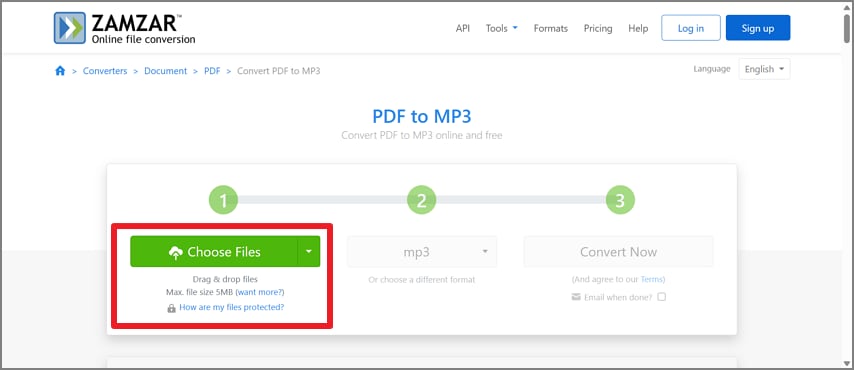
Step 1. Upload Your PDF File
“Choose Files” opens a picker for the white paper, and the upload box shows “Max. file size 5MB” beneath it.
Step 2. Adjust the Audio Settings
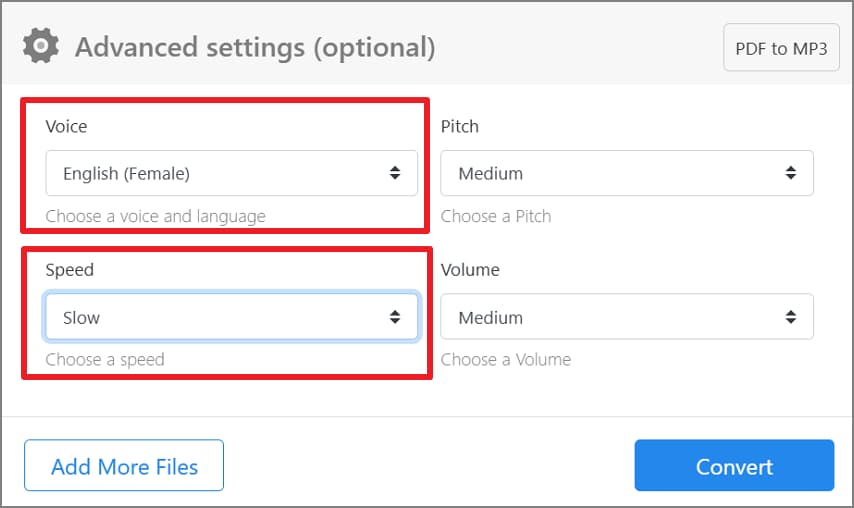
Under “Advanced settings (optional),” pick a voice, then drop Speed to “Slow” if the white paper is dense with figures.
Step 3. Convert the PDF to MP3
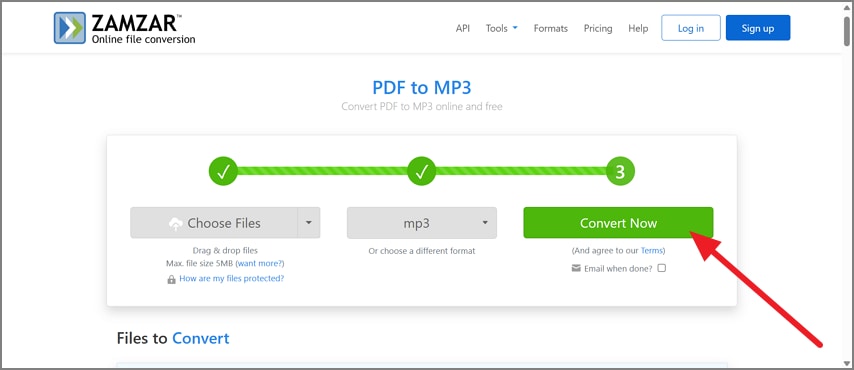
With MP3 set as the output format, “Convert Now” starts the speech synthesis on Zamzar's servers.
Step 4. Download the Audio File
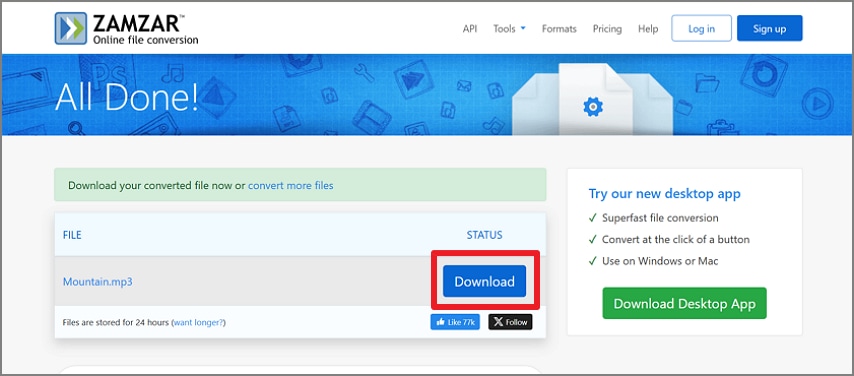
Save the file before the drive, since Zamzar keeps free converted files “stored securely for a maximum of 24 hours.”
What Zamzar Does Well & What to Consider
Access and voice control stand out in those four stages, and a quieter strength concerns how long files stay online,but its limits become more noticeable with longer documents or repeated use. Before making Zamzar PDF to MP3 part of a regular workflow, consider how these restrictions could affect larger reports and scanned files.
Part 3. Converting PDF to MP3 with PDFelement as a Zamzar Alternative
For readers who want more than a line-by-line narration, PDFelement offers another way to convert PDF to MP3. Inside AI Space, “Studio > Podcasts” turns the white paper into a conversational audio episode that can be exported as an MP3 for listening on a computer, phone, or other device.
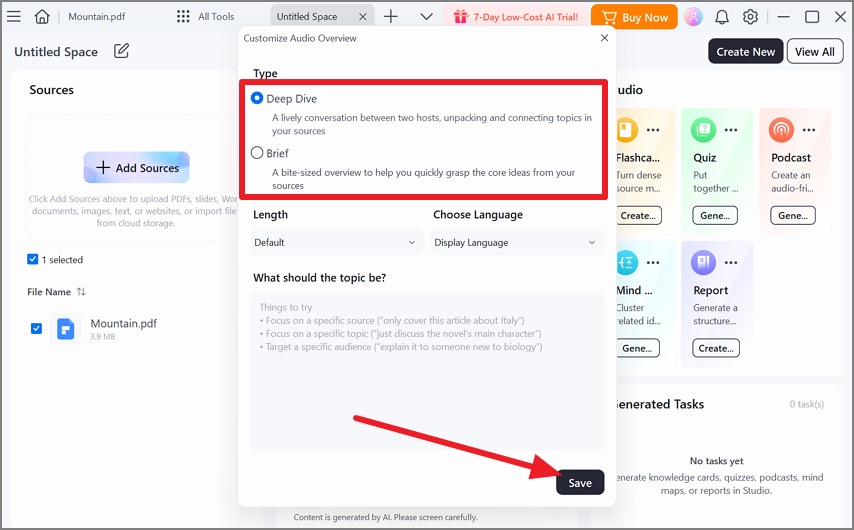
The format depends on the listening goal. Deep Dive creates a detailed discussion of the source material, while Brief focuses on its main points. Unlike Zamzar PDF to MP3, neither reads every sentence verbatim, making PDFelement better suited to understanding a report on the move than proofreading it word by word. Ready to turn your PDF into a podcast? Download PDFelement and start creating audio episodes from your documents.


 G2 Rating: 4.5/5 |
 100% Secure
How to Create an MP3 Podcast in PDFelement
Once the PDF is ready, PDFelement can turn its content into a podcast-style discussion inside AI Space. The workflow moves from creating a workspace and adding the source PDF to choosing the podcast format and exporting the finished audio.
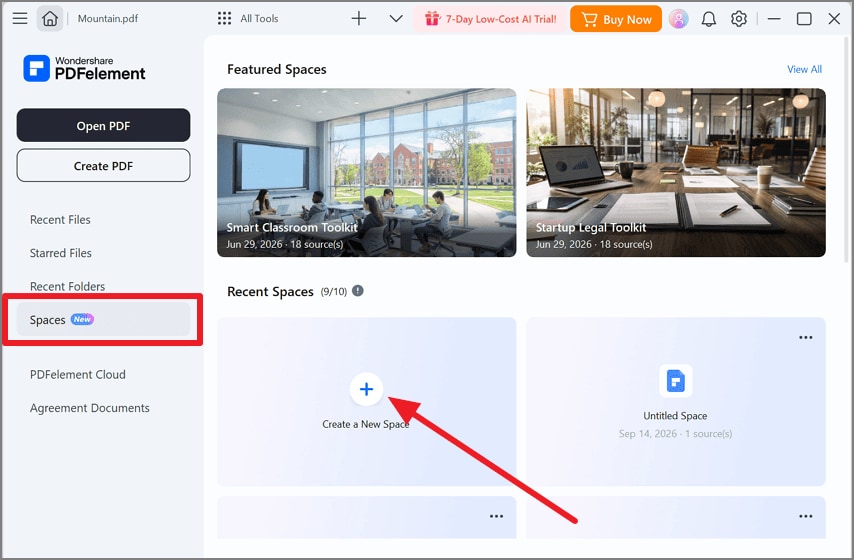
Step 1. Create a New Space
Open “Spaces” from the navigation menu, then click “Create a New Space.” This creates a dedicated workspace where you can add the white paper and generate content from it.
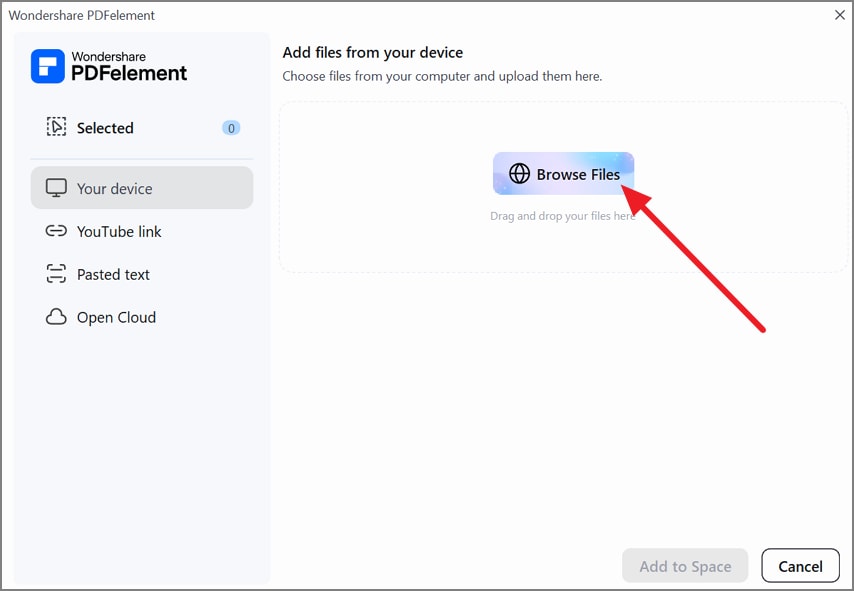
Step 2. Upload the PDF
Click “Browse Files” and select the white paper from your computer. Wait for the PDF to appear in the Space as a source before continuing.
Step 3. Configure the Podcast
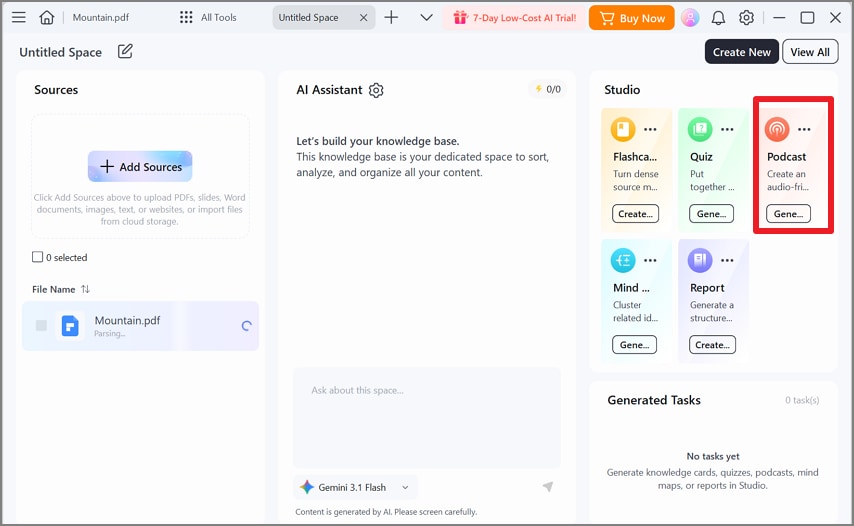
Go to “Studio > Podcasts,” then open the “Three-dot” menu for podcast settings. Choose “Deep Dive” for a detailed discussion or “Brief” for a shorter summary. Add a custom prompt when you want the episode to focus on specific topics.
Step 4. Generate and Export the MP3
Select “Generate Podcast” and wait for PDFelement to create the episode. Review the audio alongside its synchronized transcript, then export the generated podcast as an MP3 file.
Other PDFelement Tools for the Same File
The following three more tools in the same window handle jobs a single-purpose converter page leaves out.
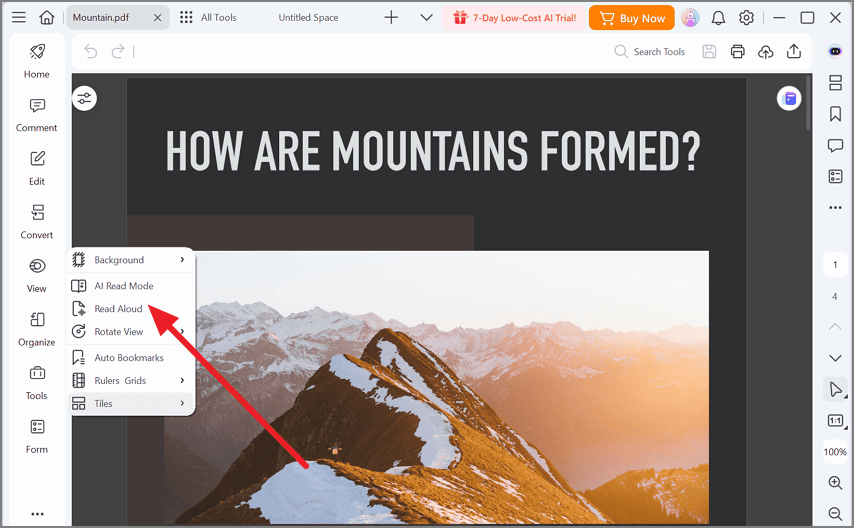
Read Aloud
The PDF’s own sentences are spoken inside the app, the nearest match to Zamzar’s word-for-word reading.
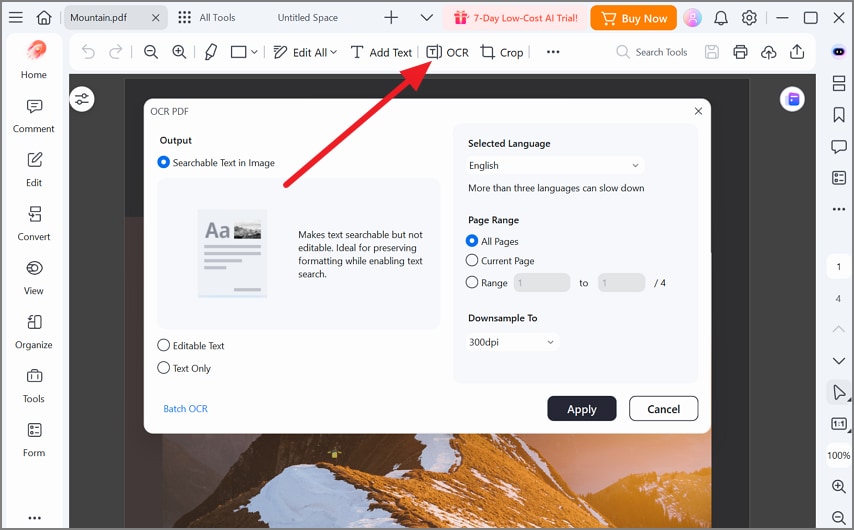
OCR
Scanned pages gain a searchable, editable text layer, which fills the gap Zamzar’s page leaves open.
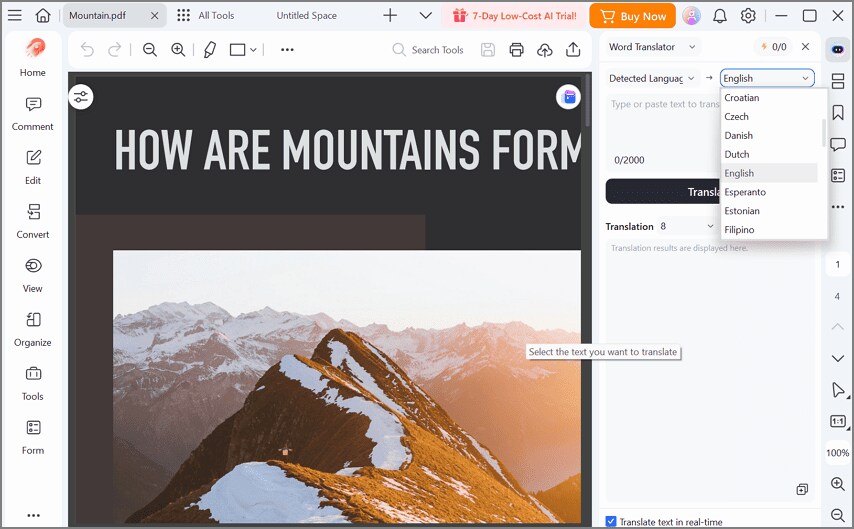
PDF Translator
A German or Japanese source can be translated first, and Wondershare lists more than 50 supported languages.
Part 4. Deciding Between Zamzar and PDFelement
Both tools produce MP3 audio from PDF content, but Zamzar narrates extracted text while PDFelement generates a podcast-style discussion or summary. Setup, voice controls, and scanned files fill out the table, with each cell drawn from the vendors’ own pages.
| Factor | Zamzar PDF to MP3 | PDFelement Podcast |
| What the MP3 Holds | The white paper’s own sentences in a synthetic voice | A Deep Dive discussion or a Brief summary of the paper |
| Setup | A browser tab, with no install or account for free files | The desktop app; requires installation |
| Listener Controls | 14 voices in 13 languages, plus pitch, speed, and volume | Podcast type and an optional custom prompt |
| Scanned PDFs | No OCR mentioned on the PDF-to-MP3 page | OCR in the same app adds a text layer first |
Zamzar PDF to MP3 suits a single white paper under 5MB that has to be heard word for word on tomorrow’s drive. A weekly stack of reports, or a scanned one, points toward PDFelement, where a Brief podcast trims each file to its key points.
Frequently Asked Questions
1. How can I convert a PDF file to MP3 audio?
Text-to-speech converts PDF text into spoken audio, while AI podcast generators create discussions or summaries from the document. Both approaches can produce downloadable MP3 files. Zamzar’s free converter reads the PDF’s own words in any browser, and PDFelement can export a Deep Dive or Brief podcast about them instead.
2. Is Zamzar free to use?
Small files go through Zamzar PDF to MP3 for free, though the site’s FAQ caps free customers at “2 files per 24 hours.” Basic, the cheapest paid plan at $12 a month, raises the file limit to 200MB and removes the daily cap on website conversions.
3. What are the best free MP3 converters?
Among free tools, Zamzar handles small PDFs in any browser, and Balabolka, a Windows freeware program, opens PDF files and saves their text as audio. TTSMaker turns pasted text into downloadable MP3 files online, though most of its voices stop at 20,000 free characters a week.
Conclusion
To conclude, Zamzar PDF to MP3 suits short, text-based PDFs that need straightforward narration. Its free limits and uncertain OCR support become restrictive with larger documents. PDFelement takes another route, turning reports into podcast-style discussions with Deep Dive or Brief modes. For longer reports where understanding matters more than verbatim narration, PDFelement offers a more practical listening workflow.
G2 Rating: 4.5/5 |100% Secure