YouTube Premium downloads remain encrypted and only play within the YouTube app itself. That restriction becomes inconvenient when your published webinar needs more flexible playback options. Converters that turn YouTube to MP3 make spoken content accessible across more devices. Browser tools offer convenience, while desktop software provides greater control over audio settings.
For spoken videos, PDFelement takes a different approach to creating portable audio content. It turns webinar captions into an AI podcast instead of extracting original audio. The finished MP3 summarizes key ideas, making lengthy presentations easier to revisit anywhere.


 G2 Rating: 4.5/5 |
 100% Secure
In this article
Part 1. How to Choose a YouTube to MP3 Converter
The webinar may be one file today but an entire playlist tomorrow. Before you change YouTube to MP3, these five checks help identify the right converter.
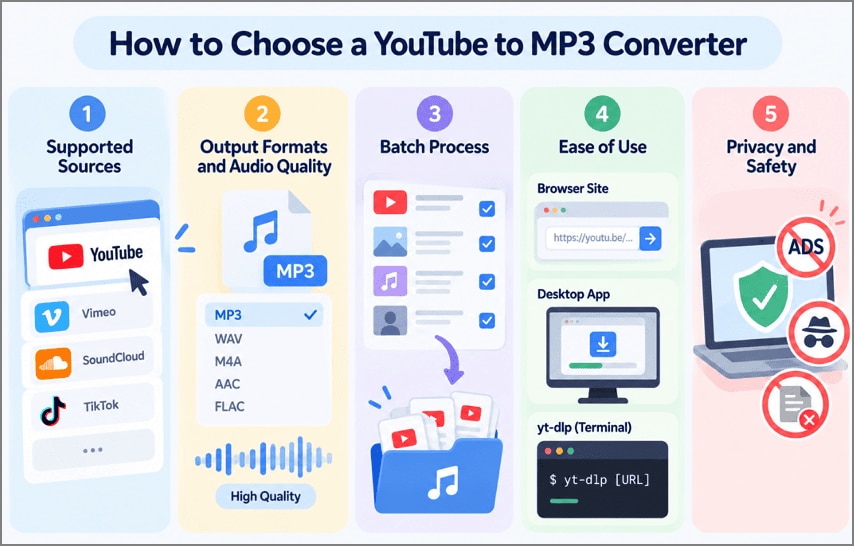
- Supported Sources: YouTube is the minimum, and Vimeo, SoundCloud, or TikTok support spares you a second tool later.
- Output Formats and Audio Quality: For high-quality YouTube-to-MP3 results, keep the original stream where possible, since no MP3 can exceed its source quality.
- Batch Process: Playlist and channel queues turn a semester of recorded lectures into a single job.
- Ease of Use: Browser sites need a pasted link, desktop apps require an installer, and yt-dlp uses a terminal window.
- Privacy and Safety: Trackers, aggressive ads, and bundled installers are common risks. YouTube's terms prohibit downloads except as expressly authorized by the service. Your own uploads and other videos you are permitted to download are suitable material to convert.
Part 2. Online Solutions for Changing YouTube to MP3
Online converters change YouTube to MP3 inside a browser tab, which suits a one-off download, such as a team webinar on a laptop that blocks software installations. Their weak spots are advertising and reliability, since YouTube regularly blocks converter servers and free sites often rely on aggressive ads.
1. Cobalt
Best For: One-off downloads on a work laptop where ads and installers are off limits.
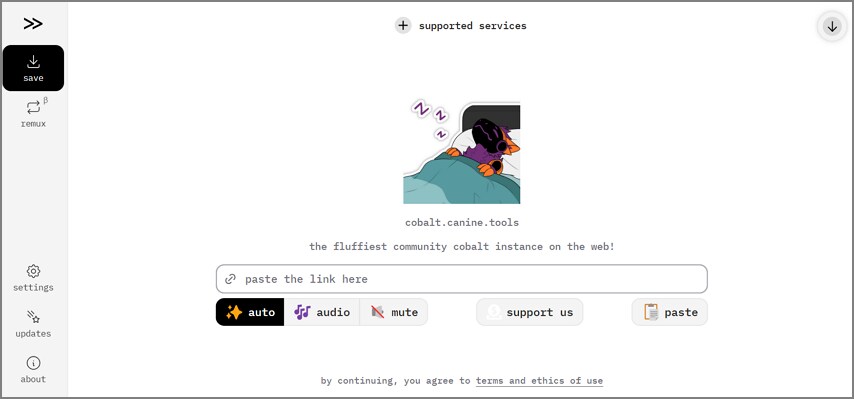
For one-off conversions, Cobalt is a free, open-source web downloader that supports MP3 extraction from YouTube links. However, YouTube restrictions have disrupted downloads on its official instance, while compatible community instances can offer alternative access.
Key Features
- Converts YouTube links to MP3, OGG, WAV, or Opus audio.
- Offers six bitrate presets, from 8 kbps up to 320 kbps.
- Can prefer YouTube's higher-quality audio track when available.
2. Y2Mate
Best For: A quick single conversion on a phone, with an ad blocker switched on.
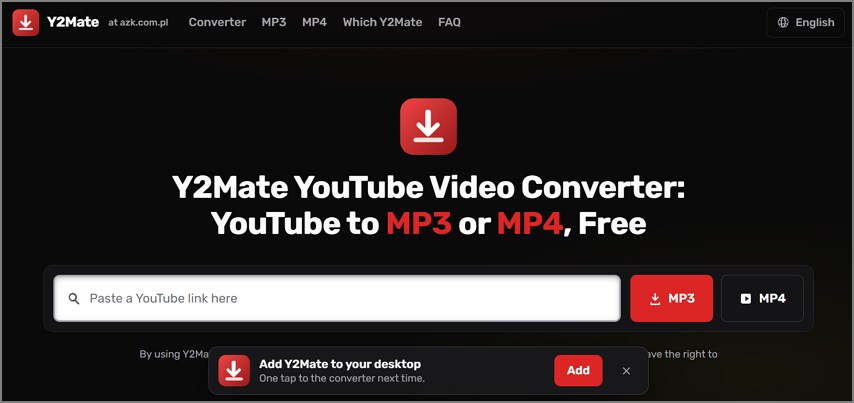
Built for speed rather than settings, Y2Mate is a browser converter that handles a quick YouTube-to-MP3 job in a few clicks. The name now appears across many look-alike domains, so ad load and reliability vary by site.
Key Features
- Converts YouTube links directly to 192 kbps MP3 files.
- Accepts videos up to 150 minutes long for MP3 conversion.
- Works in phone, tablet, and computer browsers.
Part 3. Desktop YouTube to MP3 Converters
For frequent conversions, desktop tools offer more control than browser-based alternatives. They can change YouTube to MP3 with stronger playlist support, fewer interruptions, and flexible audio-quality settings. These three options stand out for different priorities, including bulk downloads, sound quality, and open-source flexibility.
1. 4K YouTube to MP3
Best For: Podcast channels and course playlists saved as complete, tagged collections.
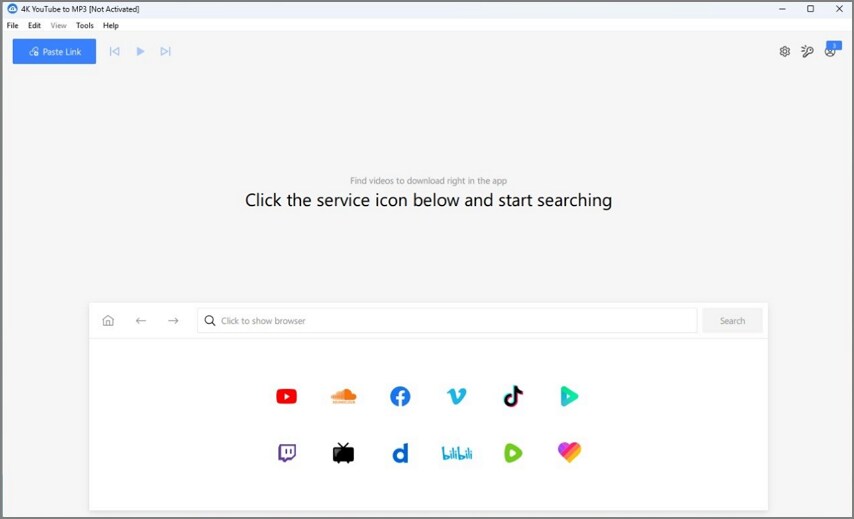
If a whole lecture series needs saving, 4K YouTube to MP3 converts entire playlists and channels in one pass instead of one link at a time. It can keep YouTube's original audio quality or lower it to save space on a phone.
Key Features
- Saves audio as MP3, M4A, or OGG files.
- Pulls audio from YouTube, Vimeo, TikTok, SoundCloud, and Bilibili.
- Accepts several pasted links for one combined download.
2. MediaHuman
Best For: Listeners who sync downloaded talks into Apple's Music app with tags in place.
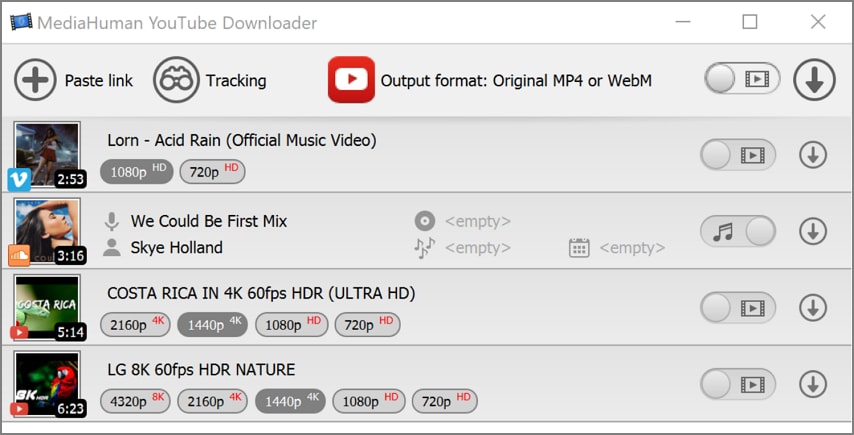
When sound quality matters, MediaHuman YouTube to MP3 Converter saves a video's audio at the highest bitrate offered, up to 320 kbps. It can also keep the original stream untouched, which avoids the quality loss of a second encode.
Key Features
- Exports finished tracks to iTunes or Apple's Music app.
- Downloads entire playlists and whole channels in one job.
- Tags each track so the music library stays organized.
3. ClipGrab
Best For: Occasional single-video conversions where free, open-source software is a must.
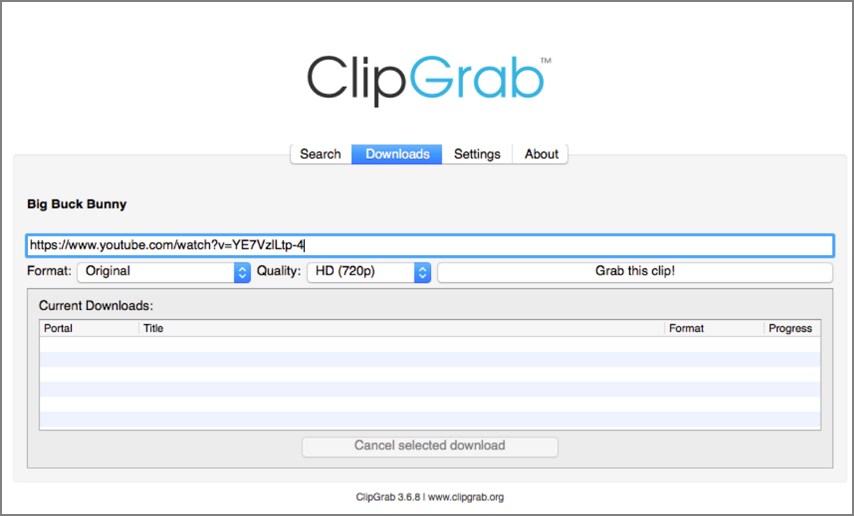
For a simple download-and-convert routine, ClipGrab saves a YouTube video and turns it into an MP3 in the same step. As free, GPL-licensed software, it keeps its code open and puts no feature behind a paywall.
Key Features
- Converts downloads to MP3, OGG Vorbis, MPEG4, or WMV.
- Keeps original MPEG4 files when no conversion is needed.
- Supports YouTube, Vimeo, Dailymotion, and Facebook video links.
Part 4. Command-Line YouTube to MP3 Tool
For a YouTube link to MP3 with full control, the open-source yt-dlp runs from Terminal on a Mac or Command Prompt on Windows. Audio conversion needs ffmpeg and ffprobe, and full YouTube support also needs yt-dlp-ejs plus a JavaScript runtime such as Deno.
Basic Command Example
One line saves the webinar as an MP3 at the best variable bitrate, with the link in quotes:
yt-dlp -x --audio-format mp3 --audio-quality 0 "https://www.youtube.com/watch?v=VIDEO_ID"- -x: Extracts the audio and discards the video stream after downloading.
- --audio-format mp3: Converts that audio to MP3 instead of the original format.
- --audio-quality 0: Sets the best variable-bitrate level on a scale where 10 is the worst.
Treat it as a basic YouTube-to-MP3 example, because results vary with the source, the yt-dlp version, and access restrictions on the video. Running yt-dlp -U updates standalone release binaries, while installations through pip or package managers require their respective update commands.
Part 5. Another Solution to Convert YouTube to MP3 with AI
Every converter so far handles YouTube to MP3 by copying a video's existing audio track, and PDFelement does something else with the same link. Its AI Space reads the video's captions, writes a podcast about them, and exports the episode as an MP3. Wondershare's guide says PDFelement "pulls in the video's available captions," so the speaker's original voice never reaches the generated file.
G2 Rating: 4.5/5 |100% Secure
How to Convert YouTube to MP3 with PDFelement
PDFelement turns spoken YouTube content into podcast-style MP3s rather than extracting original audio. AI Space completes the process in the following steps.
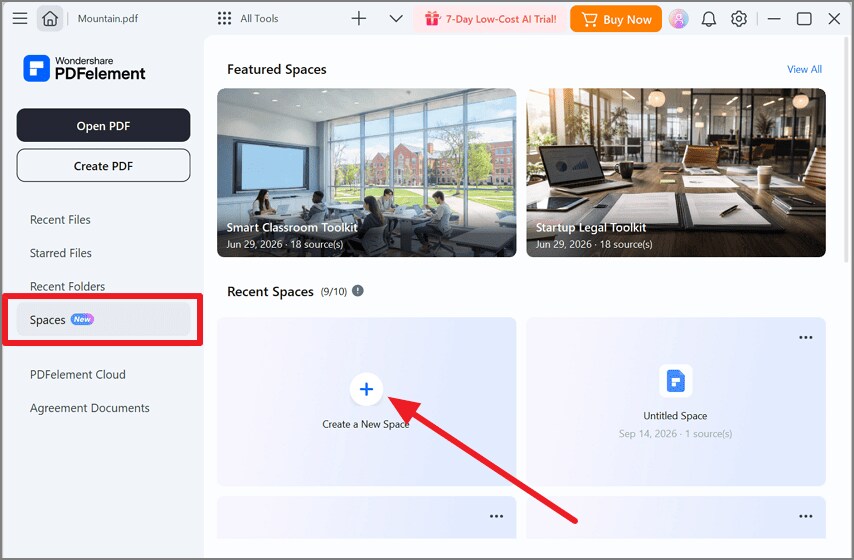
Step 1. Open a New Space
Select "Create a New Space" in the Space section of the navigation menu to start an empty workspace.
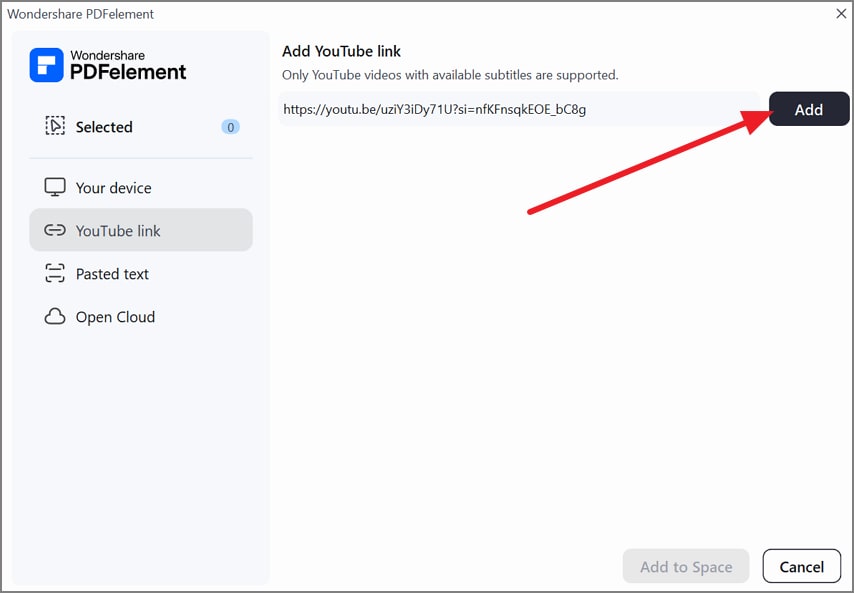
Step 2. Paste the Video URL
After the link goes into the input field, click "Add" to load the webinar's captions as a source.
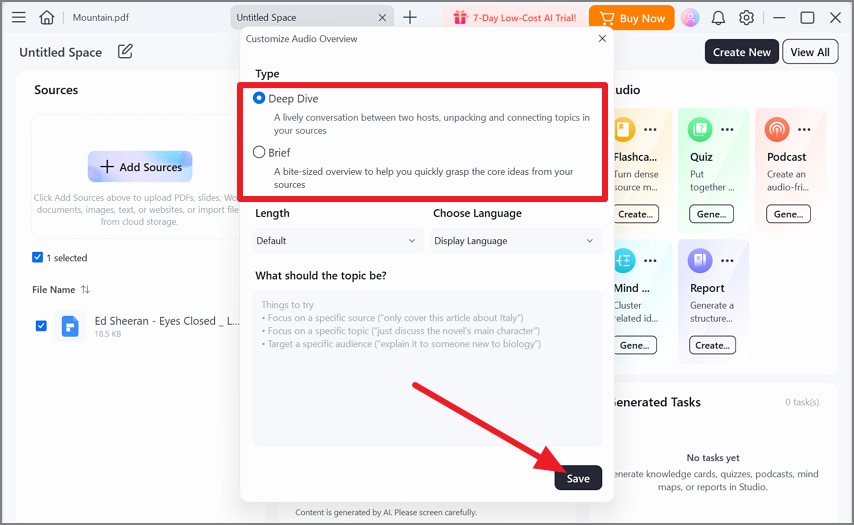
Step 3. Choose Deep Dive or Brief
Podcasts sit under Studio, and its three-dot menu lists both formats plus a custom prompt, such as "Target a specific audience."
Step 4. Generate and Save the MP3
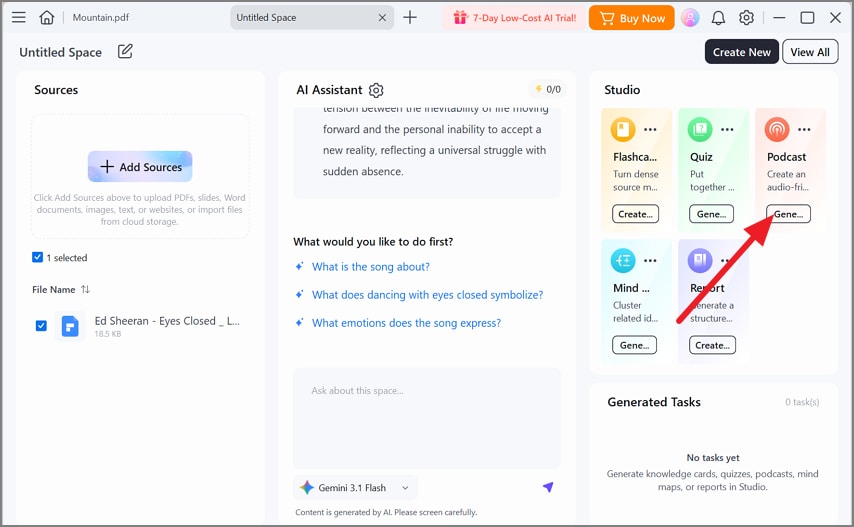
Click "Generate Podcast" to produce the episode and its transcript, ready to export as an MP3 for offline listening.
Advantages of the AI Podcast Route
For content built around spoken ideas, the AI podcast approach offers practical benefits beyond simple audio extraction. The following three advantages stand out.
- Reorganized Content: The episode regroups the webinar's points into a clear structure instead of replaying 90 minutes in order.
- Conversational Format: Deep Dive presents the material as a discussion, and AI Space chat traces every answer to its original source.
- Time-Saving Summaries: A Brief episode condenses the webinar to its key points for a 20-minute commute.
Limitations to Consider
PDFelement cannot extract a video's original audio track, so songs, soundtracks, and recordings that must stay faithful to the source belong with the earlier converters. The episode also depends on captions, so a video without them leaves nothing to work from.
Part 6. Online Tools vs. Desktop Software vs. Command-Line Tools vs. PDFelement
What the MP3 contains, how much control you get, and where the risks sit all differ across the four routes.
| Factor | Online Tools | Desktop Software | Command-Line Tools | PDFelement |
| What You Get | The video's own audio | The video's own audio or original stream | The video's own audio at your chosen quality level | An AI podcast generated from captions |
| Setup | A browser tab | An installer on each computer | yt-dlp, ffmpeg, and a JavaScript runtime | PDFelement with AI Space |
| Quality Control | Presets such as Cobalt's 8 to 320 kbps | Settings up to 320 kbps, depending on the tool | Custom bitrate or variable-bitrate level | Deep Dive or Brief podcast format |
| Main Risk | Ads and redirects on some sites | Third-party offers in some installers | Errors after YouTube changes | No original sound |
For an archival YouTube-to-MP3 copy of the webinar, a desktop app or yt-dlp keeps the speaker's real voice. A Brief episode in PDFelement covers the same arguments in less time, which suits a short commute.
Conclusion
Cobalt and Y2Mate convert YouTube to MP3 directly in browsers, while desktop tools add playlist and bitrate controls. However, source quality limits every conversion, and YouTube's terms still apply. For spoken videos, PDFelement offers a different approach by rebuilding captions into concise podcast episodes. Its Deep Dive, Brief, transcript, and chat features make PDFelement practical for learning.
G2 Rating: 4.5/5 |100% Secure