

Speech-to-text apps are no longer simple dictation tools; they now deliver highly accurate transcriptions. The best speech-to-text applications of 2026 use advanced AI to generate clear, context-aware content from your voice. Students, journalists, and professionals can effortlessly convert meetings or lectures into well-structured digital notes.
Moreover, developers have optimized these apps across Android, iPhone, Windows, and Linux for faster, smoother performance. This guide highlights the top free and paid options for secure, seamless voice-to-text experiences, each balancing speed, accuracy, and privacy to turn your spoken words into notes.
Part 1. Quick Answer
To reduce the use of the internet and ensure rapid and reliable transcription, PDFelement Mobile is the most efficient on-device solution. It directly translates speech into easily editable PDFs, which is perfect when you need to go to a meeting or you need to study a specific subject. In cases of teams that require cloud-syncing summaries, the seamless connection of Google Meet and Zoom can be found in Otter.ai.
Whereas Speechnotes is the best alternative for a free starter that can be used in everyday life. Each voice-to-text app excels in distinct workflows, offline independence, collaborative recording, or beginner simplicity. The participants should be informed every time to provide transparency, consent, and privacy compliance.


 G2 Rating: 4.5/5 |
 100% Secure
Part 2. The Speech-to-Text Landscape in 2026
The following trends show how speech-to-text program in 2026 redefines accuracy, context, and integration across industries:
- Contextual Accuracy: AI now interprets meaning using grammar and tone for highly precise, human-like transcription. It is able to separate various speakers even in noisy surroundings or in real overlapping conversations.
- Emotion Detection: You can also detect emotion in modern models that capture voice tone, whether one is angry or happy, and even hesitation. This greatly affects sentiment analysis, customer feedback, and natural language understanding.
- Multilingual Support: Advanced systems can acquire multiple languages, dialects, and accents with adaptive, self-correcting precision. They handle code-switching effortlessly, creating truly inclusive global communication experiences for users everywhere.
- Workflow Integration: Enterprises now integrate real-time transcription within meetings, support calls, and virtual collaboration tools. Unified analytics merge voice, chat, and translation data for faster, deeper customer insight.
- Edge Processing: Modern engines process speech locally, achieving under-200ms latency and preserving user privacy. This breakthrough enables real-time transcription on mobile, wearable, and IoT devices globally.
Part 3. The Best Speech-to-Text Apps
The following voice-to-text apps represent 2026’s smartest, fastest, and most reliable transcription solutions:
1. PDFelement (iOS/Android)
Best For: Offline transcription, lectures, meetings, interviews, and privacy-sensitive environments.
Among today’s most advanced voice-to-text applications, PDFelement Mobile blends precision with real-world usability. It can capture, record, and transcribe spoken content and convert it to writeable PDFs offline. Its intuitive workflow facilitates quick, safe, and proper note-taking among professionals, instructors, and learners during complex consultations at conferences.
Further, the tool redefines speech capture and organization through AI-driven intelligence. It can summarize transcripts, highlight key points, and instantly apply structured PDF templates. Beyond that, its built-in design, local processing, and privacy-first approach ensure that recorded conversations are reliably converted into shareable documents, giving users full control over their output.
Workflow of PDFelement For Converting Speech to Text
Adhere to the steps below to determine how to convert speech into text with PDFelement Mobile:
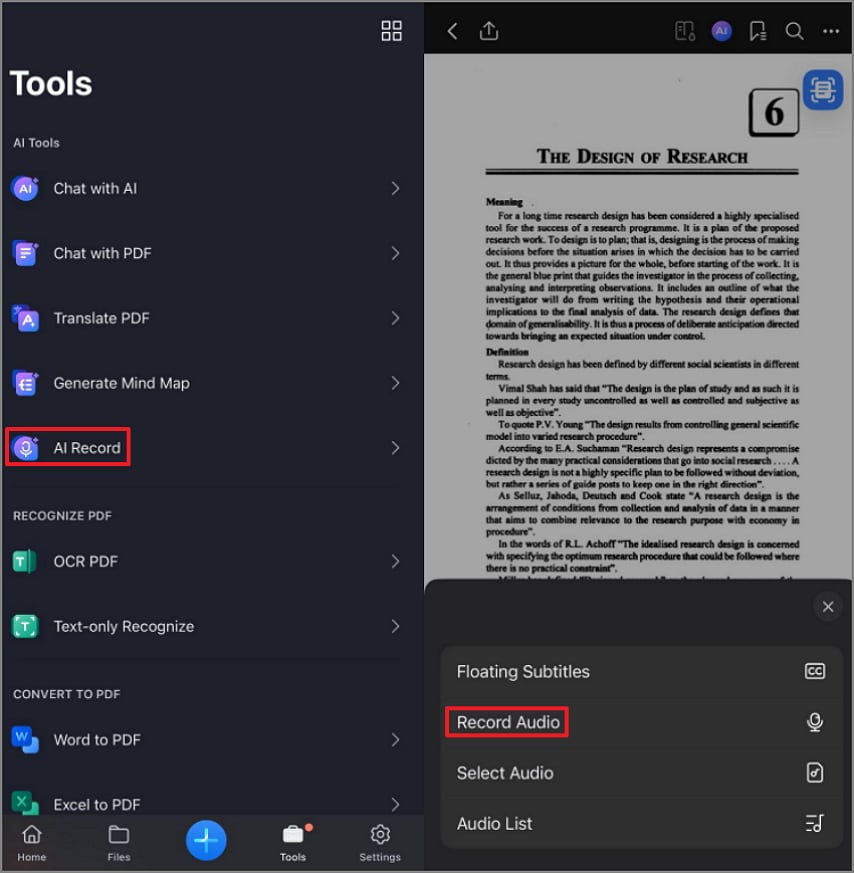
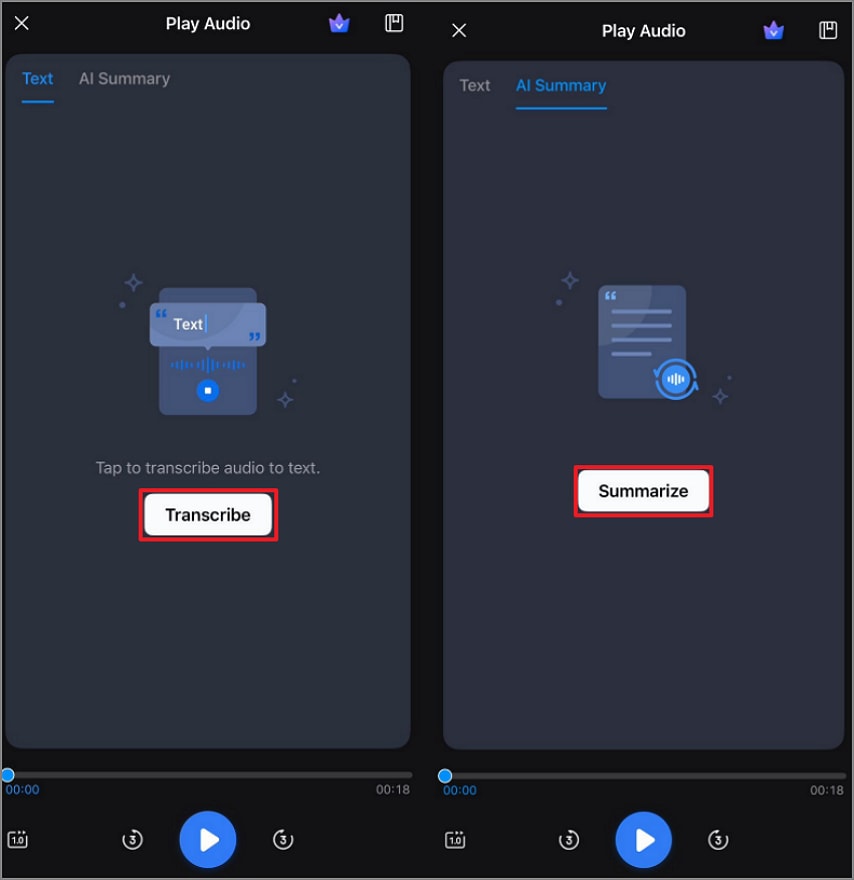
Step 1. Choose AI Record
First, tap on the “Tools” to further choose the “AI Record” from the options. Later, press “Record Audio” to capture the audio from the recording or meeting.
Step 2. Transcribe with AI
Next, choose “Transcribe” to convert your voice into editable and readable text. After that, switch to the “AI Summary” tab and press “Summarize” for an automatic summary.
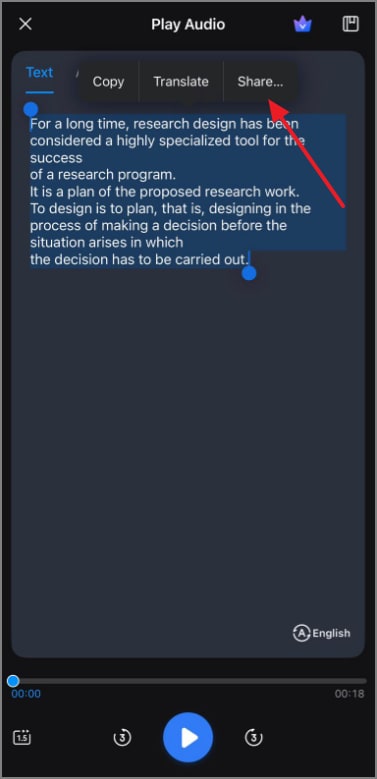
Step 3. Share the Generated Text.
Lastly, review the text and tap “Share” at the top to distribute and export the generated text.
Extras
- AI Mindmap: Automatically generates structured visual mindmaps from summarized notes and recorded transcripts.
- AI Translation: Instantly translates documents in Fast or Professional modes for global communication flexibility.
- Model Switching: Seamlessly switch between DeepSeek-V3, GPT-4o, GPT-4o-mini, and Gemini 1.5 Pro for varied output quality.
- HTML to PDF: Save and convert web agendas, notes, or pages directly into organized PDF files.
G2 Rating: 4.5/5 |100% Secure
2. Otter.ai
Best For: Virtual meetings, team summaries, and real-time shared captions.
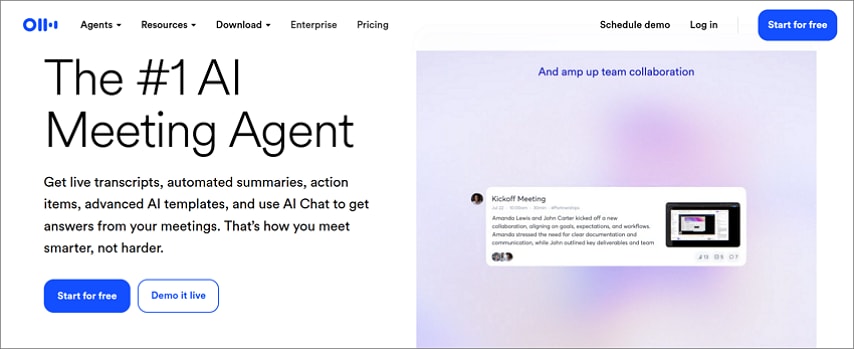
Otter.ai is a teamwork speech-to-text application that allows businesses to eavesdrop on a meeting and turn it into an organized and shareable note. It recognizes who is speaking, focuses on action items, and organizes notes so they can be recalled at any time. Supporting cross-platform desktop/mobile syncing would be helpful with cross-functional teams that need fast, shareable records of any meeting on any device.
Key Features
- Offers real-time transcription, speaker labelling, and automatic timestamps for clear teamwork.
- Bring live documentation together with Zoom, Google Meet, and Microsoft Teams.
- Produces AI-generated summaries of main points, issues, and discussion insights after the meeting.
Pros
- Strong collaborative features for team-based note management.
- Highly accurate speaker recognition and timestamping.
- Automatic syncing across desktop and mobile devices.
Cons
- Requires a strong internet connection for real-time operation.
- Accuracy decreases with heavy background noise.
Who Should Pick It: Remote teams requiring seamless meeting documentation and shared collaboration.
3. Whisper AI
Best For: Developers needing multilingual, offline, and highly accurate transcriptions.
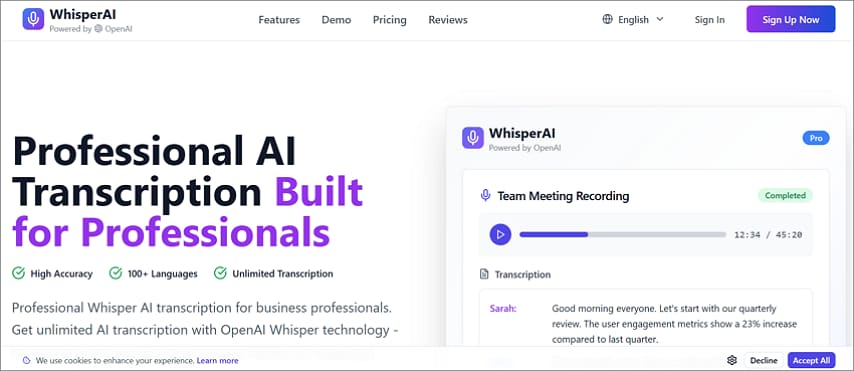
It is a voice-to-text application developed by OpenAI that supports multilingual transcription with maximum precision. It also allows several languages, speaker detection, and detailed documentation with precise timestamps. Moreover, its model also works well in high-noise settings and can be extended via APIs or plugged into other transcription or automation systems.
Key Features
- Uses neural networks trained on vast multilingual datasets for exceptional transcription accuracy.
- Functions offline, maintaining privacy and supporting 90+ languages with advanced contextual understanding.
- Adapts effectively to accents, speech clarity, and background noise without data compromise.
Pros
- Extremely accurate multilingual recognition benchmarked by OpenAI research.
- Runs offline for enhanced privacy and control.
- Highly customizable for advanced developers or enterprises.
Cons
- Requires technical knowledge for local setup.
- Computationally demanding on non-GPU systems.
Who Should Pick It: Developers seeking offline, customizable, and privacy-focused transcription performance.
4. Speechnotes (Android)
Best For: Beginners who want simple voice typing and instant note export.
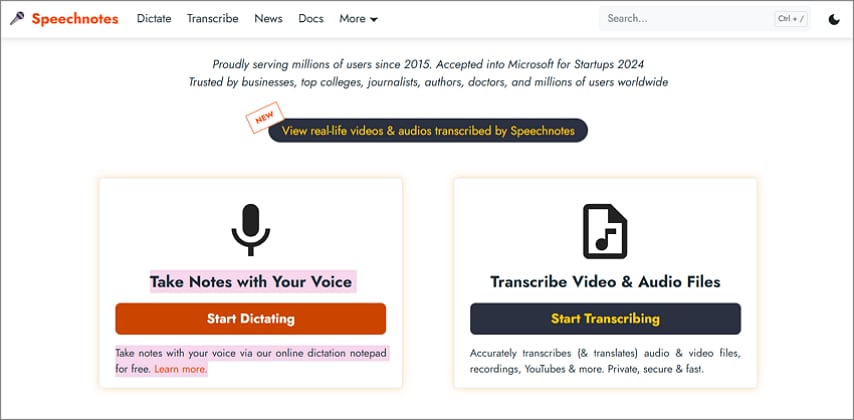
Speechnotes is a lightweight speech-to-text application designed for general-purpose dictation and note-taking. It comes with real-time recording, auto punctuations, and voice command support to make text formatting very easy. Moreover, it has offline support on Android phones, on Google Drive, and file synchronization to facilitate easy access across browsers and mobile platforms.
Key Features
- Provides one-tap recording with automatic punctuation for easy, accurate note transcription anytime.
- Operates offline, storing transcriptions locally without additional software or cloud accounts.
- Compatible with Bluetooth mics and Android keyboards for quick, efficient voice input.
Pros
- 100% free and lightweight for basic transcription.
- Fast, responsive, and intuitive user experience.
- Supports Bluetooth microphones and offline recording.
Cons
- No AI summarization or advanced formatting options.
- Occasional ad interruptions in the free version.
Who Should Pick It: Students or casual users preferring simple, fast transcription.
5. Fireflies.ai
Best For: Team meetings, CRM summaries, and business documentation automation.
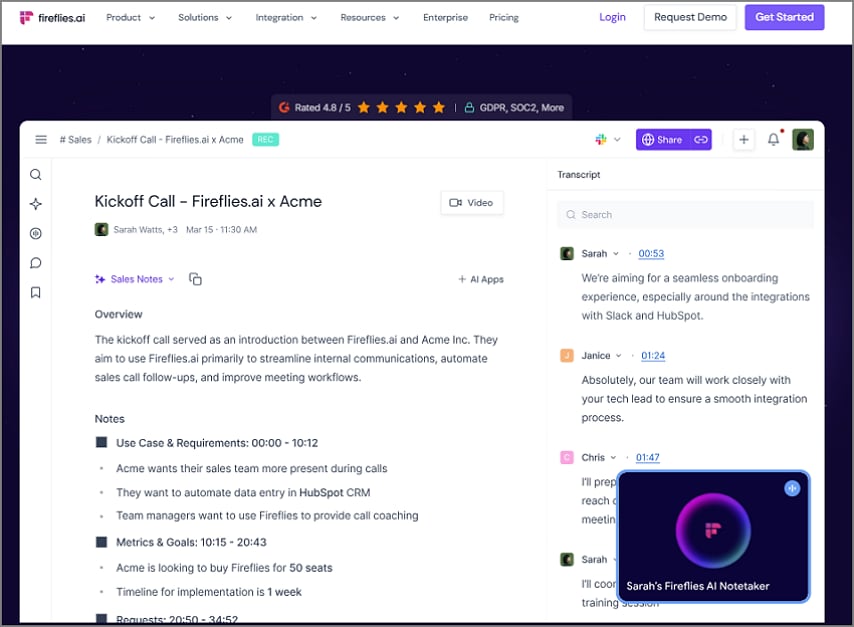
It is a web-based application that transcribes sound to text to use in business and teamwork. It integrates with Zoom, Teams, and Google Meet to capture meetings and automatically transcribe them. The system also uses AI to summarize important points, identify speakers, and find topics, and allows searchable transcripts to provide organization in the review.
Key Features
- Records and transcribes meetings automatically, storing searchable archives in one secure workspace.
- Integrates with Zoom, Teams, and Slack to streamline team productivity and discussion management.
- AI generates concise summaries, key action items, and topic highlights from long sessions.
Pros
- Saves time with full meeting analysis and summaries.
- Offers excellent team collaboration and tagging tools.
- Seamless integration with popular enterprise platforms.
Cons
- It requires a subscription for full features.
- Longer processing times for lengthy meetings.
Who Should Pick It: Sales teams and managers handling multiple daily calls.
6. Microsoft Word Dictate
Best For: Office users who prefer integrated speech-to-text writing features.
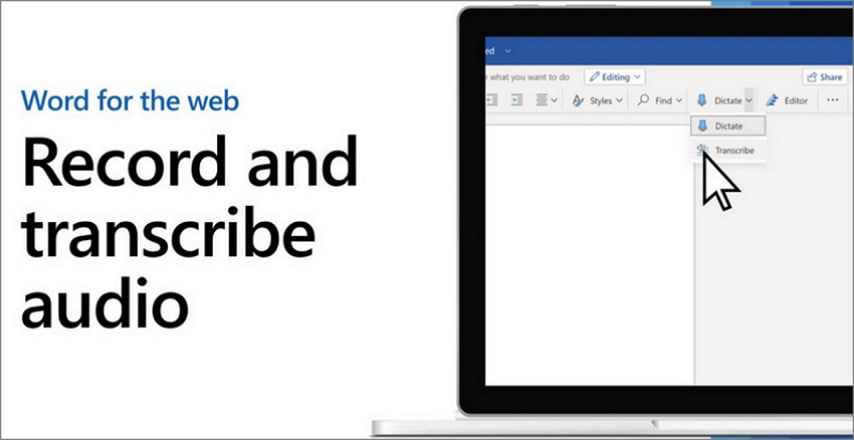
A component of Microsoft 365 called Microsoft Word Dictate is a built-in speech-to-text software. It converts spoken input into formatted text and accepts pre-recorded audio submissions via the Transcribe feature. Moreover, it differentiates speakers, applies timestamps, and recognizes technical terminology, providing a unified interface for direct dictation or post-meeting transcription tasks.
Key Features
- Integrated directly into Microsoft Word and the Microsoft 365 suite to provide real-time voice dictation access.
- Supports more than 20 foreign languages with automatic punctuation, capitalization, and formatting to improve readability.
- Automatically synchronize documents to OneDrive for backup in the cloud to easily access later.
Pros
- Zero setup, instantly available for Word users.
- Highly accurate for general English dictation.
- Secure, with Microsoft’s enterprise-grade encryption.
Cons
- Requires stable internet for cloud-based recognition.
- Limited customization compared to dedicated STT apps.
Who Should Pick It: Professionals writing directly inside Microsoft 365 tools.
7. Notta.ai (iOS/Android)
Best For: Professionals transcribing online meetings and maintaining organized summaries.
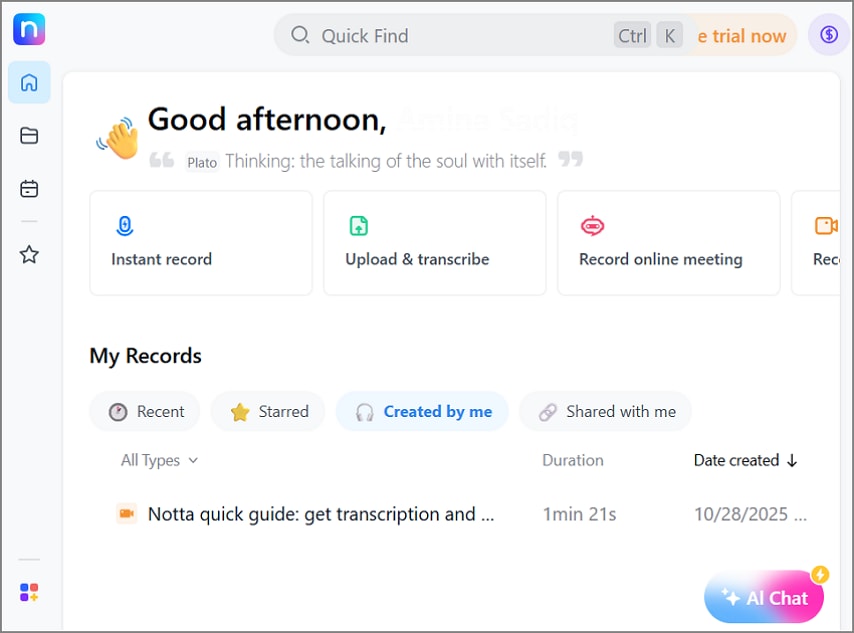
It is an online program capable of converting audio into text in real time and batch transcription. It is multilingual, supports up to 58 languages, generates AI summaries, and converts to various formats. The service also provides device synchronization and a SOC2 Type II certificate, offering a secure approach for multilingual recording in business meetings and interviews.
Key Features
- Records voice and transcribes in the browser, including an automatic AI summary.
- The integration with Google Calendar and Zoom allows scheduling and joining meetings.
- Allows you to share in various formats such as PDF, TXT, and Word.
Pros
- Quick setup with minimal configuration required.
- Clear AI summaries and structured meeting notes.
- Cross-device accessibility via browser and mobile.
Cons
- It's free plan limits recording duration.
- Requires an internet connection for transcription.
Who Should Pick It: Freelancers managing frequent client calls or virtual sessions.
8. VoicePen.ai (iOS)
Best For: Podcasters, YouTubers, and digital storytellers repurposing recorded speech.
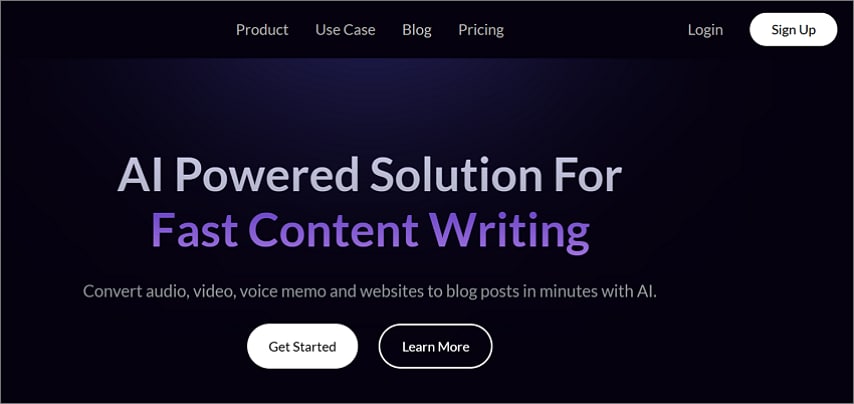
VoicePen.ai is a transcription-focused app that turns voice into text, converting recorded audio or video into written material. It supports AI-based rewriting options that format outputs for study, professional, or social media use. In addition, it imports files from platforms like YouTube and allows export through connected drives for organized multi-device content management.
Key Features
- Converts podcast or video audio into detailed, formatted blog articles automatically.
- AI structures text into readable posts with sectioning, titles, and summaries included.
- Supports SEO-friendly keyword tagging and export options for content creators.
Pros
- Saves hours of manual transcription and editing.
- Generates readable, publishable blog drafts instantly.
- Optimized for podcast and video content creation.
Cons
- Subscription required for export and advanced options.
- It has limited editing flexibility post-transcription.
Who Should Pick It: Content creators turning recordings into ready-to-post written pieces.
Speech-to-Text Apps Comparison Table
To choose the best free speech-to-text app among the mentioned tools, review the table below:
| App | Work Offline | Audio File Import | Summaries/ Action Items | Platforms | Free Tier | Export Formats | Best For |
| PDFelement Mobile | ✔ Yes | ✔ Yes | ✔ Yes | Android, iOS | ✔ Yes (Limited) | PDF, DOC | Offline transcription, lectures, meetings, and privacy-sensitive environments |
| Otter.ai | ✖ No | ✔ Yes | ✔ Yes | Android, iOS, Windows, Linux (web) | ✔ Yes (Limited) | PDF, DOC, SRT | Virtual meetings and collaborative note sharing |
| Whisper AI | ✔ Yes (local/offline) |
✔ Yes | Windows, Linux, Android / iOS (community ports) | ✔ Yes (Open-Source) | TXT, SRT (via CLI tools) | Developers needing multilingual, offline transcription precision | |
| Speechnotes | ✔ Yes (Android) | ✔ Yes (audio/video uploads) | ✖ No | Android; Web (Chrome) | ✔ Yes | DOC, TXT | Simple, fast voice typing and instant note export |
| Fireflies.ai | ✖ No (cloud) | ✔ Yes (meeting imports and live recording) | ✔ Yes (AI summaries, task items) | Android, iOS, Windows, Linux (web) | ✔ Yes (limited) | PDF, DOC, SRT | Team meetings, searchable transcripts, and CRM workflows |
| Microsoft Word Dictate / Transcribe | ✖ No (cloud) | ✔ Yes (pre-recorded uploads) | ✖ No | Windows, Web (Office 365) | ✖ No (requires 365) | DOC, PDF | Direct dictation and post-meeting transcription inside Word |
| Notta.ai | ✖ No (cloud) | ✔ Yes (real-time and batch) | ✔ Yes (AI summaries, translation) | Android, iOS, Windows, Linux (web) | ✔ Yes (limited) | PDF, DOC, SRT, TXT | Online meetings, multilingual transcription, and note organization |
| VoicePen.ai | Partial (macOS / iOS offline) | ✔ Yes (audio/video imports) | ✔ Yes (notes, summaries, blog conversion) | iOS, macOS, Windows, Linux (web) | Trial available | DOC, MD | Content creators repurposing podcasts and video transcripts |
G2 Rating: 4.5/5 |100% Secure
Part 4. Best Free Speech-to-Text Apps (Editor’s Picks)
The following free speech-to-text apps offer reliable accuracy and user flexibility, though most include limits on minutes, storage, or upload size:
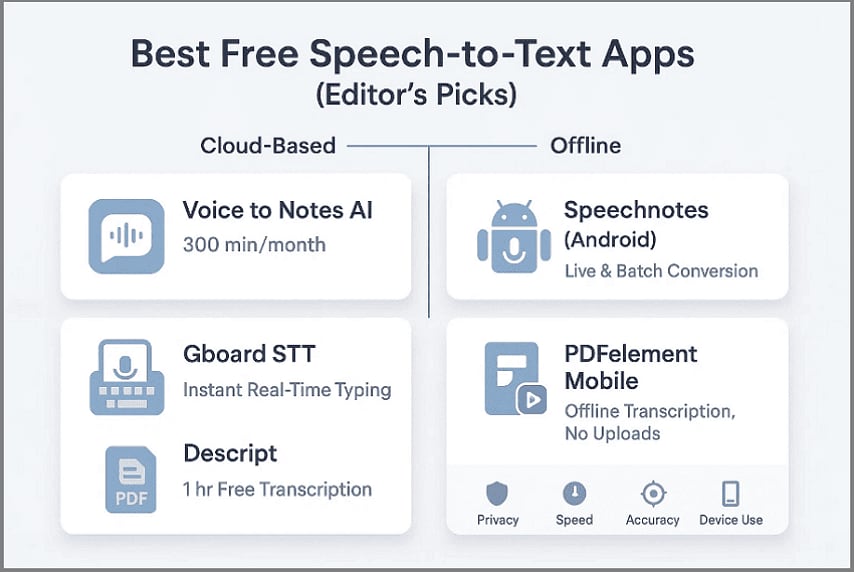
Voice to Notes AI
Free Tier Highlights: Online and mobile dictation tool offering up to 300 minutes per month.
Limits / Trade-Offs: No audio or video import in free plan; processing is cloud-based.
Notes: Exports text locally; minimal processing time for short clips and quick notes.
Speechnotes (Android)
Free Tier Highlights: Free Android and browser app for live and batch speech-to-text conversion.
Limits / Trade-Offs: Ads appear in the free version; batch uploads need internet access.
Notes: Supports offline use and local exports with no forced cloud upload.
Gboard STT
Free Tier Highlights: Built directly into Android keyboards for instant, real-time speech-to-text typing.
Limits / Trade-Offs: No transcript history or cloud storage; editing options remain basic.
Notes: Allows unlimited device-based dictation for fast text entry on Android.
Descript
Free Tier Highlights: One hour of automatic transcription per month; video/audio upload supported.
Limits / Trade-Offs: Files limited to ten minutes each for Studio Sound on the free tier.
Notes: Great for creators needing transcript editing, but requires upload to Descript servers.
PDFelement Mobile (Free Workflow)
For users prioritizing privacy and on-device processing, PDFelement Mobile offers a complete offline transcription experience:
- Record: Capture short voice clips using your phone’s native recorder and proceed further.
- Convert: Import audio into PDFelement Mobile V6.0 and transcribe it locally with built-in STT, no server upload.
- Summarize: Generate AI-powered summaries to extract key points, decisions, or action items directly on the device.
- Export: Apply structured PDF templates, annotate, and save securely—all processed within PDFelement Mobile.
Part 5. Platform How-Tos: Copy-Ready Guides
The following step-by-step platform guides explain how to use a speech-to-text converter app effectively across Windows, Android, iPhone, and Linux:
Windows & Windows 10/11 — Talk / Speak to Text
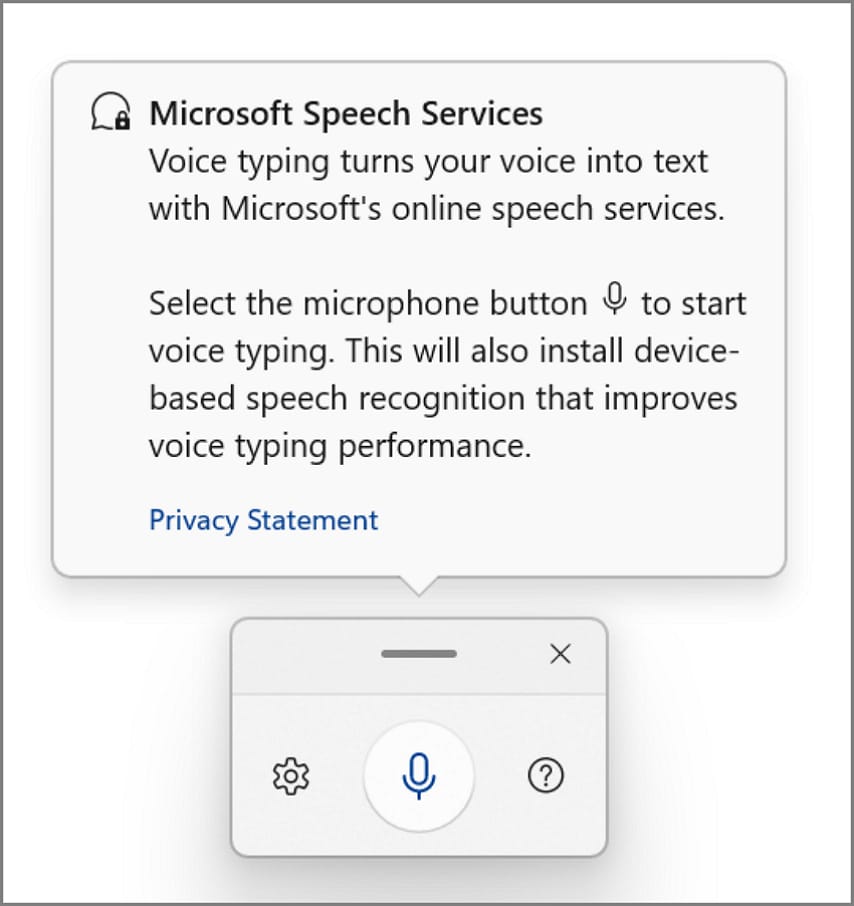
Use your built-in speech-to-text converter or system dictation for quick, precise transcription tasks.
Enable System Dictation
Firstly, press Windows + H to launch the dictation toolbar instantly, and later confirm that your microphone is connected in Settings > System > Sound > Input.
Then, start speaking and include punctuation cues such as “comma,” “period,” or “new paragraph.”
Lastly, for quick notes or short drafts, Windows dictation is sufficient; for long sessions or PDFs, use PDFelement Mobile for better organization and accuracy.
Workflow Tip: Record in-room discussions with PDFelement Mobile, transcribe locally, and send transcripts to your Windows PC. Open them in PDFelement Desktop to finalize formatting, annotate, and export securely as a polished PDF.
Android — Voice to Text / Recorder → Transcript
On Android, follow these quick steps to capture voice and convert it using a modern speech-to-text app:
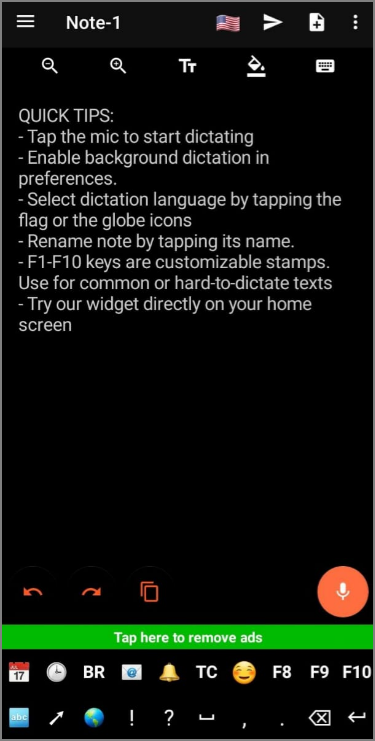
First, open Speechnotes, then tap the “Mic” icon to start capturing the voice.
Afterwards, use “Voice Typing” or “Transcribe” options to turn audio into text.
Finally, summarize within the app or copy text to PDFelement Mobile for AI-powered summaries and export to PDF or Word.
Intent: Users seeking a reliable speech-to-text converter on Android can start with Speechnotes, as it offers free transcription and smooth local export without forced cloud uploads.
iPhone / iPad — Dictation & Voice Notes → Text
Apple users can quickly turn recordings into readable notes through the built-in speech-to-text feature by following these steps:
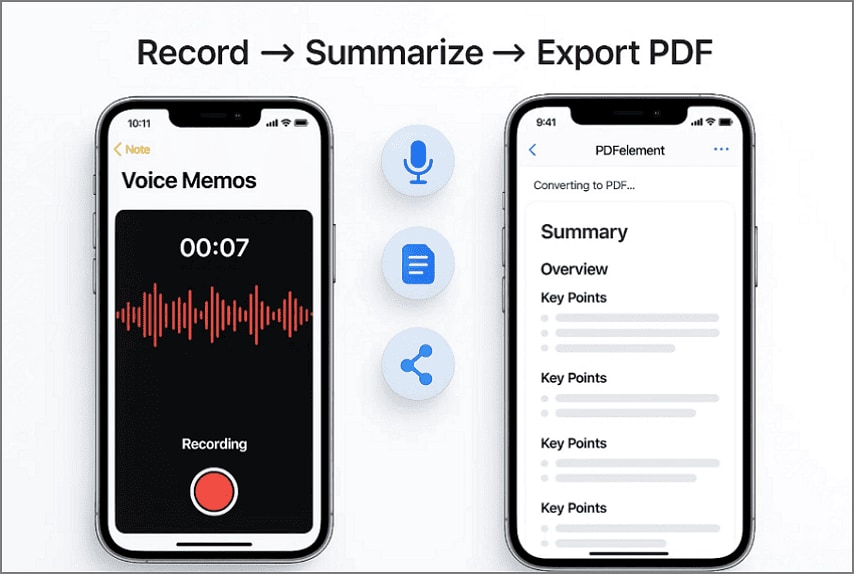
To start, open “Voice Memos” or “Notes,” then tap the “Microphone” icon to begin recording.
Later, import the transcript into “PDFelement Mobile” for summarization, AI structuring, or PDF formatting.
After that, export finished study packs, reports, or class projects directly as shareable PDFs.
Linux — Speech-to-Text Options
Linux users can leverage open-source voice-to-text apps for PC and command-line tools to maintain privacy-safe workflows by following the steps below:
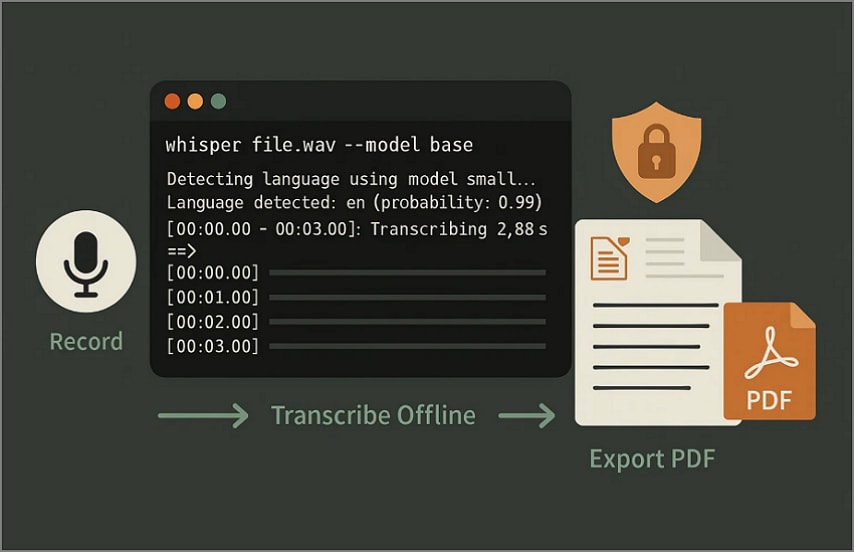
First, install an open source solution, then “Record” audio in WAV or FLAC for best transcription accuracy.
After that, run transcription offline with OpenAI Whisper or other local models.
Lastly, summarize results, then export text to PDF or TXT using LibreOffice or PDF tools.
Tip: Linux file-based workflows ensure high control and data security; uncompressed recordings provide optimal STT accuracy.
Part 6. Use-Case Playbooks: Mini Guides
The following ready-to-apply mini-guides show how modern AI and transcription tools simplify everyday scenarios, from lectures and meetings to interviews and study sessions:
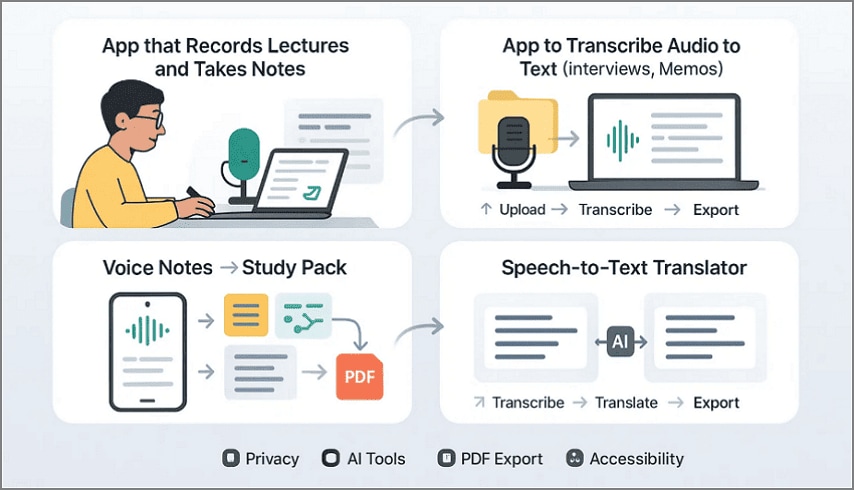
App that Records Lectures and Takes Notes
Turn live lectures or training sessions into well-organized digital notes with AI precision. Follow the workflow below as it combines audio capture, smart transcription, and instant summarization for faster studying and review:
Step 1.
First, capture the session using an AI-based recorder for clear, noise-free audio.
Step 2.
Then, use a speech-to-text converter app to generate accurate written notes.
Step 3.
Lastly, apply AI summaries, add stickers or highlights, and export as a formatted PDF.
App to Transcribe Audio to Text (Files, Interviews, Memos)
This method helps researchers and professionals keep every spoken detail organized and accessible. To follow the process effectively, review the workflow steps outlined below.
Step 1.
To start, upload your existing recording from storage or directly from the recorder.
Step 2.
Next, convert to text automatically, then use AI to highlight main insights.
Step 3.
Finally, save the file as a polished PDF or DOC for editing or sharing.
Voice Notes → Study Pack
Transform short, fragmented voice notes into complete, well-structured study materials. The flow below keeps key points, examples, and mind maps in a single, visually organized document:
Step 1.
Firstly, capture quick voice reminders, explanations, or key definitions while studying.
Step 2.
Afterwards, transcribe into text, then compile notes using a study-friendly template.
Step 3.
At last, generate an AI mindmap or summary and export everything as a PDF pack.
Speech-to-Text Translator
Ideal for bilingual users or global teams managing multilingual projects, this process transcribes, translates, and formats bilingual content into one unified, accessible document. To understand how it works, carefully follow the workflow steps outlined below.
Step 1.
First, accurately convert spoken content into text in the base language.
Step 2.
Then, use AI translation to create a bilingual glossary within the same file.
Step 3.
In the last step, finalize and export a clean, side-by-side translated document.
Part 7. Buyer’s Guide: Choose by Job-To-Be-Done
The following quick guide helps match every workflow with its ideal speech-to-text app setup. Review each category below to determine which fits your work and productivity style best:
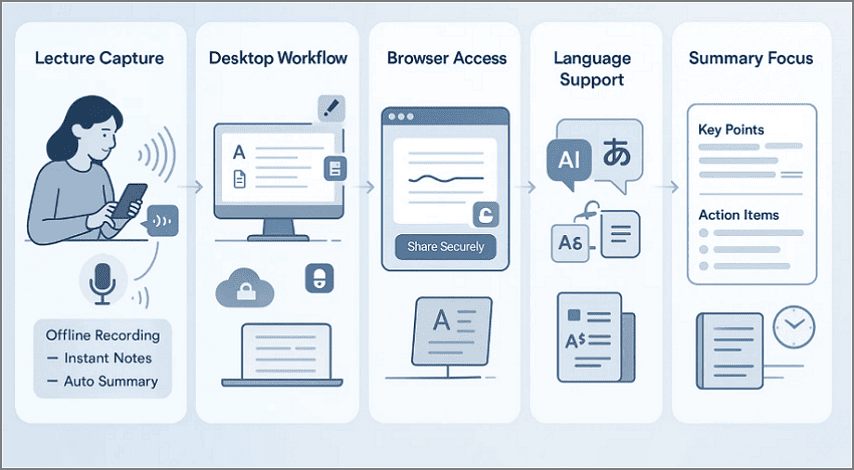
Lecture Capture: PDFelement Mobile records audio offline and instantly converts speech into readable notes. It summarizes key points automatically and exports structured lecture PDFs without cloud upload.
Desktop Workflow: PDFelement Desktop refines transcripts with redaction, headers, page numbers, and batch combining. It offers professional finishing tools for users finalizing reports or formatted documentation.
Browser Access: PDFelement Online allows light edits, quick annotations, and secure browser-based file sharing. It works smoothly on managed devices without requiring installations or complex permissions.
Language Support: AI Translate ensures multilingual transcription with customizable glossary notes for accurate communication. It helps bilingual users maintain consistent vocabulary and cross-language understanding efficiently.
Summary Focus: Choose apps that generate automatic summaries and action items after every transcription session. This reduces manual note cleanup and helps retain essential meeting insights effortlessly.
Part 8. Privacy, Accuracy & Accessibility
Consider these essential practices before choosing any good speech-to-text apps to ensure your recordings remain accurate, ethical, and universally accessible:
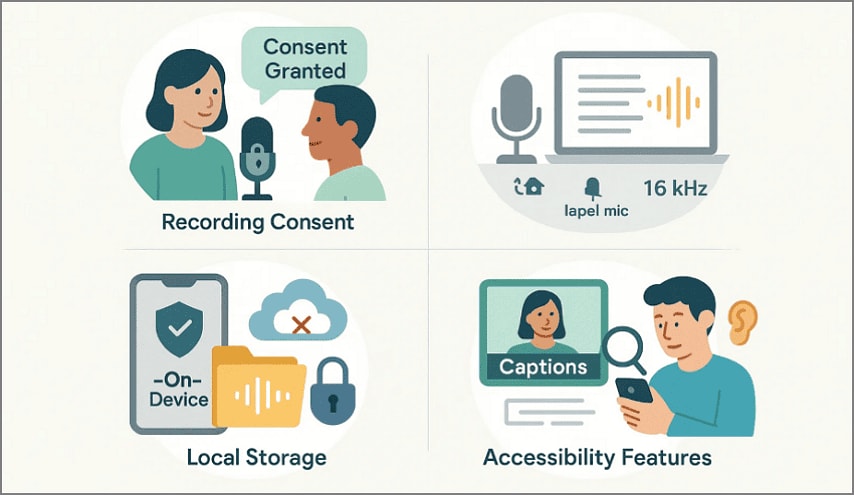
Recording Consent: Always obtain consent before recording and respect classroom or organizational data policies carefully. Ethical use prevents violations of privacy standards and builds trust in digital transcription workflows.
Accuracy Tips: Improve accuracy by recording in quiet environments using high-quality lapel microphones effectively. Speak punctuation aloud during live dictation and ensure recordings exceed 16 kHz frequency.
Local Storage: Store sensitive audio locally on-device rather than uploading to unsecured cloud platforms. This ensures stronger privacy control and reduces risks of unauthorized third-party access.
Accessibility Features: Enable captions and searchable transcripts to make audio content accessible for everyone. Inclusive transcription supports users with hearing differences and promotes equal access to information.
Conclusion
To conclude, modern voice recording and transcription have reshaped productivity across study, business, and creative fields. In this article, we explored the best free and paid apps, platform workflows, and AI-powered tools for accurate, secure, and efficient transcription. For simple offline summaries, instant transcription, and PDF-ready exports, PDFelement Mobile remains the most reliable speech-to-text app, with on-device processing and no complex integrations.
Frequently Asked Questions
-
What is the best speech-to-text app overall?
The best option depends on accuracy, speed, and privacy in everyday workflows. PDFelement Mobile stands out for offline transcription, AI summaries, and secure PDF exports. -
What is the best free speech-to-text app?
Speechnotes offers free real-time transcription with offline support for Android devices. It’s simple, accurate, and ideal for students or professionals taking quick notes. -
How do I transcribe audio to text on Android / iPhone / PC?
Open your recorder or transcription tool, then import the selected audio file carefully. Choose the app to convert voice to text, transcribe, summarize, and export formatted notes instantly. -
Does Windows 10/11 have built-in speech-to-text?
Yes, Windows includes built-in dictation via the shortcut “Windows + H” easily. However, dedicated apps perform better for long audio, summaries, and structured PDF packaging. -
What’s the difference between dictation vs audio file transcription?
Dictation converts live speech into text instantly for real-time writing convenience. File transcription processes pre-recorded audio and supports longer sessions with summarization. -
Can I translate speech to a different language as text?
Yes, AI-powered translators can convert recorded text into bilingual or multilingual formats. This improves accessibility and helps global teams work seamlessly across language boundaries. -
How do I turn voice notes into a study PDF fast?
Record short notes, transcribe them, and automatically summarize the key points. Then, apply a study template in PDFelement Mobile and export the compiled PDF.



