A 50-slide training presentation can take considerable time to review, especially before a meeting. Converting PowerPoint to podcast audio makes that information accessible during commutes, workouts, or other screen-free activities. A PPT-to-podcast tool uses presentation content to generate spoken explanations, making slide quality important for clear results.
PDFelement accepts PowerPoint files in AI Space and creates podcasts with subtitles and automatic chapters. It also provides MP3 downloads, while cleaner slides help each episode sound clearer and more natural.


 G2 Rating: 4.5/5 |
 100% Secure
In this article
Part 1. Benefits of Converting PowerPoint to Podcast
A PPT-to-podcast conversion brings back the explanation that standalone slides often miss while easing screen time. The 2026 Workplace Vision Health Report makes that shift more relevant, and the benefits below show why:
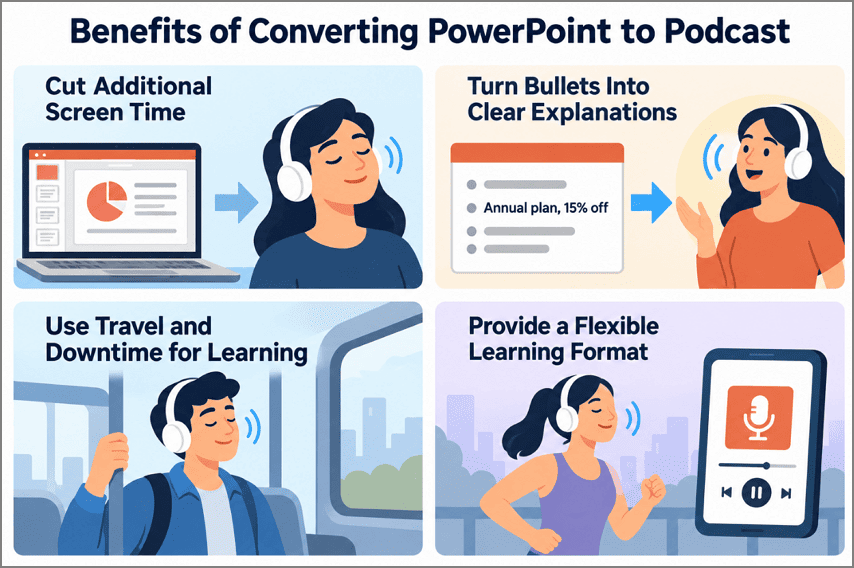
- Cut Additional Screen Time: The 2025 Workplace Vision Health Report found employees average 97 hours of screen time weekly. Listening to presentation content can move part of workplace learning away from another screen.
- Turn Bullets Into Clear Explanations: A note like “Annual plan, 15% off” lacks timing and context. Podcast narration connects nearby slides and explains when, why, and how that offer matters.
- Learn Between Tasks: An MP3 fits naturally into a commute, walk, workout, or trip between meetings. Employees can catch up on presentation content without reopening the deck.
- Give Learners More Choice: Some employees would rather listen than spend more time reading slides. Audio also makes training easier to revisit when sitting down with a laptop is not practical.
Part 2. PowerPoint Types That Work Best for Podcasts
Text-led decks usually produce a stronger slides-to-podcast result because narration can carry their written ideas without relying heavily on visuals. LinkedIn’s 2025 Workplace Learning Report also reinforces the growing importance of workplace learning and skill development. The table below shows PowerPoint types that translate especially well into podcast episodes:
| Presentation Type | Why It Works as a Podcast |
| Educational and Training Presentations | Lessons follow a teaching order, with features and procedures already written out in sentences. |
| Business Reports and Meeting Slides | A quarterly review missed in the meeting turns into a catch-up episode for the drive home. |
| Research and Informational Presentations | Findings, methods, and caveats sit in text, ready for a discussion of what each result shows. |
| Policy and Compliance Briefings | New rules arrive as text-heavy slides that an episode can cover point by point. |
Visual-first decks, such as design portfolios and photo-led pitches, give a PowerPoint-to-podcast tool few words to work with. Captions or speaker notes on each image keep those episodes from coming out thin.
Part 3. How to Convert PPT to Podcast
Wondershare PDFelement starts with the PowerPoint deck and builds the PPT-to-podcast episode from it in AI Space. Before you generate anything, you can choose how the episode should sound, how it is divided, and how the finished MP3 is delivered:
- Podcast Format: Choose Deep Dive for a fuller discussion or Brief for a shorter episode. The Short option reduces runtime further when only key points matter.
- Synced Subtitles: The transcript keeps pace with the audio while the episode plays. Miss a number, name, or price? You can glance at the text instead of dragging the playback bar backward.
- Automatic Chapters: Longer episodes are split into separate sections automatically. That makes it easier to jump back to the part you actually need, whether that is pricing, features, or the closing summary.
- Playback Speed: The 1x setting is not fixed. Speed up sections you already understand, then slow things down when the material gets more technical.
- MP3 Download: Once the episode is finished, save it as an MP3. From there, you can keep it on your phone, laptop, or another device and listen without staying online.
G2 Rating: 4.5/5 |100% Secure
Steps to Convert PowerPoint to Podcast in PDFelement
PDFelement keeps the slides-to-podcast workflow inside one AI Space, from uploading the training deck to generating the final audio and transcript. The steps below show how to complete the conversion from start to finish:
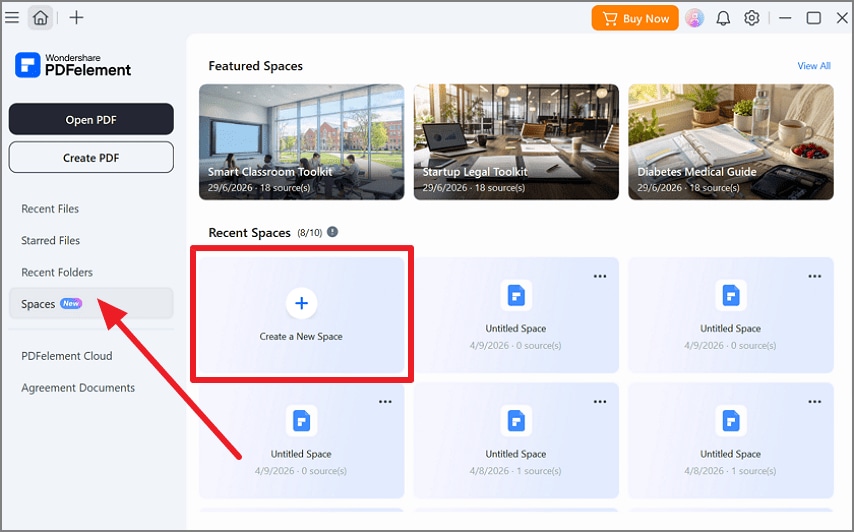
Step 1. Create a New Space
Open PDFelement, choose Spaces from the left menu, and click Create a New Space to start a fresh workspace.
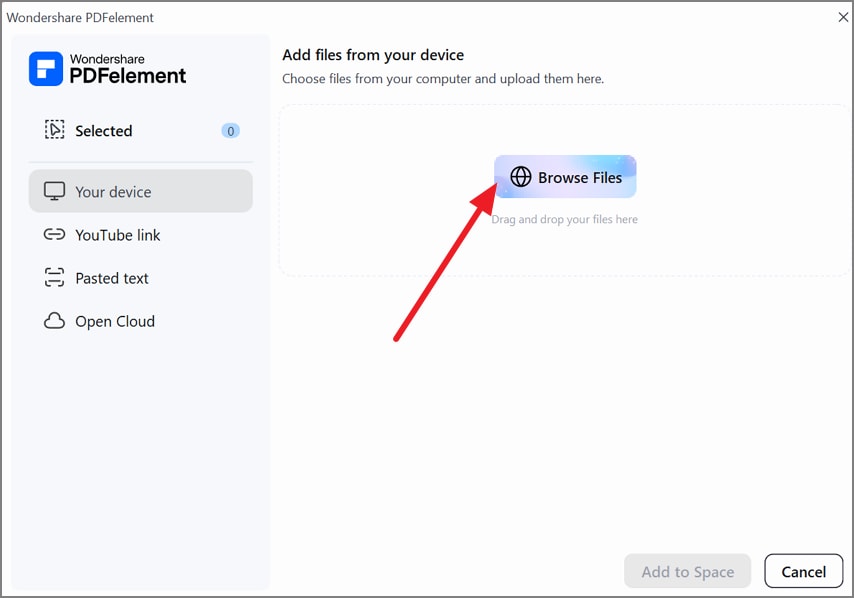
Step 2. Upload the PowerPoint
Select your device, click Browse Files, and upload the PowerPoint presentation you want to convert. The file is then added as a source inside the Space.
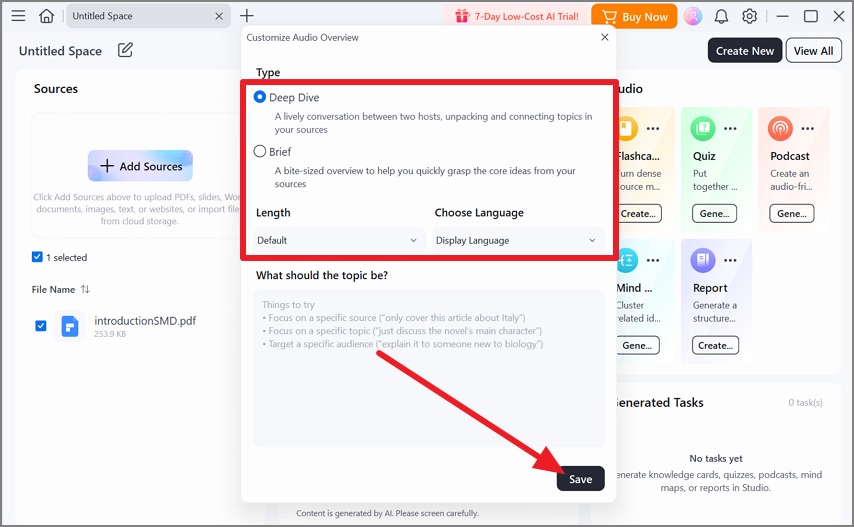
Step 3. Set the Podcast Format
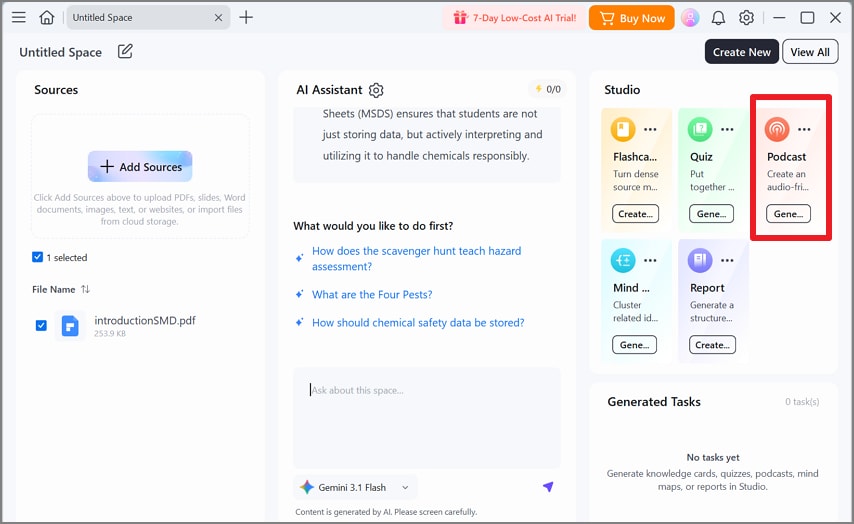
In Studio, choose Podcast, then select Deep Dive or Brief. Set the preferred length and language, add a topic instruction if needed, and press Save.
Step 4. Generate the Podcast
Return to the Studio panel and click Generate under Podcast. PDFelement uses the uploaded presentation as its source to create the audio episode and accompanying transcript.
Why PDFelement Suits PPT-to-Podcast Conversion
After completing the workflow, these PowerPoint-to-podcast strengths show why PDFelement fits practical workplace conversion needs particularly well:
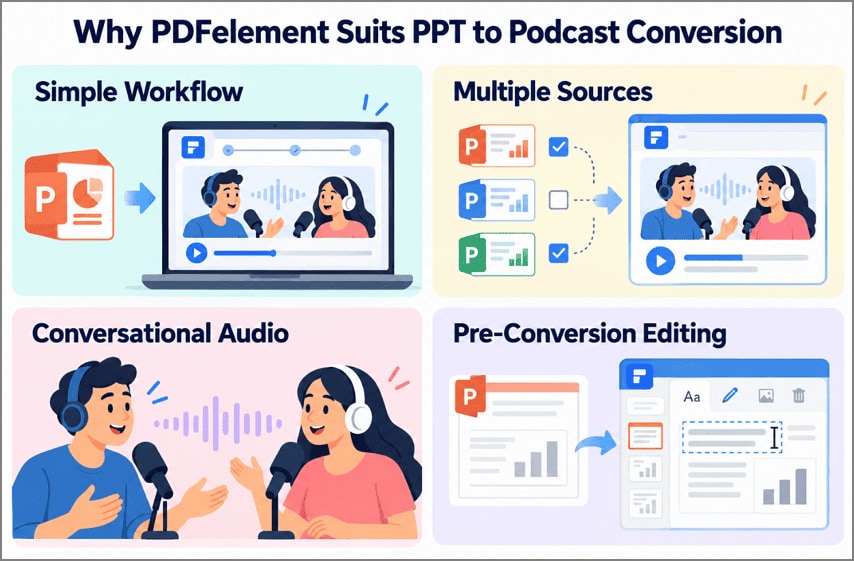
- Simple Workflow: No recording, script writing, or audio editing is required, and the main podcast controls stay within one setup window.
- Multiple Sources: A Space can hold several presentations, while source checkboxes control which files contribute content to the generated episode.
- Conversational Audio: Wondershare describes Deep Dive as “a lively conversation between two hosts,” giving slide content a more discussion-based delivery.
- Pre-Conversion Editing: PDFelement can open the deck as an editable PDF, letting users correct outdated prices, text, or unnecessary slides before generation.
Ease of use also comes up in user feedback, as in this G2 review from Ankush T, an educator:
“This software is so easy to use, and it is so easy to implement, and it comes with a lot of true features and different AI functions, and this application is so easy to integrate with other software and tools. Being an educator and teacher, it helps me so much for going through different PDFs, so it is truly recommendable from my side.”
Part 4. Tips for Turning Slides to Podcast
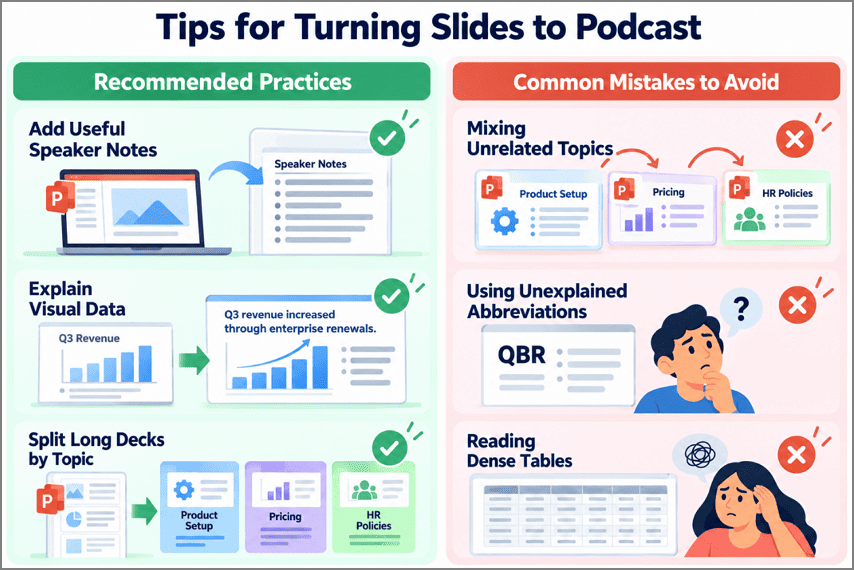
A strong slides-to-podcast conversion starts with a deck that explains ideas clearly without relying on visuals alone. The recommended practices and common mistakes below show what to improve before generating the podcast:
Recommended Practices
- Add Useful Speaker Notes: Include explanations, examples, and context a presenter would normally say aloud. In PowerPoint for Windows, export Notes pages as a PDF so those notes become part of the podcast source.
- Explain Visual Data: Replace vague chart titles like “Q3 Revenue” with conclusions such as “Q3 revenue increased through enterprise renewals.” Add clear labels and units so important findings still make sense without the visual.
- Split Long Decks by Topic: Divide lengthy presentations into focused sections covering one subject at a time. Exporting smaller sections separately can produce shorter, more coherent podcast episodes that are easier to follow.
Common Mistakes to Avoid
- Mixing Unrelated Topics: Combining product setup, pricing, and HR policies creates an episode that shifts abruptly between subjects. Keep each presentation or podcast episode focused on one clear theme.
- Using Unexplained Abbreviations: Terms such as “QBR” can confuse new listeners without visual context. Spell out abbreviations on first use and explain specialized terminology where necessary.
- Reading Dense Tables: Large pricing or data tables can become meaningless streams of numbers in audio. Add a short takeaway explaining the most important trend, comparison, or recommendation before the table.
Conclusion
Converting PowerPoint to podcast audio makes training materials, business reports, and research presentations easier to revisit. Clear speaker notes, descriptive charts, and focused topics improve the listening experience. PDFelement simplifies the slides-to-podcast process with customizable audio, subtitles, automatic chapters, and MP3 downloads.
G2 Rating: 4.5/5 |100% Secure