Chrome opens PDF files in its built-in viewer, but their pages remain white. This bright screen can strain your eyes when reading long documents at night. You can invert PDF colors in Chrome using extensions designed for dark reading.
These tools change page colors, yet some cannot open PDFs stored on computers. PDFelement offers Dark Reading for users who want more control over PDF documents. It also provides editing and comment tools to manage PDFs in one place.


 G2 Rating: 4.5/5 |
 100% Secure
In this article
Part 1. Why Chrome's Dark Mode Leaves PDF Pages White
Chrome offers different appearance settings to change the colors of the browser interface. However, these settings cannot invert PDF colors in Chrome when you open documents. Dark mode changes the browser appearance but leaves PDF pages with white backgrounds.
This happens because Chrome uses a separate viewer to display PDF document pages. Extensions offer another way to change PDF colors for a better reading experience. However, some extensions face restrictions when accessing the PDF viewer within the browser.
Part 2. 4 Extensions to Invert PDF Colors in Chrome
Chrome offers several extensions that help users change PDF colors for reading. Each extension has different features and supports certain types of PDF files. The following comparison summarizes four options and their main use cases.
| Extension | Best For | Key Features | Limitations |
| PDF Dark Theme | Reading downloaded PDFs | Inverts page colors for darker backgrounds | Does not support PDFs opened from websites |
| PDF Dark Reader | Reading PDFs in supported PDF.js viewers | Light and dark modes, individual tab controls | May not work with custom PDF viewers |
| PDF Dark Inverter | Viewing scanned handouts | Color inversion, brightness and contrast controls | Limited information about search and text selection |
| PDF Dark Mode | Switching reading colors quickly | Dark and sepia modes, keyboard shortcuts | Dark mode may turn off after reloading a PDF |
1. PDF Dark Theme
Best For: Reading downloaded PDFs with darker page backgrounds.
PDF Dark Theme helps users change the appearance of PDF files stored locally. The extension applies a color inversion effect to create darker document reading backgrounds. It works with light PDF viewers and requires permission to access local files.
How to Use PDF Dark Theme
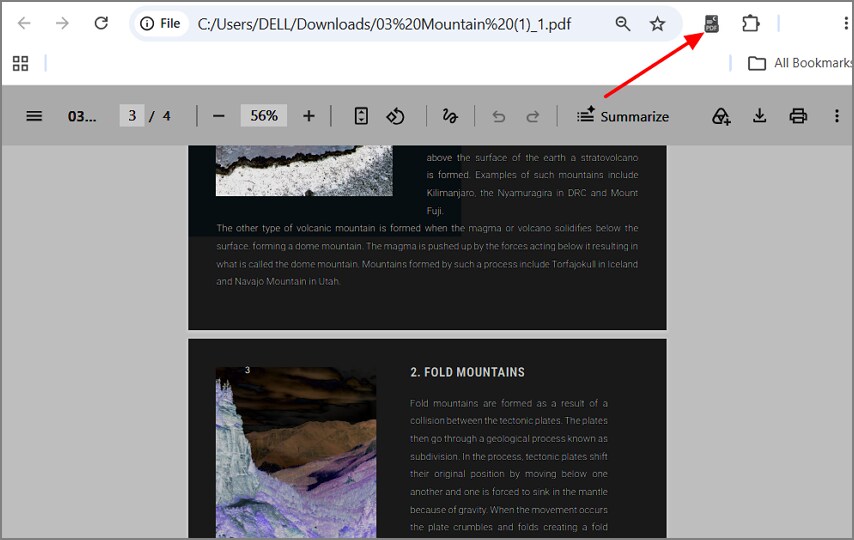
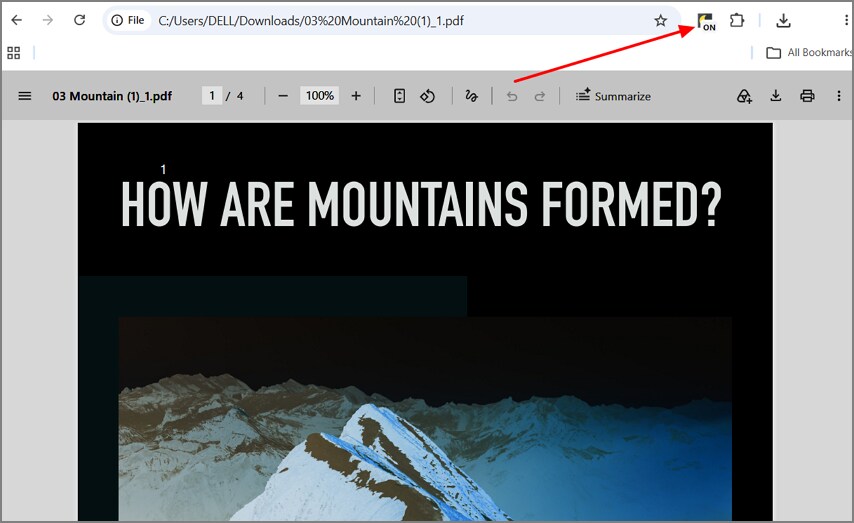
Once you open a PDF in Chrome, click the extension icon in the top-right corner to apply the dark theme. Make sure to enable file URL access for the extension before trying to change the appearance of a locally stored PDF.
2. PDF Dark Reader
Best For: Reading lecture materials through university PDF.js viewers.
Students can use PDF Dark Reader to change PDF colors within supported university portals. It provides a dark reading mode for documents displayed through PDF.js web viewers. Mozilla developed PDF.js to display PDF documents within web browsers using web standards. Readers can enable dark pages for future documents without changing their browser theme.
How to Use PDF Dark Reader
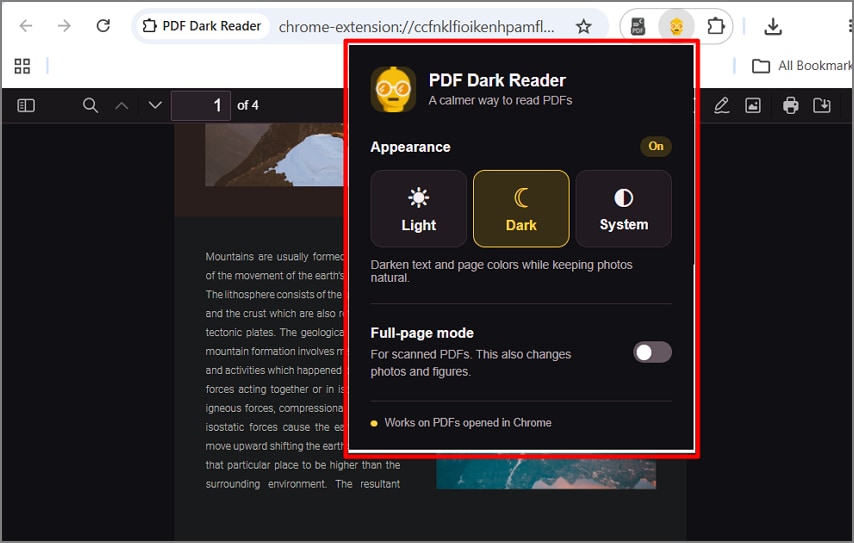
After installing the extension, open a PDF in Chrome. Click the PDF Dark Reader extension icon and choose a mode between "Light" and "Dark." You can switch modes anytime by opening the extension in Chrome.
3. PDF Dark Inverter
Best For: Viewing scanned handouts with adjustable page brightness controls.
PDF Dark Inverter provides a separate viewer for reading scanned PDF documents at night. Its color inversion feature changes dark text into light text on darker backgrounds. Users can adjust brightness levels when scanned pages appear too bright or unclear.
How to Use PDF Dark Inverter
Step 1. Click the extension icon and paste the PDF URL into the URL box. Next, select "Open URL" to load the document.
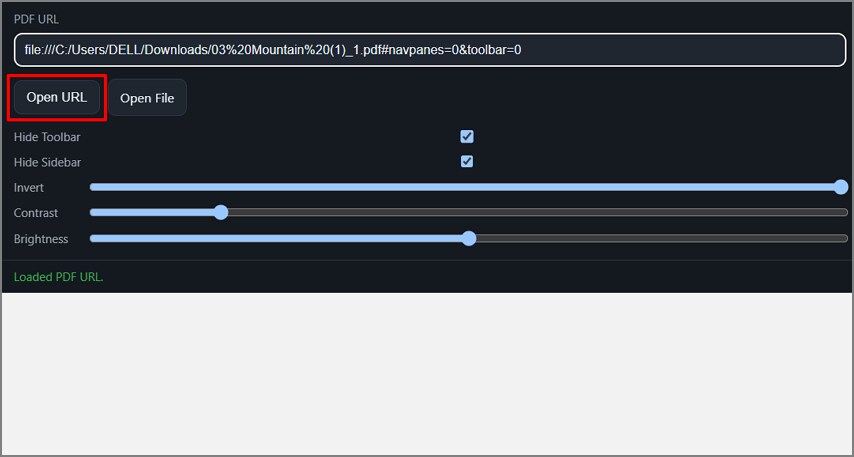
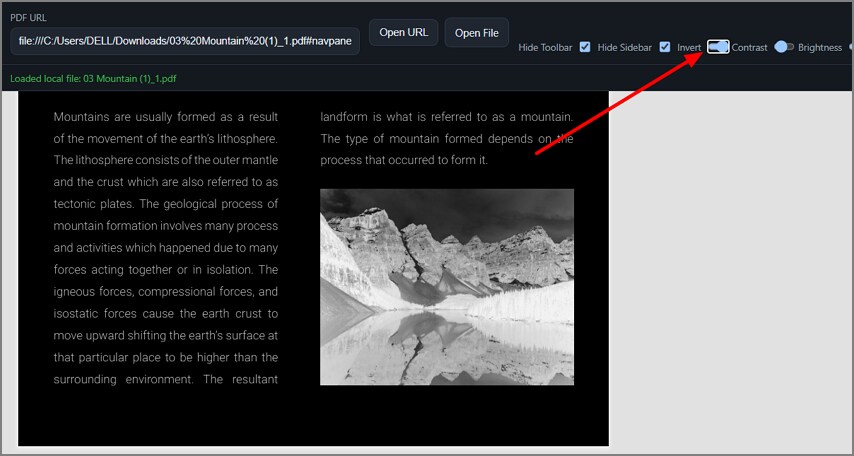
Step 2. Once the PDF appears, adjust the brightness and contrast to suit your viewing requirements.
4. PDF Dark Mode
Best For: Switching PDF reading colors with simple keyboard shortcuts.
Reading long PDF documents becomes easier with keyboard controls for changing page colors. PDF Dark Mode offers a sepia option for users who dislike harsh black backgrounds. You can invert PDF colors in Chrome without opening menus during reading sessions.
How to Use PDF Dark Mode
Open your PDF and click the PDF Dark Mode Extension icon in Chrome's Extensions panel to turn it on. The extension also needs file URL access to work with locally stored PDFs.
Part 3. An All-in-One PDF Tool as an Alternative to Chrome Extensions
PDFelement is a PDF editor built to manage and edit documents on desktop computers. It works on Windows and Mac with tools for reading and editing PDF files. Users can edit text and add comments without switching between different PDF applications.
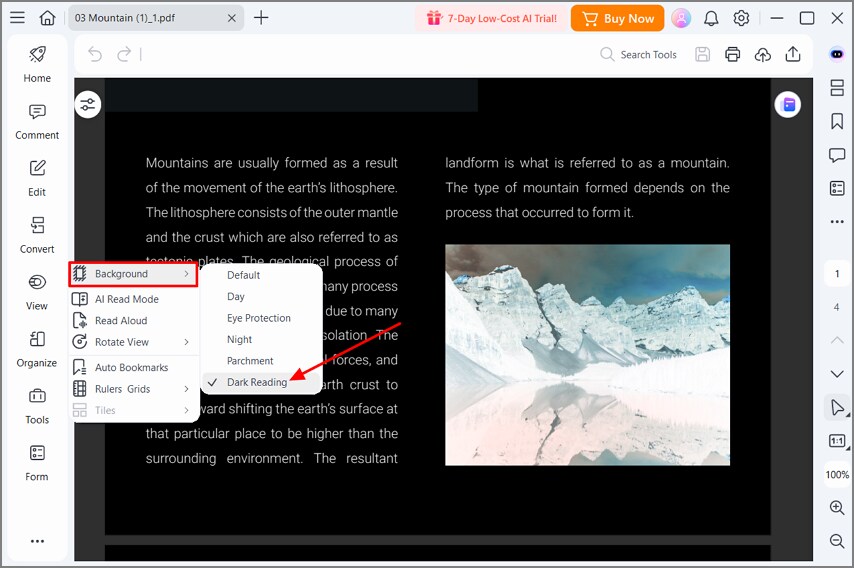
Its "Dark Reading" feature adjusts PDF page appearance for comfortable viewing without permanently changing the document's original colors. The "View" panel offers background options to suit different reading needs and preferences. These display settings change how documents appear without altering their original page content.
How to Invert PDF Colors from Chrome in PDFelement
PDFelement helps change PDF page colors after downloading documents from your browser. Use the steps below to enable dark reading mode in PDFelement.
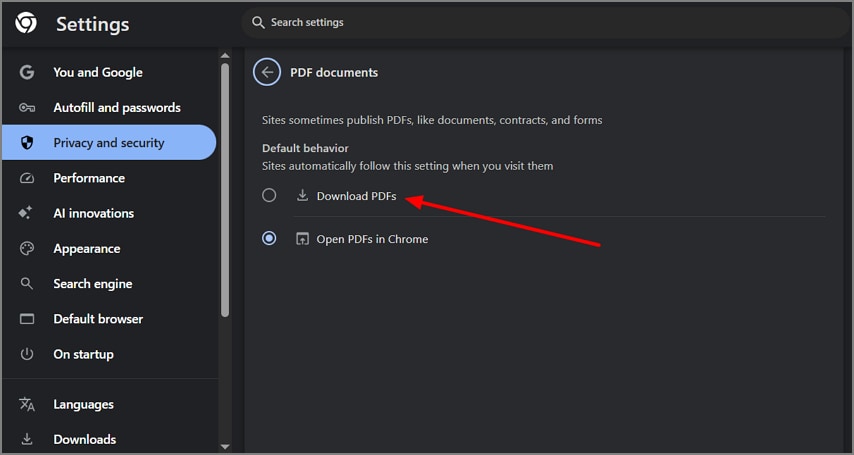
Step 1. Download PDFs from Chrome
Open Chrome and enter chrome://settings/content/pdfDocuments in the address bar. Select "Download PDFs" instead of opening them in Chrome.
Step 2. Open the PDF in PDFelement
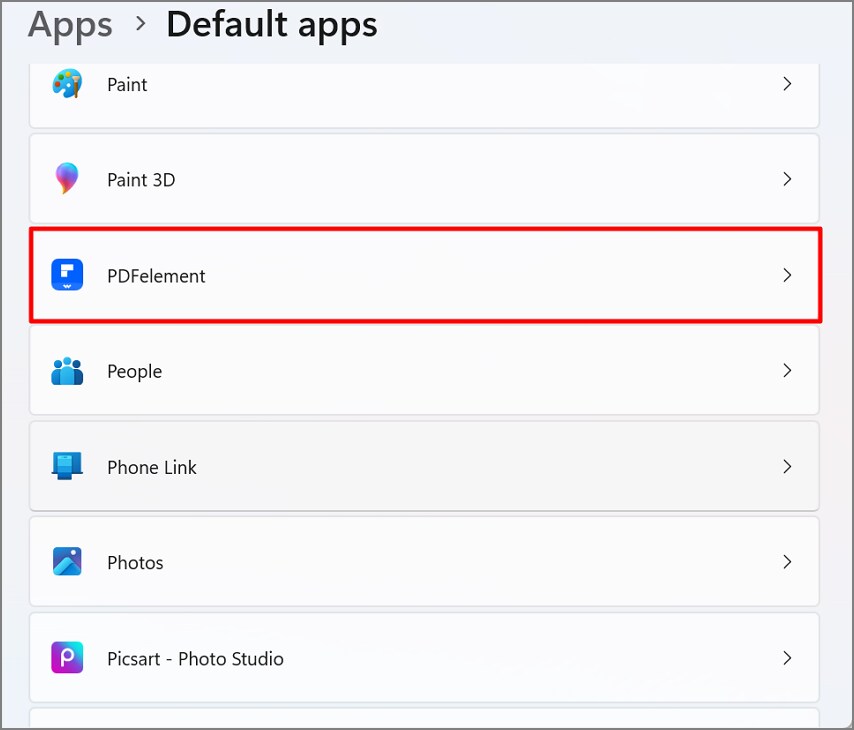
Download your PDF and locate it in the Downloads folder. Right-click the file and select "Open with > PDFelement." To make PDFelement your default PDF app, access "Default Apps" in Windows Settings or "Get Info > Open with > Change All" on Mac.
Step 3. Enable Dark Reading
With the PDF open in PDFelement, choose the "View" option. Then select "Background" and click "Dark Reading" to enable dark mode for PDFs.
Relevant Features Beyond Color Inversion
PDFelement offers useful features for editing documents and managing PDF files with ease.
- Edit PDF Text: Change incorrect dates or figures within documents without using another application.
- Add Annotations: Highlight important passages and insert notes to review key information later.
- OCR for Scanned PDFs: Convert scanned pages into searchable text for easier document navigation.
Frequently Asked Questions
Does Chrome have a built-in PDF dark mode?
Chrome's dark mode changes browser colors but does not change PDF page backgrounds. You can use extensions or PDFelement to make PDF documents easier to read.
Can I invert PDF colors without changing images?
Most color inversion filters also change photographs and diagrams in a PDF. Some extensions use color adjustments to help preserve images' original appearance, but results depend on the tool and document.
Can I invert colors in a scanned PDF?
Yes. PDF Dark Inverter can change colors across scanned pages containing image content. According to Adobe, scanned PDFs contain image data rather than searchable text by default. PDFelement also supports Dark Reading and OCR to help users view and search scanned documents.
Conclusion
You can invert PDF colors in Chrome using different browser extensions. These extensions help reduce bright backgrounds and improve comfort during long reading sessions. Some work with downloaded files, while others support PDFs opened within website viewers.
For more control, consider a PDF editor that supports document editing and annotations. PDFelement offers Dark Reading alongside editing and OCR tools for managing PDF documents.
G2 Rating: 4.5/5 |100% Secure