macOS Dark Mode leaves a PDF page white, so reading a 40-page report after midnight can brighten a dark room. Lowering screen brightness makes text harder to read, making it practical to invert PDF colors for light text on a black background. Apple’s Invert Colors does this, but it changes the Dock and menu bar, while Acrobat Reader’s color preference keeps the effect inside the document.
PDFelement offers an option with Dark Reading, which darkens the page view without changing the PDF. OCR and editing remain available, so you can fix a typo without switching to white pages.
In this article
Part 1. What Inverting PDF Colors Does to a Page
Strict inversion swaps each color for its opposite, so a white page turns black and a red chart bar turns cyan. Photos fare worst because skin tones turn blue and pictures start to resemble film negatives. For the late-night report, the everyday request to invert PDF colors is about getting white text on a black background without changing everything else.
Apple’s official guide to inverting display colors explains the difference between Classic Invert, which reverses all display colors, and Smart Invert, which avoids reversing images and certain other content. Dark reading backgrounds offer another approach by changing the page’s appearance without strictly inverting its colors.
Part 2. Reasons to Invert PDF Colors on Mac
Beyond changing how a PDF looks, inverting its colors can make late-night reading more comfortable. Glare reduction is the main reason to invert PDF colors on Mac, but accessibility, battery life, and personal preference also play a role. The benefits vary, however, and the following reasons show where color inversion helps and where its advantages are less certain.
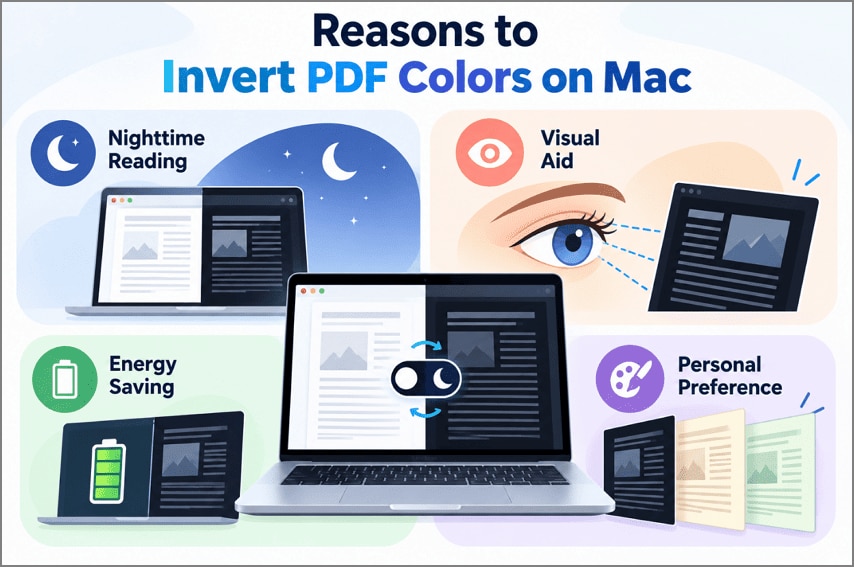
- Nighttime Reading.White space covers far more of a page than the words do, so turning it black cuts most of the light a screen gives off.
- Visual Aid.MedlinePlus lists glare among cataract symptoms, and photosensitivity or severe myopia can bring similar trouble with bright pages. APH’s VisionAware notes that light lettering on a dark background “may sometimes be easier to read” for people with low vision.
- Energy Saving.The battery argument comes from OLED phones, where Purdue measured savings of only 3 to 9% at 30 to 50% brightness. Battery life on a backlit LCD barely moves, since the backlight burns behind black pixels as it does behind white ones.
- Personal Preference.Taste decides the exact shade, since Acrobat accepts any custom color pair and PDFelement offers Parchment and Eye Protection tints.
Part 3. 3 Methods to Invert PDF Colors on Mac
Any of those reasons can be addressed in three places, and the place you pick sets how far the dark look spreads. A copy emailed the next morning still arrives with white pages, because all three methods change the display rather than the PDF.
Method 1. Invert PDF Colors on Mac Using Accessibility Settings
macOS offers a built-in way to invert PDF colors on Mac without installing additional software. This accessibility feature changes how colors appear across the entire display while keeping the original PDF untouched. According to Apple's Display Accessibility documentation, color inversion can show white text against a black background, making it useful for reading bright documents in darker environments. Follow the steps below to try the method.
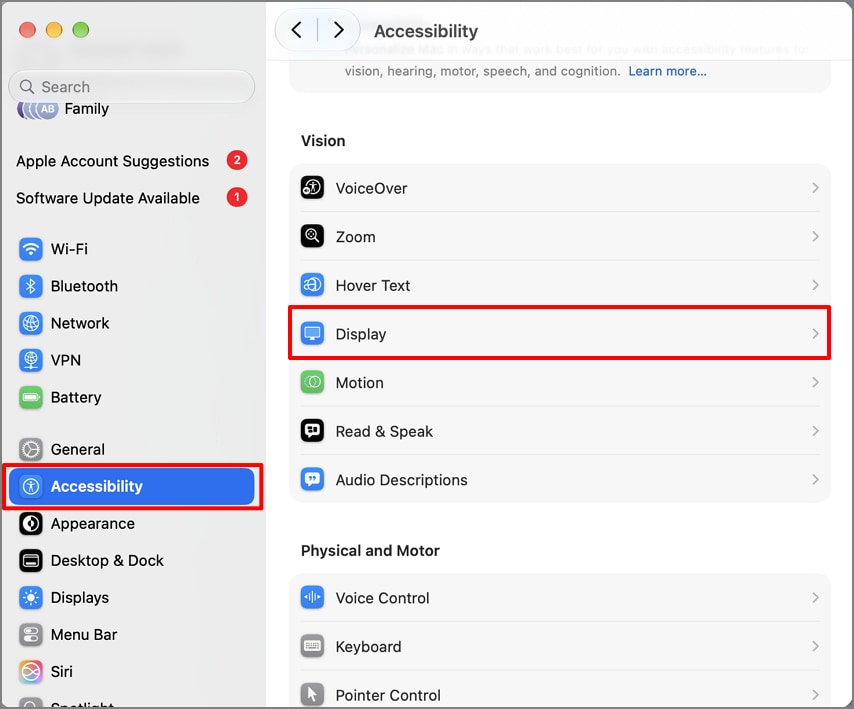
Step 1. Open Display Settings
Apple files Invert Colors under the vision settings rather than “Appearance,” so open “Apple menu > System Settings > Accessibility > Display.”
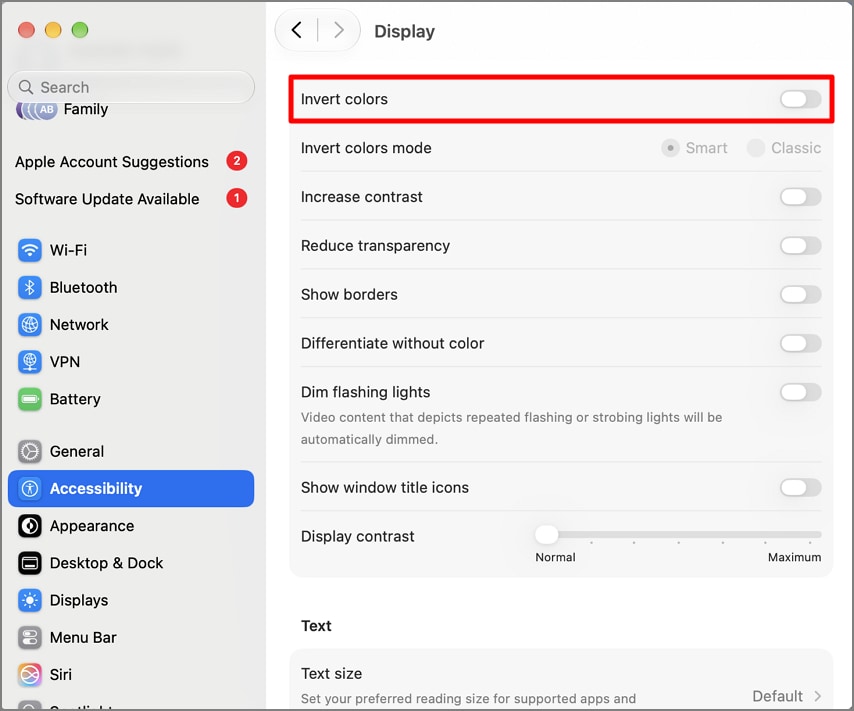
Step 2. Turn On Invert Colors
Switch on “Invert colors” with the report still open, and its white pages turn black along with every other window. Turning on “Night Shift” or a color filter other than “Grayscale” switches it off again, according to Apple.
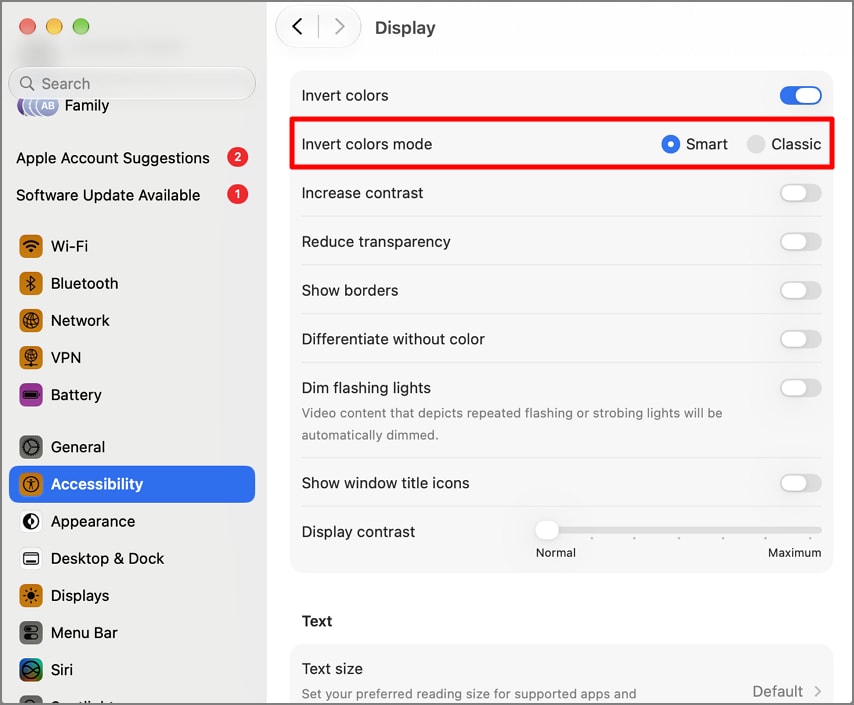
Step 3. Pick Smart or Classic
Apple’s “Smart” mode inverts colors “everywhere except images and video,” while “Classic” flips every pixel, photos included.

Method 2. Invert PDF Colors on Mac Using Adobe Acrobat Reader
Acrobat Reader provides a more targeted way to invert PDF colors, changing the document view without darkening the rest of macOS. Its Replace Document Colors preference supports contrasting text and background combinations, including custom pairs. Here is how to apply it.
Step 1. Open Accessibility Preferences
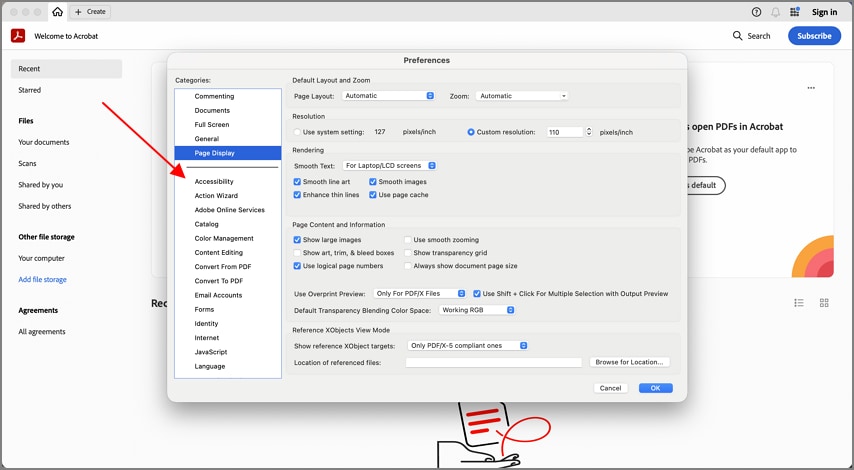
Press “Command-K” in Acrobat Reader to open “Preferences,” then select “Accessibility.” Unlike Acrobat’s dark interface theme, these settings control how the PDF page itself appears.
Step 2. Set the Colors
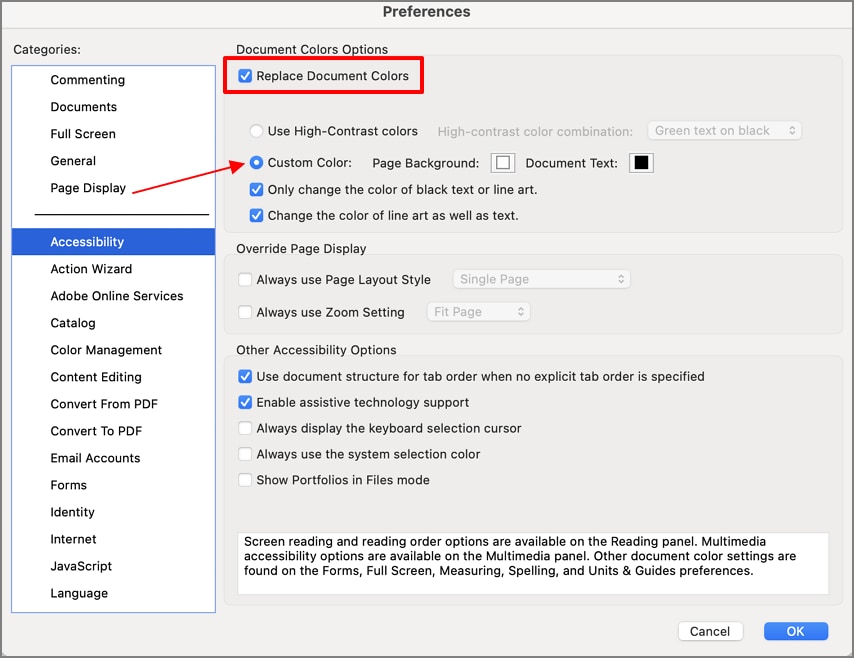
Tick “Replace Document Colors” and choose the custom color option. Set “Page Background” to black and “Document Text” to white. Adobe’s “Use High-Contrast Colors” option provides preset combinations instead. Click “OK” and return to the report. Acrobat Reader now displays supported text in white against a black page, while the color change remains within the document view.
Method 3. Invert PDF Colors on Mac Using PDFelement
PDFelement offers a document-focused way to invert PDF colors on Mac without changing the rest of the display. Its Dark Reading background creates a white-on-black reading view while leaving the original PDF unchanged. Follow these steps to switch it on.


 G2 Rating: 4.5/5 |
 100% Secure
Step 1. Open the View Panel
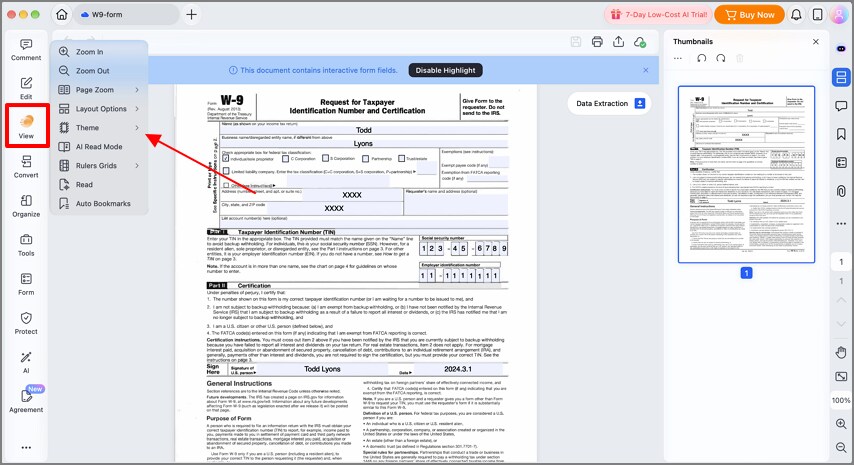
Open the PDF in PDFelement, then click “View” in the left sidebar. Find “Theme” among the reading options and navigate to view the available page-view backgrounds.
Step 2. Select Dark Reading
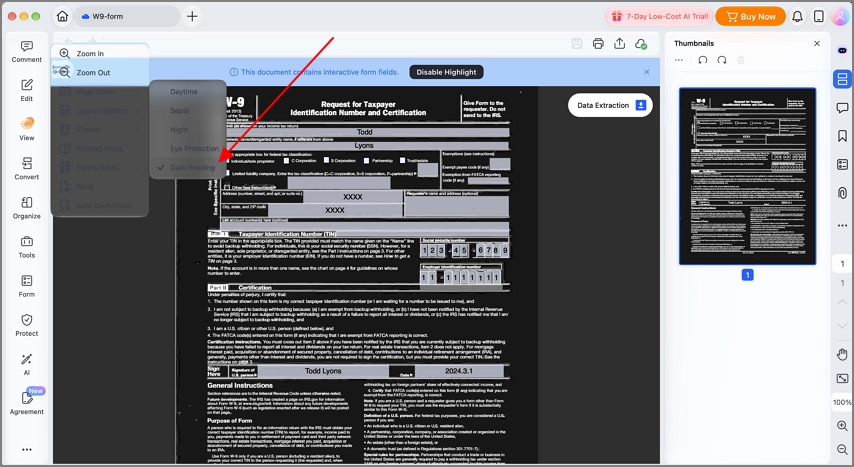
Choose “Dark Reading” from the Theme menu. The PDF switches to a dark page with light content for easier nighttime reading. This viewing effect can also be applied when working with scanned PDF pages.
Step 3. Switch Back to the Original View
When you finish reading, open “Theme” again and select “Daytime.” PDFelement restores the PDF’s normal page colors without altering the original document.
Dark Reading also leaves PDFelement’s other tools available. A scanned report can still be processed with Perform OCR when searchable or editable text is needed. Meanwhile, Read Aloud provides another option when you would rather listen than continue reading.
Part 4. Choosing Between the Three Methods
Not every way to invert PDF colors on Mac gives the same reading experience. Some prioritize quick access, while others keep the color change limited to the document. How each method handles surrounding apps, scanned pages, and switching back becomes clearer in the following comparison.
| Method | What Turns Dark | How to Switch Back |
| Invert Colors in macOS | Every window on the display, minus images and video in Smart mode | Control-Option-Command-8 or the “Invert colors” switch |
| Replace Document Colors in Acrobat Reader | Text and page backgrounds inside Acrobat Reader | Clear “Replace Document Colors” in Accessibility preferences |
| Dark Reading in PDFelement | Typed and scanned pages in the PDFelement window | “Daytime” in the “Theme” submenu |
When every window feels too bright, “Smart” mode with its shortcut is the quickest way to invert PDF colors. “Replace Document Colors” stays on until you clear it, so every PDF opened in Acrobat Reader, not only the report, comes up dark. Scanned pages tip the choice toward PDFelement, since Dark Reading covers them too and OCR turns them into editable text there.
Frequently Asked Questions
1. How do I invert the colors of a PDF page?
Apple’s Invert Colors switch in “System Settings > Accessibility > Display” will invert PDF colors along with everything else on the screen. “Replace Document Colors” in Acrobat Reader and “Theme > Dark Reading” in PDFelement darken the PDF alone.
2. Why is my PDF document showing a black background?
A display setting usually causes it, such as Invert Colors in macOS, Replace Document Colors in Acrobat Reader, or a PDF app’s dark reading mode. Opening the file on another device helps determine whether the effect comes from the viewer. If the page remains black there, the PDF itself may have been saved with a black background.
3. Is dark mode the same as inverting PDF colors?
The two settings work on different layers, since Dark Mode recolors the Mac’s interface and leaves the white background a PDF’s author gave the page. A middle ground arrived with macOS Tahoe, where Preview’s “View > Use Dark Appearance” for PDF option darkens only the pages.
Conclusion
How you invert PDF colors on Mac determines whether the change affects one document or the whole display. macOS offers quick system-wide inversion, while Acrobat keeps it PDF-specific. For greater flexibility, PDFelement is a practical choice, combining Dark Reading with OCR, Read Aloud, and editing for both typed and scanned documents.
G2 Rating: 4.5/5 |100% Secure