

If you searched for iLovePDF Repair PDF, you probably want a fast answer to three practical questions: can it fix the file, should you upload the document, and what should you try next if web repair is not enough.
This review focuses on those questions directly. It explains where iLovePDF fits, where it falls short, and when a desktop repair attempt may be the better next move.


 G2 Rating: 4.5/5 |
 100% Secure

In this article
- Quick Answer
- What iLovePDF Repair PDF Can and Cannot Do
- How to Repair a PDF with iLovePDF
- When iLovePDF Is a Good First Choice
- Limits of iLovePDF Repair PDF
- When a Desktop Workflow Makes More Sense
- iLovePDF vs PDFelement
- Which Option Is Best for Your Situation?
- What to Do If the Repaired PDF Still Fails
- Frequently Asked Questions
Quick Answer
iLovePDF Repair PDF is a solid first online try when you want a fast browser-based repair attempt. It is simple to use and can sometimes recover a damaged file partially or completely.
If the file is highly damaged, sensitive, or still needs cleanup after it opens, a browser-only workflow may not be enough. In that case, a desktop repair attempt can make more sense.
G2 Rating: 4.5/5 |100% Secure
What iLovePDF Repair PDF Can and Cannot Do
iLovePDF Repair PDF is an online recovery tool for damaged or corrupt PDF files. iLovePDF says you can upload a corrupt PDF and it will try to fix it. It also notes that recovery depends on how much the file is damaged and that some files may be recovered only partially.
In iLovePDF's documentation, the workflow is described in simple terms: upload the damaged file, let the service analyze it, and then download or save the repaired result if recovery succeeds.
What it does well: it gives you a quick web-based way to test whether a damaged PDF can still be opened or partly recovered.
What it does not promise: full recovery for every corrupted PDF, perfect formatting after repair, or guaranteed compatibility with every upload portal after the file is repaired.
Many users do not need a perfect repair in the technical sense. They just need the file to open again or enough content to be saved. That is where iLovePDF can help as a first attempt.
How to Repair a PDF with iLovePDF
If you want to try iLovePDF first, the process is straightforward:
- Open the iLovePDF Repair PDF page.
- Upload the damaged PDF from your computer, Google Drive, or Dropbox.
- Run the repair process.
- Download the repaired file if recovery succeeds.
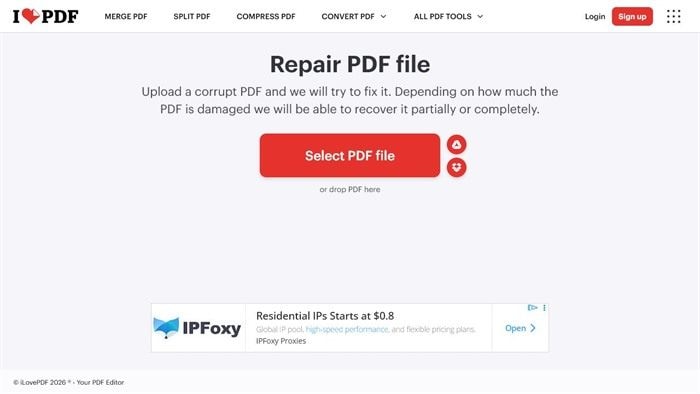
This makes sense when speed matters most. You do not need to install anything, and you can get a quick answer in a browser. That is why many users try it first.
When iLovePDF Is a Good First Choice
- You want the fastest online try: no software install, simple upload flow, and a quick one-off check.
- Your file is not highly sensitive: reasonable for everyday PDFs, public forms, or low-risk files.
- You mainly want to test recoverability: useful when your first question is simply whether anything can still be saved.
iLovePDF is most useful when you want a quick answer, not a full post-repair workflow. If the file opens after repair and looks fine, you may be done. If it opens but still has issues, that is usually the point where a desktop workflow starts to matter more.
Limits of iLovePDF Repair PDF
The limits matter because they tell you whether another online attempt is worth it or whether you should switch methods early.
It still depends on the condition of the file
If the PDF has heavy structural damage, missing objects, or an incomplete file body, iLovePDF may recover only part of it or fail entirely. That is simply how damaged file recovery works.
Online repair is not ideal for every document
According to iLovePDF's security and legal information, uploads use HTTPS encryption, processed files are automatically deleted within two hours, and the platform follows standards and regulations such as ISO/IEC 27001 and GDPR. That is a meaningful trust baseline. Even so, some teams still prefer local processing for contracts, HR files, legal records, healthcare documents, or internal business files simply because it avoids uploading the file to any web service.
The repaired file may still need follow-up work
A PDF may open after repair but still show blank pages, broken layout, missing fonts, damaged form fields, or partial content. At that point, the real task becomes saving what opened, checking the result, and making the file usable again.
Free-plan limits matter
As of July 24, 2026, iLovePDF lists 1 Repair PDF task for Free accounts and a 100 MB file size limit for this tool. That is enough for many small one-off tasks, but not for every workflow.
A repaired PDF can still fail during upload
A file may open after repair and still be rejected by a court system, tax portal, government uploader, LMS, or vendor platform. The reason is often not basic readability. It is stricter PDF validation.
When a Desktop Workflow Makes More Sense
If iLovePDF Web does not solve the problem cleanly, the next move is usually to stop repeating the same upload-repair loop and test the file locally instead.
iLovePDF also offers Desktop and Mobile apps. If you already use iLovePDF and simply want a first-party local or app-based route, that is the most direct next step.
PDFelement can be useful here for one practical reason: it can try to open some damaged PDFs locally. Whether that works depends on how severe the damage is. It is not a guaranteed repair tool for every broken file. But if the PDF does open, you can save a fresh copy, review the result locally, and decide whether the file is usable or needs more cleanup.
G2 Rating: 4.5/5 |100% Secure
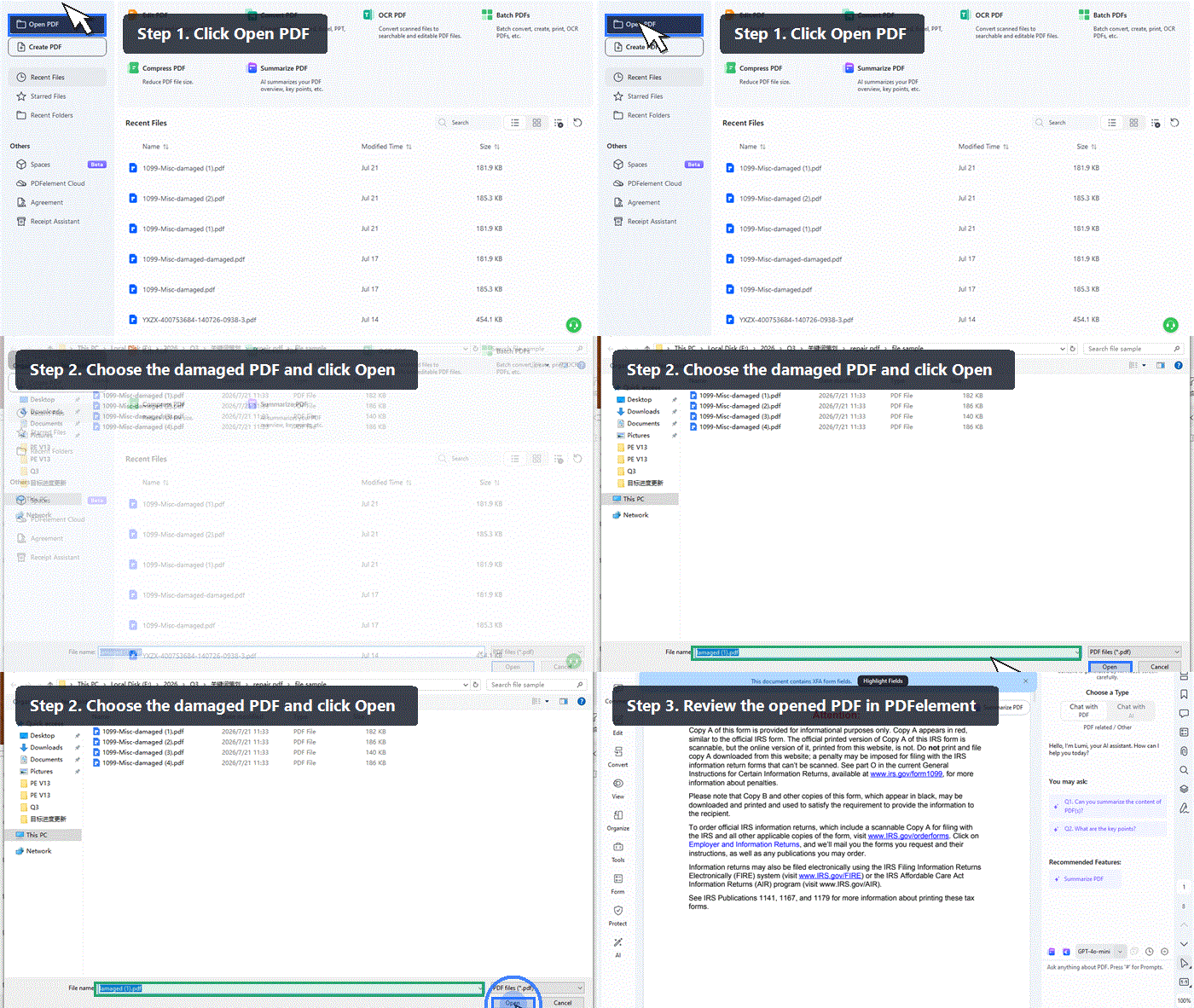
A realistic PDFelement workflow
- Open PDFelement on desktop.
- Click Open and choose the damaged PDF.
- See whether the file opens fully, partially, or not at all.
- If it opens, save a fresh copy first.
- Then review the pages and decide whether it is usable as-is or needs cleanup.
G2 Rating: 4.5/5 |100% Secure
iLovePDF Web Repair vs PDFelement for Damaged PDF Scenarios
| Situation | iLovePDF Repair PDF | PDFelement |
| Fastest no-install attempt | Best fit | Requires desktop software |
| Quick check to see whether the PDF is recoverable at all | Strong fit | Possible, but slower to start |
| Prefer staying in the iLovePDF ecosystem | Best fit, with Web, Desktop, and Mobile options | Not the main fit |
| Sensitive or confidential files | Works if your team is comfortable with encrypted online processing | May be a better fit if you prefer to avoid uploading the file again |
| File opens only partially and needs cleanup | Limited follow-up control | May be a better fit if the file opens and you need to review or clean it up locally |
| Need to save a fresh local copy right away | Possible after download | May be a better fit if the file opens and you want to save a fresh copy in the same workflow |
| Need a next-step workflow after the file opens | Limited | May be a better fit if the file opens and you want to keep working locally |
| One-time small web task | Good fit | Probably more than you need |
| Severely corrupted file | No guaranteed success | No guaranteed success |
Which Option Is Best for Your Situation?
Start with iLovePDF if
- you want the fastest browser-based try
- the file is not highly sensitive
- you only need a quick recovery check
- the file fits the current free limits
Try a local desktop tool like PDFelement if
- you want to test the file locally
- the PDF may need cleanup after it opens
- you want to save a fresh copy if the file opens
- you prefer not to upload the file again
Ask for a fresh export if
- the file is 0 KB
- the download was clearly incomplete
- the source file still exists
- the repaired copy still fails upload validation
Sometimes the most reliable fix is not another repair pass. It is getting a clean new PDF from the source document.
G2 Rating: 4.5/5 |100% Secure
What to Do If the Repaired PDF Still Fails
If a repaired PDF still will not open correctly, or opens but cannot be uploaded, stop assuming that another repair pass will fix everything. At that point, the smarter process is usually:
- Download the file again from the original source.
- Ask the sender to resend it.
- Request a new export from Word, Excel, CAD, a design app, or the scanning source.
- Test the file in a different PDF app to confirm whether the issue is the viewer or the file itself.
- Use a local save-as workflow if the file partially opens on desktop.
In practice, some damaged PDFs are worth one repair attempt. Others are faster and cleaner to replace with a fresh export from the source file.
Frequently Asked Questions About iLovePDF Repair PDF
Can iLovePDF repair a corrupted PDF?
Yes, it can repair some corrupted PDFs. iLovePDF says the tool will try to fix the file and may recover it partially or completely depending on how damaged it is. That means it is a valid repair option, but not a guaranteed one.
Is iLovePDF safe for sensitive files?
iLovePDF says uploaded files use HTTPS encryption, and that processed files are automatically and permanently deleted within two hours. Its security and legal information also highlight ISO/IEC 27001 certification and GDPR compliance. That is a meaningful security baseline. Whether it is appropriate for sensitive files still depends on your own privacy requirements, client obligations, or internal policy.
What is the free limit for iLovePDF Repair PDF?
As of July 24, 2026, iLovePDF lists 1 Repair PDF task for Free accounts and a 100 MB file size limit for this tool. Since pricing and limits can change, recheck the latest pricing details before publishing final production content.
Why does a repaired PDF still get rejected during upload?
Because opening is not the same as passing validation. Some upload systems check the internal PDF structure more strictly than a normal viewer does. A file can become readable again but still fail a portal's structural requirements.
When should I use a desktop PDF repair workflow instead?
Use a desktop workflow when the repaired copy still needs cleanup, when you want to check the file locally, when you prefer not to upload it again, or when an online repair attempt did not solve the problem. Depending on your preference, that could mean iLovePDF's own apps or a separate local tool.
Can PDFelement guarantee that a damaged PDF will open?
No. PDFelement can try to open some damaged PDFs locally, but success depends on how severe the damage is. If the file opens, you can save a fresh copy and continue working. If it does not, the next step may be to get a new export from the source file.
Final Takeaway
iLovePDF Repair PDF is a good first choice when you want a quick online attempt and the file is not especially sensitive. It is simple, accessible, and useful for answering the basic question: can this PDF still be recovered at all?
If the answer is only partly yes, or if the file opens but still needs more work, a desktop workflow is usually the better next step. PDFelement is most useful in that situation because it gives you a local try: open the file, save a fresh copy if it opens, then decide what to do next.
G2 Rating: 4.5/5 |100% Secure



