

Reflowing PDF content is now essential for accessibility and affects how people read documents on all devices. Stricter accessibility standards make PDF reflow critical for keeping documents readable on small screens without horizontal scrolling and usable for mobile and low-vision users. Many users rely on reflow when using screen magnification or assistive technologies.
This guide shows how PDF reflow works to keep the text organized and readable, not just zoomed. It also shows how to avoid common WCAG 1.4.10 failures in scanned or digitally created PDFs and maintain compliance across devices.
In this article
- What is PDF Reflow?
- Reflow vs Zoom: Why Text Reflow Improves Accessibility
- WCAG Reflow Explained (Success Criterion 1.4.10)
- Common PDF Reflow Failures Under WCAG 1.4.10
- Quick Decision Flow: Can Your PDF Reflow?
- Before Reflow: Preparing Scanned PDFs for Text Reflow (Enhance Scan)
- How PDF Reflow Works in Practice (Technical Overview)
- Reflowing PDFs using Desktop PDF Software
- Microsoft PDF Reflow: What it Supports and What it Doesn't?
- Android PDF Reflow and Mobile Behavior
- Creating Reflow-Friendly PDFs at the Source (InDesign)
- Testing PDF Reflow for WCAG 1.4.10 Compliance
Part 1. What is PDF Reflow?
The PDF reflow rearranges content to fit different screen widths and maintain a logical reading order for all users. This automatic adjustment allows headings, paragraphs, and lists to display correctly without requiring horizontal scrolling on small devices. Only documents that are properly structured, tagged, and organized can function correctly across all screens and devices as intended.

Requirements for a Reflowable PDF
Now, let's look at the requirements that make a PDF truly reflowable and accessible for all users.
- Real Text Without Images: The content must be actual text so that it can be selected and reorganized easily.
- Logical Structure: Headings, paragraphs, and lists should follow a clear hierarchy to maintain proper organization and understanding.
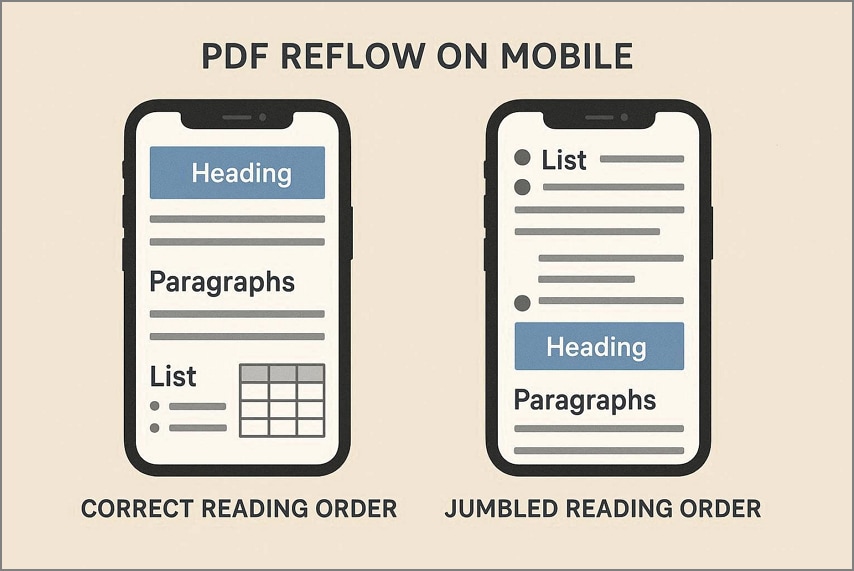
- Correct Reading Order: All text and elements must appear sequentially to match how a user naturally reads the document.
What PDF Reflow is Not?
Zooming or scaling does not count as reflow, because enlarging text alone does not rearrange the layout for small screens. It is also not image-based resizing, as scanned or image-only PDFs require OCR and proper tagging to function correctly. True accessibility depends on a structural reflowable PDF that makes content adapt logically instead of just appearing larger.
Part 2. Reflow vs Zoom: Why Text Reflow Improves Accessibility
Having introduced PDF reflow, let's see how it compares to simple zoom and why this difference matters for accessibility in reflowing PDF documents.
| Aspect | Zoom-Only PDF | Reflowing PDF (Text Reflow) |
| Layout | Fixed page; just magnified | Content reorganizes into a column that fits width |
| Scrolling Needed | Vertical + horizontal | Mainly vertical only |
| Small Screens | Hard to read; heavy panning | Adapts to narrow screens, easier to read |
| High Zoom/Magnify | Lines run off-screen, tracking is hard | Lines wrap, so all text stays in view |
| WCAG 1.4.10 Reflow | Fails due to 2D scrolling | Supports requirement for single-direction scrolling |


 G2 Rating: 4.5/5 |
 100% Secure
Part 3. WCAG Reflow Explained (Success Criterion 1.4.10)
WCAG 1.4.10 requires content to display without losing information when viewed at a 320 CSS pixel width. This width roughly matches a mobile phone in portrait mode and helps users read documents on small screens. The guideline applies to all digital content, including PDFs, to provide access for people using assistive technologies.
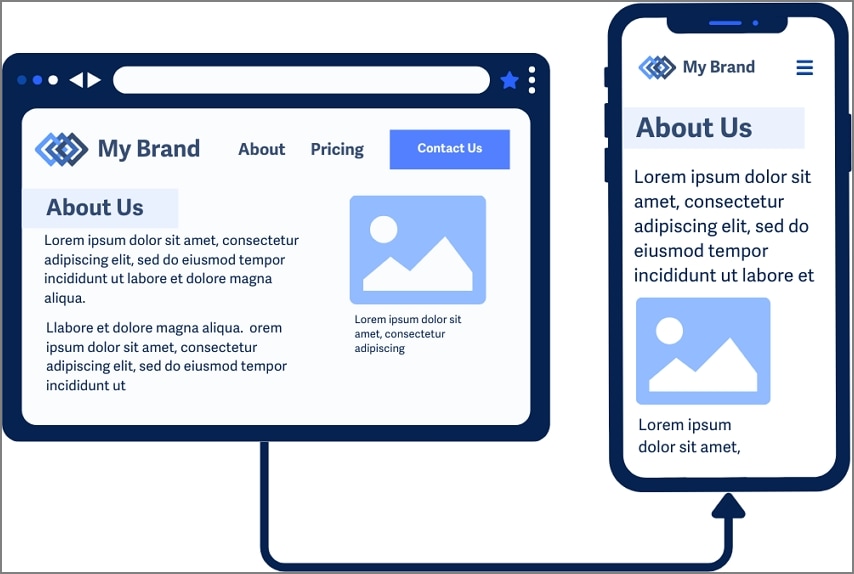
To make this requirement concrete, here is a quick checklist for meeting WCAG 1.4.10 Reflow:
- No Horizontal Scrolling: All text must fit within the viewport so readers do not scroll sideways.
- No Missing Content: Every paragraph, image, and element must remain visible when the document is reflowed.
- No Broken Interactions: Links, buttons, and other controls must work correctly after the PDF adjusts for smaller screens.
- Vertical Scrolling Only: Users should scroll vertically to access content, except for exceptions like data tables.
- No Two-Dimensional Scrolling: Documents that require both horizontal and vertical scrolling fail the 1.4.10 WCAG requirements.
Part 4. Common PDF Reflow Failures Under WCAG 1.4.10
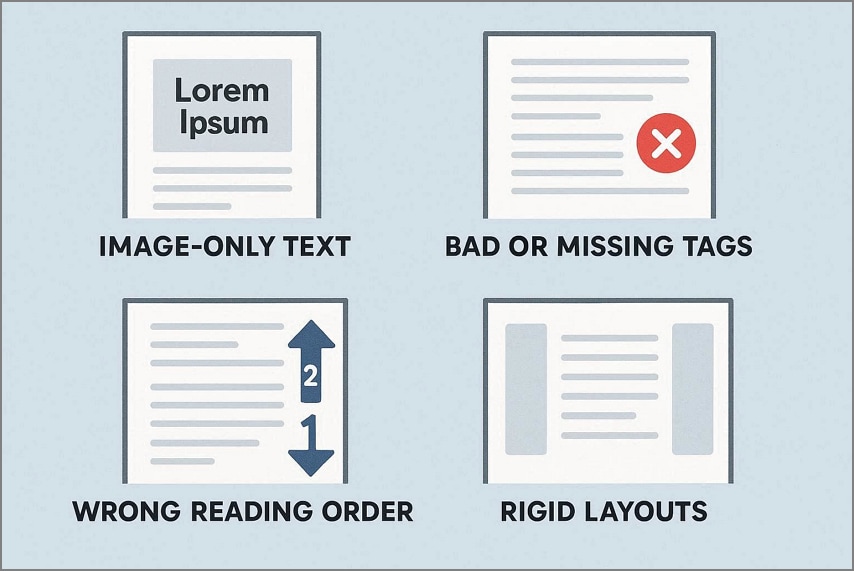
Having explained WCAG Reflow, let's highlight some common ways PDFs fail WCAG 1.4.10 Reflow in practice:
- Image-Only Text: Text stored as images cannot reflow or resize properly and becomes inaccessible to assistive technologies.
- Bad or Missing Tags: Without accurate tags, the PDF structure is not exposed correctly, so reflow becomes unreliable and confusing.
- Wrong Reading Order: Incorrect reading order jumbles content after reflow and makes the document hard to follow for readers.
- Rigid Layouts: Fixed tables and layouts with multi-column do not adapt to narrow viewports and force horizontal scrolling.
G2 Rating: 4.5/5 |100% Secure
Part 5. Quick Decision Flow: Can Your PDF Reflow?
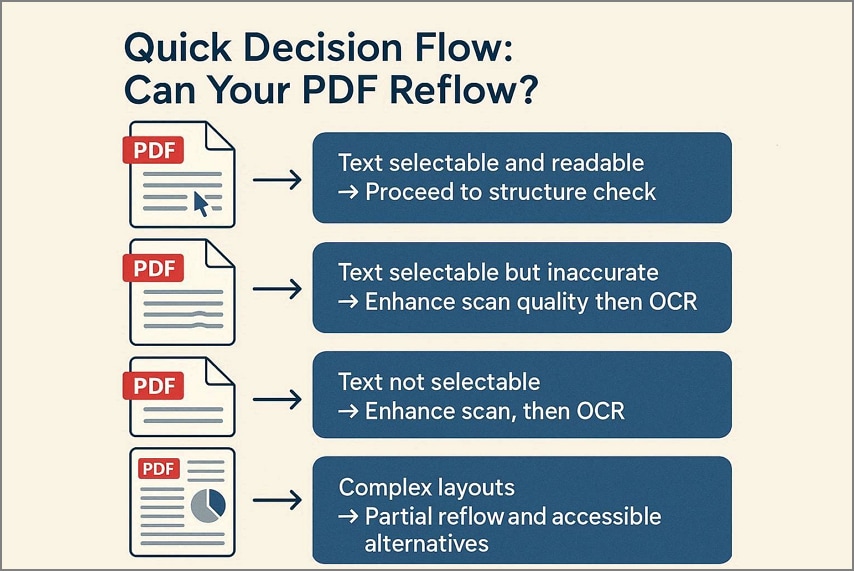
Next, use this quick decision flow to choose the right remediation path for any PDF.
Text Selectable And Readable → Proceed To Structure Check
When users can select text, and it looks correct, move directly to checking tags, headings, and reading order for accessibility.
Text Selectable But Inaccurate → Enhance Scan Quality Then OCR
If selectable text has many errors or strange characters, first improve the scan quality and then run OCR again carefully.
Text Not Selectable → Enhance Scan, Then OCR and Structure Remediation
When text acts like an image with no selection possible, treat it as a scan, improve clarity, apply OCR, then fix structure.
G2 Rating: 4.5/5 |100% Secure
Complex Layouts → Partial Reflow And Accessible Alternatives
For complex multi-column layouts or dense tables, enable partial reflow where possible and also offer a simpler accessible alternative format.
Part 6. Before Reflow: Preparing Scanned PDFs for Text Reflow (Enhance Scan)
If your PDF starts from a scan or has weak OCR, use this step so that later reflow work is not wasted.
- The PDF is fully or partially scanned, so first, enhance the scan until the text is clean and recognizable for OCR.
- OCR output is inaccurate or fragmented, so improve image quality and run OCR again to create continuous text for reflow.
- Reading order issues appear after OCR, so fix the scan and OCR results because poor recognition often causes jumbled content during reflow.
- Reflow fails due to poor text recognition quality, so treat Enhance Scan as a required step before tagging, ordering, and WCAG reflow checks.
G2 Rating: 4.5/5 |100% Secure
Why Scan Enhancement Matters Before PDF Reflow?
After covering how to prepare scanned PDFs for text reflow, let's discuss key reasons scan enhancement matters before reflowing the PDF.
- OCR Dependence: Text reflow depends on accurate OCR output, not only on how sharp or clear each scanned page looks.
- Scan Quality Impact: Skewed pages, shadows, blur, and low contrast reduce OCR accuracy and increase the number of recognition errors.
- Broken Text Structure: Poor OCR often produces broken paragraphs, random line breaks, and merged words that break the clean reflow of content.
- Reading Order Problems: Recognition errors frequently disrupt logical reading order, which makes the reflowed PDF confusing and hard to follow.
- WCAG Reflow Failures: These OCR-related issues commonly cause WCAG 1.4.10 Reflow failures because content does not reflow properly or maintain usable structure.
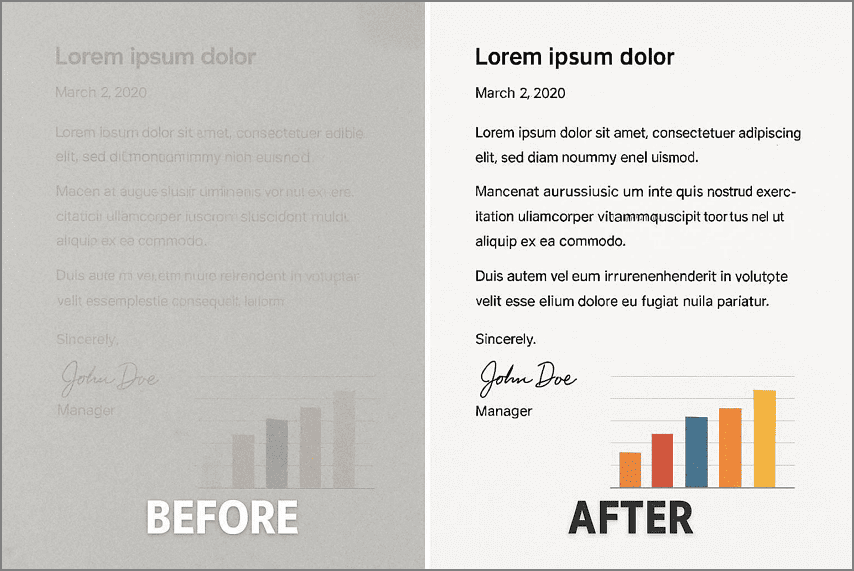
Enhance Scan Workflow (PDFelement)
Scanned PDFs often fail reflow and accessibility checks because page skew and low contrast confuse text recognition. This is where PDFelement comes in with its Enhance Scan feature, fixing scan quality problems before OCR and reflow steps begin. Cleaning the scan first improves text accuracy, preserves correct reading order, and supports more reliable reflow behavior across different devices.
Enhance Scan helps when PDFs are fully scanned, partially scanned, or produce broken text after OCR processing. Poor scan quality often causes missing words, fragmented paragraphs, and incorrect reading order that later fail WCAG reflow checks. Early scan improvement reduces repeated fixes, saves time, and prevents downstream reflow failures during accessibility remediation across complex documents and mixed digital scan sources.
Enhance Scan Settings and Options
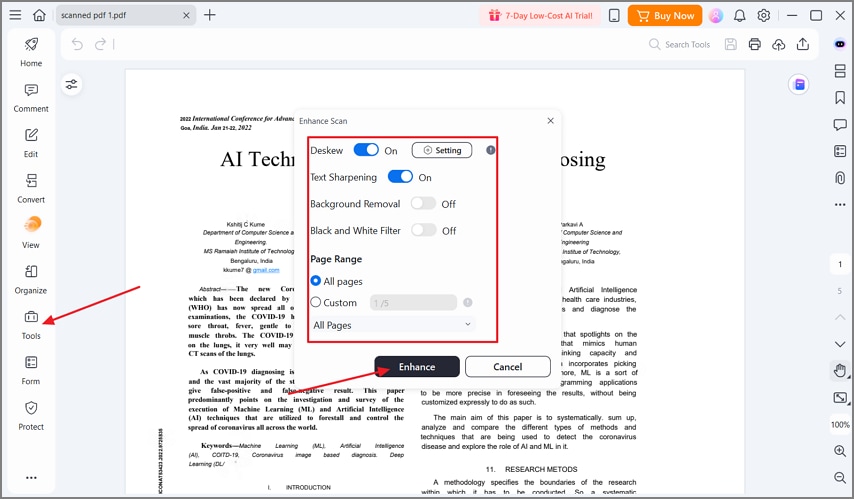
- Page Range: Apply scan enhancements to all pages or only selected ones, depending on consistent scan quality issues.
- Deskew: Straightens tilted pages automatically to improve text alignment, making OCR recognition more accurate for all content.
- Auto Deskew: Automatically detects and corrects page rotation and works best for most scanned PDF documents consistently.
- Custom Angle: Manually adjusts rotation for scans that are consistently skewed when automatic deskew correction does not work.
- Text Sharpening: Enhances character edge clarity to help OCR detect faded, small, or unclear text more accurately.
- Background Removal: Removes shadows, stains, and paper noise from scanned pages to improve OCR and reflow performance.
- Black and White Filter: Converts scanned pages to high-contrast monochrome, producing cleaner text detection for better OCR results.
How Enhance Scan Fits into a Reflow-Compliant Workflow
Once you have explored the PDFelement "Enhance Scan" options, follow the steps below to prepare your PDF for proper reflow verification with PDFelement:
Step 1Import PDF File and Access Enhance Scan
Once you import the PDF file, press the "Tools" option in the left side menu and click the "Enhance Scan" option. Next, enable the "Deskew", "Background Removal", "Black and Whilet Filter", and set the "Page Range" option. Afterwards, press the "Enhance" button.
Step 2Perform PDF OCR
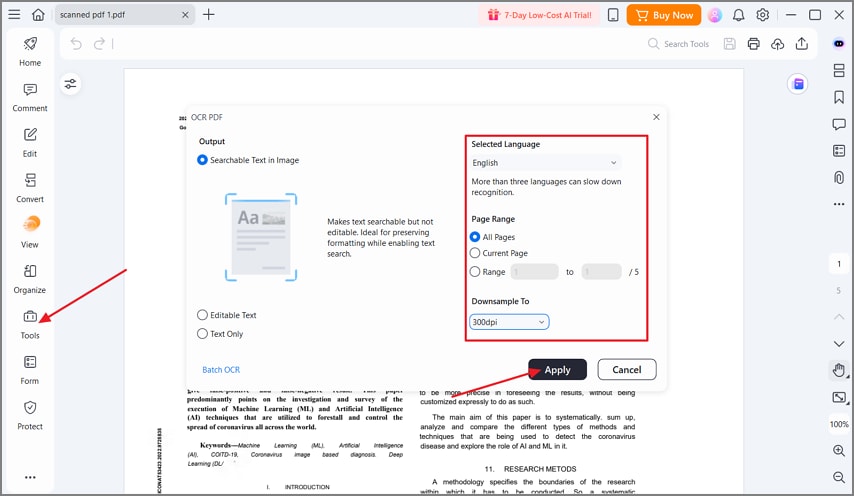
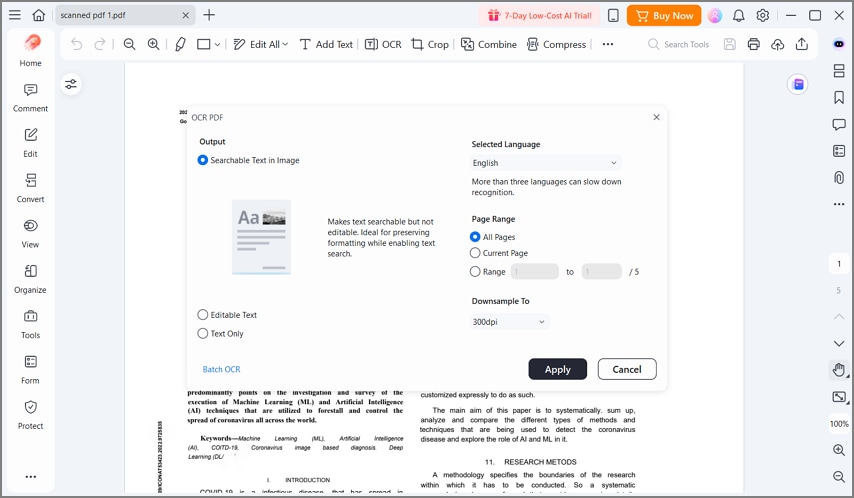
Next, press the "OCR" option in the Tools section. In the pop-up window, set the "Selected Langauge", "Page Range", and click the "Apply" button to start the OCR process. This will convert image-based content in searchable and editable text.
G2 Rating: 4.5/5 |100% Secure
Step 3Verify Reading Order
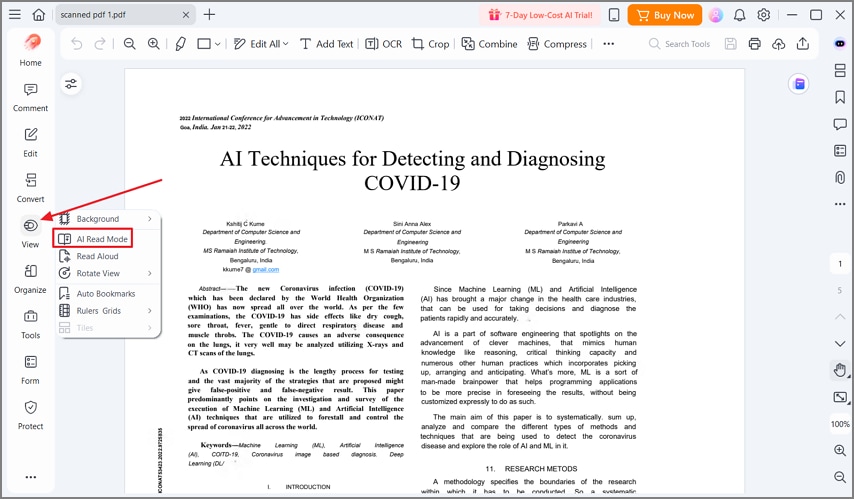
After the OCR is performed, press the "View" option and click the "AI Read Mode" to verify that headings, paragraphs, lists, and tables follow a logical sequence.
Step 4Test PDF Reflow
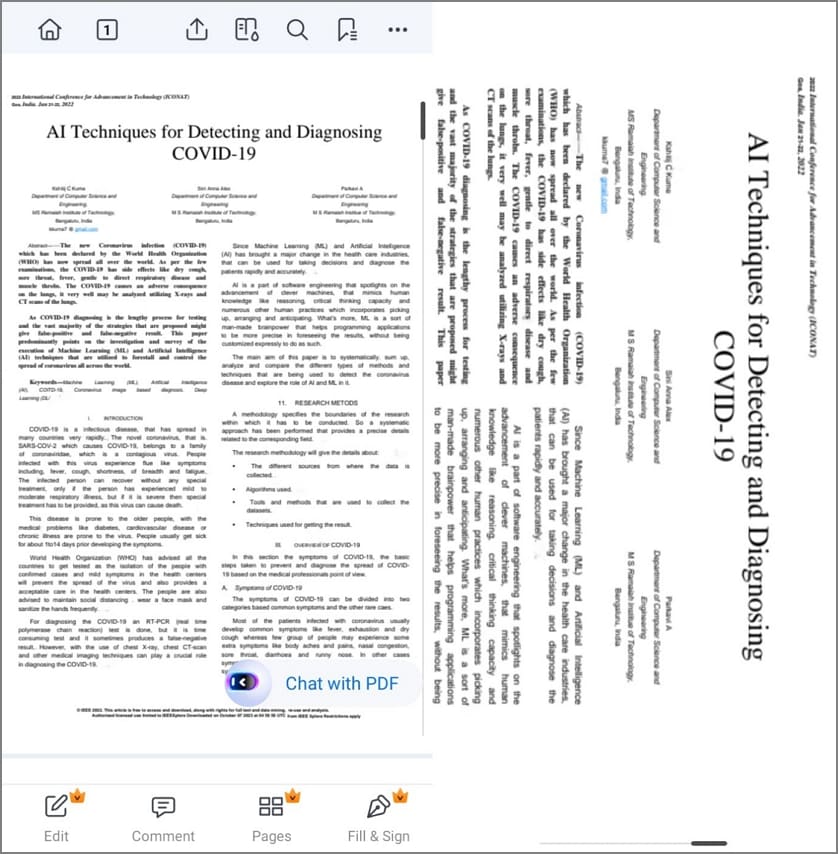
Open your PDF on the mobile app and observe how text wraps on narrow screens. Confirm there is no horizontal scrolling, and verify headings, paragraphs, lists, and tables follow the correct reading order. Use this same view to confirm the document meets WCAG 1.4.10 reflow requirements.
Important Limitations (Avoid Concept Confusion)
Having learned how Enhance Scan works with scanned PDFs, let's review its important limitations.
- No Tagged PDF: Enhance Scan cannot create a tagged PDF, which provides logical reading order for users.
- No Structure Definition: It does not define headings, lists, or tables, requiring manual adjustments after scanning.
- No WCAG Guarantee: Enhance Scan cannot provide WCAG 1.4.10 compliance, so accessibility checks must still be performed manually.
- Preparation Only: The tool functions only as a preparatory step, not a full reflow or compliance solution.
Part 7. How PDF Reflow Works in Practice (Technical Overview)
Before diving into reflow behavior, it is important to understand the role of tags, layout, and reading order.
Tagged Structure Basics
Reflow relies on tags that describe headings, paragraphs, lists, and tables, not the visual appearance of the page. When these tags are present and well-structured, the PDF behaves more like HTML content. This logical structure lets readers, mobile apps, and assistive technologies rewrap text predictably to form the foundation of PDF text reflow for accessibility.
Visual Layout Versus Structure
A PDF can look perfect visually while being almost unusable in reflow if its underlying structure is poor. Text boxes, columns, and decorative layout elements do not define reading order or hierarchy. True reflow depends on semantic tags, not on how elements are positioned or aligned on the page.
Reading Order and Reflow
Reading order is the backbone of reflow behavior in a tagged PDF. The order of tags determines how text, lists, and tables are linearized into a single stream for small screens or zoomed views. If tags are out of sequence, users experience jumbled content when the page visually appears correct. Proper reading order is critical to make a reflowable PDF usable across devices.
Part 8. Reflowing PDFs using Desktop PDF Software
Desktop PDF software does not usually provide a true reflow view, but it plays a critical role in preparing files for successful reflow testing. Wondershare PDFelement fits into this workflow by handling OCR, scan cleanup, text editing, and structural verification. These preparation steps make the PDF ready to behave correctly when opened on mobile devices or assistive technologies that apply WCAG reflow rules.
Typical Reflow Preparation Workflow
Now, let's walk through the practical steps used to prepare a PDF for reliable reflow testing across mobile viewing environments.
- Confirm all visible text is selectable, applying OCR first when pages originate from scans.
- Review and fix reading order so paragraphs, lists, and tables follow a logical sequence.
- Apply proper structural tags for headings, paragraphs, lists, and tables using desktop editing tools.
- Test behavior in narrow viewports or mobile apps to confirm text rewraps without horizontal scrolling.
G2 Rating: 4.5/5 |100% Secure
Part 9. Microsoft PDF Reflow: What it Supports and What it Doesn't?
Microsoft provides some support for PDF reflow, but its capabilities and limitations vary across applications. Understanding these differences helps verify PDFs remain readable and accessible on small screens and assistive technologies. Proper preparation is essential to avoid layout issues and maintain logical reading order.
Microsoft Edge Browser
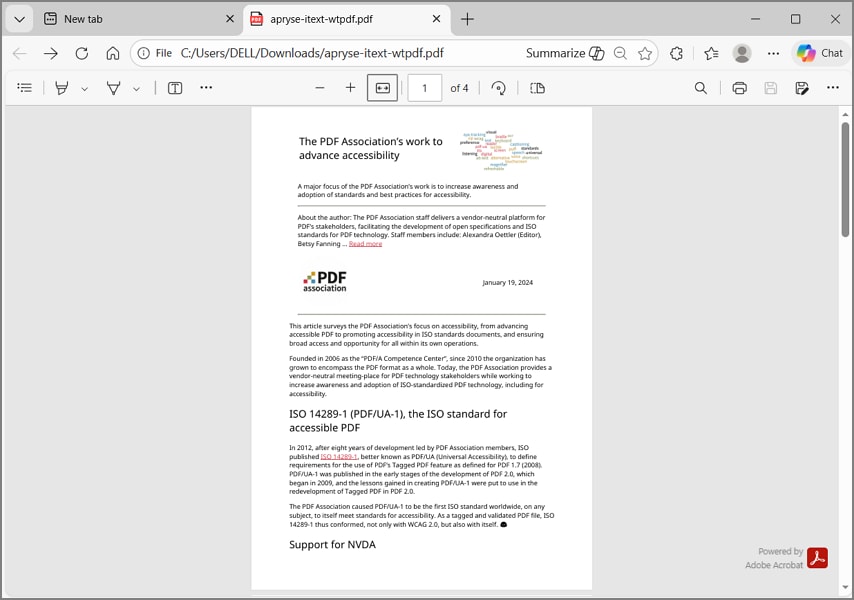
Microsoft Edge supports limited reflow for tagged PDFs. Untagged documents do not rewrap correctly, which can force horizontal scrolling or misaligned content. Reflow works best for simple documents and small-screen reading. Now, let's understand the behavior of reflow in Microsoft Edge for tagged and untagged PDFs:
- Supports reflow only for PDFs with proper tags for headings, paragraphs, lists, and tables, enabling logical reading order.
- Fails with untagged PDFs, causing horizontal scrolling, jumbled content, and poor readability on small devices.
- Best suited for lightweight reading of simple, structured documents on phones, tablets, and other small screens.
Microsoft Word
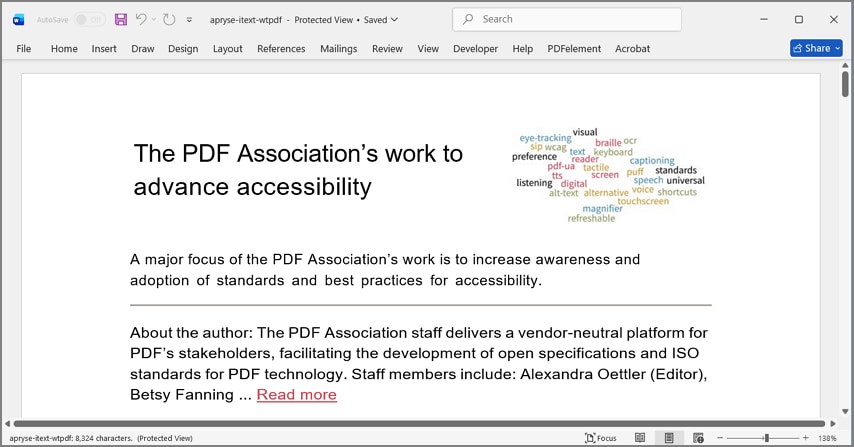
Microsoft Word allows PDF reflow by converting documents into Word format. This enables content to adapt to different widths, but the conversion may break layout, especially for tables, multi-column designs, or graphic-heavy pages. Users often need to manually adjust formatting after conversion. Next, let's understand how reflow works in Word after PDF conversion and what limitations exist:
- Converts PDFs into editable Word documents, allowing text to adapt automatically to narrower screen widths.
- Layout may break during conversion, especially for tables, multi-column content, or documents with complex formatting.
- Users often need to manually adjust text, tables, or graphics to restore proper layout and readability.
Key Considerations
To avoid accessibility and usability issues, consider the following factors before using Microsoft Edge or Word for PDF reflow:
- Edge works best with properly tagged PDFs; untagged files fail reflow.
- Word provides flexibility but carries a layout risk, needing post-conversion adjustments.
- For accessibility and WCAG compliance, always check reading order, content visibility, and functionality after reflow.
In practice, Microsoft PDF reflow is limited but valuable. Edge provides fast reflow for tagged PDFs, while Word allows flexible editing with possible layout corrections. Planning and preparing PDFs carefully ensures content remains accessible, readable, and functional across Microsoft platforms, small screens, and assistive technologies.
Part 10. Android PDF Reflow and Mobile Behavior
On mobile devices, Android PDF reflow depends heavily on how well a document is tagged and structured. Mobile PDF readers rely on tags, reading order, and text flow to adapt content to narrow screens. Poorly structured PDFs often force horizontal scrolling or display content in an incorrect sequence, creating accessibility issues.
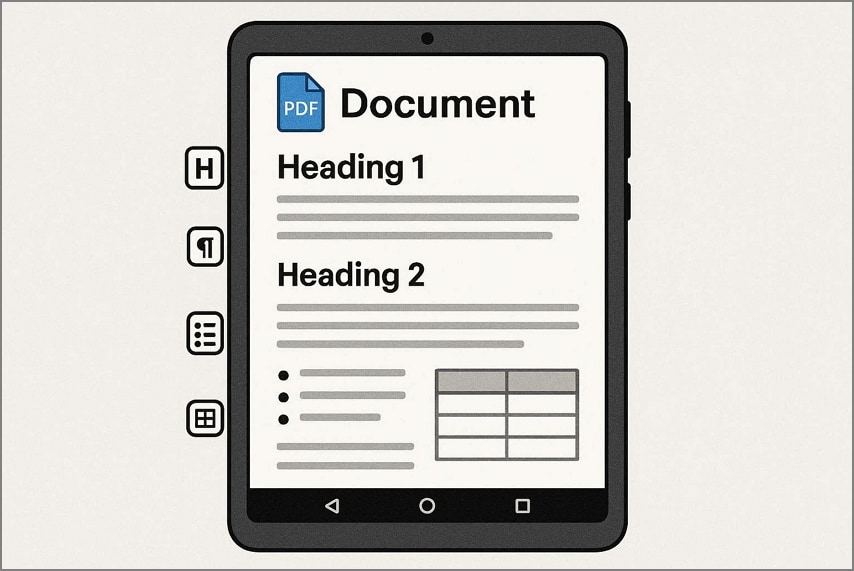
To improve reflow behavior and mobile readability on Android devices, follow these best practices:
- Single-Column Layout: Use one continuous column so text wraps smoothly on small screens without horizontal scrolling.
- Proper Tagging: Apply correct tags for headings, paragraphs, lists, and tables to support logical mobile reflow.
- Clear Heading Hierarchy: Maintain consistent heading levels so mobile readers can reorganize content correctly during reflow.
- Flexible Text Flow: Allow text to flow naturally instead of locking content inside fixed or decorative containers.
- Avoid Absolute Positioning: Do not use fixed-position elements because they prevent content from adapting to different screen widths.
Part 11. Creating Reflow-Friendly PDFs at the Source (InDesign)
When designing PDFs in InDesign, using smart text reflow InDesign ensures content adapts smoothly to small screens without horizontal scrolling. It also preserves a clear and logical reading order, making documents easier to navigate on mobile devices. This approach prevents common layout issues that break reflow and helps PDFs meet WCAG 1.4.10 accessibility standards.
Key Practices
Below are essential design practices that help maintain logical structure and support reliable text reflow across different screen sizes and devices.
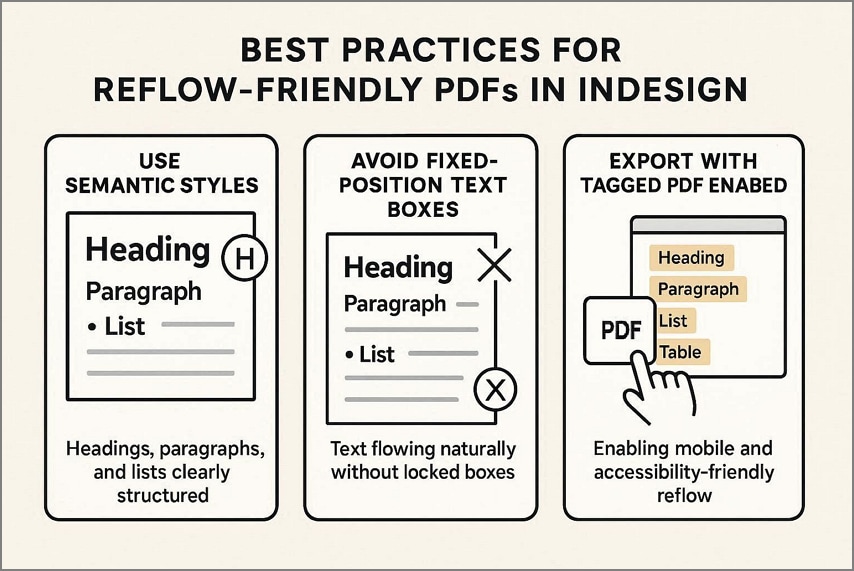
- Use Semantic Styles: Apply heading, paragraph, and list styles instead of manually formatting text to maintain logical structure.
- Avoid Fixed-Position Text Boxes: Absolute text boxes can block natural text flow, breaking reflow on small screens.
- Export with Tagged PDF Enabled: Tagged PDFs include structural information that allows mobile apps and assistive technologies to reflow content correctly.
Part 12. Testing PDF Reflow for WCAG 1.4.10 Compliance
Lastly, let's look at how to test PDF reflow for WCAG 1.4.10 and check that content and functionality remain usable.
Resizing to a 320 CSS px Viewport
To test WCAG 1.4.10 compliance, start by narrowing the viewing area to the equivalent of 320 CSS pixels wide, roughly a small phone in portrait orientation. In a PDF viewer, this is usually done by zooming in and then resizing the window until a single narrow column of content is visible.
Checking for Horizontal Scrolling
Once the viewport is narrowed, scroll through several pages and confirm that normal reading never requires horizontal scrolling. Text, headings, and most images should reflow into a single vertical column so that users can read comfortably with vertical scrolling only.
Verifying Content and Functionality
While in this narrow view, ensure that all content is still present and readable, with no clipped or overlapping text. Test links, buttons, and form fields to confirm they remain visible, reachable, and operable so core document functionality is fully preserved.
People Also Ask
-
What does reflowing PDF mean in WCAG terms?
In WCAG 1.4.10, a reflowing PDF is one where text, images, and controls can be presented in a narrow viewport, around 320 CSS pixels wide. This behavior depends on a properly tagged structure and reading order rather than the visual page layout. -
How do I fix a scanned PDF that fails reflow?
First, convert the scanned pages to real text using OCR in PDFelement, then add or repair tags so headings, paragraphs, lists, and tables are correctly structured. You can use PDFelement's editing and accessibility features to adjust reading order, mark headings, and create a more reflow-friendly structure. -
Does OCR automatically make a PDF reflowable?
No, OCR only turns images of text into selectable text; it does not automatically provide a complete, accessible tag structure. For reflow and WCAG compliance, you still need proper tagging order, which can be added and refined in tools like PDFelement after OCR. -
Why does my PDF zoom but not reflow?
If a PDF only zooms, the content is likely untagged, so the viewer can enlarge the page but cannot rewrap the text into a single column. Adding semantic tags and a correct reading order enables actual reflow instead of simple zooming. -
Is "Enhance Scan" enough for WCAG 1.4.10 compliance?
No, an "Enhance Scan" alone is not enough, because WCAG 1.4.10 requires reflow without loss of content. Use OCR in PDFelement as a starting point, then review tags, reading order, and interactive elements to align with accessibility requirements.
Wrap-Up
In conclusion, proper PDF structure and tagging determine how content adapts to different screen sizes and devices. PDF reflow improves readability and accessibility for mobile and low-vision users. Using PDFelement's Enhance Scan and OCR features helps convert scanned documents into real text, fix reading order, and prepare files for correct reflow. This makes checking and achieving WCAG 1.4.10 compliance much easier.




