

Invoice to Excel: How to Convert Invoice PDFs into Accurate Excel Data
Managing invoices in PDF format can quickly slow down accounting and reporting tasks. That's why invoice-to-Excel conversion has become essential for businesses handling large volumes of billing data. Instead of manually retyping figures, modern tools use OCR and data recognition to extract invoice details and place them into structured Excel sheets automatically.
This approach reduces human error, improves accuracy, and speeds up financial workflows. From tracking expenses to preparing tax reports, converting invoice PDFs into Excel makes data searchable, editable, and analysis-ready. With the right workflow, businesses can transform static invoices into reliable, actionable spreadsheet data in minutes. Read this article till the end to know everything about this conversion in detail.
In this article
- Why Businesses Convert Invoices to Excel
- Why Manual Copy-Paste from Invoices Fails
- What Data Needs to Move from Invoice to Excel
- PDF Invoice to Excel: Common Challenges
- How Invoice-to-Excel Conversion Works in Practice
- What to Look For in an Invoice to Excel Solution
- Converting Invoices to Excel with PDFelement
- From Invoice Data to Excel Reports and Summaries
- Common Mistakes When Converting Invoices to Excel
Part 1. Why Businesses Convert Invoices to Excel
As invoice volumes grow, businesses need formats that support speed, accuracy, and analysis. This is why many organizations move from static PDFs to invoices to Excel workflows. Unlike PDFs, Excel transforms invoice data into a flexible, working dataset that fits seamlessly into accounting, reporting, and financial decision-making processes.
What Excel Enables That PDFs Do Not
- Editable Data: Values can be corrected, updated, or adjusted without reprocessing the invoice.
- Automated Calculations: Taxes, totals, and discounts can be recalculated instantly using formulas.
- Data Sorting & Filtering: Invoices can be organized by vendor, date, amount, or status.
- Bulk Analysis: Multiple invoices can be compared, summarized, or audited at once.
- System Integration: Excel files connect easily with accounting, ERP, and expense management tools.
Common Use Cases for Invoice to Excel Conversion
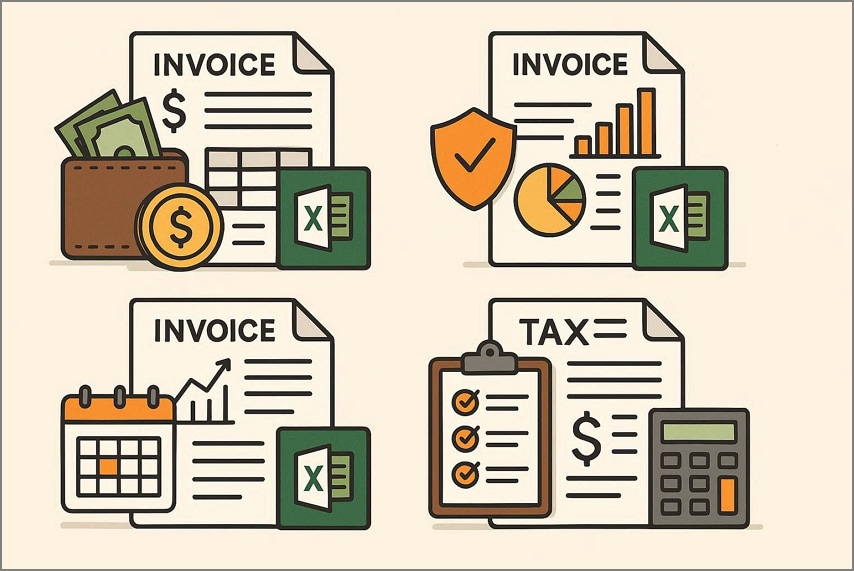
Once invoices are converted into Excel, businesses can apply the data across multiple financial workflows with greater speed and accuracy. A PDF invoice to Excel process turns raw invoice information into structured records that support daily operations, compliance, and long-term planning.
- Expense Tracking: Excel allows businesses to categorize expenses by vendor, department, or project, making spending patterns easy to monitor and control.
- Reimbursement Reports: Employee and vendor invoices can be compiled into standardized Excel reports, simplifying approvals and ensuring faster, error-free reimbursements.
- Monthly Summaries: Multiple invoices can be consolidated into monthly sheets, enabling quick comparisons, budget reviews, and performance evaluations.
- Tax Preparation: Structured Excel data helps accountants calculate taxes, verify deductions, and prepare compliant tax filings with minimal manual effort.
Why Invoice Data Matters More Than Invoice Files
At a glance, storing invoice PDFs may seem sufficient, but the real value lies in the data inside them. Files are static records, while invoice data drives financial decisions. With an invoice to Excel approach, businesses shift focus from simply archiving documents to actively using their information. Extracted data can be searched, analyzed, validated, and reused across accounting systems. It supports accurate reporting, faster audits, and better cash-flow visibility.
Part 2. Why Manual Copy-Paste from Invoices Fails
As businesses move from invoice PDF to Excel, manual copy-paste methods quickly reveal serious limitations and inefficiencies. What seems manageable at first becomes costly, error-prone, and difficult to sustain at scale.
- High Time Consumption: Manually entering invoice data takes significant time for each document. This reduces productivity and delays reporting cycles.
- Frequent Data Errors: Copy-paste often leads to missing values, formatting issues, or incorrect totals. Even small errors can cause major accounting discrepancies.
- Poor Scalability: Manual processes fail when invoice volume increases rapidly. More invoices mean more staff time and higher operational strain.
- Lack of Data Structure: PDFs are created for visual presentation, not data reuse. Extracting structured fields from them is inefficient without automation.
- Inconsistent Formatting: Every vendor uses a different invoice layout. This inconsistency makes manual copying unreliable and slow.
- No Validation Control: Manual entry offers no automatic checks for taxes, totals, or duplicate entries. Errors often go unnoticed until audits or reconciliations.

Part 3. What Data Needs to Move from Invoice to Excel
For accurate reporting and automation, simply transferring an invoice file is not enough; the right data must be captured in a structured format. An effective invoice to Excel process focuses on extracting consistent, clearly defined fields that Excel can recognize, calculate, and analyze.
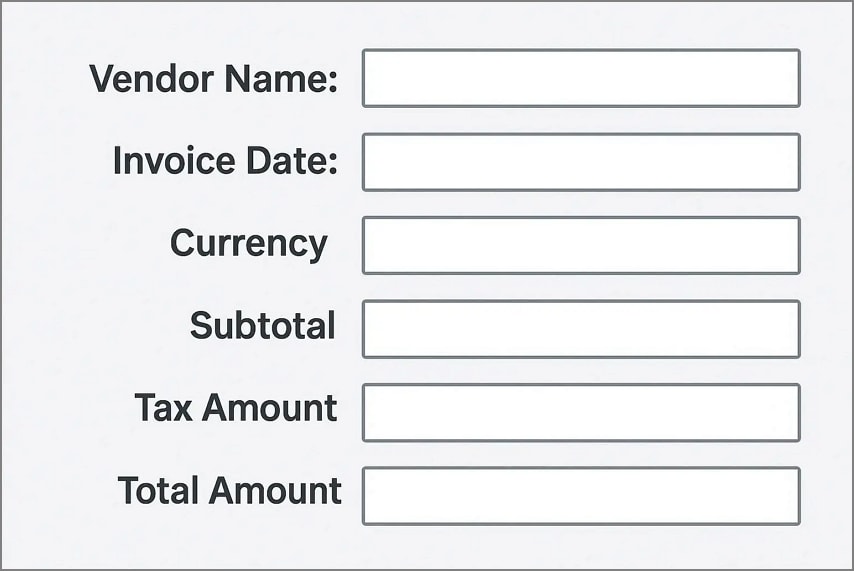
Key Invoice Fields
- Vendor Name: Identifies the supplier and allows expenses to be grouped, compared, and audited accurately.
- Invoice Date: Ensures invoices are recorded in the correct accounting period and supports timeline-based reports.
- Currency: Prevents miscalculations by clearly defining the monetary unit used for totals and conversions.
- Subtotal: Shows the base cost of goods or services before taxes or additional charges are applied.
- Tax Amount: Supports tax compliance by separating taxable values for reporting and verification.
- Total Amount: Represents the final payable figure used for payment processing and reconciliation.
Why Structured Fields Matter for Excel
When invoice data is properly structured, Excel formulas work reliably across rows and columns. This enables automatic calculations, accurate summaries, dynamic charts, and clean financial reports without manual correction.
Part 4. PDF Invoice to Excel: Common Challenges
Converting a PDF invoice to Excel is not always straightforward, as businesses often face several technical and practical challenges. Understanding these obstacles helps in selecting the right tools and workflows to ensure accurate, reliable data extraction.
- Text-Based vs. Scanned Invoices: Text-based PDFs allow direct copying of data, making extraction easier and more accurate. Scanned invoices, however, require OCR, which can introduce recognition errors and slow down the process.
- Inconsistent Invoice Layouts: Vendors use different formats, fonts, and table structures, complicating automated extraction. This inconsistency often requires manual adjustments or template customization.
- OCR Accuracy Limitations: Optical Character Recognition may misread characters, especially in poor-quality scans or unusual fonts. Even small misreads can lead to incorrect totals or mismatched fields.
- Missing or Misaligned Data in Spreadsheets: Extracted data may not line up properly in Excel columns, causing errors in formulas and summaries. Manual correction then becomes necessary, reducing efficiency.
- Complex Tax or Discount Structures: Some invoices include multiple tax rates, discounts, or itemized charges. These variations can be misinterpreted during automated conversion, affecting totals.
Part 5. How Invoice-to-Excel Conversion Works in Practice
Invoice PDF to Excel conversion in practice involves a streamlined workflow that turns raw invoice documents into structured spreadsheet data. Here is how the conversion works:
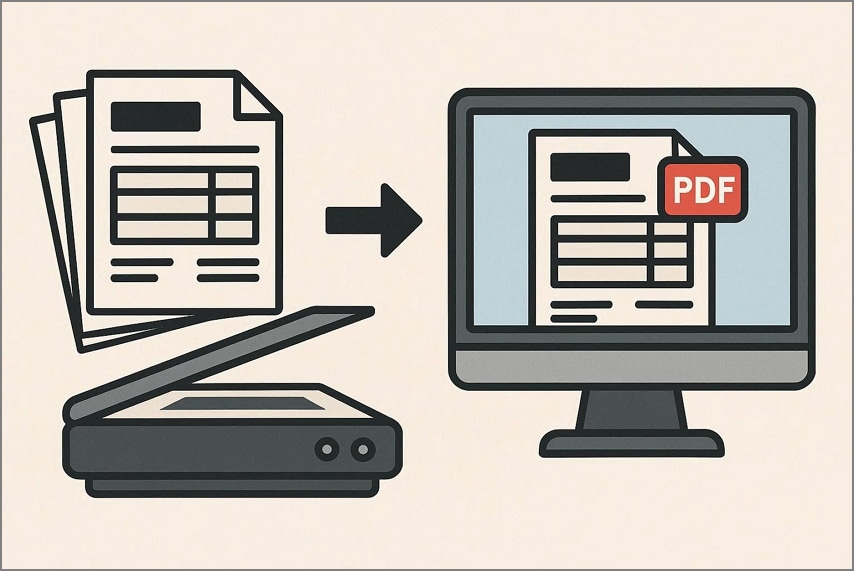
Scanning or Importing Invoice PDFs
First, invoices are either scanned from paper or directly imported as PDF files, ensuring all pages are available for processing. This step captures the document in a format suitable for automated reading.
Recognizing Invoice Fields
Next, key elements like invoice number, date, vendor details, line items, and totals are identified and extracted. Each field is detected based on layout patterns, labels, and position on the page.

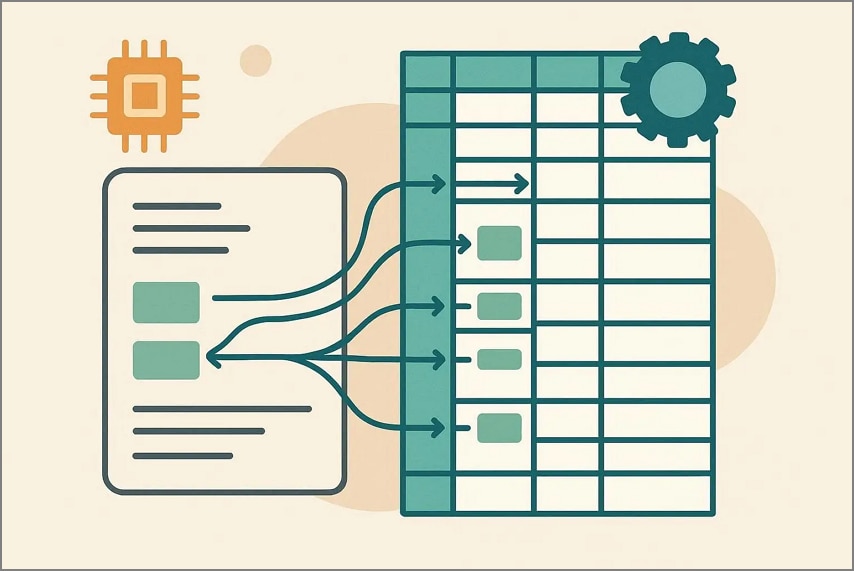
Structuring Extracted Data
The raw information is then organized into consistent categories, mapping each field to its corresponding spreadsheet column. This step ensures uniformity across multiple invoices with differing formats.
Preparing Data for Spreadsheet Use
Finally, the structured data is cleaned, verified, and formatted for Excel, including proper data types and alignment. This ensures the spreadsheet is ready for analysis, reporting, or accounting tasks.
Part 6. What to Look For in an Invoice to Excel Solution
Invoice to Excel solutions can vary widely, so choosing the right one ensures smooth, accurate, and efficient conversion. Mentioned below are some of the things that you must consider while opting for the tool:
- Field-Level Data Extraction: Look for solutions that identify and extract individual invoice fields like vendor name, invoice number, date, line items, and totals. This precision minimizes manual corrections and improves data reliability.
- Verification Before Export: A robust solution should allow you to review and confirm extracted data before exporting it to Excel. Verification reduces errors and ensures that all figures are accurate for accounting or reporting.
- Support for Scanned Invoices: Many invoices come as scanned images rather than text-based PDFs. The solution should handle OCR (Optical Character Recognition) effectively to convert these images into editable spreadsheet data.
- Cloud Storage and Reusability: Solutions with cloud capabilities let you store processed invoices and reuse extraction templates for recurring formats. This saves time and ensures consistency across multiple invoice batches.
- Compatibility with Excel Workflows: Ensure the tool exports data in a format that integrates seamlessly with Excel, including proper column mapping, data types, and formulas. This allows immediate analysis, reporting, or financial reconciliation.
Part 7. Converting Invoices to Excel with PDFelement
PDFelement's Receipt Assistant simplifies invoice to Excel workflows by focusing on accurate data capture from the start. Invoices can be scanned on mobile or desktop, making collection flexible and fast. Once imported, key invoice fields are automatically extracted, reducing manual entry. Built-in jump-to-field positioning allows quick verification, ensuring figures and details are correct before moving forward.
Rather than treating Excel as a cleanup tool, PDFelement prioritizes data accuracy first. Verified invoices can be securely saved to Invoice Cloud Space for reuse and audits. The extracted information is already structured, allowing it to flow directly into Excel-based reporting and analysis. This approach positions Excel as the final output, not the processing step, supporting reliable financial workflows.


 G2 Rating: 4.5/5 |
 100% Secure
Steps for Converting Invoices to an Excel Sheet with PDFelement
With PDFelement, users get the ability to automatically turn their invoices into organized spreadsheets. To learn how to use this feature, read the steps provided next:
Step 1Access Receipt Assistant
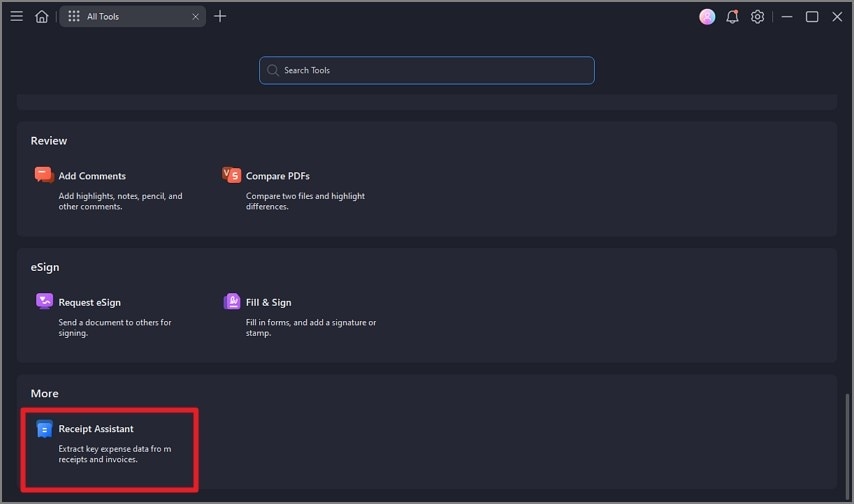
Begin by launching PDFelement and navigating to the "AI Tools" section from the homepage. From there, find the "Receipt Assistant" option and click to open the feature.
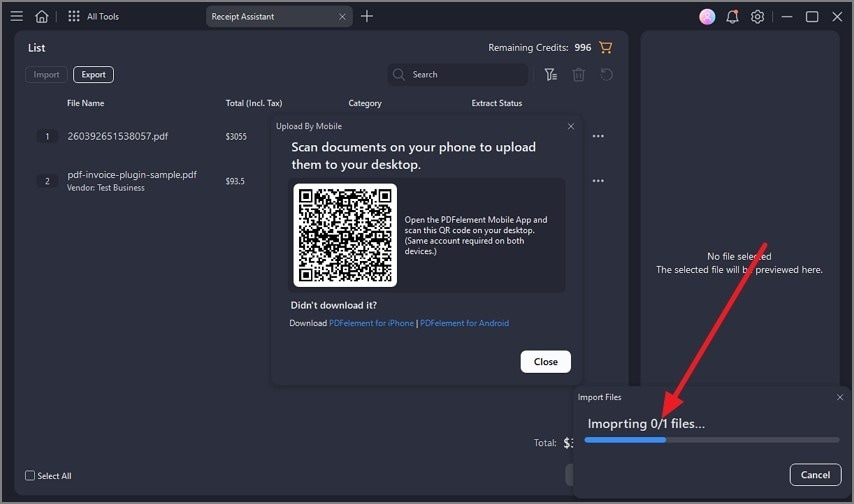
Step 2Select Upload By Mobile
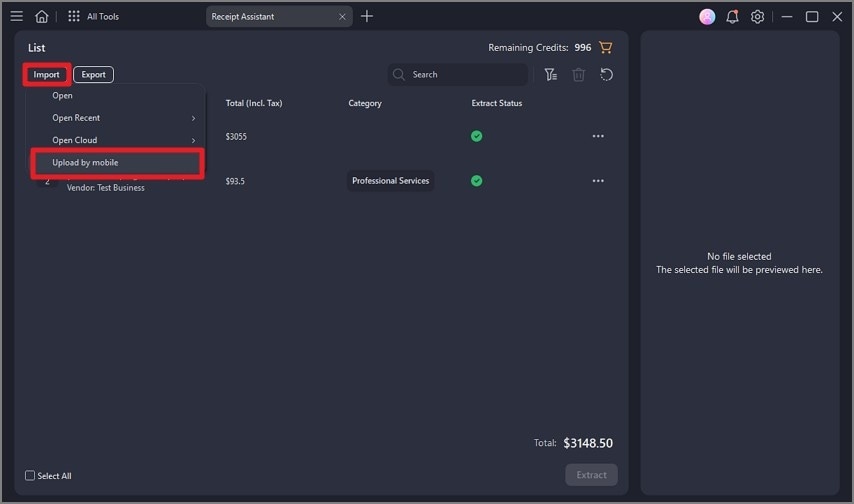
For seamless cross-device scanning, click the "Import" option and choose "Upload By Mobile." Then, open the PDFelement app on your smartphone to continue.
Step 3Scan the Invoice on Mobile
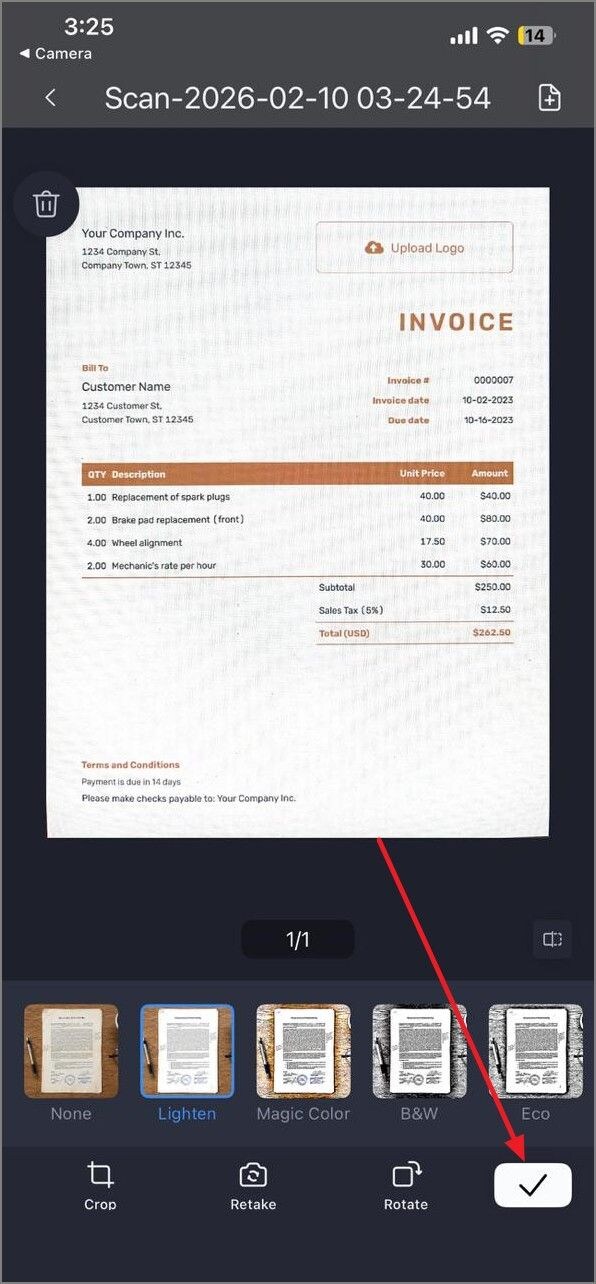
After opening the app, tap the "+" icon to scan your invoice using your phone's camera. Once the scan is complete, tap the "Tick" icon to send the invoice to your desktop.
Step 4Allow the Document to Upload
Switch back to the desktop application and wait for the invoice to upload. Monitor the progress to ensure the document is transferred successfully.
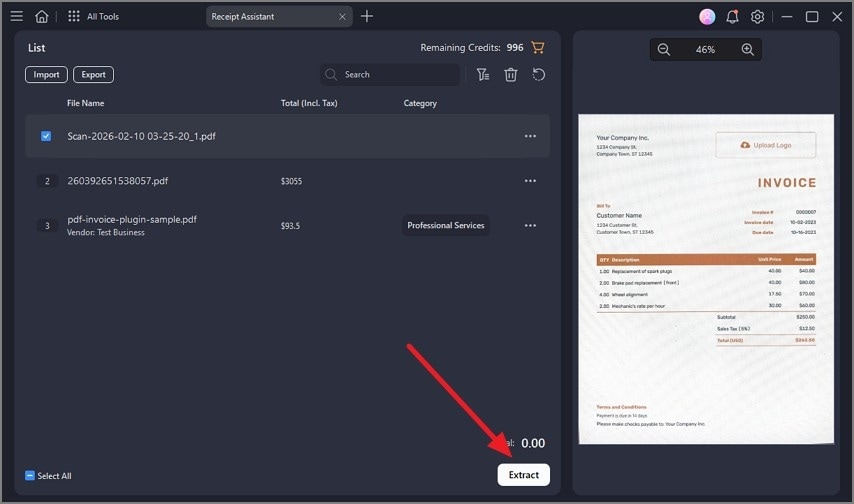
Step 5Extract Invoice Data
When the invoice is fully uploaded, click the "Extract" button. This action makes all detected invoice fields visible and ready for review.
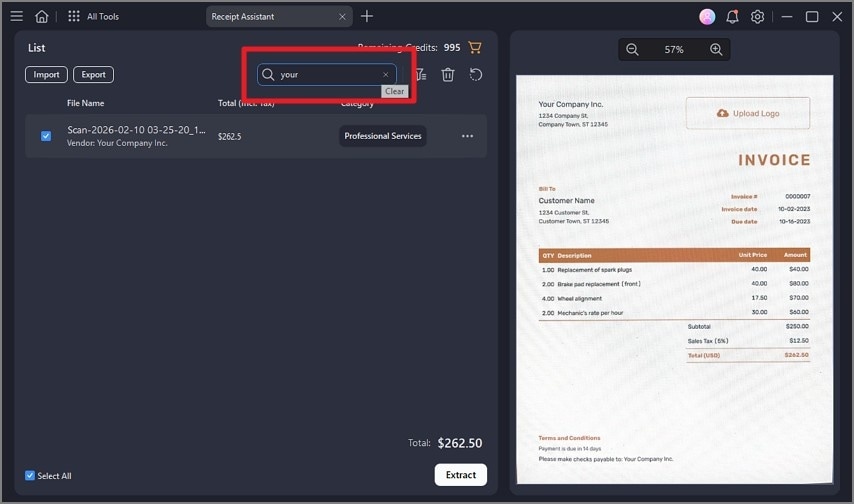
Step 6Locate Specific Fields
To find a particular data point, use the search bar and enter the field name. The tool will automatically jump to the relevant field location.
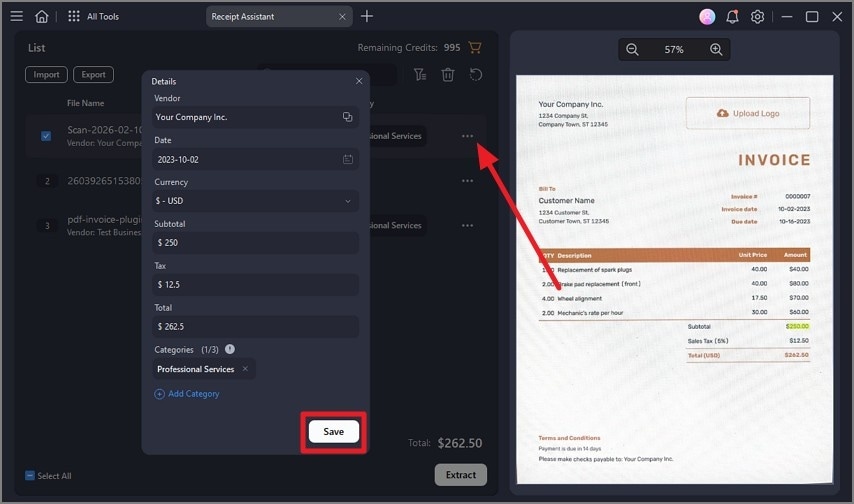
Step 7Save to Invoice Cloud Space
After reviewing the extracted details, click the "Three Dots" icon and select "Details." Confirm the information, then click "Save" to store the invoice securely in the cloud space.
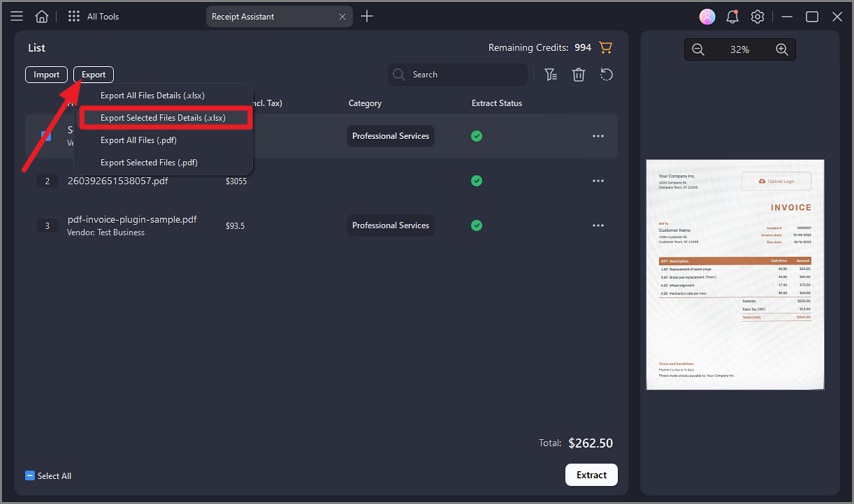
Step 8Save As Excel Sheet
To save the invoice as an Excel sheet, head to the "Export" option and press it. Select the "Export Selected File (.xlsx)" to save the file as an Excel spreadsheet with organized data.
G2 Rating: 4.5/5 |100% Secure
Part 8. From Invoice Data to Excel Reports and Summaries
PDF invoice to Excel conversion in PDFelement doesn't just stop at extracting data; it powers actionable financial insights and reporting.
- Expense Spreadsheets: Structured invoice data can be directly mapped into expense tracking sheets, allowing businesses to categorize costs, monitor spending, and detect anomalies efficiently.
- Reimbursement Forms: Verified invoice details streamline employee or vendor reimbursement processes, ensuring amounts, dates, and references are accurate before approval.
- Monthly and Annual Summaries: Aggregated invoice data feeds into comprehensive reports, enabling finance teams to track trends, generate profit-and-loss statements, and prepare for audits with minimal manual entry.
- Improved Financial Reliability: Using verified and structured data reduces errors, prevents discrepancies, and builds confidence in accounting records, supporting accurate decision-making and regulatory compliance.
Part 9. Common Mistakes When Converting Invoices to Excel
When handling invoice-to-Excel conversion, even small errors can lead to inaccurate spreadsheets and wasted time. The following pitfalls highlight why structured extraction and careful verification are critical for accurate invoice-to-Excel workflows:
- Treating OCR Output as Final Data: Relying solely on raw OCR results can introduce errors from misread numbers, misaligned fields, or unclear text. Always review and correct data before use.
- Skipping Verification: Skipping a verification step increases the risk of mistakes in totals, dates, or vendor details, which can impact accounting and reporting accuracy.
- Mixing Image-Based Invoices with Spreadsheet Logic: Combining scanned images directly with Excel formulas or reports can cause misalignment and calculation errors, as images aren't inherently structured data.
- Converting Files Instead of Extracting Data: Simply converting PDFs to Excel without proper field extraction can produce messy spreadsheets, requiring extensive manual cleanup.
- Ignoring Template Variations: Failing to account for different invoice layouts or vendor formats can result in missing or misclassified data, reducing the overall reliability of the Excel output.
People Also Ask
-
What is the best way to convert invoices to Excel?
The most efficient method is to use a solution that extracts structured data from invoices rather than just converting files. Tools like PDFelement can automate field-level extraction, verify the data, and export it directly into Excel-ready spreadsheets. -
Can scanned invoice PDFs be converted to Excel?
Yes, scanned invoices can be converted using OCR (Optical Character Recognition) technology, which reads text from images. PDFelement supports OCR for scanned PDFs, turning them into editable and structured Excel data. -
How accurate is the invoice to Excel automation?
Accuracy depends on the clarity of the invoice and the sophistication of the extraction tool. Automated solutions like PDFelement significantly reduce errors by identifying fields, but verification is still recommended for maximum reliability. -
Is manual invoice entry still necessary?
For most modern solutions, manual entry is minimal and only needed for exceptions or unclear invoices. Automation tools handle the bulk of extraction, saving time and reducing repetitive work. -
How do I reduce errors in invoice spreadsheets?
Verify extracted data before exporting, and use structured templates for consistent mapping of fields. Leveraging tools like PDFelement ensures reliable extraction, proper formatting, and minimizes manual correction.
Conclusion
To sum it up, this article provided a detailed guide on how to perform an invoice to Excel conversion using the right tool. Invoice to Excel is about making data usable, not just changing file formats. Manual workflows are slow and error-prone, especially with multiple invoices. Using structured, verified invoice data improves reporting accuracy, compliance, and financial analysis. Tools like PDFelement simplify this process, converting invoice PDFs into reliable, Excel-ready spreadsheets.
G2 Rating: 4.5/5 |100% Secure




