In this article
- Why Receipts Often Turn Out Blurry
- Can a Blurry Receipt Actually Be Fixed?
- What Makes a Receipt Readable Again
- Common Mistakes When Trying to Fix a Blurred Receipt
- How to Enhance a Blurry Receipt with PDFelement
- Verifying Receipt Details After Enhancement
- When Enhancement Is Not Enough
- How to Avoid Blurry Receipts In The Future
A blurry receipt can ruin refunds, expense claims, and important budget tracking later. Smudged ink, shaky photos, and low light make details hard to trust. When you need to fix blurry receipt text, quick edits can restore readability.
In this guide, you will learn simple steps to sharpen numbers and dates. You will also reduce glare, straighten edges, and improve contrast for better clarity. Finally, you will prepare the image for OCR so that extraction becomes easier.
Part 1. Why Receipts Often Turn Out Blurry
A blurry receipt often comes from capture issues, not printing alone. So, spot the following causes early, and your expense records stay reliable later:
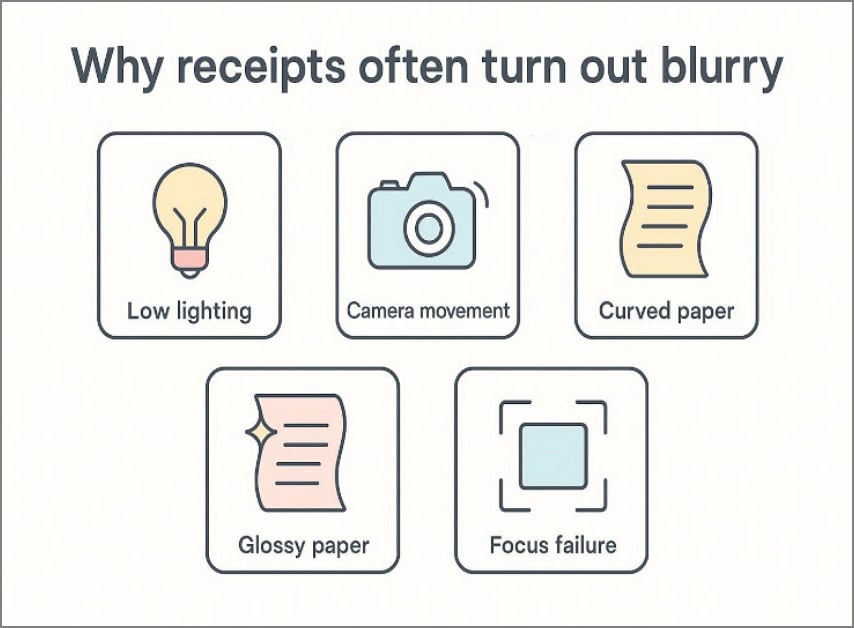
- Low Lighting: Dim rooms force slower shutter speeds, so tiny handshakes smear fine print text. Indoor bulbs also add noise, reducing contrast between letters, numbers, and background paper fibers.
- Camera Movement: Pressing the shutter or breathing moves phones slightly, creating motion blur across lines quickly. Long receipts exaggerate this effect because small shifts travel across the whole frame area.
- Curved Paper: Receipts curl from pockets, pushing edges out of focus even with steady hands today. Folded sections create uneven distances, so autofocus picks one plane and misses others often.
- Glossy Paper: Shiny coatings reflect light, producing hotspots that wash dout etails and confuse exposure algorithms badly. Glare patterns shift with angles, so repeated shots can look inconsistent and soft, too.
- Focus Failure: Thin thermal fonts lack texture, so cameras hunt and lock on backgrounds instead sometimes. Close distances reduce depth, making slight focus errors blur key totals and dates easily
Why Receipts are Harder to Photograph Than Documents
Receipts are smaller, and their thermal ink fades under bright light quickly. A blurred receipt includes wrinkles, creases, and narrow margins, crowding information inside. Unlike documents, receipts rarely lie flat, so the camera sees uneven focus planes. They also have long lines and low contrast, which magnify tiny capture errors.


 G2 Rating: 4.5/5 |
 100% Secure
Part 2. Can a Blurry Receipt Actually Be Fixed?
Yes, many blurry receipts can be improved enough for accurate reading. Slight blur often clears with sharpening, contrast, and careful cropping tools. Severe motion blur is harder, yet some totals and dates remain recoverable. Review the table below to see the difference between slight blur and severe motion blur:
| Aspect | Slight Blur | Severe Motion Blur |
| Best Improvements | Edge sharpening and de-noising usually restore characters with readable spacing quickly. | Frame blending rarely helps, but upscaling may recover bold numerals sometimes. |
| Typical Result | Store name, date, and totals often become clear for OCR capture. | Fine item lines stay smeared, and OCR output needs manual checks. |
Most blurry receipts still reveal the merchant name, purchase date, and final total. Tax amounts and payment methods often remain readable after careful contrast adjustments. A receipt is beyond repair when digits merge, and totals cannot be verified. If item lines vanish completely, reliable OCR extraction and manual review both fail.
Part 3. What Makes a Receipt Readable Again
A receipt becomes readable again when you rebuild the signal and remove the distortion in the right order. A strong receipt enhancer improves clarity by balancing contrast, edges, and cleanup steps. The goal is readable characters, stable line spacing, and reliable OCR recognition.
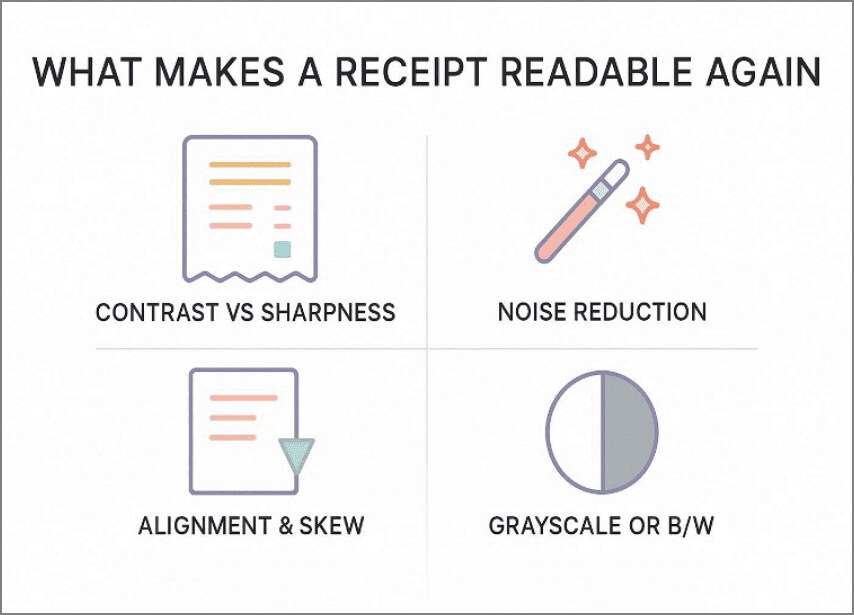
Text Contrast vs. Sharpness
Contrast controls how strongly characters separate from the paper background. Sharpness controls edge definition, which helps OCR detect letter boundaries. Increasing sharpness without contrast often creates dark halos around faint text. Increasing contrast without edge support can flatten thin strokes into broken fragments.
Background Noise Reduction
Noise comes from paper texture, compression blocks, shadows, and sensor grain. A receipt enhancer should reduce noise while protecting thin character strokes. Use gentle denoising first, then remove shadows and gradients, then apply light sharpening. Over-denoising destroys small punctuation and turns "8" into "0" very easily.
Alignment and Skew Correction
Skewed receipts reduce OCR accuracy because baselines tilt and spacing becomes inconsistent. Correct rotation first, then crop tightly to remove empty margins. If the receipt is curved, apply perspective correction to straighten the text block. Even a few degrees of skew can drop recognition accuracy noticeably.
Grayscale vs. Black-and-White Enhancement
Grayscale keeps more tonal detail, which helps with faded ink and thermal paper. Black-and-white uses thresholding to force separation, which helps on high-contrast prints. Adaptive thresholding usually beats global thresholding on uneven lighting. For best results, compare both outputs and keep the version with cleaner numerals.
G2 Rating: 4.5/5 |100% Secure
Part 4. Common Mistakes When Trying to Fix a Blurred Receipt
Before editing, know which choices protect text and which destroy evidence. These pitfalls mentioned below appear when you try to fix a blurred receipt too quickly:
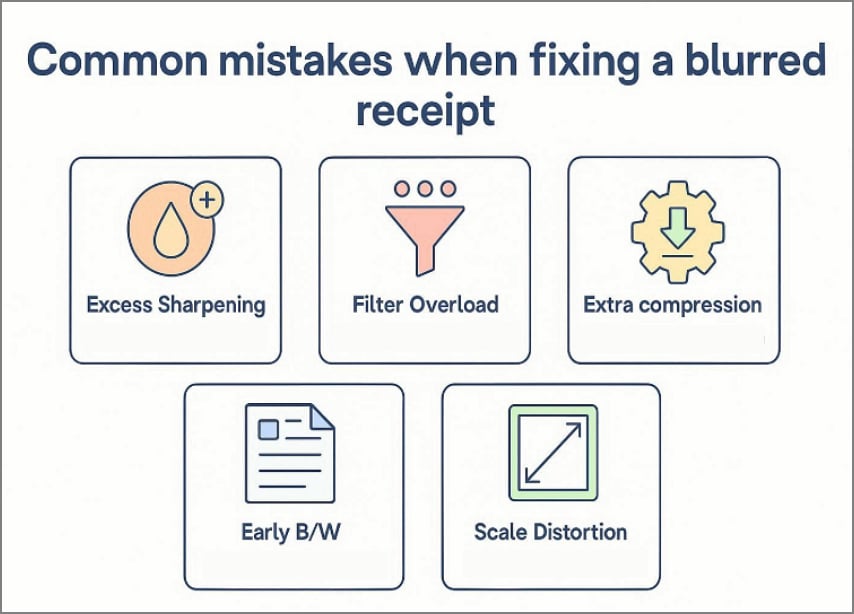
- Excess Sharpening: Over-sharpening creates halos and ringing around letters, merging nearby strokes together. Digits like eight, three, and five become indistinguishable and are misread frequently.
- Filter Overload: Heavy filters smooth edges and erase fine thermal print texture, especially in small fonts. Artificial contrast curves also bend line thickness, making totals look inconsistent.
- Extra Compression: Repeated saving adds JPEG artifacts and macroblocks that break numerals into jagged fragments. Compression also removes subtle ink gradients, so faint text disappears completely.
- Early Conversion: Converting to black-and-white too early clips weak ink and loses decimals or symbols. Thresholding can also fill holes in letters, turning eight into zero.
- Scale Distortion: Upscaling or resizing with poor interpolation warps characters and changes the spacing between digits. Stretched text breaks OCR segmentation, causing merged totals and missing separators.
Part 5. How to Enhance a Blurry Receipt with PDFelement
Blurry receipts often fail OCR because faint ink blends with the paper texture in photos quickly. But in tools like PDFelement, you can treat the receipt like a document image, not art at all. Its "Enhance Scan" tool focuses on straightening lines, clarifying characters, and reducing background clutter noise. This improves readability for totals, dates, and merchants when verification matters more than style alone.
Moreover, PDFelement is a receipt enhancer that lets you check details before exporting to other locations. Users adjust the enhancement strength based on whether the blur is mild, moderate, or severe motion shake. Thus, preview the cleaned result and confirm key fields remain intact, especially decimals and tax amounts.
G2 Rating: 4.5/5 |100% Secure
Guide to Enhance a Blurry Receipt with PDFelement
Now, try the stepwise guide below to enhance the receipt, then save a verified copy safely:
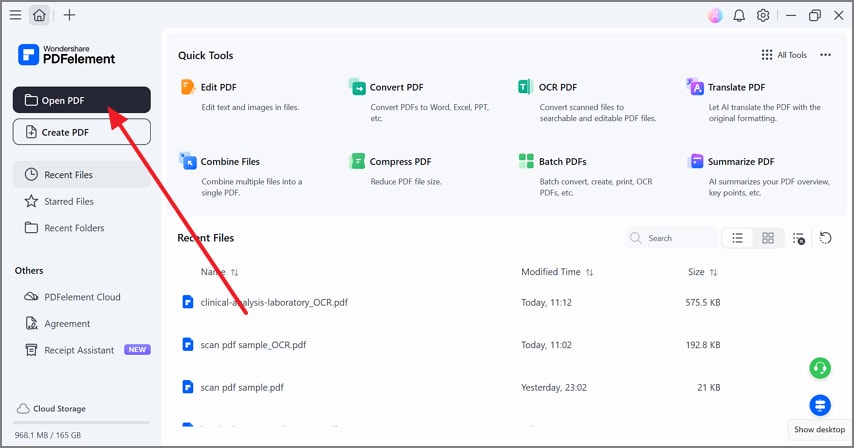
Step 1Import the Receipt to Proceed
Upon launching the PDFelement, navigate to "Open PDF" to add your receipt file.
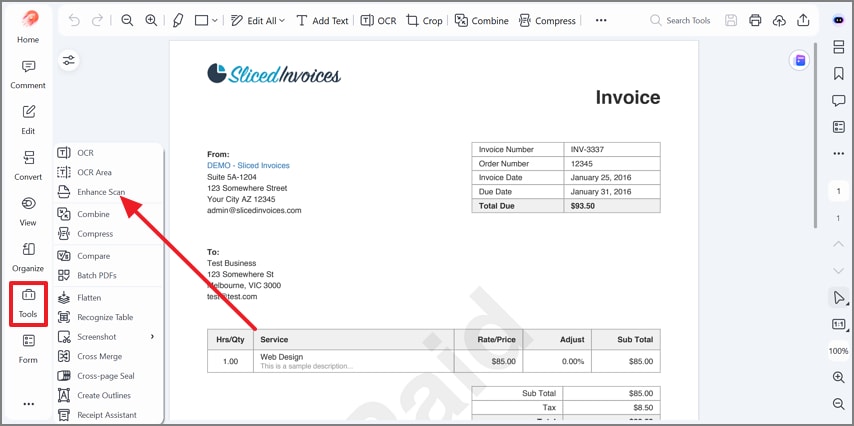
Step 2Access the "Enhance Scan" tool
Next, in the editor, select "Tools" on the left, then choose "Enhance Scan" to continue.
Step 3Apply Enhancement Adjustments
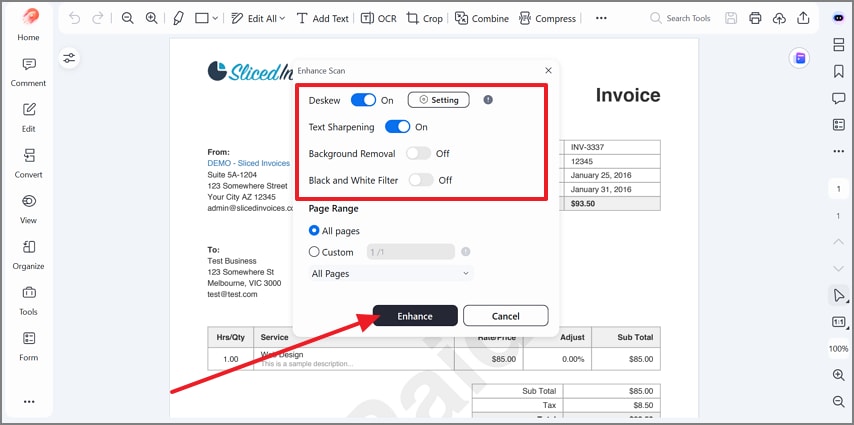
Now, turn on "Deskew" and "Text Sharpening", then set filters and page range. Later, enable "Background Removal" or "Black and White Filter" if the receipt needs it. After that, click "Enhance" to apply the selected improvements to your document.
Step 4Preview and Save the Improved Receipt
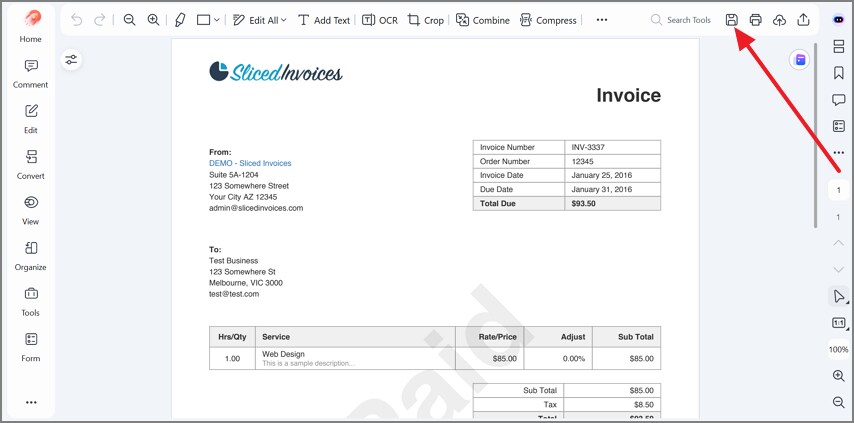
Lastly, review the updated page, then press the "Save" icon at the top of the page to render the improved receipt to your device.
Step 5Scan Receipt and Extracts Key Information
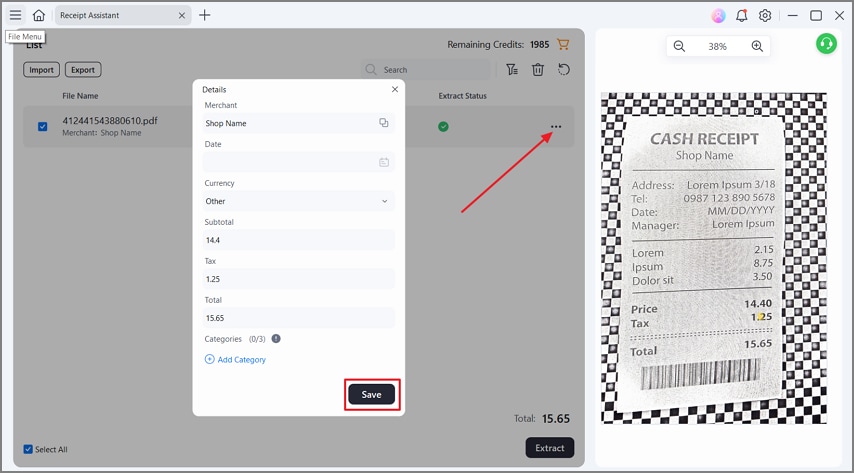
PDFelement's Receipt Assistant allows you to quickly extract receipt data into Excel. Open Receipt Assistant and click Import to add your receipt. Next, click Extract. The tool automatically retrieves information such as the merchant name, currency, and total amount, and enables you to export the extracted data to an Excel file for future calculations.
Part 6. Verifying Receipt Details After Enhancement
Enhancement improves readability, but verification protects accuracy before any submission or extraction. A clearer image can still contain misread digits, missing decimals, or altered characters after processing. Thus, use the checks below to confirm the receipt remains trustworthy for reimbursements and tax records:
Check the Key Fields
Focus on the merchant name, transaction date, subtotal, tax, and grand total immediately. Confirm currency symbols, decimal points, and separators, because OCR often confuses these elements. If the receipt shows a card reference, verify the last digits and payment type for consistency.
Compare Enhanced vs Original
Place the enhanced receipt beside the original and review the same fields line by line. Look for smoothing, threshold clipping, or sharpening halos that may change a "3" into "8". If an item line disappears, ensure the total still matches the visible subtotal and tax lines.
Why Verification Matters For Reimbursements and Taxes
Before submission, a quick review after any receipt enhancer matters because of the following reasons:
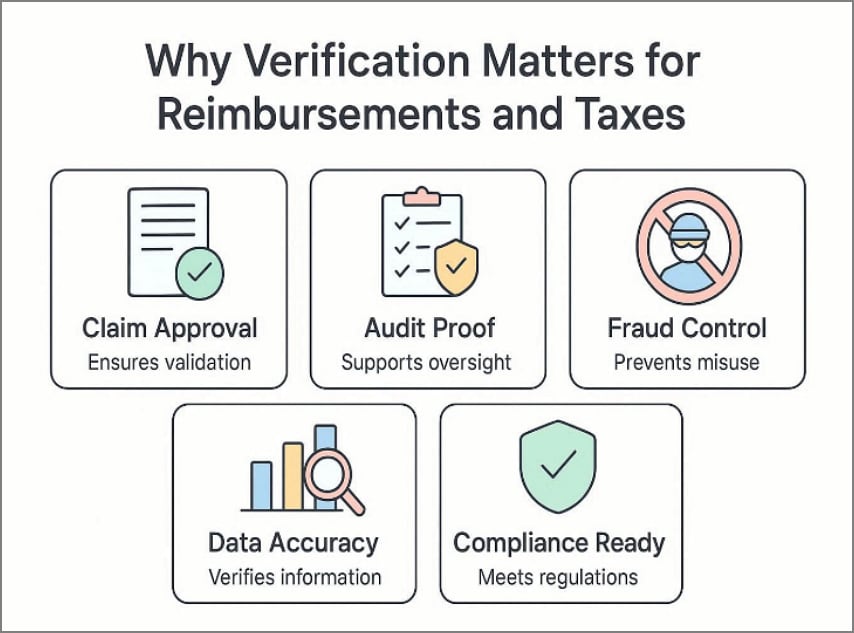
- Claim Approval: Mismatched totals, dates, or merchants can trigger rejection during reimbursement policy checks.
- Audit Proof: Tax authorities expect traceable documents, and unclear receipts raise audit risks later.
- Fraud Control: Verification helps detect altered figures, preventing accidental overclaims or deliberate manipulation.
- Data Accuracy: OCR can misread decimals or digits, causing incorrect records and reporting errors.
- Compliance Readiness: Verified receipts support compliant storage, simplifying month-end reviews and tax filing.
G2 Rating: 4.5/5 |100% Secure
Part 7. When Enhancement Is Not Enough
Even strong tools can fail when the original capture contains too little usable detail. If you try to fix blurry receipt images that have lost character shapes completely, enhancement will only amplify defects. This section explains the red flags, the practical alternatives, and the technical limits behind them.
Situations Where Data Cannot Be Recovered
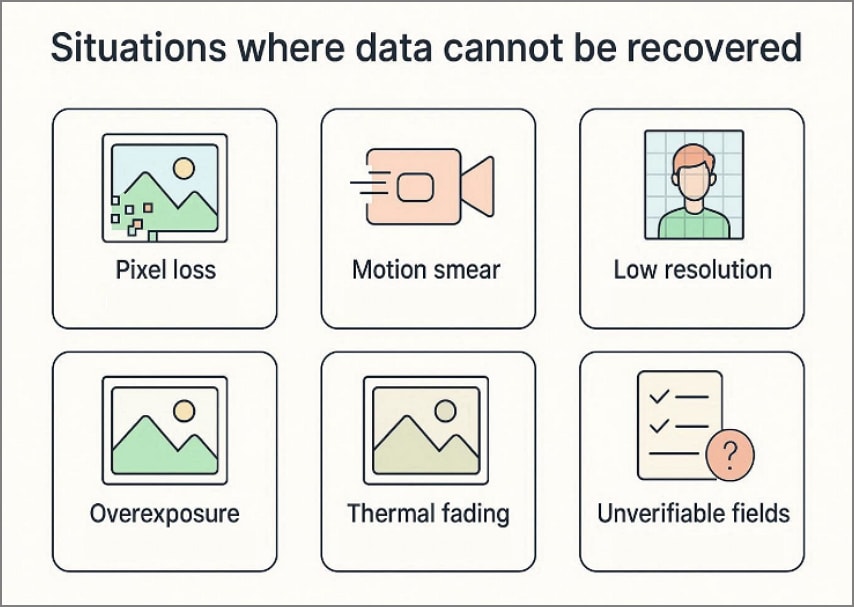
- Pixel Loss: Some receipts become unrecoverable because the original image lacks usable text detail.
- Motion Smear: Severe motion blur stretches digits into streaks, removing boundaries that OCR needs.
- Low Resolution: Small screenshots compress characters until text becomes blocky and indistinguishable during zooming.
- Overexposure Burnout: Bright glare washes out white areas, deleting totals, dates, and thin ink strokes.
- Thermal Fading: Old thermal paper fades unevenly, erasing key fields after heat exposure or storage.
- Unverifiable Fields: Missing decimals, currency symbols, or merchant names make the receipt unreliable for proof.
Alternative Options When Recovery Fails
When recovery fails, stop editing further, because repeated enhancement can reduce evidence quality. The alternatives below help you obtain verifiable receipt details when restoration is not possible:
- Requesting a Duplicate Receipt: Many retailers can reprint receipts using the transaction date, card reference, or order number. A reprint usually restores totals, taxes, and store details with clean text.
- Using Digital Receipts: Email confirmations, POS e-receipts, and app-based invoices often include the same legal fields, with clearer formatting and higher text fidelity. Bank transaction records can support matching, but they usually cannot replace itemized proof alone.
Why Enhancement Tools Have Limits
Enhancement improves contrast, alignment, and noise, but it cannot recreate missing data accurately. Also, algorithms can sharpen edges, yet they cannot recover characters that were never captured clearly. Aggressive filters may even "invent" shapes, which look readable but become unreliable evidence. So, for reimbursements and taxes, readability is not enough; the details must be provably correct.
Part 8. How to Avoid Blurry Receipts In The Future
Better capture habits prevent avoidable errors and protect key fields for later verification. They also reduce the time you spend correcting every blurry receipt after busy purchases.
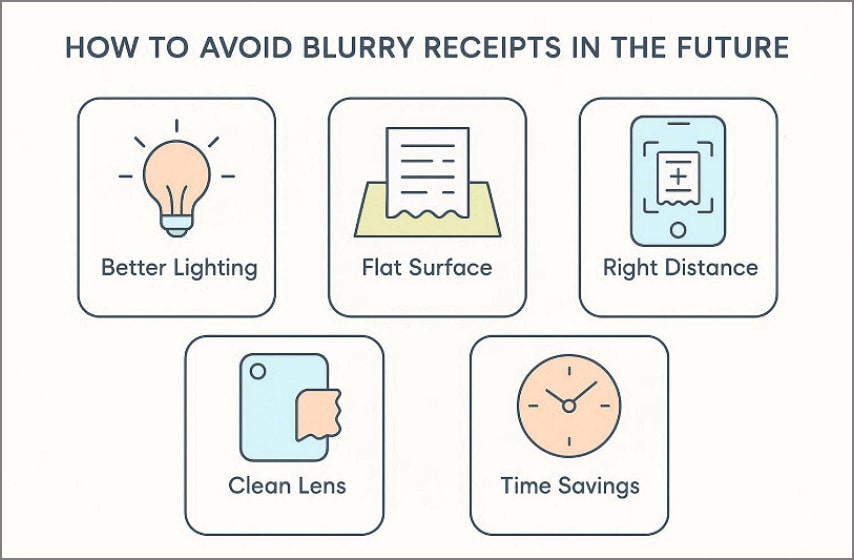
- Better Lighting: Use bright, even lighting to prevent shadows and glare across the receipt. Avoid direct flash reflections, because hotspots erase totals and thin characters fast.
- Flat Surface: Place receipts on a flat surface to avoid wrinkles and curved text lines. Curves distort baselines, making OCR segmentation and human checking much harder later.
- Right Distance: Hold the camera far enough to capture edges, but close enough for crisp text. Too close causes focus blur, while too far reduces resolution and legibility.
- Clean Lens: Wipe the camera lens before capture to remove fingerprints and dust haze. Smudges lower contrast, creating soft edges that look like blur in photos.
- Time Savings: Clear captures reduce retakes, manual corrections, and OCR errors during expense submission. They speed reimbursements and improve tax record accuracy with fewer disputes.
People Also Ask
-
Can a blurry receipt be fixed?
Often, yes, if a slight blur remains and key text edges still exist clearly today. Severe motion blur or overexposure can erase digits, making recovery impossible for verification purposes. -
What is the best way to enhance a blurred receipt?
Start with deskew, then boost contrast, reduce noise, and sharpen lightly for readability overall. Preview at high zoom, checking totals, dates, and merchant names before saving outputs always. -
Does sharpening always help?
No, sharpening can create halos that merge strokes and distort small receipt characters quickly. It helps only after noise reduction and contrast adjustments reveal real edges clearly enough. -
Can OCR work on blurry receipts?
OCR can work on mild blur when characters remain separated and well-contrasted for reading. With heavy blur, OCR misreads digits, so manual verification becomes essential afterward every time. -
Are receipt enhancer tools reliable?
They are reliable for improving visibility, but they cannot guarantee correctly interpreted values alone. Reliability increases when you compare enhanced and original images, confirming fields match exactly visually.
Wrap-up: Recovering Receipt Readability The Right Way
To conclude, not all receipts are ruined, even when photos look soft at first. Careful enhancement can recover totals, dates, and merchant details, while over-processing often destroys thin strokes and decimals. If you need to fix blurry receipt text, focus on readability, then verify against the original before submitting claims. For clearer review and reliable exporting, PDFelement is a practical finishing tool.