
How to White Out PDF Documents Safely: 5 Proven Methods
How to write something out on a PDF? This article will explain the quick ways to white out text in PDF files on Windows, Mac, and Online.
 100% Secure |
 Powered by AI
 Home
>
Editing Tips
> How to White Out PDF Documents Safely: 5 Proven Methods
Home
>
Editing Tips
> How to White Out PDF Documents Safely: 5 Proven Methods
Password protection alone cannot prevent PDF data leaks—hackers often bypass weak encryption. To permanently remove sensitive content (text, images, or metadata), you must white out PDF files using reliable redaction tools. This guide covers 5 methods, including free and professional solutions, tested across Windows, Mac, and mobile devices.
- White out PDF in PDFelement: Open the PDF in PDFelement, mark the text or images for redaction, customize the redaction color to white, and apply it.
- White out PDF in Adobe Acrobat: Use Acrobat’s Redact tool to mark the content, set the redaction fill to white, and apply the redaction.
- White out PDF with Free Online Tools: Upload the PDF to an online editor, place a white shape over the content, and download the edited file.
- White out PDF on Mac: Open the PDF in Preview, add a white rectangle annotation over the content, adjust its size and color, and save the file.
- White out PDF using Microsoft Word: Open the PDF in Word, insert a text box over the content, set it to appear in front of the text, and format it with a white fill and no outline.
- Method 1. White out PDF Document with PDFelement
- Method 2. White Out PDFs in Adobe Acrobat (Paid Alternative)
- Method 3: Free Online Tools to White Out PDFs
- Method 4: White Out PDF for Free with Mac Preview
- Method 5: White Out PDF in Microsoft Word
- Tool Comparison: Which Should You Use?
- People Also Ask
Method 1: White Out PDF with PDFelement
-
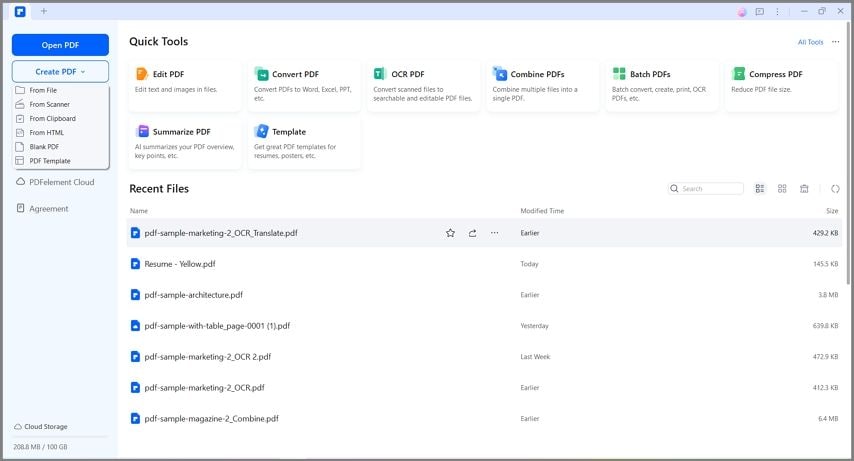
Step 1. Import PDF into PDFelement
After successful installation, Run PDFelement on your computer. Click “Open File” to open the PDF document which needs to be whited out.


 G2 Rating: 4.5/5 |
 100% Secure
-
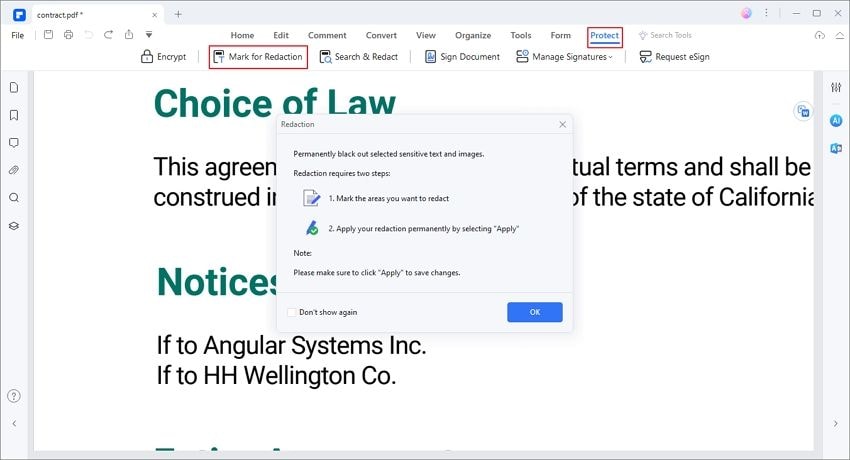
Step 2. Mark Content for Redaction
- Navigate to the Protect tab.
- Select “Mark for Redaction”.
- Highlight text/images to remove.
-
Step 3. White out PDF with Redaction
Right-click the Redaction area and choose "Properties." This will open the Properties window, where you can choose the color of the area that has been redacted.
If you wish to add any text on top, simply choose the option that says "Use Overlay Text."
You can also tick "Redaction Codes" to add further information. Finally, click "Apply Redactions" to permanently white out the PDF.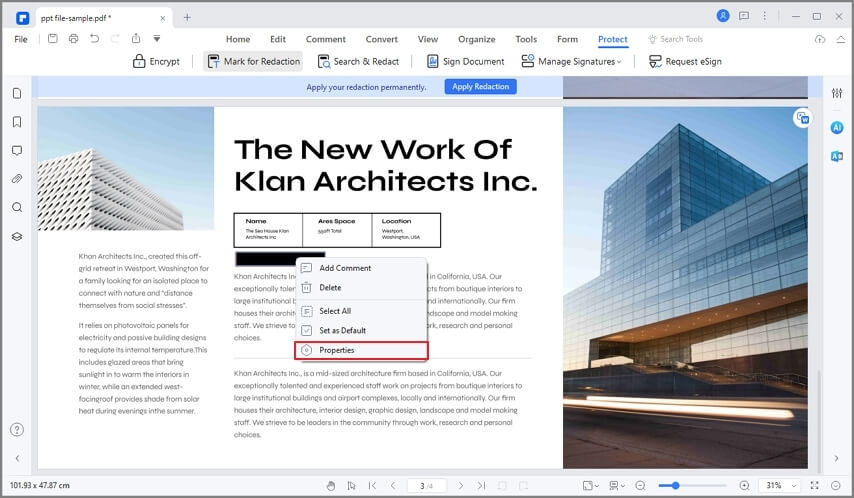
G2 Rating: 4.5/5 |100% Secure
Some more Key Advantages of Wondershare PDFelement - PDF Editor Wondershare PDFelement Wondershare PDFelement
- Permanently deletes content (irreversible)
The smart tool can white out the required portions, such as text, images, and other objects on the document. - Batch redaction to remove all instances of a keyword.
You can also search specific text and redact the same words in a PDF at a time.
PDFelement also gives you the possibility of changing the color of the redaction area, putting custom text or message, or adding a redaction code. - OCR support for scanned PDFs
It also has a built-in OCR, which can turn scanned PDFs into fully editable documents. This will help you easily white out text in a scanned PDF.
Method 2: White Out PDFs in Adobe Acrobat (Paid Alternative)
By using Adobe Acrobat, it is also easy to white out your PDF file. To do this, do what I will show you below:
-
Step 1: Open the "Redact" tool
Click the “Tools” tab and then click the “Redact” icon below the “Protect & Standardize” section.

-
Step 2: Enable “Mark for Redaction”
Click “Mark for Redaction” and select “Text & Images.”

-
Step 3: White out PDFs in Adobe
Select the text or image you want to white out. Now click “Properties,” select the white color from “Redacted Area Fill Color,” and finally select “OK.”

-
Step 4: Apply
Click "Apply" and confirm. Now, you can see that the selected text is erased. A dialog box will emerge; I recommend selecting "Yes" to remove hidden information. Just save your file as a new one, and you will finish this task.

Method 3: Free Online Tools to White Out PDFs
Don't worry if you don't have Adobe Acrobat or a Microsoft Office account. There are online applications to carry out this process easily and for free. Next, I will give you two examples.
1. Whiteout on PDF Online for Free Using SmallPDF
-
Step 1: Upload your PDF
The first thing you should do is go to the official SmallPDF website and choose the option "PDF Editor," which you can find in the "Tools" menu. Once you're there, drag and drop your document inside the box and wait for Smallpdf to process it.

-
Step 2: Set the white out section
To white out a section, click on the box and select the area you want to cover. If the box appears in black, use the small menu above your selection and choose white for the outline and fill. When everything is ready, click "Download."

- Risk: Free plans limit tasks/day; redactions aren’t permanent.
2. Make PDF Whiteout Using PDFzorro
-
Step 1: Upload your PDF
Go to the official PDFzorro website. Click the "Upload" button and set the path to the document you want to modify. Then, you must wait for your document to be processed and choose the option "Edit PDF."

-
Step 2: Set the white out section
Now, you will see the online editor of pdfzorro. To white out a section, click the "Rect." found in the left panel. Once you have selected this option, select the area you want to cover. When you finish, click "Save" and "Finish / Download."

Method 4: White Out PDF for Free with Mac Preview
On the other hand, macOS users have a native application called Preview. This application allows you to view and modify PDF documents, including white out your documents. I will show you how to whiteout on PDF using Mac Preview below.
-
Step 1: Select the Rectangle Annotation tool
The first thing you should do is open your PDF using Preview. Once you have opened your document with this application, go to the Tools section, display the "Annotate" menu, and choose the "Rectangle" option.

-
Step 2: Choose color preferences
Now, you can place rectangles in your document, but the default settings of Preview will assign a black margin. To fix this, use the options bar and select the color white.

-
Step 3: Adjust the size
To finish, click anywhere inside the rectangle and use the perimeter points to adjust the square in your desired position. When finished, be sure to save your changes or export a copy.

Method 5: White Out PDF in Microsoft Word
The most practical way to white out your PDF is through Microsoft Word. To do this, you only have to do the following:
-
Step 1: Insert a text box
Open your PDF file in Microsoft Word and locate the content you want to white out. Now click the “Insert” tab, hit “Text box,” and then select “Simple Text Box.”

-
Step 2: Set the text box in front of the content
Select the text box and click the "Layout Options" icon. Click the lower-right icon to activate the "In Front of Text" option.

-
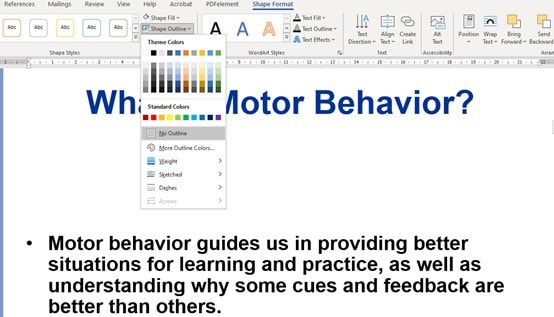
Step 3: Customize the text box
Click “Shape Format” while you are selecting the text box. Customize color and outline; usually, the most practical way to white out the content is to choose a white fill color and select “No Outline” in the “Shape Outline” section.
Tool Comparison: Which Should You Use?
| Method | Security | Cost | Permanent? | Platform |
| PDFelement | High | Free trial | Win/Mac/Mobile | |
| Adobe Acrobat | High | $19.99/month | Win/Mac | |
| SmallPDF/PDFzorro | / | Free | Online | |
| Mac Preview | / | Free | Mac | |
| Microsoft Word | / | Free | Win/Mac |
People Also Ask
What is whiteout in PDF?
Whiteout in PDF usually means covering part of the document with a white box or background-colored shape so the text or image underneath is no longer visible at first glance. People often use it to hide sensitive details, remove unwanted content, or clean up a page visually. However, whiteout is usually just a visual cover, not true removal. In many cases, the original content may still exist underneath and could be revealed or recovered if the file is edited or inspected later.
What is the difference between whiteout and redaction?
The main difference is that whiteout hides content visually, while redaction permanently removes it from the PDF. Whiteout places a shape or overlay on top of text or images, which can make the information look hidden without actually deleting it. Redaction is a security feature designed to erase sensitive content so it cannot be recovered from the file. If you are dealing with private, legal, financial, or confidential information, redaction is the safer and more professional choice.
How to white out parts of a PDF for free?
You can white out parts of a PDF for free by using a basic PDF editor or markup tool that lets you place a white shape over the content. Here is a simple way to do it:
Step 1. Open the PDF in a free PDF editor, annotation app, or browser-based PDF tool that supports shapes or drawing.
Step 2. Choose the rectangle or drawing tool and set the fill color to white.
Step 3. Place the white box over the text or image you want to hide, then save the PDF.
This works for simple visual cleanup, but it is not secure for sensitive information. If the content is private, use a real redaction tool instead of whiteout.
Conclusion
PDFs are valuable documents, and it is sometimes desirable to erase information that can be sensitive and confidential. Fortunately, there is the option to white out the text. To permanently white out PDF content, use PDFelement or Adobe Acrobat. Free tools like SmallPDF or Mac Preview work for quick edits but risk data recovery.
Free Download or Buy PDFelement right now!
Free Download or Buy PDFelement right now!
Try for Free right now!
Try for Free right now!

Elise Williams
chief Editor