Since 2024, some YouTube downloads trigger “Sign in to confirm you’re not a bot,” especially on busy converter servers. A 3-hour exam review lecture that worked last month can suddenly return an error instead of an MP3 file. A YouTube-to-MP3 not working message rarely explains whether the problem comes from the video, converter, browser, or download process.
Checking each possible cause separately usually reveals the fastest fix. For study videos, PDFelement offers another route by using lecture captions to generate a podcast, then saving the finished episode directly in MP3 format.


 G2 Rating: 4.5/5 |
 100% Secure
In this article
Part 1. Quick Checks Before You Try a Fix
When YouTube to MP3 not working errors appear, begin with 3 quick checks. They reveal whether the problem comes from the video, converter, browser, or network.
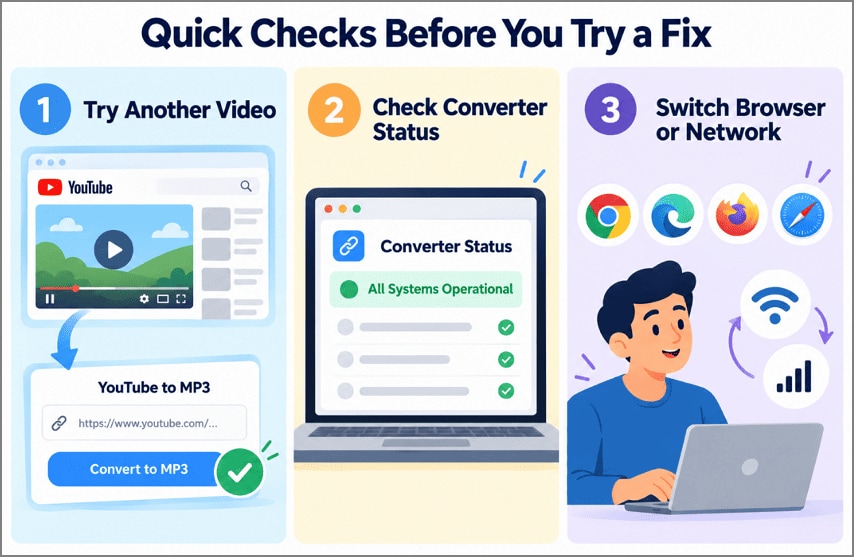
- Try Another Video: Convert a short public clip first. If it works normally, the converter is likely fine, and the original video or link is causing the problem.
- Check Converter Status: Open the converter homepage, status page, or official social account. A service outage can prevent every video from converting, making local fixes unnecessary.
- Switch Browser or Network: Test another browser or use mobile data. This helps separate browser-specific settings from network restrictions or connection issues affecting YouTube access.
Part 2. Why YouTube to MP3 Stops Working
A YouTube to MP3 not working problem usually comes from a small set of causes. The table below matches the common causes with the symptoms they typically produce.
| Cause | What You Usually See |
| The Video URL Is Invalid | An error on paste, or a private, region-locked, or age-restricted video. |
| Copyright Issues | A video removed, region-blocked, or muted by a claim, which leaves a silent MP3. |
| Browser Settings or Extensions Are Interfering | Dead buttons, missing pop-ups, or Chrome blocking an insecure download. |
| Network Problems | A stalled progress bar, a timeout, or a file that stops partway. |
| YouTube Backend Changes | HTTP 403 errors on every video, as YouTube now demands a “PO Token” from some clients. |
| Server Overload or IP Blocking | “This content isn’t available, try again later” once a shared server passes YouTube’s request limit. |
| File Length or Size Limits | Long videos rejected, such as the 150-minute MP3 cap on one Y2Mate site. |
Part 3. How to Fix YouTube to MP3 Not Working
When YouTube to MP3 not working errors persist, troubleshoot from the simplest cause outward. The fixes below start with the video link, then move through the converter, browser, network, and download settings.
1. Check the Video URL and Availability
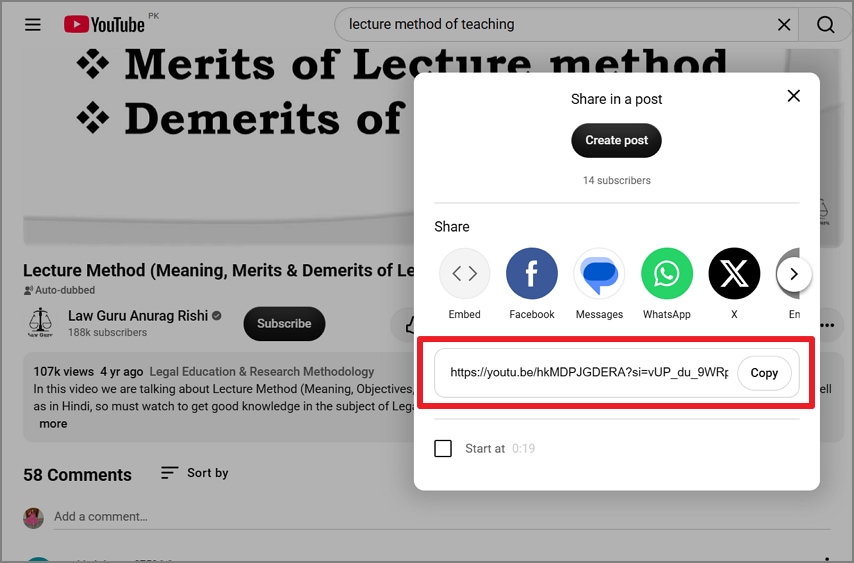
Copy the address from YouTube’s “Share” button, then open it in a private window to see what a signed-out visitor gets. YouTube says age-restricted videos “cannot be watched on most third-party websites,” and converters count as such sites.
2. Refresh the Page and Retry Later
Temporary rate limits can block repeated requests, and yt-dlp describes many of these IP blocks as “soft.” Wait briefly, reload the converter, and retry. If the block continues, open YouTube normally and complete any CAPTCHA or sign-in check before trying again.
3. Disable VPN or Proxy
A shared VPN or proxy can route many users through the same IP address, which may trigger YouTube rate limits or access checks. Turning it off tests whether the connection itself is causing the YouTube to MP3 not working error. Here’s how to do it on Windows and Mac.
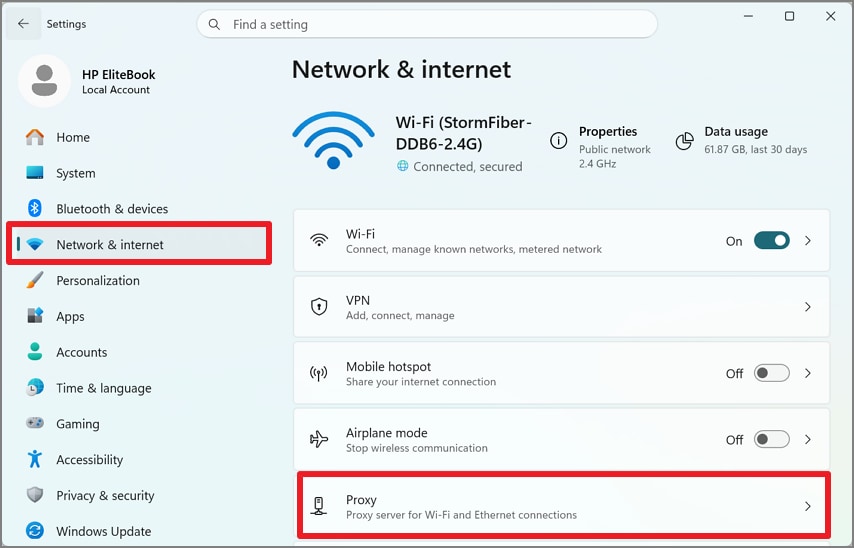
For Windows
Go to Settings > Network & Internet > Proxy and turn off manual proxy settings.
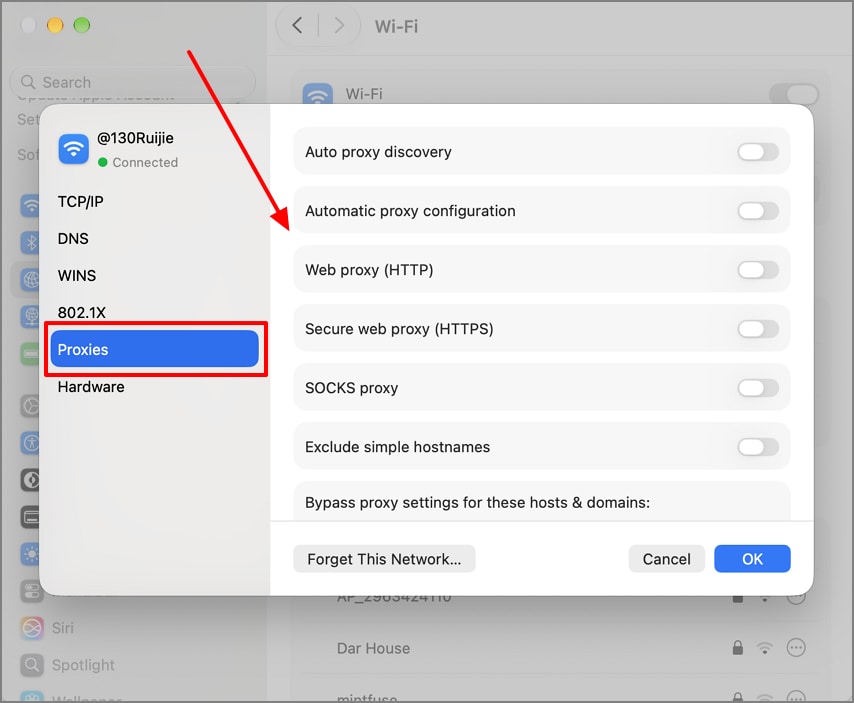
For Mac
Open System Settings > Network > [Connected Wi-Fi] > Details > Proxies and disable active proxies.
4. Check Your Network Connection
An unstable connection can interrupt a conversion and leave the MP3 incomplete or corrupted. Opensignal’s report measures reliability using task completion, latency, packet loss, and connection consistency. Move to stable Wi-Fi or a wired connection before retrying. Pause large downloads or streams that may consume bandwidth. Then restart the converter and run the YouTube to MP3 conversion again.
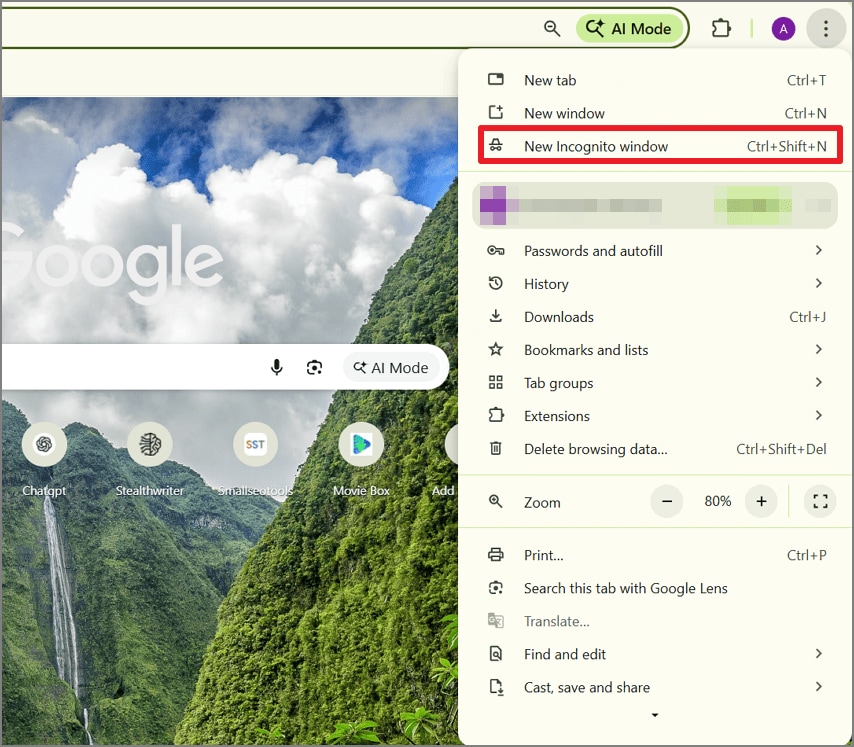
5. Test in a New Incognito Window
Incognito mode opens a cleaner browser session without existing site cookies. Extensions also stay disabled unless you have specifically allowed them in Incognito. If the converter works there, stored browser data or an extension may be causing the YouTube-to-MP3 not working issue.
Instructions: In Chrome, open the three-dot menu and select New Incognito Window. Open the same converter, paste the YouTube lecture link, and start the conversion again.
6. Clear Relevant Browser Cache and Cookies
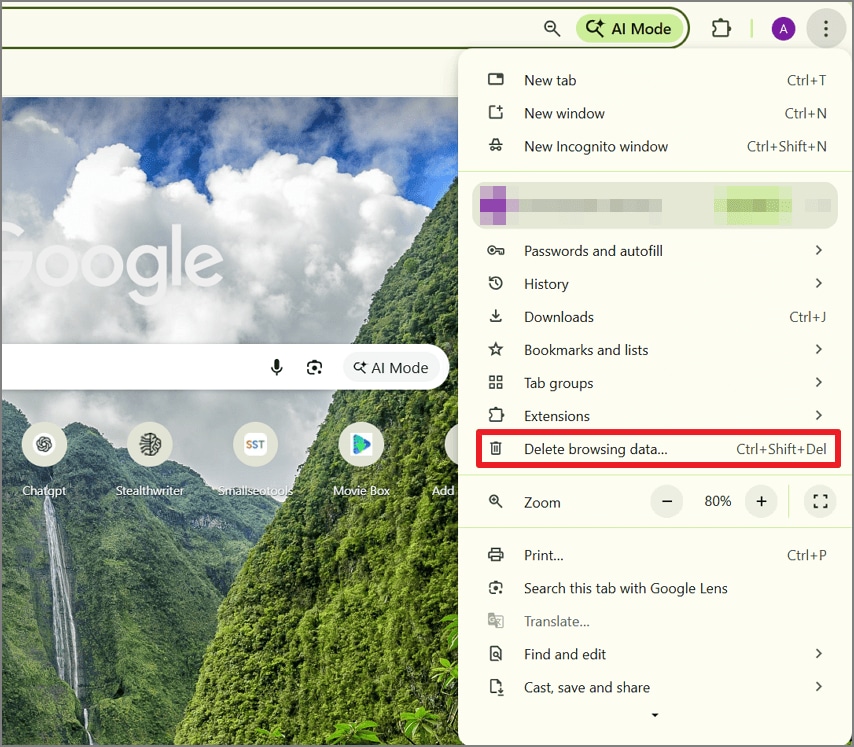
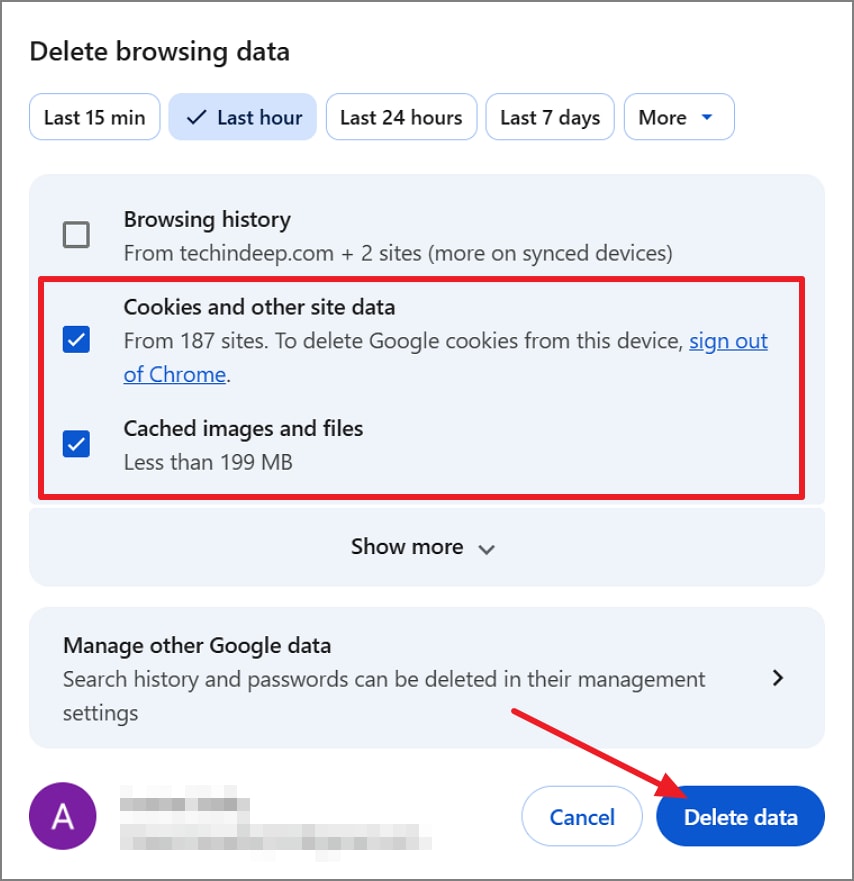
Clearing recent browser data removes stored cookies and cached files that may keep a converter loading outdated settings or errors. The steps below refresh Chrome’s site data before you retry the YouTube to MP3 conversion.
Step 1. In Chrome, click the three-dot menu, then select Delete Browsing Data.
Step 2. Choose Last Hour, select Cookies and Other Site Data and Cached Images and Files, then click Delete Data.
7. Check the Converter’s Service Status
When every link fails, the converter itself may be experiencing an outage. Cobalt’s official GitHub issue documented YouTube download failures caused by service-side restrictions in 2025. Check the converter’s status page, GitHub, or social channels first. If an outage is confirmed, local browser or network fixes will not solve the YouTube-to-MP3 not working problem.
8. Choose a Different Tool
If the original converter still fails, switching tools can bypass service-specific limits or outages. These YouTube to MP3 alternatives offer desktop and web-based options:
- yt-dlp: Updates frequently after YouTube changes and downloads through your own connection, avoiding many shared-server restrictions and outages.
- 4K YouTube to MP3: Supports long videos and playlists locally, reducing dependence on browser converters with file-length or server limits.
- MediaHuman YouTube to MP3 Converter: Downloads audio directly on your computer and can preserve the original available YouTube audio stream.
- Cobalt: Provides an ad-free web alternative that can help when another converter website is blocked, overloaded, or temporarily unavailable.
Part 4. Bonus: Summarize YouTube to MP3 With Wondershare PDFelement
When a YouTube to MP3 not working error blocks a lecture, PDFelement offers another route for study-focused content. Its AI Space can use available video captions to create either a detailed Deep Dive podcast or a shorter Brief recap for easier revision.
This approach creates a new podcast rather than extracting the video’s original audio. It will not preserve the speaker’s exact voice, music, or original runtime. For songs, soundtracks, or identical audio copies, a standard converter remains the better choice.
G2 Rating: 4.5/5 |100% Secure
How to Turn a YouTube Lecture into an MP3 Podcast
PDFelement keeps the YouTube-to-MP3 workflow inside one AI Space. The steps below show how to move from a lecture link to a finished MP3 episode.
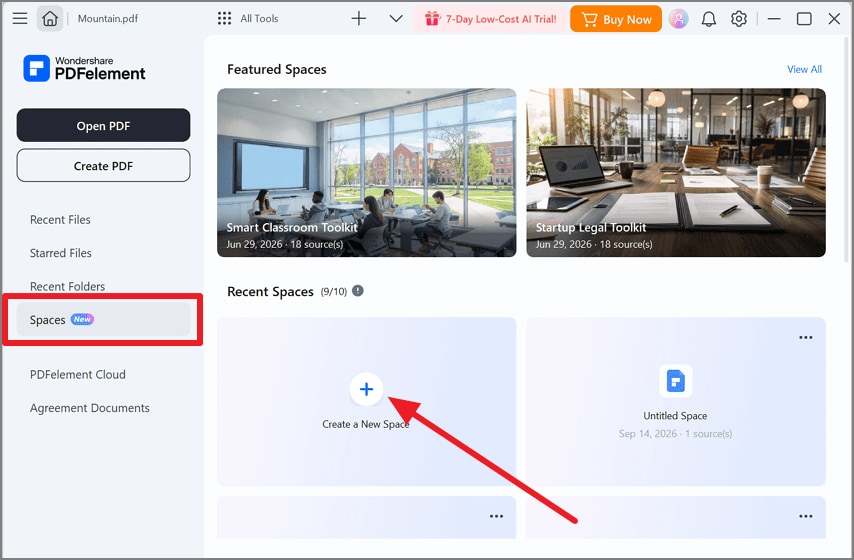
Step 1. Create a New Space
Open Spaces from the navigation menu, then select Create a New Space to begin.
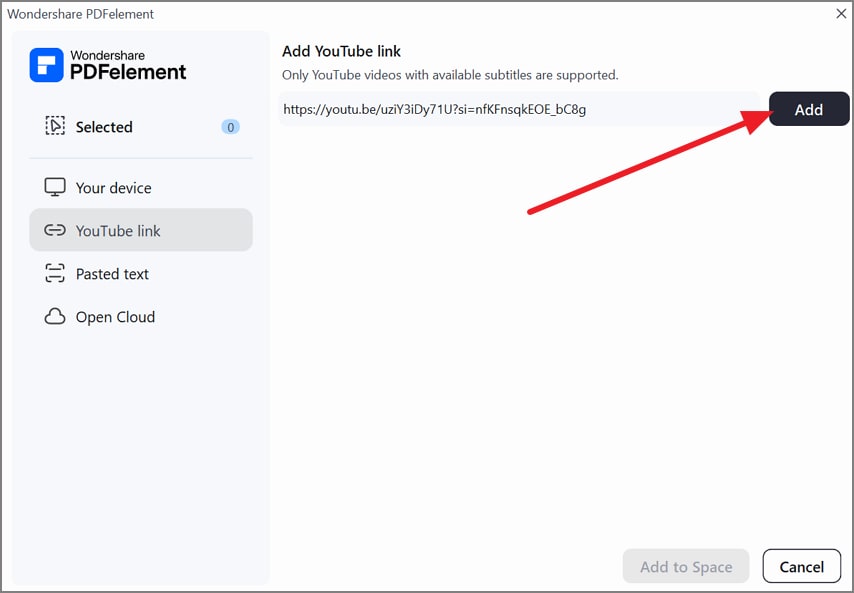
Step 2. Add the YouTube Lecture
Paste the lecture’s YouTube URL into the input field, then click Add to import its available captions.
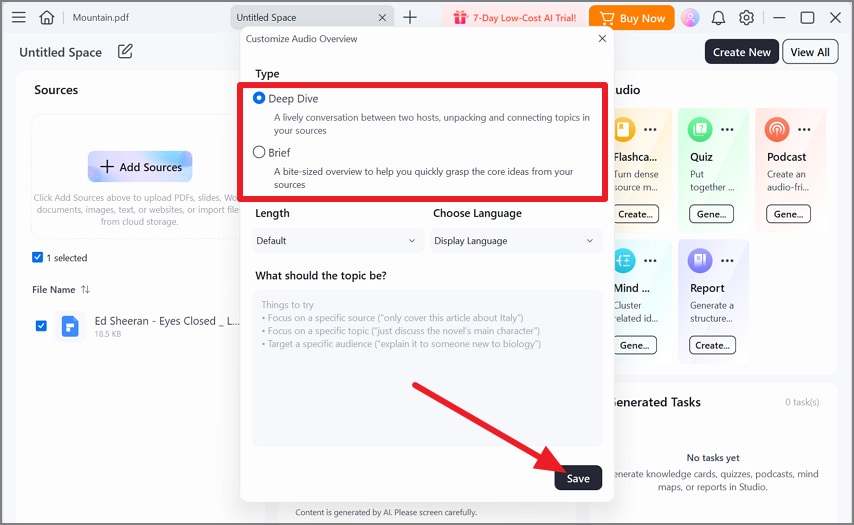
Step 3. Choose the Podcast Format
Navigate to the Studio, select the podcast settings, then choose Deep Dive or Brief based on the preferred episode length.
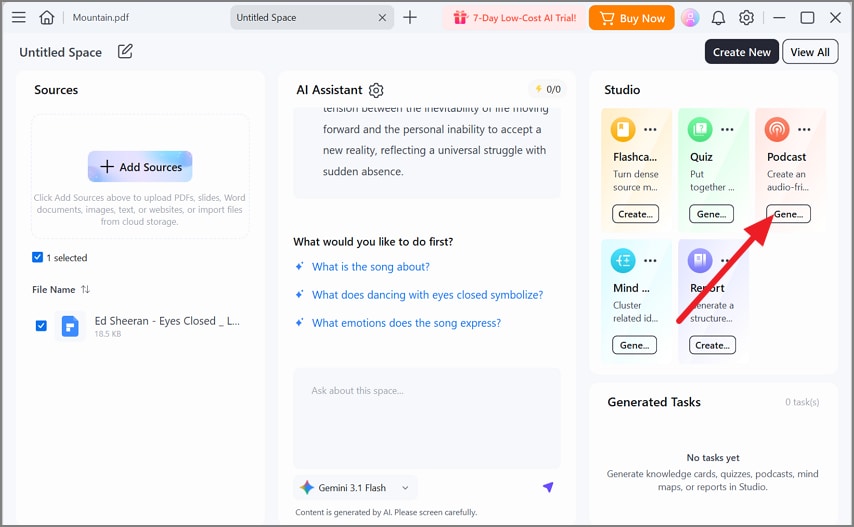
Step 4. Generate and Download
Click Generate under Podcast, review the transcript during playback, then save the finished episode as an MP3 file.
Frequently Asked Questions
1. Is using a YouTube to MP3 converter illegal?
The answer depends on what is downloaded and where you live. YouTube’s terms permit downloads only through features it offers, such as Premium’s in-app saves, or with written permission. Saving copyrighted music without permission can infringe copyright, and YouTube-mp3.org shut down in 2017 after a record label lawsuit.
2. Can I use a VPN to keep converting?
A VPN changes the address that requests come from, but shared VPN addresses often trip YouTube’s bot checks and request limits. Turning the VPN off, or running a desktop tool on your home connection, is usually the more reliable fix.
3. Why is the YouTube to MP3 converter not working on Chrome?
YouTube to MP3 not working errors in Chrome often trace to its download protections. Chrome may also block insecure downloads from secure sites, and Safe Browsing can stop a file it flags as dangerous. An ad blocker can also stop a converter’s page, so an Incognito test shows which layer is responsible.
Conclusion
When YouTube to MP3 not working errors appear, quick checks usually reveal whether the link, converter, browser, VPN, or connection is responsible. The 8 fixes address those common causes. For study-focused videos, PDFelement offers a practical alternative by turning lecture captions into Deep Dive or Brief podcasts with MP3 export.
G2 Rating: 4.5/5 |100% Secure
![[Comparison] Top YouTube Video to Notes Converters in 2026](https://images.wondershare.com/pdfelement/images2026/pdf-like-article-1.png)