PDF files keep the colors chosen by their authors, which may look crisp on paper but feel harsh on a screen after dark. A 240-page training manual can read comfortably at a sunny desk before lunch, then glare from the same laptop on the couch after dinner. Knowing how to change the color of a PDF makes that shift easier to manage.
Some methods adjust only the reading view, while others recolor the file itself. PDFelement supports both needs with six page backgrounds under "View > Background" and a Gray Print option. Background changes leave the saved PDF untouched.


 G2 Rating: 4.5/5 |
 100% Secure
In this article
Part 1. Display Color Changes Versus Permanent Color Conversion
One way to change the color of a PDF affects only how the document appears on screen. The manual keeps its original colors when it is emailed, saved, or printed. PDFelement's six options under "View > Background" work this way, as do display-based dark modes in browsers and operating systems.
Permanent changes work differently. In PDFelement, the Background tool under "Edit" can add a color, image, or PDF page behind the document content. Once you apply and save it, that background becomes part of the PDF. For nighttime reading, temporary color changes can improve comfort without altering the PDF itself. The American Optometric Association identifies glare, lighting, and screen contrast as factors that can contribute to digital eye strain.
Part 2. Reasons to Change PDF Colors
The reason you want to change the color of a PDF determines whether a temporary viewing adjustment is enough or the output itself needs attention. Most common needs relate to on-screen readability and appearance, while saving printer ink requires a different approach. Here is where each reason fits:
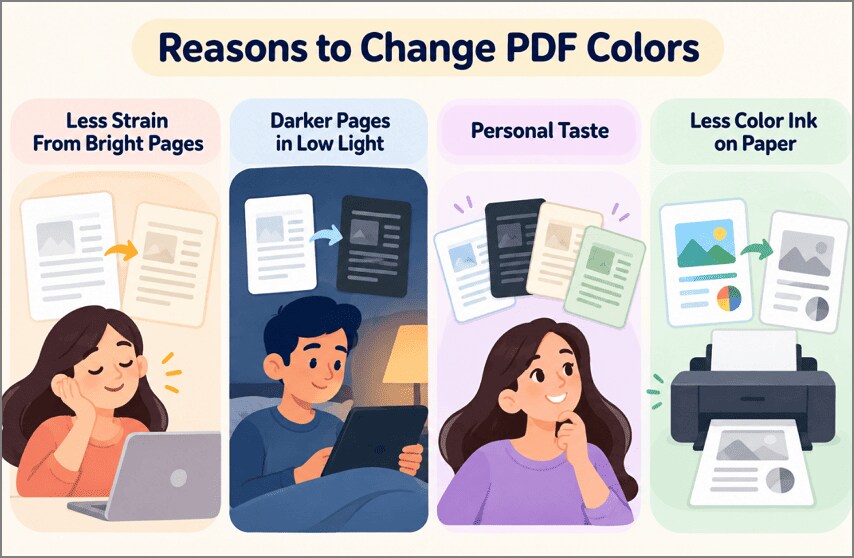
- Less Strain From Bright Pages: A 2025 study published in the Digital Journal of Ophthalmology found that reducing screen brightness significantly improved eye fatigue scores among participants. Choosing a softer PDF background can improve viewing comfort, but this study did not establish that PDF background changes reduce eye strain. Read the study.
- Darker Pages in Low Light: Wondershare's reader guide describes page backgrounds as useful when reading for extended periods or using a computer in a low-light environment.
- Personal Taste: Different readers prefer different page appearances. Wondershare offers options such as light, dark, parchment, and eye-protection-style views.
- Less Color Ink on Paper: Grayscale printing reduces reliance on color ink, though some printers may still consume color ink even when Black/Grayscale printing is selected.
Part 3. How to Change PDF Background Color for Reading
PDFelement, Wondershare's desktop app for Windows and macOS, keeps its reading backgrounds one menu deep, so the manual's colors can follow the daylight. Wondershare's Windows guide places them behind the View icon on the sidebar, close enough to change the color of a PDF mid-chapter. Follow the steps below to change the PDF background color for reading.
Before you begin, you will need to download PDFelement; simply click the button below to download it instantly.
G2 Rating: 4.5/5 |100% Secure
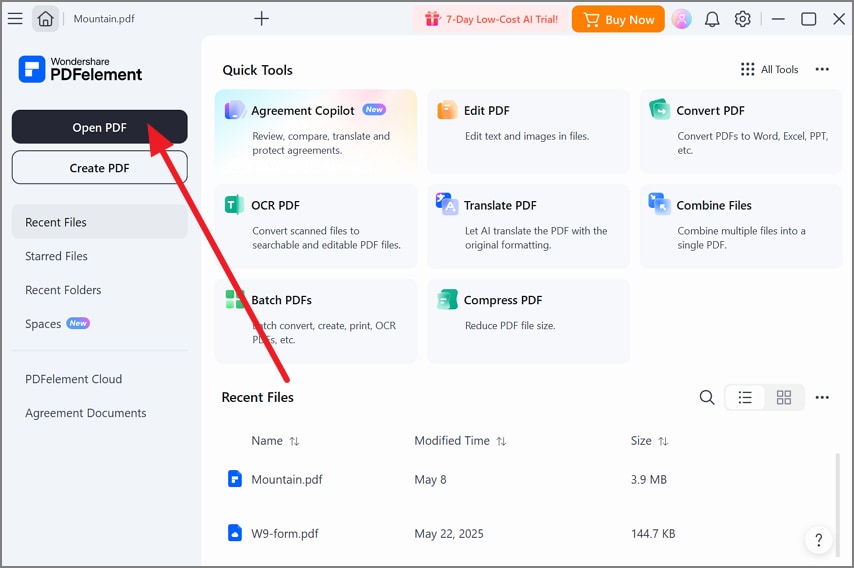
Step 1. Open the PDF Manual
Launch PDFelement and select "Open PDF," then choose the PDF from your device. You can also drag the file directly into PDFelement.
Step 2. Access the Background Options
Click "View" in the left sidebar, then select "Background" to see the six available reading backgrounds.
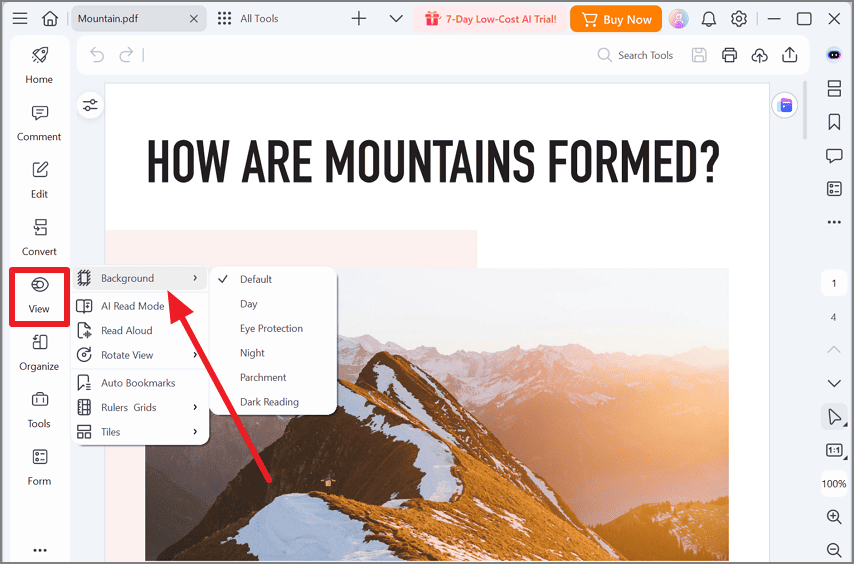
Step 3. Choose a Reading Mode
Pick a background that suits your lighting and reading preference. To restore the PDF's original appearance, return to "View > Background" and select "Default."
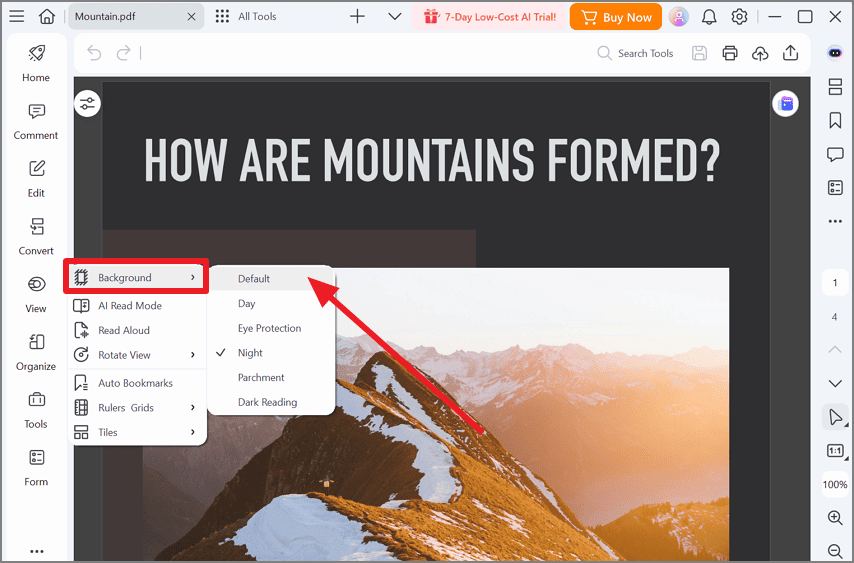
Matching the 6 Background Modes to Reading Situations
Choosing a background is less about finding one "best" mode and more about matching the page to your surroundings. Bright offices, long afternoon sessions, and dim rooms create different viewing conditions, so PDFelement provides six options for moving between them.
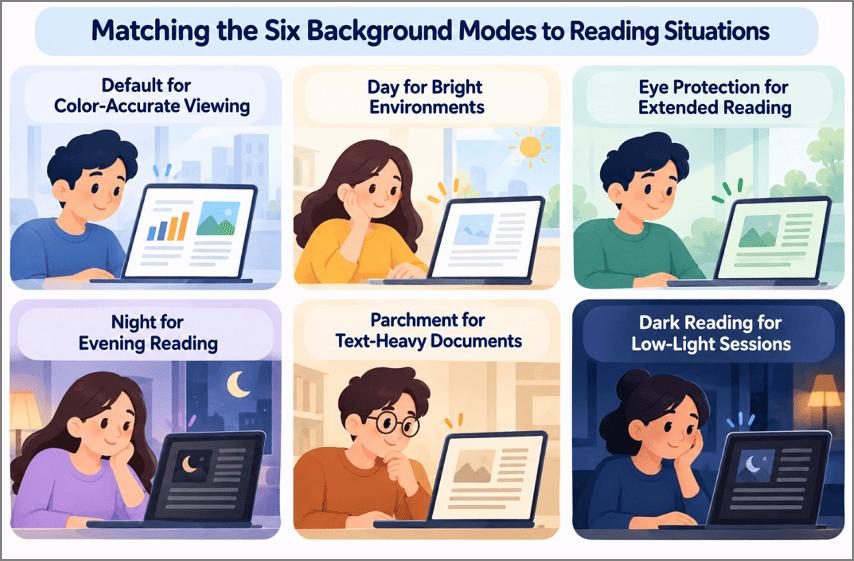
| Background Mode | Appearance | Recommended Situation |
| Default | Preserves the PDF's original appearance | Checking charts, brand colors, images, and other visually accurate details |
| Day | Keeps the page light | Daytime reading in a well-lit office or room |
| Eye Protection | Provides a softer viewing environment | Extended reading sessions, especially for readers who prefer a less harsh display |
| Night | Reduces the impact of a bright white page | Evening reading when room lighting is lower |
| Parchment | Gives pages a warmer, paper-like appearance | Manuals, reports, and other text-heavy PDFs |
| Dark Reading | Uses a dark page with light text | Late-night reading or very dim environments |
Part 4. How to Change a PDF to Grayscale for Printing
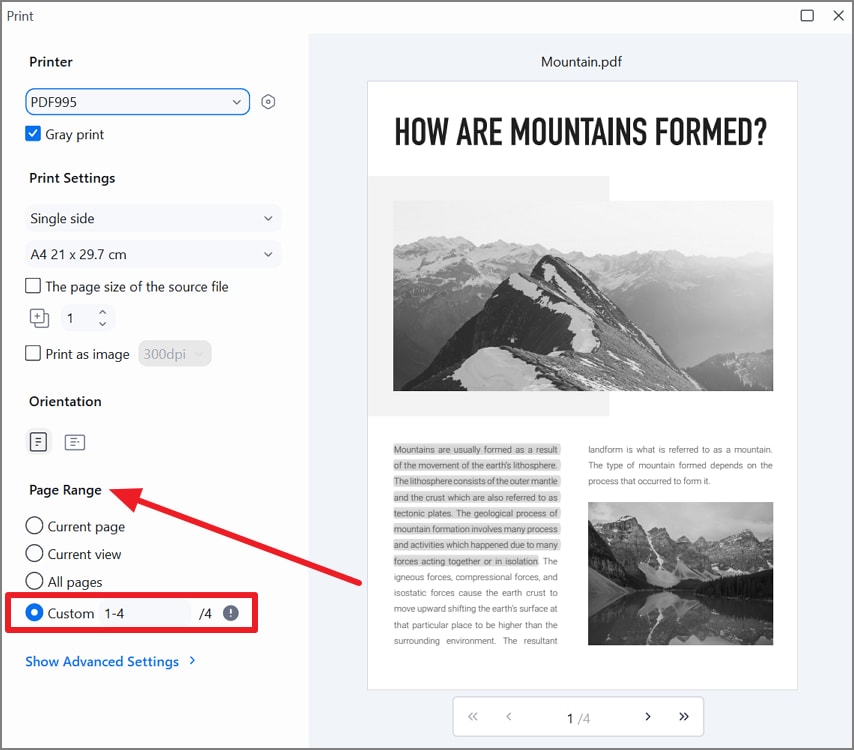
None of those six backgrounds transfers to paper, so the manual's two workshop chapters would still print in full color. PDFelement handles the printing side with a "Gray Print" checkbox at the top of its print window, right under the printer name. That checkbox can change the color of a PDF on paper while the original file stays in color.
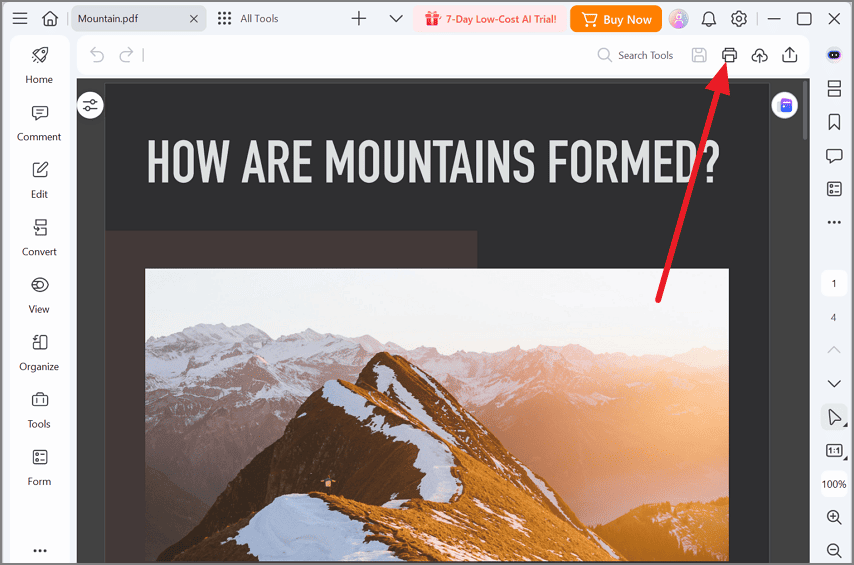
Step 1. Open the Print Window
The "Print" button on PDFelement's top menu bar opens the dialog, and "Ctrl+P" on Windows or "Command-P" on a Mac does the same.
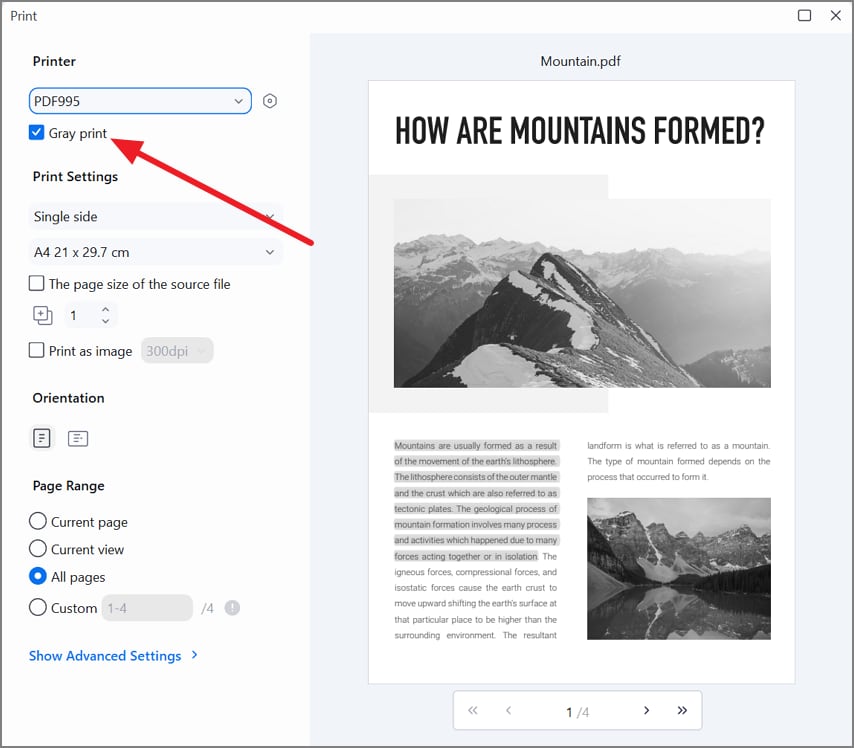
Step 2. Enable Gray Print
Select "Gray Print" under the printer name, and the preview on the right turns gray before a single page prints.
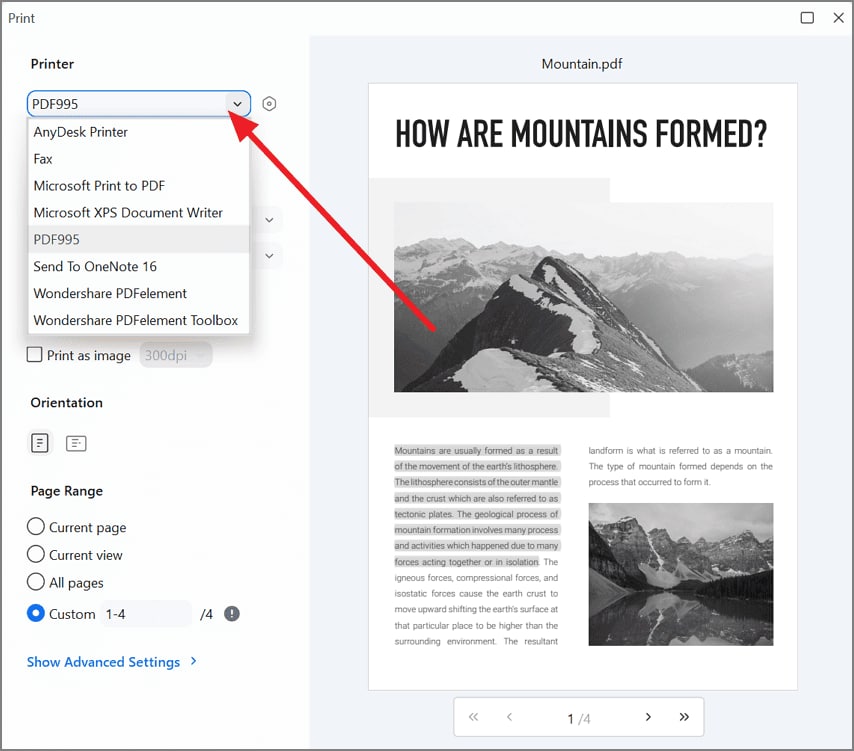
Step 3. Select the Output
Choose an available physical printer for paper copies. On Windows, select "Wondershare PDFelement" to create a grayscale PDF, then save the resulting file.
Step 4. Set the Page Range and Print
Under "Page Range," choose "Custom" and enter the pages containing the workshop chapters. Review the preview once more, then click "Print" to output only the selected pages in grayscale.
A grayscale preview also works as a proofreading check, since charts that rely on color alone turn into look-alike gray bars. Spotting that before the workshop leaves time to add text labels with PDFelement's editor.
Frequently Asked Questions
1. Can I change the color of my PDF?
Two levels exist when you change the color of a PDF, and PDFelement offers both under menus that share a name. "View > Background" changes how the page looks on your screen, while "Edit > Background" adds a new background to the file when you click "Apply."
2. How do I change a colored PDF to black and white?
Use PDFelement's printing workflow, with "Gray Print" selected and "Wondershare PDFelement" chosen as the printer. The result can be saved as a separate grayscale PDF, leaving the original color document unchanged.
3. How do I turn off PDF dark mode?
In PDFelement, selecting "Default" under "View > Background" restores the colors saved in the file. Elsewhere, turn off the setting that enabled the effect, such as the macOS Invert Colors switch or Acrobat Reader's Replace Document Colors option.
Conclusion
To change the color of a PDF for comfortable reading, display adjustments usually suffice. These options improve viewing without altering the document shared with other readers. Grayscale printing works differently because screen backgrounds do not transfer directly onto paper. PDFelement conveniently combines six reading backgrounds with a dedicated Gray Print option.
G2 Rating: 4.5/5 |100% Secure