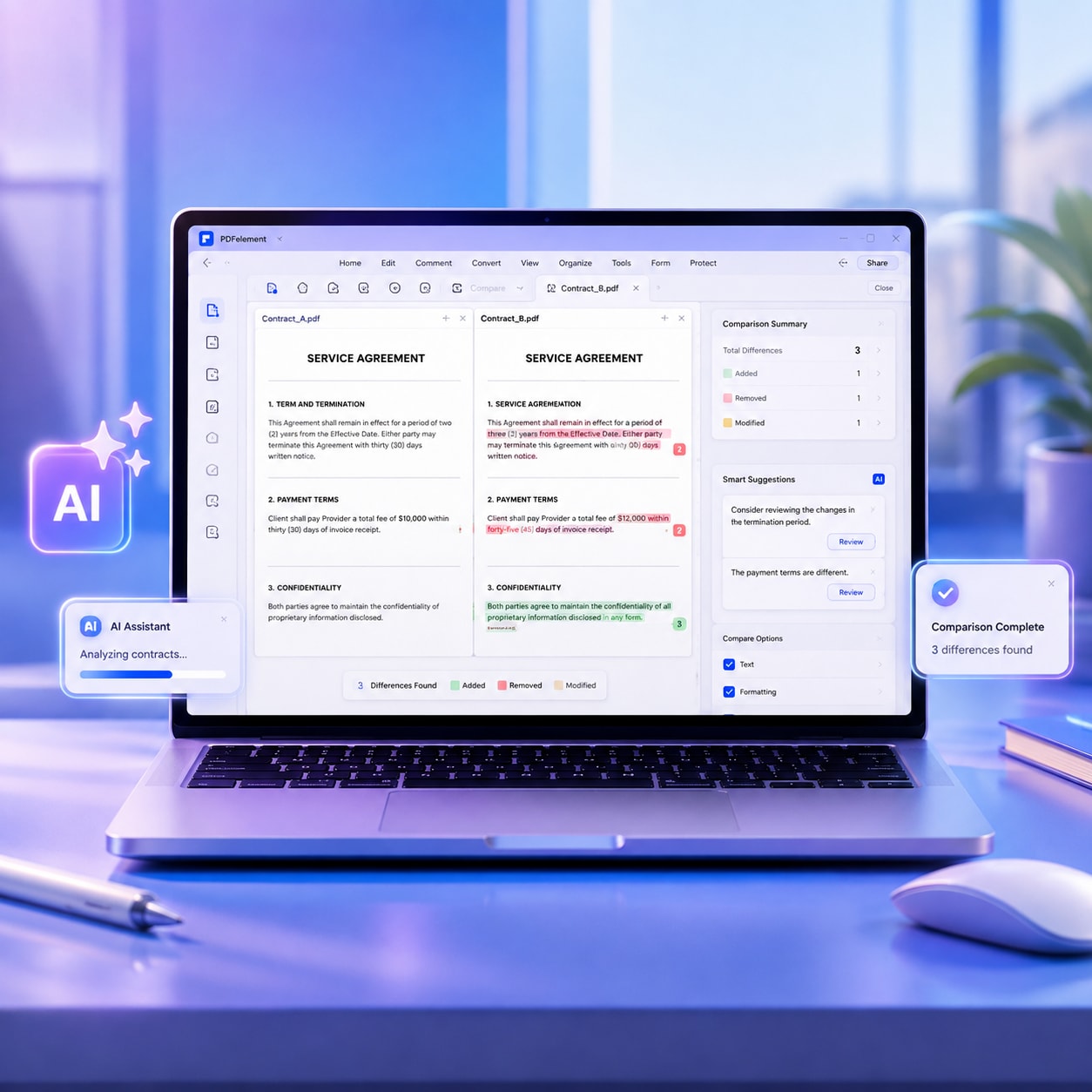
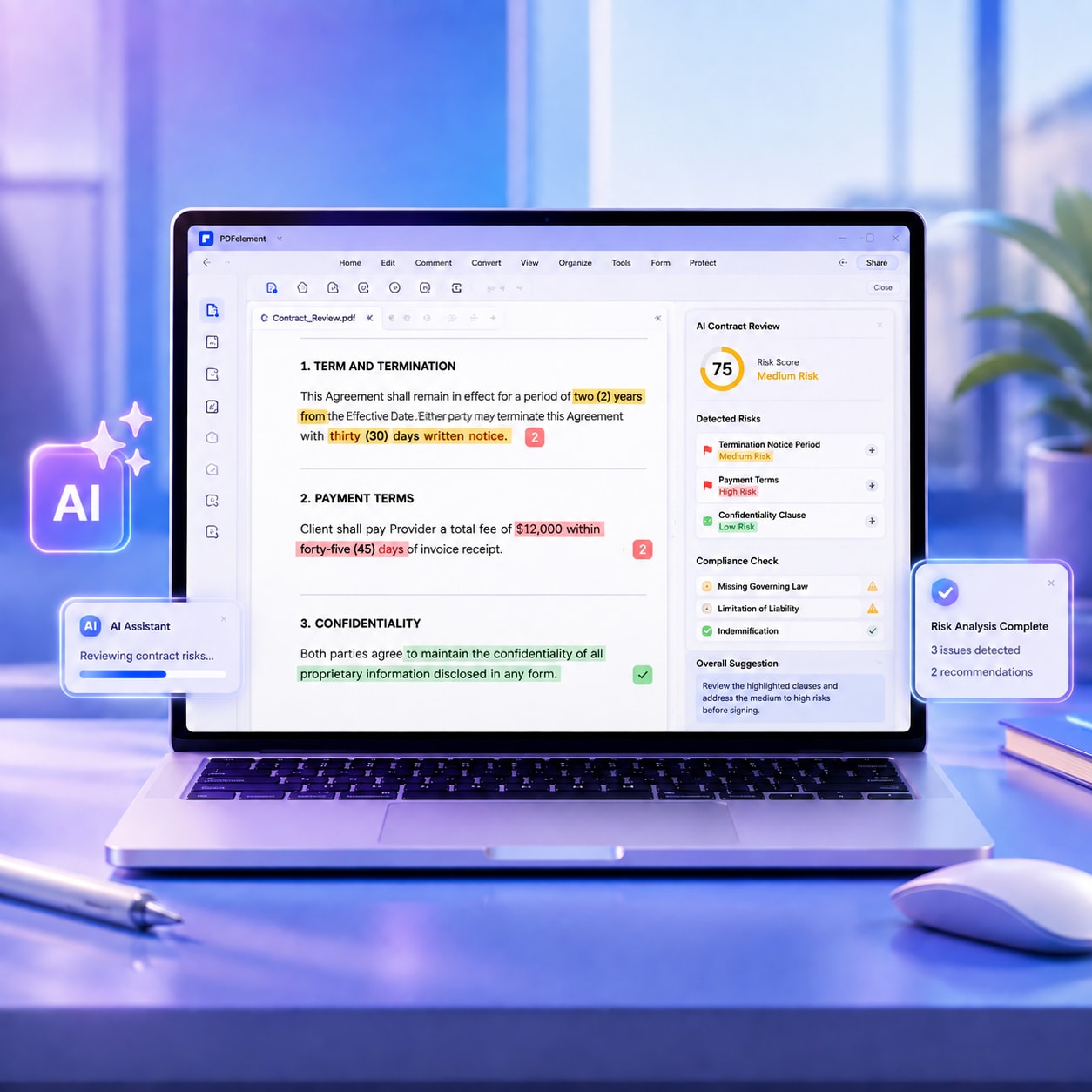
The foldable iPhone Duo, with its 7.6-inch inner display, provides more room for reading reports, reviewing study materials, and viewing PDF documents. However, a larger screen alone isn't enough to manage lengthy documents, fixed layouts, or content that needs updating.
With the right PDF tools, you can enjoy a more flexible reading experience, understand documents with AI assistance, and edit PDF content directly on your phone. This guide explores how PDFelement helps you make the most of these PDF capabilities on iPhone Duo.


 G2 Rating: 4.5/5 |
 100% Secure
In this article
Part 1. Read PDFs on iPhone Duo with PDFelement
The larger display of iPhone Duo makes reading lengthy PDFs more comfortable, whether you're reviewing business reports, studying textbooks, or checking contracts. A good PDF reader should also offer flexible viewing options and convenient tools for finding and understanding information.
PDFelement for iOS provides several features to improve PDF reading on iPhone Duo, from convenient navigation tools to AI-powered document assistance.
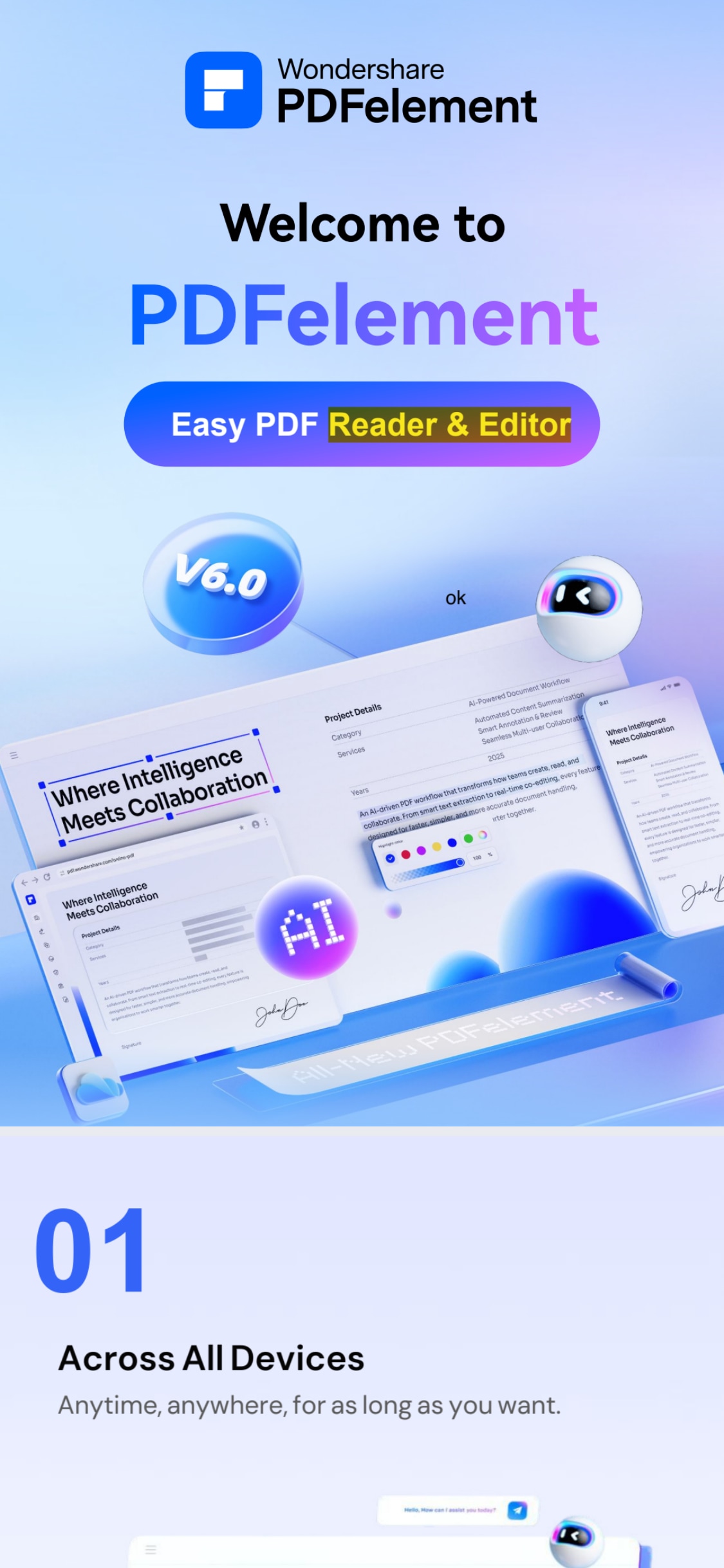
Flexible PDF Reading and Navigation
PDFelement supports multiple reading features that make PDFs easier to view and navigate:
- Dark Mode: Switch to a darker interface for a more comfortable viewing experience in low-light environments.
- Bookmarks: Save important pages and quickly return to specific sections.
- Text Search: Find keywords and phrases throughout a document without browsing every page.
- Read Aloud: Convert PDF text into speech for hands-free listening.
Together, these features make it easier to read and navigate lengthy PDF documents on iPhone Duo.
Understand PDFs with AI-Powered Reading Tools
Beyond traditional reading tools, PDFelement integrates AI features that help you understand PDF content more efficiently. Instead of manually searching through lengthy documents, you can use AI assistance to find information and understand key ideas.
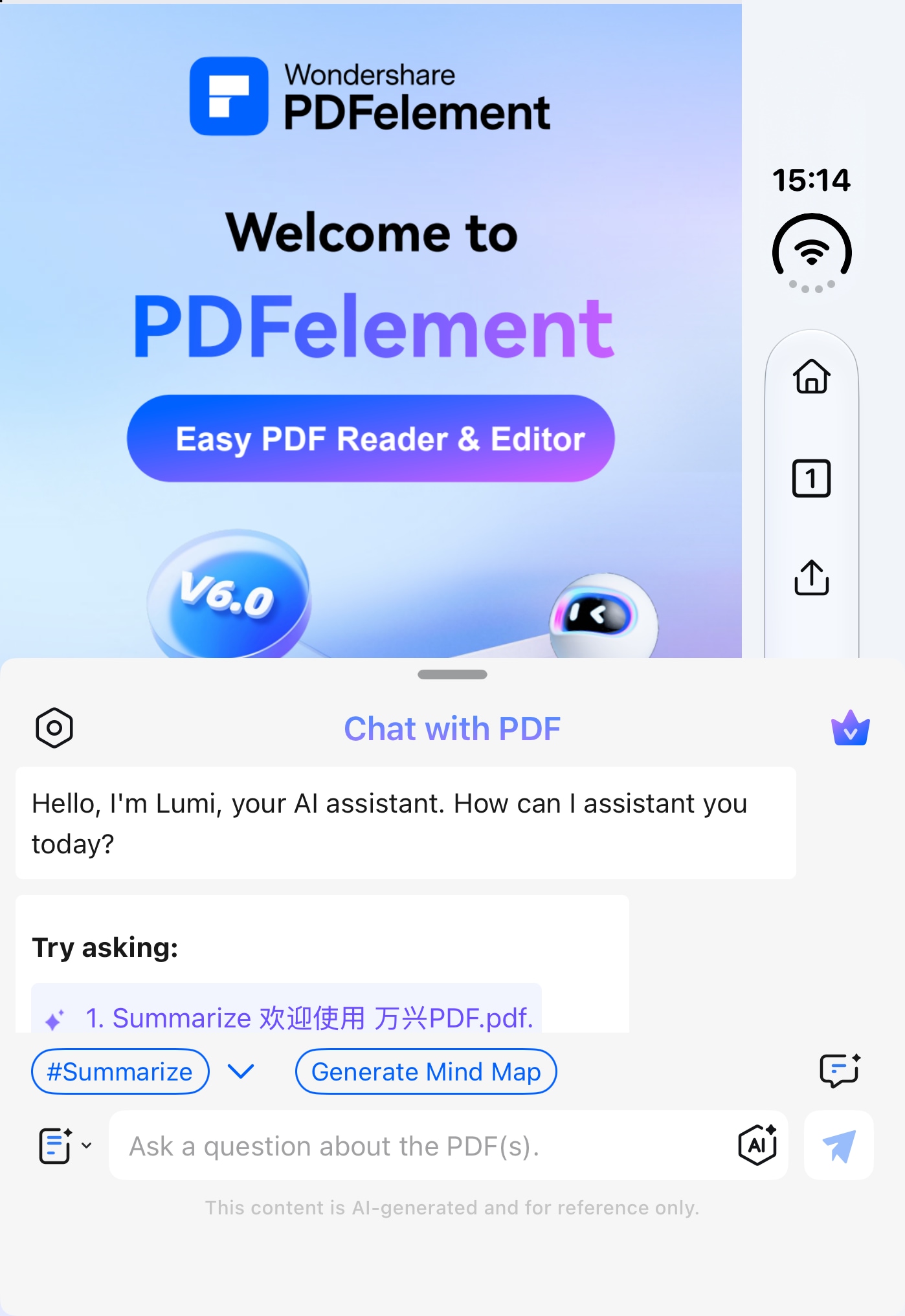
- Chat with PDF: Ask questions about a document and get AI-generated answers based on its content.
- AI PDF Summarizer: Extract key points and generate concise summaries of lengthy documents.
- Explain PDF: Get explanations of complex terms, concepts, and passages.
- AI Translation: Translate PDF content into different languages to make multilingual documents easier to understand.
These AI tools are particularly useful for students reviewing study materials and professionals working with lengthy reports or technical documents.
G2 Rating: 4.5/5 |100% Secure
Part 2. Edit PDFs on iPhone Duo with PDFelement
Besides reading PDFs, iPhone Duo users may also need to revise text, add notes, or highlight important information. PDFelement provides a range of PDF editing tools that make these tasks possible directly on your phone.
Edit PDF Text and Content
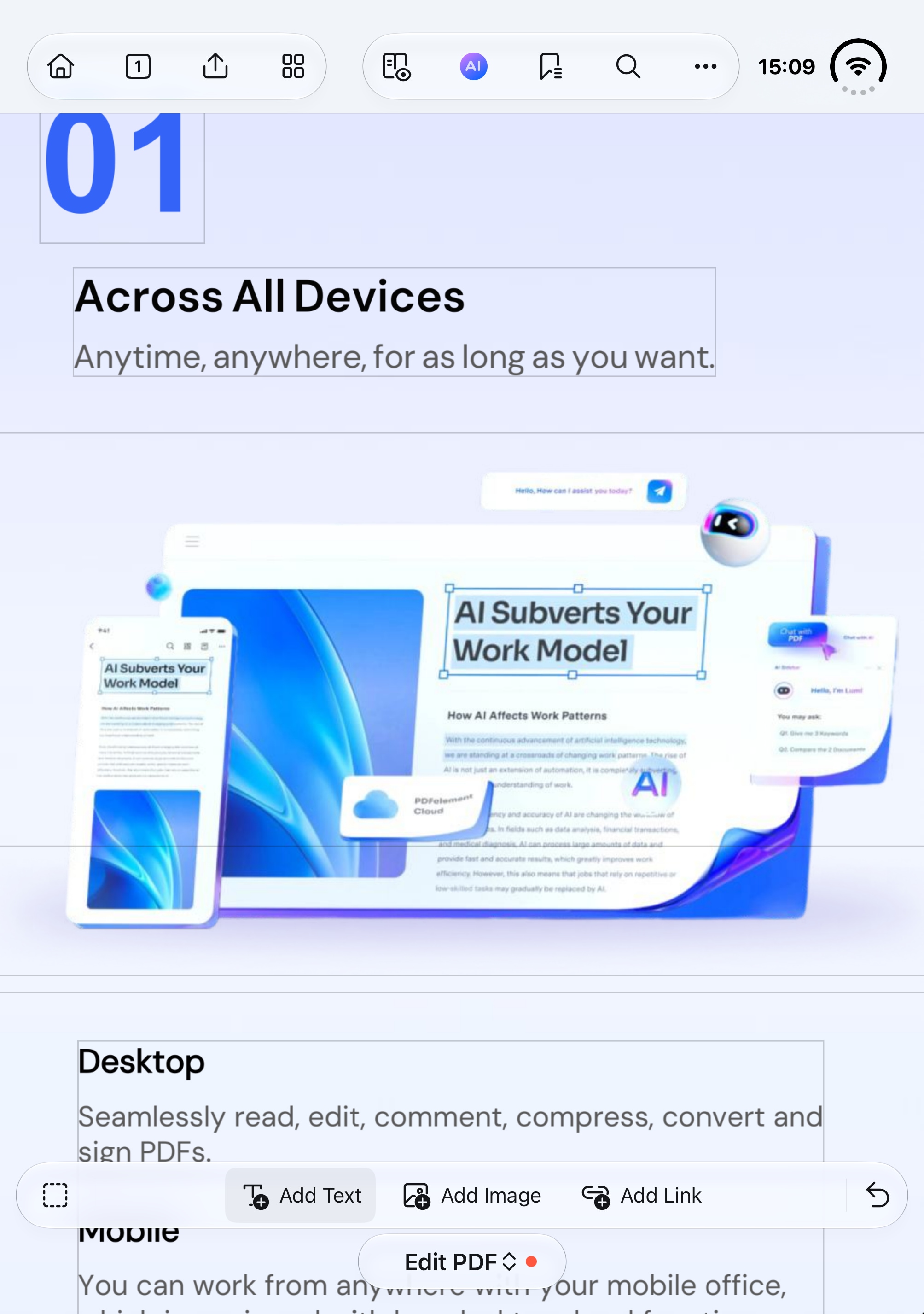
PDFelement allows users to modify existing PDF text and add new content without converting the document into another format first. You can correct mistakes, update information, insert additional text, and adjust font styles, sizes, and colors.
This is useful when you need to make quick changes to reports, business documents, or other PDFs while away from your computer.
Annotate and Mark Up PDF Documents
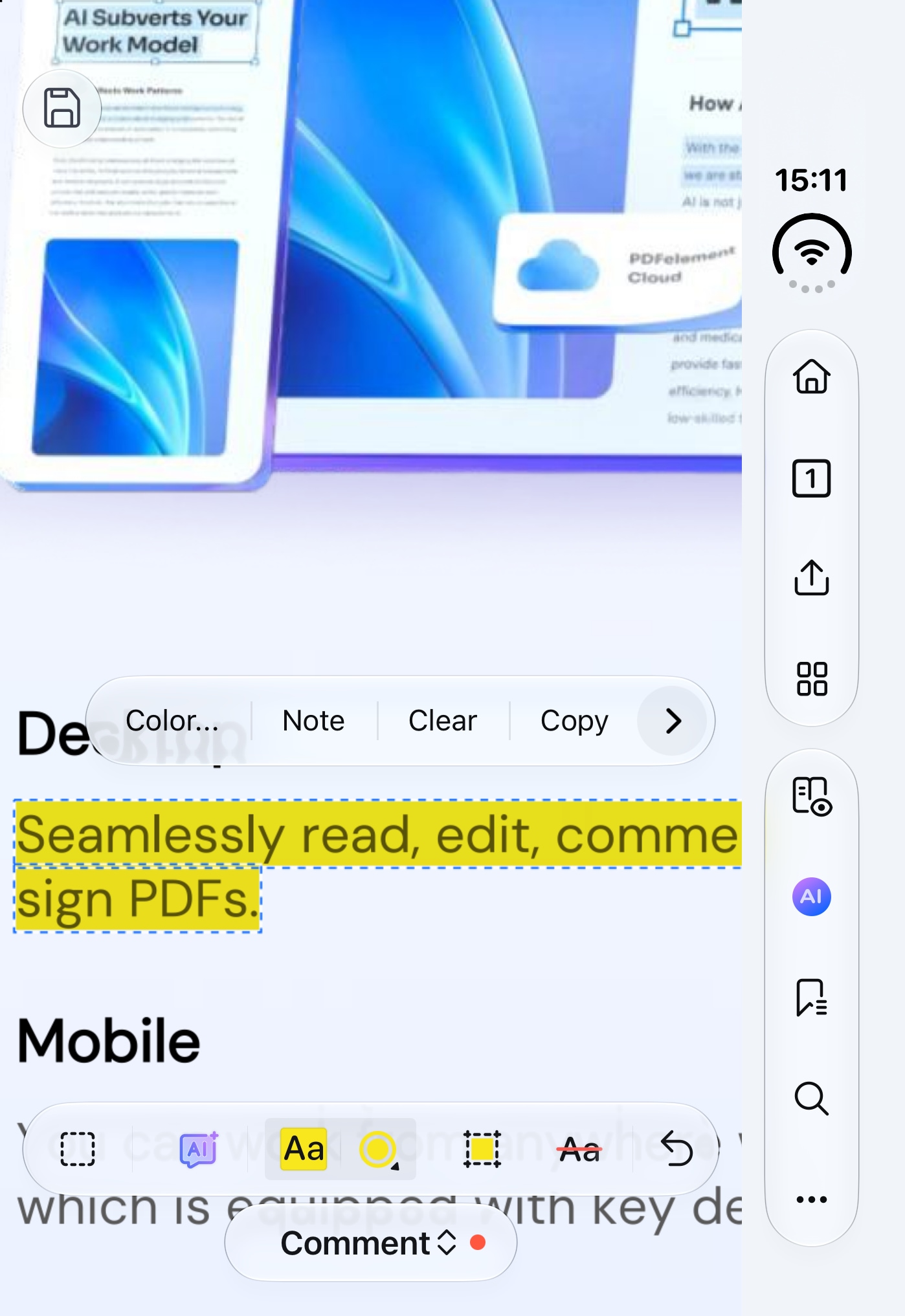
For document reviews and study sessions, PDFelement offers various annotation tools to help users organize information and provide feedback. You can highlight or underline important text, add sticky notes and comments, draw directly on PDF pages, and insert shapes or stamps. Electronic signatures are also available for signing documents.
These tools make it easier to review documents, record ideas, and mark important details while using iPhone Duo.
Part 3. More PDF Features Available in PDFelement
Beyond reading and editing, PDFelement offers additional tools for managing PDF documents on iPhone Duo. These features help you handle different document tasks without switching between multiple apps:
PDFelement brings additional PDF tools together for document conversion, organization, and form management.
- PDF Conversion: Convert PDFs into editable formats such as Word, Excel, and PowerPoint, as well as image and text formats.
- OCR: Recognize text in scanned PDFs and images, making document content searchable and easier to work with.
- Merge PDF: Combine multiple PDF files into one document for easier organization and sharing.
- Compress PDF: Reduce file sizes to make PDFs easier to store and share.
- Fill and Sign PDF Forms: Complete PDF forms and add electronic signatures directly on your phone.
These additional capabilities make PDFelement a versatile tool for handling different PDF tasks beyond everyday reading and editing.
G2 Rating: 4.5/5 |100% Secure
Frequently Asked Questions
Can I edit PDF text directly on iPhone Duo?
Yes. PDFelement for iOS supports editing existing PDF text and adding new content without first converting the document to Word. It also provides formatting controls such as font, size, color, and alignment. Scanned PDFs may require OCR first.
Can I edit a scanned PDF on my iPhone Duo?
PDFelement's OCR recognizes text in scanned documents and makes it available for editing and searching. Clear scans provide a better starting point, and recognized text should be reviewed for errors.
Can I use Apple Pencil to annotate PDFs on iPhone Duo?
iPhone Duo supports Apple Pencil (USB-C). In a PDF app that supports Pencil input, you can use it for handwritten notes, drawings, and document markup. The available annotation tools depend on the app you choose.
Can I read a PDF and take notes side by side on iPhone Duo?
iPhone Duo supports Split View multitasking in landscape orientation. With compatible apps, this allows you to keep a PDF visible alongside a note-taking app, making it useful for studying, recording observations, or consulting reference material while writing.
Final Takeaway
iPhone Duo's larger foldable display provides a more flexible way to read and work with PDF documents on a smartphone. With PDFelement, you can enjoy convenient PDF reading, AI-powered document assistance, direct text editing, annotations, and page management.
From reviewing study materials to updating business documents, PDFelement brings essential PDF tools together to help you get more done on iPhone Duo.
G2 Rating: 4.5/5 |100% Secure