Mac and iPhone play different but complementary roles in everyday work. You might scan a receipt or capture a document on your iPhone, edit a report on your Mac, and review or sign a PDF while away from your desk. However, moving between devices can involve extra steps, especially when you need to edit, organize, or access the same documents.
With PDFelement for Mac and iOS, you can bring essential PDF tools to both devices and create a more connected workflow, from capturing paper documents to editing and reviewing files on the go.


 G2 Rating: 4.5/5 |
 100% Secure
In this article
Build a Connected PDF Workflow Across Mac and iPhone
Mac and iPhone offer different advantages when it comes to working with PDFs. A Mac provides a larger screen and a desktop environment for detailed document editing, format conversion, and file organization. An iPhone, on the other hand, makes it easier to capture documents, read files, add quick annotations, and handle tasks while away from your desk.
However, switching between devices can sometimes interrupt your workflow. You may need to transfer files manually, locate the latest document version, or switch between different apps to complete specific PDF tasks. Although Apple offers built-in features such as AirDrop, Handoff, and iCloud to connect devices and share files, these features do not replace the dedicated tools needed for more advanced PDF editing, conversion, and document management.
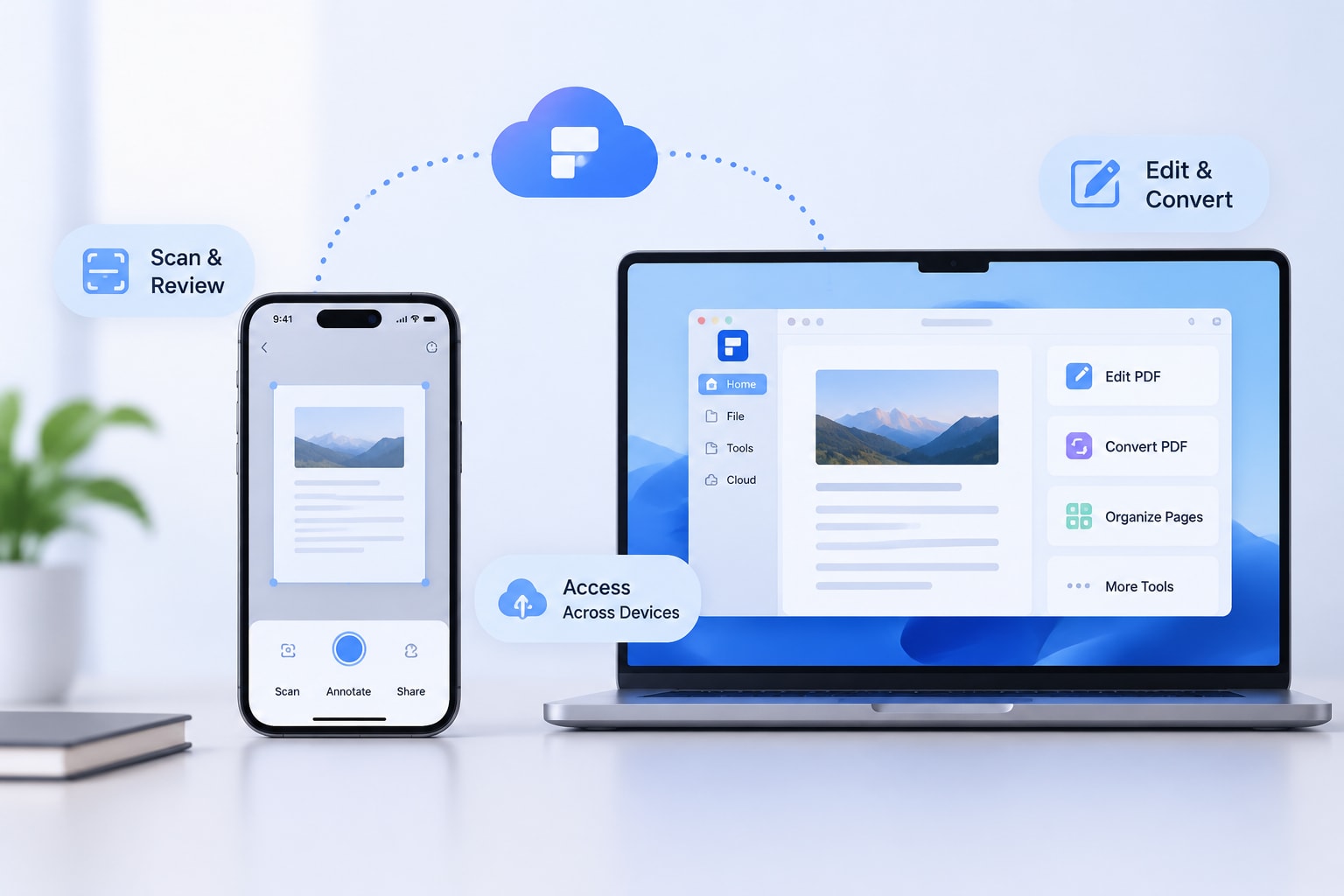
This is where PDFelement comes in. With dedicated Mac and iOS apps, PDFelement provides PDF tools for different stages of your work. You can use your iPhone to scan and review documents, turn to your Mac for more advanced editing and processing, and use supported cloud and Apple integration features to access and transfer files across devices. This makes it easier to handle PDF tasks without relying on separate tools for every step.
G2 Rating: 4.5/5 |100% Secure
Capture and Digitize Documents with PDFelement on iPhone
Not every PDF workflow starts with an existing digital document. You may receive a printed contract, a stack of receipts, paper invoices, or handwritten class notes that need to be converted into digital files before you can edit or organize them.
Your iPhone is a convenient tool for capturing these documents wherever you are. With PDFelement for iOS, you can turn paper documents into PDFs and prepare them for further processing on your Mac.
Edit, Convert, and Manage PDFs on Mac
After capturing and organizing documents on your iPhone, you can use PDFelement for Mac to handle more demanding PDF tasks. Its desktop environment makes it easier to work with longer documents, adjust content precisely, and manage multiple files.
G2 Rating: 4.5/5 |100% Secure
Edit PDF Content and Organize Pages
Whether you are reviewing a scanned contract, updating a business report, or preparing study materials, PDFelement for Mac provides tools to modify and organize PDF documents.
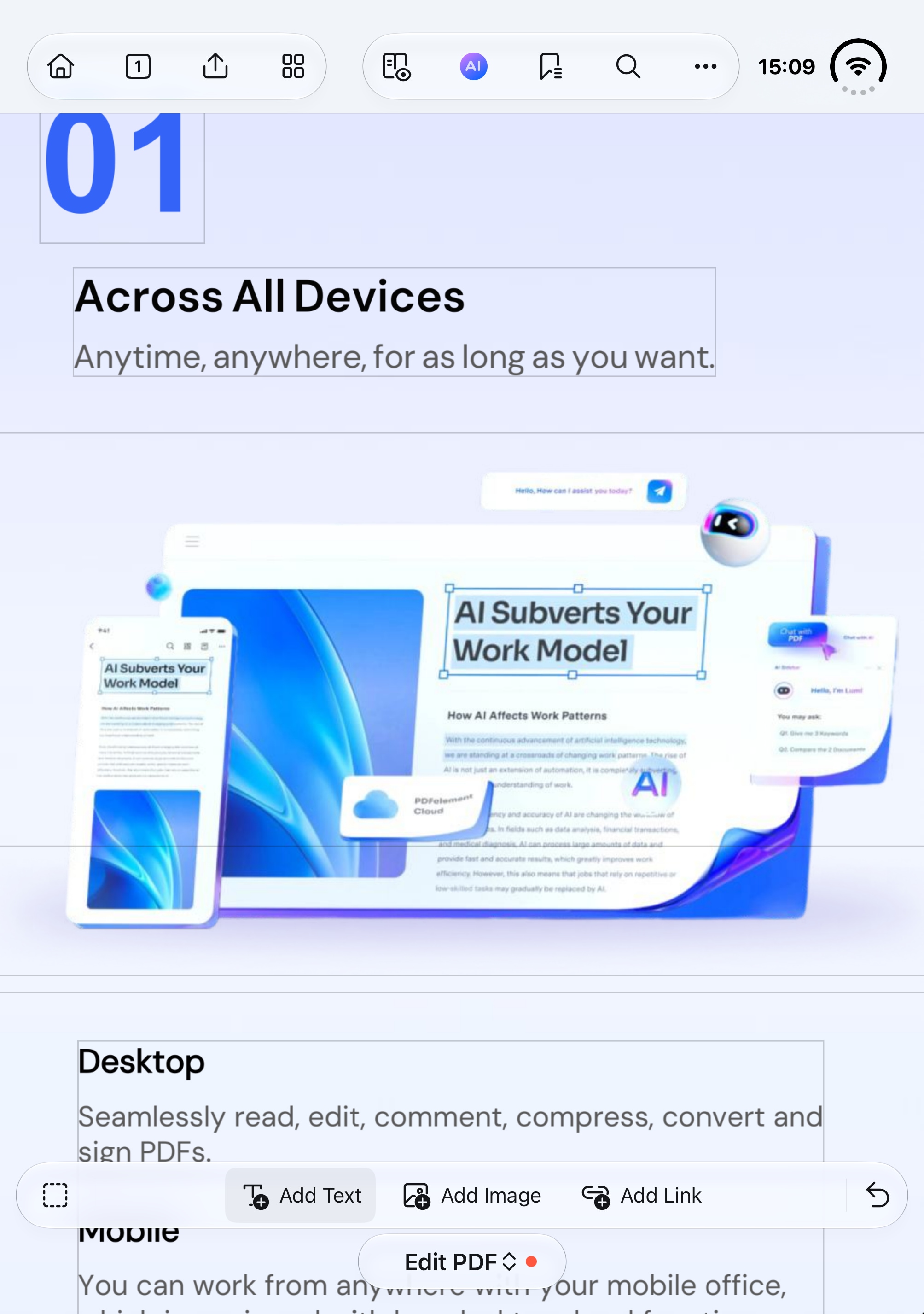
You can edit existing text, images, and links, as well as adjust fonts, formatting, and layouts to make changes to your document. If the original file contains unnecessary or incorrectly ordered pages, you can insert, delete, extract, or rearrange pages as needed. You can also add elements such as watermarks, headers, footers, and page numbers to create a more polished result.
Convert and Process Multiple PDFs Efficiently
Beyond editing, PDFelement helps you handle PDF conversion and repetitive document processing tasks on Mac.
When working with multiple documents, batch processing tools can help reduce repetitive work. You can convert several PDFs in one operation, apply OCR to multiple scanned files, and compress or combine documents for easier storage and sharing.
Review, Sign, and Share PDFs on iPhone
PDF work does not always end when editing is complete. You may need to review a document before a meeting, check a contract while traveling, or sign a form without returning to your desk. With PDFelement for iOS, you can continue handling important PDF tasks directly on your iPhone.
G2 Rating: 4.5/5 |100% Secure
Read and Annotate PDFs Anytime
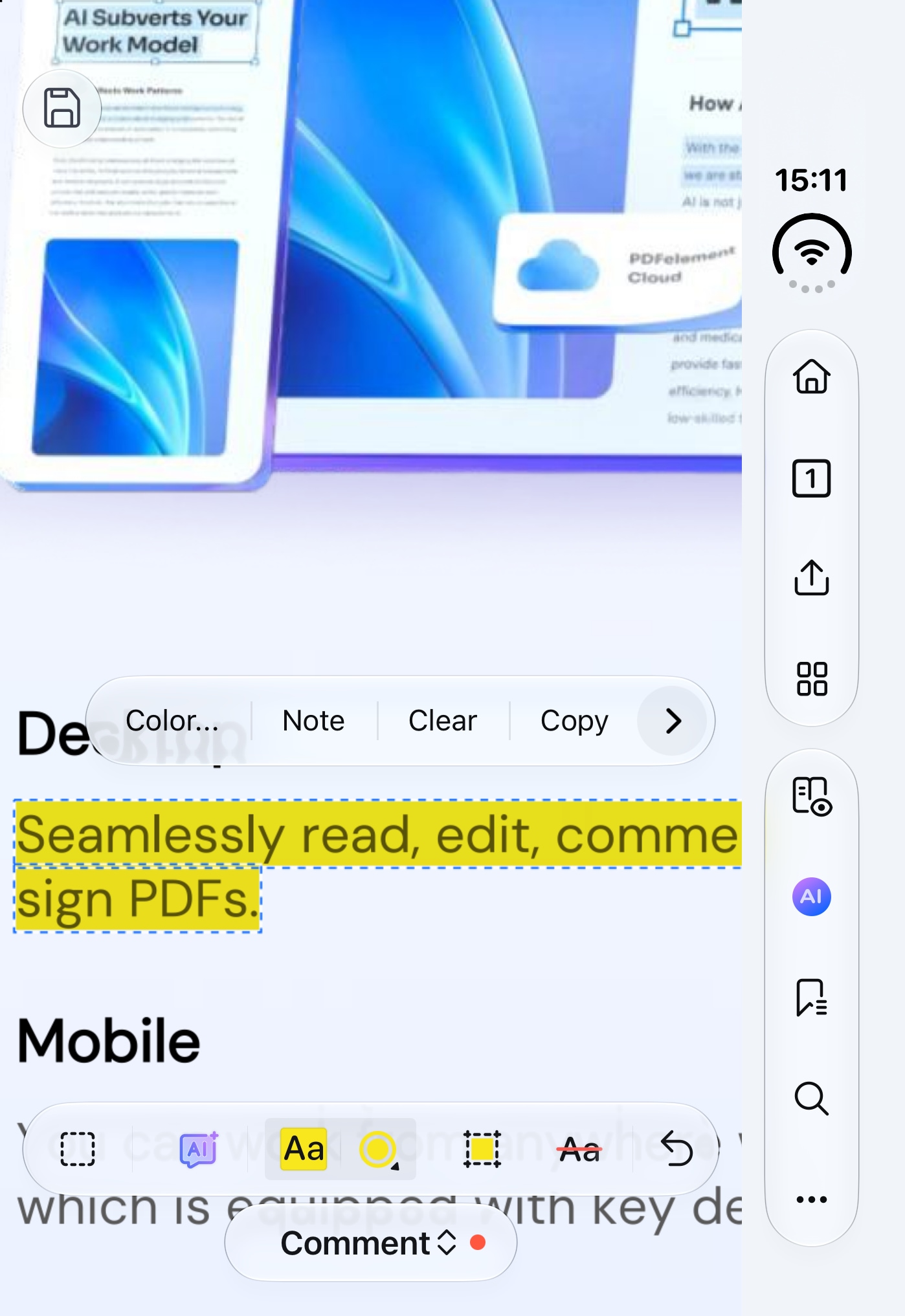
Your iPhone allows you to access and review documents wherever you are. With PDFelement, you can open PDFs, navigate through pages, and use annotation tools to mark important information.
For example, you can highlight key passages in a business report, underline important clauses in a contract, or add comments to sections that need further discussion. Bookmarks can also help you return to specific pages in longer documents without scrolling through the entire file.
These features are useful when reviewing documents during a commute, preparing for a meeting, or checking study materials between classes. Instead of waiting until you have access to your Mac, you can review important information and make quick notes on your iPhone.
Fill Out and Sign PDF Forms on the Go
When a document requires your signature or additional information, PDFelement for iOS lets you complete these tasks without relying on a desktop computer.
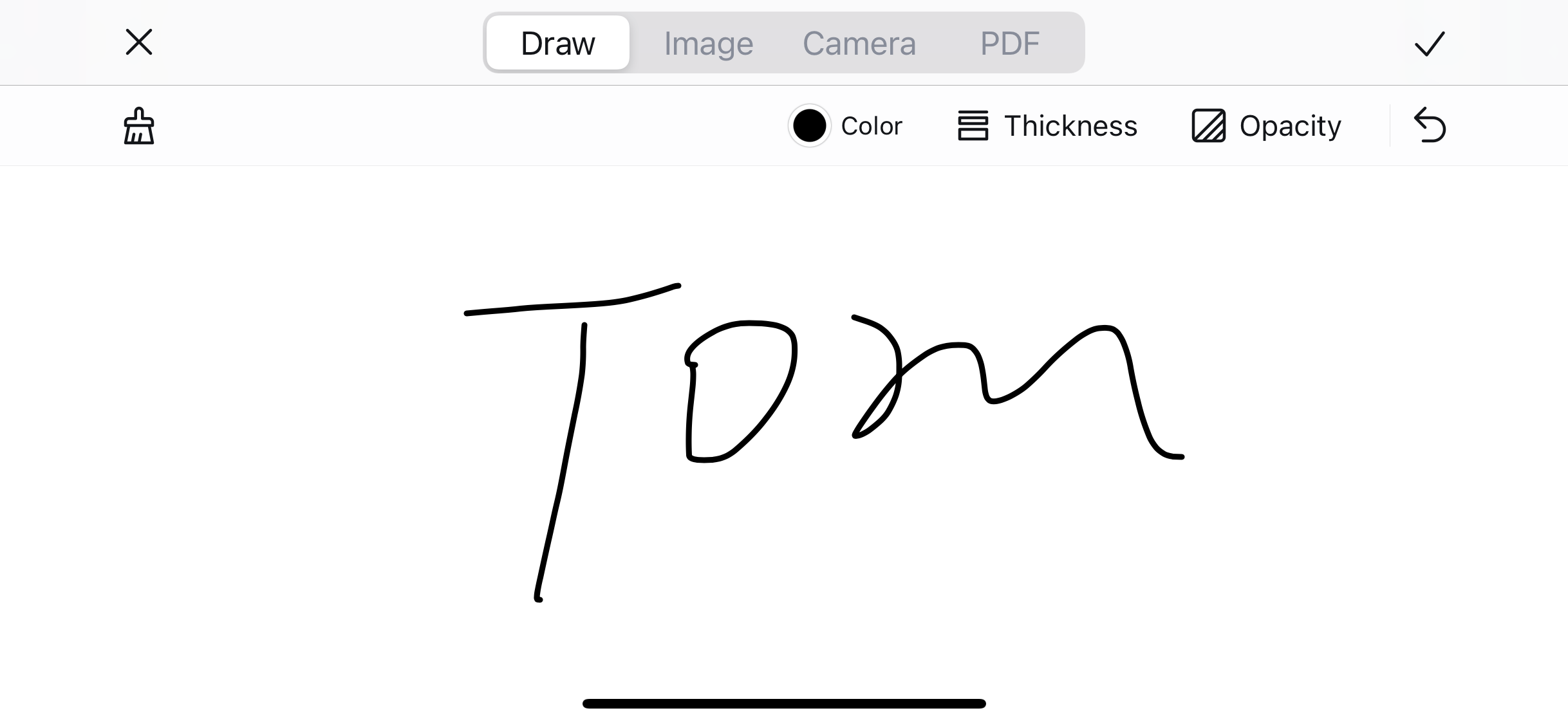
You can fill in PDF form fields, enter text, select checkboxes, and add electronic signatures using your iPhone. If you frequently sign documents, you can also save and reuse your signature where supported, making the process more convenient.
For instance, after preparing a contract or application form on your Mac, you may need to review and sign it while away from the office. Simply open the PDF on your iPhone, complete the required fields, add your signature, and share the finished document through your preferred method.
This makes it easier to handle time-sensitive paperwork, whether you are traveling, attending a meeting, or working remotely.
Final Thoughts
A more efficient PDF workflow means having the right tools available at every stage of your work. With PDFelement for iOS, you can capture paper documents, read PDFs, add annotations, and sign forms wherever you are. On Mac, you can take care of more advanced editing, conversion, OCR, and document management tasks.
By bringing these capabilities together, PDFelement helps you handle PDF tasks across your Apple devices with greater flexibility, whether you are working at your desk or on the go.
G2 Rating: 4.5/5 |100% Secure