A box of handwritten notes, research notebooks, or completed forms creates the same problem. Their information stays difficult to search, edit, or reuse until someone types everything manually. For larger collections, that quickly becomes tedious and impractical.
Handwriting OCR can remove much of that work, especially with clear modern writing. Accuracy becomes less predictable with cursive, mixed handwriting, and poor scans, making tool choice important. Below, we compare 5 options for different documents and explain 6 scanning habits that can improve recognition results.


 G2 Rating: 4.5/5 |
 100% Secure
In this article
Part 1. What Handwriting OCR Is
Optical character recognition converts text in an image into machine-readable characters that can be searched, copied, and edited. When the source contains handwriting rather than printed text, the task is more precisely known as handwritten text recognition (HTR).
Handwriting OCR vs. Traditional OCR
Printed OCR generally has an easier recognition problem because typefaces contain relatively consistent character shapes and spacing. Handwriting introduces much greater variation. Letter shapes can change between writers, within the same document, and even within a single word.
Modern systems also differ from older recognition methods. Rather than simply matching characters against stored typefaces, contemporary OCR and HTR systems can use machine-learning models to learn visual patterns and contextual relationships. A 2025 survey of handwritten text recognition research traces this shift from early heuristic approaches to modern neural models while identifying handwriting variability as an ongoing recognition challenge.
| Aspect | Traditional OCR | Handwriting OCR |
| Matching Basis | A finite library of known typefaces | Patterns learned from millions of samples |
| Character Separation | Letters sit apart and divide cleanly | Cursive connects strokes, blurring boundaries |
| Main Obstacle | Scan quality and unusual fonts | Variation between writers, and within one page |
| How Errors Appear | Garbled characters and obvious nonsense | Plausible words that read as though correct |
The differences matter when checking the output. Modern handwriting recognition systems can use surrounding characters or words to resolve uncertain writing. Context can improve recognition, but it also means an incorrect prediction may still look linguistically plausible. For important documents, therefore, check recognized handwriting against the original image rather than assume it is accurate.
Part 2. How to Perform Handwriting OCR
Choosing the right tool for OCR from handwriting depends on your document type and what you plan to do with the extracted text. The 5 options below cover different needs, from everyday notes and PDFs to historical documents and larger transcription projects:
1. Wondershare PDFelement: Best for PDF-Based Handwriting OCR
Scanned handwritten PDFs often become awkward when you need to edit the text. Basic recognition tools may extract words but leave document management for later. That adds extra steps when you need corrections, annotations, or page changes. A more complete PDF workflow can keep those tasks together efficiently.
PDFelement addresses this problem by combining recognition with PDF editing tools. It converts scanned handwriting into searchable and editable PDF content for reuse. You can then correct text, annotate pages, and reorganize documents directly. This makes PDFelement especially practical for handwriting stored primarily within PDF files.
How to Use PDFelement For Handwriting OCR
Running the recognition itself takes 4 steps from a fresh scan to a searchable file:
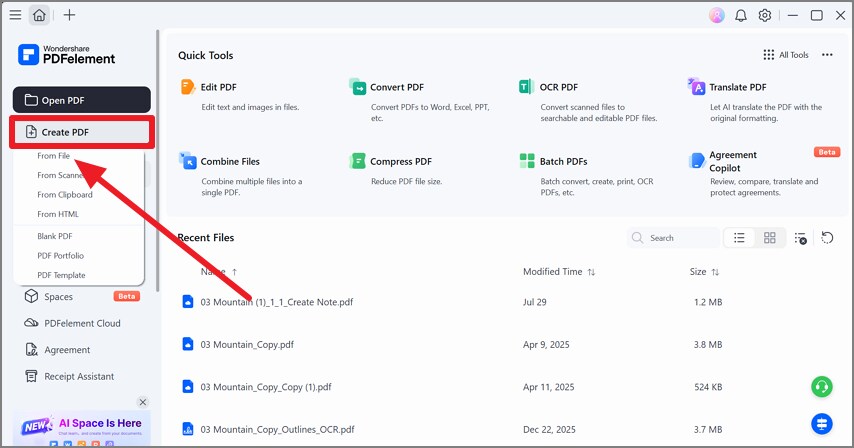
Step 1. Create a PDF From Your Scan
Open PDFelement and select “Create PDF” from the left sidebar. Choose “From File,” then select the scanned document you want to process.
Step 2. Access the OCR Tool
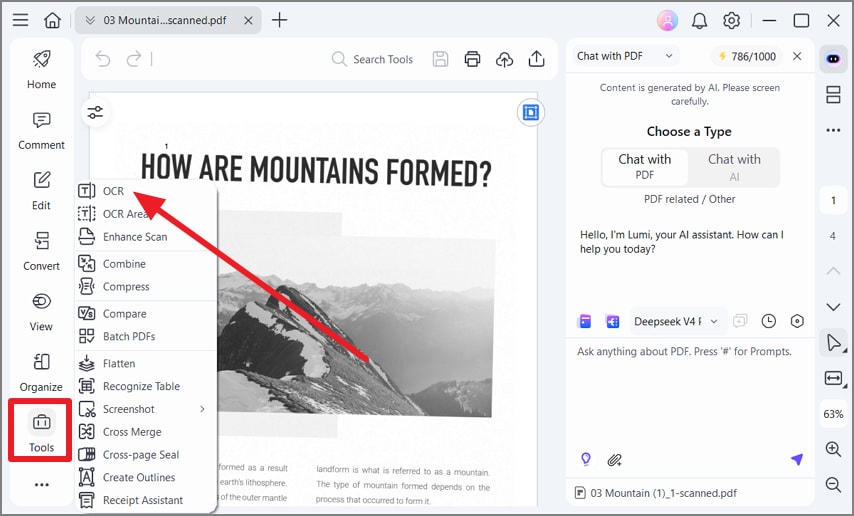
Once the scanned PDF is open, select “Tools” from the left sidebar. Choose “OCR” from the tools menu to open the recognition settings for your document.
Step 3. Choose Your OCR Settings
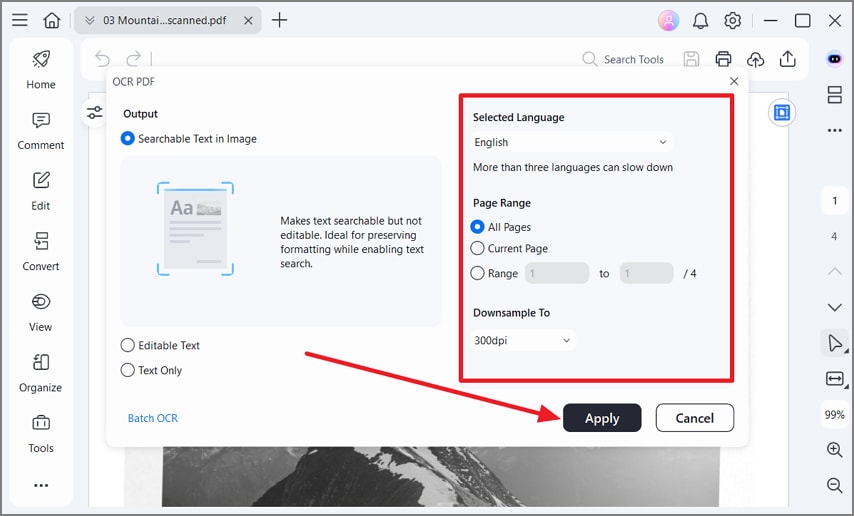
Select the desired output, such as “Searchable Text in Image,” “Editable Text,” or “Text Only.” Choose the recognition language and page range, then click “Apply” to begin processing.
G2 Rating: 4.5/5 |100% Secure
2. PenToPrint: Best for Dedicated Handwriting Conversion
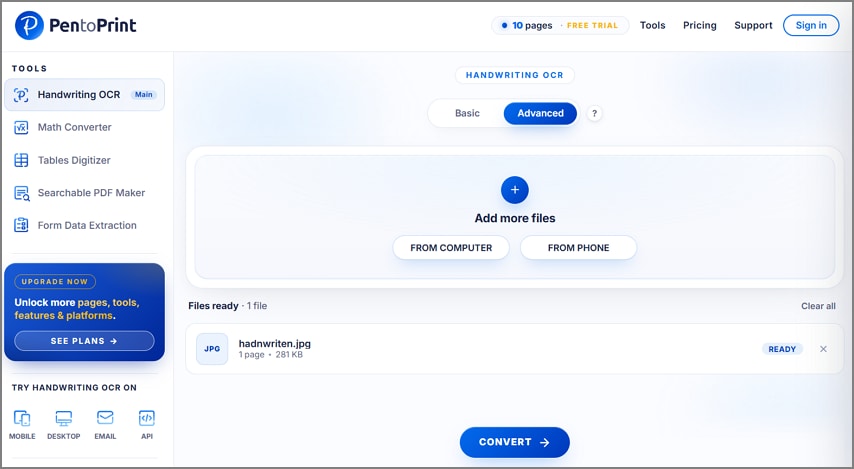
General OCR can struggle with cursive or messy writing, making handwritten pages difficult to digitize. PenToPrint focuses on OCR of handwritten text, converting pages into editable digital content. It supports web, mobile, desktop, and API access for different workflows.
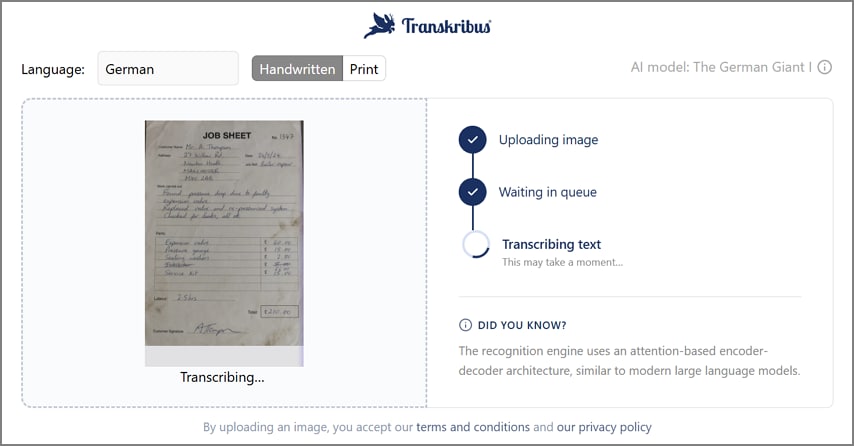
3. Transkribus: Best for Historical and Archival Documents
Historical archives often contain handwriting that general OCR tools struggle to interpret accurately. Handwriting recognition becomes harder when scripts, writing styles, and page layouts vary considerably. Transkribus is designed for these demanding archival workflows, with models trained on millions of handwritten words. Its layout analysis can identify lines, columns, and marginal notes before recognition begins.
4. Lido: Best for Structured Data From Handwritten Documents
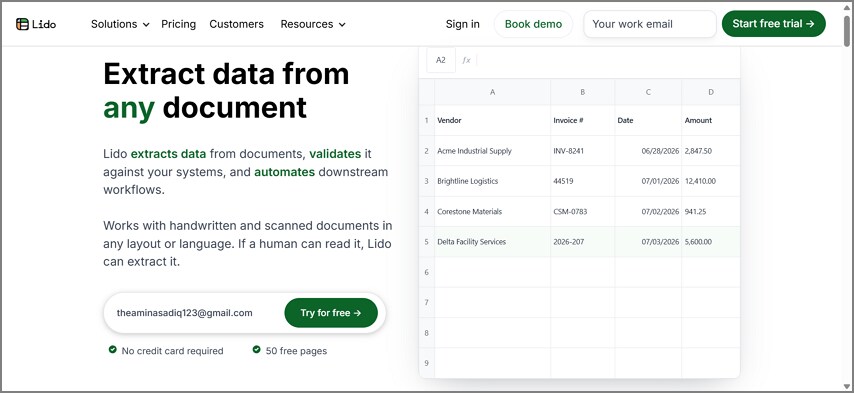
Raw text is not always useful when handwritten forms contain specific fields. OCR from handwriting can become more valuable when extracted information is already organized for analysis. Lido reads handwritten documents and places identified fields into spreadsheet columns, reducing manual sorting afterward. It also handles varying layouts without requiring a template first.
5. Adobe Scan: Best for Mobile Capture
Sometimes the constraint starts with the camera rather than the recognition engine. OCR of handwritten text works better when the source image is clear, flat, and well captured. Adobe Scan turns a phone into a capable document scanner, automatically correcting perspective and enhancing contrast. Capture and conversion happen together, making it practical for notes that exist only on paper.
Part 3. How to Improve Handwriting OCR Accuracy
No tool reaches complete accuracy on handwriting, so results should always be checked. Image quality, legibility, resolution, and document conditions can affect OCR performance. IBM's current OCR guidance identifies these factors as important influences on recognition accuracy.
Better source images give OCR of handwritten text clearer information to process. The 6 simple habits below can help reduce avoidable recognition errors:
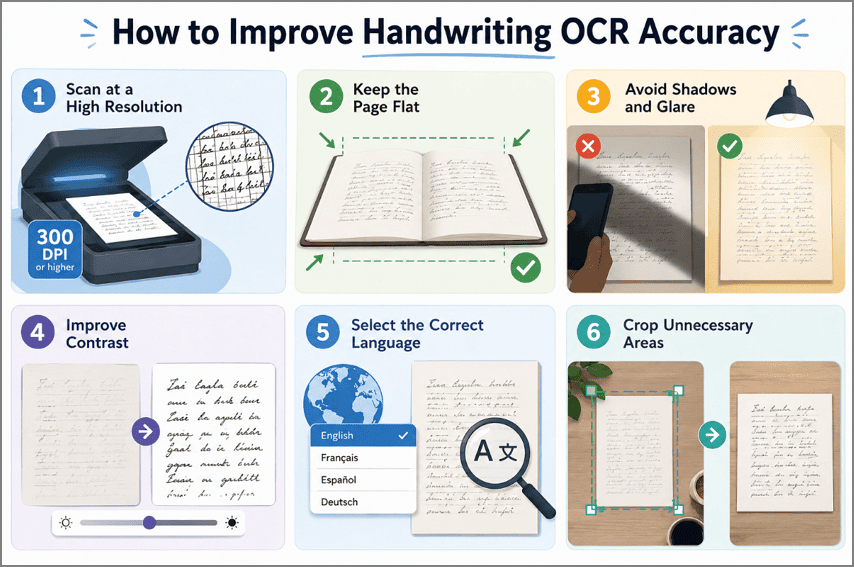
- Scan at a High Resolution: Detail that never reached the file cannot be recovered afterward, and 300 dots per inch is a sensible floor.
- Keep the Page Flat: Curved paper distorts letter shapes and confuses the line detection that runs before recognition.
- Avoid Shadows and Glare: Even lighting beats bright lighting, and a hand or phone casting a shadow across the page costs accuracy.
- Improve Contrast: Faint pencil and low-contrast ink are harder to separate from the paper, so raising contrast before processing helps.
- Select the Correct Language: Recognition uses word context to resolve ambiguous letters, which only works when the language setting matches.
- Crop Unnecessary Areas: Removing margins, edges, and background clutter keeps processing focused on the writing itself.
Frequently Asked Questions
Can handwriting OCR recognize cursive writing?
Modern tools handle cursive far better than earlier OCR engines managed, since they read words rather than isolated characters. Accuracy still falls below what neat printing achieves, particularly where letters are heavily joined.
How accurate is handwriting OCR?
Neat, consistent printing from one writer produces the strongest results. Cursive, mixed styles, faded ink, and historical documents all reduce accuracy, so treat the output as a draft requiring review rather than a finished transcript.
Can handwriting OCR recognize messy handwriting?
Difficult handwriting is manageable when it stays internally consistent, because the model adapts to a recognizable style. Writing that varies within the same page is considerably harder, and specialist tools outperform general OCR here.
Final Takeaway
To conclude, choosing between these tools depends on your document type, workflow, and desired output. PDF workflows suit editable documents, structured extraction fits forms, while archival tools handle historical scripts. Good scans also improve handwriting OCR results across different tools. For users needing recognition alongside editing and PDF workflows, PDFelement is a practical choice.
G2 Rating: 4.5/5 |100% Secure