

You send a final PDF to a print shop, and they reply that your fonts aren't displaying correctly. This is when converting text to outlines or curves becomes essential. The process transforms live, editable fonts into vector shapes that remain visually consistent on any system, even when the original fonts aren't available. Print shops, designers, and brand teams often require this to maintain brand accuracy, prevent font substitution, and ensure flawless output.
However, once text is outlined, it becomes un-editable and unsearchable, so keeping an editable master file is always important. In this guide, you'll learn how to convert PDF text to outlines directly using PDFelement. You'll also figure out how to follow a font-first workflow for cleaner results and learn a simple fallback method when other tools fail.


 G2 Rating: 4.5/5 |
 100% Secure
In this article
- What Are the Key Concepts of PDF to Outlines Conversions?
- How to Choose the Right Path for Your Font Conversion?
- Path A — Convert Text to Outlines in PDFelement
- Path B — Fonts-First, Beginner-Safe
- Path C — "Outline-Like" Fallback
- How to Finish and Package Your PDF for Professional Delivery?
- What Is on the Quality Checklist for Perfect Print Results?
- What Is on the Quality Checklist for Perfect Print Results?
Part 1. What Are the Key Concepts of PDF to Outlines Conversions?
Before diving into the PDF convert text to outline workflow, it's important to separate two ideas that people often treat as the same. Understanding these differences helps you avoid mistakes, choose the right tool, and know exactly what you're changing in your PDF.
Live Text vs. Outline
Live text behaves like regular editable content: you can type, search, copy, and adjust fonts freely. Outlined text, however, becomes pure vector artwork. Each letter is converted into paths and curves, which guarantees visual consistency across devices, even where fonts don't exist. Here is a comparison table that will help make the distinction clearer:
| Features | Live Text | Outline |
| Editable | Yes | No |
| Searchable | Yes | No |
| Selectable | Yes | No |
| Appearance | Depends on installed fonts | Always consistent |
| Output Type | Font-based | Vector Shapes |
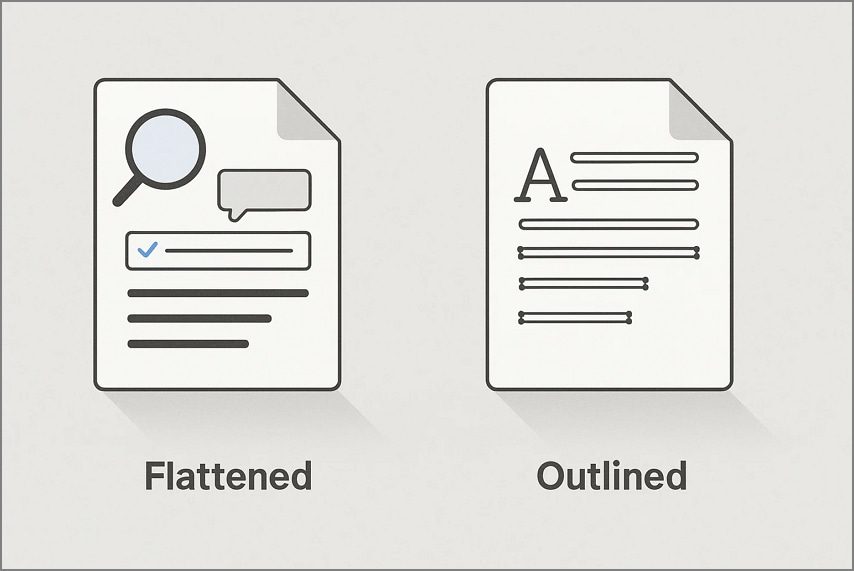
Outlining ≠ Flattening
Flattening merges or locks annotations, comments, form fields, and transparency effects into the static page. It prevents accidental edits and helps older systems display the file predictably. However, the text remains live text, meaning fonts can still be substituted or broken if missing.
Outlining, in contrast, focuses solely on the text. It converts each glyph into curves, removing any reliance on installed fonts. Even if the computer has zero fonts installed, the outlined text will still appear exactly as the designer intended.
Why Issues Happen
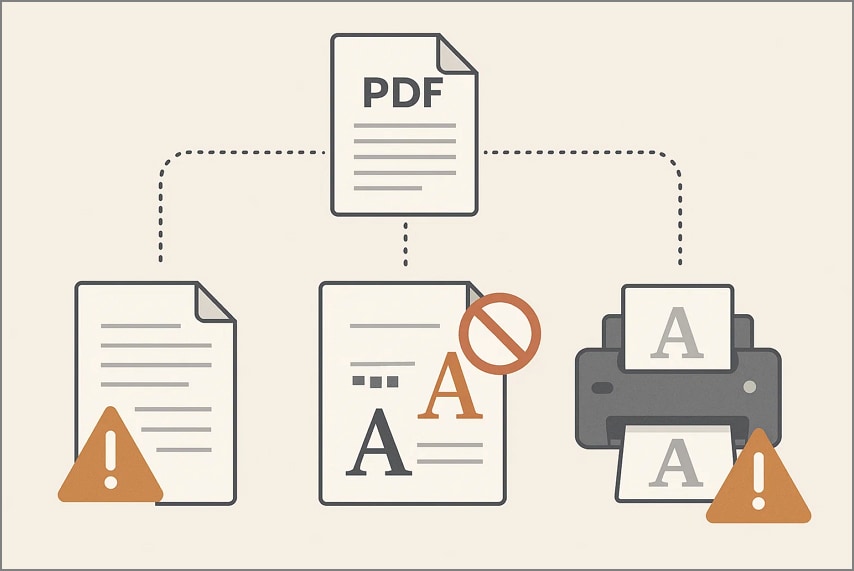
Before you begin converting PDF text to outlines, it's helpful to understand why font-related issues occur in the first place. Mentioned below are some of the issues discussed, along with the reasons for their occurrence:
- Missing Fonts: When a PDF contains text that isn't fully embedded, the receiving computer or printer may not have the required fonts installed. This leads to automatic substitution, causing changes in spacing, weight, and overall appearance.
- Partially Embedded Fonts: Some PDFs embed only the characters used, not the full font file. If the printer needs to reprocess the text, for imposition, rasterization, or pre-flighting, it may fail to access the missing glyphs and substitute them anyway.
- Unsupported or Proprietary Fonts: Specialty fonts, such as licensed brand fonts or older PostScript fonts, may not be recognized by certain RIPs (Raster Image Processors). This inconsistency can cause distortions, fallback fonts, or missing text blocks.
- Corrupted or Damaged Font Files: If a font in the PDF is corrupted or was incorrectly installed on the designer's system, the issue is carried into the exported PDF. Printers often can't recover from this and substitute a generic font instead.
- Conflicts Between Embedded Fonts and Printer Settings: Some print environments force font replacement for efficiency or compatibility reasons. Even if the font is embedded, the printer may override it, causing unexpected visual shifts.
Part 2. How to Choose the Right Path for Your Font Conversion? For Converting Text to Outline
Different projects, printers, and brand guidelines have different requirements for PDF text outline, so picking the right path ensures you don't over-convert or lose editability unnecessarily.
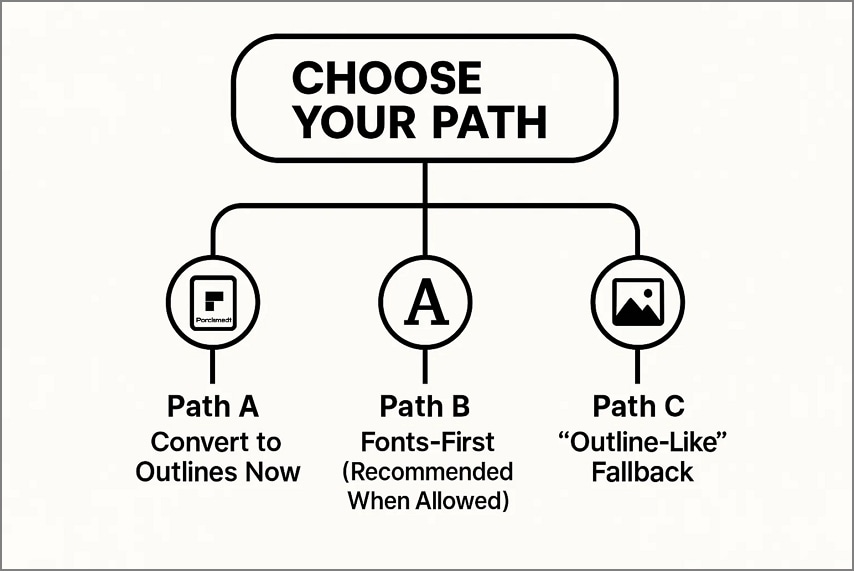
Path A — Convert to Outlines Now (PDFelement)
Use this option when a printer, client, or brand standard explicitly requires outlined text. It delivers guaranteed visual consistency by turning all fonts into vector shapes, removing any chance of substitution at print time.
Path B — Fonts-First (Recommended When Allowed)
Choose this path if your printer accepts properly embedded or standardized fonts. By fixing or embedding fonts instead of outlining them, you maintain full editability, searchability, and cleaner text rendering while still ensuring reliable output.
Path C — "Outline-Like" Fallback
This is your last-resort PDF outline fonts method for stubborn problems or unsupported fonts. Convert only the problematic pages into high-resolution page images so there's zero font dependency, while keeping the rest of the PDF editable and clear.
Part 3. Path A — Convert Text to Outlines in PDFelement
Goal: Make a font-independent, press-safe PDF by turning text into curves.
As discussed, this method is used when you require explicitly outlined text within your PDF. To learn how to do it, read the steps mentioned next:
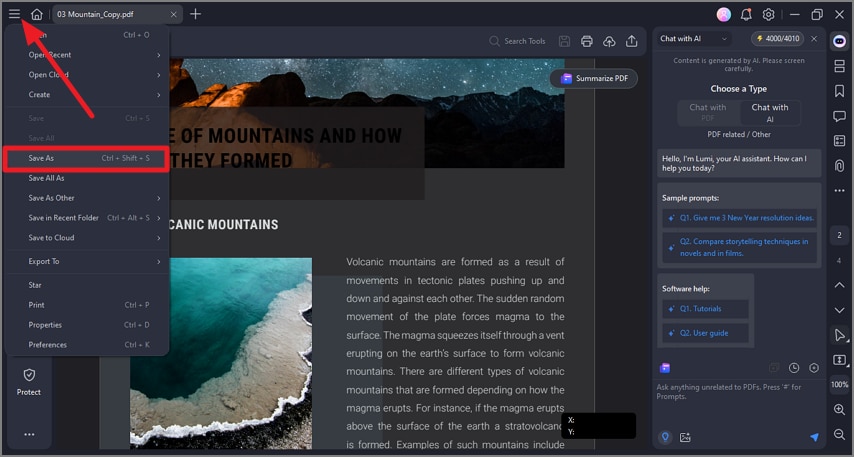
Step 1Create a Backup of PDF
Before starting the conversion, create a backup by opening the document in the tool's interface and saving it as a separate file by pressing the "Save As" option.
Step 2Create Outlines Across PDF
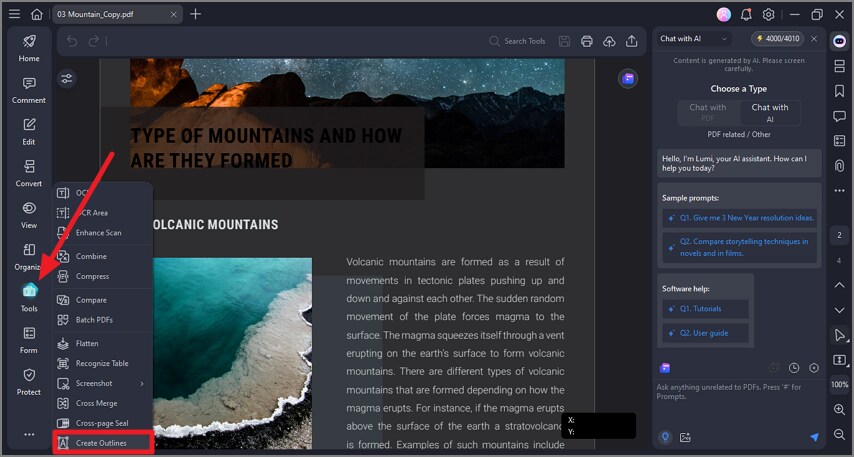
Now open the document and access the "Tools" option from the toolbar on the left. Next, locate the "Create Outlines" option in the expanded list and click on it to convert PDF text to outlines.
G2 Rating: 4.5/5 |100% Secure
Step 3Quickly Verify Across PDFelement
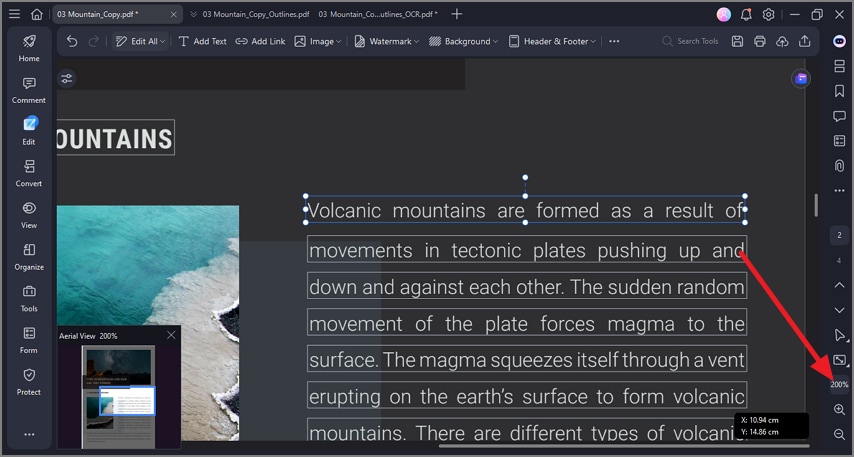
Open your PDF and zoom in to 200–400% using the option located in the bottom right corner. The text should appear crisp and behave like shapes, meaning it is no longer selectable as live text.
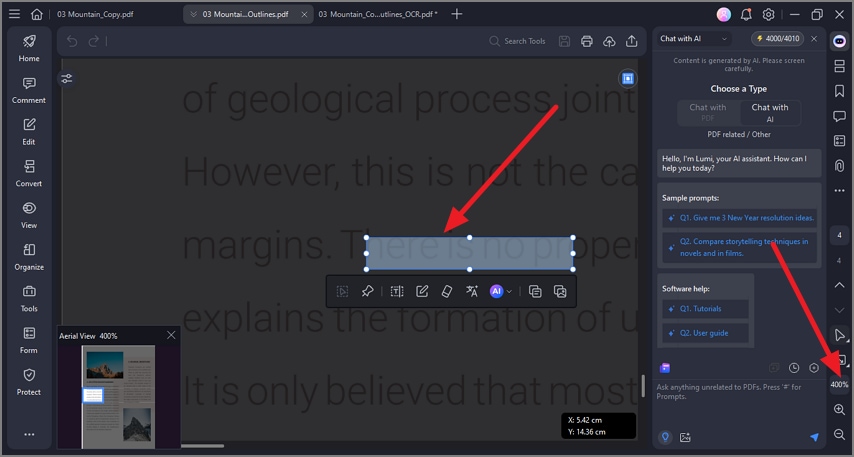
Note for Beginners: Outlining removes font dependency, ensuring a consistent appearance, but also eliminates text editability and searchability. Use it only when explicitly required and always keep an editable master.
Part 4. Path B — Fonts-First, Beginner-Safe
Goal: Delivers a print-safe PDF without converting text to curves (when your printer accepts embedded fonts).
If you want the font-first workflow for PDF text to outline conversion, follow the steps mentioned below to learn how to achieve it using PDFelement:
Step 1Open PDF Check Text
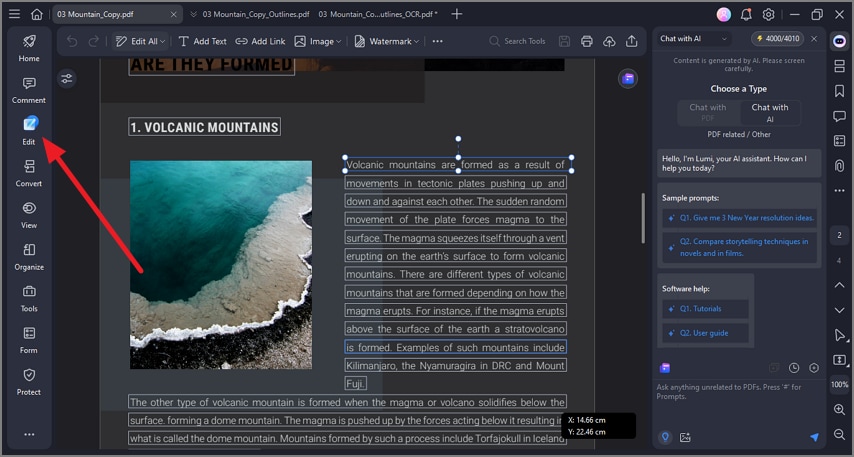
Launch PDFelement and open your PDF. Review the text for typos, inconsistent styles, or formatting issues. Use the "Edit" tool to unify fonts, sizes, and spacing across headings, body text, and captions.
Step 2Make the File Font-Reliable
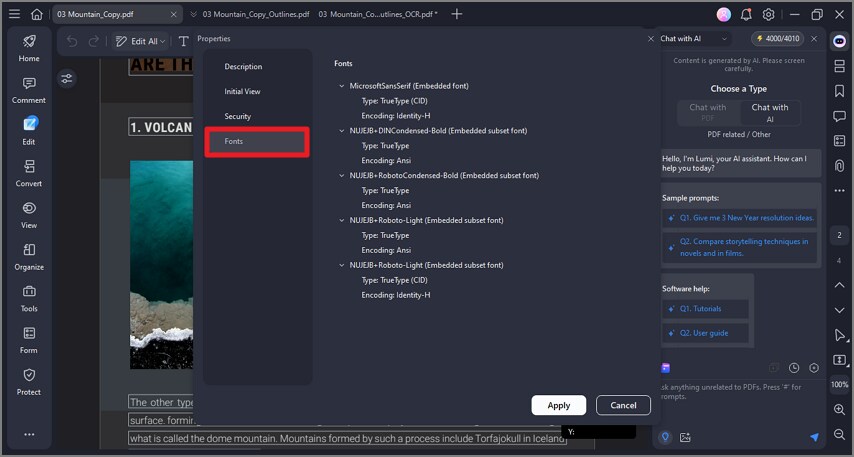
Verify that all fonts used in the document are fully embedded by checking "File → Properties → Fonts".
G2 Rating: 4.5/5 |100% Secure
Step 3Save & Spot-Check
Save the file as "Project_print.pdf" or another clear variant name. Zoom in to 200–400% to check that text renders cleanly without any substitution or missing characters.
Outcome: Many print shops accept PDFs with properly embedded or standardized fonts without requiring text to be converted to outlines.
Part 5. Path C — "Outline-Like" Fallback
Goal: Eliminate font issues on selected pages without outlining the entire PDF, preserving live text elsewhere.
When a few pages in a PDF contain problematic or unsupported fonts, converting the entire document to outlines may be overkill. Instead, you can convert only the affected pages into high-resolution images. Here is how you can do it in PDFelement:
Step 1Identify Pages Across PDF
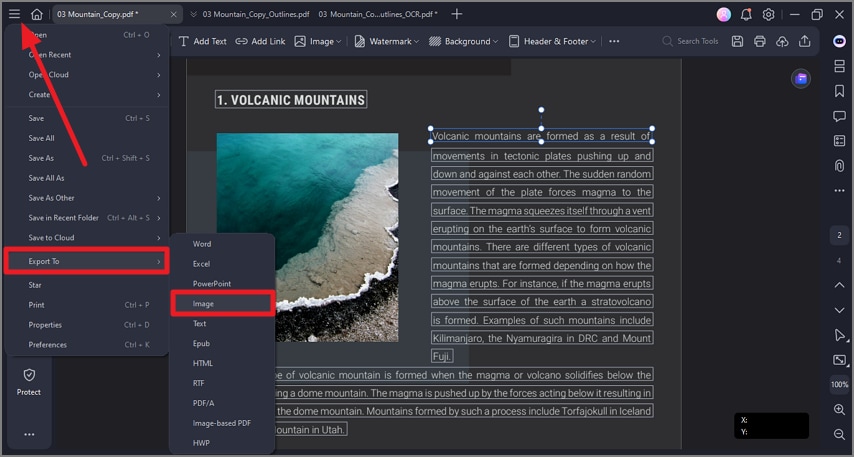
Review your PDF and note pages that cause PDF outline font problems or are repeatedly flagged by prepress tools. Now, go to "Files," choose "Export To" and select the "Image" option.
G2 Rating: 4.5/5 |100% Secure
Step 2Rasterize Those Pages
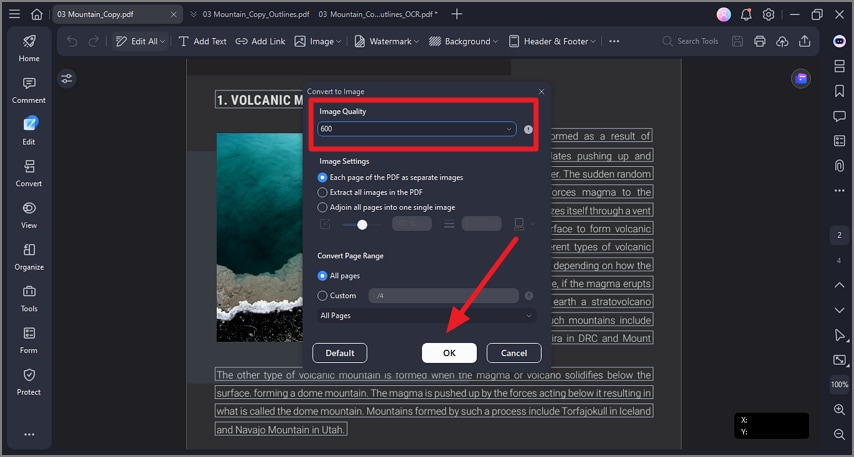
In the following small window, choose a high resolution, e.g., 600 dpi, to preserve clarity. Press "OK" to save the applied changes.
Tips & Trade-Offs
- Searchability and editability are lost on rasterized pages because they become images.
- File size may increase, so rasterize only the necessary pages rather than the entire document.
- Use this method as a fallback when outlining the full PDF isn't required or practical.
Part 6. How to Finish and Package Your PDF for Professional Delivery? (in PDFelement)
Once the PDF text-to-outline conversion is finalized, the last step is to package the PDF properly so it's organized, branded, and ready for handoff. PDFelement offers a clean workflow for assembling, securing, and labeling your final deliverables, ensuring both clarity and professionalism when sharing files with clients or printers.
Assemble
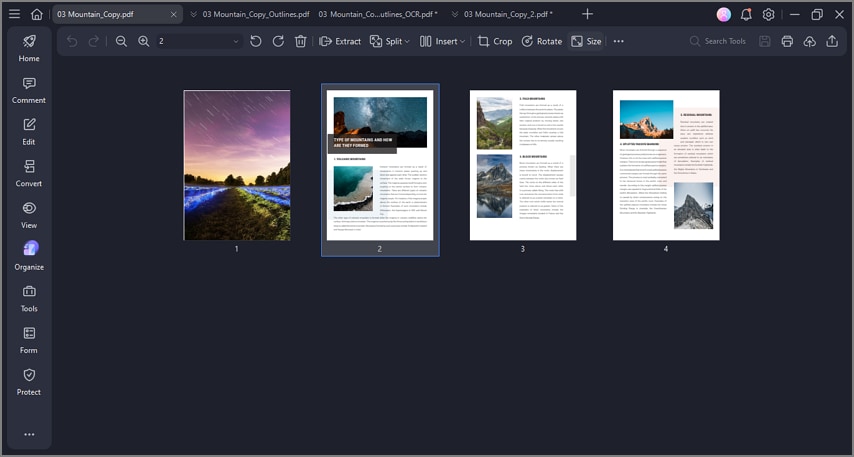
Use PDFelement to merge or split PDFs, reorder pages, and tidy up the document structure before delivery. Adding page labels and metadata helps printers and collaborators quickly understand the document's layout, version, and intent. This step ensures your outlined or finalized PDF feels complete and professionally arranged.
Branding
If brand consistency is required in the PDF text outline, add watermarks, headers, footers, or project identifiers using PDFelement's annotation and page tools. These elements provide visual continuity across all pages and file versions. They also help clarify ownership, usage context, and whether the PDF is a draft, proof, or final print-ready file.
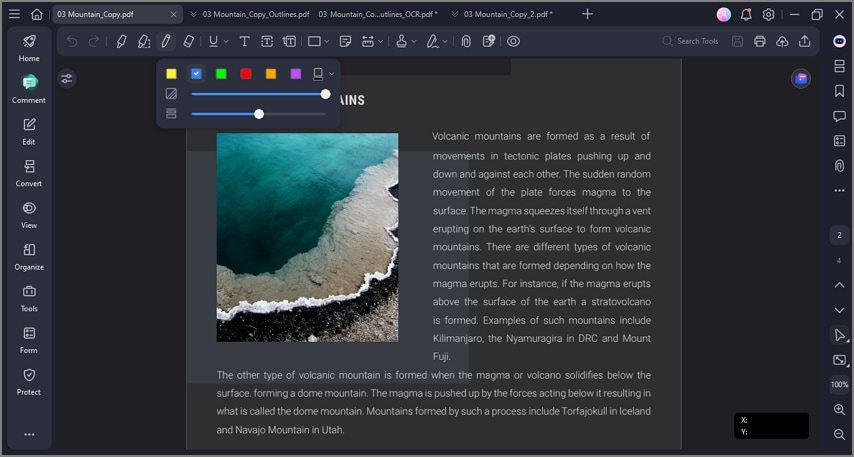
G2 Rating: 4.5/5 |100% Secure
Lock Visuals (Optional)
Flatten annotations, stamps, and comments to prevent accidental removal or modification during review or printing. This process preserves visual elements exactly as intended while keeping the underlying text and structure intact. Remember, flattening only affects interactive items; it does not outline fonts or convert text into curves.
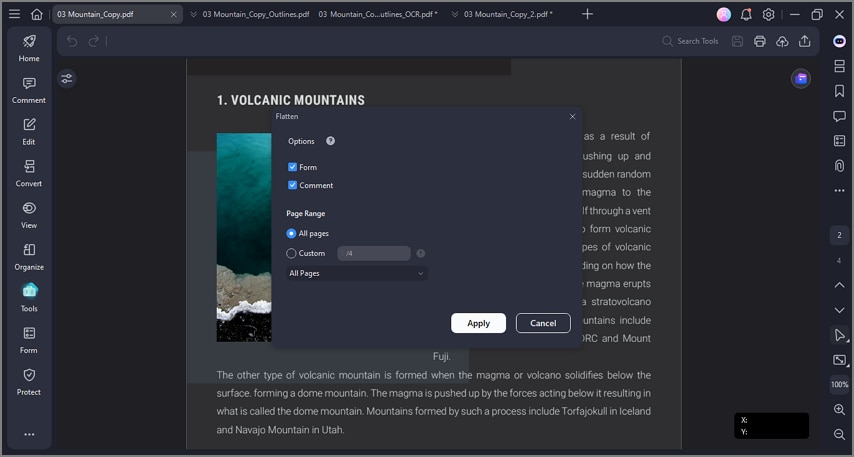
Security
Apply permissions or passwords to control how the PDF can be opened, edited, printed, or copied. This adds a layer of protection during distribution, especially when sharing files containing licensed PDF outline fonts. Security settings help ensure the document's final appearance remains unchanged across recipients.
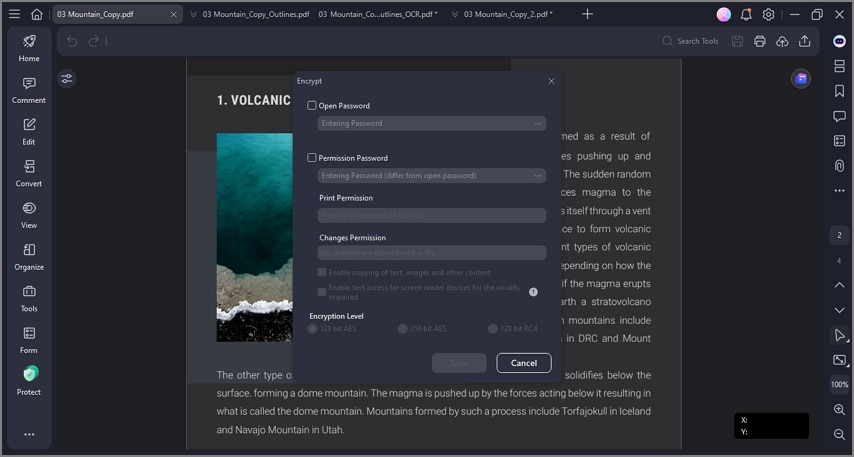
Naming
Save clearly labeled variants such as "print.pdf," "print_outlines.pdf," and "print_fallback.pdf" to avoid confusion during reviews or handoffs. Consistent naming helps teams track which file is optimized for which workflow. Always archive your editable master separately so you can revise or redesign without relying on outlined content.
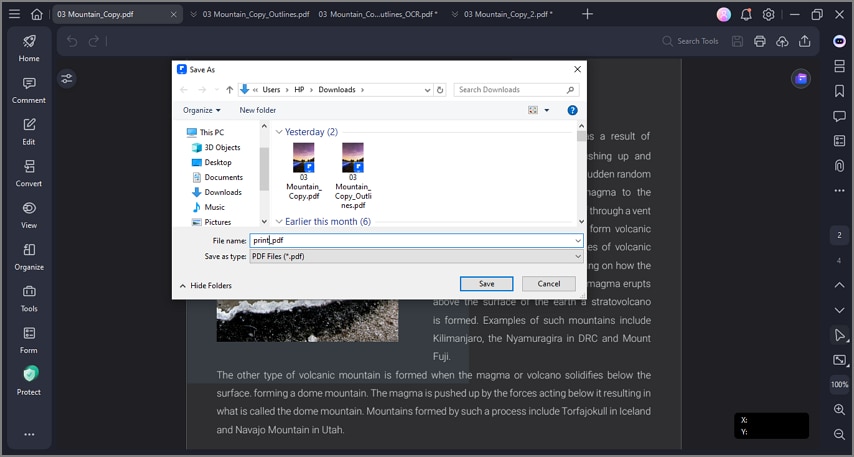
Part 7. What Is on the Quality Checklist for Perfect Print Results?
After finalizing and packaging your PDF, it's crucial to run a quick quality check before sending it to a printer or client. Even with outlines or fallback methods, small issues can slip through. The checklist below will help beginners catch common problems during the PDF text-to-outline conversion process:
- 400% Zoom Test: Zoom in to 400% to confirm that all text or outlined curves remain crisp and free of jaggies or blur.
- Special Glyphs, Ligatures, and Accents: Check that all accented characters, ligatures, and unique glyphs render correctly after outlining or fallback conversions.
- Colors and Overprints: Ensure that colors, gradients, and overprints appear as intended, with no unexpected knockouts or shifts.
- Page Size, Bleed, and Trim Boxes: Verify that page size, bleed, and trim boxes match printer specifications and that safe margins are respected.
- Remove Unneeded Links, Forms, and Security: Remove hyperlinks, form fields, and unnecessary security to prevent printing issues and maintain focus on visual content.
Part 8. What Is on the Quality Checklist for Perfect Print Results?
If you are considering online tools to convert PDF text to outlines, it's important to understand the risks and limitations involved. While these tools can be tempting for quick fixes, they often sacrifice quality, reliability, and privacy.
People Also Ask
-
Embedding vs. Outlining—what's the difference?
Embedding keeps text live, editable, and searchable, while outlining converts text into vector shapes that no longer require fonts. Outlined text ensures a consistent appearance across devices and printers. -
Is outlining the same as flattening?
No, flattening locks annotations, form fields, and comments into the page, but it does not convert text. Outlining specifically turns text glyphs into curves, so fonts aren't needed. -
Can I outline only some pages?
Typically, Tools → Create Outlines in PDFelement converts the entire document. For selective conversion, you can use a fallback method to rasterize only problem pages while leaving the rest editable. -
Will I lose search or copy functionality after outlining?
Yes, outlined text is no longer searchable or copyable, so always keep a separate editable master in case future edits are needed. -
Do I always need to outline text?
Not necessarily, properly embedded fonts are accepted by most printers. Outlining is only required when explicitly requested by a printer, client, or brand guideline.
Conclusion
To wrap it up, this article provided a complete guide on converting PDF text to outlines in PDFelement, explaining why it's needed along with the best workflows. If your goal is to maintain editability, follow the fonts-first approach to keep text live and searchable. For cases where only a few pages cause issues, use the fallback method to rasterize those specific pages while leaving the rest editable.

