

When you are reviewing an Excel sheet sent by a client, commenting is the right approach to suggest changes. While printing, it is important to include the comments in the hard copy. Printing comments also helps readers understand the rationale behind certain data entries or formulas. There are various ways to have the annotations printed. If you are wondering how do I print comments in Excel, read this guide till the end.
In this article
- 60-Second Checklist: Things to Decide Before You Print
- Playbook A: Print Comments/Notes As Displayed on Sheet
- Playbook B: Print Comments/Notes At End of Sheet
- Playbook C: Print a Selection with Comments
- Reference Table: Where to Click
- Layout & Readability Tips to Prevent Clipped Balloons
- Troubleshooting Issues With Print Excel With Comments
- Optional Add-On: Make the Comments Even Easier to Share
Part 1. 60-Second Checklist: Things to Decide Before You Print
This checklist helps you make key decisions before printing Excel comments or notes:
- Comment Type: Excel has two types of comments: threaded Comments and legacy Notes. Decide which type you want to include in your printout.
- Print Style: You can print comments inline on the sheet or as a consolidated list at the end. Choose the style that best suits your needs.
- Visibility Prep: Ensure all comments or notes are visible on the sheet. Position callouts within the print area to avoid cutoff.
- Output: Decide whether you want a physical print or a PDF file. Select Paper or Save as PDF in the Print dialog accordingly.
- Scaling and Margins: Adjust scaling, margins, and orientation to fit content on one page. This prevents callouts from being clipped or misaligned.


 G2 Rating: 4.5/5 |
 100% Secure
Part 2. Playbook A: Print Comments/Notes As Displayed on Sheet
Goal: Put comment balloons next to their cells on the printed page.
On Windows
Follow the steps below to learn how to print with comments in Excel on Windows:
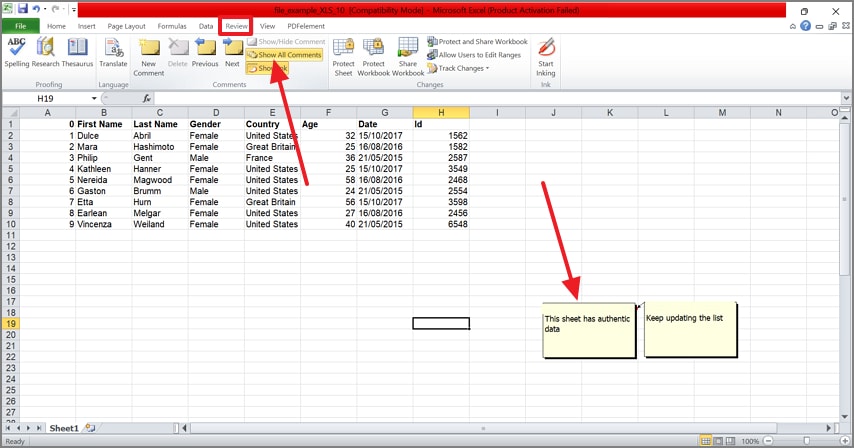
Step 1In the "Review" tab of your Excel sheet, select the "Show All Comments" option.
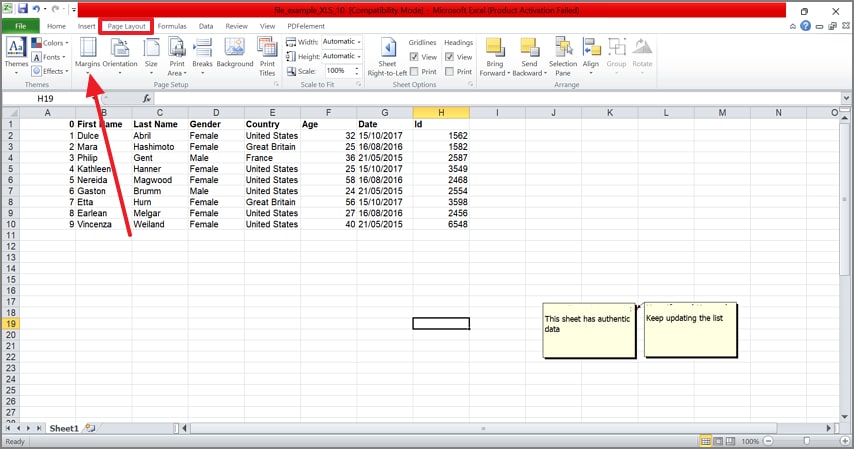
Step 2Now, enter the "Page Layout" tab at the top and set the "Margins" as needed.
G2 Rating: 4.5/5 |100% Secure
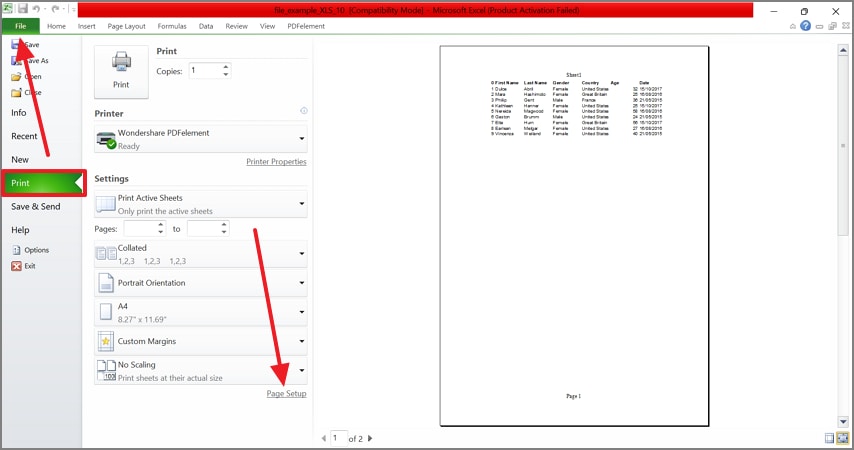
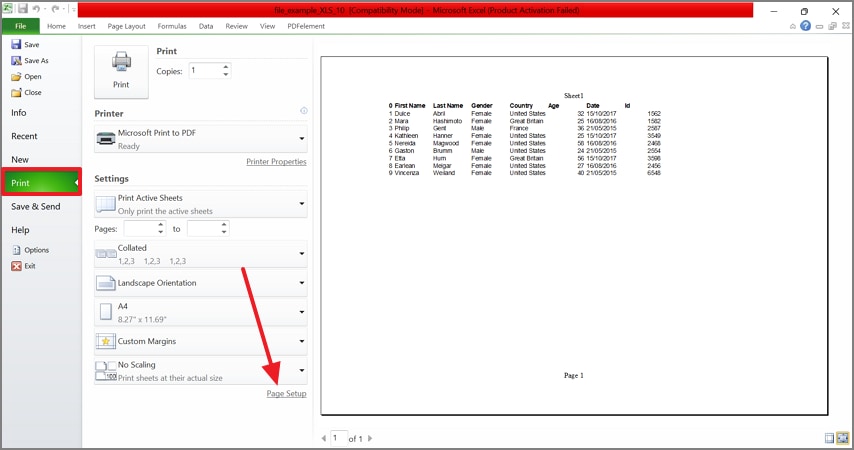
Step 3From the "File" tab at the top left, select the "Print" option and select the "Page Setup" option to continue.
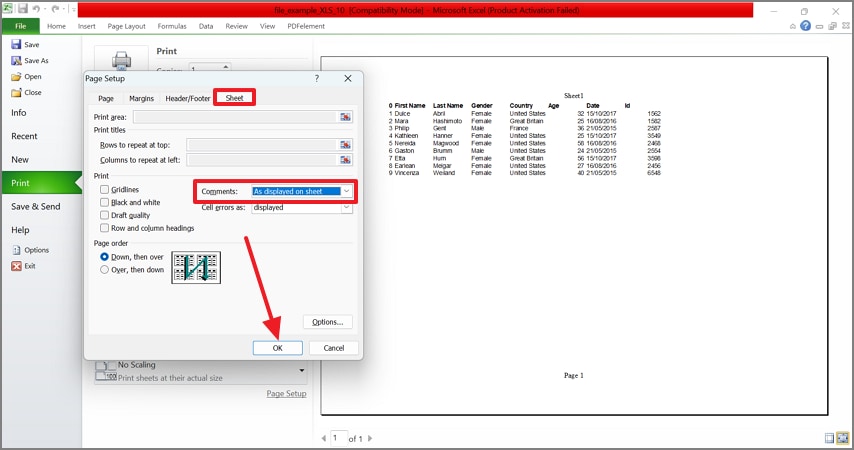
Step 4When the new window opens, set the "As Displayed on Sheet" option from the "Comments" menu and hit the "OK" button to save these changes. Now, print the page using your desired printer.
On Mac
The steps below feature a detailed guide on printing with comments Excel on a Mac:
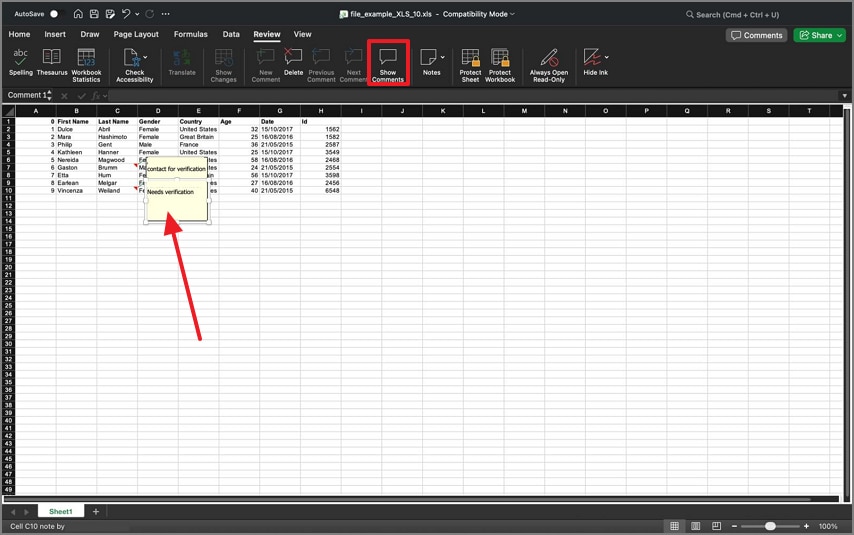
Step 1To start, enter the "Review" tab on your MacBook's Excel and set the setting to "Show Comments" to display the notes in the sheet.
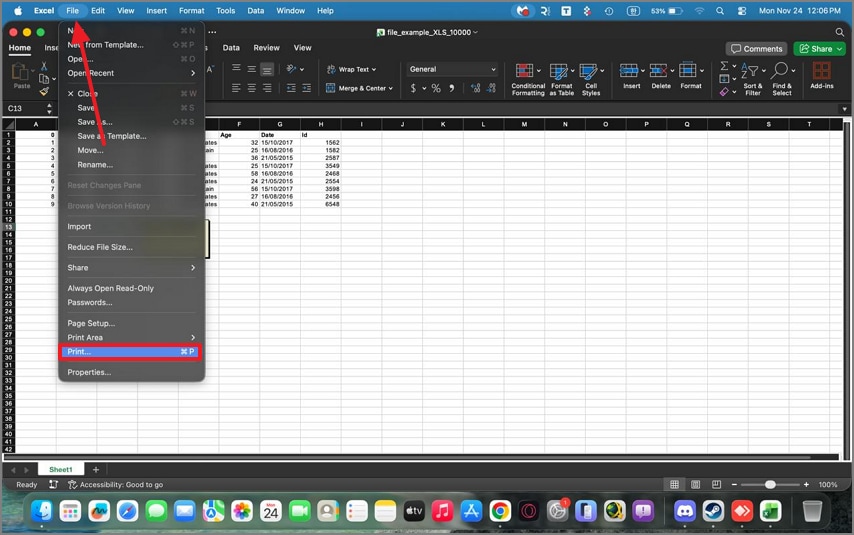
Step 2Using the "Print" tab in the "File" menu, access the designated print settings window.
G2 Rating: 4.5/5 |100% Secure
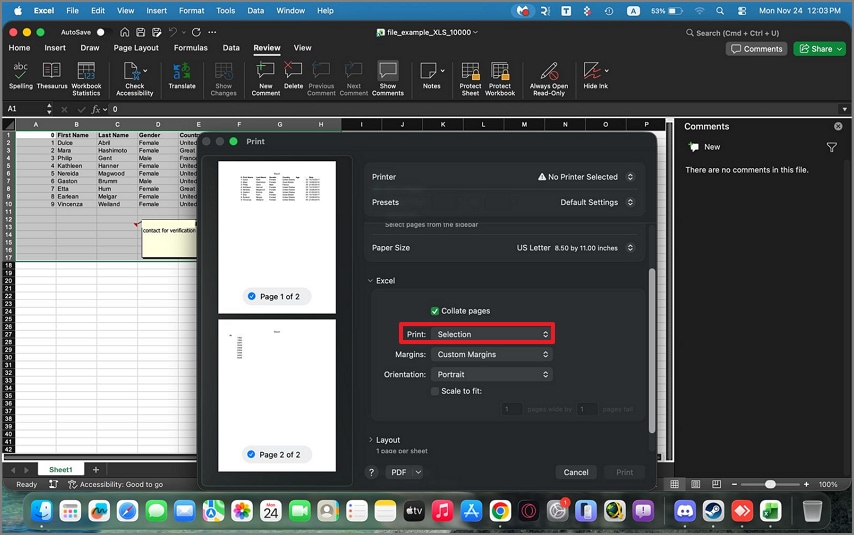
Step 3Now, select the cells that need printing, including your comments or notes. In the "Print" menu on the next window, select the "Selection" option. Finally, print this Excel sheet or save it as a PDF on your device.
Pro Tip: Use "Page Break Preview" to ensure comment balloons stay within the printable page bounds. Consider switching to Landscape orientation and slightly reducing the scale to 90–95% for a better fit.
Part 3. Playbook B: Print Comments/Notes At End of Sheet (Clean Pages + List)
Goal: Keep the worksheet clean and attach a readable list of all comments/notes.
Steps to Print Comments/Notes At End of Sheet
If you want to learn how to print comments at the end of the sheet, follow these steps:
Step 1From the "Print" tab in the File menu, enter the "Page Setup" window.
Step 2Using the small window, enter the "Comments" menu, select the "At the End of Sheet" option. This setting will display your comments at the end of the printed sheet. Now, hit the "OK" button and print the file through the available printer.
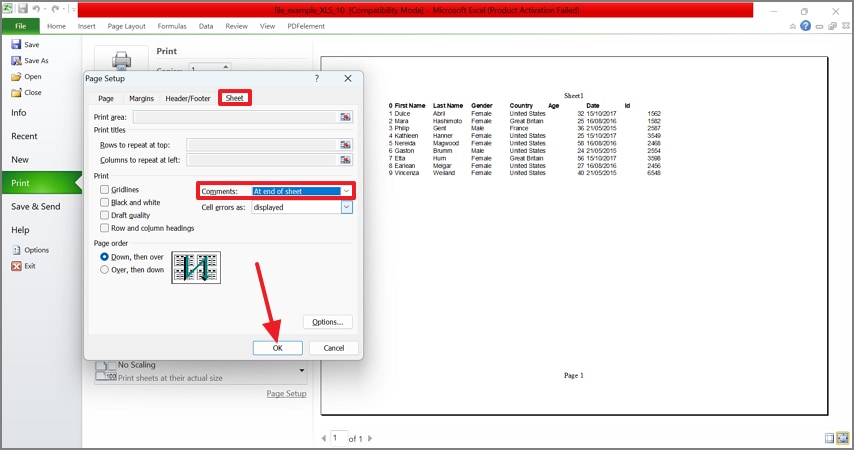
When to Use: Use this method when working with long models, client deliverables, or audits and QA processes where readability is important.
Part 4. Playbook C: Print a Selection with Comments
Goal: Print only a specific region, such as a report area, including its relevant comments for focused review.
Steps To Print a Selection With Comments
The steps below are a guide to printing Excel comments by selecting the print area:
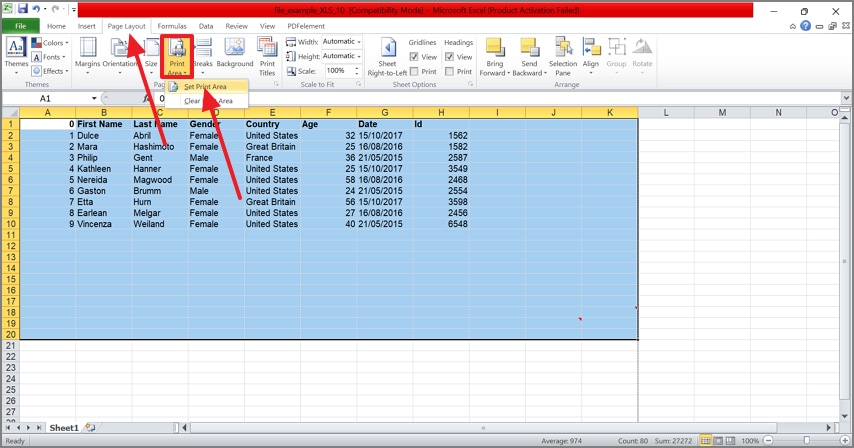
Step 1First, select the desired cells in your sheet to print the designated area. In the "Page Layout" tab at the top, expand the "Print Area" menu and select the "Set Print Area" option.
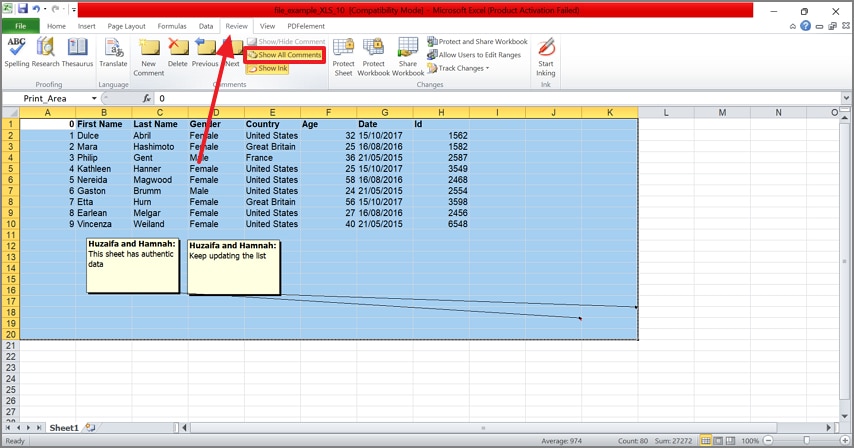
Step 2From the "Review" menu at the top, select the "Show All Comments" option to display the notes or comments in the sheet.
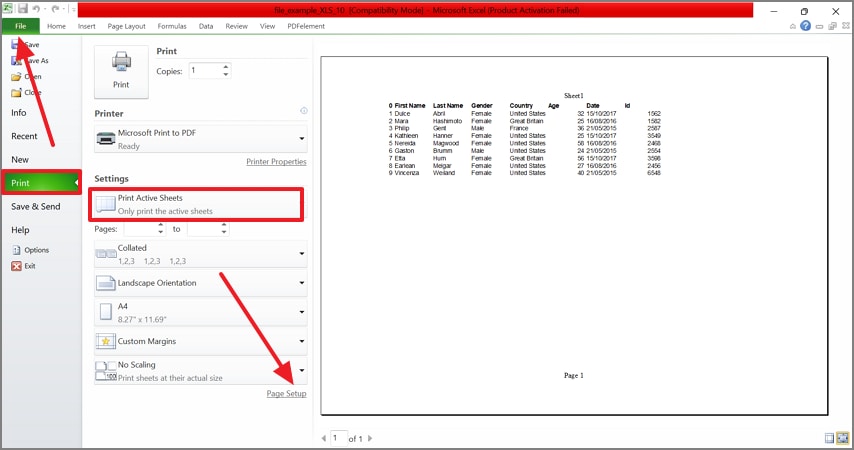
Step 3Now, access the "File" tab and enter the "Print" menu to select the "Page Setup" option.
Step 4Using the next window, enter the "Sheet" tab and use the "Comments" menu to display the comments in your preferred layout. After selecting the "OK" button, save the changes and print the file.
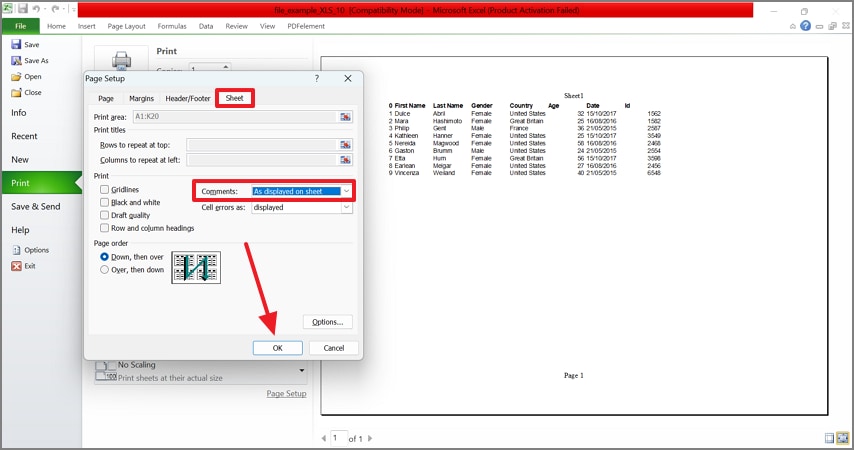
Tip: If inline comment balloons extend beyond a single page, switch to printing at the end of the sheet or slightly reduce the scale.
G2 Rating: 4.5/5 |100% Secure
Part 5. Reference Table: Where to Click
After learning how to print Excel with comments, explore which pathway to use in specific situations:
| Goal | Windows (Excel 365/2021) | Mac (Excel for Mac) | Notes |
| Show all Threaded Comments | Review > Comments > Show Comments | Review > Show Comments | For inline printing |
| Show all Legacy Notes | Review > Notes > Show All Notes | Review > Show All Notes | Legacy callouts |
| Print as Displayed | File > Print > Page Setup > Sheet > Comments and notes: As displayed on the sheet | File > Print > Page Setup > Sheet > As displayed on sheet | Keeps balloons in line |
| Print at the End of the Sheet | File > Print > Page Setup > Sheet > At end of sheet | File > Print > Page Setup > Sheet > At end of sheet | Same path |
| Clean Grid + Comment List | File > Print > Printer: Microsoft Print to PDF | File > Print > PDF > Save as PDF | Preserves settings |
Part 6. Layout & Readability Tips to Prevent Clipped Balloons
This section covers the page layout considerations to ensure a professional way to print Excel with notes:
- Orientation: Use Landscape mode for wide grids to give extra margin space for callouts.
- Scaling: Avoid relying heavily on "Fit Sheet on One Page," as it can reduce legibility. Custom scaling between 90–95% preserves readability while fitting the content.
- Margins: Select "Narrow" or "Custom" margins to maximize usable space and keep balloons away from page edges.
- Freeze panes and headers: Use "Print Titles" to repeat row and column headers on multipage prints.
- Color vs B/W: Always preview before printing large batches to ensure clarity of comments in black and white printers.
Part 7. Troubleshooting Issues With Print Excel With Comments
This troubleshooting guide links each symptom to a simple, practical fix so your prints turn out correctly as you print Excel with comments:
- Only Cells Print, No Comments/Notes: This happens when Excel isn't set to include comments in the print. Go to Page Setup > Sheet > Comments and Notes and select either "As displayed" or "At end of sheet."
- Balloons Cut Off at Page Edge: Comments or notes may extend beyond the printable area. Switch the sheet orientation to Landscape or reduce the Scale to fit the content.
- Too Cluttered to Read: Inline comments can overlap or crowd the sheet, making it hard to follow. Printing "At end of sheet" consolidates all comments on a separate page.
- Some Comments Don't Show Inline: Hidden comments will not appear automatically in the print. Go to Review > Show Comments or Show All Notes first.
- Printing a Selection Ignores the Comments List: When printing a selected range, only comments within that area will appear in a consolidated list. Comments outside the selection are omitted.
- PDF Export Lost the Setting: Using plain "Save As PDF" often bypasses the print setup. Always go through File > Print and choose a PDF printer.
Part 8. Optional Add-On: Make the Comments Even Easier to Share
Excel is known for making extensive spreadsheets and printing with comments Excel, but annotation is not its forte. To review and comment on a sheet, you will need a comprehensive tool like PDFelement. With its comment and markup tools, you can add notes and stickers to the file.
If you need to print the file with comments, you can choose the desired comment layout. Your comments can be summarized to help the recipient understand the improvements needed in the file.
A Complete Walkthrough Guide to Using PDFelement for Printing Excel With Comments
The following steps should be followed to learn how to add comments before printing Excel comments:
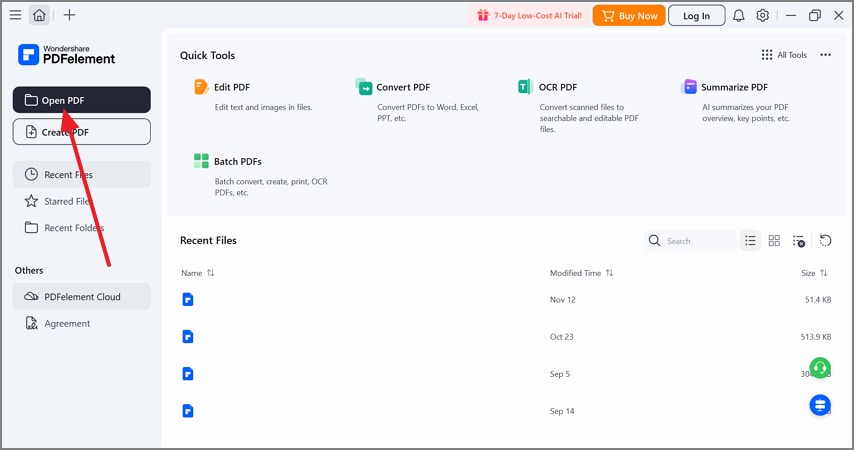
Step 1Open a PDF File on PDFelement
Select the "Open PDF" option at the top left to see the file on the main page.
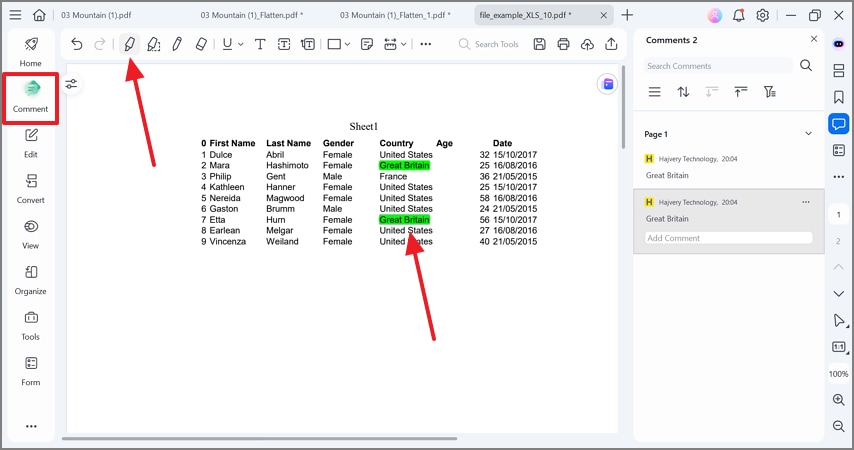
Step 2Select and Use the Highlight Text
Enter the "Comment" mode and pick the "Text Highlight" option to highlight in custom colors.
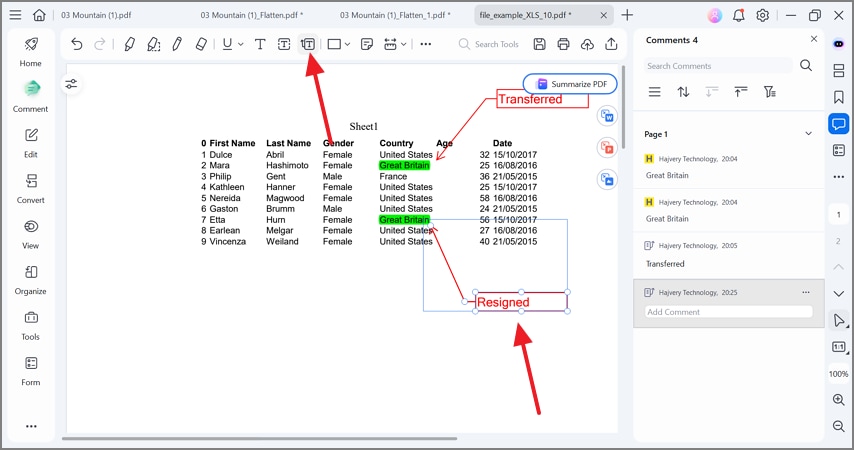
Step 3Add Text Callouts to Add Notes
Using the "Text Callout" tab at the top, add suggestions in the text box that appears.
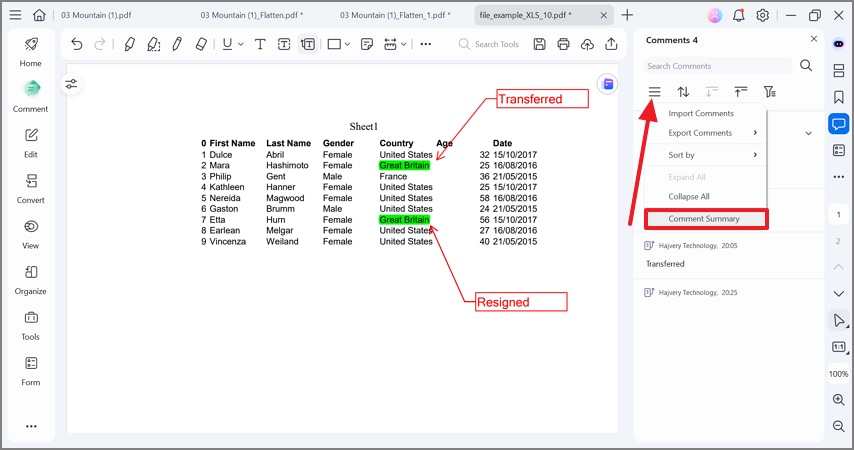
Step 4Summarize the Comments in the File
To generate a summary of the comments, select the "Menu" from the "Comments" section and pick the "Comment Summary" option to continue.
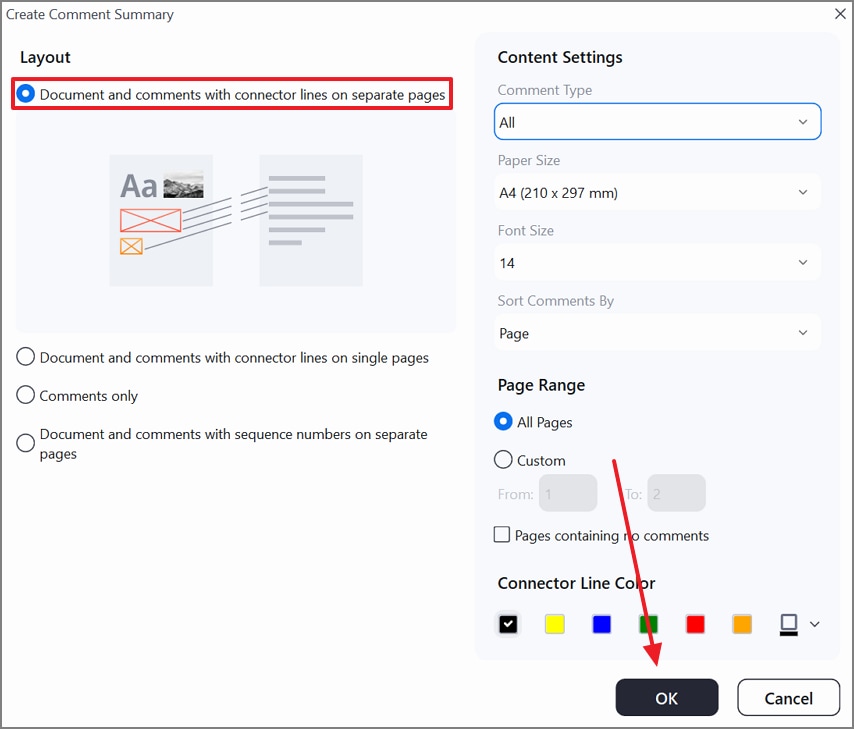
Step 5Select the Page Layout and Apply the Settings
When the next window opens, select the "Layout" radio button and hit the "OK" button to save the changes.
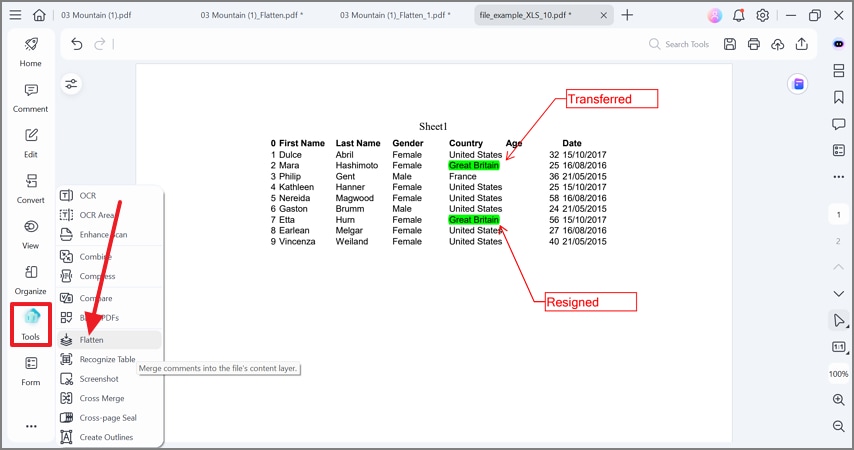
Step 6Flatten the Comments for Making the Page Print-Ready
After selecting the comments layout, enter the "Tools" tab from the left panel and select the "Flatten" option. Now, save the file in the desired location to print safely.
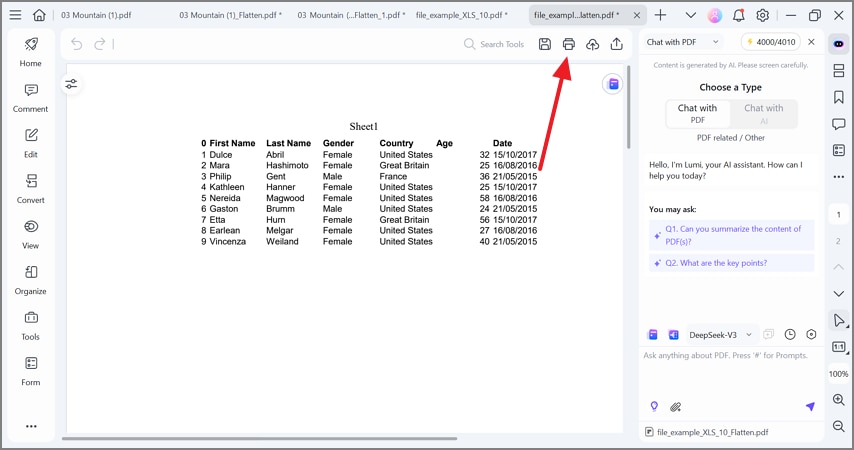
Step 7Select the Print File Option
To get the comments in the file in hard form, select the "Print" option from the top right corner.
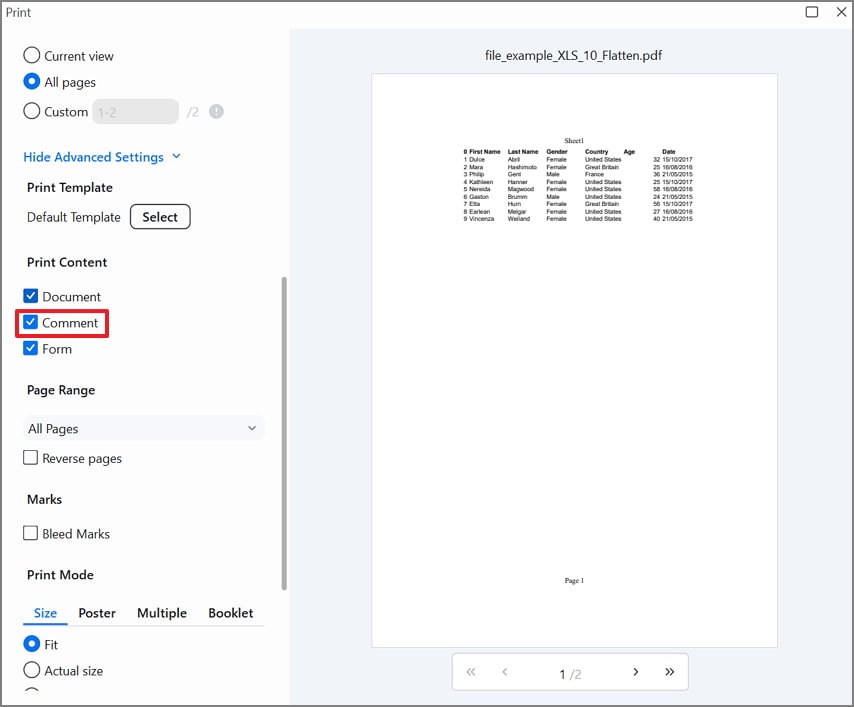
Step 8Use the Print Window to Print the Comments with the Excel Sheet
Enter the "Advanced Settings" and check the "Comment" box to print the feedback with the file.
G2 Rating: 4.5/5 |100% Secure
People Also Ask
-
How do I print Excel with comments shown on the sheet?
To print Excel comments, show all comments or notes, then go to "Page Setup" to set the Comments and Notes in the "As displayed on sheet" settings. -
How do I print Excel with a comments list?
Your comments can be printed as a list by going to the "Page Setup" option and choosing the "At End of Sheet" setting. -
What's the difference between Comments and Notes?
Comments are threaded discussions for collaboration, while Notes are legacy single callouts. -
Can I print just one area with its comments?
For this, set a Print Area for the desired cells, then select "As displayed" or "At end of sheet." -
Why are comments missing in my PDF?
You likely saved it as a PDF without using the Print dialog, which ignores comment settings. -
Can I flatten or further annotate after export?
Your Excel file can be flattened or annotated if you open the exported PDF in PDFelement.
Conclusion
To print comments from Excel, choose form the 2 layout options for a clean worksheet with a consolidated list. Make sure comments or notes are visible by using "Show Comments" or "Show Notes" before printing. Check "Page Setup" and the Sheet tab for comments and notes and adjust "Margins Scaling" and "Orientation" so nothing gets clipped.
Preview the print area carefully and export through the Print path to paper or PDF. For client-ready PDFs, add final highlights or summaries in a PDF editor before sharing. This article included a detailed guide on how do I print comments in Excel using various methods on Windows and Mac.

