

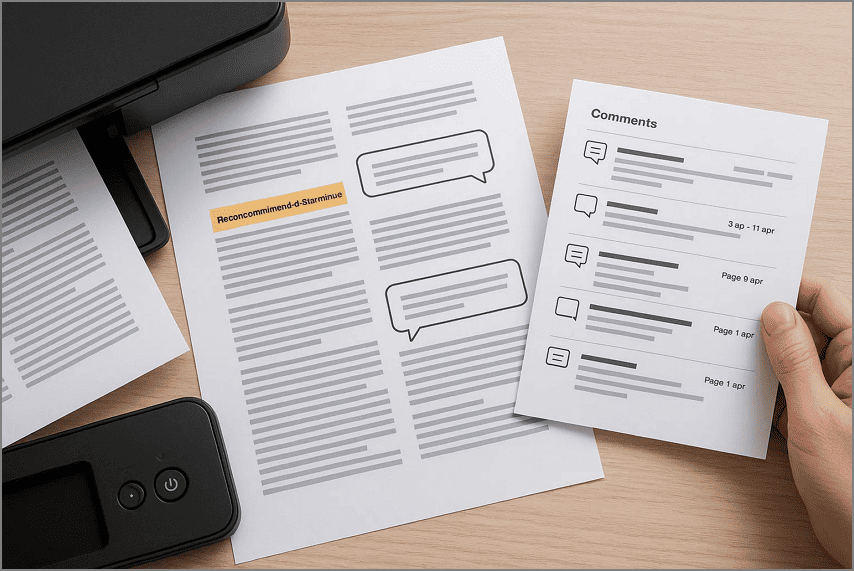
Have you ever faced a situation where you needed to share a PDF with comments, but weren't sure how to print them properly? Whether you want the comments to appear on the same page as the content or as a separate comment list, handling PDF annotations can be tricky. Many users struggle with formatting issues or missing notes when printing directly from standard PDF viewers.
In this guide, we'll walk you through simple methods on how to print PDF documents with comments. By the end of the article, you will learn how to ensure all your annotations are included exactly the way you need in your print.
In this article
- Quick Fixes For PDF Printing with Comments
- Method 1 — Print Comments on the Same Page (Inline)
- Method 2 — Print Documents and Comments With Connector Lines (Comment Summary)
- Method 3 — Print Only the Comments
- Short Reference – Labels to Understand When Printing Comments With PDF
- Quick Troubleshooting Tips for Printing PDF Comments
Part 1. Quick Fixes For PDF Printing with Comments
Printing PDFs with comments doesn't have to be complicated. With just a few clicks in your PDF editor, you can choose exactly how you want your annotations to appear. Whether you prefer inline comments displayed on the same page or a clean comment list that summarizes all notes, the process is quick and straightforward.
In Line/On The Same Page Printing
Printing comments in line allows all annotations to appear directly on the pages alongside your PDF content. This method ensures that notes, highlights, and markups are visible in context. Most PDF editors provide a "Document and Markups" or "Print with Comments" option in their "Print" dialog box for people wondering how to print comments from a PDF.
Comments Only List
Sometimes, you may prefer to print just the comments without the full content. A comments-only list summarizes every annotation, including the author, date, page number, and text, giving a clear overview of feedback. PDF editors offer a "Comment Summary" or similar option in the print settings, producing a clean, organized report of all remarks.
In PDFelement
PDFelement simplifies both printing methods with intuitive options for users who wonder how to print comments in a PDF document. To print comments inline, simply select "Print with Comments" so annotations appear directly on each page. Alternatively, choose "Comment Summary" to create a structured list of all comments for easy review or distribution. These flexible options make PDFelement a convenient tool for anyone who frequently works with annotated PDFs.


 G2 Rating: 4.5/5 |
 100% Secure
Part 2. Method 1 — Print Comments on the Same Page (Inline)
As discussed, PDFelement allows users to print comments inline to ensure that all annotations appear directly on the pages with the content. This approach is especially useful for collaborative reviews, editing, or proofreading, as it allows readers to see feedback exactly where it applies. PDFelement makes this process seamless, preserving the layout and positioning of comments.
Steps For Printing Comments on the Same Page
After learning about this functionality, let us have a look at the steps to learn how to print comments on a PDF inline in PDFelement in the section below:
Step 1Open Document Select Print
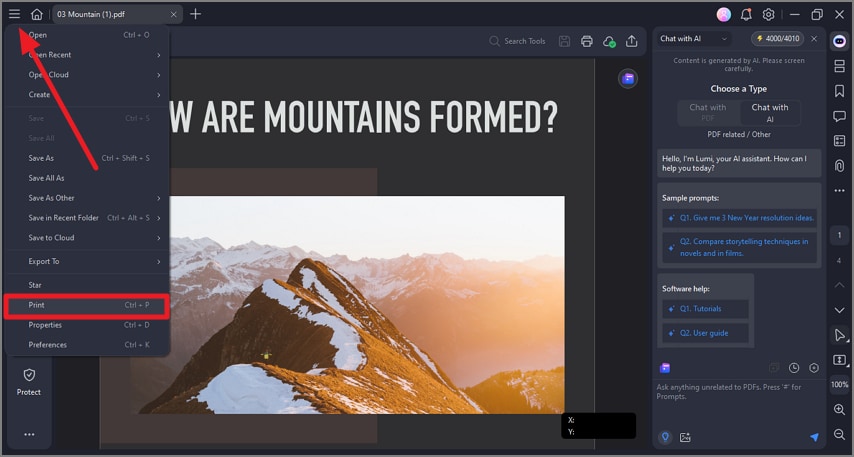
Launch PDFelement on your device and import the document for which you want to print comments. Now, head to the top-left corner of the interface to press the "Three Bars" icon. Next, click on the "Print" option located on the expanded list.
Step 2Check Comment Checkbox
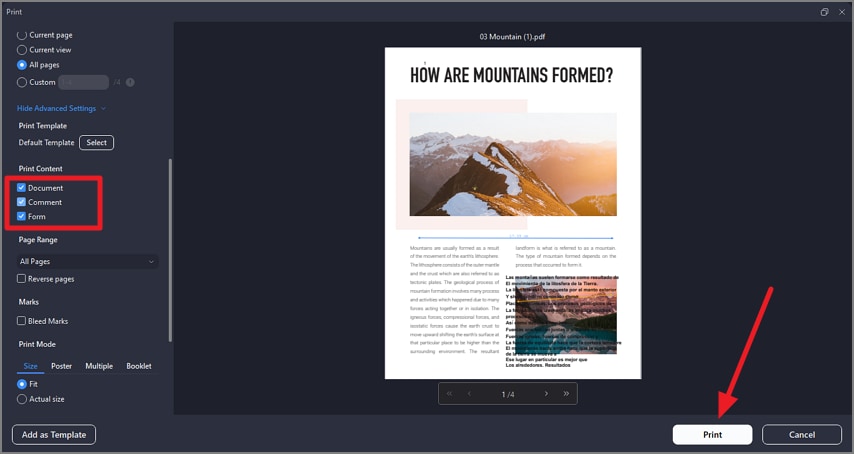
In the following print window, scroll through the options provided on the left and tick the "Comment" checkbox. Preview the page across the opened window to check that all the content is properly visible. Finally, hit the "Print" button to successfully print your PDF document.
G2 Rating: 4.5/5 |100% Secure
Tips
- To ensure visibility, it's best to convert important sticky-note text into callouts or text boxes before printing.
- We recommend using "Fit to Printable Area" or adjusting margins to prevent any content from being cut off.
Part 3. Method 2 — Print Documents and Comments With Connector Lines (Comment Summary)
Printing a comment summary in PDFelement allows you to generate a structured list of all annotations. This method is ideal when you want a clear overview of feedback without cluttering the main document pages and looking for a solution for how to print comments PDF. This visual connection makes it easier to trace feedback back to the relevant content.
Comprehensive Steps to Print Comment Summary With Connector Lines
PDFelement offers easy-to-use comment summary printing facilities for its users with connector lines. To learn how to print a PDF with a comment summary and connector lines, read the steps mentioned next:
Step 1Access Comment Summary Option
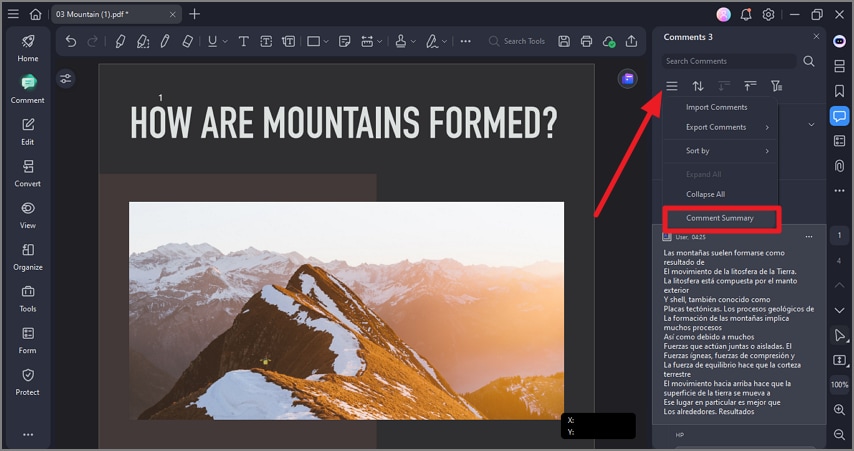
After launching PDFelement on your device, open the document and access the "Comment" feature from the right. Next, click on the "Three Bars" icon on the right and choose the "Comment Summary" option.
Step 2Enable Connector Lines Option
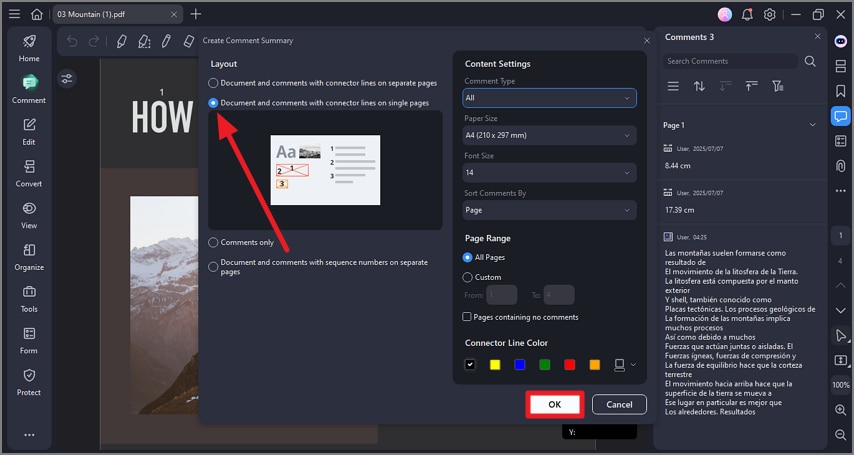
In the following interface, enable the radio button with options "Document and Comments With Connector Lines on Separate Pages/ Single Pages." Choose the connector lines' color and other page settings and hit the "OK" button to save the applied changes.
G2 Rating: 4.5/5 |100% Secure
Step 3Preview Summary and Print
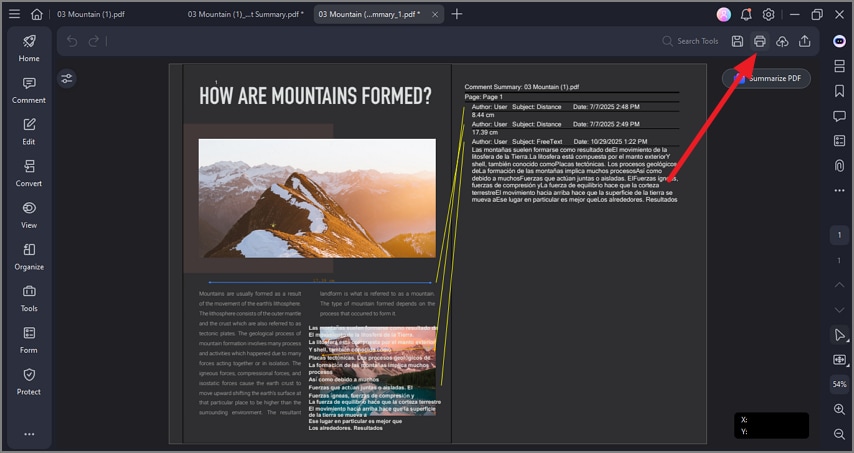
Once done, preview the comment summary in the main interface of the tool to learn how to print out a PDF with comments. When you are satisfied with the results, head to the top-right corner of the page and press the "Print" icon to successfully print the comment summary.
When to Use
- Creating a tidy, auditable record for QA, legal, or teacher feedback.
- Sharing comments with clients or colleagues without printing the full document.
- Needing a clear overview of all annotations for project reviews or team meetings.
- Tracking changes and authorship for collaborative editing or accountability purposes.
- Archiving comments for future reference or compliance documentation.
- Scanning and acting on feedback quickly without flipping through multiple pages.
Part 4. Method 3 — Print Only the Comments
Printing only the comments in PDFelement lets you create a concise, focused summary of all annotations without including the full document content. This approach is perfect when you want to review or share feedback quickly. By isolating the comments, readers can easily scan through all notes, see who made them, and when, without distraction from the main content.
How to Print Only Comments in PDF
As discussed, PDFelement lets you save the comments as separate PDF files, which you can print easily. To learn how to print comments in PDF, read the steps mentioned next:
Step 1Access Export Comments Function
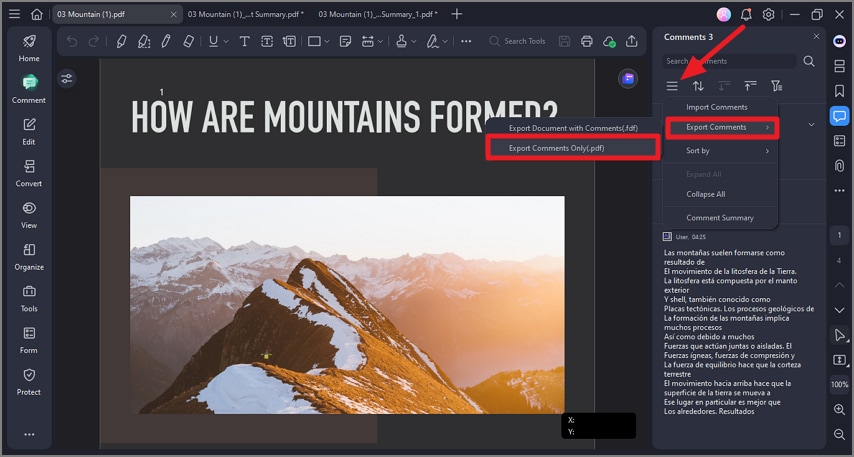
After importing your document to the tool's interface, enable the "Comments" section on the left. Now, head to the panel on the right and click on the "Three Bars" icon. Next, expand the "Export Comments" option and choose the "Export Comments Only" option. This will save your comments as a separate PDF file.
Step 2Open Comments PDF and Print
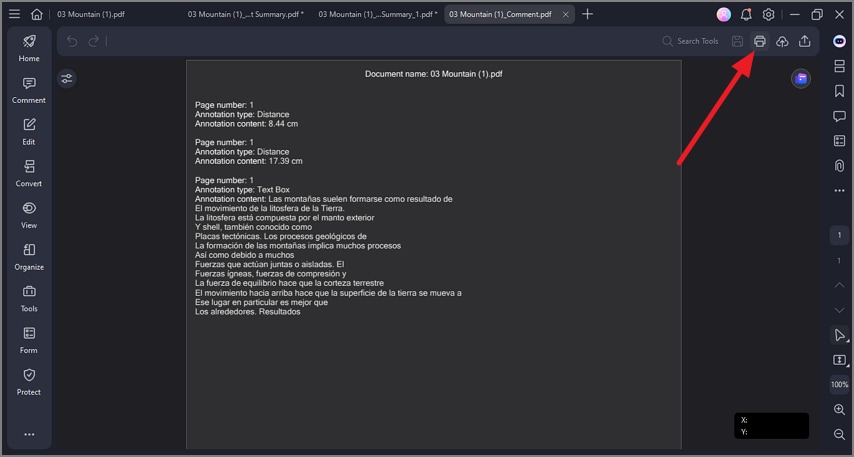
Open the newly created comments PDF within the tool's interface and click on the "Print" icon from the top-right corner to successfully print the document.
Part 5. Short Reference – Labels to Understand When Printing Comments With PDF
When working with different PDF editors, you may notice that the labeling for printing comments varies slightly from app to app. For people wondering how to print comments on a PDF, understanding these alternative labels can help you quickly find the right printing option without confusion.
Inline Printing: Some editors use terms like "Document and Markups," "Print Annotations," or "Document + Comments." These labels indicate that comments will appear directly on the pages alongside the content.
List Only: For printing only the comments, you might see labels such as "Summarize Comments," "Create Comment Summary," or "Print Comments Only." Choosing these labels produces a clean, organized list of all annotations separate from the main document.
Part 6. Quick Troubleshooting Tips for Printing PDF Comments
Even with the right print settings, issues can sometimes arise when printing PDFs with comments. The following tips address common problems and ensure your annotations appear correctly and clearly when finding a solution for how to print comments in a PDF document:
Only Base Page Prints: This usually happens when the print option for comments isn't enabled. Make sure to select "Document and Markups" or "Print Annotations" to include all comments on the printed pages.
Icons Show, Not the Comment Text: Some PDF viewers only print sticky-note icons by default. Converting important notes to callouts or printing a comment summary ensures all text is visible.
Comments Cut Off at Edges: If annotations are partially missing, it's likely due to page scaling or margin issues. Use "Fit to Printable Area," widen the margins, or reposition callouts to prevent content from being trimmed.
Too Cluttered to Read: Printing inline comments can sometimes make pages hard to follow. Consider printing a clean page pack and attaching a comment summary to provide a clear, organized overview.
Recipients Can't See Annotations: Some recipients may not have compatible PDF viewers. Share the comment summary PDF or export a flattened copy so all annotations are visible to everyone.
Conclusion
To sum it up, this article provided a complete guide on how to print a PDF document with comments effectively. For quick context on the page, use inline printing via Document and Markups, while for clean records and easy review, a Comment Summary is ideal. Tools like PDFelement make both methods simple, reliable, and efficient, helping you preserve all annotations accurately for printing.
People Also Ask
-
How do I print a PDF with comments showing/on the same page?
To print comments directly on the pages, select "Document and Markups" in most PDF editors. In PDFelement, the "Print with Comments" option preserves all annotations inline, making it simple and reliable. -
How do I print only the comments?
You can generate a Comment Summary to print just the annotations without including the full document. PDFelement makes this easy by creating a clean, organized list of all notes for quick review. -
Can I include author, date, and page?
Yes, most PDF editors allow you to include metadata like author, date, and page number. In PDFelement, you can enable these fields in the Comment Summary settings for a fully detailed printout. -
Why don't sticky-note pop-ups print?
Sticky-note pop-ups rarely appear on printed pages because they don't expand automatically. With PDFelement, you can convert critical notes to callouts or use the comment summary to ensure all feedback is captured.

