

In this article
- How to Make a PDF File in CamScanner
- What You Need Before Creating a PDF in CamScanner
- How to Create a PDF in CamScanner Step by Step
- How to Create a Multi-Page PDF in CamScanner
- How to Make a PDF from Photos in CamScanner
- How to Save or Share a CamScanner PDF
- Common Issues When Making a PDF in CamScanner
- CamScanner vs a Full PDF Workflow Tool
- PDFelement Mobile or Desktop
- Common Use Cases of Making a PDF in CamScanner
- Frequently Asked Questions
- Conclusion
Knowing how to make a PDF in CamScanner is one of the fastest ways to turn paper documents or saved photos into shareable digital files from a phone. Users can scan pages, improve image quality, combine them into one file, and export everything as a PDF without switching devices. When the file later needs OCR, annotations, compression, or deeper cleanup, PDFelement can take over as the next step in the workflow.
When someone urgently needs to send a form, homework page, signed record, or receipt but only has a phone, a mobile scanning workflow can save time. Learning how to create a PDF in CamScanner gives users a quick way to capture pages, organize them into one document, and keep files neatly stored for sharing or later use.
Part 1. How to Make a PDF File in CamScanner?
When the goal is to turn paper pages into one digital file, CamScanner keeps the process simple. The basic workflow is to scan the pages, improve the images, combine them when needed, and then export them as a PDF.
- Open CamScanner and start scanning: This begins the capture process and turns physical pages into digital images.
- Capture the required pages: Each page is added for inclusion in the final PDF.
- Edit and improve scans: Cropping and enhancement help improve readability and page clarity.
- Save, combine, and share the PDF: This organizes the pages into one file for storage or distribution.
If the PDF needs more work after scanning, users can continue on their phone with PDFelement Mobile for Android or PDFelement Mobile for iOS, or move to PDFelement Desktop for more advanced PDF editing and management.
Part 2. What Do You Need Before Creating a PDF in CamScanner?
Creating a PDF in CamScanner works best when the setup is ready before scanning starts. A few quick checks can prevent interruptions and help produce a cleaner file.
- App access and permissions: CamScanner needs camera access, so users should confirm permissions are enabled before starting.
- A clear document or photo: Good lighting and a flat surface help edge detection and produce a more readable PDF.
- A plan for single-page or multi-page output: Deciding this early makes it easier to capture and organize pages correctly.
Part 3. How to Make a PDF File in CamScanner - Step-By-Step Guide
CamScanner converts images captured on a phone into a PDF by organizing pages into one document. Follow the steps below to learn how to create a PDF in CamScanner.
Step 1
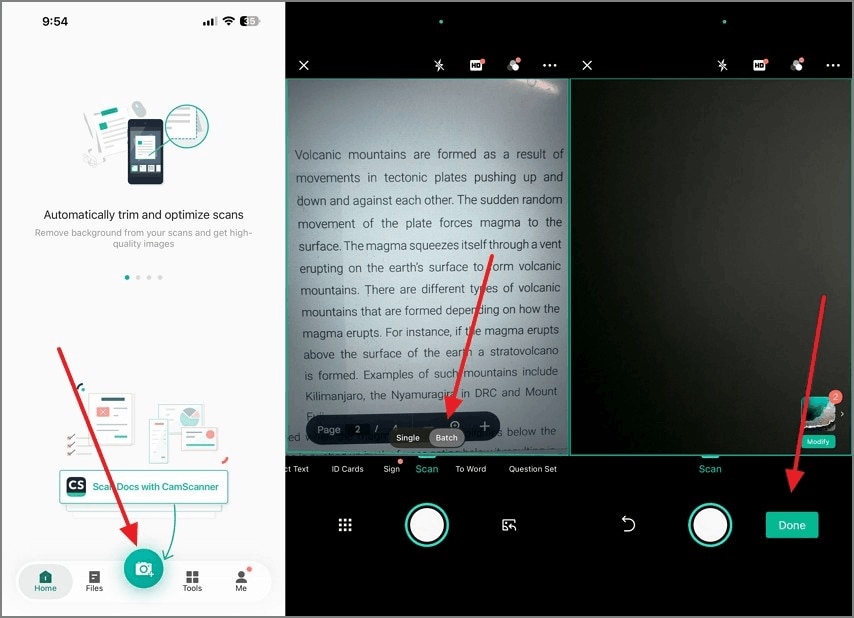
Use the Capture icon to photograph the document and select the Batch feature if multiple pages need to be scanned. When all required images are captured, tap Done to continue. Try to keep the pages aligned and avoid blur for better scan quality.
Step 2
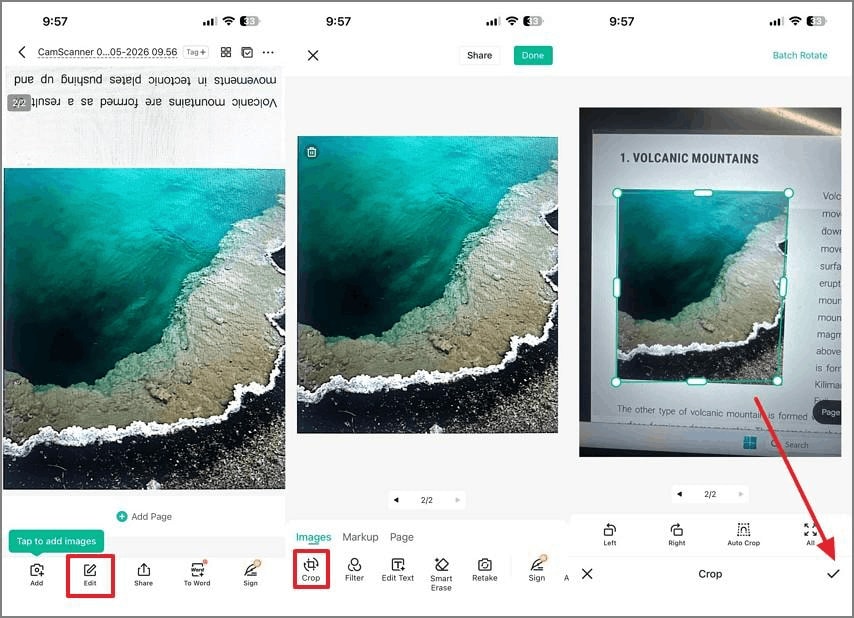
On the next screen, tap Edit and then Crop to adjust the document edges. After the page looks correct, tap Done again. This helps prevent important content from being cut off in the final PDF.
Step 3
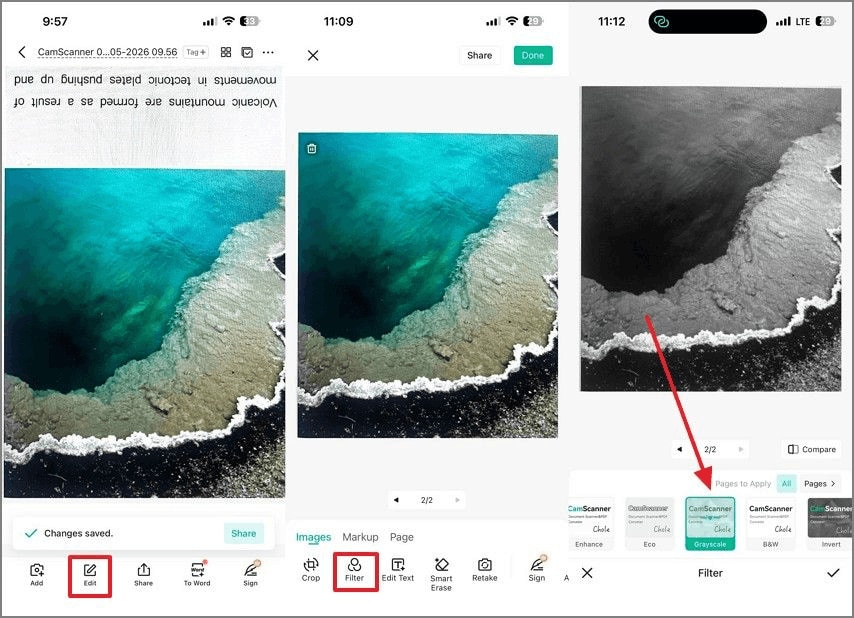
Stay in Edit mode, open the Filter tab, and apply the filter that best improves the page. Adjusting contrast, brightness, or scan enhancement can make text clearer by reducing shadows, glare, and background noise.
Step 4
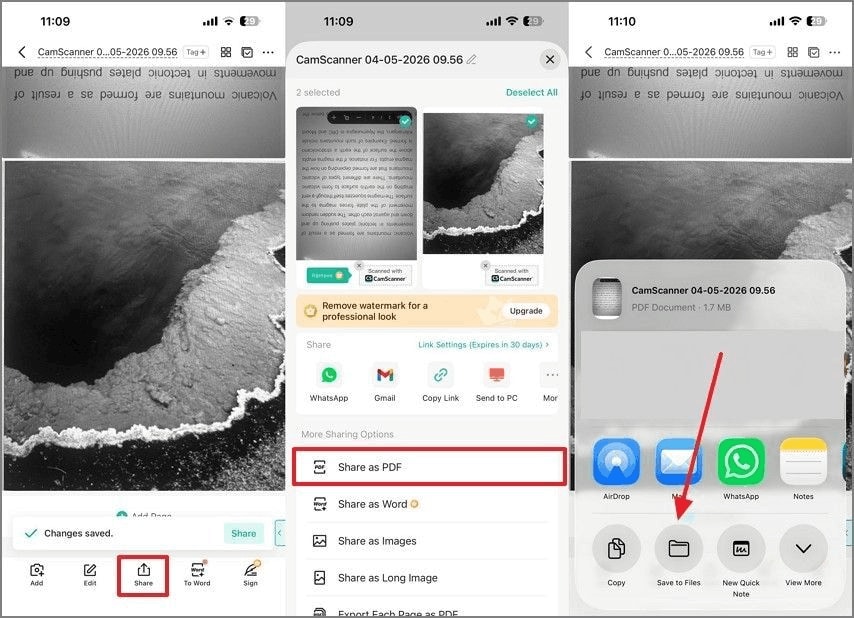
Tap Share from the bottom toolbar and choose Share As PDF. On the next screen, select Save to Files or another destination to store the document as a PDF.
Part 4. How Do You Create a Multi-Page PDF in CamScanner?
CamScanner also lets users build a single PDF by scanning and adding several pages into one document. This is useful for contracts, notes, receipts, and any material that should stay together.
- Keep scanning into one document: Each new page is added to the same file instead of creating separate PDFs.
- Maintain and adjust page order: Pages can be rearranged before saving so the file follows the correct sequence.
- Add or remove pages anytime: Users can insert missing pages or delete poor scans to improve the final output.
- Save as one PDF file: All selected pages are compiled into a single PDF for easier sharing and storage.


 G2 Rating: 4.5/5 |
 100% Secure
Part 5. How Can You Make a PDF from Photos in CamScanner?
CamScanner can also create a PDF from photos that are already stored in the phone gallery. This is useful when the document was photographed earlier and does not need to be scanned again live.
- Select existing photos from the gallery: Imported images can be converted directly inside CamScanner.
- Use saved images instead of live scanning: This workflow is helpful when the pages were captured before opening the app.
- Organize imported images: Arrange the selected photos in the right order before conversion.
- Export as one PDF file: CamScanner combines the images into a single file that preserves page sequence.
Part 6. What is the Way to Save or Share a PDF?
After the file is created, the next step is deciding where to save it or how to send it. The options below cover the most common ways to handle a finished CamScanner PDF.
Save to Device or App Storage
The PDF can be stored locally on the phone or kept inside the app for later access. This is useful for keeping important files organized and available offline.
Share via Email, Messaging, or Cloud
Users can export the file directly to email, chat apps, or cloud storage services. This is one of the fastest ways to distribute scanned documents.
Check the File Before Sending
Before sharing, review the PDF to make sure all pages are clear, correctly ordered, and fully included. This helps avoid sending incomplete or unreadable documents.
Part 7. What are the Common Issues Faced While Making a PDF in CamScanner
Even when users understand how to make a PDF file in CamScanner, a few common problems can still affect the final output. These issues usually relate to image quality, page handling, or post-scan editing needs.
- Blurry scan results: Poor lighting or shaky capture can make the page hard to read.
- Cut off page edges: Incorrect framing may leave out part of the document.
- Pages not saved as one PDF: Users may accidentally end up with separate files instead of a single document.
- Large PDF file size: High-resolution images can make the export too heavy for email or app uploads.
- The scan needs editable or searchable text: Image-based PDFs do not automatically support text search or direct text editing.

Part 8. CamScanner vs a Full PDF Workflow Tool: Which is the Better Option?
Different tools fit different stages of the workflow. CamScanner is strong for fast capture on a phone, while PDFelement is better suited for work that continues after the scan is finished.
| Tool | Best Use Case |
|---|---|
| CamScanner | Quickly capturing paper documents or photos and converting them into PDFs directly on a phone. |
| PDFelement Mobile | Handling post-scan tasks on mobile, such as OCR, annotations, signatures, light cleanup, and sharing. |
| PDFelement Desktop | Performing advanced editing, page reorganization, file conversion, and final document refinement. |
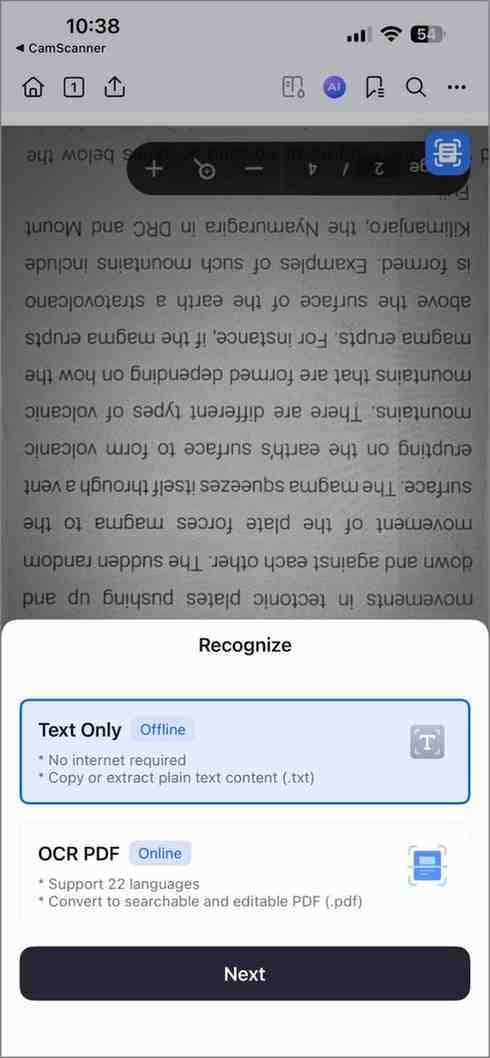
Part 9. PDFelement Mobile or Desktop? Choosing the Need-Based Option
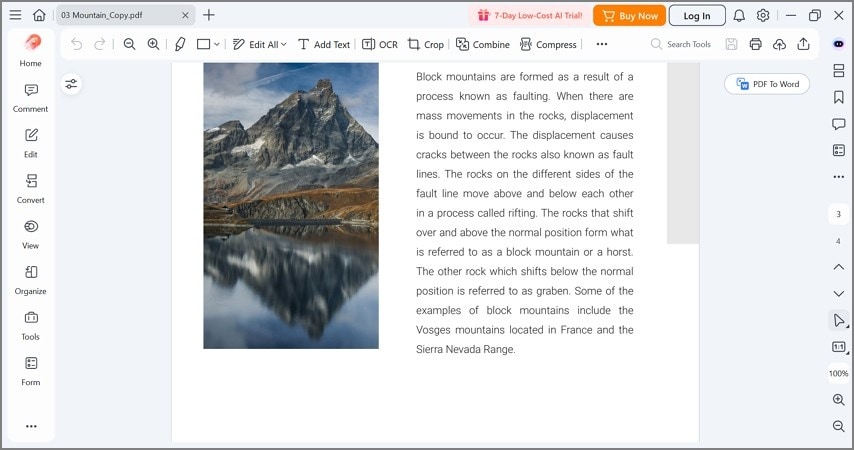
If making the PDF is the only goal, learning how to create a PDF in CamScanner is enough for the first step. However, when the file needs OCR, annotation, compression, page management, or deeper refinement, choosing between PDFelement Mobile and PDFelement Desktop becomes important.
| PDFelement Mobile | PDFelement Desktop |
|---|---|
| Make scanned PDFs searchable using OCR when text extraction is needed. | Edit and refine PDF content in detail for more precise document control. |
| Add comments, highlights, or signatures directly on the phone. | Merge multiple scanned PDFs into one structured document. |
| Perform light cleanup and compress files before sharing or uploading. | Convert scanned PDFs into other formats when different outputs are required. |
| - | Reorder, insert, or delete pages in multi-page PDFs. |
For quick work on the go, PDFelement Mobile for Android and PDFelement Mobile for iOS fit well after a CamScanner export. For fuller editing, file organization, and format conversion, PDFelement Desktop is the stronger option.
G2 Rating: 4.5/5 |100% Secure
Part 10. What are the Common Use Cases of Making a PDF in CamScanner
Creating a PDF in CamScanner is a practical way to turn paper documents into shareable digital files across daily tasks. The following use cases are among the most common.
| Use Case | Why PDF Helps |
|---|---|
| Homework or assignment submission | Students can submit handwritten or printed work as PDFs in an easy-to-share format. |
| Signed forms or ID copies | Official paperwork can be digitized and shared while keeping a simple record on the phone. |
| Receipts, bills, or records | Financial and personal documents can be stored for safekeeping and easier retrieval. |
| Handwritten notes | Paper notes can be preserved as PDFs for long-term storage and digital access. |
| Multi-page documents | Several pages can be combined into one file so related content stays together and easier to manage. |
Frequently Asked Questions
How do I make a PDF file in CamScanner on my phone?
Open CamScanner, scan the document with the camera, adjust the crop and image quality, and then export or share the result as a PDF.
Can I create one PDF from multiple pages in CamScanner?
Yes. Users can scan several pages into the same document and combine them into one PDF.
How do I save scanned pages as one PDF in CamScanner?
Add all scanned pages to the same project and choose the save or export option as PDF. CamScanner then compiles them into one file.
Can I make a PDF in CamScanner from photos already in my gallery?
Yes. Existing images can be imported from the gallery, arranged in the correct order, and saved as a single PDF.
Why is my CamScanner PDF blurry or cropped incorrectly?
This usually happens because of weak lighting, shaky capture, or incorrect edge detection during scanning.
What should I do if the PDF is too large to upload?
If the file is too large, it can be compressed with PDFelement. Users can also split the document or remove unnecessary pages if needed.
Can I edit text in a scanned PDF after creating it in CamScanner?
Not directly in most cases, because scanned PDFs are usually image-based. To make text searchable or editable, users typically need an OCR workflow such as PDFelement.
What tool should I use if I need OCR or deeper PDF editing after scanning?
PDFelement is a practical next-step tool for OCR, annotation, advanced editing, compression, and broader PDF management after scanning.
Can I keep working on the scanned PDF on my phone with PDFelement Mobile?
Yes. PDFelement Mobile for Android and PDFelement Mobile for iOS let users continue working on scanned PDFs from a phone.
G2 Rating: 4.5/5 |100% Secure
Conclusion
All in all, making a PDF in CamScanner is a simple scan, save, and share workflow for turning paper documents into digital files on a phone. It works for both single-page and multi-page PDFs, depending on how many pages need to be captured.
After learning how to make a PDF file in CamScanner, users can continue with PDFelement Mobile for quick mobile tasks or move to PDFelement Desktop for deeper editing, organization, compression, OCR, and format conversion when the document needs more refinement.




