

Table of Contents
A PDF that looks perfect on your screen can still be too large to email, upload to a portal, or store efficiently. The usual causes are high-resolution images, scanned pages, embedded fonts, unnecessary objects, and layers left behind by design or office software. A good free PDF compressor reduces that extra weight while keeping the document readable and shareable.
The tricky part is choosing the right tool. Some online compressors are excellent for a one-page form or a quick email attachment. Others place strict limits on file size, daily tasks, or batch processing. Desktop PDF compressor software is usually better for private documents, large scanned files, and repeated work, but not every “free download” gives you full compression features without an upgrade.
This guide compares practical free PDF compressor options, explains what to look for, and shows how to reduce PDF file size without turning your pages into a blurry mess.
What Makes a Good Free PDF Compressor?
A PDF size compressor is not just a “make it smaller” button. The best tools give you some control over the result: how aggressively images are downsampled, whether quality is preserved for printing, and whether multiple files can be compressed at once.
For most people, the right choice depends on the document. A text-heavy contract might shrink quickly with little visible change. A scanned report, product catalog, or presentation full of images needs more careful handling because the compressor usually reduces file size by lowering image resolution or quality.
Online vs. Desktop PDF Compression
Online PDF compression tools are convenient. You upload a PDF, choose a compression level, and download the smaller file. They work well for occasional tasks, especially when you are on a shared computer or do not want to install anything.
Desktop PDF compressor software is better when you work with PDFs regularly. It is also the safer choice for sensitive documents because the file does not need to be uploaded to a third-party server. If you handle contracts, invoices, medical forms, HR files, financial documents, or confidential business reports, offline compression is usually the more appropriate workflow.
There is also a reliability difference. Online tools depend on file size limits, internet speed, browser stability, and server availability. A desktop PDF compression tool can process large documents more consistently and may support batch compression.
What “Free” Usually Means
A free PDF compressor can mean several things:
A genuinely free web tool with limits on file size or number of tasks.
A free trial of paid PDF compressor software.
A free desktop app with basic compression and paid advanced features.
A freemium online platform where stronger compression, OCR, or batch work requires a subscription.
That does not make free tools bad. It just means you should check the limits before uploading a 300-page scan or planning a large batch job. If you only need to compress one PDF for an email, a free online tool may be enough. If you regularly compress client files or internal reports, a dedicated PDF compressor download is usually worth considering.
How Compression Affects Quality
PDF compression often works by reducing image resolution, removing duplicate resources, simplifying embedded data, and optimizing fonts. Text usually stays sharp because it is stored differently from images. Scanned PDFs are more vulnerable because each page may be a large image.
For reference, Adobe explains that PDFs can contain text, images, forms, multimedia, and other objects, which is why file size can vary so much from one document to another. You can read more about the PDF format from Adobe’s PDF overview.
A high-compression setting may be fine for online reading, but poor for printing. A low or medium setting is safer for resumes, contracts, forms, reports, and anything that may need to be printed later.
Best Free PDF Compressor Tools to Try
The best PDF compressor depends on whether you value speed, privacy, compression control, batch processing, or an all-in-one PDF workflow. The tools below cover both free online options and software-based solutions.
1. PDFelement: Best for Offline Compression and Full PDF Workflows
PDFelement is a practical choice if you want more than a one-time online compression. It includes PDF compression alongside editing, OCR, conversion, page organization, annotation, signing, and form tools. That matters because reducing file size is often only one step in a bigger workflow.
For example, you might need to scan a signed agreement, run OCR so the text is searchable, delete blank pages, compress the final PDF, and then send it to a client. Using separate free tools for each step can be slow and messy. In PDFelement, those tasks sit inside one desktop PDF environment, which is especially useful for business documents or files you do not want to upload online.
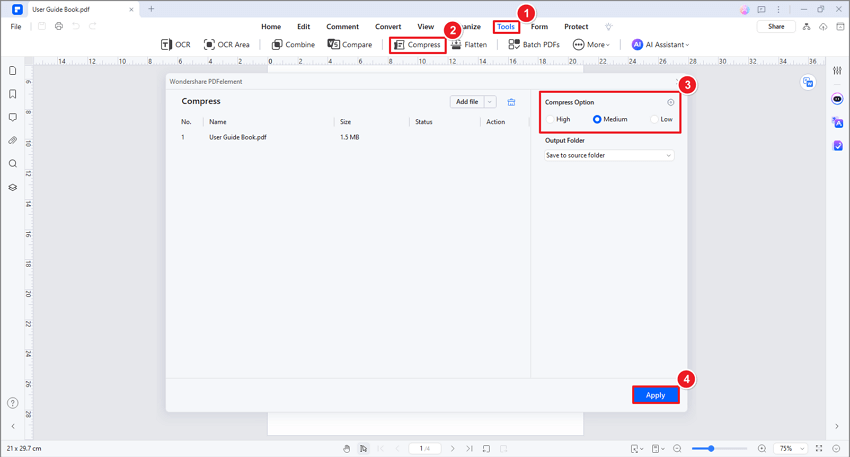
PDFelement’s compression feature lets you choose different compression levels, so you can balance file size and quality instead of accepting one fixed output. It is also useful when you need to compress many PDF files, not just a single document. For users searching for a PDF compressor free download, PDFelement is worth considering if they want desktop software with broader PDF management features rather than a limited web-only compressor.
The main point: PDFelement fits users who need reliable PDF compressor software and also expect to edit, convert, organize, or protect the document after compression.
2. HiPDF: Best Free Online PDF Compressor for Quick Tasks
HiPDF is a browser-based PDF compression tool from Wondershare. It is a good option when you need to reduce a PDF quickly and do not want to install software. You can upload a file, choose a compression level, and download the optimized version.
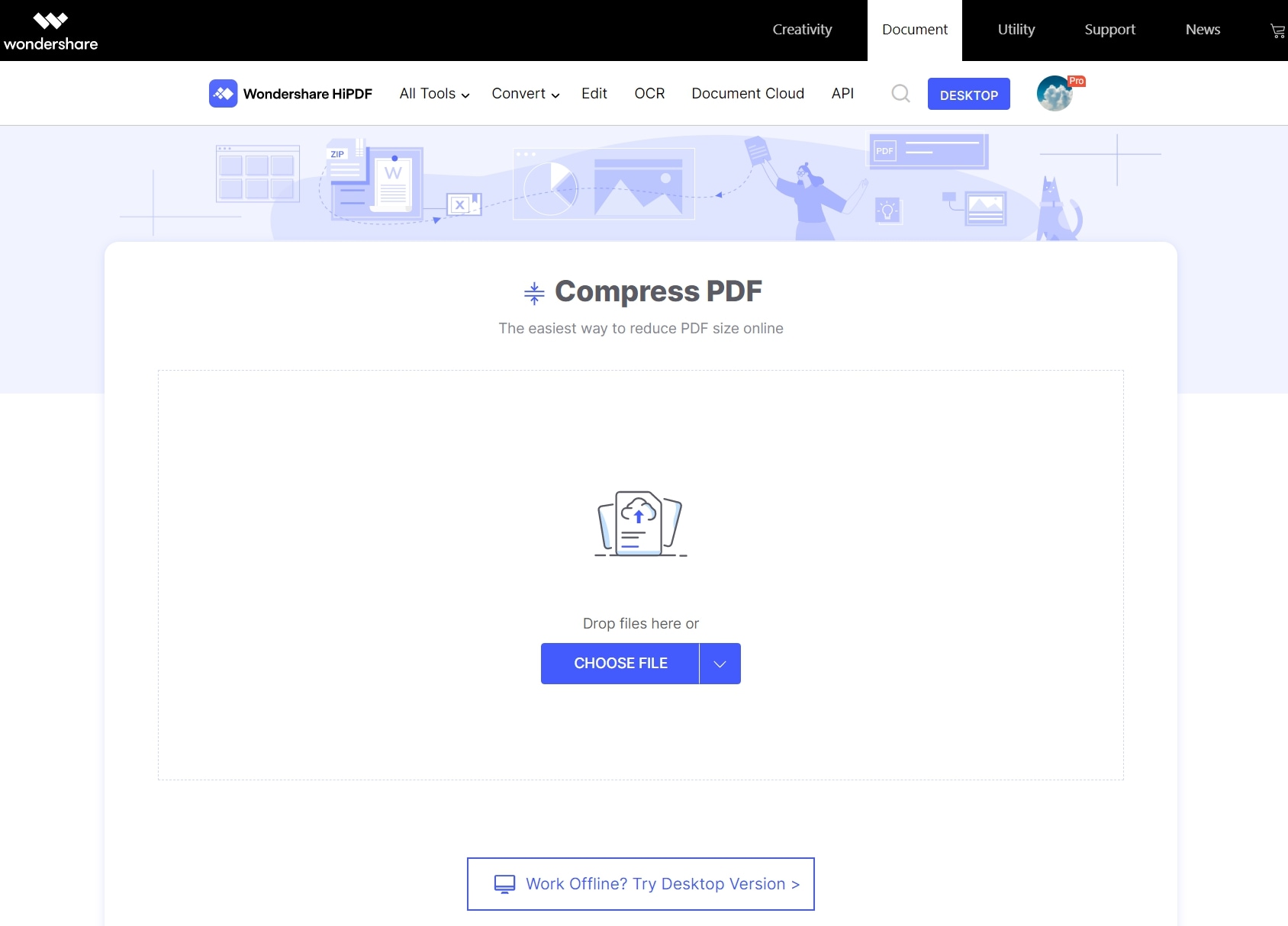
HiPDF is especially convenient for lightweight tasks, such as compressing a form, handout, invoice, or short report before sending it by email. It also connects with other online PDF tasks, such as conversion and editing, so you can continue working on the file after compression.
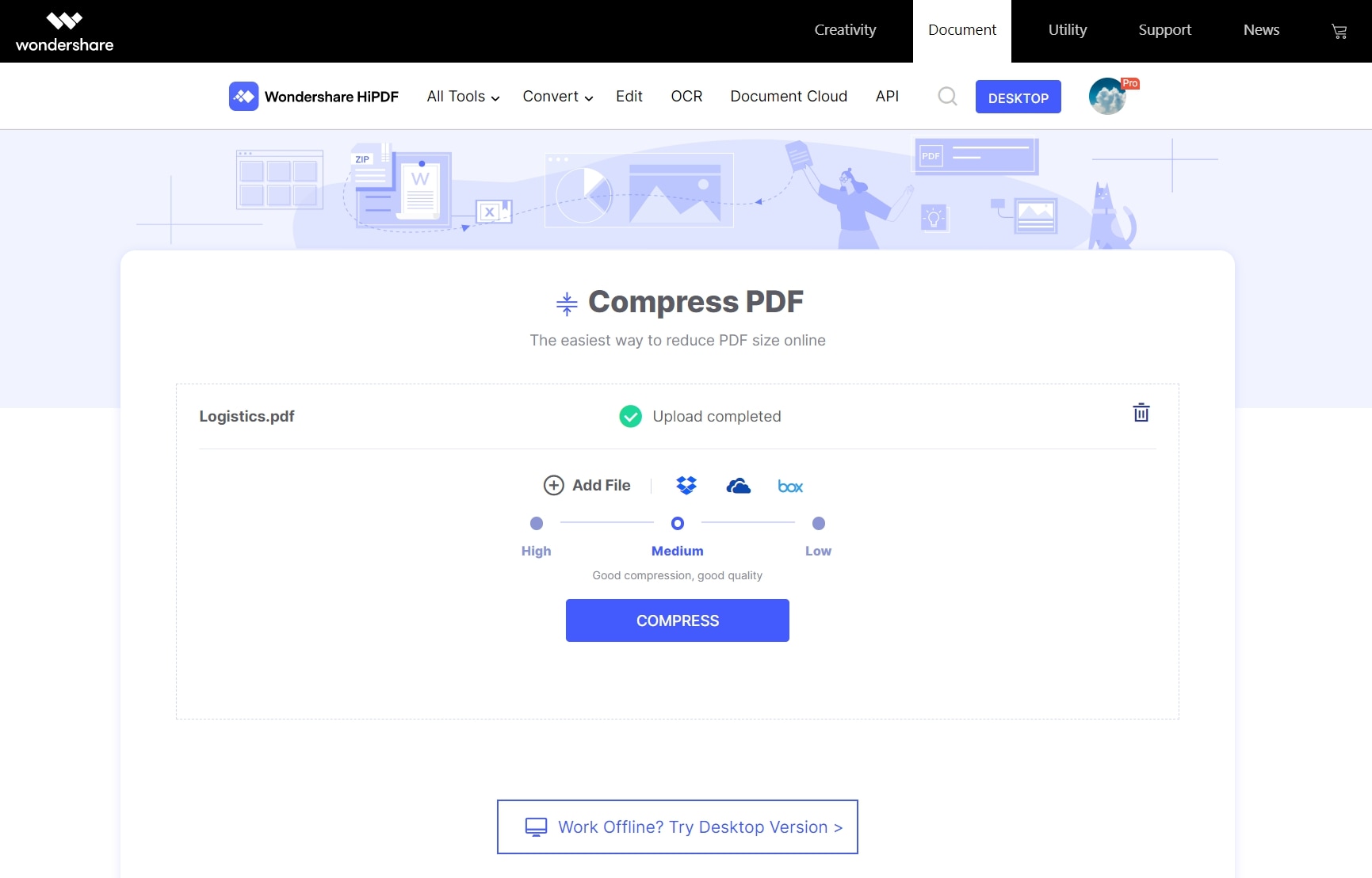
Like most online tools, HiPDF may have free-use limits depending on file size, number of tasks, or advanced features. For casual use, that is rarely a problem. For confidential or large-volume work, desktop software is usually better.
3. Adobe Acrobat Online Compressor: Best Recognized Brand Option
Adobe created the PDF format, so many users naturally trust its PDF tools. Adobe’s online compressor is simple: upload a file, compress it, and download the result. It is a strong option for users who want a familiar brand and a clean compression process.
The online tool is best for occasional compression. If you need advanced controls, batch processing, editing, redaction, or offline use, Adobe Acrobat Pro is the more complete product, but it is paid software. Acrobat can be powerful, but it may feel heavier than necessary if all you need is to shrink a file once.
Adobe also provides information on reducing file size in Acrobat through its official help resources, such as optimizing PDFs in Acrobat.
4. Smallpdf: Best for Simple Browser-Based Compression
Smallpdf is one of the better-known online PDF platforms. Its compressor is easy to use and works well for quick reductions. The interface is straightforward, and it offers related tools for converting, merging, splitting, and signing PDFs.
Smallpdf is useful if your file is not sensitive and you want a polished online PDF compression tool. The free version may have daily limits, and stronger compression or unlimited access may require a paid plan. This is common among web-based PDF tools.
Smallpdf is not ideal if you need deep editing after compression. You can do basic PDF tasks, but users who need OCR, document cleanup, page-level organization, or repeated batch compression may prefer desktop PDF compressor software.
5. iLovePDF: Best for Multiple Everyday PDF Tasks
iLovePDF is another popular online PDF toolkit with a free compression feature. It is useful for everyday PDF jobs: compressing, merging, splitting, converting, numbering pages, and adding watermarks.
For students, freelancers, and office users, iLovePDF is convenient because the tool list is broad and easy to access. It also offers desktop and mobile options in addition to web tools. As with similar platforms, free users should check limits before relying on it for large files or frequent work.
iLovePDF is a good pick if you want a web-based PDF size compressor and occasionally need adjacent tools, but it may not be the best option for confidential files or strict offline workflows.
6. Sejda: Best for Occasional Compression and Light Editing
Sejda offers online PDF compression plus a set of editing features. It is useful when you need to compress a file and make small changes, such as adding text, filling a form, or rearranging pages.
The free version typically has usage limits, so it works best for occasional tasks rather than daily PDF production. One advantage is that Sejda is fairly easy to understand. The tools are not buried inside a complex interface, which helps if you only compress PDFs from time to time.
Sejda is less suitable for heavy batch compression or files requiring careful quality control. If your PDF contains many scanned pages, test the output before sending or archiving it.
7. PDF24 Tools: Best Free Utility-Style PDF Compressor
PDF24 Tools is a useful option for people who want a free PDF compression tool without a complicated account setup. It offers many PDF utilities, including compression, merging, splitting, conversion, OCR, and page extraction.
One reason PDF24 stands out is that it also offers a desktop version for Windows. That gives users a path from online compression to offline processing if their needs grow. The interface is more utility-like than polished, but it is practical.
For users who want a free toolset and do not mind a less commercial-looking interface, PDF24 is worth testing.
8. FreePDFConvert: Best for Compression Plus Conversion Tasks
FreePDFConvert started as a conversion-focused platform and now includes PDF compression and other document tools. It can be useful when the compression task is part of a conversion workflow, such as turning Word, Excel, or image files into PDFs and then reducing the output size.
It usually offers simple compression choices, such as prioritizing better quality or stronger compression. That is helpful for users who do not want to adjust technical settings.
FreePDFConvert is best for general-purpose online tasks. As with any web compressor, avoid uploading sensitive documents unless you are comfortable with the platform’s privacy and retention policies.
Best PDF Compressor Software for Offline Work
A browser tool is fine for a quick attachment. But if you compress PDFs every week, manage confidential files, or process large scans, downloadable software can save time and reduce risk.
Desktop PDF compressor software is also more predictable. You are less likely to hit a sudden upload limit, and you can keep working without waiting for a large file to transfer to and from a server.
Why Choose a PDF Compressor Download?
A PDF compressor download is usually the better option when your workflow includes:
Confidential documents that should not be uploaded online.
Large scanned PDFs, manuals, portfolios, or image-heavy reports.
Batch compression for multiple files.
Follow-up editing, OCR, conversion, signing, or page organization.
Offline work during travel or in restricted network environments.
Free online compressors are convenient, but they are not always the best fit for professional document handling. The more sensitive or repetitive the job, the more sense desktop software makes.
PDFelement for Compression, Cleanup, and Delivery
PDFelement works well as a full PDF workflow tool because compression is connected to practical document cleanup. Before reducing file size, you can remove blank pages, crop unnecessary margins, reorder pages, convert image-based scans with OCR, or delete large unused images. After compression, you can add comments, protect the PDF with a password, sign it, or export it to another format.
That sequence matters. Compressing a messy PDF first may not produce the best result. If a scanned file includes duplicate pages, crooked scans, or unnecessary attachments, cleaning it up before compression can reduce size without sacrificing as much visual quality.
For users searching for PDF compressor software free or a PDF compressor free download, PDFelement is most relevant when they want a desktop tool that can handle the whole document lifecycle, not just shrink a file once.
Adobe Acrobat Pro for Advanced PDF Optimization
Adobe Acrobat Pro is one of the most advanced PDF tools available. Its optimization features can audit file size, downsample images, remove embedded thumbnails, discard unused objects, and control font handling. This is useful for professional publishing, legal files, print workflows, and technical documentation.
The trade-off is cost and complexity. Acrobat Pro may be more than a casual user needs. If you only want a free PDF compressor for occasional email attachments, Acrobat’s online tool or another web compressor may be enough.
Foxit PDF Editor for Business PDF Management
Foxit PDF Editor is another established desktop PDF solution. It supports compression and broader PDF editing, conversion, collaboration, protection, and form workflows. It is often used in business environments where users need a full PDF editor rather than a single-purpose compressor.
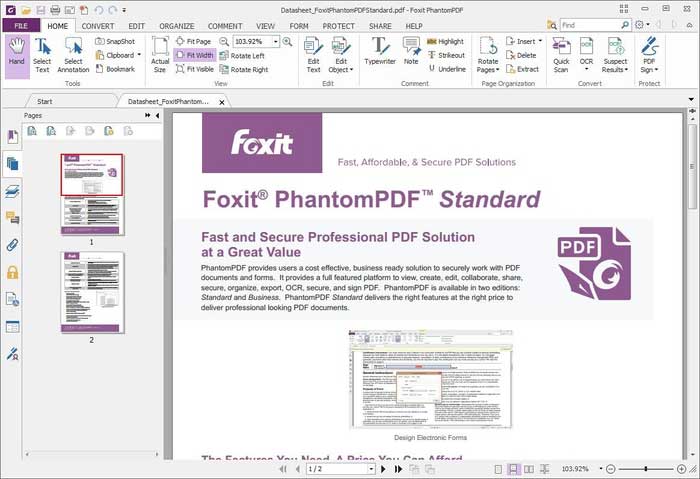
Foxit may be a good fit for organizations that already use its PDF ecosystem or need collaboration and security features. Individual users should compare pricing and feature depth against alternatives before choosing it only for compression.
PDF Architect for Modular PDF Tools
PDF Architect uses a modular approach, which means users can add features depending on what they need. This can be useful if you want a lighter setup, but it can also become confusing if compression, editing, conversion, or OCR require separate modules or paid upgrades.
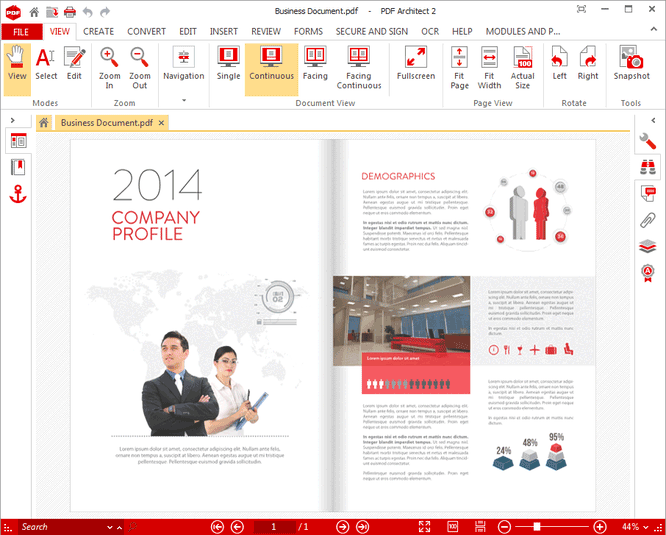
PDF Architect is worth considering if you like choosing features à la carte. Before installing it as a PDF compressor free download, check which compression features are available in the free version and which require payment.
PDFescape for Basic Browser and Desktop PDF Tasks
PDFescape offers both online and desktop PDF tools. It can be helpful for simple edits, form filling, annotation, and basic document handling.
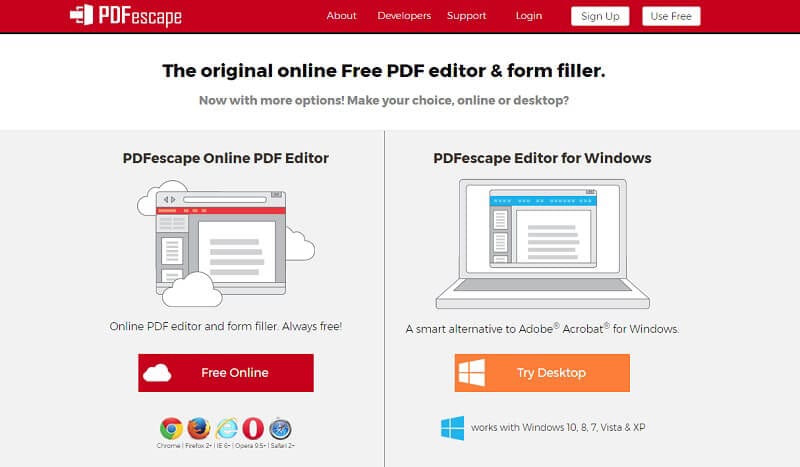
Its online version is convenient, but the interface may feel crowded compared with more focused compression tools. If compression is your main task, a dedicated compressor may be faster. If you also need light editing in a browser, PDFescape can still be useful.
How to Compress a PDF Without Losing Too Much Quality
The best compression setting is not always the smallest output size. A 20 MB PDF reduced to 400 KB may look fine as a thumbnail but terrible when printed. Before choosing the strongest compression level, think about where the file will be used.
If the PDF is for email review, online upload, or internal reading, medium or high compression may be acceptable. If it is for printing, client delivery, design review, or archiving, use lower compression and check image clarity before sending.
Choose the Right Compression Level
Most PDF compression tools use labels such as low, medium, high, basic, strong, better quality, or smaller size. The wording varies, but the idea is similar.
Low compression preserves more image detail and usually creates a larger file. Medium compression is often the best default for mixed documents with text and images. High compression creates the smallest file but may visibly reduce image quality, especially in scanned pages, charts, signatures, and screenshots.
For scanned PDFs, pay close attention to small text. A page may look acceptable zoomed out, but the fine print can become fuzzy at 100% zoom or on paper. Always open the compressed PDF and inspect a few representative pages before deleting the original.
Desktop Workflow: Compress a PDF with PDFelement
A desktop workflow is best when the file is sensitive, large, or part of a larger editing process.
Open the PDF in PDFelement and review it before compressing. If the document has blank pages, duplicate scans, or unnecessary pages, remove them first. If the PDF is scanned and you need searchable text, run OCR before final delivery. Then use the compression feature and select the level that matches your use case.
For an email attachment, medium compression is a sensible first try. For web upload with strict size limits, high compression may be necessary. For contracts, proposals, or printable documents, start with low or medium compression and compare the output.
After compressing, save the new file under a different name, such as proposal-compressed.pdf. This keeps the original available in case the compressed version is too small or image quality drops more than expected.
Online Workflow: Compress a PDF in a Browser
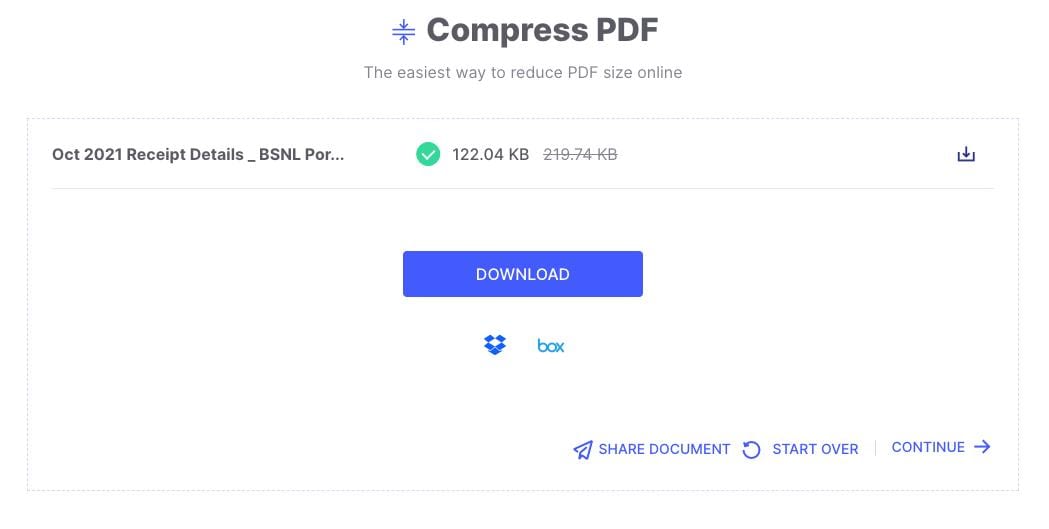
For non-sensitive files, online compression is fast. Open your chosen PDF compression tool, upload the document, choose the compression level, and download the result. If the tool provides a file size estimate, use it to avoid over-compressing.
After downloading, check three things: file size, page count, and visual quality. Make sure no pages failed to process. Then zoom in on images, signatures, tables, and small text. If the file is still too large, try stronger compression or remove unnecessary pages. If the quality is poor, go back to the original and choose a lighter setting.
For private files, read the tool’s privacy policy first. Some services delete uploaded files after a short period, while others may retain files temporarily for processing or account features. Mozilla’s guide to protecting personal information online is a useful reminder that convenience should not replace basic privacy checks.
How to Choose the Best PDF Compression Tool for Your Needs
The best PDF compressor is not the same for everyone. A student submitting an assignment, a lawyer sending a contract, and a designer sharing a portfolio all have different priorities.
If You Need the Fastest Free Option
Use an online free PDF compressor such as HiPDF, Smallpdf, iLovePDF, PDF24, or Adobe’s online compressor. These tools are designed for speed. They are best for files that are not confidential and do not need detailed quality control.
If you only compress a PDF once in a while, installing desktop software may be unnecessary. Just remember that free online tools often have file size, daily usage, or feature limits.
If You Need Privacy
Use offline PDF compressor software. This is the safest route for legal documents, employee records, contracts, invoices, tax forms, unpublished manuscripts, medical files, and internal business reports.
PDFelement, Adobe Acrobat Pro, Foxit PDF Editor, PDF24 Desktop, and similar software let you process files locally. That keeps the document on your computer instead of sending it through an online upload workflow.
If You Need Batch Compression
Look for software with batch processing. Batch compression is valuable when you need to reduce dozens or hundreds of PDFs, such as monthly invoices, scanned records, training handouts, or archived reports.
Online tools may support batch compression, but it is often limited in free plans. Desktop PDF compressor software is usually more efficient for recurring batch jobs.
If Your PDF Is Image-Heavy
Choose a tool that offers compression levels rather than a single fixed setting. Image-heavy PDFs need more care because aggressive compression can blur photos, screenshots, diagrams, and scanned text.
For catalogs, portfolios, certificates, and reports with charts, start with medium compression. If the file is still too large, try high compression on a copy and compare the two versions side by side.
If You Must Meet an Upload Limit
Some websites require PDFs under a specific size, such as 10 MB, 5 MB, 2 MB, or even 500 KB. In that case, you may need to combine several tactics: compress images, remove unnecessary pages, split the PDF, or export the document again from the source file with optimized settings.
If the PDF still cannot meet the limit without becoming unreadable, consider whether the receiving platform allows multiple uploads or a ZIP file. Do not reduce quality so far that the document fails its purpose.
Common PDF Compression Problems and Fixes
A compressed PDF can create a few surprises. Most are fixable if you keep the original file and adjust the workflow.
One common problem is blurry images. This usually means the compression level was too aggressive. Return to the original and choose a lower setting. If only a few images matter, consider replacing them with smaller but clearer versions before compressing again.
Another issue is that the PDF remains too large after compression. This often happens with scanned documents, embedded multimedia, large images, or unusual PDF objects. Try removing unnecessary pages, flattening layers, optimizing images in the source document, or using a desktop optimizer with more detailed controls.
Sometimes a file looks smaller but is no longer suitable for printing. Before sending a compressed PDF to a printer, zoom in on fine text and images. If possible, print one test page. A file optimized for web viewing may not preserve enough resolution for hard copy.
Password-protected PDFs can also cause problems. Some compressors cannot process encrypted files unless you unlock them first. If you own the document and have permission, remove the password temporarily, compress the PDF, and then apply protection again.
Finally, forms and signatures need care. Compression should not normally remove form fields or visible signatures, but flattening or optimizing a file incorrectly can affect interactive elements. If the PDF contains fillable forms, digital signatures, or annotations, test the compressed version before distribution.
People Also Ask
-
What is the best free PDF compressor?
The best free PDF compressor depends on your file and workflow. For quick online compression, HiPDF, Smallpdf, iLovePDF, PDF24 Tools, and Adobe’s online compressor are convenient choices. For offline compression with broader PDF editing and document management, PDFelement is a stronger fit, especially if you also need OCR, conversion, page organization, annotation, or signing. -
Is an online PDF compressor safe to use?
An online PDF compressor can be safe for ordinary files, but it is not the best choice for sensitive documents. Uploading a PDF means the file is processed on a third-party server. For contracts, financial records, HR documents, medical files, or confidential business reports, use desktop PDF compressor software so the document stays on your device. -
How do I compress a PDF without losing quality?
Use low or medium compression first, especially if the PDF contains images, charts, scanned pages, or small text. Save the compressed file as a copy, then inspect important pages at 100% zoom. If the quality looks good and the file is still small enough, use that version. If it is too large, try a stronger setting. -
Can I compress a PDF to 500 KB or 100 KB?
Sometimes, but not always. A short text-only PDF may compress to 500 KB or even 100 KB easily. A scanned document, image-heavy report, or portfolio may not reach that size without serious quality loss. If you must meet a strict upload limit, remove unnecessary pages, split the PDF, reduce image size in the source file, or try a stronger compression setting. -
What is the difference between a PDF size compressor and a PDF editor?
A PDF size compressor focuses on reducing file size. A PDF editor lets you change the document, such as editing text, organizing pages, adding comments, converting formats, running OCR, or signing forms. Some tools, including PDFelement and Adobe Acrobat Pro, include both compression and editing features. -
Do I need a PDF compressor download?
You need a PDF compressor download if you work offline, handle private files, compress PDFs often, or need batch processing. If you only need to shrink one non-sensitive PDF, an online free PDF compressor is usually enough. For repeated work, downloadable software is more reliable. -
Why is my PDF still large after compression?
Your PDF may contain high-resolution scans, embedded fonts, large images, layers, attachments, or multimedia. Some files are already optimized, so a compressor has little left to remove. Try deleting unnecessary pages, compressing images before creating the PDF, or using desktop PDF compressor software with more optimization controls. -
Does compressing a PDF remove text or pages?
A normal PDF compression tool should not remove text or pages. It mainly reduces file size by optimizing images and internal PDF resources. Still, you should always check the compressed file before sending it, especially if it contains forms, signatures, annotations, or scanned pages.




