

Suppose you have just recorded a lecture in WAV format and you need to have the text version to continue working on it. You do not need to spend hours typing the recorded lecture manually but just opt to use the AI transcription tools and convert the audio to the text format. The WAV-to-text has become more available in 2026 in the form of free online converters and safe offline applications.
These tools will assist you, regardless of whether it is the lectures, interviews, or meetings that you are recording. In this guide, we will walk through the most convenient methods and the best tools to use in achieving quick workflows, accurate transcriptions, and other methods.
In this article
- Part 1. Fastest Routers to Convert WAV to Text File Formats
- Part 2. What a Good WAV to Text to Notes Converter Looks Like
- Part 3. Method 1: Convert WAV to Text On-Device Using PDFelement Mobile
- Part 4. Method 2: Converting WAV to Text File Format Using Online Tools
- Part 5. Method 3: Record Audio Files on Mobile and Convert to Text in One Go
- Part 6. Top WAV to Text Converters Available For Use in 2026
- Part 7. Editors' Picks: Most Preferred Workflow on WAV to Text Conversions
- Part 8. Buyer’s Guide to Ensuring a Smooth Conversion Process
- Part 9. Troubleshooting WAV to Text Conversion Issues
- Part 10. Browser & Desktop Touchpoints (Micro Sections)
- Part 11. Which is Better? WAV Text-to-Speech VS. WAV-to-Text
- Frequently Asked Questions
- Final Thoughts
Part 1. Fastest Routers to Convert WAV to Text File Formats
Before we dive into the details of the conversion methods and multiple tools, here is a quick answer on which tool is better for different files and situations:
Online WAV to Text Converter
Online converters like Happy Scribe can quickly transcribe short WAV files into readable text formats. Online WAV to text converters use cloud-based AI, which allows you to get immediate results. This is a convenient method when you are working on small non-sensitive files, and your focus is on speed rather than privacy.
On-Device WAV to Text Conversion
For secure and extended sessions, PDFelement Mobile is a reliable option as it provides you with an efficient offline conversion. You can import a WAV file and run it through the STT function integrated in the system. It ensures full control over sensitive content while generating accurate, well-formed PDFs of your recorded WAV files without any internet dependency.
Note: As you transcribe WAV file to text, you must make sure you get the consent of the involved parties in the audio recording. Avoid uploading private or confidential information to ensure you protect your privacy and remain secure.
Part 2. What a Good WAV to Text to Notes Converter Looks Like
Before we dive into the discussions of what a good method is in different situations, here is a quick understanding of what a good WAV-to-Text converter consists of:
Clean Transcript: The output text from the audio must be clear and free from unnecessary symbols so that it is easier to read without requiring manual edits.
Accurate Language Model: It must be able to recognize accents, technical jargon, and multiple languages to ensure high accuracy.
Speaker Identification: A good converter tags each speaker in the transcribed file so that the lecture, interview, or meeting is organized and easier to review.
Timestamps: This factor in the notes extracted from the audio file helps users review and find the exact audio points for future reference.
AI Summary: The software must be able to generate a summary with the help of its integrated AI technology to get a quick understanding of the key points of the audio.
One-Click Export: After cleanup and summarization of the extracted text, users must be able to download the file into a shareable file format for easier future access.
When to Choose On-Device WAV to Text Conversion
- Choose an on-device tool to transcribe WAV files if your recordings include confidential or private information.
- Select this method when you are dealing with long audio files that online tools do not allow or handle efficiently.
- This can also be a viable option when you are in an area without a stable internet connection.
- Use it when maintaining complete authority over your files and storage locations is essential.
- Choose this option for medical, legal, or professional transcriptions that must meet strict data compliance rules.
- Go for offline processing whenever you want consistent performance without relying on cloud servers.


 G2 Rating: 4.5/5 |
 100% Secure
Part 3. Method 1: Convert WAV to Text On-Device Using PDFelement Mobile
A recording of a business meeting with crucial private details is likely to be confidential and long. In such cases, you need to opt for an on-device WAV file to text format tool, such as PDFelement Mobile. This tool lets you work offline without relying on cloud AI systems, providing a safer platform. PDFelement enables you to worry less about uploading large files, and it handles them efficiently.
With the help of this tool, you get to translate your audio file into more than 50 different languages to get a bilingual file. It is designed with a user-friendly interface to ensure that both beginners and professionals can easily access the tool. Its annotation and editing functions let you control the extracted text from the audio.
Step-by-Step Guide on How to Convert WAV to Text
Follow the steps below to get a better understanding of the steps you need to follow to convert WAV file to text free:
Step 1Access PDFelement and Locate the AI Record Function to Add a WAV File
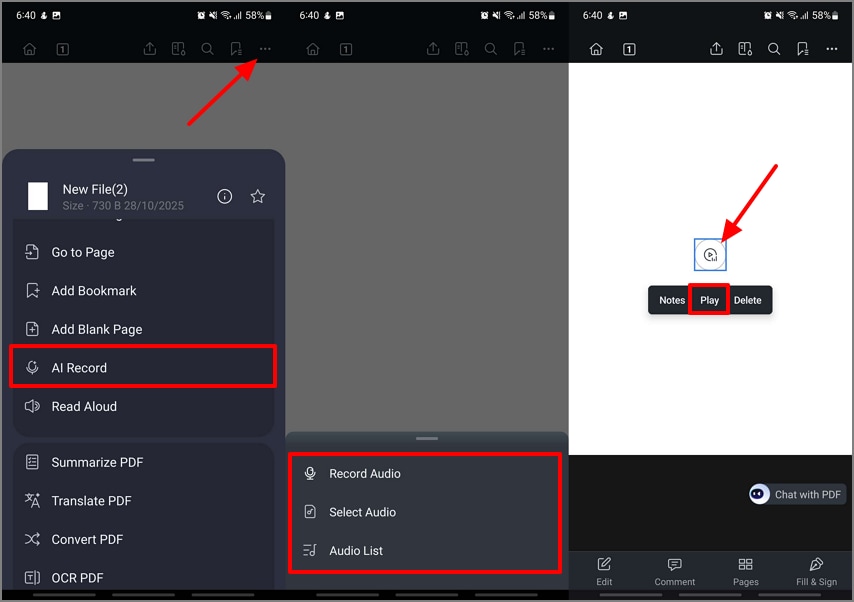
Once you launch PDFelement, open up a PDF page, and tap on the “Three Horizontal Dots” to get the “AI Record” option from the bottom-up list. Pick the method you want to import your WAV audio file. After you add the audio file to the PDF, tap on the “Audio” icon in the PDF to hit the “Play” button.
Step 2Transcribe the WAV Recording in a Preferred Language Choice
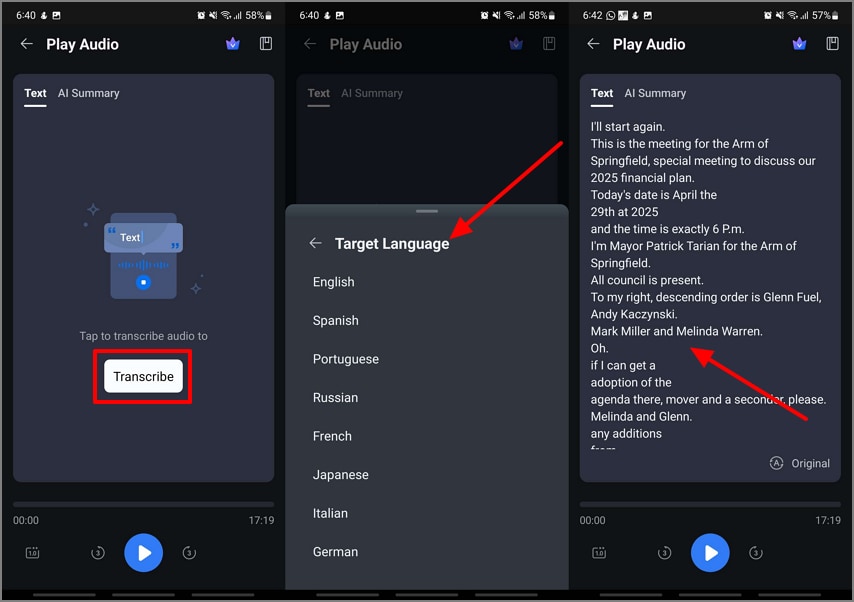
At the “Play Audio” screen within “Text” section, tap on the “Transcribe” button to pick a language of choice from the “Target Language” list to start transcription.
Step 3Generate AI Summary of Transcribed WAV Text
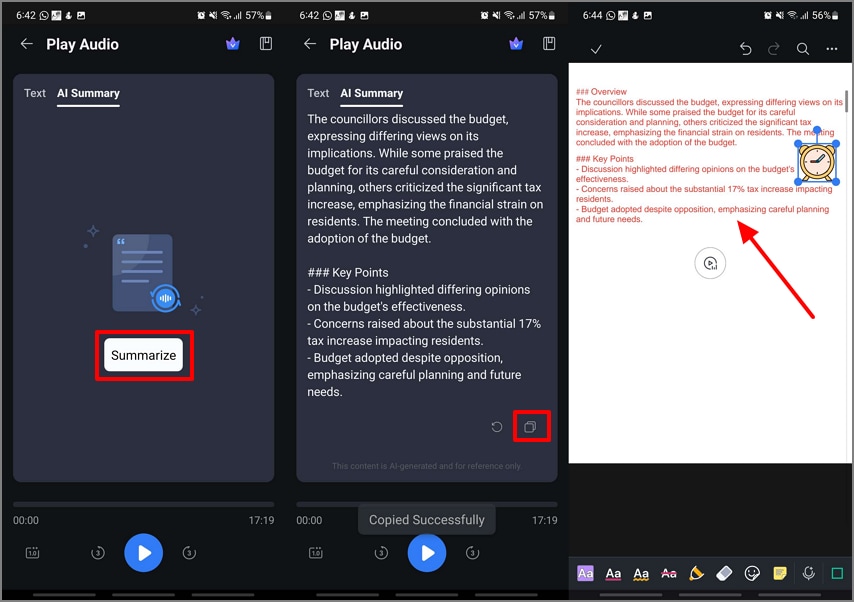
Next, switch to the “AI Summary” section and tap the “Summarize” button to let the AI assistant extract key points and highlights from the WAV recording. Once the summary is generated, hit the “Copy” icon and shift back to the editing interface to annotate and edit the summarized text on the PDF.
Step 4Save the Edited PDF to Your Device
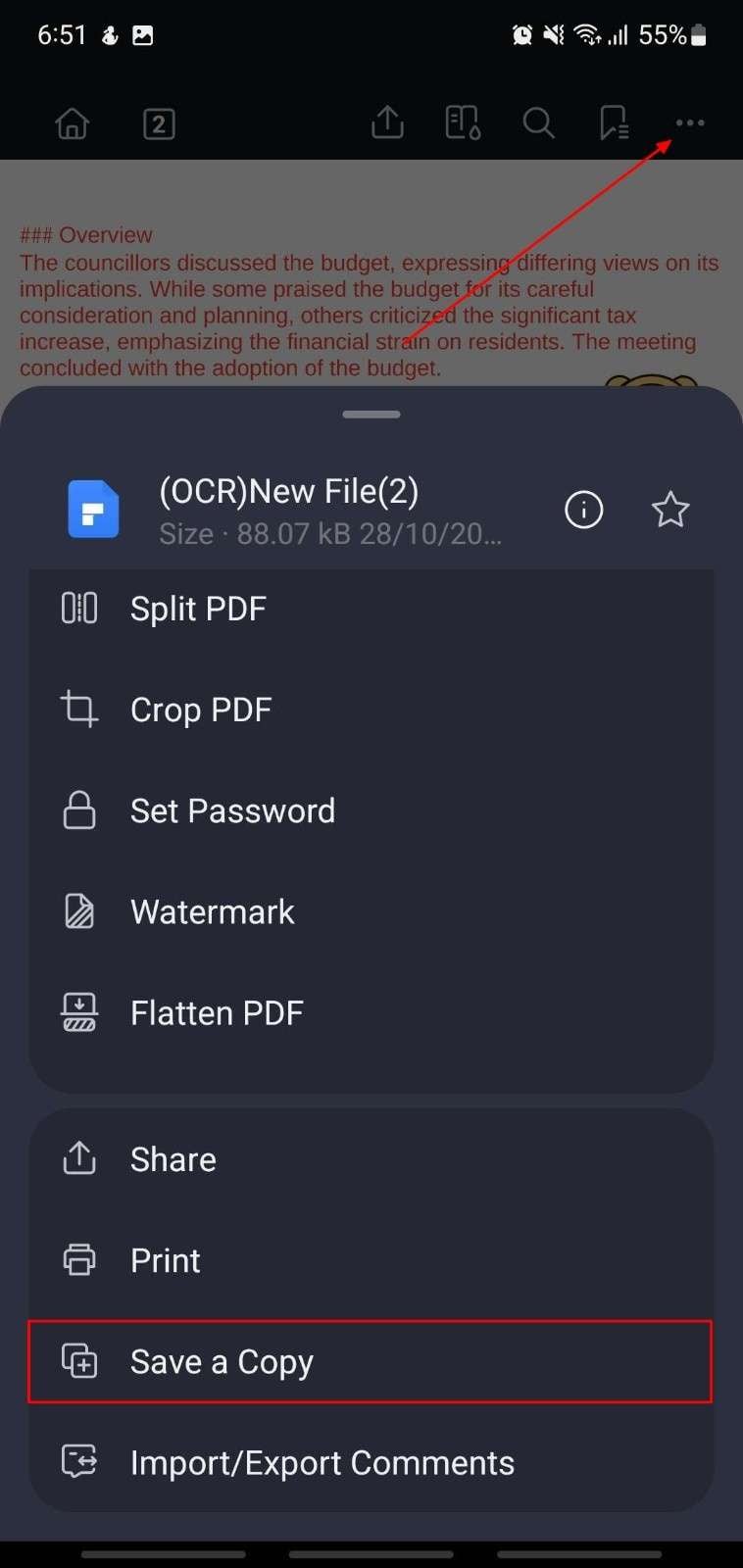
Tap on the “Three Horizontal Dots” to pick the “Save a Copy” option to download the PDF for offline viewing on your mobile.
G2 Rating: 4.5/5 |100% Secure
Key Features of PDFelement Mobile
- AI-Generated Mind Map: Instantly turn your transcribed notes into a structured visual mind map. This feature helps students and executives quickly grasp key ideas, action points, and relationships between topics.
- AI Translate: Translate your transcripts or summaries into another language within seconds. Choose between fast translation for quick reviews or professional translation for accurate, formal documentation.
- Switch AI Models: Flexibly switch between DeepSeek-V3, GPT-4o, GPT-4o-mini, and Gemini 1.5 Pro models. Each option balances speed, accuracy, and cost, allowing you to customize performance for different transcription or analysis needs.
- Converting HTML to PDF: Convert online articles, meeting agendas, or research briefs into clean, ready-to-share PDF files. This feature ensures that all related materials stay organized with your transcribed content.
Part 4. Method 2: Converting WAV to Text File Format Using Online Tools
Ideal For: Quick, small WAV files that do not contain sensitive information and only require one-time transcription.
Limitations
- Many online tools restrict users to a specific file size or length, which causes longer recordings to be rejected.
- Processing queues may be slower and might slow down the transcription process during high traffic times.
- Some platforms retain uploaded files temporarily, which may raise privacy concerns.
- Accuracy rate is lower on online tools, especially when the audio includes heavy accents, complicated jargon, or multiple speakers.
Stepwise Guide on How to Upload a WAV File and Convert it to Text Online
Dive into the steps below to figure out the most convenient way to convert your WAV to text format online using Zamzar:
Step 1
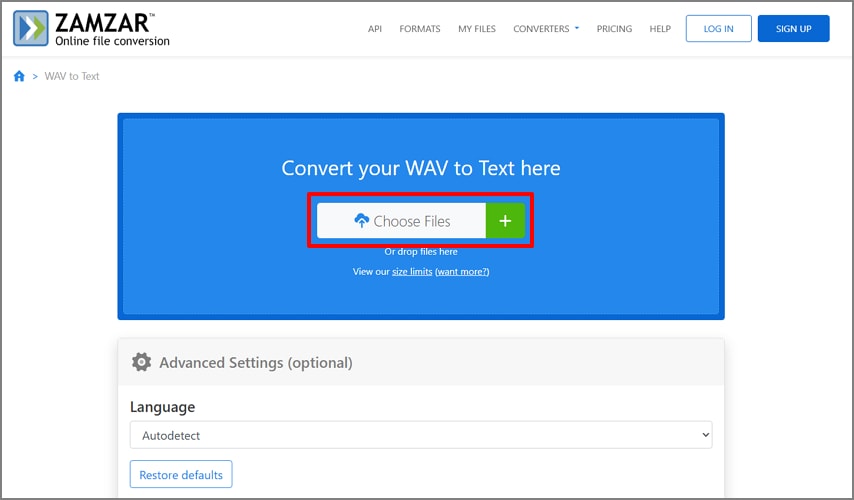
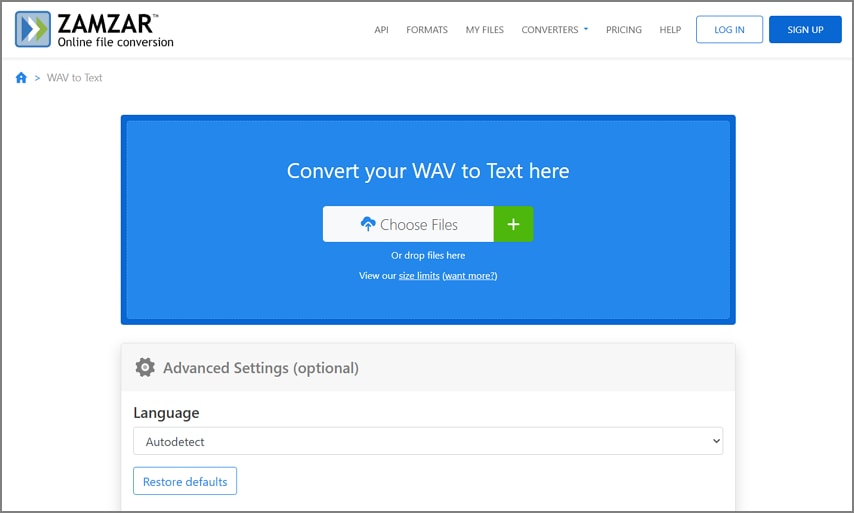
Access the Zamzar online WAV to Text converter and hit the “Choose Files” button to import the WAV file.
Step 2
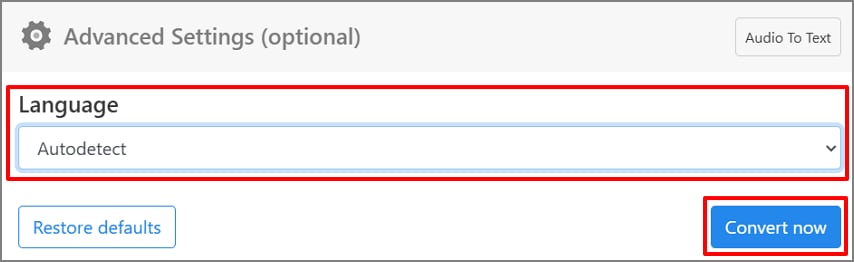
From the “Language Settings” pop-up box, select a preference from the list and hit the “Convert Now” button.
Step 3
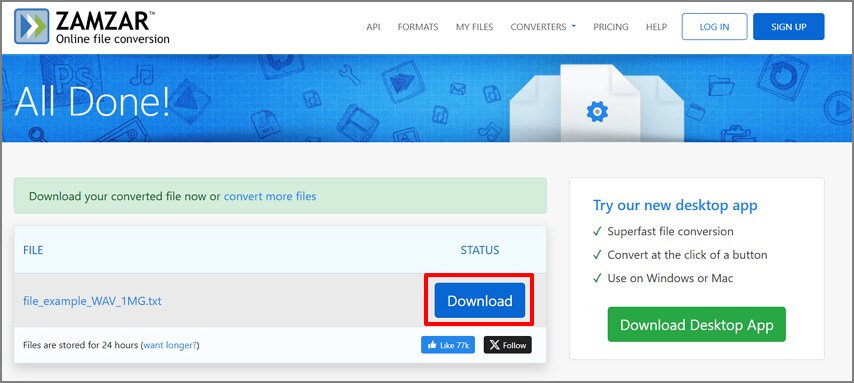
Once the progress is complete, hit the “Download” button to save the text file to your device.
Tips
- Always remove or mask personal identifiers before uploading your audio file.
- Avoid using online platforms for private, legal, or medical conversations.
- Prefer on-device tools when working with long recordings that exceed upload limits.
- Review each tool’s privacy and data retention policy before use.
- Keep a secure backup of your original WAV file in case reprocessing is needed.
Part 5. Method 3: Record Audio Files on Mobile and Convert to Text in One Go
Apart from the on-device and online methods, you can also try out the process of recording audio files straight into your mobile device and converting them into text format. This helps you avoid the hassle of converting WAV files into supported formats and uploading them to on-device apps. Luckily, PDFelement Mobile lets you record live audio into the PDF and transcribe it immediately, along with an AI-generated summary.
Its AI Voice function lets you record any meeting, lecture, or interview without a limit on audio length. Once the summary is generated, you can easily share it across different platforms as it is exported in PDF file format. Using PDFelement to convert WAV to text transcription makes the conversion secure and private, as it is done without any dependency on internet connections.
Part 6. Top WAV to Text Converters Available For Use in 2026
Now that you are aware of the different methods to opt for when trying to transcribe WAV files, you must also be aware of the best tools to use. In this section, we will be discussing the top-most useful tools in 2026 that will help you convert audio into text formats in different circumstances:
On-Device Mobile - PDFelement Mobile [iOS/Android]
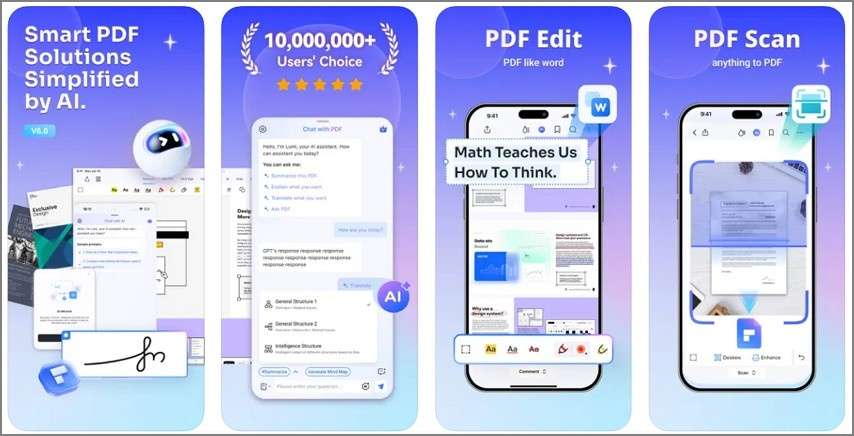
Best For: Users who need to perform transcription, summarizing, editing, or annotation can depend on this tool, as it is an all-in-one PDF editor.
Key Features
- It allows users to annotate their notes transcribed from the WAV audio files through underline, strikethrough, highlight, stickers, and much more.
- Apart from its STT functions, it has a TTS function to help users hear a PDF rather than read it.
- With the help of this tool, you can upload different audio files into the interface to transcribe them.
- The integrated AI assistant allows you to chat with the PDF, translate it, summarize it, and generate mind maps for better understanding of the content.
Pros
- It has an intuitive interface designed to help beginners and professionals both.
- PDFelement is available on all devices, including Mobile, Desktop, and online.
- It supports multiple file formats for conversion and export purposes.
Con
- Users need to subscribe to the paid version of the tool in order to access the AI tools.
Who Should Pick It: Mobile users who need a quick, reliable, and safe conversion on the go.
Online Converter - Zamzar
Best For: Quick, no-download conversion of WAV audio to text on any device.
Key Features
- Users get the ability to get the transcription in different languages, as it supports over 50 languages.
- Efficiently work on multiple WAV file conversions, as it allows batch processing to save time and effort.
- Apart from WAV audio files, it supports many other file formats, so you can perform conversions with ease.
Pros
- You do not need to download any software to your device; it only requires a stable internet connection.
- Unlike most online WAV to text converters, Zamzar does not have any interruptions from advertisements.
Con
- The WAV converted files are only saved in .TXT file formats, which give little flexibility to edit.
- Users are restricted to a specific file size, which limits users with large audio WAV files.
Who Should Pick It: Students or professionals who need a one-time, quick conversion online for non-sensitive audio.
Meeting Note Taker - Notta AI
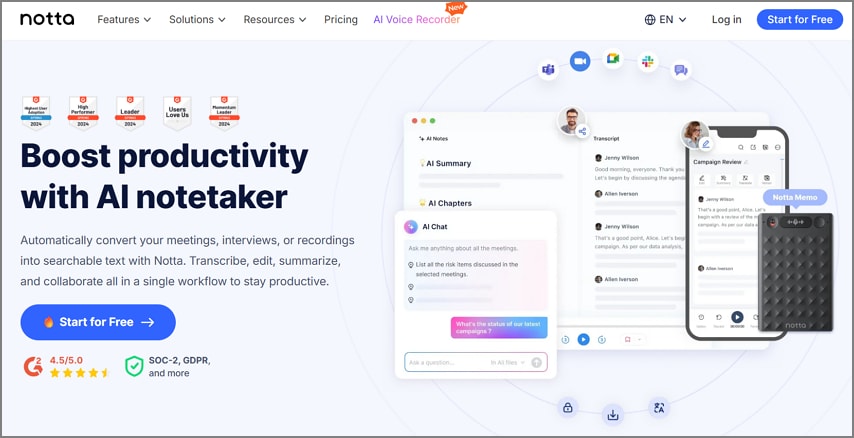
Best For: Users who need automatic, cloud-based transcription for team collaboration.
Key Features
- It transcribes WAV audio files in real-time with high accuracy to ensure you do not have to spend time.
- Exports the transcripts generated in different supported formats like Word, .TXT, and more.
- With the AI-powered summaries and organized notes for a smooth meeting transcription process.
Pros
- It is reported to have a high accuracy of transcription results, which require minimal edits.
- Notta AI is a highly compatible tool that allows you to collaborate with your team members.
Con
- Users working on confidential business meeting recordings cannot depend on this tool, as it requires uploads to the cloud.
- You need to have a stable internet connection in order for the tool to work smoothly.
Who Should Pick It: Professionals needing efficient meeting transcription, summaries, and team collaboration, especially for remote or hybrid teams.
Desktop Converter - SpeechPulse
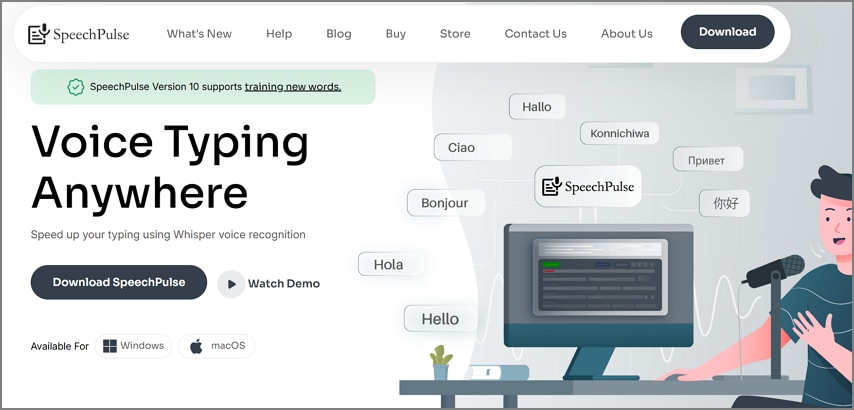
Best For: Offline WAV-to-text transcription with advanced accuracy, real-time dictation, and privacy.
Key Features
- It uses OpenAI Whisper models to ensure you get the most accurate transcribed results.
- You get the ability to perform real-time dictation into any text field, plus file transcription and translation.
- The transcription is generated with subtitles as well to help you work on it in the future.
Pros
- It works without depending on the internet, which gives users a sense of security.
- SpeechPulse WAV file to Text ensures you get to customize the response, making it a flexible tool.
Con
- This tool does not have an online version for quick and one-time conversions.
- When working on long files, users have reported that the system starts lagging.
Who Should Pick It: Users needing accurate offline transcription, privacy, advanced features, and integration with desktop apps.
Comparing the Top Tools To Speed Up Decision Making
To sum up the above discussion on the top 4 tools, here is a comparative table to help you make a decision on the best fit tool:
| Aspect | PDFelement Mobile | Zamzar | Notta AI | SpeechPulse |
| Works Offline | ✓ | ✗ | ✗ | ✓ |
| File Size Limit | Depends on device storage | Around 50–100 MB | Up to 2 GB (based on plan) | Unlimited within device capacity |
| AI Summary | AI summary, Translate, In-PDF Chat, and Mind Map | ✗ | AI summary and search tools | AI grammar check, summary, speakers |
| Free Tier | Available with limited access | Free basic use | Free minutes per month | Paid version only (one-time license) |
| Export File Format | PDF, DOC, and text formats | TXT only | TXT, DOCX, SRT, PDF | TXT, SRT, and VTT |
| Privacy | Upload or local mobile use | Browser upload | Cloud-based storage | Fully offline on the device |
| Best For | Managing and editing PDFs on mobile | Fast web-based conversions | Team collaboration and meetings | Secure offline transcription |
G2 Rating: 4.5/5 |100% Secure
Part 7. Editors' Picks: Most Preferred Workflow on WAV to Text Conversions
After discussing the methods and tools on how the ways to transcribe WAV to text formats, here are the top picks for short recordings or private long ones:
Short Recordings
For short recordings such as interviews, class notes, or quick discussions, online WAV-to-text converters offer a simple, fast way to generate transcripts. Once the text is generated, it can be reviewed for minor spelling or formatting errors. After cleaning up, the transcript can be opened in PDFelement Online for quick editing, highlighting, or sharing directly with others without extra setup.
Private/Long Recordings
For lengthy or private recordings, PDFelement Mobile offers a smooth on-device process that keeps data secure. The user can import a WAV file, transcribe it through the built-in Speech-to-Text feature, and generate an AI Summary for clarity. The final notes can be organized into a structured PDF template, allowing easy organization and sharing without an internet upload.
Part 8. Buyer’s Guide to Ensuring a Smooth Conversion Process
Once you are aware of the methods and tools to use to transcribe WAV to text, here are some tips to keep in mind to ensure a smooth conversion:
Accuracy: Users must always record in 16-48 kHz PCM format with mono audio for precise results. Use a close microphone in a quiet space and ensure the correct language or model is selected before you start the transcription process.
Privacy: Choose on-device tools for maximum control over sensitive recording. You need to check for the tool’s data retention or deletion policies and redact personal identifiers before sharing.
Speed and Cost: The cloud tools may process faster but might have you wait in queues or impose usage limits. The local processing ensures predictable performance and avoids recurring subscription fees.
Output Needs: You must identify your preferred export format before converting. Some tools, like PDFelement, can generate PDFs, mind maps, or timestamped transcripts fpr different workflows.
Compatibility: Users should verify that their transcription tool supports WAV formats without re-encoding issues. They should cross-check the device or the OS compatibility to avoid any conversion limitations.
Editing and Sharing: To ensure a faster conversion, users must ensure they pick a platform that lets them refine the transcripts and share results immediately. Built-in conversion properties allow users to edit and export text files, saving time and effort.
Part 9. Troubleshooting WAV to Text Conversion Issues
While working on converting WAV to text transcription files, there are a few issues that you might come across. In this section of the article, we will be looking into the major troubleshooting points you need to keep in mind:
Garbled Transcript: Re-encode your audio into PCM WAV 16 kHz mono for more precise results. Reduce background noise, verify the language model, or switch to another AI model if errors persist.
Online Tool Cutoffs: If your file stops mid-way, it may exceed the size or time limit. Split long recordings into smaller parts or move to an on-device workflow for uninterrupted conversion.
Poor Audio Quality: Check your microphone placement and environment. Use noise-reduction tools or re-record unclear segments to improve accuracy.
Need Bilingual Notes: First, transcribe the audio in its original language, then use an AI Translate summary feature. This ensures accurate context and smoother multilingual documentation.
Shareable Packet: Combine your transcript and notes using a PDF template. Add stickers, highlights, or headers before exporting for a clean, shareable document.
Slow Processing: Large WAV files or weak internet connections can delay uploads. Compress files, close other apps, or use offline tools to maintain faster conversion speed.
Part 10. Browser & Desktop Touchpoints (Micro Sections)
Apart from PDFelement Mobile, PDFelement also provides you with an Online and Desktop software version. Each version helps you in different situations and with different files. Here are quick insights into each PDFelement version:
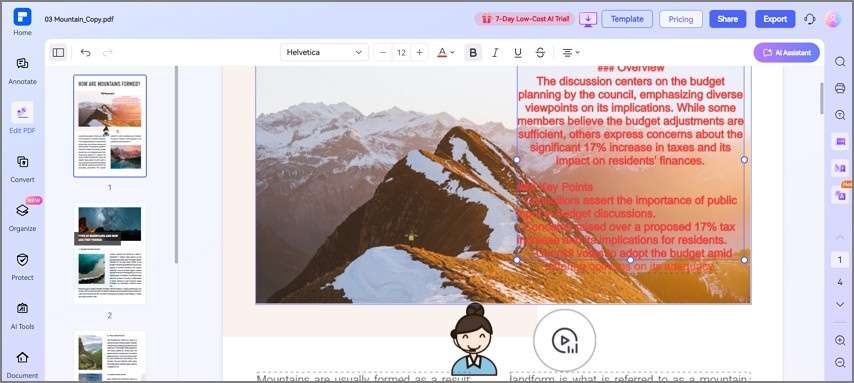
PDFelement Online
Open your exported PDF notes directly in a browser to make quick edits, highlight key sections, or share with your team. No installation is required, making it ideal for instant collaboration and light document review.
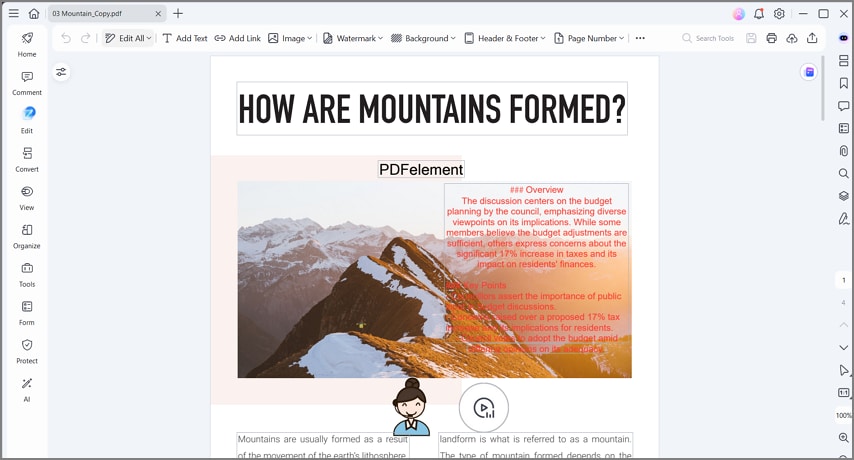
PDFelement Desktop
Finalize your transcription files with compliance-level tools like redaction, stamps, and header or footer insertion. You can also batch-combine multiple PDFs, add page numbers, and export a clean, print-ready packet for official or archival use.
Part 11. Which is Better? WAV Text-to-Speech VS. WAV-to-Text
In this section, we have drawn up a quick table to help you differentiate which conversion is better WAV text to speech or WAV to text:
| Feature | WAV TTS | WAV STT |
| Function | Converts text into audio in WAV format | Converts WAV audio into written text |
| Input | Text | WAV file (Speech) |
| Output | WAV audio file | Text transcript |
| Accessibility | Supports users with visual or reading difficulties | Aids users with mobility limits or multitasking needs |
| Pros | Fast audio generation, scalable, enhances the learning experience | Quick transcription boosts efficiency and supports accessibility |
| Cons | Can sound robotic or mispronounce words | Accuracy drops with noise, accents, or unclear audio |
| Accuracy | High for clear text; minor errors in pronunciation | Around 80–85%; struggles with complex or multi-speaker audio |
Note: Since this guide is mainly on the concept of STT, to understand TTS, refer to this guide.
Frequently Asked Questions
-
1. How do I convert a WAV file to text for free?
You can use free online tools to upload your WAV files and get an instant text output. Some mobile apps also offer limited free minutes for quick conversion. In order to convert long and confidential audio files, you can depend on PDFelement Mobile to get an offline free conversion. -
2. What’s the difference between WAV to text online vs on-device?
Online tools process your files using cloud-based AI, which delivers faster results but requires a stable, continuous internet connection. At the same time, as on-device tools transcribe locally to keep your data private while still allowing offline conversion. The best choice depends on your priorities, like speed and convenience online, or security and control offline. -
3. Can AI summarize my transcript into usable notes?
Yes, many transcription tools now include AI summarization to condense long transcripts into clear bullet points or key takeaways. You can automatically generate action items, topic highlights, and meeting summaries to save time and manual effort. -
4. How do I export a clean PDF with action items?
Once the transcription and summary are ready, export them as a formatted PDF using editors like PDFelement. Such tools allow you to clean up timestamps, fix errors, and insert highlights or other annotation elements. The final result is a polished, shareable file ready for meetings or records. -
5. Why is my WAV transcription inaccurate (and how to fix it)?
This happens when there is background noise overlapping speech or unclear pronunciation. You can improve accuracy by using a noise-cancelling mic, recording in a quiet room, and uploading high-quality WAV files. Some tools also let you review and manually edit the errors. -
6. Is it safe to upload audio?
Most reputable converters use encrypted uploads and auto-delete files after processing but always verify their privacy policy. Avoid uploading sensitive or confidential conversations to online tools. For protected or medical data, use on-device transcription to stay compliant with privacy standards.
Final Thoughts
In conclusion, this guide has looked into the top-most reliable methods along with the best WAV to text converters you can depend on. If you want to perform quick conversions on small files, you can use online tools. Whereas, if you are working on a long, confidential audio file, tools like PDFelement Mobile can be a better on-device option. Using PDFelement Mobile lets you add AI Summary notes and share the PDF files.




