

In this article
- What Is Claude for Word?
- Is Claude for Word Available Now?
- What Features Does Claude for Word Offer?
- What Is Claude for Word Best For?
- What Does Claude for Word Do Well?
- What Are the Limitations of Claude for Word?
- Why Workflow Stage Matters More Than Tool Hype
- When Does a PDF AI Editor Make More Sense?
- How Does PDFelement AI PDF Editor Fit PDF-Heavy Workflows?
- Claude for Word vs. a PDF AI Editor: What’s the Real Difference?
- Who Should Use Claude for Word?
- Who May Need More Than Claude for Word?
- FAQ
- Conclusion
Claude for Word is Anthropic’s AI add-in for Microsoft Word. It helps users read, edit, revise, and draft documents inside Word, which makes it useful for long and structured files. It works best when the file stays in Word and the work is still in progress. But when documents become PDFs, scans, or final files, a PDF-focused AI tool often makes more sense. In that stage, a tool like PDFelement AI PDF Editor can be a practical complement rather than a replacement.
What Is Claude for Word?
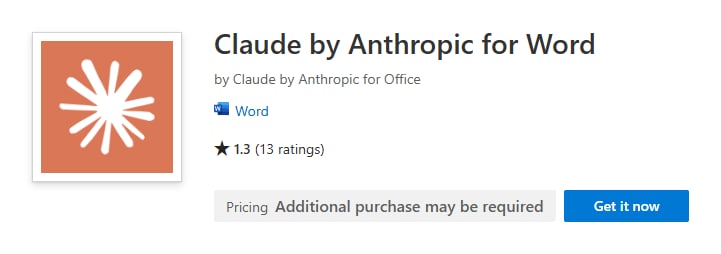
Claude for Word is Anthropic’s add-in for Microsoft Word. It brings Claude into the Word editing workflow so users can ask questions, revise text, and review documents in place. Instead of copying content into a separate chat window, users can work inside the document itself.
This matters because most professional document work is not just about writing from scratch. It is about editing real files with real structure. Many teams need help with clauses, comments, tracked changes, and document consistency. Claude for Word is built for that kind of work. Anthropic specifically points to legal review, finance memos, document QA, and general editing as strong use cases.
In simple terms, Claude for Word is not just “AI for writing.” It is more like AI for document review and revision inside Word.
Is Claude for Word Available Now?
Yes, but with limits. According to Anthropic’s help documentation, Claude for Word is currently in beta. Coverage from CNET also says it is available to Claude Team and Enterprise customers. That means it is real and usable, but still early enough that users should expect some limits.
Anthropic also notes that Claude for Word supports .docx files. If you still work with older .doc files, you need to save them as .docx first. That sounds minor, but it matters in older business environments where legacy files are still common.
There are a few practical limits as well. Chat history is not saved between sessions. Anthropic also says that Claude for Word does not currently include the same observability and audit support that some enterprise teams may expect from broader governance workflows. For casual use, that may not matter much. For regulated teams, it may matter a lot.

What Features Does Claude for Word Offer?
Claude for Word is built around real document work, not just generic text generation. Anthropic’s official documentation highlights several practical features that make the add-in useful inside Microsoft Word.
1. Document understanding and question answering
Claude can answer questions about specific sections, clauses, and defined terms in a Word document. Anthropic says it gives answers with clickable citations that take users to the exact part of the file. That is useful when you are working in a long contract, memo, or policy document and need fast answers without manual searching.
2. Editing selected text inside Word
Claude for Word can revise selected text instead of rewriting the whole document. Anthropic says it preserves surrounding formatting, styles, numbering, and structure. This is important because most people do not want AI to rebuild a document from scratch. They want it to improve a paragraph, fix tone, tighten language, or clarify a clause without breaking the file.
3. Tracked changes support
One of the strongest features is tracked changes mode. Anthropic says Claude’s edits can appear as tracked revisions inside Word. That means reviewers can see what changed and accept or reject each edit one by one. For legal, finance, and internal review work, this is much more useful than hidden AI edits.
4. Comment-aware editing
Claude can also read comment threads and work with the text attached to them. Anthropic says it can revise the anchored passage and reply in the comment thread with a short explanation of what it changed. This makes it more useful for collaborative review than a simple chatbot pasted beside the document.
5. Redline summaries and template filling
Anthropic also highlights the ability to summarize counterparty redlines and fill templates while preserving the existing structure. That matters in real workflows where the document already has a format, a style, and a legal or business purpose. Claude is helping users work inside that structure, not replace it.
6. Cross-app context
Claude for Word can also share context with Claude for Excel and Claude for PowerPoint. Anthropic says users can pull information across open files in one conversation. For example, that can help when someone needs to move numbers from Excel into a Word memo or turn a Word draft into slide content.
| Feature | What It Helps With | Why It Matters |
|---|---|---|
| Question answering | Find clauses, sections, and defined terms | Speeds up review in long Word files |
| Selected-text editing | Revise passages without full rewrites | Preserves surrounding structure |
| Tracked changes | Show edits as revisions | Supports approval-based review workflows |
| Comment-aware editing | Respond to comment threads | Fits collaborative document review |
| Template filling | Work inside preformatted documents | Useful for structured operational or legal work |
| Cross-app context | Share information across open files | Helps with connected Word, Excel, and PowerPoint workflows |
What Is Claude for Word Best For?
Claude for Word is best for users who live in Microsoft Word. That includes people who draft contracts, revise internal reports, edit proposals, review policy documents, or clean up business writing inside existing files.
It is especially useful when the work is iterative. In plain terms, it works well when the job is to improve a document step by step. If you need to revise one section, answer comments, summarize redlines, or clean up selected text, Claude for Word fits that workflow well.
Legal teams may find it useful for contract review and negotiation drafts. Business users may use it for reports, memos, and proposals. Operations teams may use it to standardize language and speed up internal documentation. In all of these cases, the common thread is simple: the file is still a Word document, and the work is still active.
What Does Claude for Word Do Well?
The biggest strength of Claude for Word is that it reduces friction. Users do not have to move text into another app, lose formatting, or rebuild context in a separate chat. The AI works where the document already lives.
It is also strong at local revision. Many AI tools are built around full drafting, but real document work often needs smaller edits. Claude for Word can help tighten language, clarify meaning, answer questions, and support tracked review without forcing a full rewrite.
Another strong point is that it fits existing review habits. People already use Word comments, revisions, and templates. Claude for Word works inside those patterns instead of asking users to adopt a brand-new process. That makes adoption easier for teams that already depend on Word.
In short, Claude for Word is strongest when the file is still editable and the work is still collaborative.
What Are the Limitations of Claude for Word?
Claude for Word has two kinds of limits: product limits and workflow limits.
First, there are product limits. Anthropic says the feature is still in beta. Chat history is not saved between sessions. It also does not yet include full enterprise observability and audit coverage. Those details matter more for some organizations than for others, but they are still important.
Second, there are workflow limits. Claude for Word is mainly useful inside Word. That sounds obvious, but it is the most important point in the whole article. Not every document stays in Word. Many documents become PDFs. Some are shared as final versions. Some are scanned. Some need OCR. Some need translation while keeping PDF layout. Some need page-level editing rather than paragraph-level writing help. That is where a Word-first AI workflow starts to fall short.
Anthropic also warns users to be careful with untrusted external documents. The company says prompt injection can be hidden in document content, comments, tracked changes, headers, or footers. That means users should not assume that every external file is safe to run through AI without review.
So the limit is not that Claude for Word is weak. The limit is that it is built for one document stage: active Word editing. Once the workflow moves beyond that, users often need something else.
- Beta status: The product is usable, but still evolving.
- No saved session history: Context does not persist between sessions.
- Governance gaps: Some teams may want stronger observability and audit support.
- Word-first scope: It is not designed as a full PDF-first workflow tool.
- External file caution: Untrusted documents may carry prompt-injection risk.
Why Workflow Stage Matters More Than Tool Hype
AI document tools are often discussed as if they all do the same thing. They do not. A Word-native assistant and a PDF-first editor may both use AI, but they solve different problems.
A Word-first workflow is about drafting, revising, and collaborating in editable files. A PDF-first workflow is usually about sharing, reviewing, translating, archiving, scanning, protecting, or extracting information from files that are already in final or semi-final form. These are not the same stage of work.
That is why the right question is not “Which AI document tool is best?” The better question is “What stage of document work am I in right now?” Once you answer that, the tool choice becomes much clearer.
When Does a PDF AI Editor Make More Sense?
A PDF AI editor makes more sense when the document is no longer just a Word draft. That includes cases where files are shared as PDFs, archived for recordkeeping, scanned from paper, translated for cross-border work, or reviewed after content is mostly final.
In these cases, users often need more than AI writing help. They may need OCR to extract text from scans. They may need to summarize a PDF, ask questions about it, rewrite a section, explain a complex passage, or translate a document while keeping the visual structure intact. They may also need broader PDF tools such as conversion, editing, organization, or annotation in the same environment.
That does not mean a PDF AI editor replaces Claude for Word. It means it fits a different stage of document work.
How Does PDFelement AI PDF Editor Fit PDF-Heavy Workflows?
PDFelement AI PDF Editor fits naturally into PDF-heavy workflows because its AI features are built around PDF tasks, not just general writing prompts. PDFelement can summarize PDFs, chat with PDF content, translate PDFs, rewrite PDF text, explain PDF content, and support grammar or proofing workflows. It also combines those AI features with broader PDF editing, OCR, and conversion tools.
That combination is what makes it relevant here. If your team is working with scanned contracts, archived reports, final PDFs, or multilingual PDF documents, a PDF-focused AI tool may be more practical than a Word-only workflow assistant. PDFelement is useful in that context because it brings AI help into the same environment where users are already handling PDF files.
Wondershare also highlights OCR features for scanned PDFs and images, multi-language OCR, PDF-to-Word and other conversion tools, and editing tools that let users modify text and images while keeping PDF workflows intact. That makes PDFelement relevant not only for reading PDFs, but for working with them as living documents.
So the right framing is not “PDFelement is better than Claude for Word.” The better framing is this: Claude for Word fits editable Word-stage work, while PDFelement fits PDF-stage work. Some teams need one. Many teams need both.


 G2 Rating: 4.5/5 |
 100% Secure
Claude for Word vs. a PDF AI Editor: What’s the Real Difference?
| Category | Claude for Word | PDF AI Editor |
|---|---|---|
| Main file type | Word documents (.docx) | PDF files |
| Best stage of work | Drafting, revising, commenting, tracked changes | Reviewing, translating, OCR, editing, organizing final or scanned files |
| Strongest workflow | Word-native collaboration | PDF-native handling |
| Best for | Legal drafts, reports, memos, template-based Word work | Shared PDFs, scanned documents, archived files, translated PDFs |
| Revision style | In-document edits, comments, tracked changes | PDF summary, chat, OCR, rewrite, explanation, translation |
| When it falls short | Once files leave Word | Less centered on Word-native revision workflows |
Claude for Word is better suited for users who spend most of their time inside Word and need AI support for reviewing and revising editable files. A PDF AI editor is better suited for users whose work is centered on PDFs, especially scanned, finalized, shared, or archived documents.
In many real teams, the best answer is not either-or. A document may start in Word, move through tracked revisions, and then end up as a PDF for sharing, signing, translation, archiving, or OCR-based processing. That is why some workflows naturally need both.
G2 Rating: 4.5/5 |100% Secure
Who Should Use Claude for Word?
Claude for Word is a good fit for professionals who spend a lot of time editing and revising Word documents. That includes legal teams, finance teams, operations teams, consultants, and business users who work inside structured documents every day.
It is especially useful for users who value tracked changes, comment-based review, in-place edits, and strong formatting continuity. If your team already depends on Microsoft Word as the center of document review, Claude for Word is easy to understand as a workflow extension.
Who May Need More Than Claude for Word?
Users who move between Word and PDF may need more than Claude for Word alone. The same is true for teams that handle scanned contracts, archived PDFs, signed files, multilingual documents, or records that need OCR and format conversion.
If your workflow includes both draft-stage writing and final-stage PDF handling, then a second tool often becomes necessary. In those cases, a PDF-focused platform like PDFelement AI PDF Editor can extend the workflow into the file formats and tasks that Word-based AI tools do not cover as well.
FAQs About Claude for Word
-
What is Claude for Word used for?
Claude for Word is used for reading, editing, drafting, and reviewing Microsoft Word documents inside Word. It is especially useful for long and structured files, such as contracts, reports, memos, and other professional documents. -
Can Claude for Word edit selected text in Microsoft Word?
Yes. Anthropic says Claude for Word can edit selected passages while preserving surrounding formatting, styles, numbering, and structure. This makes it useful for local revisions instead of full rewrites. -
Does Claude for Word support tracked changes and comments?
Yes. Anthropic says Claude for Word can work in tracked changes mode and can also read and respond to comment threads linked to specific text. That makes it practical for collaborative Word review. -
Is Claude for Word an official Anthropic product?
Yes. It is Anthropic’s official add-in for Microsoft Word, as shown in the Claude Help Center and product materials. -
Is Claude for Word available now?
It is available in beta. Anthropic says it is currently available for Team and Enterprise plans. CNET also reports that it is available to those customer groups as a Word add-in. -
What file types does Claude for Word support?
Anthropic says Claude for Word supports .docx files. Older .doc files need to be saved as .docx first. -
What are the limitations of Claude for Word?
Its main limits are that it is still in beta, chat history is not saved across sessions, some enterprise observability features are not yet included, and it is mainly useful inside Word rather than PDF-first workflows. Anthropic also advises caution with untrusted external documents. -
Does Claude for Word work with PDFs?
It is designed for Word workflows, not as a full PDF-first tool. If your work is centered on PDFs, scans, OCR, or finalized files, a PDF AI editor may be a better fit for that stage. -
What is the difference between Claude for Word and a PDF AI editor?
Claude for Word is mainly for drafting, reviewing, and revising editable Word files. A PDF AI editor is built for PDF tasks such as summarizing, translating, rewriting, OCR, and broader PDF editing or handling. The key difference is document stage and file format. -
Can PDFelement AI PDF Editor help with scanned PDFs and OCR workflows?
Yes. Wondershare says PDFelement supports OCR for scanned PDFs and images, including multi-language OCR, along with PDF editing and conversion features. -
Do I need both Claude for Word and a PDF AI editor?
It depends on your workflow. If most of your work stays in Word, Claude for Word may be enough. If your documents often move into PDF, scans, translation, or archiving workflows, using both can make sense. One helps during drafting and revision. The other helps during PDF handling and final-file work.
Conclusion
Claude for Word is a useful AI tool for people who work inside editable Word documents. It is strongest in drafting, revising, reviewing, and collaborative editing workflows where tracked changes, comments, and formatting all matter.
Its limits appear when the workflow moves beyond Word. Once files become PDFs, scans, archived documents, or final versions, users often need OCR, PDF translation, PDF summarization, PDF explanation, or broader file handling tools. That is where a PDF-focused platform like PDFelement AI PDF Editor can become a practical complement.
In the end, the best document AI setup is often not a single tool. It is the right tool for the right document stage: Word-native AI for active drafting and revision, and PDF-native AI for final-form document work.
G2 Rating: 4.5/5 |100% Secure




