

Efficient shipping starts with properly sized and readable labels, and Meesho sellers know how critical this is. Misaligned or oversized PDFs can cause barcode errors, wasted paper, and delayed dispatch. A reliable Meesho PDF cropper ensures each label is clean, print-ready, and perfectly formatted for thermal or home printers.
This seller-friendly guide walks you through cropping single or multi-label PDFs, maintaining margins, splitting pages, and batch processing multiple orders. By following these tips, you can reduce scanning errors, speed up packing, and keep your Meesho deliveries professional and hassle-free.
In this article
- Why Prefer Cropping? What You'll Achieve?
- Preflight: Know Your Input and Your Printer
- Quick Decision Flow: Pick Your Path
- Local and Precise Cropping with PDFelement: Perfect Exact Cuts for Single PDFs
- Convert Multi-Label A4 PDFs into Individual 4×6 Labels Using PDFelement Tiling
- Process Dozens of Labels at Once with Template-Driven Batch PDF Cropping
- Quick Online Crop & Resize for Non-Sensitive PDFs Directly in Your Browser
- Print-Safe Tips: Ensure Readable Barcodes and Accurate Labels
Part 1. Why Prefer Cropping? What You'll Achieve?
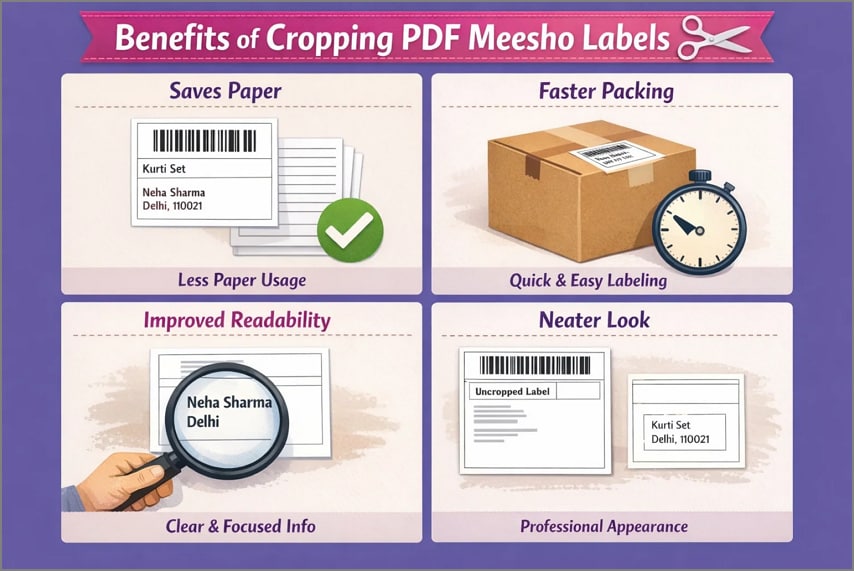
Standardized labels reduce errors, improve printing accuracy, and speed up dispatch workflows. This section explains why proper PDF cropping is essential for faster Meesho order processing:
Faster Dispatch Turnaround:
This guide helps you prepare Meesho labels correctly, reducing print errors and packing delays. Clean, ready-to-print PDFs allow you to ship orders faster and meet courier pickup deadlines.
Perfect 4×6 and A4 Output:
It converts Meesho shipping PDFs into precise 4×6-inch labels or well-formatted A4 handouts. Proper sizing ensures labels fit thermal printers or standard paper without scaling issues.
Batch Cropping Efficiency:
You can Meesho PDF crop orders simultaneously instead of editing each file manually. Batch processing saves time, improves consistency, and simplifies large daily order volumes.
Print-Safe Margins Protection:
The guide explains how to add safe margins to prevent barcode or address cut-offs. Proper margins ensure scanners read labels accurately during sorting and delivery.
Universal PDF Compatibility:
It works with single-label A4 files, multi-label A4 layouts, or misaligned 4×6 downloads. This flexibility ensures reliable results regardless of Meesho's original PDF format.


 G2 Rating: 4.5/5 |
 100% Secure
Part 2. Preflight: Know Your Input and Your Printer
Reviewing preflight items ensures labels are properly sized, aligned, and ready for accurate printing. This table helps you identify your Meesho PDF input type and choose the correct cropping approach:
| Preflight Item | Explanation |
| A4 Single Label Input | The PDF contains one shipping label on an A4 page with extra margins. Cropping removes surrounding whitespace to fit the label properly for printing. |
| A4 Multi-Label Input (2–4 per page) | Multiple labels appear on one A4 sheet, often misaligned. Cropping splits the page into separate label-sized PDFs for individual printing. |
| 4×6 Misaligned Input | The label is already 4×6 inches but shifted or incorrectly positioned. Cropping recenters the label and removes uneven margins. |
| Thermal Printer Output | Thermal printers require a 4×6-inch (100×150 mm) portrait label size. Cropping ensures exact dimensions without scaling or barcode cut-offs. |
| Home Inkjet/Laser Output | Home printers work best with A4 pages and centered labels. Cropping allows one clean label per page or tiled labels for efficient printing. |
| Meaning of "Meesho PDF Crop" | It means trimming empty space around a label or separating multiple labels into single pages. This makes labels printer-ready and consistently sized. |
Part 3. Quick Decision Flow: Pick Your Path
Following the right path prevents misprints, saves time, and ensures labels are ready for fast dispatch. This table helps you quickly choose the correct cropping method based on your PDF crop Meesho layout:
| Scenario | Action Path | What to Do |
| A4 to Single 4×6 Label | A4 → 4×6 | Crop the page to the label area, then resize accurately to 4×6 inches. |
| A4 with Multiple Labels | A4 → Split → 4×6 | Split the page into tiles so each label becomes a separate page, then resize. |
| Already 4×6 but Off-Center | 4×6 → Adjust | Apply a light crop and add small margins to prevent barcode cut-offs. |
| Many Orders Together | Batch Workflow | Use batch cropping with a saved template to process multiple labels consistently. |
G2 Rating: 4.5/5 |100% Secure
Part 4. Local and Precise Cropping with PDFelement: Perfect Exact Cuts for Single PDFs
Use when:
There is one label per page, and you need a perfectly sized 4×6-inch output.
To preserve the original file quality after cropping the label, you need a robust PDF cropper. With PDFelement, users can remove the unneeded parts of the file without impacting the quality. It allows you to move the crop box to acquire the desired size of the page. Users looking for precise cropping can use the page margins to enter the exact figure.
The page range selection lets you decide if you want to apply the cropping to all pages of the document or the selective ones. The following steps will guide you on how to crop a Meesho PDF label to remove the undesired text using this PDF cropper Meesho:
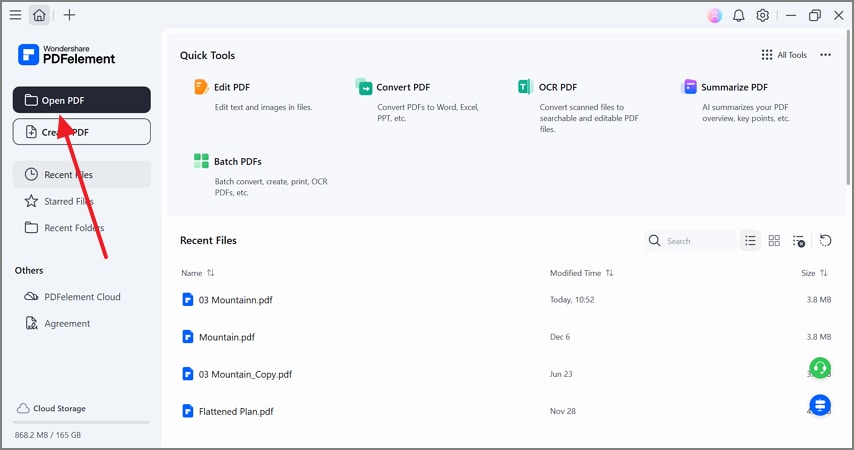
Step 1Open the Meesho Label on PDFelement
Click the "Open PDF" button to import a Meesho label.
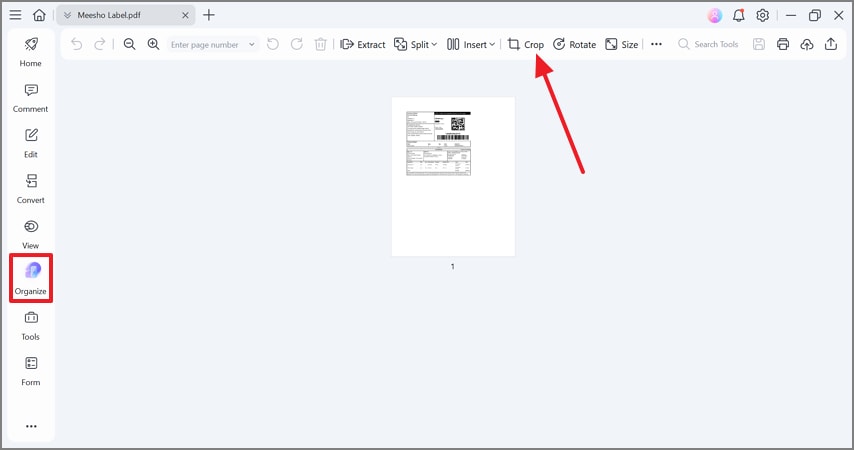
Step 2Crop the Label in the Organize Mode
In the "Organize" mode, select the "Crop" option to open the crop box window.
G2 Rating: 4.5/5 |100% Secure
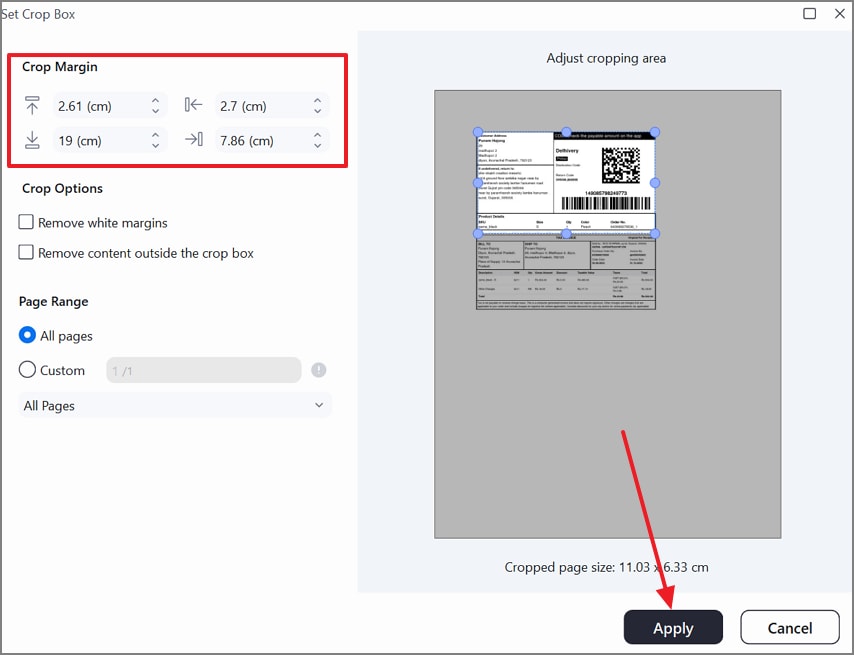
Step 3Use the Crop Margin Section to Trim the Label
In the next window, explore the "Crop Margin" section to enter a precise page size. You can also use the crop box edges to trim the label. Once done, select the "Apply" button to apply this page size.
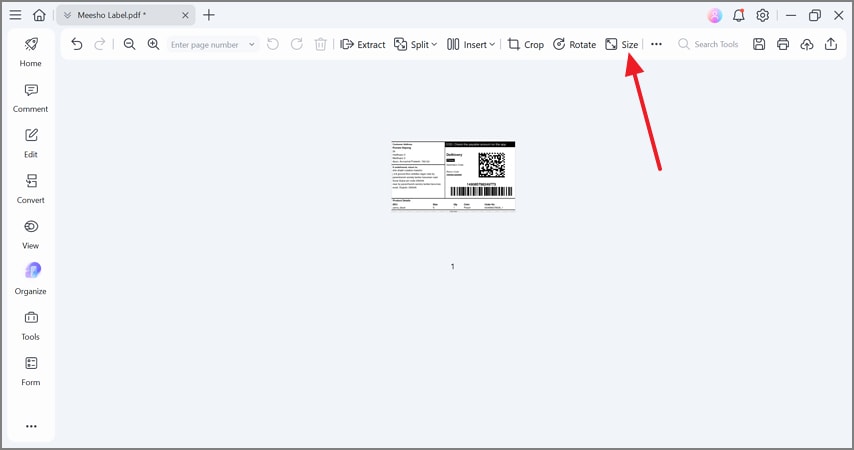
Step 4Change the Size of Your PDF Page
To make the page look organized, select the "Size" option from the Organize mode.
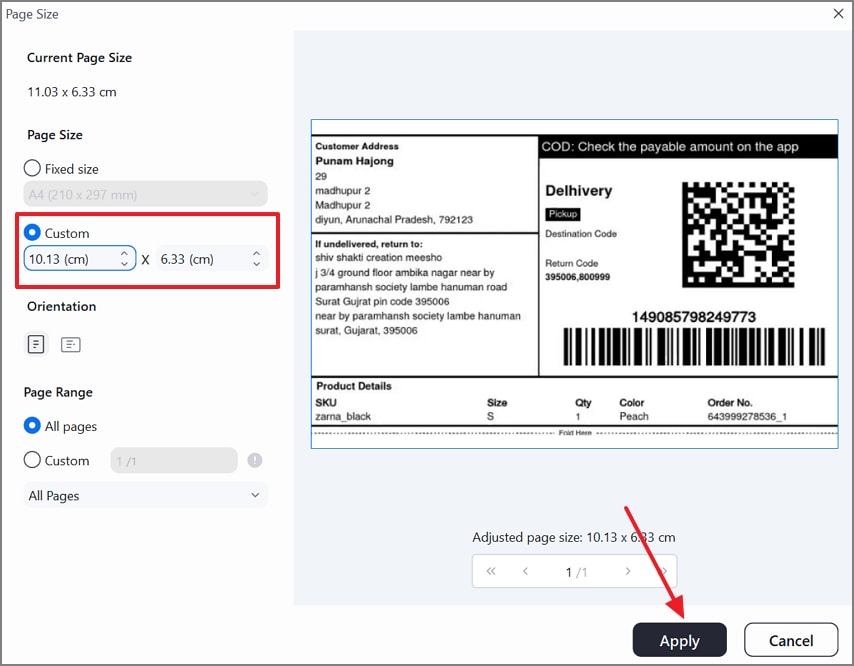
Step 5Enter a Custom Page Size
In the following window, enter a "Custom" page size and select other settings. Next, click the "Apply" button to change the page size effectively.
G2 Rating: 4.5/5 |100% Secure
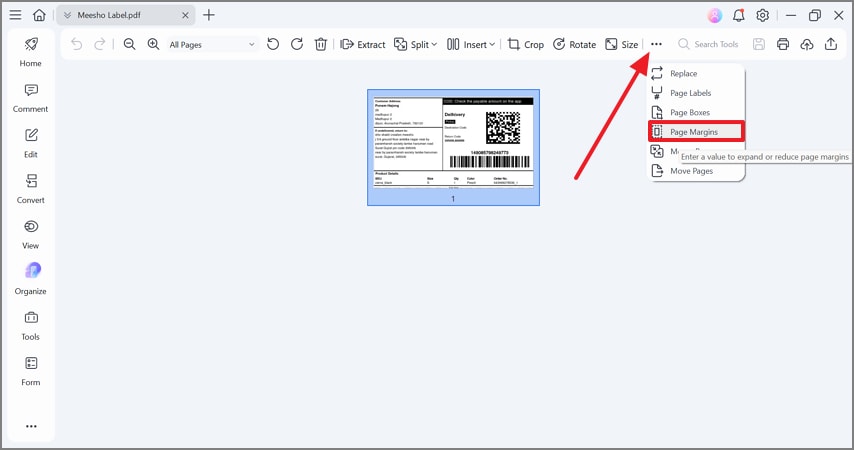
Step 6Select the Page Margins Feature
For a neat layout, select the "Page Margins" feature from the "Menu" icon.
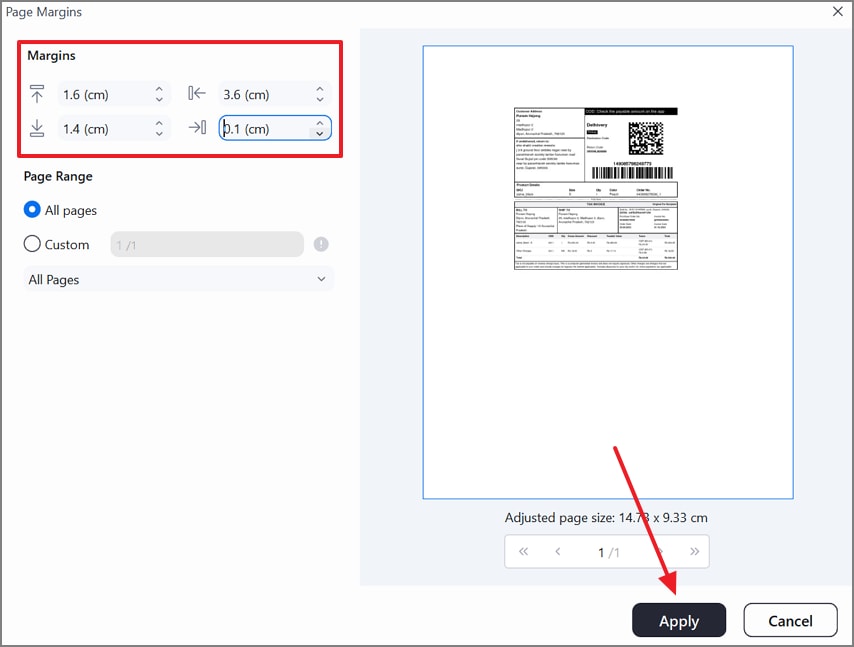
Step 7Set Page Margins of the Label
When the following window opens, input custom "Margins" in the relevant field and click "Apply".
Step 8Save the PDF Meesho Label
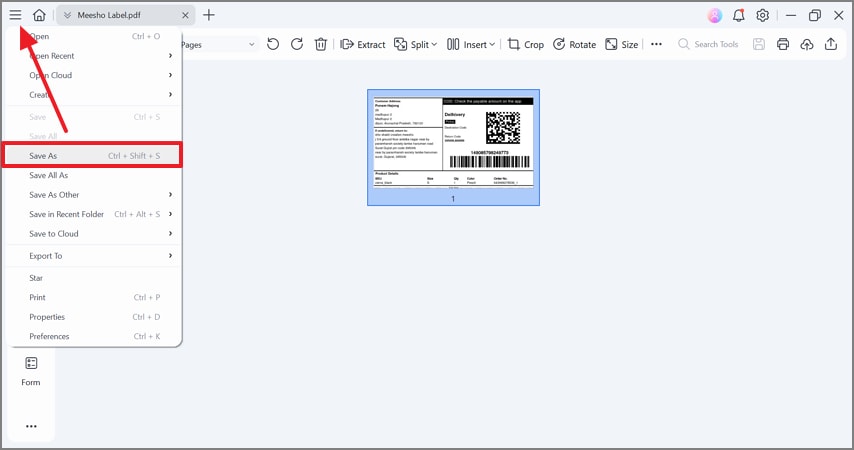
When the label is ready, expand the "Menu" from the top left and click the "Save As" option to save the cropped Meesho label.
Part 5. Convert Multi-Label A4 PDFs into Individual 4×6 Labels Using PDFelement Tiling
Best For:
When an A4 page contains 2–4 labels that need to be separated into individual pages.
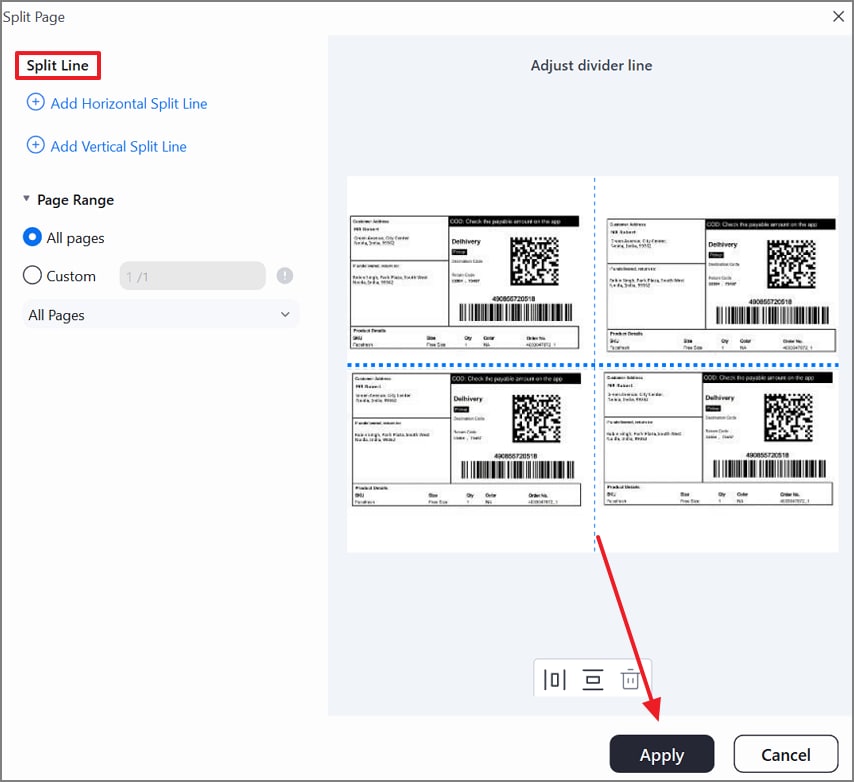
If you have multiple Meesho labels in a single document, PDFelement can help you split the page into multiple pages. Each label can then be treated as an individual PDF page. You can add as many horizontal and vertical split lines as you need to isolate the label. Follow the guide below to learn how to Meesho PDF label crop using PDFelement:
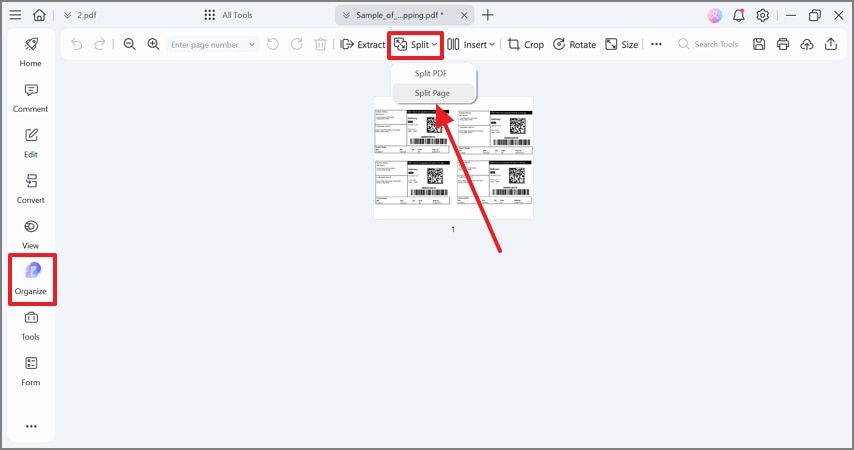
Step 1Select the Split Page Feature
To start, enter the "Organize" tab from the left sidebar and expand the "Split" menu to select the "Split Page" option.
Step 2Add Split Lines to Generate Multiple Meesho Labels
In the "Split Page" window, use the "Split Line" section to add vertical and horizontal cuts. Once you have isolated the labels, click "Apply" to make the settings effective.
G2 Rating: 4.5/5 |100% Secure
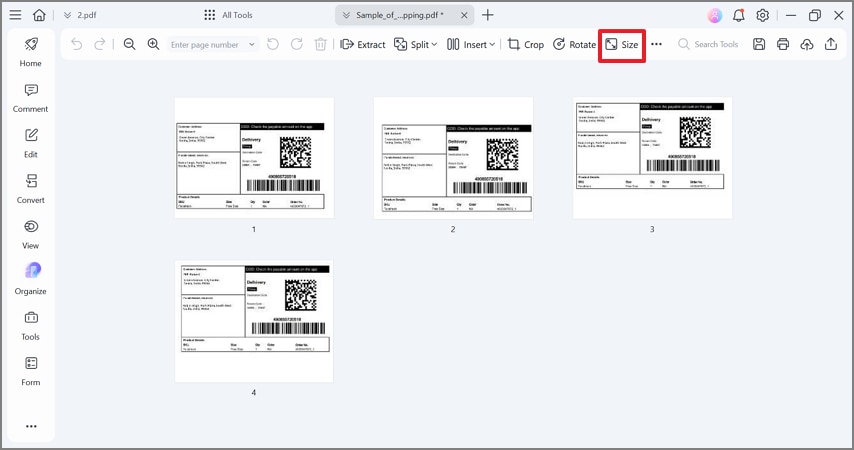
Step 3Adjust the Size and Marins of the Page
In the "Organize" mode, adjust the "Size" and margins of the label by following the steps mentioned earlier.
Part 6. Process Dozens of Labels at Once with Template-Driven Batch PDF Cropping
Best For:
When multiple Meesho orders have the same layout and label positioning.
Sellers having numerous PDF Meesho label files can use the batch processing feature by PDFelement to execute mass cropping. The Batch PDFs utility requires users to create a custom crop box template that is automatically applied to all the PDFs in the batch.
If you do not have a pre-existing template, create a custom one to your preferences. The following section explains how you can execute a batch crop on multiple Meesho PDF labels using this Meesho PDF cropper:
Step 1Enter the Tools Tab to Select the Batch PDFs Feature
In the "Tools" tab menu, select the "Batch PDFs" option to open a new window.

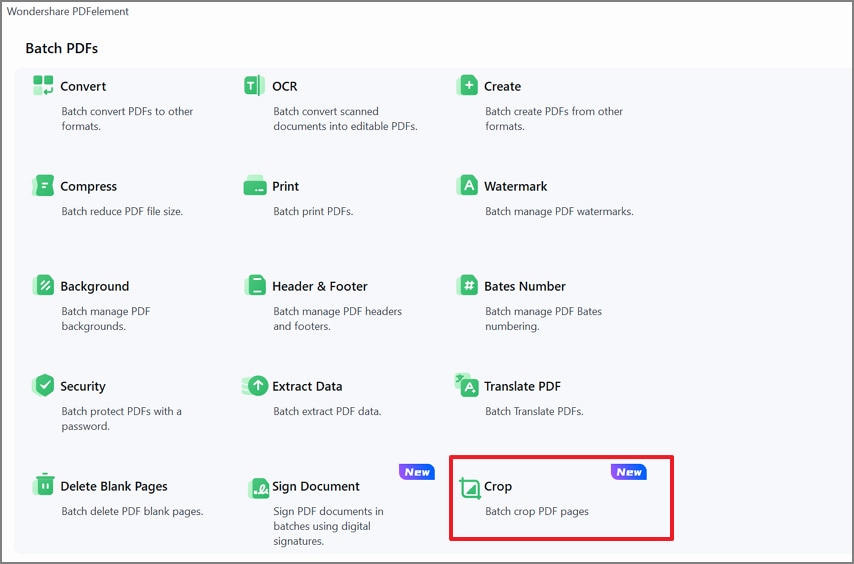
Step 2Pick the Crop PDFs Feature to Continue
Using the next window, select the "Crop" option to open a new window.
G2 Rating: 4.5/5 |100% Secure
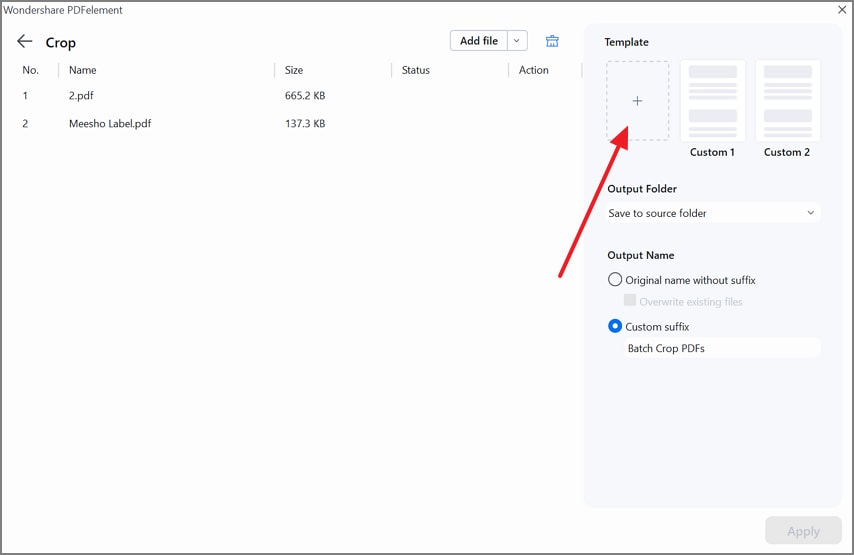
Step 3Add a Custom Crop Box Template
Now, click the "Add a Template" option to make a custom crop box template in the following window.
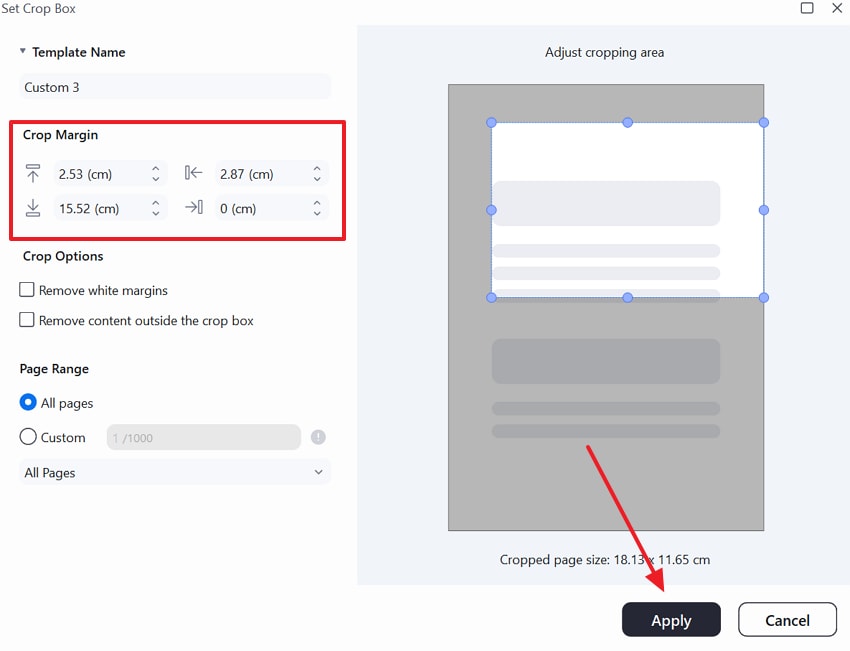
Step 4Enter the Crop Box Crop Margins
When the new window opens, make the template by using the "Crop Margin" field and click "Apply" to continue.
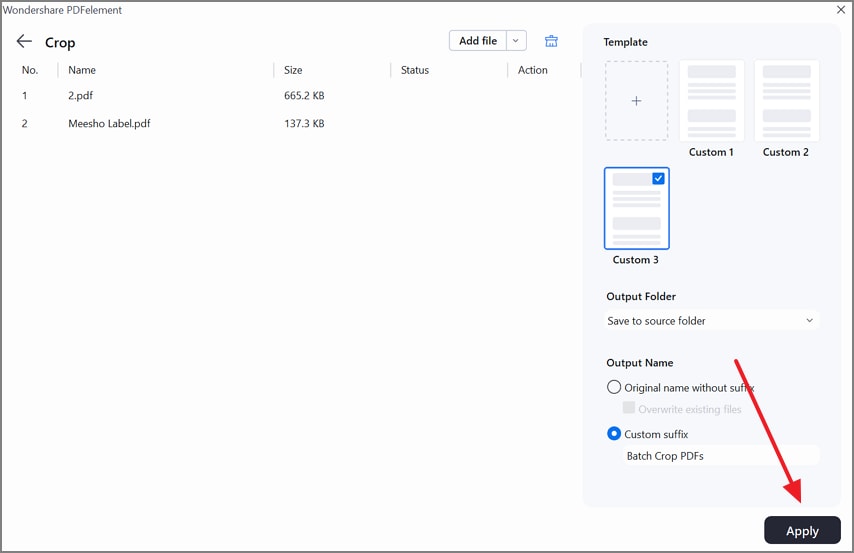
Step 5Apply the Crop Box to the Batch PDFs
Now, name the output folder and select their location on the device. When done, click the "Apply" button to implement the changes.
Part 7. Quick Online Crop & Resize for Non-Sensitive PDFs Directly in Your Browser
Best For:
When you need to crop a few labels, and the content is not confidential.
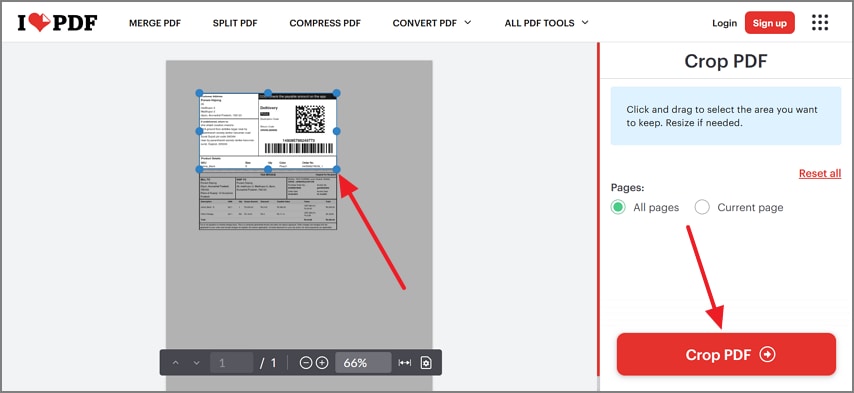
Users looking for quick cropping solutions for Meesho labels that are not confidential can use an online cropping facility. iLovePDF Crop PDF page is an effective online tool that can crop your label for you. Besides applying the same trim settings on all pages of the document, you can execute it on just the selected page. The following steps are a detailed guide to using this website for effective Meesho PDF cropping:
Step 1
After uploading the PDF label, drag the crop box around the label to keep it. Once done, click the "Crop PDF" button to trim the page.
Step 2
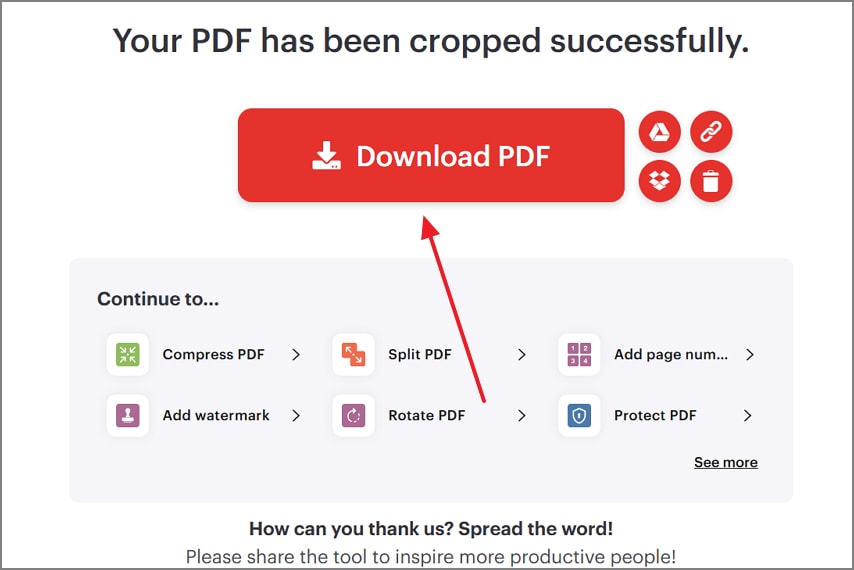
Lastly, save the PDF label on your device by clicking the "Download PDF" button provided in the next page.
Part 8. Print-Safe Tips: Ensure Readable Barcodes and Accurate Labels
Users need to print their labels should keep certain points in their mind. The following section uncovers the effective tips that can ensure readable barcodes and accurate labels after PDF crop Meesho:
- Margins Matter: Keep 2 to 3 mm of clear space around all edges and ensure barcodes never touch the trim. Proper margins prevent scanners from misreading codes, reducing the risk of return to origin.
- Maintain Contrast: Avoid "fit to page" scaling that shrinks barcodes or labels. Printing at 100% ensures codes remain clear, scannable, and compliant with courier requirements.
- Check Orientation: Thermal printers typically expect a 4×6-inch label in portrait mode. Confirm printer driver settings to prevent rotated or misaligned prints.
- Test Before Full Batch: Print a single label and scan its barcode to verify readability and placement. Testing one sheet saves time and prevents mistakes when processing large batches.
Frequently Asked Questions
-
What is the fastest Meesho PDF cropper workflow for 100+ labels?
Use a batch crop feature with a reusable template in PDFelement. This tool allows you to process all labels at once without manually cropping each file. -
How do I PDF crop Meesho A4 pages into exact 4×6 for a thermal printer?
Resize the cropped page to 4×6 inches in portrait mode on PDFelement and add small margins. -
Can I Meesho PDF label crop online for free?
There are browser-based tools that allow cropping and resizing of non-sensitive PDFs for free. However, avoid uploading confidential order information to online platforms for privacy reasons. -
How do I prevent barcodes from clipping after crop/resizing?
Keep 2–3 mm of clear margin around barcodes and avoid "fit to page" scaling. Printing at 100% size and checking orientation ensures all codes remain fully scannable. Fortunately, PDFelement offers extensive margin-setting feature to preserve the page layout. -
How do I split a multi-label A4 into separate pages before cropping?
Use a tiling or split-page feature in your PDF editor to divide the A4 sheet into individual labels. Once split, each label can be cropped and resized independently for printing.
Conclusion
For reliable Meesho PDF cropping, use PDFelement's Organize > Crop for precise single-file adjustments. This Meesho PDF cropper is a robust tool to trim labels without compromising its quality. Split A4 multi-label pages into individual labels using Organize > Split Page, and process entire batches with Tools > Batch PDFs > Crop templates.
Finally, resize each label to 4×6 inches with a small margin, print a test sheet, then run the full batch. This ensures clean barcode scans, reduces delivery errors, and speeds up packing significantly.




