

We know that a signature in a PDF is a way to keep the contents in the file verified. When you need to prevent the file from being misused, you may want to crop a sign from a PDF. It can also be an effective technique for removing unneeded elements from your document. This action can be valuable for organizing your page layout without compromising on the important text.
However, only a good-quality PDF management tool can be trusted for this process. This article is a detailed guide to cropping signatures from PDFs without losing the quality.
In this article
Part 1. What "Crop Signature from PDF" Can Mean: Choose Your Goal
Before looking for a PDF-cropping tool, it is better to understand the process first. The following article explains what a crop signature from a PDF means:
- Isolate and Export the Signature as an Image: This approach of cropping the signature from PDF extracts only the signature, saving it as an image for reuse. It is ideal for e-sign stamps, branded letterheads, and consistent document templates.
- Create a Signature-Only PDF View: Cropping to the signature area creates a focused PDF showing nothing else. This method suits reviews or archives where the surrounding content is unnecessary.
- Hide or Remove a Signature Securely: Removing visibility requires redaction, because simple cropping does not permanently hide data. Redaction safely deletes the signature so recipients cannot recover it later at all.
- Let Outcomes Guide the Method: Your intended result determines whether you crop, export, or redact the signature. Clarifying the goal first prevents mistakes and ensures the correct PDF handling method.
Part 2. Before You Start: Consent, Quality, and Format
There are certain things you need to keep in mind while removing the e-signatures. The following section tells the considerations before implementing the cropping a sign from PDF process:
- Legal and Consent: Always confirm you own the signature or have explicit permission before editing or sharing it. Unauthorized use or modification of signatures can lead to legal issues, disputes, or compliance violations.
- Quality Check: Zoom to 200 to 400% to verify the signature appears sharp, readable, and free of pixelation. If reuse is planned, export at 300–600 dpi to maintain clarity across documents and formats.
- Vector vs. Raster: Scanned handwritten signatures are raster images, while digital signatures or logos may contain vectors. Cropping works for both types, but transparency cleanup or refinement may be required afterward.


 G2 Rating: 4.5/5 |
 100% Secure
Part 3. Methods to Crop a Signature from a PDF
Method 1: Isolate the Signature by Cropping the Page
Best For: Quickly getting a PDF that contains only the signature area, then exporting it as an image.
We know that it takes a good-quality PDF tool to remove parts of a page. For this reason, PDFelement is a decent choice. It provides users with a range of cropping features, which are designed for all use cases. You can execute a simple trimming by moving the edges of the crop box. For precise sizes, users can also enter a figure and acquire the desired layout.
Instead of trimming each page individually, you can enter a size and apply it to the desired pages in the file. For a neat layout, remove white margins from the file in a single click. If you want to learn how to crop a signature from PDF, follow this guide:
Step 1Open a PDF File with a Signature
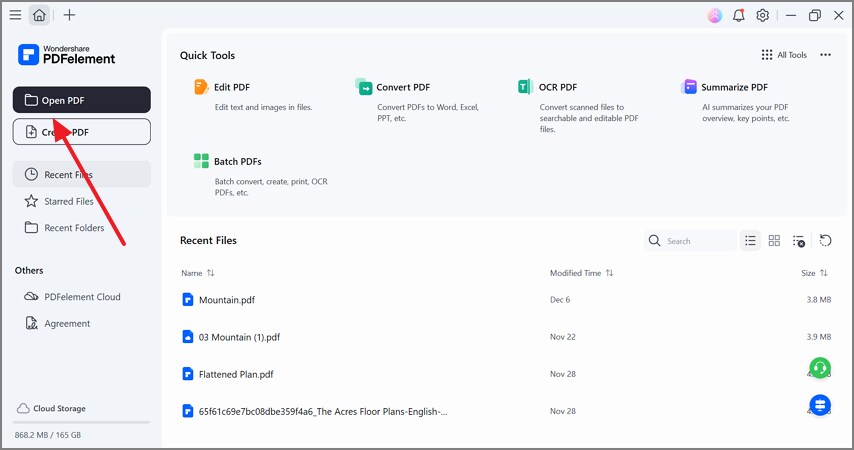
First, click the "Open PDF" button to import a file with signatures into PDFelement.
Step 2Crop the Sign in the Organize Mode
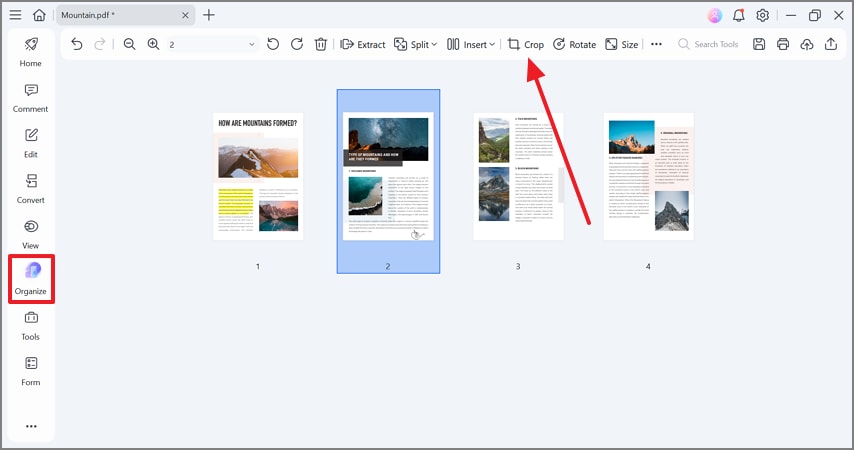
In the "Organize" tab, select the page that needs to be cropped and select the "Crop" option.
G2 Rating: 4.5/5 |100% Secure
Step 3Trim the Page and Apply Settings
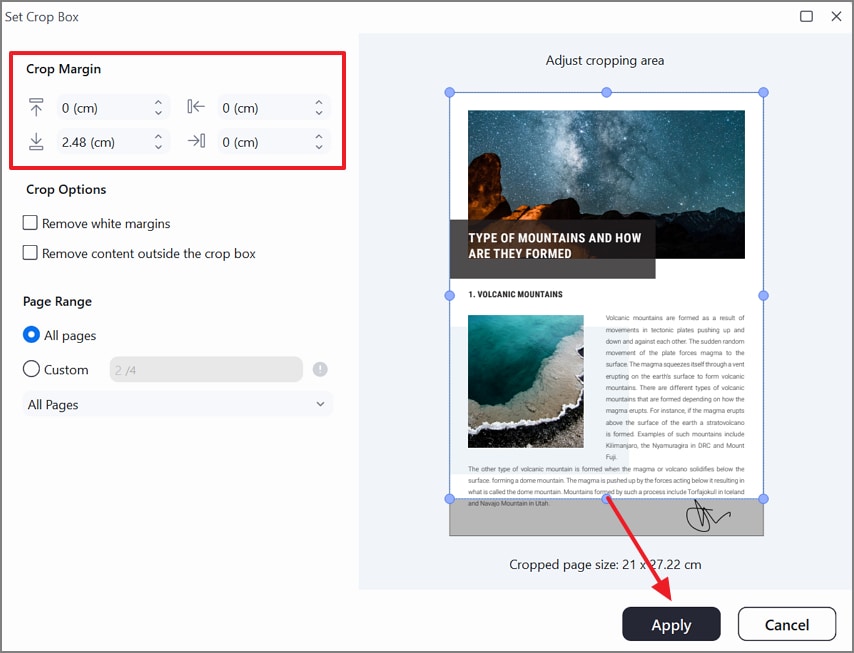
In the "Set Crop Box" window, use the "Crop Margin" field to enter a precise size of the page. In contrast, you can drag the edges of the crop box and remove the sign manually. Once you are done, select the "Apply" button to implement the changes.
Tips for Cropping on PDFelement
- Use rulers and zoom tools to keep margins precise, PNG format preserves signature clarity better.
- If multiple signatures exist, repeat steps on duplicates or apply batch template processing.
Method 2: Extract the Signature Page, then Crop Once
Goal: Avoid modifying the original; work on a tiny extract first.
If your PDF file is lengthy, you may need to extract the page containing the signature and crop it later. Fortunately, PDFelement offers this facility by letting you extract pages from a file and treat them as individual PDFs. Multiple pages can also be separated and cropped to eliminate or repurpose the signature. The following steps are a detailed guide on how to crop a signature from PDF using PDFelement:
Step 1Extract Pages of the PDF File
Using the "Organize" mode, select the "Extract" button and unveil a new window.
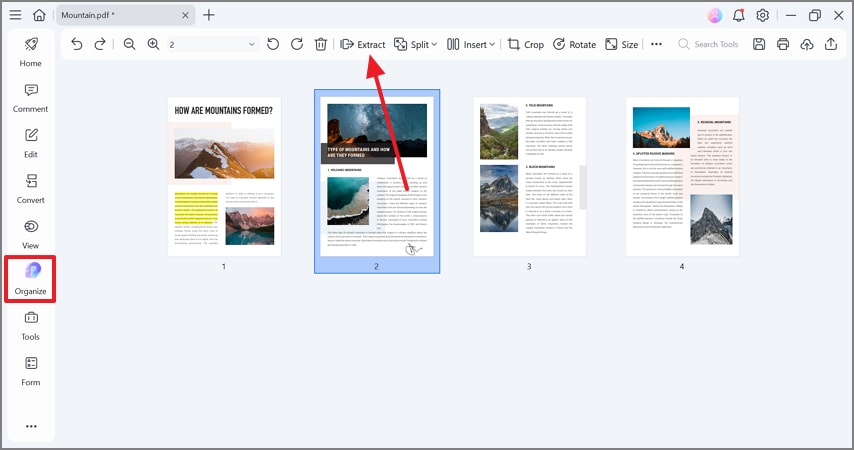
Step 2Enter a Custom Page Range
In the following window, set a "Custom" page range and click "OK" to apply the changes.
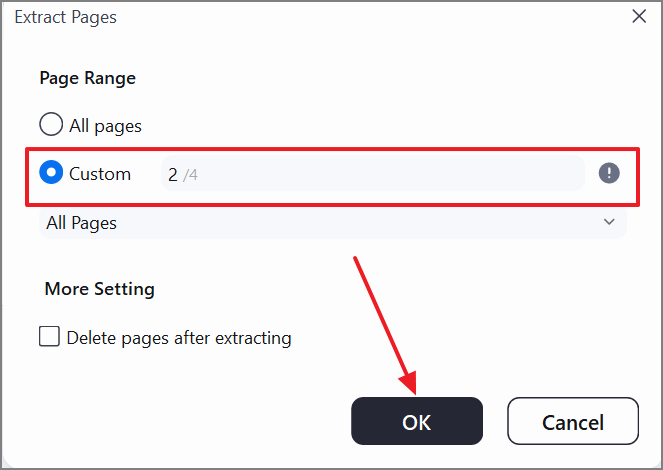
Step 3Crop the Extracted Page
Once you have isolated the PDF page, expand the "Organize" tab in the left sidebar and click "Crop." Now, trim the page to remove the signature using the method mentioned above.
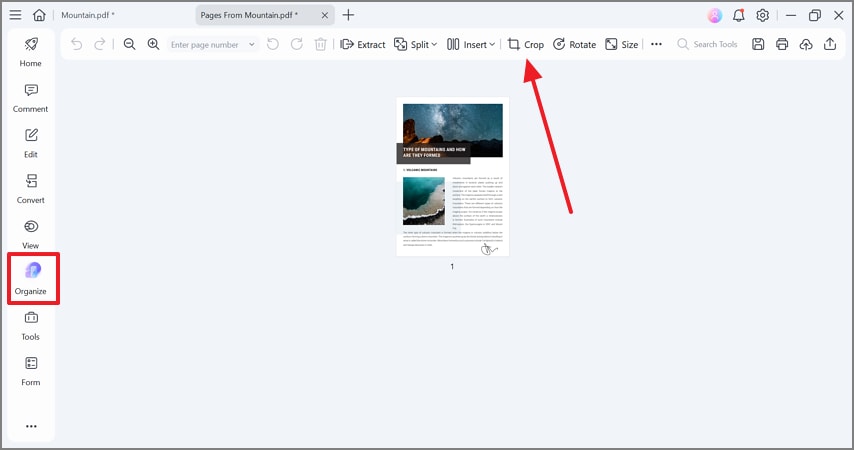
Step 4Export the PDF As an Image
After removing the signature effectively, expand the "Menu" on the top left and hover the cursor over "Export To." Now, click "Image" to open the image export settings window.
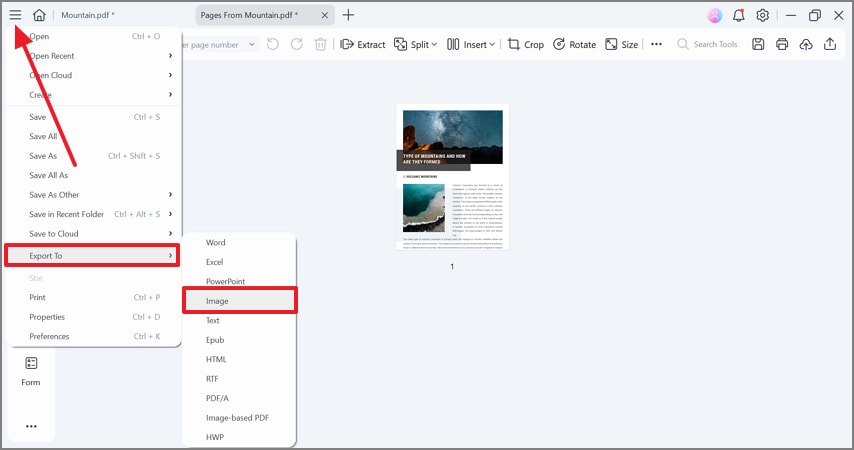
Step 5Select the PNG Format and Explore the Settings
When the "Convert" window opens, select "PNG" and click the "Settings" button to continue.
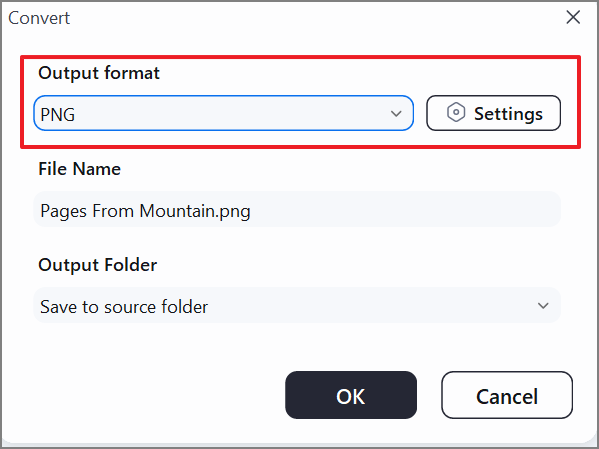
Step 6Pick the Image Quality in DPI and Save the File
In the following window, set the "Image Quality" to "450 DPI" and enter other settings. Once the image quality has been set, click the "OK" button to save it on your device.
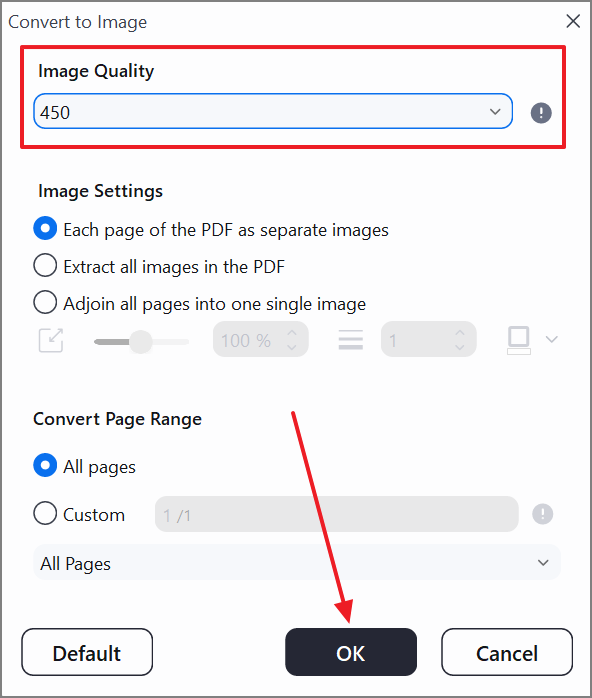
When to Use: Large contracts/manuals where you only need one page's signature.
Method 3: Batch Crop Many Pages/Files to Signatures with a Template
Best For: Scanning sessions where signatures sit in the same corner/zone on many pages or many PDFs.
If multiple PDF files have the signature in the same area of each file, you can remove them all with a single click. The Batch PDFs feature on PDFelement allows you to execute the same process on multiple documents instead of individual tasks.
This feature lets you create a custom template and apply it to future documents for a consistent layout. Users can suggest a new name for the cropped batch and pick the location for saving it. To learn how to crop sign from PDF batch, follow the guide below:
Step 1Select the Batch PDFs Feature
To start, open the file and enter the "Tools" tab from the left to select the "Batch PDFs" feature.
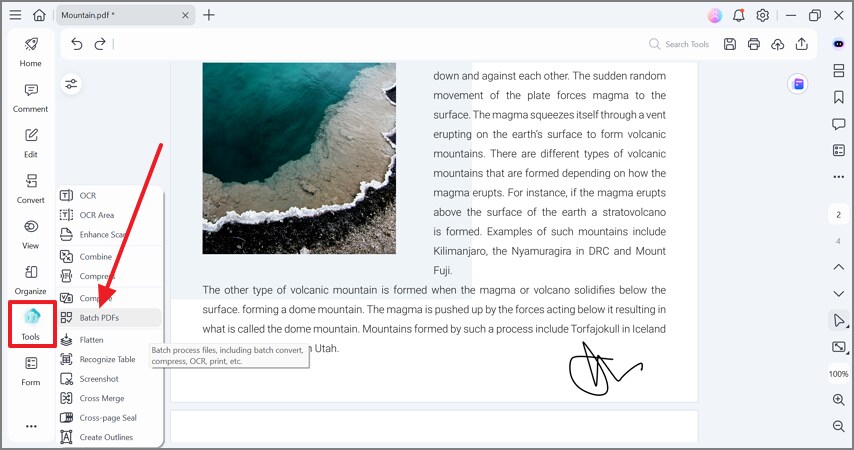
Step 2Select the Crop Feature to Proceed
Using the following window, select the "Crop" button to enter the new interface.
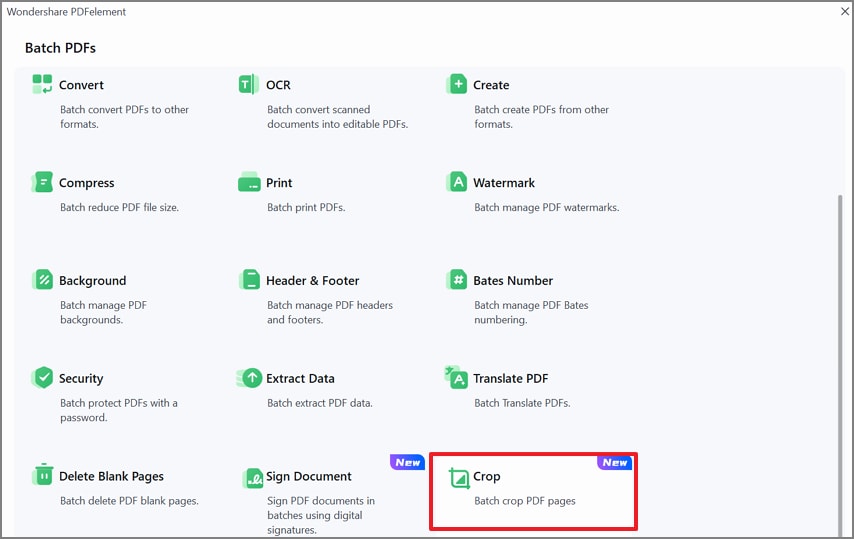
Step 3Add a Custom Template to Make a Crop Box
Now, import the batch PDF files and click the "Add a Template" button on the right.
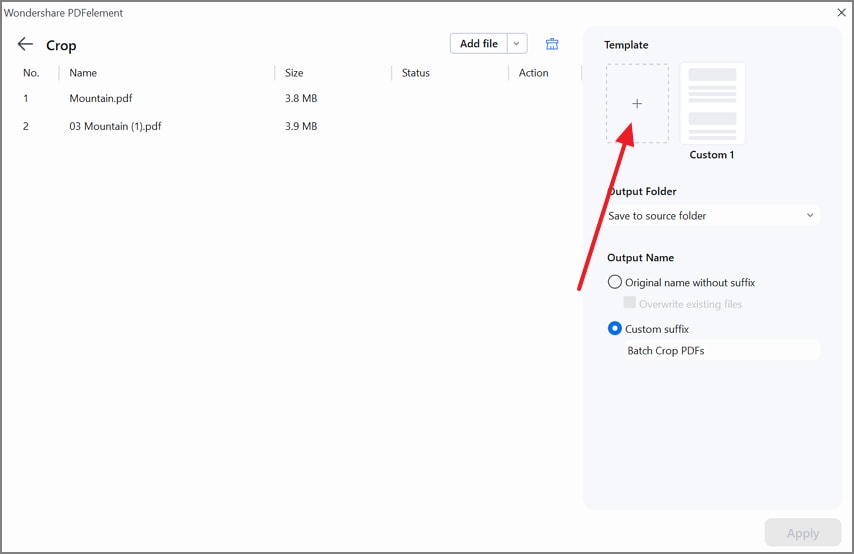
Step 4Set Crop Margins in Crop Box Settings
When the next window opens, adjust the size of the page by dragging the edges. You can also use the "Crop Margin" field to enter a precise figure. Once done, click the "Apply" button to create a custom crop box.
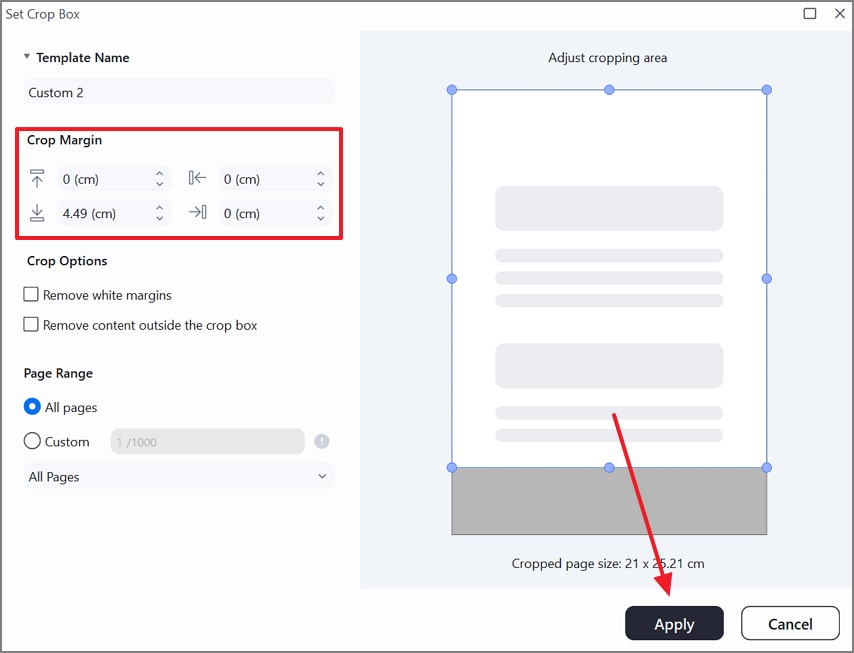
Step 5Enter the File Name and Location
When the signatures of the batch files have been cropped, name the output file and folder to click "Apply."
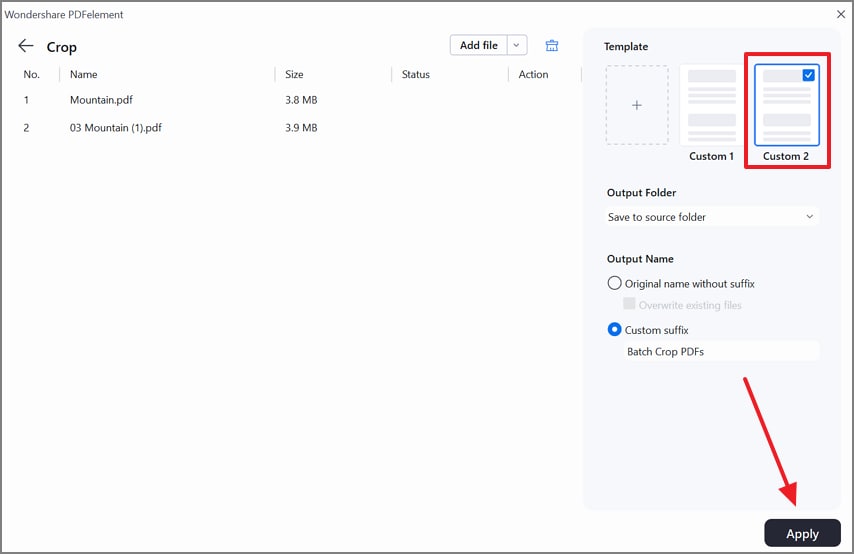
The Right Move: Build multiple templates (e.g., "bottom-right 35mm," "top-left 25mm") and apply the right one per set.
P Method 4: Online Crop (HiPDF) for Quick, Non-Sensitive Jobs
Best For: When you need a fast result, and the document isn't confidential.
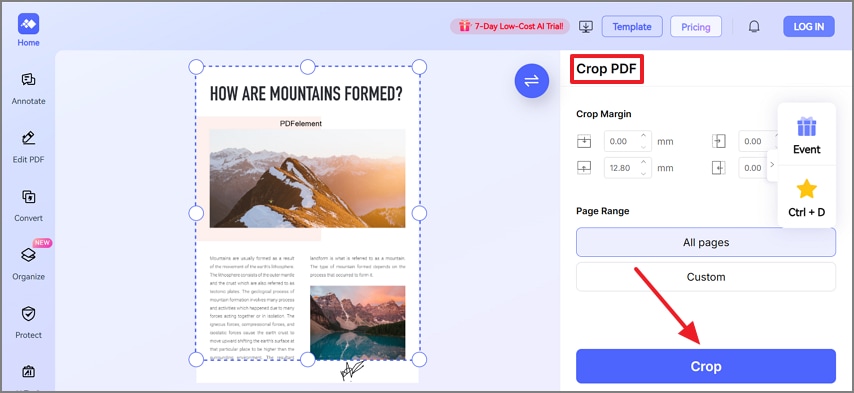
When your signed document is not confidential, you can use an online PDF-cropping facility. HiPDF is an online PDF service that offers a range of file management tools. It allows you to crop the sign by dragging the edges of the crop box. You can also enter a figure to acquire a precise size of the page. The following section explains how to crop a signature from PDF using HiPDF:
Step 1
First, select the "Crop PDF" tab from the "Edit PDF" section of HiPDF to upload the file.
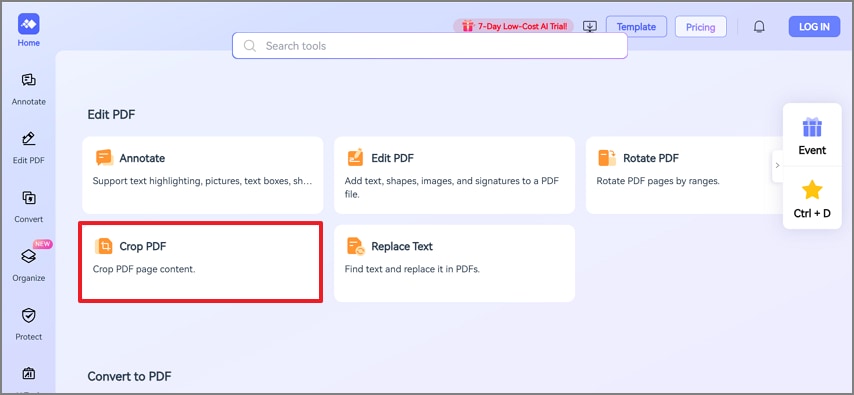
Step 2
Now, drag the edges or use the "Crop PDF" section to remove the signature and click "Crop."
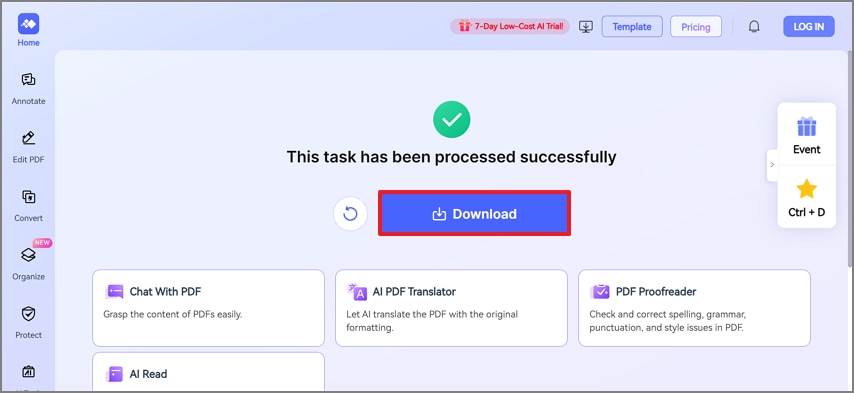
Step 3
When the file is cropped, click the "Download" button to save it to your device.
Part 4. What to Do When You Have to Hide/Remove a Signature
Cropping just changes the visible canvas, and the removed areas can sometimes be retrieved. Therefore, you need a more practical method of removing the signature. PDFelement offers a Redaction feature that removes unnecessary parts of your PDF files seamlessly. You can execute this process manually for greater precision. However, you can also automatically redact for faster results. The following section explains how to redact a signature from your PDF file using this technique:
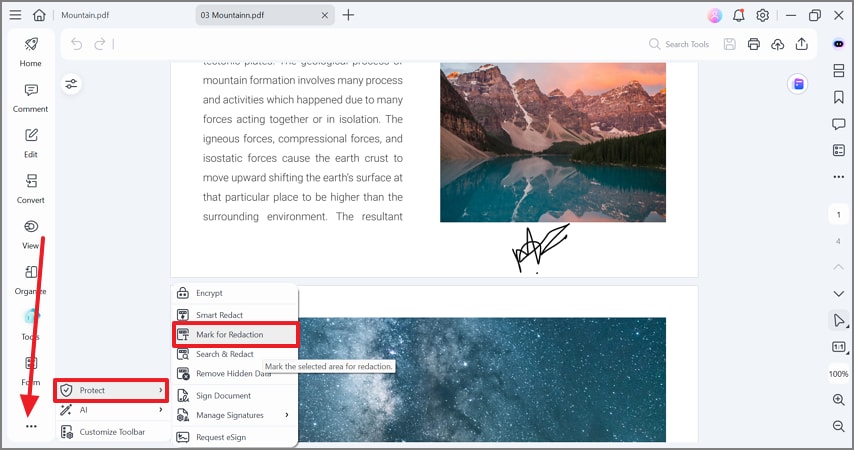
Step 1Select the Redaction Feature
In the "More" menu at the bottom left, hover the mouse over "Protect" to select "Mark for Reaction."
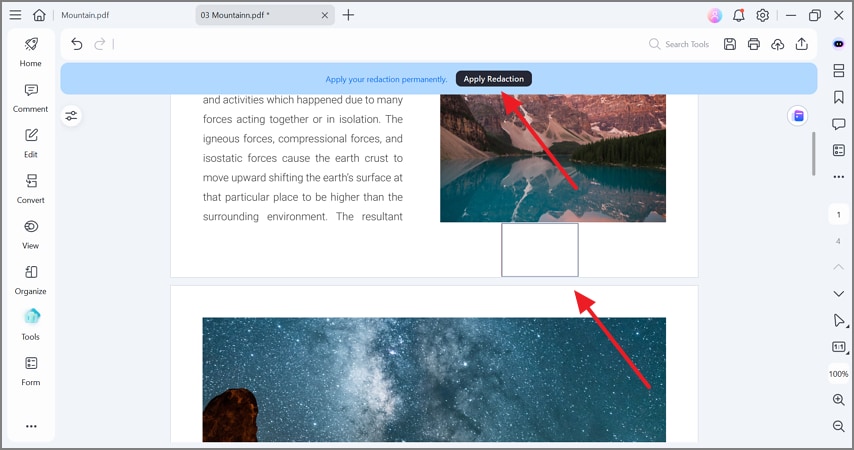
Step 2Select and Apply Redaction on the Sign
Now locate the signature on your file and draw a box around it. When done, select the "Apply Redaction" button at the top to remove the sign seamlessly.
People Also Ask
-
Can I crop a signature from a PDF without losing quality?
Yes, if you export at high DPI and avoid resampling, quality can remain intact. Vector signatures preserve quality best, while raster signatures depend on resolution and anti-aliasing. -
How do I crop a signature from a PDF and save it as a transparent PNG?
Crop the signature area, export as PNG, then remove the background using transparency or masking tools. Ensure you enable transparent background and save at a sufficient DPI for clean edges. -
Is there a way to auto-crop signatures on multiple pages?
Batch tools and scripts can detect ink regions and auto-crop across pages. Accuracy varies, so review results manually to catch missed or over-cropped signatures. -
What's safer for removing a signature before sharing—crop or redact?
Redaction is safer because it permanently removes data, whereas cropping can be reversed. Use redaction tools that flatten content to prevent recovery in shared PDFs. -
Can I do this online for free, and when should I avoid it?
Many free online tools work but avoid uploading sensitive or legally protected documents. Prefer offline software for confidential files, large batches, or strict compliance requirements.
Conclusion
This article was a detailed guide to crop a sign from a PDF file using PDFelement. This tool offers various features to crop the pages for numerous use cases. You can decide whether you are extracting a signature to reuse or removing it for safe sharing. For extraction, crop the signature area on the page, then export as a high-resolution PNG.
For removal, use redaction, because cropping alone does not guarantee privacy or prevent content recovery. With clear goals and the right path, you can handle signatures in PDFs quickly, cleanly, and safely.




