

Taking notes at meetings is very distracting and therefore you miss out on the action items and other details that are important. The Zoom AI Notetaker is capable of producing accurate summaries, transcripts, and notes. This assists teams to remain on track and on course with the goals. We will discuss the functionality of this tool and its best alternatives in this guide so that you can have more reliable options.
In this article
- Does Zoom Have an AI Notetaker Via AI Companion?
- What is Zoom AI Notetaker
- Admin Setup: Licenses, Permissions, and Summary Controls
- Guide on How to Enable and Use Zoom AI Companion Meeting Summary
- Zoom Notes: Create, Collaborate, and Share in Real Time
- Understanding Zoom Transcripts for Smarter Summaries and Searches
- Troubleshooting Zoom AI Notes: Missing Options, Summaries, or Buttons
- Guide on How to Take Notes During Zoom Meetings Automatically
- Top Alternatives to Zoom AI Notetaker in 2026
- Comparing the Free and Paid Versions of Zoom AI Notetaker
Part 1. Does Zoom Have an AI Notetaker Via AI Companion?
Yes, the Zoom AI Notetaker is an automatic meeting summary generator that is provided by the AI Companion feature. The summary can be enabled by the hosts in a meeting, and the participants can see the host-enabled summary. You do not need to save the entire meeting recording, as AI Companion can generate it from a temporary transcript instead.
The Zoom web portal provides access to the Zoom AI notes, summaries, and transcripts, which can be accessed by the user in the section of "Recordings." This assists the team members to remain on the same page, refresh the critical points, create the next steps, and make decisions without using manual notes.
Part 2. What is Zoom AI Notetaker
The Zoom notes taker is a smart meeting AI assistant that captures, summarizes, and organizes discussions in real-time. It is supported by the AI Companion of Zoom, which gives a summary, transcripts, and share notes and saves time and effort. Below are the 3 aspects of this tool, which will help you throughout the note-taking process:
AI Companion Meeting Report
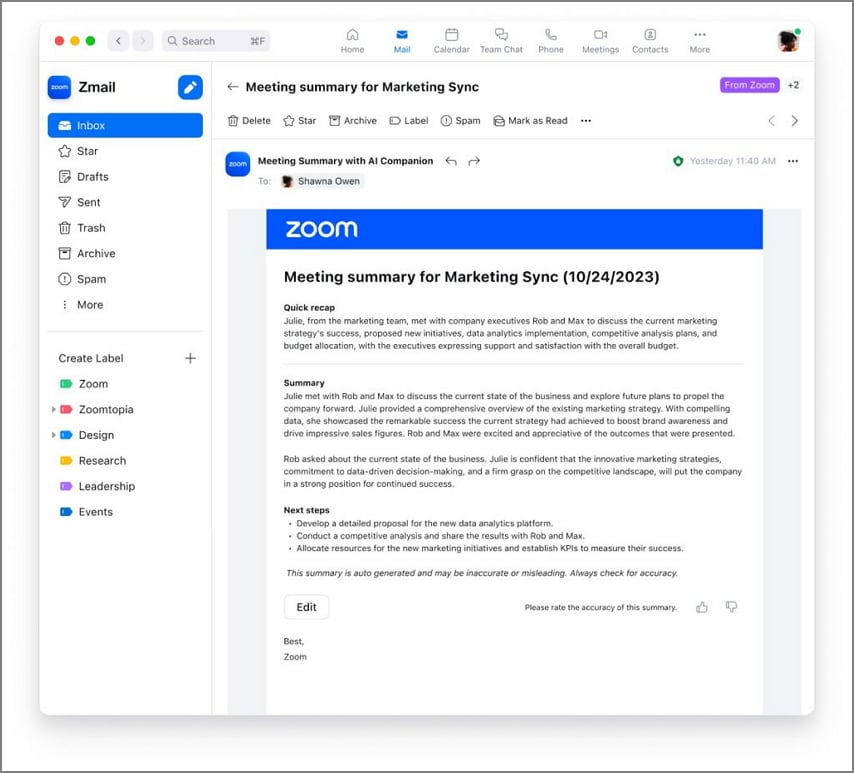
This is an automatic system that creates focus points, rulings, and actions to be taken when a meeting is over. Summaries are processed and delivered after the session has ended by the host through Zoom Team Chat or email. The notes are only shared with the hosts, but they can adjust the settings to allow participants access as well.
Zoom Built-in Notes
The Zoom AI notes allow collaboration between users and enable them to create and edit notes during a live meeting. Participants get the ability to open the notes directly from the meeting toolbar and co-edit them in real-time. These notes can be distributed to the participants or can be stored for future reference.
Transcripts
Zoom automatically generates searchable transcripts during the recording. These can be accessed by admins and hosts from the recording management section or the web portal. The search may be performed by meeting ID, host email, or even by a keyword. It allows users to find the particular discussion in a short time with high accuracy.


 G2 Rating: 4.5/5 |
 100% Secure
Part 3. Admin Setup: Licenses, Permissions, and Summary Controls
Before you start using the AI notetaker for Zoom or the meeting summary feature, specific permissions and settings must be set. Only users with the specific Zoom license have access to this feature, and it has to be administered via the admin console. As soon as the Admin switches on the Summary feature, a toggle will appear in it that will allow the user to begin or end the AI-created notes.
Depending on the confidentiality, the admins are also in a position to decide which people can view and share the summaries made out of the meetings. They will be able to specify whether they would like the summaries to be shared automatically with the participants or remain confidential. Furthermore, the participants of the meeting must know which features of AI to use to obtain consent, such as transcripts or summaries.
Part 4. Guide on How to Enable and Use Zoom AI Companion Meeting Summary
Moving on, let us dive into the steps you need to take in order to enable and use the Zoom AI notes taker function as an Admin or a Host:
Admin
As an Admin, you have high responsibilities for enabling the Meeting Summary feature from the Zoom settings based on the confidentiality of the meeting topic. This ensures that hosts in your organization can access and control AI-generated summaries during meetings. Below are the steps for enabling the Zoom AI note-taking process through the web portal:
Step 1Access the Zoom web portal
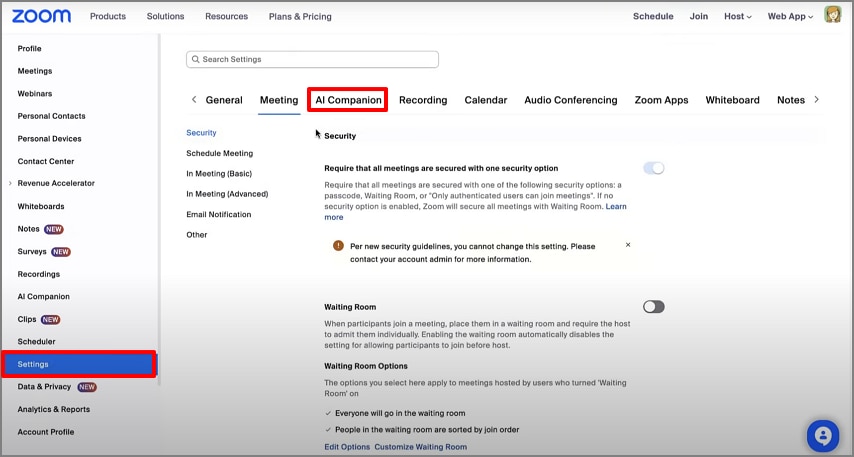
Access the Zoom web portal and navigate to the "Settings" from the left sidebar. Then, click on the "AI Companion" section and move to the next step.
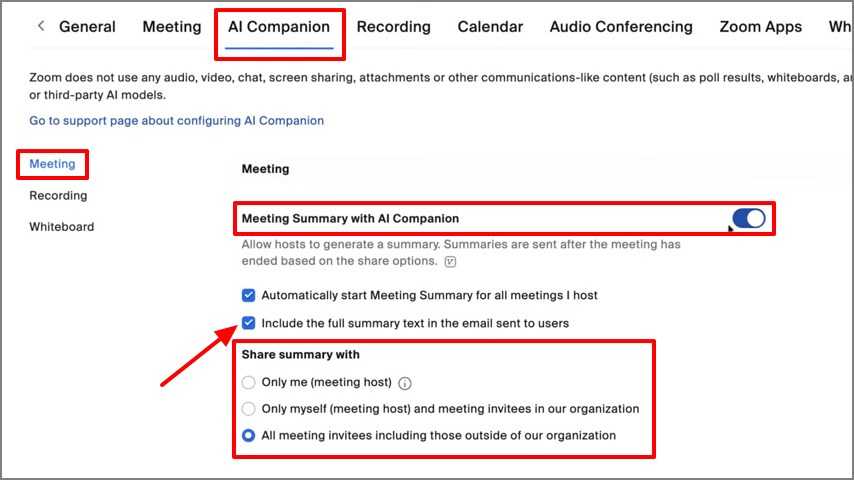
Step 2Enable Meeting Summary
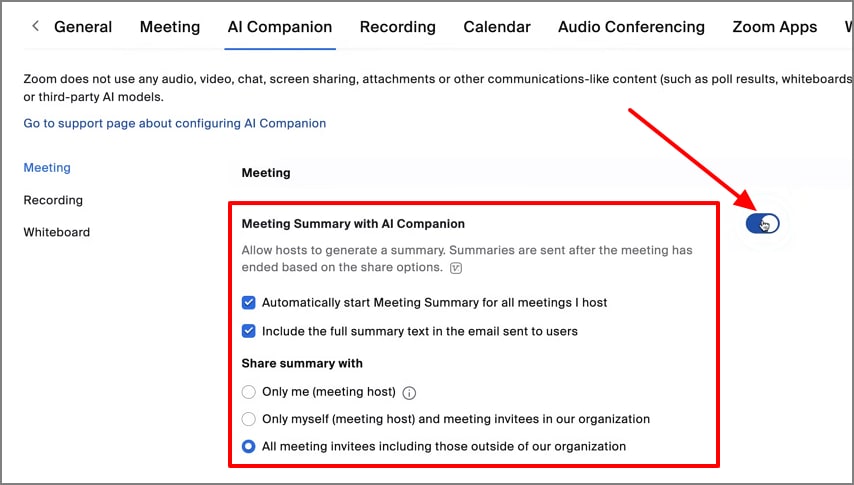
Next, turn on the toggle for the "Meeting Summary with AI Companion" section. You can then check or uncheck the setting boxes according to your needs.
Host or Organizer
As a meeting host, you can activate the Meeting Summary once it's enabled by your admin. You will also manage when to start or stop summarizing and decide whether to share them with participants after the meeting. Jump into the steps below to figure out how, as a host, you can generate a transcription of the Zoom meeting:
Step 1Start the AI Companion Summary
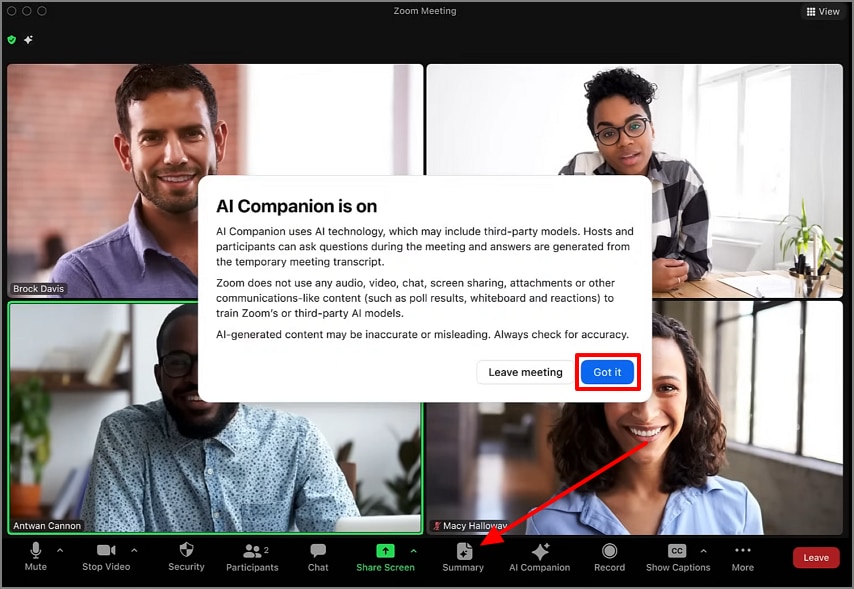
While the meeting is going on, as the host, you will see the "Summary" icon at the bottom toolbar; click on it to start the AI Companion Summary function. This will send all the participants a note that the meeting is being recorded and AI-generated notes are being created.
Step 2Access the AI Summary
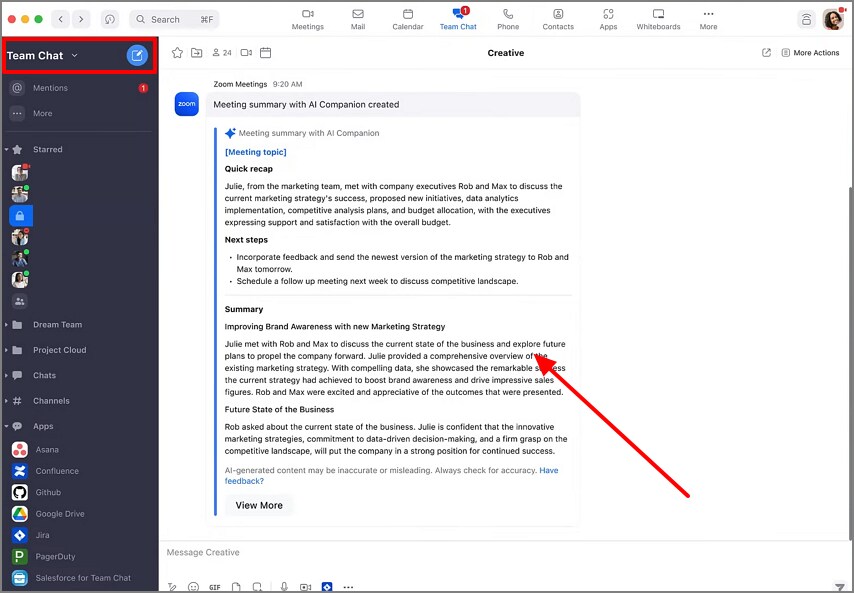
After the meeting, AI notes are generated, based on the settings, the participants or the host will receive the AI Summary in the "Team Chat"
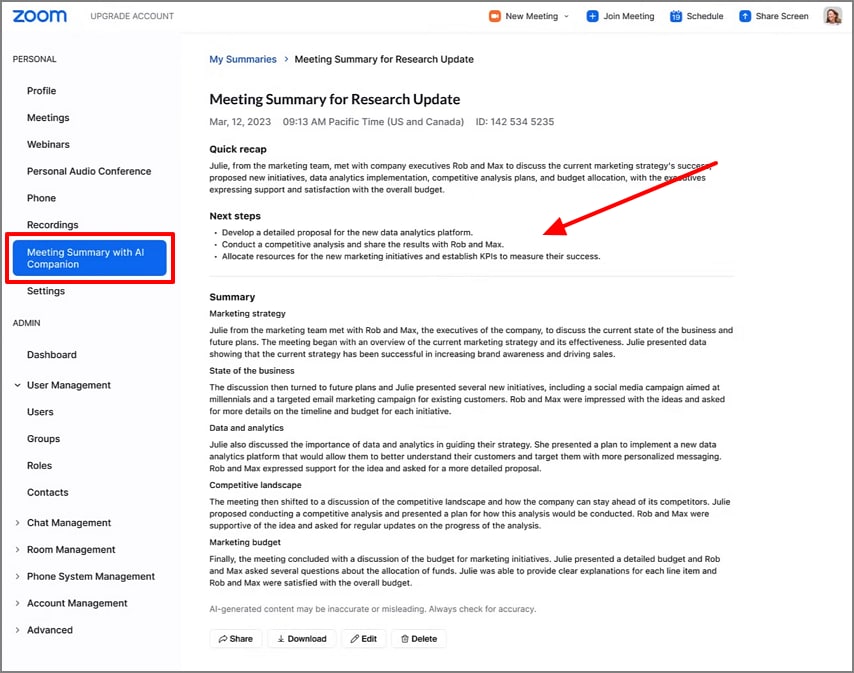
The participants or the host of the meeting might also receive the AI Summary of the Zoom meeting in their emails.
G2 Rating: 4.5/5 |100% Secure
Part 5. Zoom Notes: Create, Collaborate, and Share in Real Time
The Zoom meeting notes are a built-in feature that enables members to add and edit shared notes during a meeting. In order to stay on track with everyone, the users have access to the Notes panel through the meeting toolbar and can collaboratively edit documents. The next thing we will examine is the process to allow and utilize Zoom notes most efficiently during your meetings:
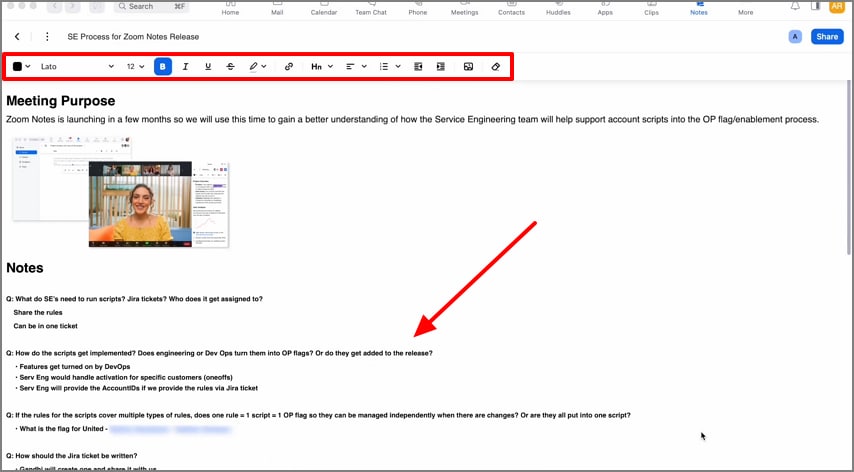
Step 1Access Notes during meeting
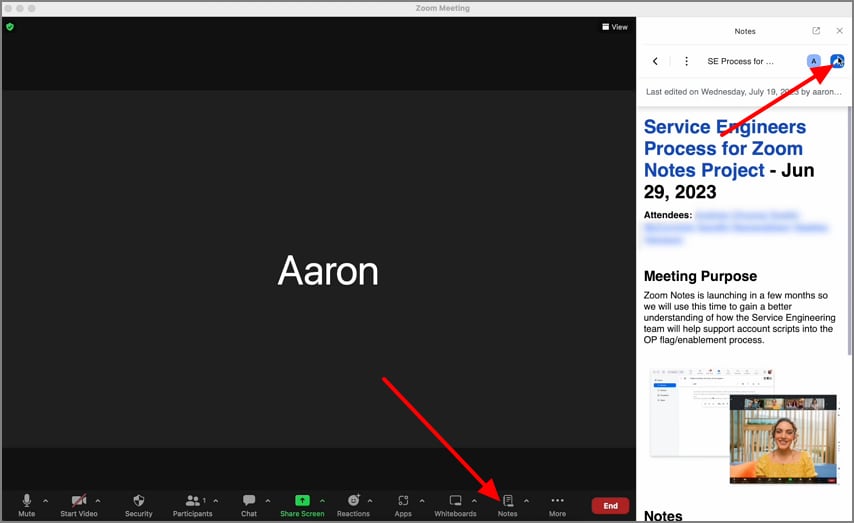
During the ongoing meeting, hit the "Notes" button at the bottom toolbar to open up a Notes side panel on the right side of the window. Here, hit the "Share" icon to adjust the Share Notes settings.
Step 2Edit notes in real-time
Click on the Notes panel and set it in a position that is easier for you to manage. Next, use the "Edit" properties to edit the text of the meeting notes that was generated by AI.

Step 3Share or edit notes
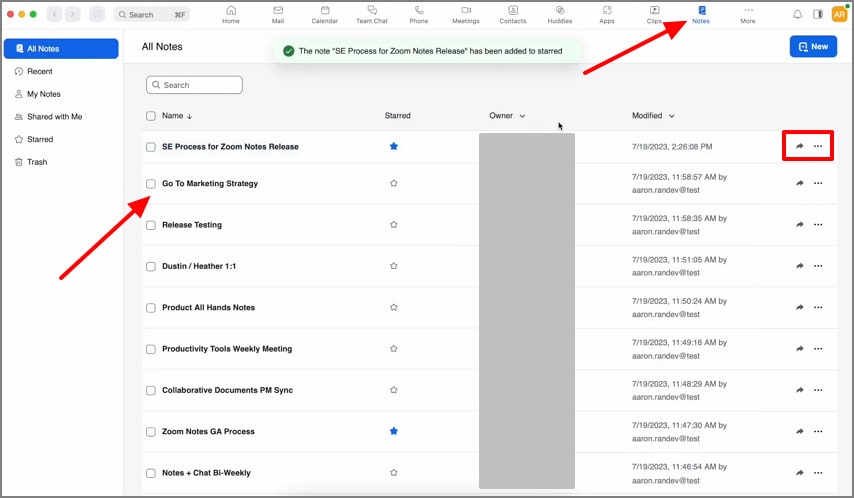
Once the meeting is over, shift to the Zoom web portal or the desktop software and click on the "Notes" section. Here, pick the notes you want to edit or share by hitting the "Share" icon or the "Three Horizontal Dots" icon.
Step 4Collaborate on meeting notes
Finally, the notes will open up in a new tab where you can collaborate with other meeting participants and work and edit the meeting's notes together.
Understanding Zoom Transcripts for Smarter Summaries and Searches
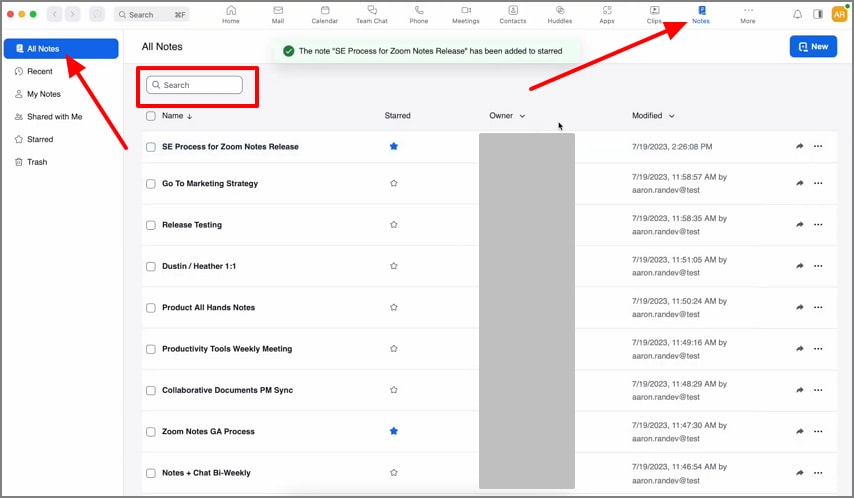
The Zoom transcripts from the Zoom AI notetaker record every detail that was spoken in the meeting. And access to these notes helps managers and team leads refer back to the meetings to make sure the key points, action items, and much more are being followed post-meeting. Below are the instructions you need to keep in mind as you try to locate the specific meeting notes:
Instructions. Once you log in to your Zoom Web Portal, jump to the "Notes" section from the top navigation bar. Then, click on the "All Notes" option to make sure you have the list of all the notes you have worked on so far. From the "Search" bar, type in the "Meeting ID" or "Keywords" to locate the specific Zoom notes AI you are looking for.
Troubleshooting Zoom AI Notes: Missing Options, Summaries, or Buttons
After understanding the guides, you need to follow to access, edit, or share the Zoom AI notes, you might experience a few pullbacks during the process. In this section of the article, we will be looking into the aspects you need to refer to as you come across specific issues:
Missing Summary Option
When you do not see the Meeting Summary option on the video meeting, the account or the admin might have turned off access to it. Once the Summary toggle is turned on, you can access the button again. It may also refer to the fact that your account is not eligible for the AI Companion feature. Make sure that your Zoom client is updated to the latest version of the software.
Didn't Receive Summary in Email
In case you have not been provided with the summary at the end of the meeting, the main reason is that the host did not provide it. Since summaries have default privacy, they need to be shared manually. In other cases, you might have to go to your Team Chats on the Zoom web portal or check your email to look for the meeting AI summary.
Missing Notes Button
If the Zoom meeting Notes button is missing at the time of your meeting, you might need to upgrade to the latest version of Zoom. The feature is only available when Zoom Notes is set in the Admin settings. You will be required to contact your administration department and request access. Once it is activated, it will appear in the bottom toolbar in the meeting room.
Note: As the host, ensure participants are aware that the meeting is being recorded and used by AI for notes and summaries. Zoom has a consent notification that can be seen automatically by all participants in the meeting, asking them if they want to stay in the meeting or leave despite being recorded. This will help you maintain good relationships with your team members and ensure everyone is comfortable.
Guide on How to Take Notes During Zoom Meetings Automatically
A recap of the above-discussed methods, along with an additional in-person method, here are the steps you need to apply to take notes during Zoom meetings in different scenarios:
Recommended Path
The native Zoom AI Companion Meeting Summary automatically captures discussion highlights, next steps, and decisions during virtual meetings. It is the most seamless option since it integrates directly with Zoom and requires no third-party tools. Here is a review of the actions you need to take in order to enable the AI Summary function on your Zoom meetings as the Admin:
Instructions. Click on the "AI Companion" section on your Zoom web Portal Settings menu. Then, choose the "Meeting" option and turn on the toggle for "Meeting Summary with AI Companion" to mark the checkboxes. Finally, choose the "Share Summary With" options and start the meeting.
Manual
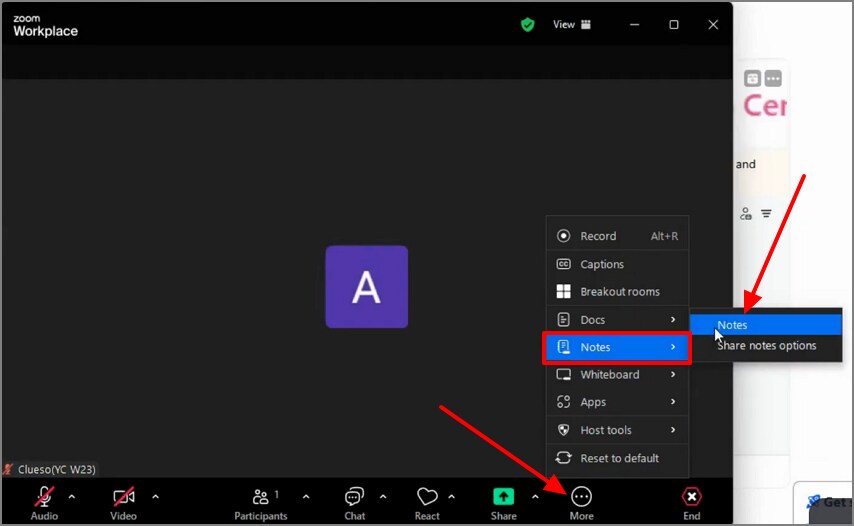
The manual method involves the usage of Zoom Notes in which the members can collaboratively edit the meeting agendas, agendas action items, assign owners, and set due dates. This approach is the best fit when working with teams who find it preferable to work in structure and take notes in real-time without using AI. This is how you may make manual notes effectively in the course of a meeting:
Instructions. During the meeting, hit the "More" icon and pick the "Notes" option from the pop-up menu. Then, select "Notes" from the extended menu and start typing in major points or action items manually.
In-Person
For in-person or offline meetings, PDFelement Mobile provides an on-device note-taking workflow using AI-powered speech-to-text conversion, unlike Zoom Notetaker. It ensures privacy by processing recordings locally while letting you summarize, apply templates, and add stickers before exporting notes as PDFs. Let's explore the steps to record, transcribe, and share your in-person meeting notes:
G2 Rating: 4.5/5 |100% Secure
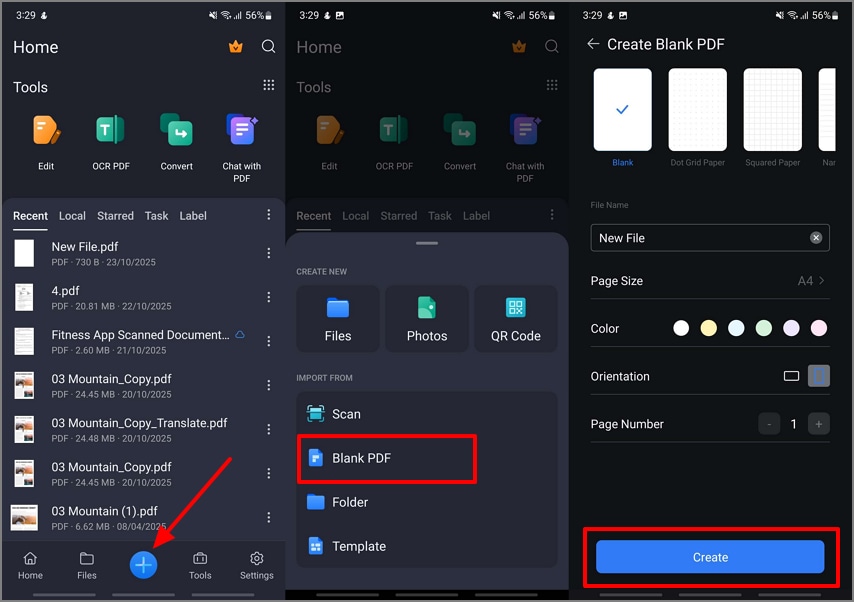
Step 1Create a Blank PDF File on PDFelement Mobile
Access the PDFelement main interface and tap on the "+" icon to choose the "Blank PDF" option. Then, select the blank PDF properties and hit the "Create" button.
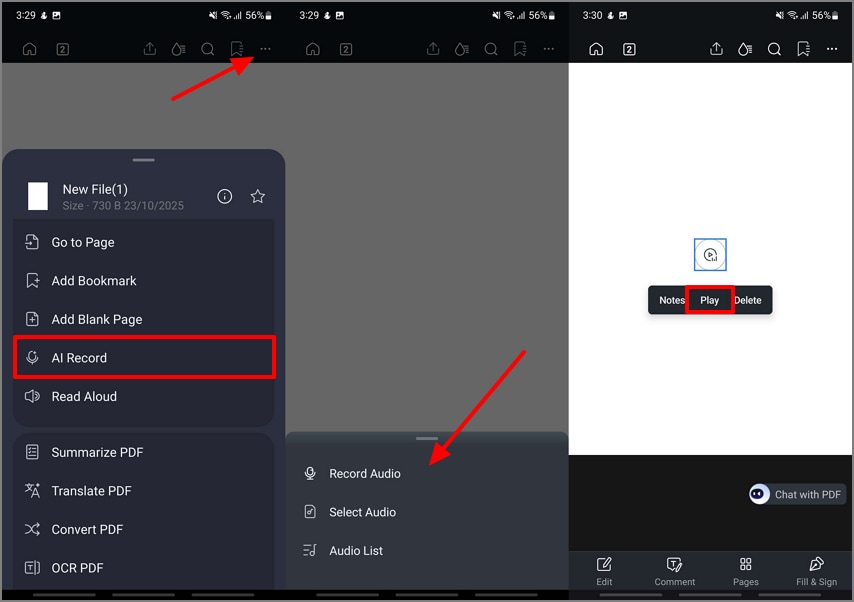
Step 2Navigate to the AI Record Function and Import Audio or Record New Meeting
Next, using the "Three Horizontal Dots," pick the "AI Record" button and import an audio file or start recording a new meeting. Once the audio file is up on the PDF, tap on it and hit the "Play" option to move to the next step.
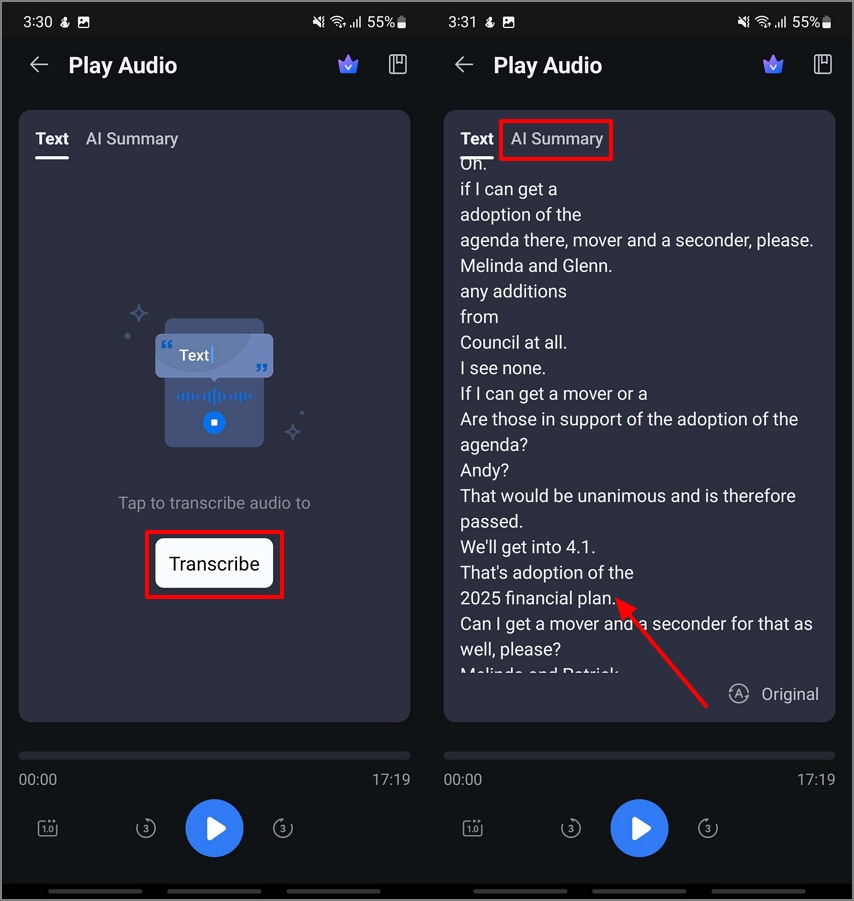
Step 3Start Transcribing the Audio File
At the Play Audio screen, tap on the "Transcribe" button in the Text section and pick the "Language" preferences. Upon the completion of the transcription, jump to the "AI Summary" section.
Step 4Generate an AI Summary of the Transcribed Meeting
Then, hit the "Summarize" button to get the Overview and the Key Points that were discussed in the meeting. Tap on the "Copy" icon to copy the text to your clipboard.

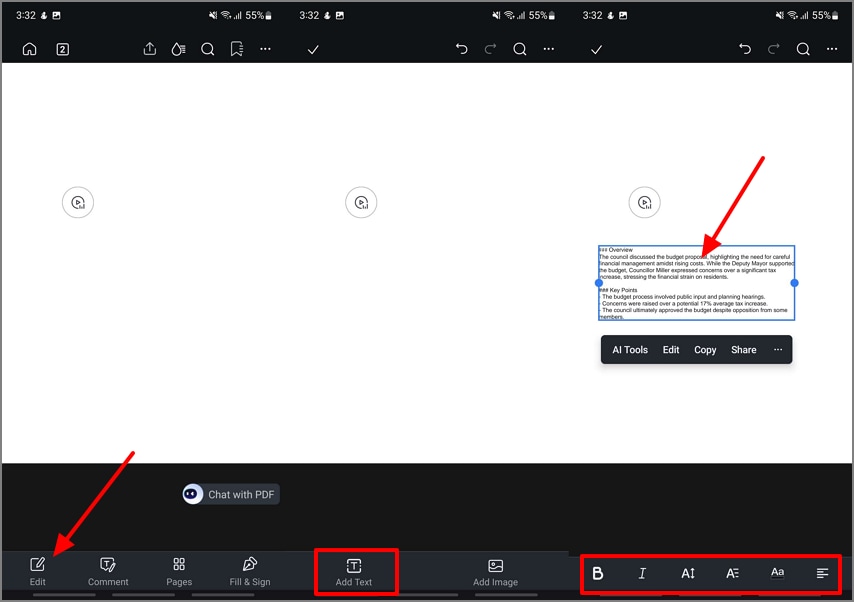
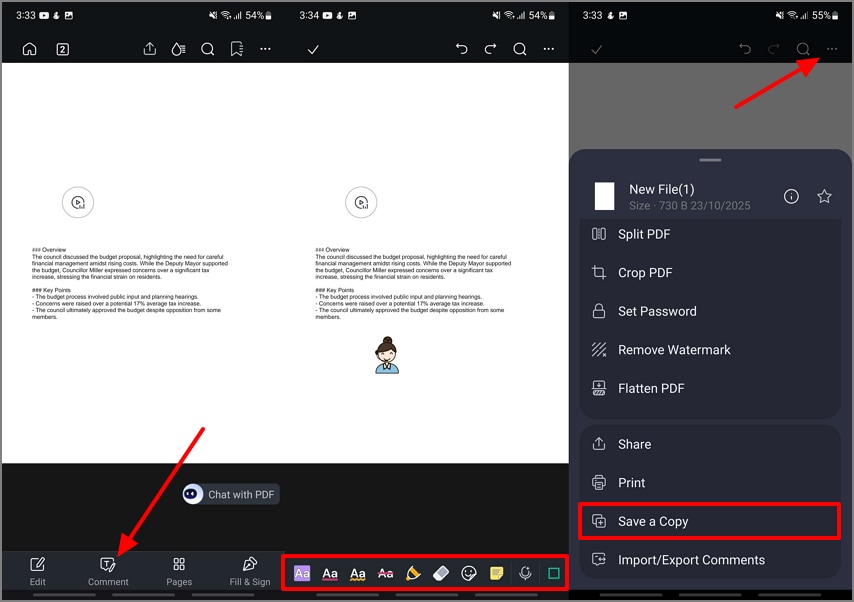
Step 5Add the AI Summary of the Meeting to the Blank PDF
Now that you have the AI Summary of the meeting copied to your device clipboard, move back to the editing interface and hit the "Edit" option. Next, tap the "Add Text" button to add a text box to the PDF, then paste the AI Summary into it. You can use the editing text properties to edit the text.
Step 6Add Annotations Through Comments and Export the PDF
Finally, use the "Comment" section to annotate the document and add "Stickers" to it. Tap on the "Three Horizontal Dots" at the top right corner of the screen and tap on the "Save a Copy" option.
Top Alternatives to Zoom AI Notetaker in 2026
While Zoom AI Companion is powerful, several other tools provide flexible, cross-platform ways to record, transcribe, and summarize meetings. The alternatives below are some of the best AI note takers for Zoom that offer offline access, advanced integration, and much more:
PDFelement App [iOS/Android]
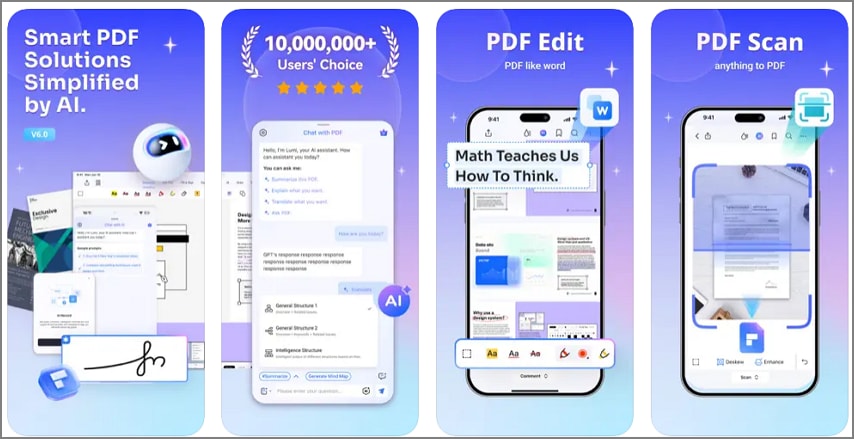
The PDFelement App is an offline-based system used to record, transcribe, and summarize meetings safely. Users do not need to use the cloud to upload their confidential meeting recordings, and they will retain full privacy. It has a user-friendly interface that enables straightforward navigation and the easy editing of AI-generated summaries.
Moreover, PDFelement allows you to add or edit text boxes in the PDF and to annotate the document for greater flexibility. Using its in-built templates and innovative stickers, PDFelement makes the process of converting summarized audio to a professional, shareable PDF to represent the input of your team a straightforward undertaking.
Best For: Users who require quick, on-device, private note-taking and AI summarization of confidential meetings without needing a cloud connection.
G2 Rating: 4.5/5 |100% Secure
Additional Features
- AI-Generated Mind Map: This feature automatically converts meeting summaries or written notes into easy-to-understand visual mind maps. It helps users organize complex information and see connections between ideas at a glance.
- AI Translate: This function allows you to instantly translate meeting notes into several languages within seconds. It's perfect for teams working across different regions, improving clarity and communication.
- Supported AI Models: PDFelement supports multiple advanced AI models, including GPT-based engines, for varied output accuracy and tone. Users can select the model that best suits their summarization or content generation needs.
- Converting HTML to PDF: This feature lets you quickly turn web pages, meeting agendas, or notes into clean, professional PDFs. It ensures your online content is preserved, organized, and easy to share offline.
Otter.ai
Best For: Teams and individuals who require real-time transcription and summaries.
Key Features
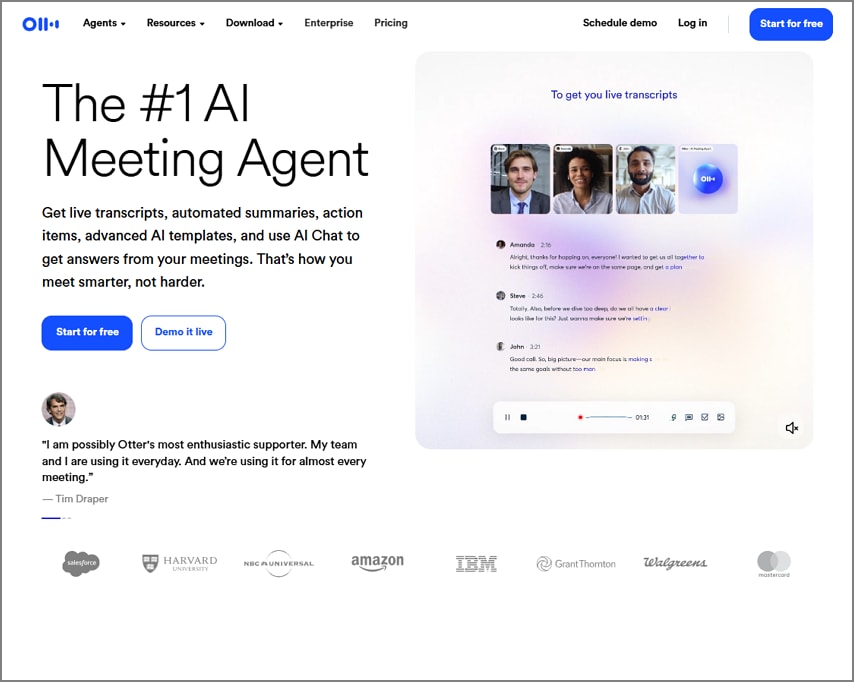
- Users get the ability to generate live transcription during the meetings, along with speaker identification.
- You can integrate Otter AI with your calendars for automatic meeting attendance by the AI assistant.
- It allows you to perform keyword searches and ask Q&A using the Otter AI Chat assistant for extensive knowledge.
Who Should Pick It: Professionals who need reliable multi-platform transcripts and summaries for recurring inline meetings.
Fireflies.ai
Best For: Organizations that seek detailed meeting intelligence and deep team-wide analytics.
Key Features
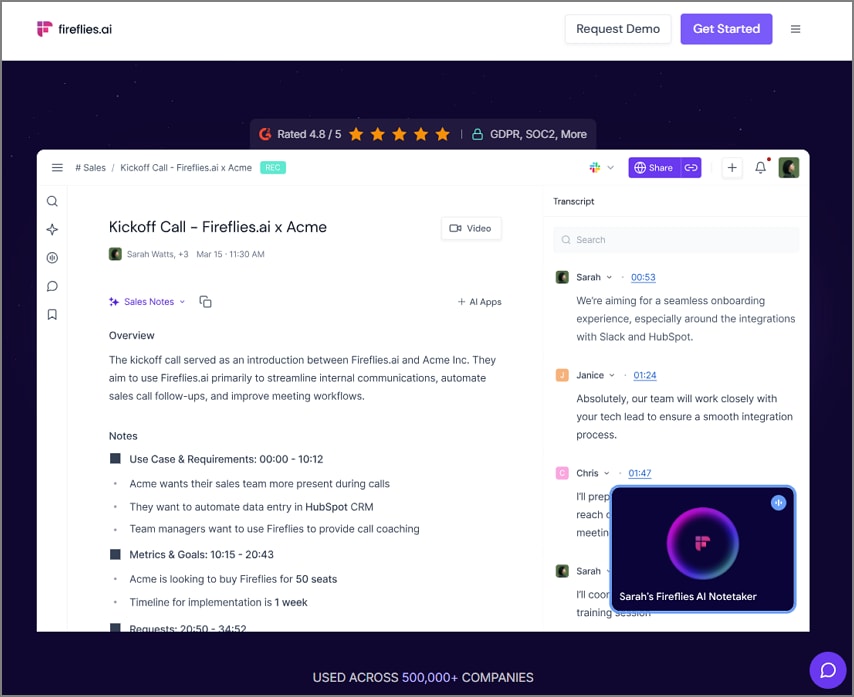
- It provides users with AI sentiment tracking and a custom "AskFred" AI chat to help them maintain a smooth workflow.
- With the help of this tool, you get the ability to search for transcript databases across different meetings.
- To ensure privacy and security, the tool follows SOC2, GDPR, and HIPAA compliance.
Who Should Pick It: This Zoom AI notetaker alternative lets enterprises manage frequent team or client meetings with analytics and secure data handling.
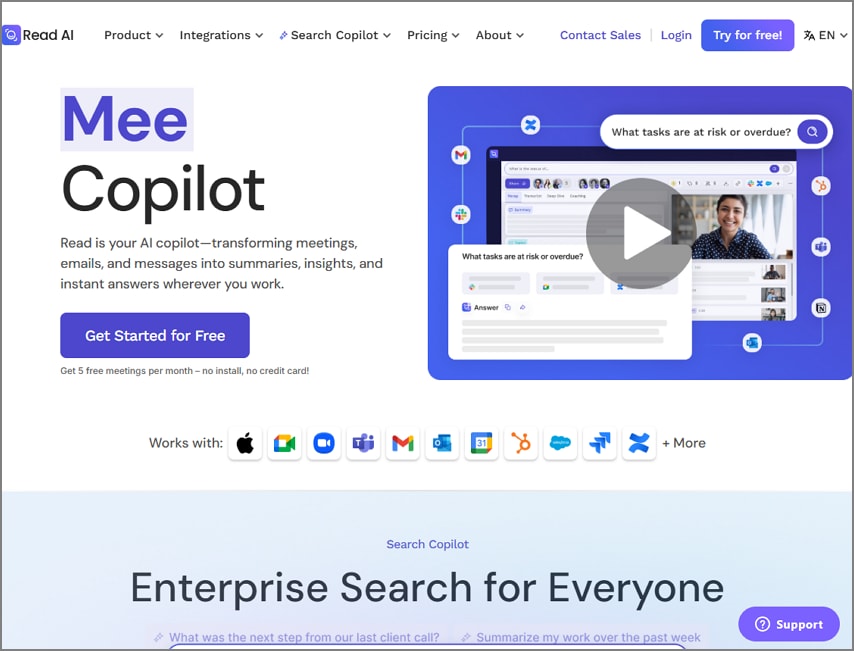
Read.ai
Best For: The analytical teams who need unified search and actionable insights from meetings.
Key Features
- Read AI does not only focus on meeting summaries, but it also includes chats and emails.
- To help users understand content better, they can use the "Ask Copilot" function on terms they don't understand.
- With the help of this tool, diverse users can access it as it provides support to over 20 languages.
Who Should Pick It: Organizations that depend on data can access this tool to prioritize discovery and insights across different digital platforms.
Fathom.ai
Best For: It is most useful for small companies that emphasize task automation and CRM productivity.

Key Features
- Users get the ability to converse with the integrated AI assistant and discover more topics, and understand the meeting goals better.
- The AI Scorecards help the managers assess the engagement and performance carried out.
- With the help of this tool, users get the action items extracted from the meeting transcription for a quick overview.
Who Should Pick It: Teams who require automated summaries with integrated task and CRM syncs.
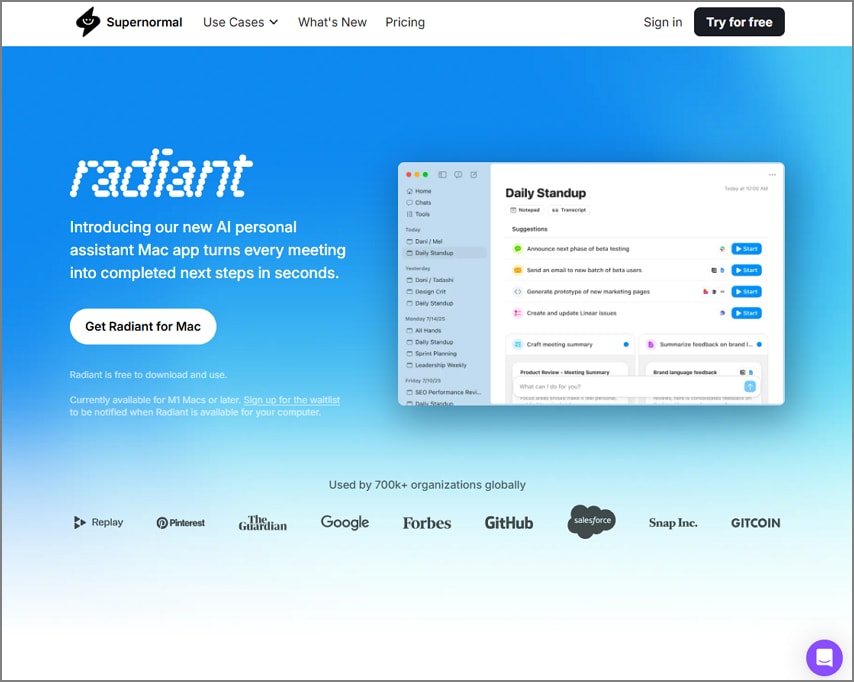
Supernormal.com
Best For: Multi-platform teams who seek automation of meeting notes with project tool integrations.
Key Features
- It is incorporated with Zoom, Meet, and Teams, and generates transcriptions and summaries from the meetings.
- This tool gives users the next-step suggestions after it automatically detects the tasks discussed in the meetings.
- Supernormal supports up to 60 languages to help diverse users.
Who Should Pick It: Teams seeking multi-platform connectivity for managing meetings.
Quick Comparison Between the Top Zoom AI Notetaker Alternatives
To sum up the above top 6 Zoom notes AI alternatives, here is a comparison table to help you make an immediate decision on which tool meets your requirements:
| Tools | Works Without Bot | In-Person/ Offline | Deep Zoom Integrations | Free Tier | Export Supported Format | Privacy | Best For |
| PDFelement App | ✓ | ✓ | No direct Zoom integration | Yes (limited) | Exports to PDF, DOCX, and TXT for flexible sharing. | On-device AI ensures offline processing and secure data handling | Ideal for offline users who want private AI summaries and PDF editing |
| Otter AI | Limited offline transcription of uploaded audio | Fully integrated with Zoom for real-time transcription | Yes (basic live transcription) | Exports TXT, PDF, and DOCX files easily. | Cloud-based storage with account-level access and uploads | Perfect for hybrid professionals needing real-time transcription and summaries | |
| Fireflies AI | Deep integration with Zoom and 200+ collaboration tools | Yes (entry plan with limited minutes) | Exports PDFs or syncs notes to CRMs. | Cloud uploads with strong enterprise compliance (SOC2, GDPR, HIPAA) | Best suited for enterprises managing large-scale meeting analytics | ||
| Read AI | Built-in integration through the Zoom Essential App | Yes (free productivity tier) | Creates PDF/DOCX reports and shareable summaries. | Cloud processing; user data not used for AI training (SOC II) | Great for users who want AI insights across multiple meeting sources | ||
| Fathom | ✓ | Fully integrated via the Zoom Marketplace | Yes (fully free for Zoom users) | Exports PDF summaries or pushes data to CRMs. | Secure cloud connection through OAuth; optional HubSpot sync | Excellent for sales or operations teams using Zoom daily | |
| Supernormal | ✓ | Supports Zoom, Google Meet, and Microsoft Teams | Yes (basic tier) | Downloads full notes as PDFs instantly. | Encrypted cloud system (SOC2, TLS 1.2, AES-256) | Ideal for cross-platform teams needing quick, automated documentation |
Comparing the Free and Paid Versions of Zoom AI Notetaker
The table below compares Zoom AI Notetaker with a third-party free AI notetaker in 2026. It focuses on the functional differences to help you understand which method is more suitable based on your requirements:
| Aspect | Zoom AI Note Taker | Free Third-Party Tool |
| Usage Caps/Minutes | Works for the entire meeting, no strict transcription limits. | Unlimited meetings, but only around 10 AI summaries or smart queries per month. |
| Export Options | Export transcripts and summaries as TXT or DOCX files directly from the Zoom web portal. | Export transcripts and notes to Google Docs, Notion, or download them via a shared link. |
| Integrations | Fully integrated within Zoom (Meetings, Chat, Mail, Calendar) and connects with Google Workspace and Microsoft 365. | Works with Zoom, Google Meet, and MS Teams; connects to Notion, HubSpot, and other apps. |
| Admin/Team Controls | Admins can manage access and permissions through the Zoom dashboard. | Managed individually on the free plan; team features require a paid upgrade. |
People Also Ask
-
Does Zoom have an AI Note Taker?
Yes, Zoom includes an AI Notetaker through its AI Companion Meeting Summary feature. It allows the hosts of the meeting to generate automatic summaries of the key points and goals discussed in the meetings. -
How do I use Zoom AI Notetaker?
You need to enable the Meeting Summary feature in the Zoom settings, then start it as the host during your meeting. Once the session ends, the summary is generated and shared via email or Team Chat. -
Where can I find transcripts and notes that were generated?
The admins and hosts of the meeting can access transcripts from the Zoom web portal under the Recordings to Transcripts tab. Zoom Notes AI can be created and edited manually during the sessions and after the meetings as well, for real-time collaborations. -
Can I summarize work without full meeting recordings?
Yes, Zoom AI Companion can generate summaries using a temporary transcript instead of requiring a full meeting recording. This helps maintain privacy while still capturing key takeaways. -
Which is the best free AI notetaker for Zoom?
Top alternatives include Otter.ai for automated transcripts, Fireflies.ai for searchable summaries, and PDFelement Mobile for private, on-device note management. Each serves different use cases, depending on whether collaboration or offline needs are required.
Conclusion
In conclusion, Zoom's native AI Companion provides users with a seamless way to capture meeting insights through Meeting Summaries, Zoom Notes, and transcripts. We discussed how it is ideal for teams that rely on cloud collaboration and quick recap sharing. Since Zoom AI notetaker does not provide you with the ability to protect your privacy or get offline transcripts or documents, we introduced you to an alternative, PDFelement App.
As discussed, it is the most reliable alternative as it allows you to perform secure note-taking and transcription without uploading sensitive data. Whether you prefer automated summaries or manual notes, both options enhance productivity and help you stay organized after every meeting.




