

Need to convert audio MP3 to text fast? There are multiple tools available for you to choose from when it comes to converting audio into text, which is why it's important to choose the best one. This guide highlights the best online and on-device solutions for quick, secure, and language-flexible transcriptions in 2026. If you are recording interviews, lectures, or voice notes, these methods keep your data safe and efficient workflow.
In this article
- Part 1. Top Two Choices for Converting MP3 to Text in 2026
- Part 2. Aspects of a Good MP3 to Text to Notes Tool
- Part 3. Method 1: Convert MP3 to Text On-Device Using PDFelement
- Part 4. Method 2: Convert MP3 to Text Using an Online Tool
- Part 5. Method 3: Change Voice Notes to MP3 Format into a Text File
- Part 6. Tips to Remember While Converting Hindi MP3 Files into Translated Text
- Part 7. The Top MP3 to Text Converters to Use in 2026
- Part 8. Buyer’s Guide While Choosing an MP3 to Text Converter
- Part 9. Troubleshooting Errors During MP3 to Text Conversions
- Part 10. Browser & Desktop Touchpoints (Micro Sections)
- Frequently Asked Questions
- Conclusion
Part 1. Top Two Choices for Converting MP3 to Text in 2026
Here is a quick answer to those who are looking for an online and an on-device tool to help them convert MP3 audio file to text format:
Online MP3 to Text Converters
It is ideal for short or non-confidential recordings; these web tools quickly generate transcripts in multiple languages. This is a reliable option as you simply have to upload your MP3 files and allow the tool to transcribe the text and download the file.
On-Device Conversions
For longer and confidential recordings, PDFelement Mobile offers a secure offline method to perform MP3 to text conversions. This tool allows you to import audio files and extract the text from them using its transcription capability. The STT function integrated in PDFelement will enable you to further summarize and focus on the key takeaways in the audio.
Note: It has the ability to detect Hindi and many other languages in the audio and allows you to translate them into your preferred language for a smooth bilingual output.
Reminder: Before you use a recording to convert, make sure that you have the consent of the involved parties to ensure their privacy isn’t invaded.
Part 2. Aspects of a Good MP3 to Text to Notes Tool
However, before we begin talking about the various voice note to MP3 converters, here are some of things that you must keep in mind when you select one:
Accurate Transcription: The tool should have the capacity to create correct text with minimal or zero errors and properly punctuated.
Speaker and Section Markers: It must have the capacity to differentiate between different speakers or sections so that it can be read easily.
Optional Timestamps: The converters should be able to add timestamps when required to help the user locate audio points.
AI Summary with Actions: A final summary of the transcript results can help you get the key takeaways and the action items discussed in the audio.
One-Click PDF Packaging: One-click PDF gives you the ability to export the final notes in a well-packed format.
When to Choose an On-Device Converter
Use an on-device audio MP3 to text converter for confidential audio, long recitations, or when the internet is demonstrating untrustworthiness. It guarantees privacy of data as the files do not go out of your device, transcription does not slow down, and offline workflow enables a steady level of productivity. This approach is best suited to those professionals dealing with sensitive interviews, research sessions, or long meeting notes.
Part 3. Method 1: Convert MP3 to Text On-Device Using PDFelement
As discussed above, the best tool that you can opt for is PDFelement Mobile so that you can convert the MP3 files into your preferred languages. At the same time, it allows you to ensure that your privacy is maintained as the files remain on your device. Its integrated AI technology summarizes the text by extracting the key points to help you understand the text better.
Moreover, the AI Assistant provides the chat function to interact with the uploaded files and perform deeper research using its AI models. While supporting more than 50 languages, including Hindi, PDFelement ensures you get a bilingual document. The annotation function lets you mark the PDF and highlight the main points.
Step-by-Step Guide on Using PDFelement to Create Text From Audio Files
To get a better understanding of how PDFelement works on translation and summarizing audio files, follow the steps below:
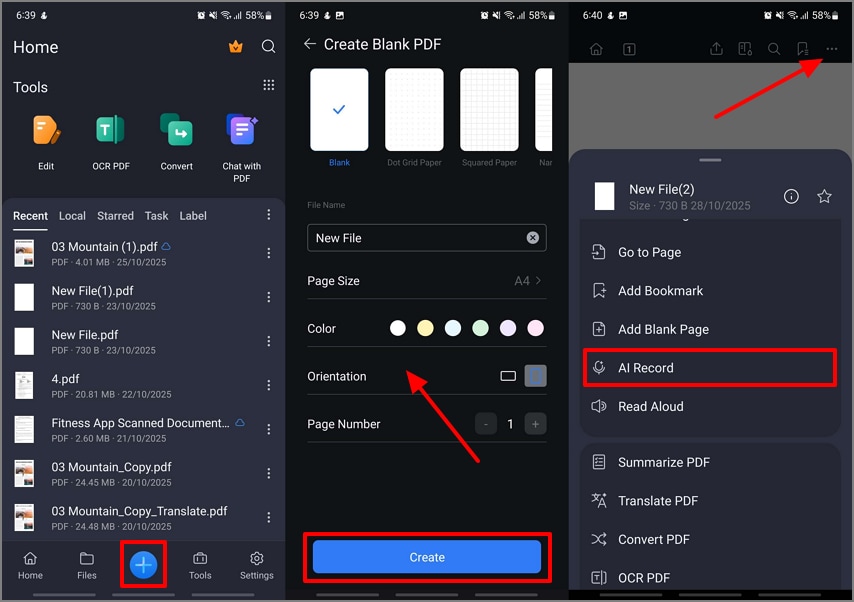
Step 1Create a Blank PDF and Access the AI Record PDFelement Function
Start by launching PDFelement on your mobile and tap on the “+” icon to get the blank page option. Once you set the blank page settings, hit the “Create” button. In the PDF, tap on the "Horizontal Three Dots” and choose the “AI Record” option from the list.
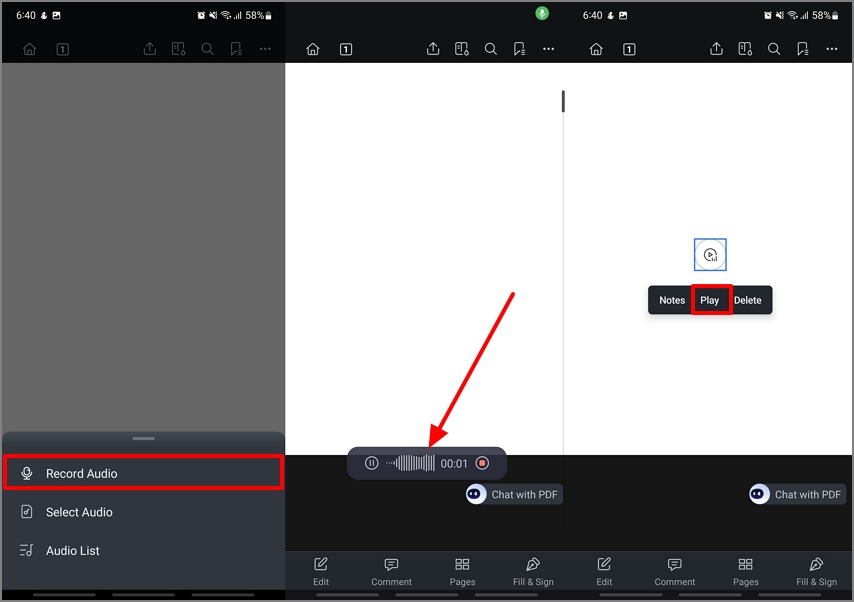
Step 2Start Recording an Audio or Import an Audio File
Moving on, choose the “Record Audio” option or import an MP3 file. Once the audio is on the PDF, tap on it and pick the “Play” button to move to the next step.
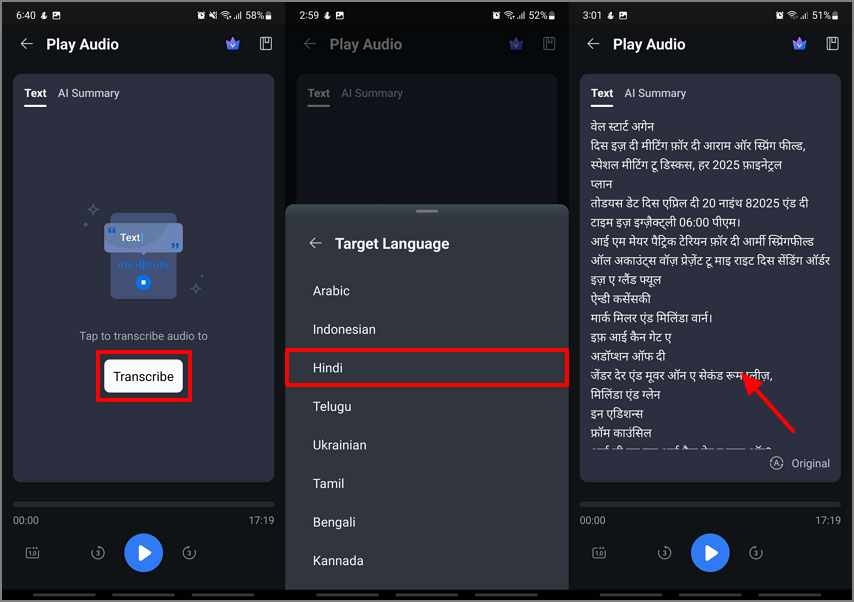
Step 3Transcribe the MP3 File into Hindi or other Languages
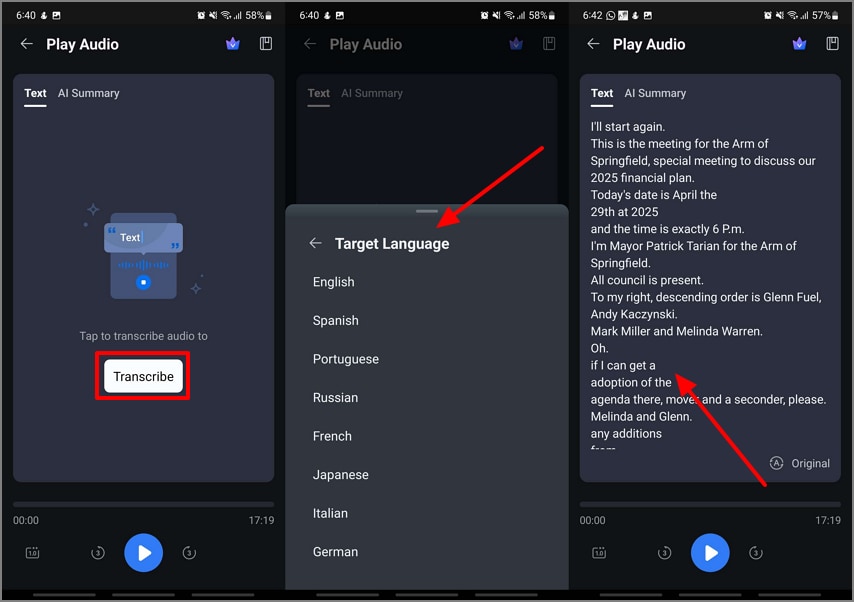
At the “Play Audio” screen, Text section, hit the “Transcribe” button and pick your preferred language, like Hindi, from the “Target Language" list.
Step 4Summarize the Transcribed Recording and Add it to the PDF Template
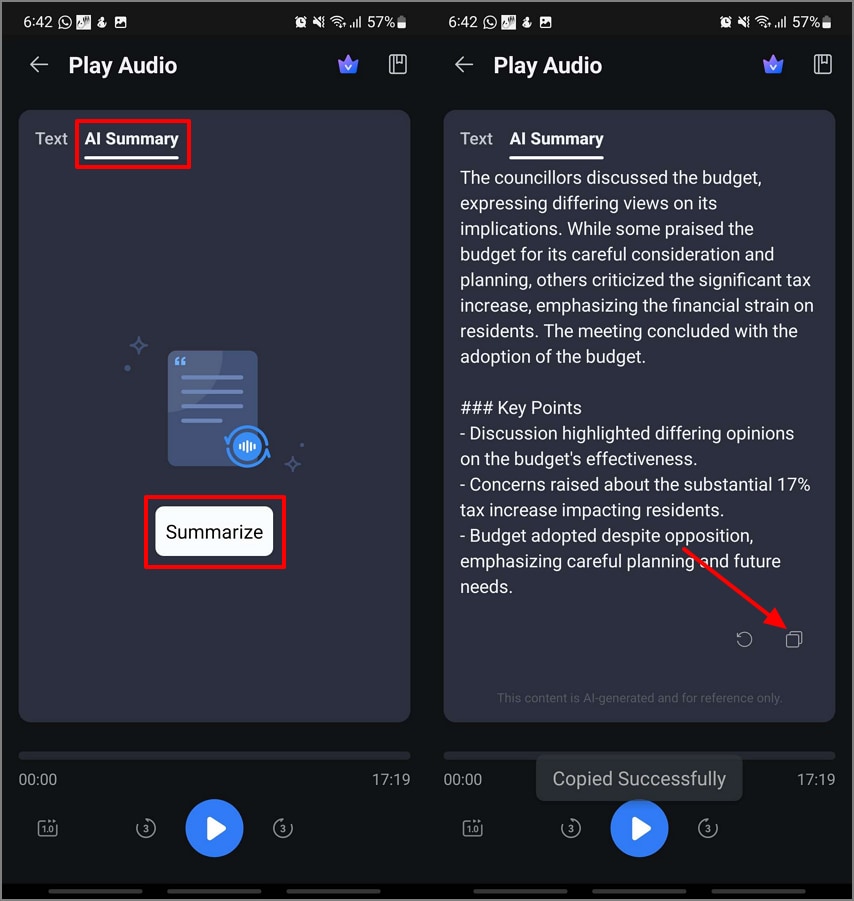
Move to the AI Summary section and hit the “Summarize” button to extract the key points. Once the summary is generated, hit the “Copy” icon and use the “Edit Text” function to add the summary copied into the blank PDF.
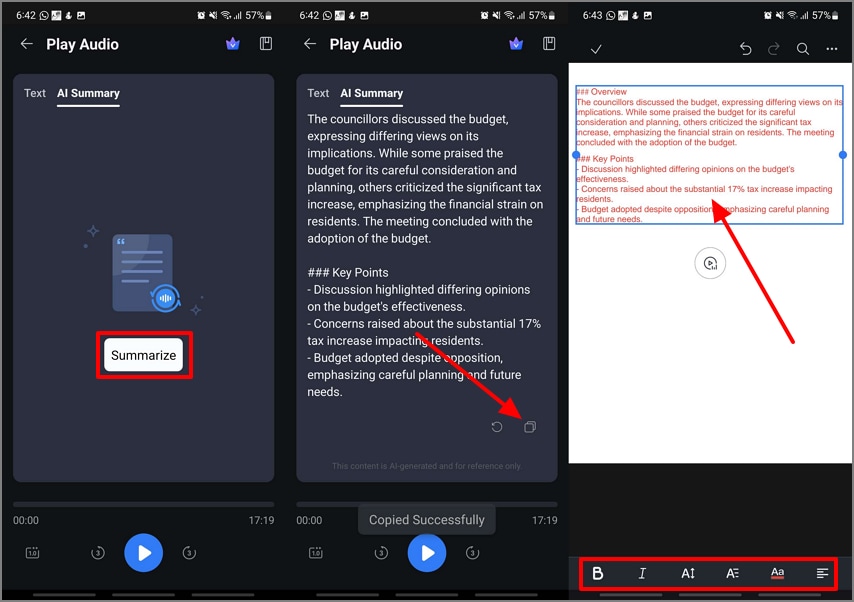
Step 5Annotate The PDF and Save the PDF Copy to Your Device
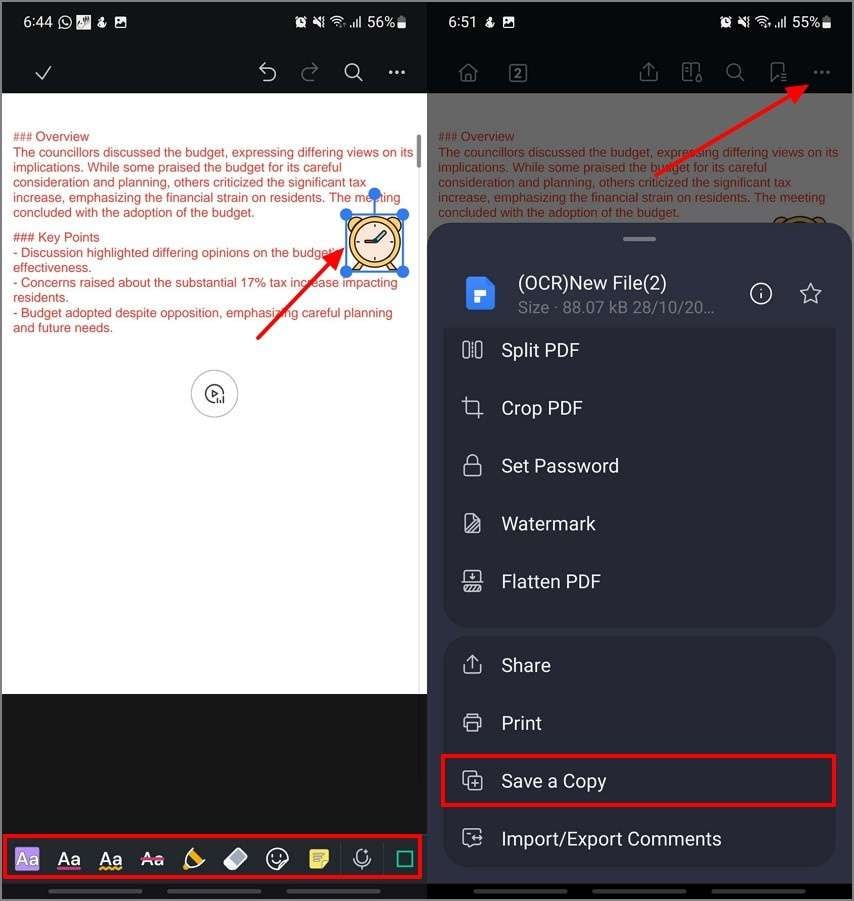
Shift to the “Comment” and Underline, Strikethrough, or add “Stickers” into the PDF file as per your requirements. Once you are satisfied with the bilingual PDF, hit the “Horizontal Three Dots” and tap on the “Save a Copy” button.
Other Key Features of PDFelement
AI Translate: PDFelement Mobile includes AI Translate to instantly convert transcripts between languages like Hindi and English. It helps create polished bilingual notes that maintain meaning, tone, and context for cross-language clarity.
AI-Generate Mind Map: This feature transforms your transcript or AI summary into a structured visual mind map. It helps you quickly grasp key points, relationships, and topics for efficient review or presentation.
Switch AI Models: PDFelement Mobile lets you switch between AI models such as DeepSeek-V3, GPT-4o, GPT-4o-mini, and Gemini 1.5 Pro. You can balance speed, accuracy, and cost depending on your transcription or summarization needs.
HTML to PDF Conversion Capability: You can convert HTML pages into PDFs to attach briefs, meeting agendas, or web content to your note packets. The result is a clean, shareable document with preserved layout and clickable links.


 G2 Rating: 4.5/5 |
 100% Secure
Part 4. Method 2: Convert MP3 to Text Using an Online Tool
In case you need a fast and easy transcription of a small record or audio of a non-confidential type, an online MP3-to-text converter will be the most convenient option. It enables you to upload your file, choose a language, and receive instant text results immediately without having to install it. In this section, we will be looking into a quick review of how to an online convert MP3 audio file to text:
Pros
- It is best suited for small audio files that do not need complex formatting or editing.
- Online converters can be used when the MP3 file does not contain any confidential information.
- Such tools give almost instant transcription output, which is ideal in urgent or one-time occasions.
Cons
- This also has the limitation of upload size and file length, which can tend to limit the length of recordings.
- Online tools can cause delays in the queue, slowing the transcription process.
- Specific tools find it difficult to process such strong accents, mixed languages, or background noise.
- The files can be stored temporarily or held under different data policies.
Stepwise Guide on How to Convert MP3 to Text Online
Here is a quick guide on how to convert MP3 to text online through Notta AI in just a few steps:
Step 1
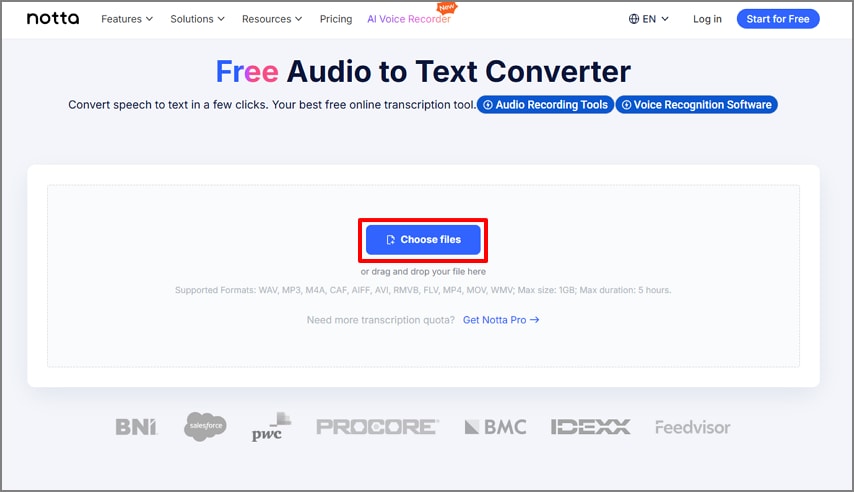
Access the Free Audio to Text Converter of Notta AI and hit the “Choose Files” button to upload the MP3 file to the browser.
Step 2
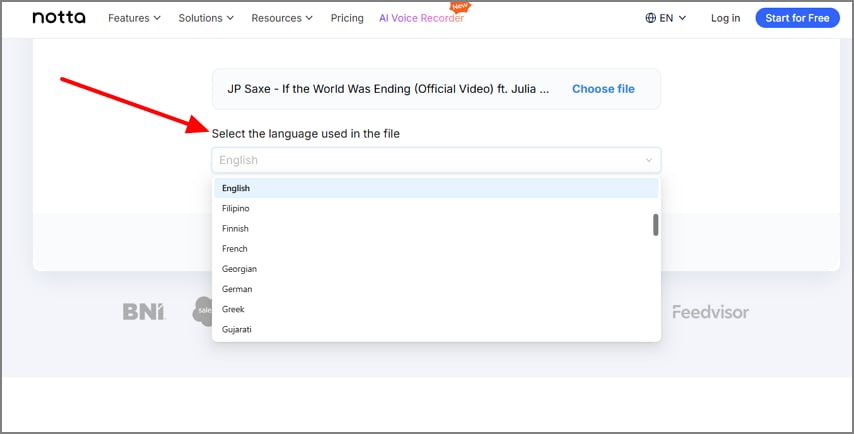
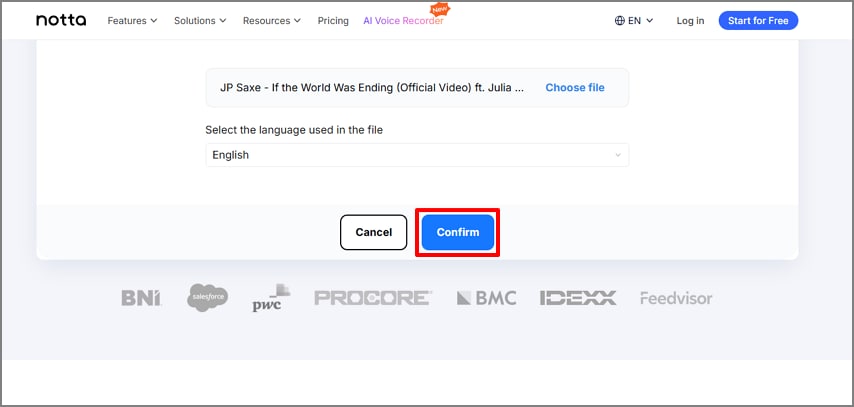
Next, from the “Select the Language Used in The File” drop-down menu, choose your preferred language.
Step 3
Once you choose a language preference, hit the “Confirm” button and move to the last step.
Step 4
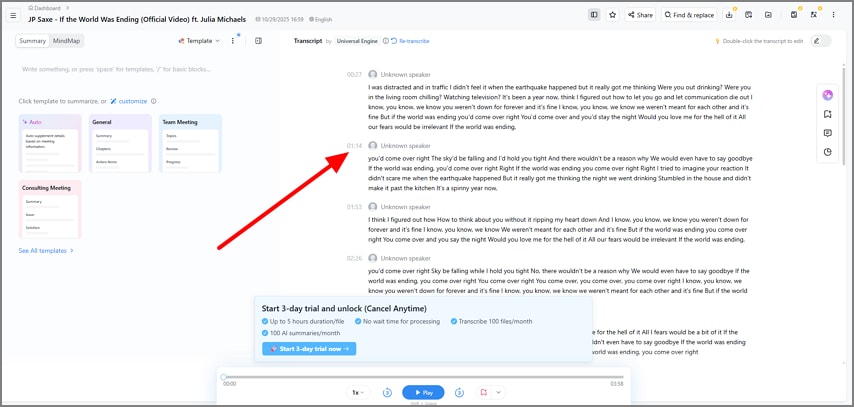
Finally, after the transcription process is complete, you get to review the results in a editors dashboard for ease of use.
Tips to Remember While Using the MP3 to Text Online Converter
- Before you upload your recording online, make sure that you bleep out any names or confidential information that might have been discussed.
- Ensure that your audio is clean and without any background noise so that you get an accurate transcription.
- Users need to verify that the tool supports the required language that they want to convert into.
- In case of privacy concerns or long recordings, it is safer to use an on-device recognition program such as PDFelement Mobile.
Part 5. Method 3: Change Voice Notes to MP3 Format into a Text File
After learning how to convert MP3 files into text files online, you might be wondering how to convert voice notes to text. This can be done by first using a voice note to MP3 converter, then transcribing it. Although PDFelement Mobile has the ability to directly record audio notes on the device itself, follow the steps below to get a better understanding:
Step 1Start the process by Importing a PDF and Accessing the AI Record Function
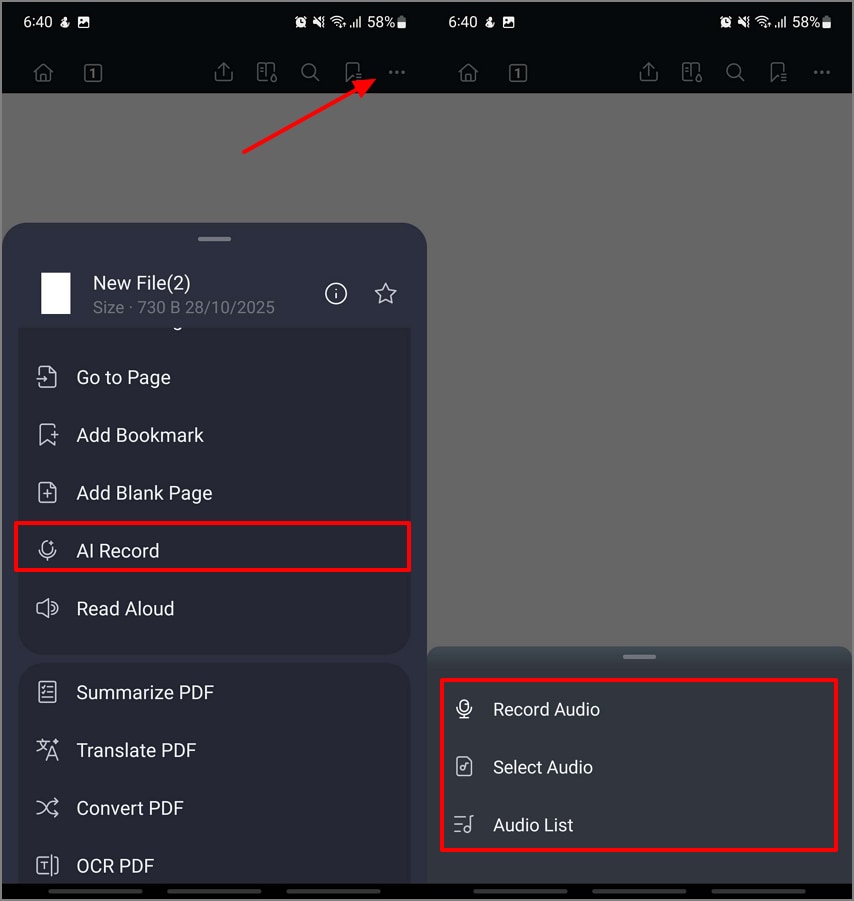
Initiate the procedure by accessing PDFelement Mobile on your mobile and importing a PDF. At the editing interface, press the “Horizontal Three Dots” icon to pick the “AI Record” button. Then, pick the “Record Audio” option to record live voice notes.
Step 2Play the Recorded Voice Note Once You Are Done Recording
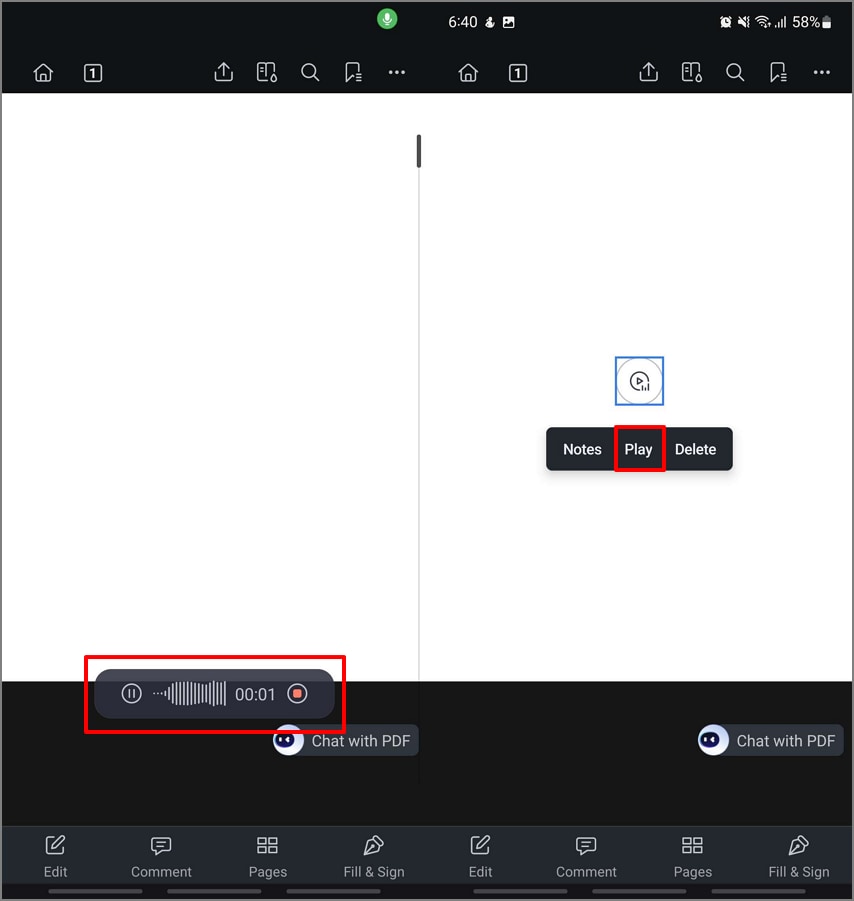
Next, hit the “Play” icon to start recording voice notes live. Once done, hit the “Stop” red button to save the recording. Now, tap on the “Audio” icon to hit the “Play” option.
Step 3Transcribe the Audio Using the Integrated STT Function of PDFelement
Moving on, at the Play Audio screen, hit the “Transcribe” button on the Text section and choose your “Target Language” from the list. Allow the AI tool to transcribe the audio in your language preference and move to the last step.
Step 4Summarize the Audio Transcribe Text and Copy it to Your Clipboard
In the end, jump to the “AI Summary” section to hit the “Summarize” button and “Copy” the summarized audio notes for future reference.
G2 Rating: 4.5/5 |100% Secure
Part 6. Tips to Remember While Converting Hindi MP3 Files into Translated Text
While converting your Hindi MP3 audio to text in different languages, you might come across issues. This section will guide you through a few tips to remember as you perform this conversion:
Set Recognition Language First: In case of transcription, ensure that you set the language of recognition to Hindi or your source language before transcription. This makes the AI identify pronunciation, tone, and context correctly to be more accurate in the transcription.
Post-Process With AI Translate: Once the transcription is completed, translate the Hindi audio into English Text and the other way around without any problems using PDFelement AI Translate. This will help you have a bilingual set of notes or summaries.
Maintain a Glossary of Key Terms: You need to maintain a minimal glossary of repeated or domain-specific Hindi words in the Notes section. It enhances the readability and serves to preserve the consistency of the translation provided in several files or sessions.
Part 7. The Top MP3 to Text Converters to Use in 2026
After going through the different methods of converting audio MP3 to text file formats, here are some of the top tools you can depend on for conversions:
On-Device Tool
PDFelement Mobile [iOS/Android]
Best For: Users who need to perform the conversion using a tool that allows offline work to ensure their confidential data is protected.
Key Features
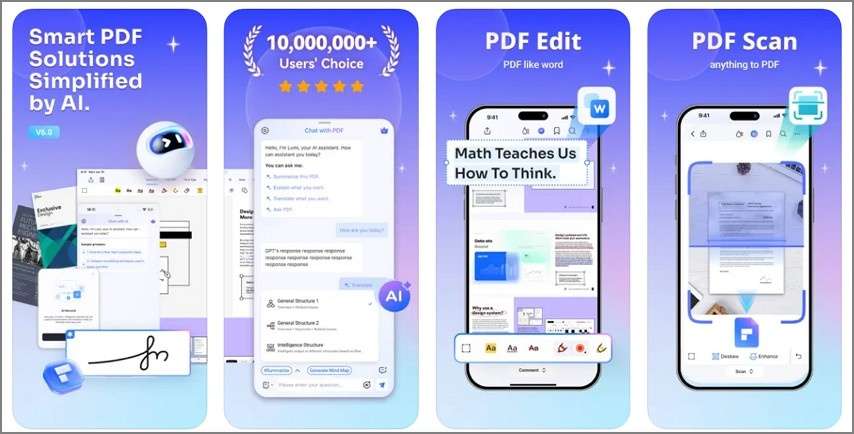
- Users get the ability to edit the text of the AI summary generated from the audio transcription.
- You can translate the summary into different languages with the help of the integrated AI technology.
- PDFelement supports annotations, bookmarks, and collaborations on the PDF text of the audio transcription.
- It allows you to perform the conversion of different file formats into a PDF file to help you better organize your content and make it shareable.
Pros
- It has an intuitive and feature-rich PDF editor designed for mobile users.
- The high OCR capabilities integrated in the tool allow you to edit the scanned documents.
- The AI functions provide you with accurate data to avoid any errors or the need for adjustments.
Con
- If you are subscribed to the free version, you might have to export the PDF file with watermark.
Who Should Use it: Professionals or students who need to perform advanced edits to the MP3 to text-converted PDF files.
Online MP3 to Text Converters
TurboScribe
Best For: Fast, accurate AI transcription of audio & video files, including MP3s, especially useful for meetings, interviews, and multi-speaker content.
Key Features
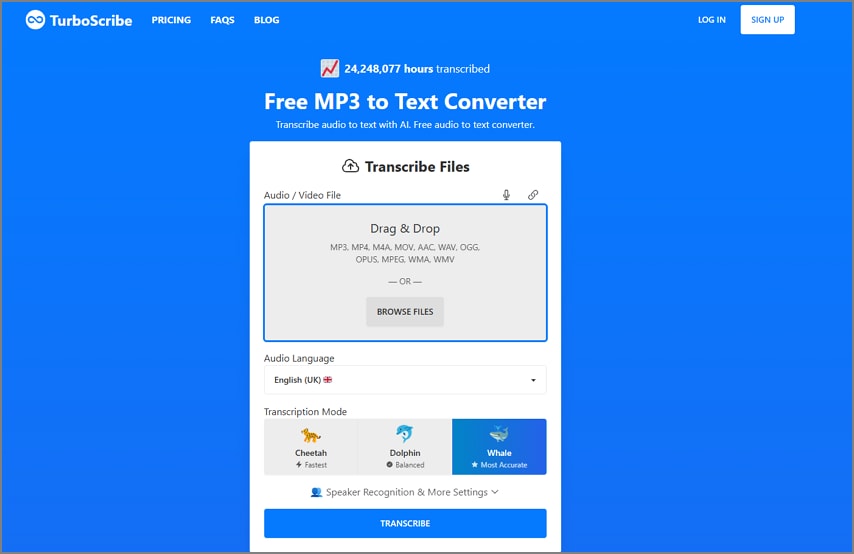
- It supports over 98 languages to help diverse users work on multilingual MP3 files.
- The time-stamping and speaker identification function allows you to find the exact audio points.
- You can import audio files from cloud-based systems or YouTube.
Pros
- With the help of this tool, you can generate transcripts across different platforms and file types, giving users the flexibility to work.
- The AI enhancements on the transcribed text ensure high accuracy levels.
Cons
- Users have limited access to some significant functions due to restrictions on free versions.
- Since it is an online tool, it requires a stable internet connection for the transcription function.
Who Should Use it: Journalists, professionals, educators, and anyone needing quick, reliable transcription from multiple languages.
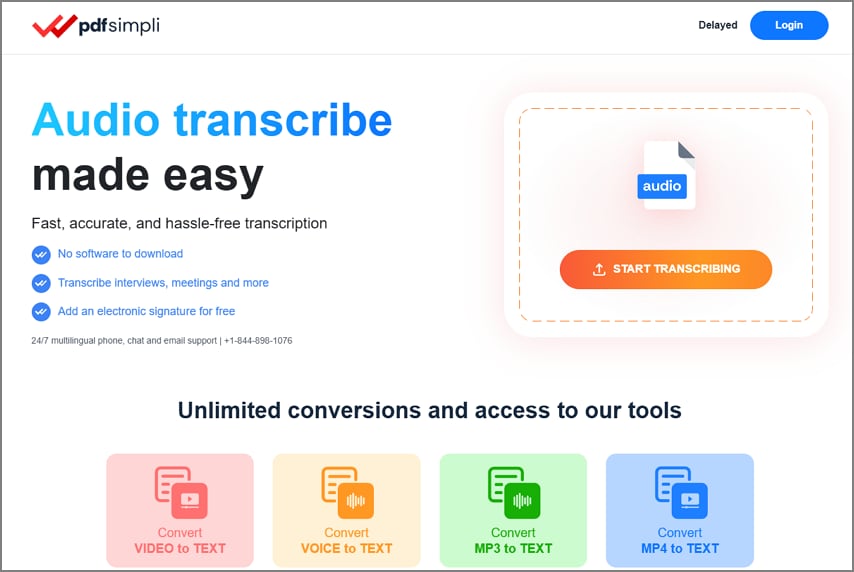
PDFsimpli
Best For: Casual PDF editing and basic transcription services within a PDF-centric workflow.
Key Features
- Users get the ability to edit the PDFs by adjusting the text, images, and more.
- You can enable speaker identification when you upload recordings with multiple involved parties.
- It supports multiple languages of transcription to support the diverse users.
Pros
- It has a fast processing to ensure no time and effort is wasted.
- PDFsimpli lets you combine multiple MP3 transcriptions into a single PDF file.
Cons
- Like most tools, PDFsimpli does not provide you with advanced functions like timestamps.
- This tool does not have any specialized functions for professional transcription tasks.
Who Should Use it: Users needing basic PDF edits, conversions, and occasional transcription with less focus on advanced audio transcription accuracy.
Any to text
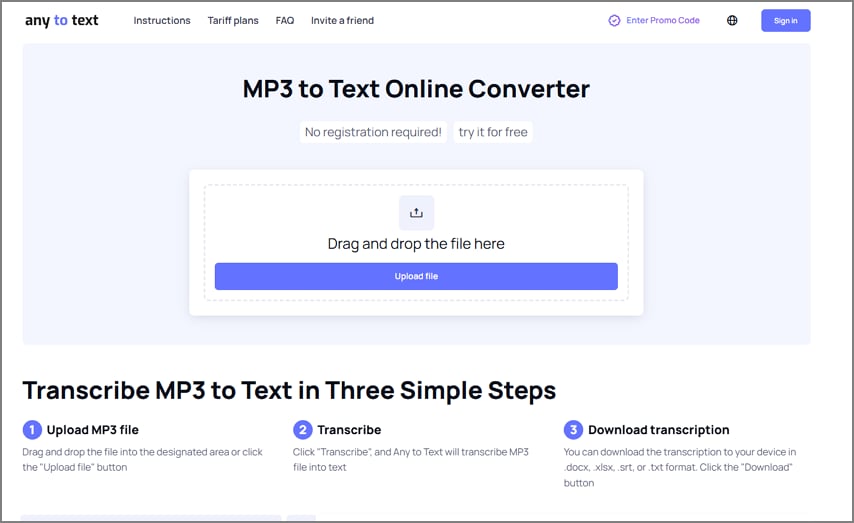
Best For: Simple and quick MP3 to Text transcription for general users requiring editable text output without advanced features.
Key Features
- After transcription is complete, users get the ability to perform minor corrections through the editable interface.
- It supports diverse users by allowing them access to multiple language preferences.
- Users get the ability to upload different audio file formats, and not just MP3 files.
Pros
- The text files can be exported in different file formats.
- It has a user-friendly interface to support beginners and professionals in navigating through the tool.
Cons
- Users will have to pay for the paid version of the tool to upload large audio files.
- The tool does not contain any functions like speaker recognition or timestamps.
Who Should Use it: Students, professionals, and casual users who want quick transcription with basic editing capabilities.
Zamzar
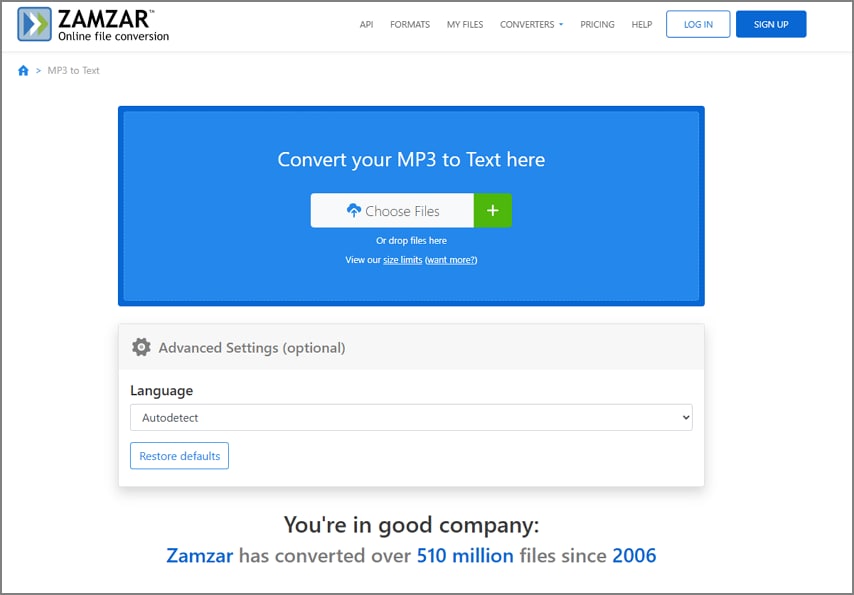
Best For: Users who want quick, browser-based file conversions, including audio-to-text, without software installation.
Key Features
- It has a completely online, cross-platform browser-based conversion process, making it easy to convert MP3 audio to text.
- Users can upload their files to the interface through different modes, devices, URL, or cloud-based systems.
- With the help of this tool, perform batch conversion to save time and effort.
Pros
- Since it is an online tool, you do not have to install any software to operate the conversion.
- Zamzar allows you to delete the MP3 audio files uploaded to ensure privacy.
Cons
- The free version has limitations on the file size and the speed of the workflow.
- Based on multiple reports, the tool has less advanced AI technology.
Who Should Use it: Casual users, students, and professionals needing quick file conversion from multiple sources, including URLs and cloud storage.
HappyScribe
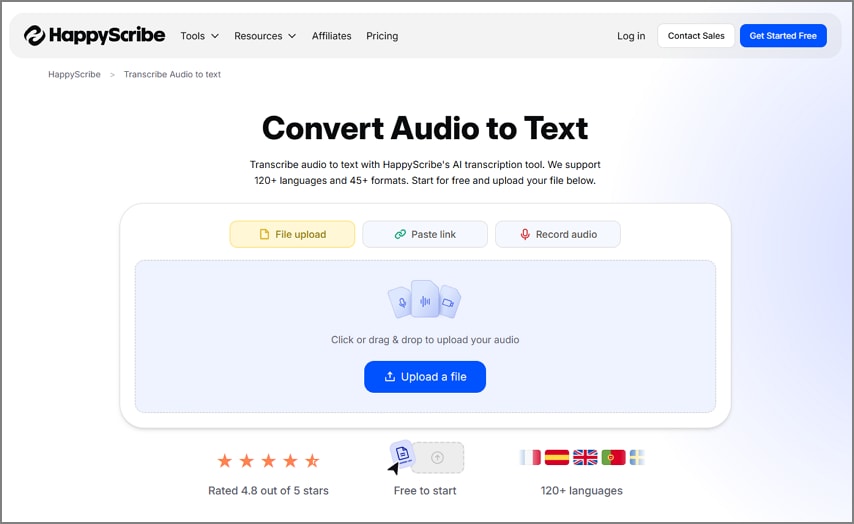
Best For: Professional and detailed transcription with advanced features including subtitles, glossaries, and multi-language support.
Key Features
- This tool supports over 120 languages to help diverse users work on different audio files.
- You can perform live recording online or upload through URLs or device file explorer.
- Users get the ability to download the transcribed audio files into different supported formats.
Pros
- You can annotate the transcribed file to further highlight the content.
- It gives you the ability to locate audio points through the timestamps function.
Cons
- When compared to other audio MP3 to text converters, this tool might be a costly option.
- The interface might be complicated for the beginners.
Who Should Use it: Media professionals, educators, legal, and medical transcriptionists who require verbatim accuracy and advanced export options.
Meeting Note-Takers
Otter AI
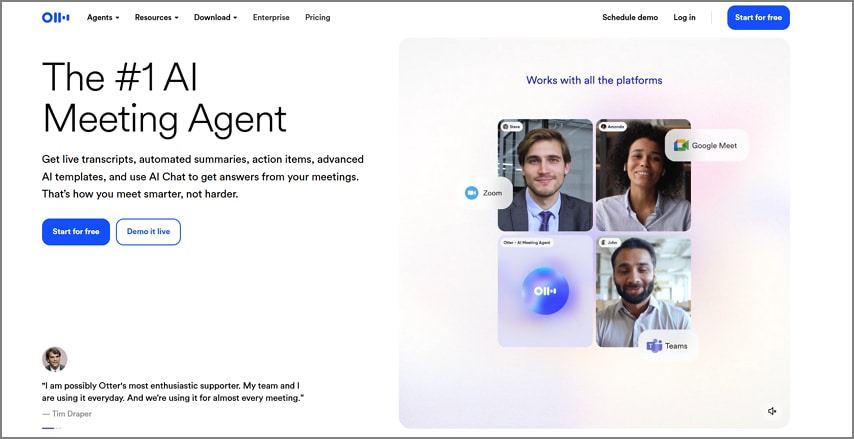
Best For: Real-time transcription, meeting notes, and collaborative team environments with MP3 import capability.
Key Features
- Users can generate transcriptions by recording live meetings or uploading pre-recorded MP3 files of the meetings.
- You can also enable the function of auto-generate the transcriptions during the recording process.
- The transcripts generated are searchable and editable in the editing interface of Otter AI.
Pros
- This tool provides you with fast transcriptions with good accuracy for a clear audio result.
- It integrates with other meeting tools like Zoom to generate live transcriptions during meetings.
Cons
- If the meeting recording lags in between, it can result in errors and lower accuracy.
- You need to access the paid version of the tool to generate texts from the MP3 audio files.
Who Should Use it: Business professionals, educators, journalists, and teams needing live transcription and easy sharing.
Desktop MP3 to Text Converter
NCH Software MP3 to Text
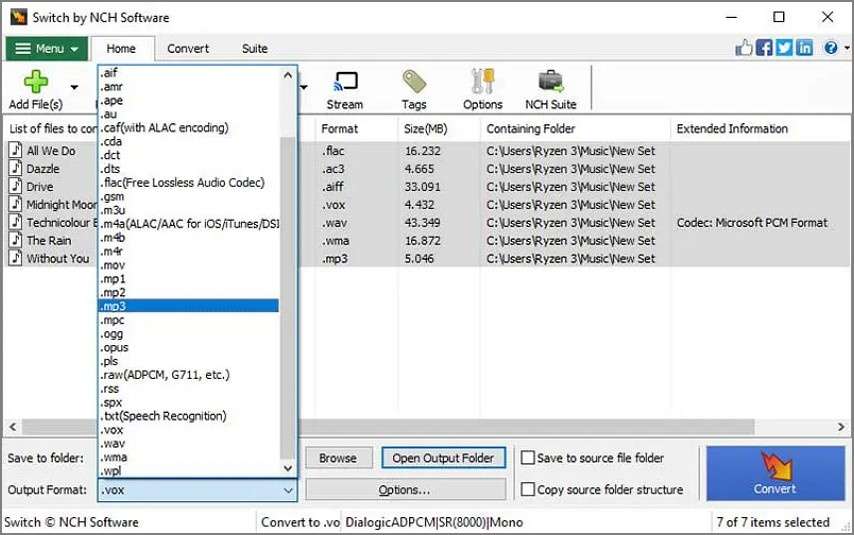
Best For: Transcription professionals using manual or software-assisted transcription with foot pedal support.
Key Features
- You can upload multiple audio files to this software, as it supports more than just MP3 files.
- It allows you to save the transcription file into the interface, along with exporting it for offline viewing.
- You can review the results using the audio playback controls.
Pros
- The interface is functional and straightforward, which makes it easy to use for beginners.
- You can depend on it offline without having to depend on a stable internet connection.
Cons
- When compared to PDFelement or other tools, this has an outdated interface.
- Most of the users have reported multiple bugs and frozen software, which halts the workflow.
Who Should Use it: Legal, media, and transcription professionals who manually transcribe audio files.
Comparison Between the Best MP3 to Text Converters
Here is a quick table comparing different tools on different aspects to help you choose which tool is the best one based on your requirements:
| Tools | Works Offline | File Size Limit | Hindi/Multilingual | AI Summary | Free Tier | Exports Format Supported | Privacy (Upload vs On-Device) | Best For |
| PDFelement Mobile | ✓ | No limit | ✓ | ✓ | ✓ | PDF, Word, Excel, PPT | on-device | PDF editing & AI features |
| TurboScribe | ✘ | 5 GB/10 hours | ✓ | ✘ | ✓ | TXT, DOCX, SRT | upload-based | Accurate AI transcription |
| pdfsimpli | ✘ | Unlimited | Limited | ✘ | ✓ | PDF, TXT | upload-based | Basic PDF & transcription |
| Any to Text | ✘ | Unlimited | ✓ | ✘ | ✓ | TXT | upload-based | Quick simple transcription |
| Zamzar | ✘ | 50 MB | Limited | ✘ | ✓ | TXT, DOCX, PDF | upload-based | Quick online file conversion |
| HappyScribe | ✘ | 1 GB | ✓ | ✓ | Limited | TXT, SRT, VTT, DOCX | upload-based | Professional transcription |
| Otter AI | ✘ | 90 minutes | ✓ | ✓ | ✓ | TXT, PDF, DOCX, SRT | upload-based | Real-time collaboration |
| NCH Software | ✓ | 13.5 hours | ✘ | ✘ | Limited | TXT | on-device | Manual transcription tool |
Part 8. Buyer’s Guide While Choosing an MP3 to Text Converter
Dive into the buyer’s guide list below to understand the best kind of audio MP3 to text converter you need to choose based on the different aspects:
Accuracy: Choose a converter that supports clear audio input between 16–48 kHz and performs well with your chosen language. Use close-mic recordings, minimize background noise, and enable custom vocabulary for domain-specific terms.
Privacy: For sensitive audio, prefer on-device tools over cloud-based uploads to ensure data safety. Always review the tool’s retention policies and redact any personally identifiable information before processing.
Speed and Cost: Compare tools based on their processing method, like local transcription, which is instant, while cloud-based ones may involve queue delays. Also, check whether the tool charges per minute, file, or feature to match your budget.
Output Flexibility: Decide if you need more than raw text, such as some tools that provide summaries, translations, or mind maps for organized insights. This ensures you choose software that aligns with your workflow rather than just transcription.
Ease of Use: A good converter should have an intuitive interface, easy file import options, and simple export formats. Prioritize tools that save time by automating file naming, PDF packaging, and quick sharing.
Part 9. Troubleshooting Errors During MP3 to Text Conversions
In this section, we will be looking into the troubleshooting steps you need to take when you experience errors during the MP3 to text conversion process:
Transcript Errors: If your transcript shows mistakes or missing words, try switching to a different AI model or confirming the correct language setting. Re-encode your audio in mono format at 16 kHz or higher and ensure the source file is clean and noise-free.
Audio Quality Issues: Low-quality or distant recordings can reduce transcription accuracy. Use a closer microphone, reduce background sounds, and normalize audio levels before converting.
File Too Large Online: Many online converters have upload limits, so long recordings may fail to process. Split the audio into smaller segments or switch to an on-device converter like PDFelement Mobile for unlimited length.
Bilingual Notes Required: If you require bilingual output, first transcribe in the original language for better accuracy. Then use AI Translate to generate a summary in your preferred second language.
Formatting Problems: If your exported text looks disorganized, use the AI Summary or formatting tools to structure it properly. PDFelement Mobile lets you quickly clean up and make layout adjustments before final export.
Shareable Packet: To create a clean, shareable file, use PDF Templates and Stickers to highlight key points or actions. Once finalized, export your complete note packet as a polished PDF ready for sharing or printing.
Part 10. Browser & Desktop Touchpoints (Micro Sections)
Apart from using PDFelement Mobile, you can also use its online and desktop software versions on different occasions. Each version helps users in different ways to help you solve your PDF dilemmas. Below is a short discussion on why you need to pick each version:
PDFelement Online
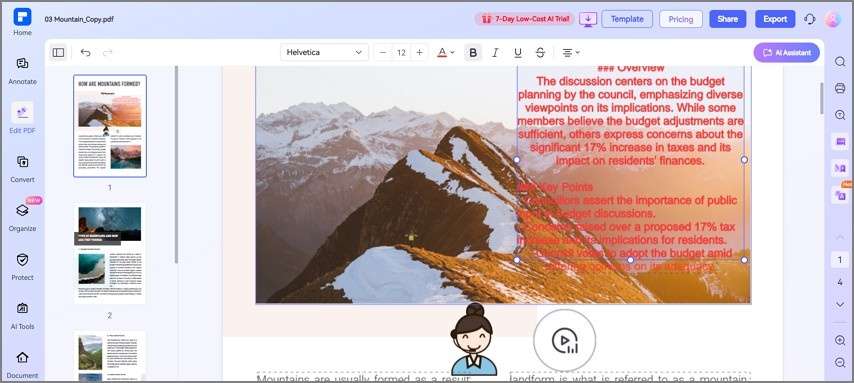
You can open your exported PDF notes directly in your browser through PDFelement Online for quick edits, highlights, or comments. It’s ideal for light revisions and instant sharing without installing any software.
PDFelement Desktop
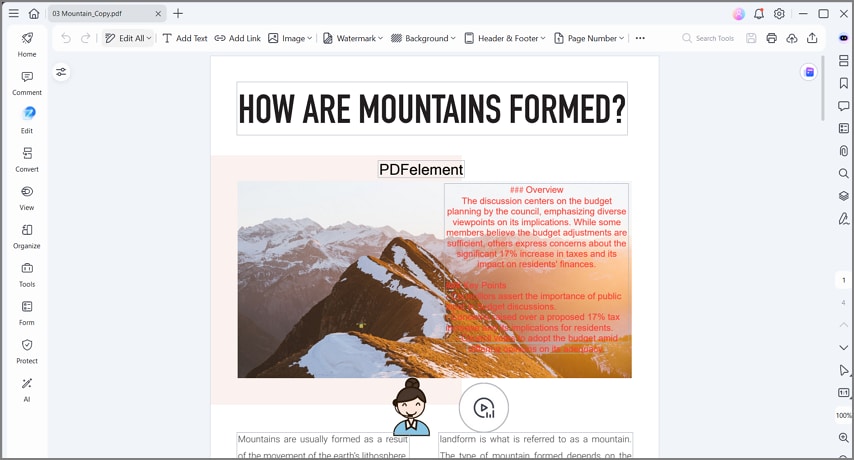
For professional or compliant deliverables, use PDFelement Desktop to finalize your documents. You can redact sensitive details, add headers, footers, and page numbers, or apply approval stamps. It also allows batch combining multiple PDFs into a clean, print-ready packet for submission or archiving.
Frequently Asked Questions
-
1. What’s the fastest way to convert MP3 to text (free)?
The quickest method is using online MP3-to-text converters that process short files instantly. You simply upload your MP3, choose the language, and get a downloadable transcript within seconds. These tools are best for non-sensitive, quick transcription tasks. -
2. How do I convert MP3 to text in Hindi?
Choose an MP3-to-text tool that supports Hindi or use PDFelement Mobile’s Speech-to-Text feature with the language set to Hindi. After transcription, you can refine the text with the AI Translate option for bilingual clarity. This works well for interviews, lectures, or local content. -
3. Online vs on-device transcription—when to choose which?
Use online converters for short, casual, or non-confidential recordings when speed is your priority. For longer or private files, PDFelement Mobile’s on-device transcription ensures accuracy and data security. It’s ideal when you need to work offline or handle sensitive content. -
4. Can AI summarize the transcript into usable notes?
Yes, modern transcription tools like PDFelement Mobile include AI summarization to condense long transcripts. It can highlight key points, action items, and main themes automatically. This feature helps transform raw text into clear, structured notes or reports. -
5. How do I export a clean PDF with action items?
After transcribing and summarizing, you can export the notes as a polished PDF directly from PDFelement Mobile. The layout remains clean and professional with editable text blocks. You can even highlight or annotate action points before sharing. -
6. Is it safe to upload recordings?
Uploading to online tools carries privacy risks, especially for confidential audio. Always get consent from participants before transcription and avoid sharing sensitive content online. For safer handling, use on-device tools like PDFelement Mobile that work offline.
Conclusion
In conclusion, to convert audio MP3 to text has become faster and smarter in 2026 with flexible options for every user. Use online converters for quick, non-sensitive recordings that need instant transcription. For longer or confidential audio, choose PDFelement Mobile’s on-device workflow for secure processing. Add AI summaries, translations, or mind maps to instantly turn raw speech into organized notes, ready for sharing or professional use.




