

Cropping a PDF may seem like a minor task, but it often determines whether a document looks polished or unprofessional. Now, users can easily crop their PDFs using online tools or desktop software, depending on their needs. Online crop tools like iLovePDF offer a quick, no-install way to trim margins, whereas desktop tools are required for greater precision.
This comparison playbook walks you through when to use the crop PDF iLovePDF online tool and when to use desktop software. So, if you are also looking for efficient ways to crop your PDF, then read the article to the end.
In this article
- What People Mean By "Crop PDF iLovePDF"
- Decision Table — Choose Your Route In 30 Seconds
- Walkthrough A — iLovePDF Crop PDF (Online, Free)
- Guardrails For Online Cropping (Before You Upload)
- Walkthrough B — Crop One File Locally (Pdfelement Canvas Crop)
- Walkthrough C — Crop the Image Object Itself (No Page-Canvas Change)
- Walkthrough D — Batch PDFs → Crop with A Reusable Template (PDFelement)
- Walkthrough E — Print-Safe Crops with Page Boxes (Press/Production)
- Output Hygiene (Naming, Folders, Q/A)
- Ready-Made Recipes
Part 1. What People Mean By "Crop PDF iLovePDF"
The term "Crop PDF iLovePDF" refers to quickly trimming away unwanted margins or content using the iLovePDF tool. Users remove large white borders, crop irrelevant parts of a scanned page, or isolate a specific section to achieve a more professional look.
In this context, the online tool iLovePDF is more suitable if you want to edit sensitive PDFs online instantly. Whereas, if you aim to edit highly sensitive bulk files while ensuring complete accuracy, then choose a desktop tool like PDFelement.
Part 2. Decision Table — Choose Your Route In 30 Seconds
Before you explore the procedure of PDF crop iLovePDF, let's have a breakdown of the best routes for multiple correcting situations:
| Your Situation | Best Route | Why |
| One Public/Small file | Crop PDF online free with the iLovePDF tool | Simple drag-to-select box, works in any browser |
| Cleaning Up Scans or Screenshots | Crop PDF online free with the iLovePDF tool | No install, simple drag-to-select box |
| Edit Many PDFs | PDFelement → Tools → Batch PDFs → Crop (Template) | Reuse the same crop settings, Consistent results |
| Exact Print Margins/Trim/Bleed | PDFelement → Organize Pages → Page Boxes | Offers precise control over page boxes |
| Working With Confidential Contracts | PDFelement → Organize Pages → Crop | Keeps sensitive documents on your machine |
| Crop The Image Object Itself | PDFelement → Home → Edit Image → Crop | Crops the object without changing the canvas size |
| Crop All Pages/Ranges Offline | PDFelement → Organize Pages → Crop | Applies crops to all pages with no upload or size limits |


 G2 Rating: 4.5/5 |
 100% Secure
Part 3. Walkthrough A — iLovePDF Crop PDF (Online, Free)
If you're looking for a quick solution, you can use an online tool like iLovePDF. This tool lets you crop your PDF instantly by uploading it. Users can choose between "All Pages" and "Current Page" cropping. Moreover, one can either download the edited PDF to the Drive, Dropbox, or copy the link. So, let's have a look at the following guide on how to use the iLovePDF crop pdf tool:
Step 1
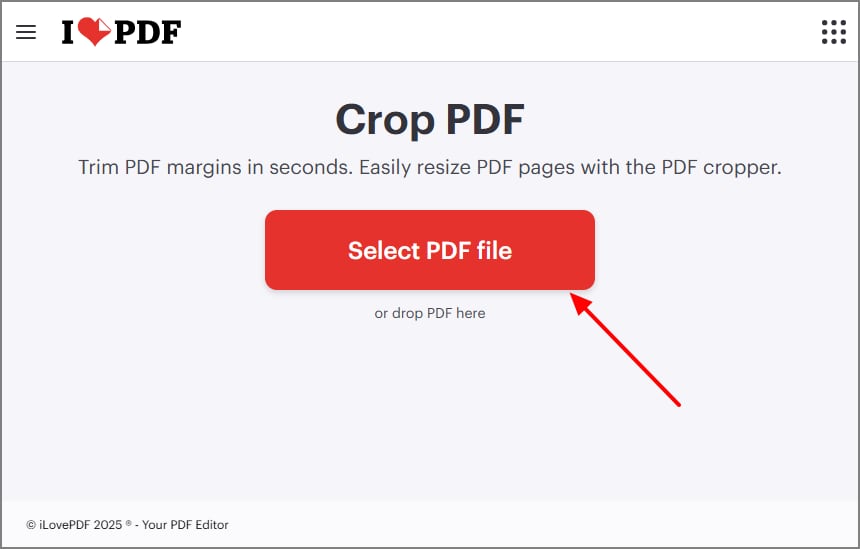
Upon opening the tool, click the "Select PDF File" button to select the desired PDF from your device.
Step 2
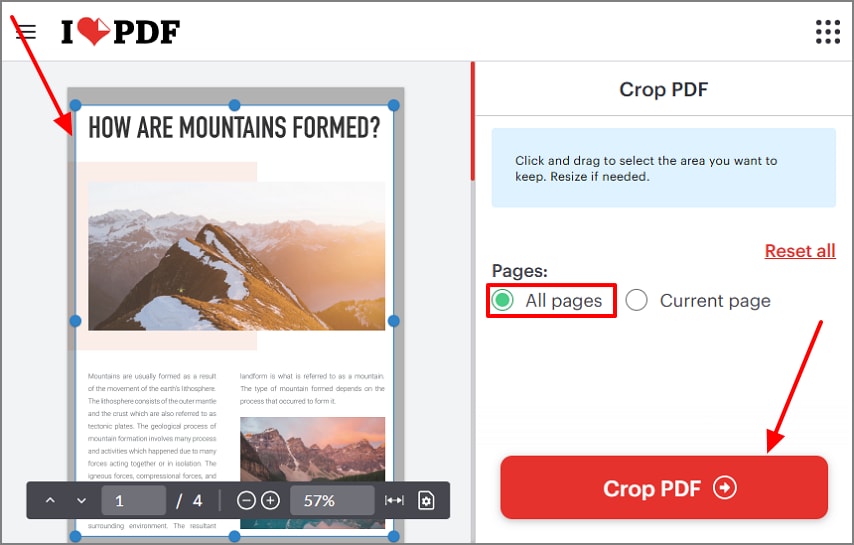
Here, click anywhere on the page and drag the box to adjust the crop frame as needed. Afterwards, enable the "All Pages" option and hit the "Crop PDF" button.
Step 3
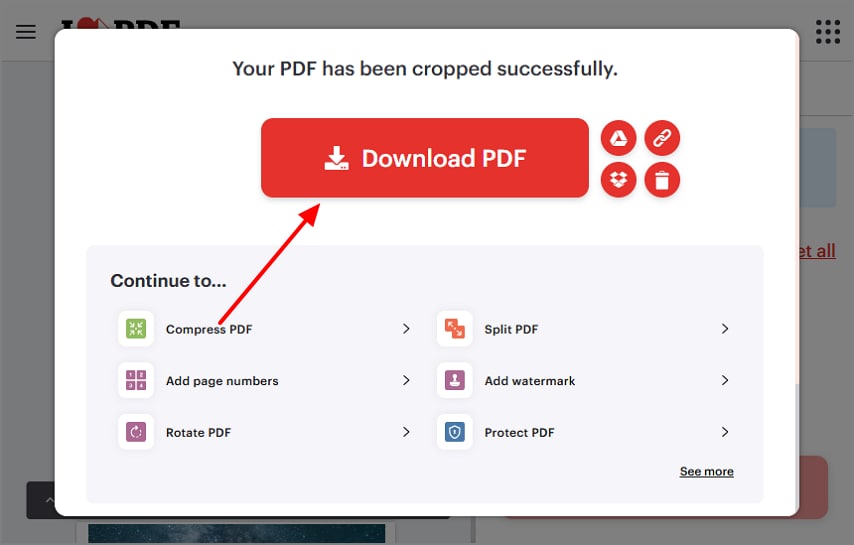
Finally, the file is cropped, so choose the "Download PDF" button to save it to your device.
Part 4. Guardrails For Online Cropping (Before You Upload)
To avoid quality or privacy issues, let's review the key guardrails to check before you upload a file to the online PDF crop iLovePDF:
- Privacy & Compliance: If you are using an online tool, never upload confidential information, as it can be further shared with third-party tools.
- File Size/Page Caps: Verify file size and page limits beforehand, as most online tools impose limits, and you will need a desktop tool.
- Quality/Compression: Some tools overcompress the file while resizing, so review the file after generating the outcome.
- Metadata: Remember that cropping just hides the data, not deleting it, so you can sanitize the metadata before uploading the file.
- Choose a Reliable Tool: Ensure you choose a reliable tool that provides maximum accuracy and offers all required features.
G2 Rating: 4.5/5 |100% Secure
Part 5. Walkthrough B — Crop One File Locally (Pdfelement Canvas Crop)
Imagine a designer who just got the final brochure PDFs back from a freelancer. However, he notices that the printer's proof shows uneven white margins, and the logo is a bit too close to the edge. Now, if you don't have access to an internet connection and can't use PDF Crop, iLovePDF, then we recommend using Wondershare PDFelement. This is an offline desktop tool designed to crop multiple PDFs with advanced features.
This efficient tool lets you select the desired page range of the file by choosing between "All Pages" and "Custom." Moreover, if you are working on a scannable document, it enables efficient OCR to make it scannable and editable. You can also convert your file to multiple formats, including Word, Excel, and HTML.
Extensive Guide to Using the PDFelement Cropping Tool
Now, let's explore a detailed stepwise guide to use this efficient offline alternative to the iLovePDF crop PDF tool:
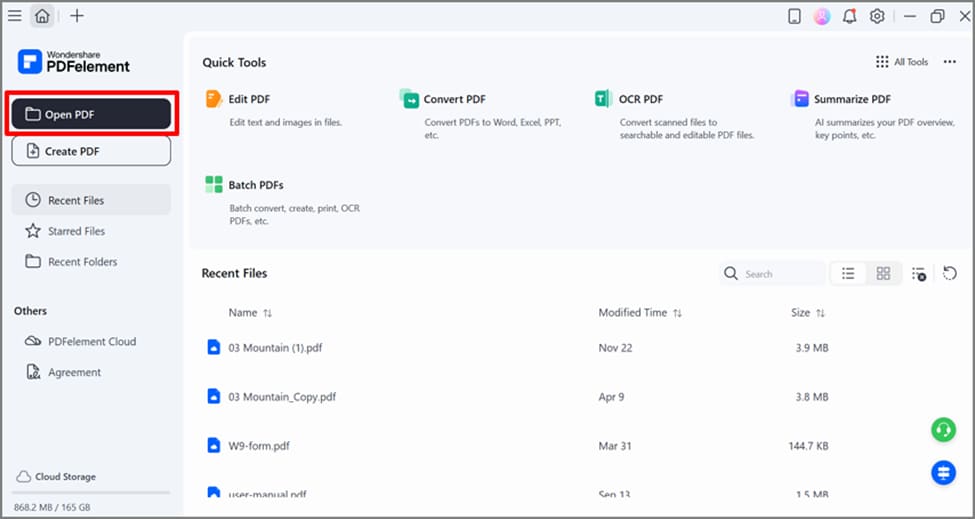
Step 1Choose the Open PDF button to insert the PDF
As you enter the tool, click on the "Open PDF" button and insert the desired PDF file from the device folder.
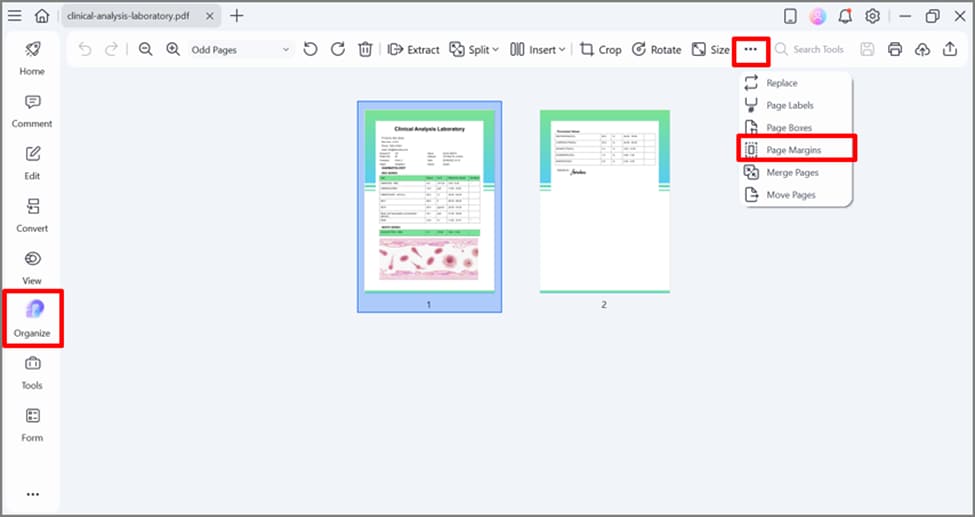
Step 2Select the Organize Menu and Select Page Margins
Here, click on the "Organize" menu from the left sidebar. Following this, click on the "3 Dots" option to choose the "Page Margin" option in the drop-down menu.
G2 Rating: 4.5/5 |100% Secure
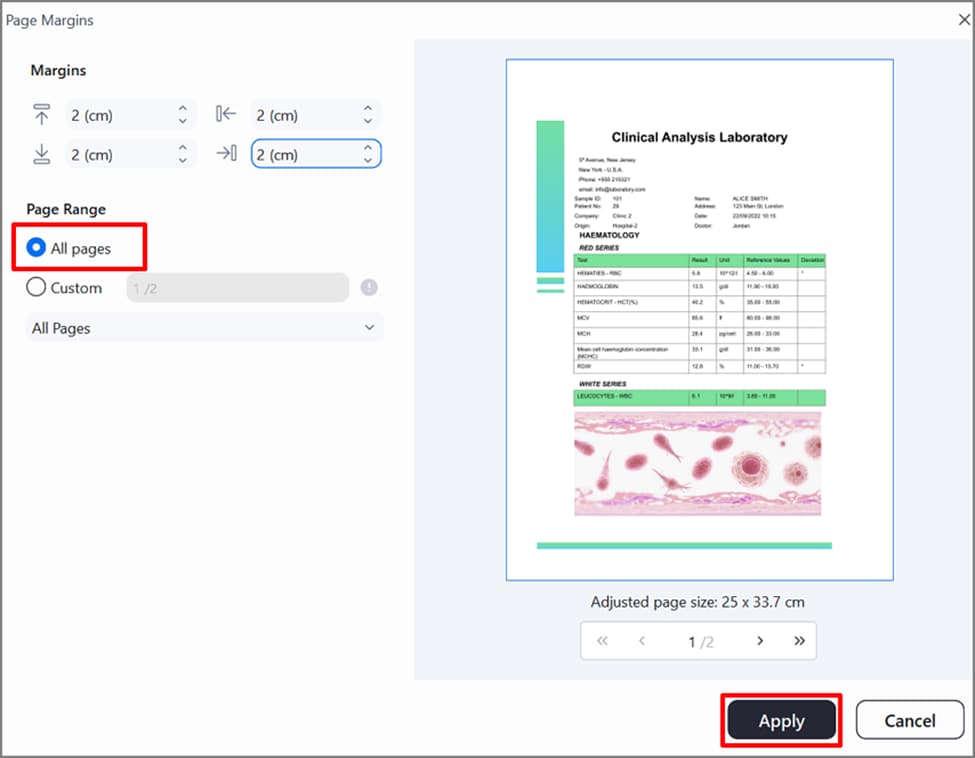
Step 3Select the Page Range and Choose the Apply Button
Now, enable the "All Pages" option under the Page Range section and hit the "Apply" button.
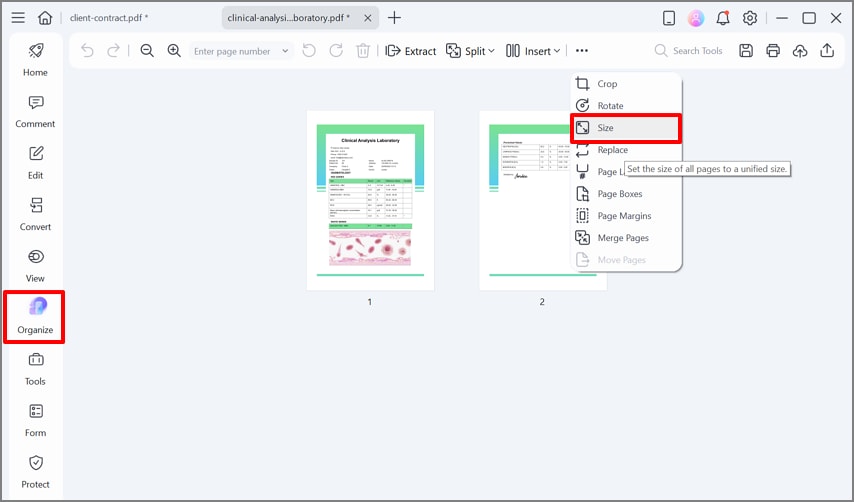
Step 4Click on the Size Option to get the A4 Size
Optionally, click on the "3 Dots" option and choose the "Size" option from the drop-down menu.
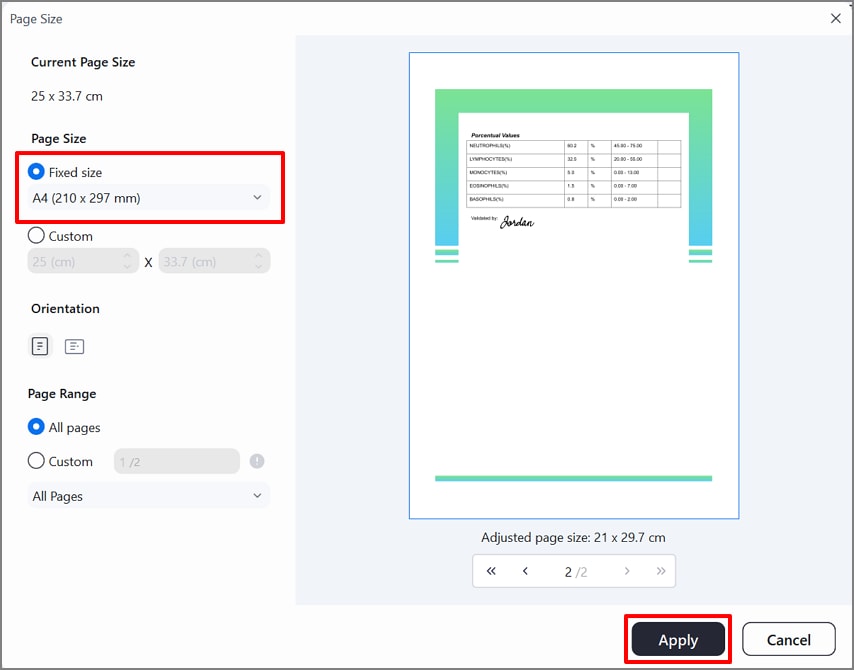
Step 5Select the Size and Hit the Apply Button
Here, enable "Fixed Size" and choose the "A4 (210 x 297 mm)" option. Following this, preview the file and hit the "Apply" button.
Step 6Click the Save File to Render the File
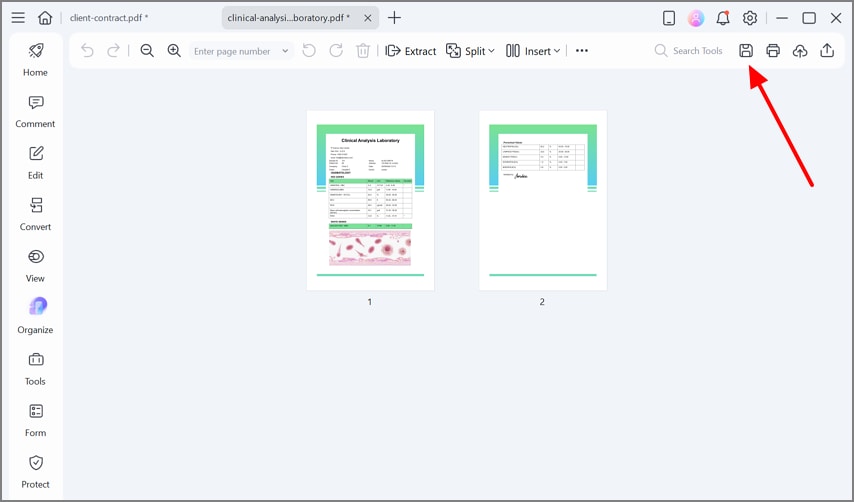
Finally, the file is cropped, so hit the "Save" icon from the top right corner to save to the device folder.
G2 Rating: 4.5/5 |100% Secure
Part 6. Walkthrough C — Crop the Image Object Itself (No Page-Canvas Change)
In addition to cropping the entire PDF, users can crop embedded images using PDFelement. This method is beneficial if your PDF is alright, but the images require some edits. So, if you don't want to utilize the online tool, PDF crop iLovePDF, then go through the following detailed guide:
Step 1Access the Edit PDF Tool from the Homepage
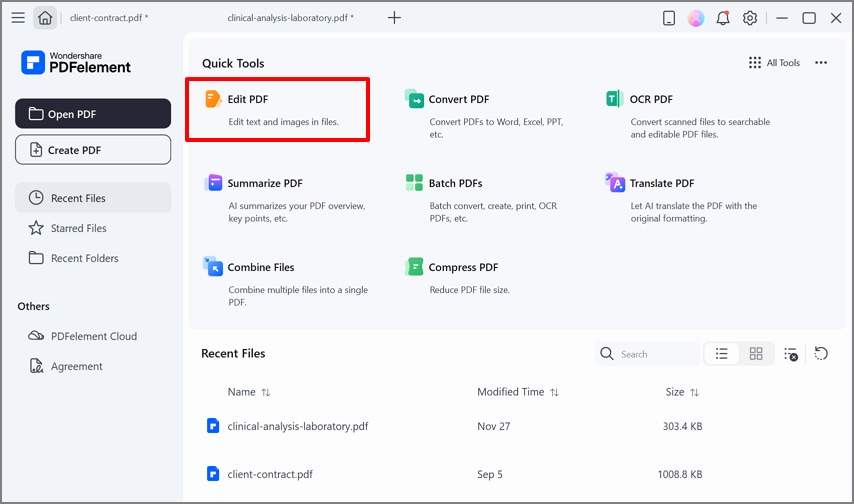
As you access PDFelement desktop, click on the "Edit PDF" tool within the "Quick Tools" menu.
Step 2Select the Edit Image Feature To Crop Image
As you insert the PDF file, choose the "Edit Image" feature. Afterward, right-click the image and select the "Crop" icon to edit it as needed. Following this, choose the "Save" icon to get the image saved in the device folder.

G2 Rating: 4.5/5 |100% Secure
Part 7. Walkthrough D — Batch PDFs → Crop with A Reusable Template (PDFelement)
Best For: Sellers/ops, recurring reports who need identical margins across many similar PDFs
While using the online PDF crop iLovePDF, you find out it does not support batch processing. To address this issue, you can use PDFelement, which offers an efficient Batch PDF tool. Within this feature, users can manually adjust the PDF crop margins as required. So, if you want to explore a detailed guide to use PDFelement for batch cropping, then go ahead:
Step 1Choose the Batch PDF Tool From the Homepage
Initiate by selecting the "Batch PDF" tool from the main page of this efficient tool.

Step 2Select the Crop Option from this Interface
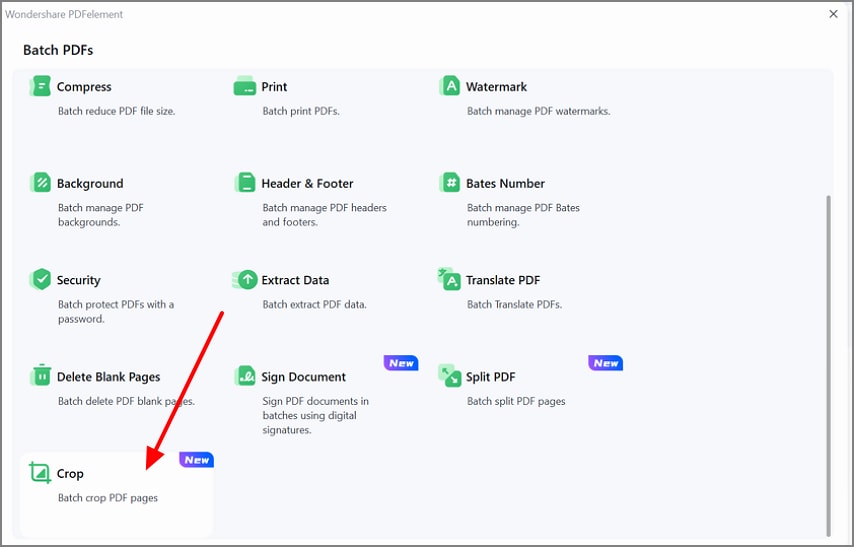
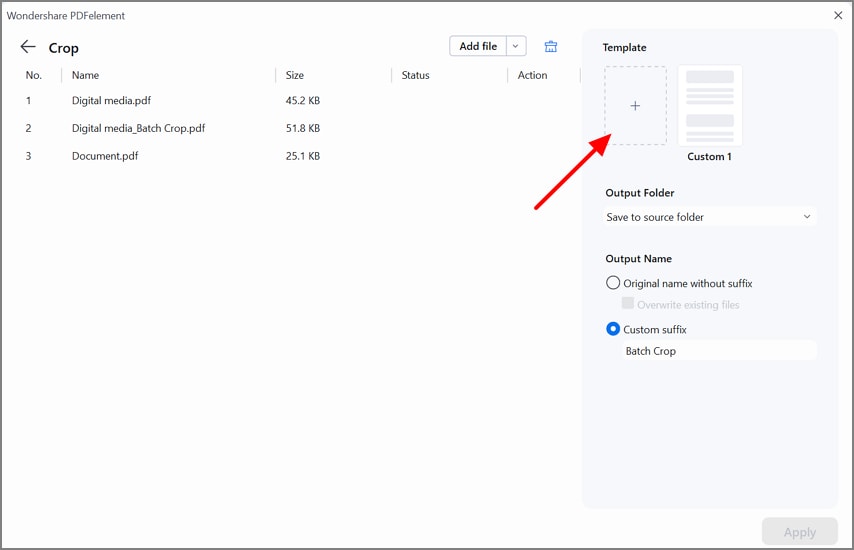
Here, click on the "Crop" feature and insert multiple PDF files within the tool for further editing.
Step 3Hit the "+" Icon in the Template Menu
Afterwards, click on the "+" icon under the Template menu in the following screen.
G2 Rating: 4.5/5 |100% Secure
Step 4Choose the Crop Margins and select the Apply button
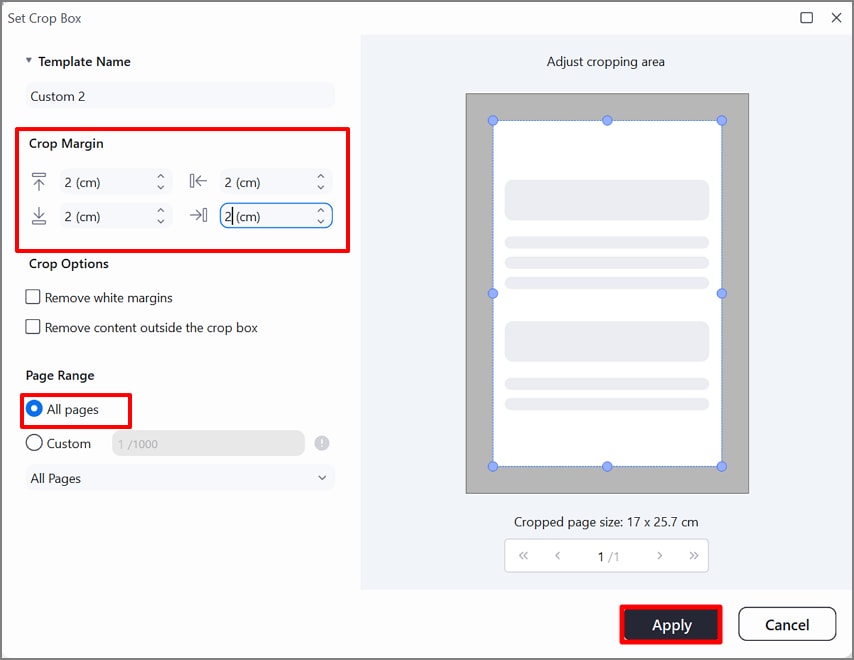
Here, enter the crop margins manually, enable the page "All Pages" option, and hit the "Apply" button.
Step 5Choose the Output Folder Name And Click the Apply button
After applying the crop margin, select the "Output Folder" for your files and hit the "Apply" button.

Step 6Resize the PDF Files If Needed
Finally, all your PDF files are cropped, and you can also manually apply the "Resize" feature to them.
G2 Rating: 4.5/5 |100% Secure
Part 8. Walkthrough E — Print-Safe Crops with Page Boxes (Press/Production)
Now, let's move into a print-focused workflow that uses page boxes for precise cropping:
Pathway of Finding Page Boxes
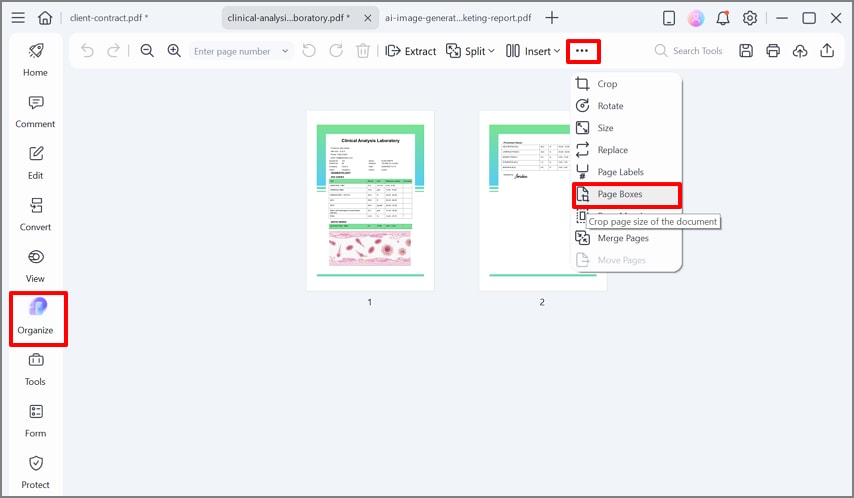
Upon accessing the desired PDF file in the PDFelement tool, click on the Organize menu from the left-hand tab. Afterwards, click on the "3 Dots" option to choose the "Page Boxes" option from the drop-down menu.
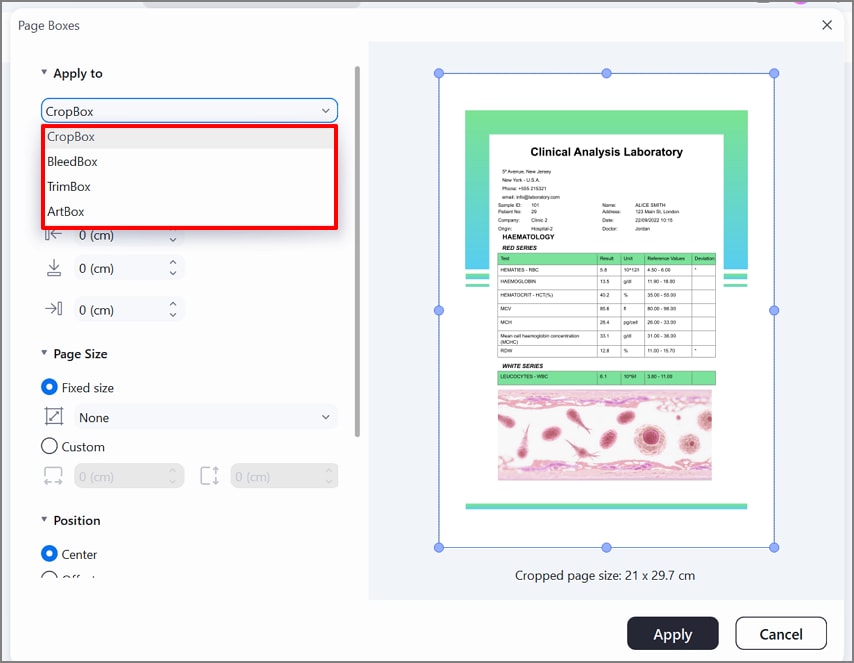
Following this, it will show a dialog box where you can easily select between various Page boxes, including Crop Box, TrimBox, BleedBox, and Art Box.
What Each Box Means
Now, let's dive into the details of each box so you can easily understand its concept:
- Crop Box: The Crop Box defines the region of the page that a PDF viewer displays and, by default, what gets printed.
- TrimBox: This box represents the final, trimmed size of the printed pieces of the file before cutting it to the desired size.
- BleedBox: It is slightly beyond the trim box and shows the area where images, text, and other elements will not cross the borderline.
- Art Box: This is the area that encloses the main artwork or "safe" content region of the page within the PDF.
Applying and Resizing
While choosing the desired box, it provides you with the option of "Apply to All or Ranges." This specific term means that all the changes will be applied to the whole document without getting into the hustle of manually doing it.
Whereas you can even resize the page of a PDF manually with your mouse cursor. This move will help you to exactly match the final format requirements for your PDF.
When to Use it
At first, try an initial preview of the PDF with the iLovePDF crop PDF tool, and then opt for a designated software, PDFelement. This tool is especially useful for label exports, perfect‑bound books, and marketing brochures where every minor element matters.
G2 Rating: 4.5/5 |100% Secure
Part 9. Output Hygiene (Naming, Folders, Q/A)
After completing edits, it's important to follow good output hygiene for easy review and reuse:
Folder Pattern
Ensure you use a predictable folder path like "/Project/YYMM/Cropped/" so every month's finished crops land in the same place.
This "In Progress" source separates from the final outputs and makes it obvious where the file is going to be saved.
Naming Convention
Choose a name that explains completely about the file name, like "{filename}_A4_trim.pdf."
Always use consistent suffixes like "_crop, _trim, or _v02", making it easier to recognize the file.
Q/A in 30 Secs
Before completing the procedure, always check the quick Q/A session. Initiate by zooming in 200–400% on a few pages to catch clipped text, cut‑off page numbers. Then confirm the page size and orientation in the document properties and visually check the margins.
Part 10. Ready-Made Recipes
While exploring iLovePDF crop PDF, we have listed down some of the easiest read-to-use workflow scenarios which you can use:
Nullify White Borders
Access iLovePDF → Crop PDF → drag box to content → Apply → Download cropped PDF
Users can opt for this workflow when they don't have enough storage and want a quick online solution for cropping their PDF files
Clean A4 for Print
PDFelement's Organize tool→ Crop (page canvas) → Resize to A4 → set margins to 10–12 mm → Save
This approach can be useful to get an accurate A4 size for your PDFs, making it efficient to print on any printer.
Batch Reports
PDFelement → Batch PDFs → Crop (use saved template) → export with datestamp names
This workflow is highly beneficial for students or workers who have to crop margins into multiple PDFs but have a shorter time limit.
Logo/Photo Only
PDFelement → Edit Image → select image → Crop → export as PNG from the PDF
One can opt for this workflow to crop only embedded images or logos withpout disturbing the whole PDF format.
People Also Ask
-
Is crop PDF online iLovePDF safe for confidential files?
iLovePDF is an online tool that seems to be encrypted with updated security certifications. However, you should not upload your confidential files online as they may be at risk of leaking. -
How do I apply the same crop to all pages at once?
For this purpose, you can use a tool like PDFelement, which lets you select the Page Range to "All Pages." With this move, the setting will automatically get applied to all the pages, maintaining uniformity. -
Can I batch-crop multiple PDFs, like an offline PDF cropper (Meesho/iLovePDF)?
Obviously, you can opt for a tool like PDFelement, which offers an advanced batch processing system. You load numerous PDFs, set the margins or crop box once, and the software outputs consistently cropped copies. -
What's the difference between page crop and image (object) crop?
A page crop changes the visible page area (CropBox), so everything near the edges gets hidden together. Whereas, the image (object) crop works only on the image by keeping the rest of the file intact. -
How do I keep print-safe margins after cropping?
For print jobs, you typically keep important content at least about 3–6 mm inside the final trim file. In this case, use page‑box tools to set the exact margin outside the essential file data.
Conclusion
Concluding it, this article has covered a detailed workflow of an online iLovePDF crop pdf tool along with an advanced offline alternative. Users can use the iLovePDF tool when they need a quick solution for cropping. However, if you require advanced features like batch processing, then we recommend using PDFelement. This efficient tool offers you built-in crop features by accessing its Optimize page or editing a PDF.
G2 Rating: 4.5/5 |100% Secure




