

Text or image clutter on a page makes it less readable, impacting the message. By cropping all pages in a PDF, the unwanted elements can be avoided to enhance the legibility. This action ensures consistent margins throughout the PDF file for better organization. You can also crop the file pages and prevent extensive editing to remove the unwanted elements in the page.
However, you need a high-quality PDF management tool to crop the parts of your pages. This article explores the tool that helps you crop multiple pages in a PDF to achieve the above-mentioned benefits.
In this article
- What You Will Achieve
- Quick Chooser: Pick Your Scenario
- Method A — One-File, Precise Crop in PDFelement (All or Range)
- Method B — Print-Safe Precision with Page Boxes (Design/Press)
- Method C — Batch Crop PDFs: Many Files at Once, with a Template
- Method D — Online Option: Fast for Non-Sensitive Docs
- Output Hygiene: Naming, Folders, Logging
Part 1. What You Will Achieve
Before you start cropping a PDF's page, you must understand what you are doing it for. The following section explains the reasons you might need to cut a page:
Crop All Pages in a PDF with One Action:
Cropping all pages of PDF at once saves time by applying identical adjustments across the entire file or chosen ranges. This ensures every page maintains consistent trimming without manually repeating the process on each individual page.
Apply Print-Safe Boxes for Consistent Margins:
Using print-safe boxes guarantees uniform margins on every page of a multi-page PDF crop job. This consistency prevents layout shifting and ensures professionally aligned output during printing or digital display.
Batch-Crop Multiple PDFs Using a Reusable Template:
A reusable cropping template allows you to process many PDFs with identical settings instantly. This approach eliminates repetitive work and maintains standardized formatting across large document batches.
Part 2. Quick Chooser: Pick Your Scenario
Cropping needs vary depending on your document's layout, purpose, and urgency. Use this quick chooser table to instantly identify the best cropping method for your specific scenario:
| Your Scenario | Best Crop Method |
| Same crop on every page | Apply one crop to all pages in the PDF. |
| Different chapters or layouts | Use crop by page ranges for section-specific adjustments. |
| Publisher or print deliverables | Define Crop / Trim / Bleed / Art boxes for print-safe output. |
| No install needed or quick fix | Use an online PDF crop all pages tool for non-sensitive documents. |


 G2 Rating: 4.5/5 |
 100% Secure
Part 3. Method A — One-File, Precise Crop in PDFelement (All or Range)
As mentioned, you need a good-quality PDF organizing tool for cropping all PDF pages. Wondershare PDFelement is a robust PDF tool that offers various settings for cutting pages. You can select a page range that complies with your crop settings. This tool allows you to apply the setting to all pages of the document with just a click of a button. However, users can also cut parts of all even or odd pages alone.
Besides dragging the margins of the page, you can also input a custom value in the margin fields and get a precise result. PDFelement enables users to remove the white margins from their pages to achieve a clean look. While cutting the page, this tool allows you to permanently delete anything that lies outside the visible cropped area of the PDF. To learn how you can crop pages using PDFelement, follow this guide:
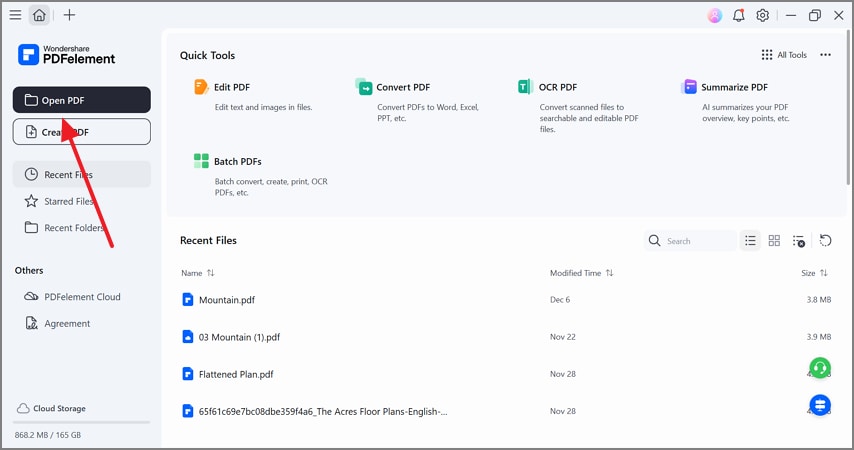
Step 1Open a PDF File on PDFelement
To begin with, select the "Open PDF" button and import the PDF whose pages you need to trim.
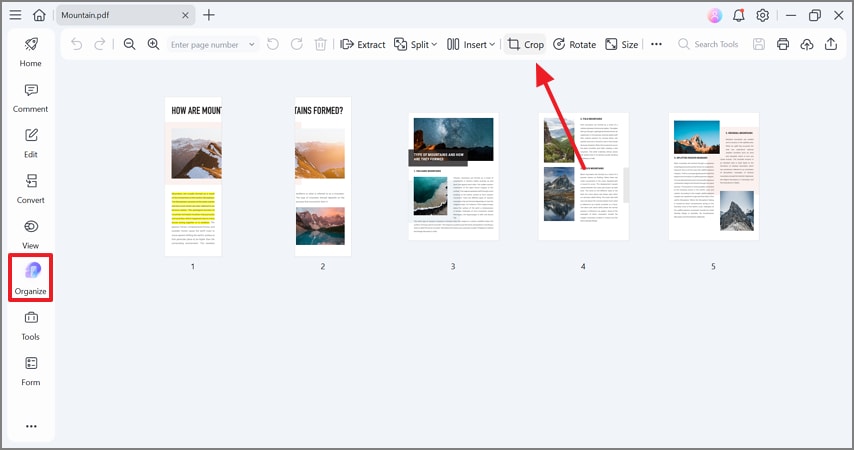
Step 2Crop Pages in the Organize Mode
Once the file is imported, enter the "Organize" mode from the left sidebar and click the "Crop" button from the toolbar at the top.
G2 Rating: 4.5/5 |100% Secure
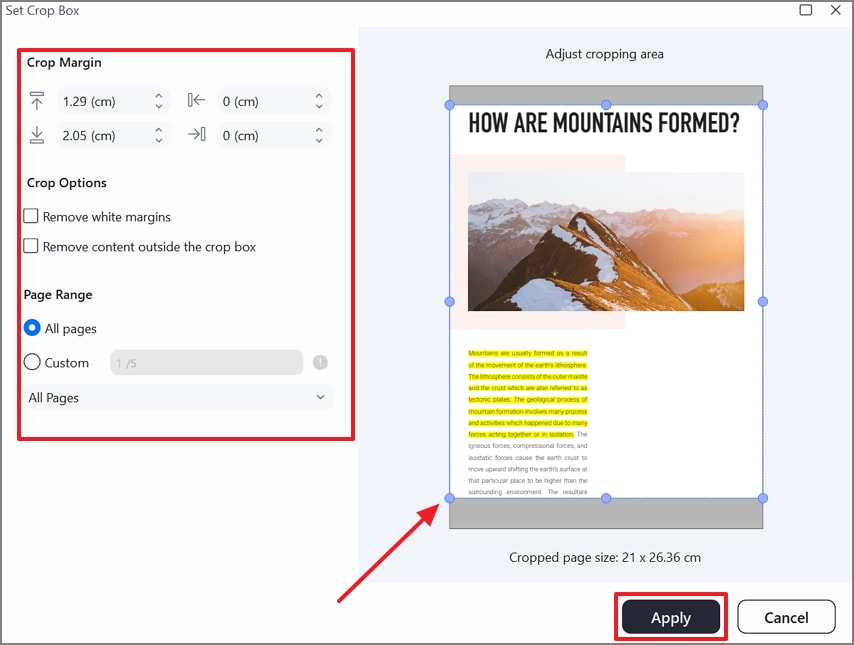
Step 3Set the Crop Box to Resize the Page
Using the following window, set the "Crop Margin", "Crop Options", and the "Page Range". You can also drag the corners of the crop box to adjust the size. Once done, click the "Apply" button to apply these changes.
Tip: For tidy margins after cropping, consider a light "Page Margins" pass.
Part 4. Method B — Print-Safe Precision with Page Boxes (Design/Press)
Using PDFelement, users can adjust the page boxes for a print-ready outlook. Page boxes in a PDF are invisible boundaries that define how the page is displayed, printed, trimmed, or exported. They help control cropping, printing margins, bleed areas, and final output size.
Users can set a custom value for each type. Follow the guide below and learn how to use PDFelement to achieve precision with page boxes while cropping a multi-page PDF:
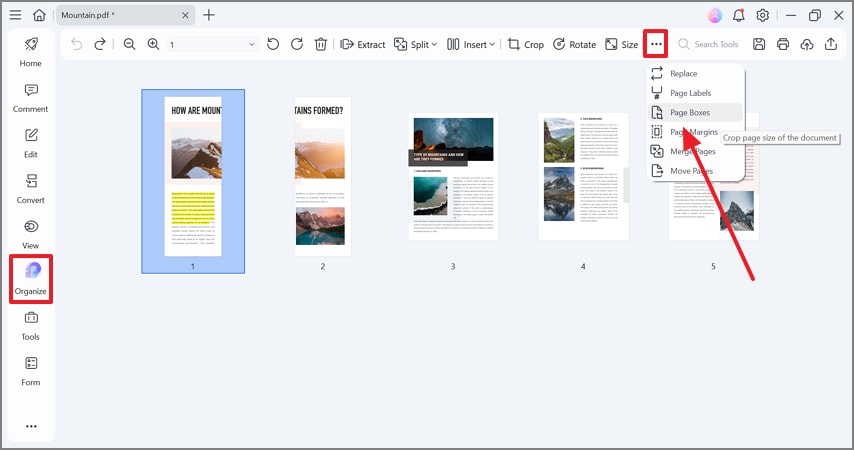
Step 1Select the Page Boxes Option from the Organize Tab
Using the "Organize" tab from the left, expand the "Menu" from the top left. Using the extended menu, select the "Page Boxes" option to make the file print-ready.
Step 2Adjust the CropBox Settings
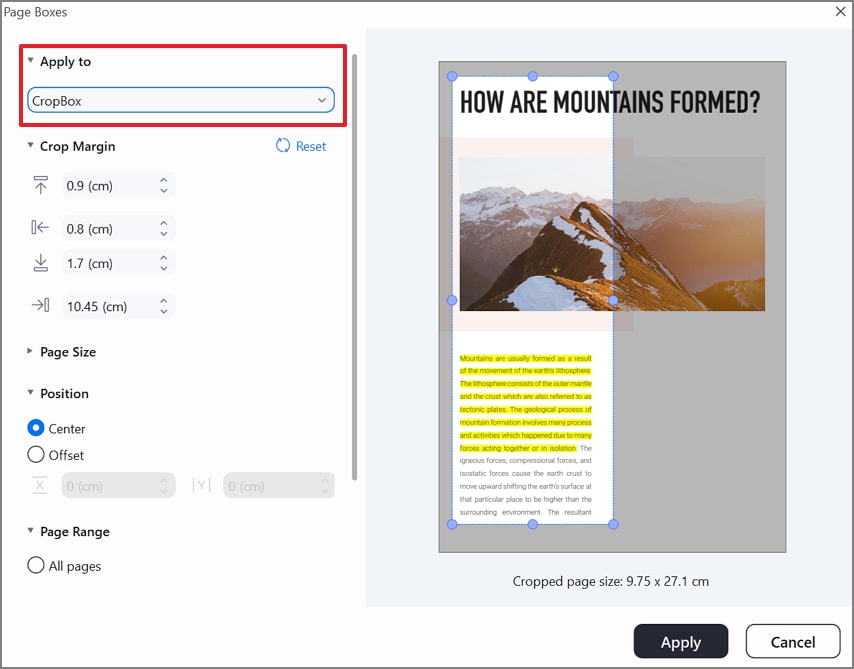
In the following window, open the "Apply to" menu and select the "CropBox" option. Now, adjust the margin and other settings using the options below. The CropBox controls what you actually see when viewing or exporting a PDF. Cropping a PDF usually changes the CropBox, but the hidden content outside it still exists unless permanently removed.
G2 Rating: 4.5/5 |100% Secure
Step 3Set the BleedBox Options
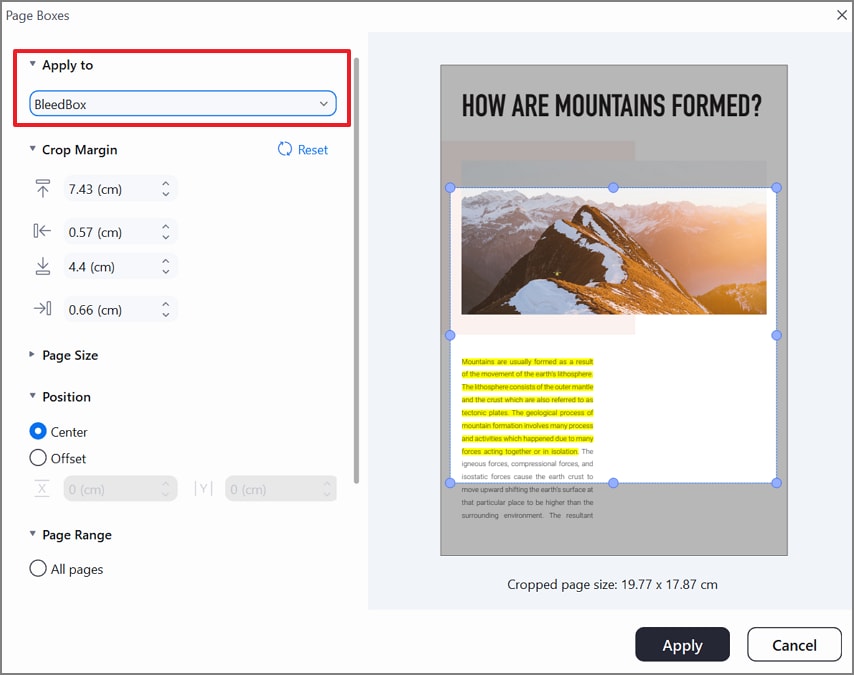
Now, select the "BleedBox" option and adjust the relevant settings using the margins and other page settings. The BleedBox extends slightly beyond the TrimBox to include artwork that must reach the edge of the page after trimming. Printers use this to avoid white edges on full-bleed designs.
Step 4Adjust the TrimBox Settings to Adjust the Final Trimmed Size
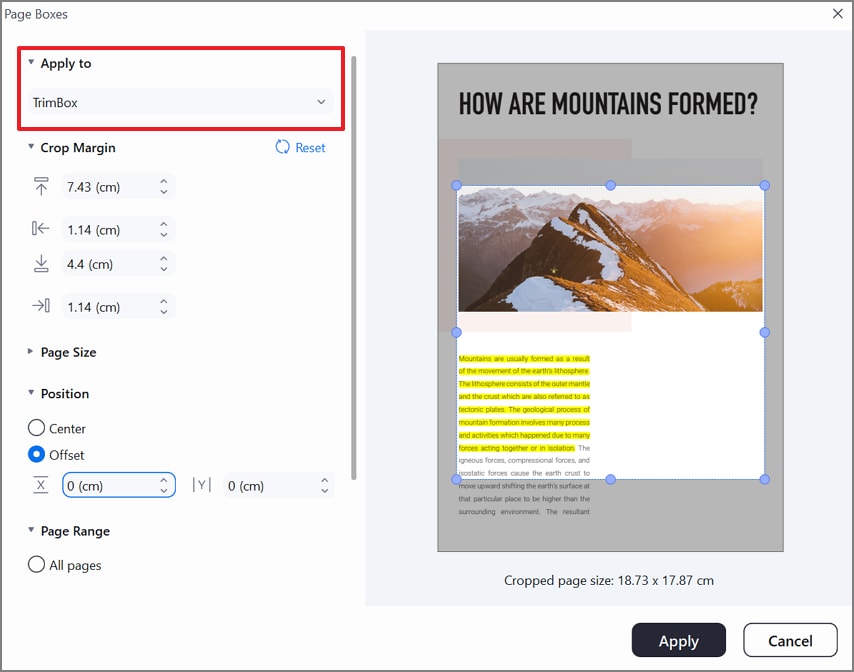
Adjust the TrimBox layout by selecting "TimBox" from the "Apply to" menu. The TrimBox shows the final intended size of the page after cutting in professional printing. It represents where the printed sheet will be physically trimmed.
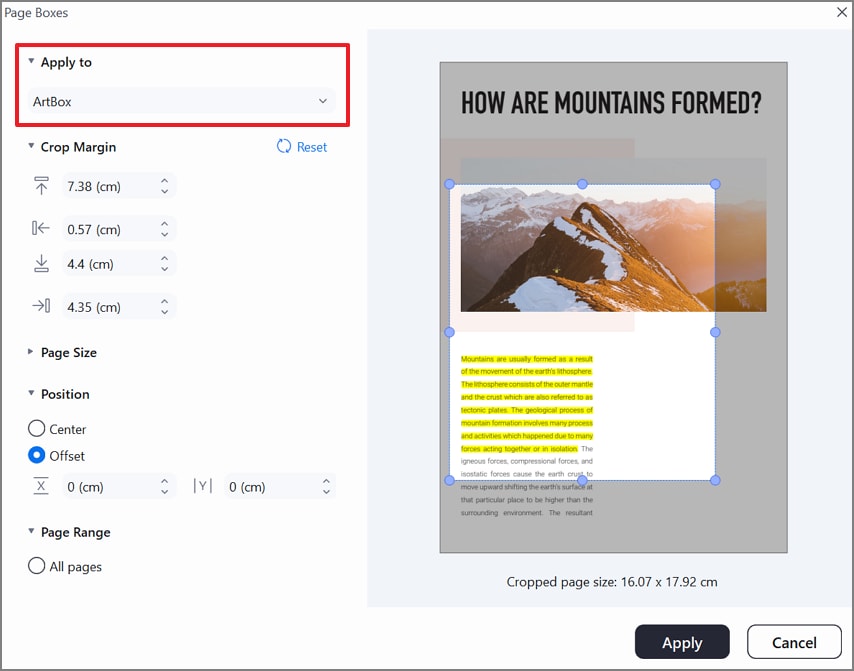
Step 5Select ArtBox Settings to Set the Content Area Only
Using the "Apply to" menu, select the "ArtBox" option and adjust other settings as well. The ArtBox marks the actual artwork or content area, excluding margins or bleed. Designers use it to define the essential elements that must remain visible.
Part 5. Method C — Batch Crop PDFs: Many Files at Once, with a Template
If you want to save time cropping multiple pages of PDF, use PDFelement as a time-saving option. This tool offers a batch processing utility that executes multiple bulk functions, including page trimming. You can use this feature when you need a consistent page size across all your PDF files.
To help you with one-click size adjustments, PDFelement allows you to create custom cropping templates. These templates can be saved for future use. The following steps explain how you can batch crop PDFs using PDFelement:
G2 Rating: 4.5/5 |100% Secure
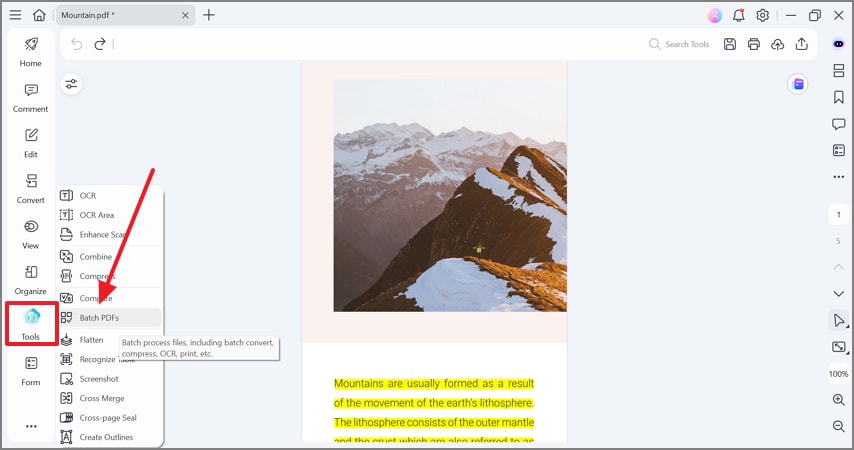
Step 1Select the Batch PDFs Feature from the Tools Tab
Using the "Tools" tab in the left sidebar, select the "Batch PDFs" option to access a window of all batch processes of PDFelement.
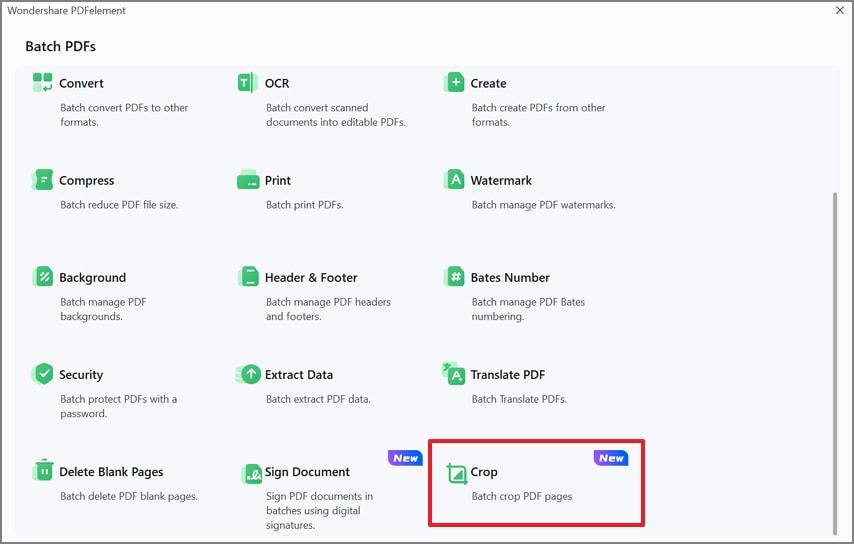
Step 2Select the Crop Option to Proceed
Using the following window, select the "Crop" option to unveil a batch-cropping window.
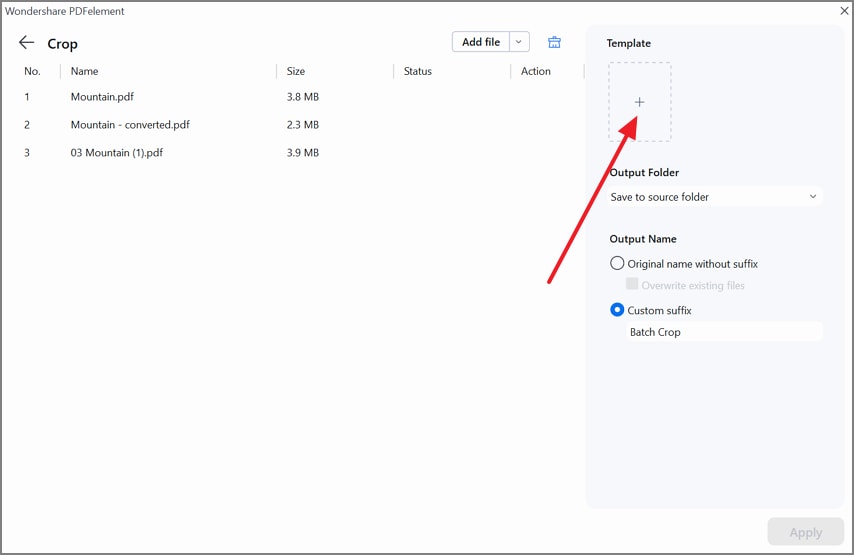
Step 3Import Files and Add a Template
Now, import the entire folder of PDFs that need to be cropped. Once the files are imported, click the "+" button to add a cropping template.
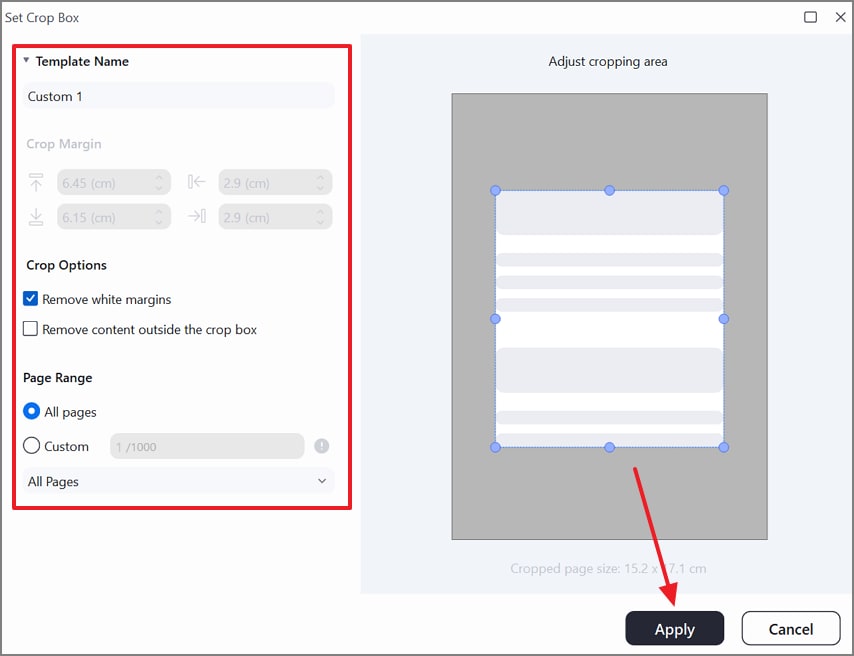
Step 4Create a Custom Cropping Template
Keep in mind the dimensions of the page that you want to apply to all pages of the imported folder. Enter the "Template Name," "Crop Options," and "Page Range" as needed. Once done, select the "Apply" button to create the template.
Step 5Apply the Crop Settings to the Batch Files
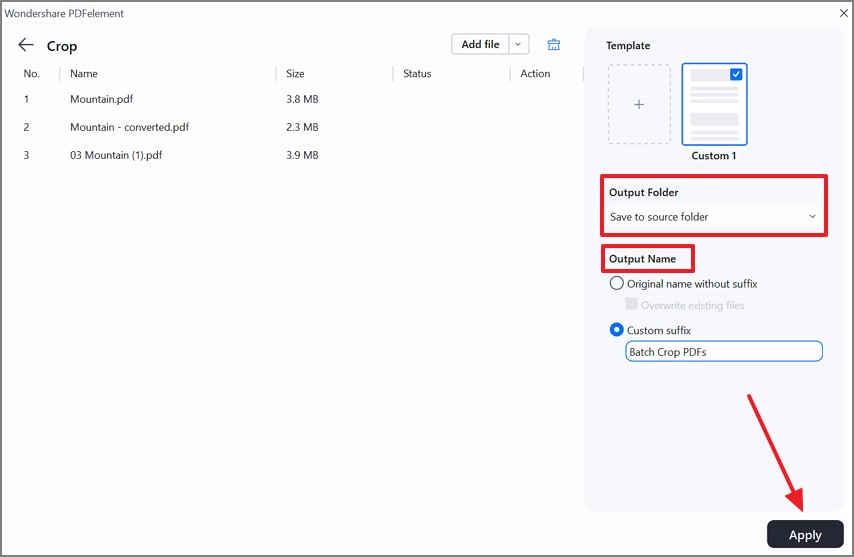
As the template is created, select the "Output Folder" and an "Output Name" and "Apply" the changes.
Why This Helps: One template provides a repeatable, mistake-proof method to crop multiple PDF pages across large projects.
Part 6. Method D — Online Option: Fast for Non-Sensitive Docs
If you are looking for fast and one-time trimming, using an online facility is a viable option. iLovePDF is an online PDF management tool that offers many features, other than cropping multiple PDF pages. You can select a page range and manually adjust the edges of the pages to get a new size.
Once you are done trimming the PDF pages, the results can be downloaded directly on the device or shared with cloud storage sites. Follow the guide below to learn how to crop PDF pages using iLovePDF:
Step 1
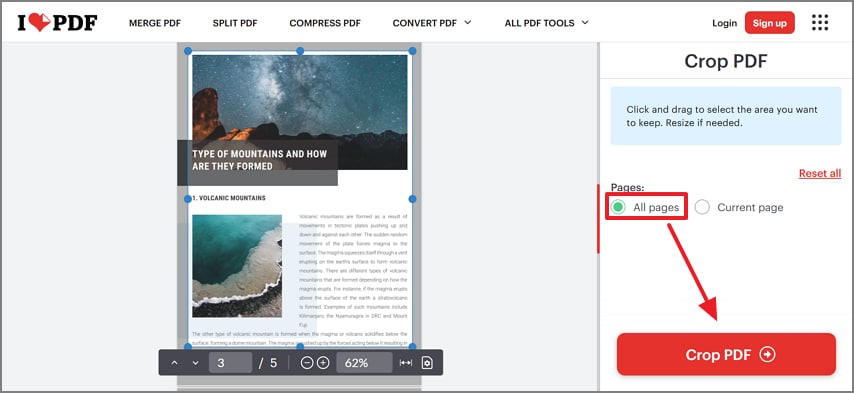
After uploading the PDF document, set the page range to "All Pages" and resize the page manually using the edges. Once done, press the "Crop PDF" button to generate the final copy.
Step 2
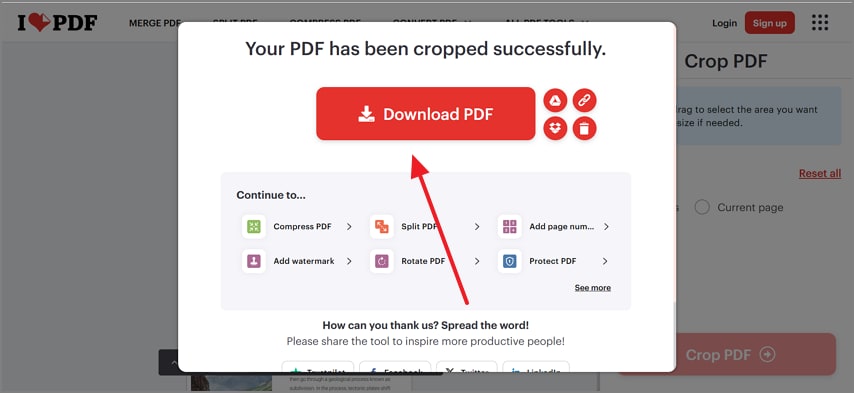
As the PDF file is ready, click the "Download PDF" button to save the file on your device.
G2 Rating: 4.5/5 |100% Secure
Part 7. Output Hygiene: Naming, Folders, Logging
Clear output hygiene ensures your cropped PDFs stay organized, traceable, and easy to manage in large projects. The table below outlines simple best practices that help maintain consistency across folders, versions, and workflow logs for cropping PDF multiple pages:
| Category | Best Practices |
| Folder Organization | Use a clear folder pattern such as /Project/Edition/YYMM/Cropped/ to keep all cropped outputs neatly grouped. |
| File Versioning | Name files consistently using versions, for example, name_v01_cropped.pdf or name_v02_trim.pdf to track updates easily. |
| Change Logging | Maintain a short log noting crop insets, applied page boxes, page ranges used, and the template name for future reference. |
People Also Ask
-
How do I crop all pages in a PDF without repeating the steps?
You can crop all pages at once by applying a single crop setting to the entire document. Tools like PDFelement let you define the crop box once and apply it instantly to every page. You can also set the page range to all pages for a consistent outlook. -
Can I crop multiple PDF pages at once across many files?
Batch-cropping is possible using software that supports batch processing. PDFelement allows you to create a crop template and reuse it across multiple PDFs for consistent results using its batch crop feature. -
What's the difference between CropBox and TrimBox?
The CropBox defines what you see on the screen after cropping, but the hidden content still exists inside the PDF. Whereas the TrimBox defines the final printed size, showing where the physical page should be cut in professional printing. -
Is there a quick way to crop all pages to PDF online for free?
Many online tools allow you to quickly crop all pages without installing software. Free online cropping works best for non-sensitive files, while PDFelement offers safer offline cropping for private documents. -
How do I keep every page exactly A4/Letter after cropping?
You need to crop using a fixed-size box so all pages output at the same final dimensions. PDFelement lets you set precise measurements or choose preset page sizes like A4 or Letter for uniform results.
Conclusion
For consistent, professional results in a crop all pages in PDF workflow, use PDFelement's Organize Pages tool. From there, choose the Crop option for trimming single files individually. Choosing Page Boxes will allow for extensive print specs for a print-ready PDF. When dealing with multiple PDF files, use the Tools sidebar and select the Batch PDFs option.
You can, then, crop with a reusable template to process many files at scale. Users can complete the process by naming the output folder and output name. If you want a one-time cropping tool, use online PDF management websites. iLovePDF is among the leading sites that let you trim a page manually. However, PDFelement's templates and batch runs deliver the fastest, most reliable outcomes for teams and repeat work.




