You've just received a PDF report with images that need to be resized for a presentation. Frustrated by bulky pages and unwanted borders, you need a quick solution. Cropping images directly from a PDF can save you time and help maintain a clean, professional look.
Whether it's for business documents, school assignments, or personal projects, knowing how to crop an image from a PDF is essential. In this guide, we'll explore easy methods to precisely trim and extract images from any PDF file. By following these steps, you'll make your PDFs more polished and visually appealing.
In this article
- Choosing the Right Approach to Crop an Image from a PDF
- Common Confusions About How to Crop an Image PDF
- Decision Flow for Cropping Images from PDFs
- Workflow A: Page-Area Cropping to Isolate a Picture
- Workflow B: Object-Level Export When the Image Is Selectable
- Workflow C: Batch Cropping with a Reusable Template
- Workflow D: Online Shortcut for Quick, Non-Sensitive Files
- Quality & Format Playbook to Avoid Rework
- Extract vs. Crop vs. Convert: Quick Distinctions You Should Know
Part 1. Choosing the Right Approach to Crop an Image from a PDF
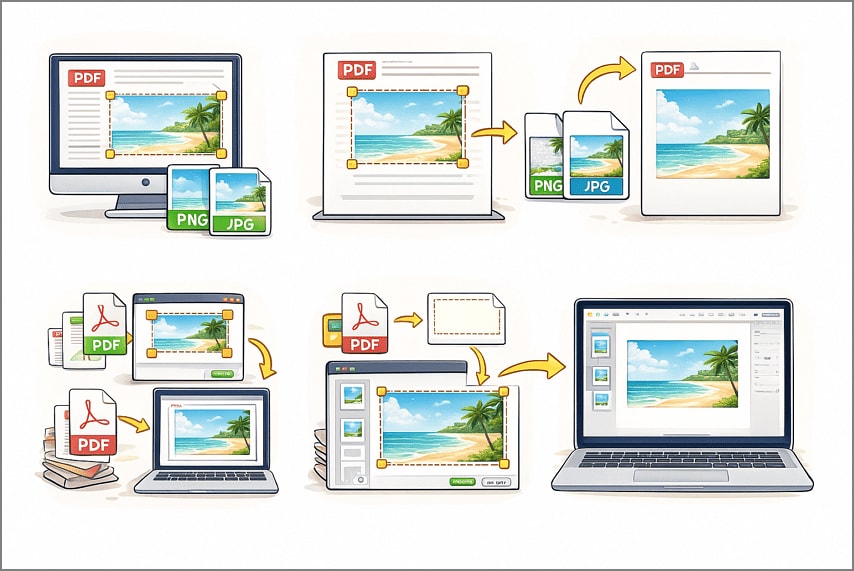
Before you start, it's crucial to know what you want as the end result. Different goals require different methods and tools when you need to crop an image in a PDF. Identifying your desired outcome first helps save time and ensures your cropped image meets your needs. Here's a quick guide to help you decide:
- Reusable Image File (PNG/JPG): Crop the PDF image by area, then export as a standalone file.
- PDF Showing Only That Picture: Crop the page canvas around the image to create a PDF with just that content.
- Fast Web Tool (Non-Sensitive): Use online tools like Crop Image in PDF or PDF Image Crop Online for quick edits.
- Place into Apple Pages: First, extract an image asset, then crop it directly in Pages for layout adjustments.
- Batch Repeat Across Many Files: Use a template-based cropping method for processing multiple PDFs efficiently.
Part 2. Common Confusions About How to Crop an Image PDF
Many users get confused when trying to perform a PDF crop image, especially about whether they are trimming the page, extracting an image, or using the right tool. Let's clear up these common misunderstandings so you can confidently choose the method that fits your goal:
Understanding "Crop" vs. "Cut/Extract" in PDF Images
When working with a PDF document, most people confuse cropping with cutting/extracting. While both actions involve modifying or isolating parts of an image, each serves a different purpose. The table below discusses the common factors that make both processes different from each other:
| Crop | Cut/Extract | |
| What It Does | Changes the visible area of the image within the PDF | Saves the selected portion as a separate image file |
| End Result | The image stays in the PDF, but only the selected portion is visible | You get a standalone PNG/JPG that can be reused outside the PDF |
| Use Case | Adjusting layout, focusing on part of an image without exporting | Reusing images in presentations, documents, or web |
Embedded Objects vs. Scanned Pages
Not all PDF images are created equal. Some are embedded objects, while others come from scanned pages, and each type behaves differently when you try to crop a PDF image. The table below highlights the key distinctions and best approaches for each type:
| Embedded Object | Scanned Pages | |
| What It Means | The image or graphic is part of the PDF as a digital object | The image is part of a scanned page, essentially a flat image |
| Implications for Cropping | Can be cropped precisely without losing quality; easy to extract | Cropping affects the entire page area; quality may degrade if resized |
| Quality Considerations | Maintains original resolution | Resolution may drop if enlarged |
Transparency
Transparency can be a common stumbling block when working with crop image PDF tasks. PDFs don't automatically remove the white background of a page, so simply cropping won't give you a transparent logo or image. To achieve transparency, export the cropped image as a PNG and then remove the white background using a graphics tool.
Part 3. Decision Flow for Cropping Images from PDFs
When it comes to cropping an image from a PDF, the right approach depends on several factors. A clear decision flow can save time and ensure the best results for your project. Consider the following steps:
Is the picture selectable?
- Yes: If the image is an embedded object, you can try exporting it directly. This method preserves the native quality of the image.
- No: If the image is part of a scanned page or flattened content, perform a page-area crop around the picture. This ensures you isolate the desired section even when direct export isn't possible.
Is privacy a concern?
- Yes: Avoid uploading your PDF to online tools. Instead, use local software like PDFelement to ensure sensitive content remains secure.
Need this on dozens of files?
- Yes: Prepare a reusable crop template and apply it in batch mode. This approach saves time and maintains consistency across multiple PDFs, especially in business or academic workflows.
Deliverable type:
- Image (PNG/JPG) for Web or Slides: After cropping, export the image as a standalone file for easy integration into presentations or online use.
- Minimal PDF With Only the Picture: Crop the page canvas around the image and save it as a PDF if the goal is to share or print a clean, focused document.
Part 4. Workflow A: Page-Area Cropping to Isolate a Picture (Local & Accurate)
When precision matters, a page-area crop is the most reliable way to isolate a picture from a PDF, particularly for scanned files and complex layouts. PDFelement makes this process straightforward by providing an intuitive Crop tool with precise zoom control and edge alignment. Using this approach, you can easily crop a PDF image by selecting the exact page area you need.
Steps for Performing Page Area Crop
As discussed, PDFelement lets you crop the page area without worrying about hidden layers or embedded objects. Follow the steps provided below to learn how to use this function:
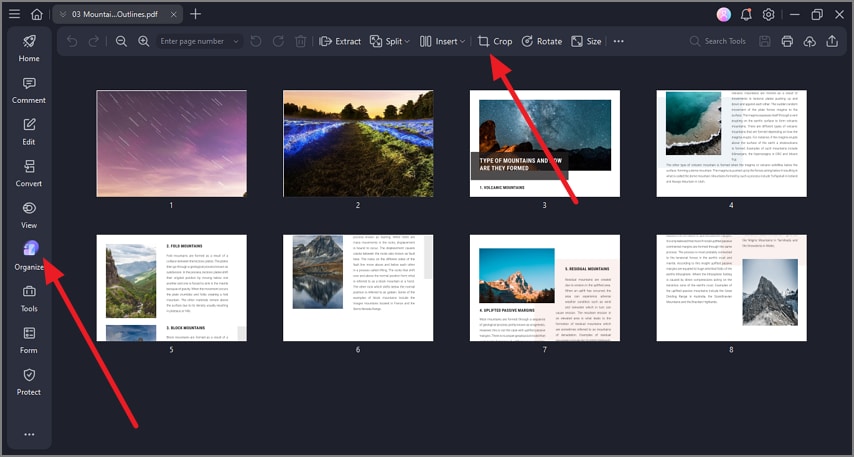
Step 1Import PDF and Choose Tool
To begin the process, launch PDFelement on your device and import the PDF with images. Now, head to the toolbar on the right and select the "Organize" option. Move to the toolbar at the top and choose "Crop."
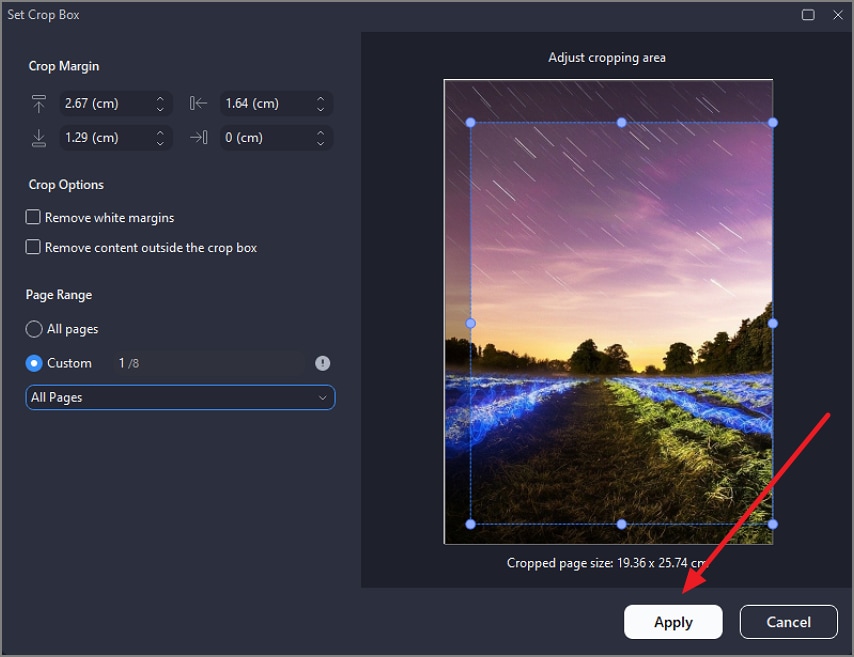
Step 2Adjust the Cropping Area and Apply
In the following interface, adjust the cropping area according to the picture and choose the current page from the left. Now, press the "Apply" button to perform the crop.
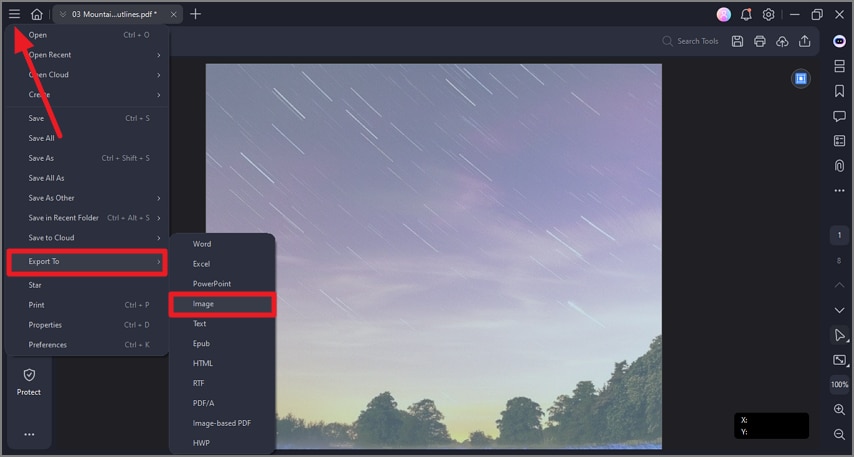
Step 3Export Image Separately
Once the image is cropped, head to the top-left corner and press the "Three Bars" icon. Next, choose the "Export To" option and click on "Image."
Step 4Select Format and Save Cropped Image
In the next small window, select the output format as "JPG" or "PNG" and save it to your device using the "OK" button.
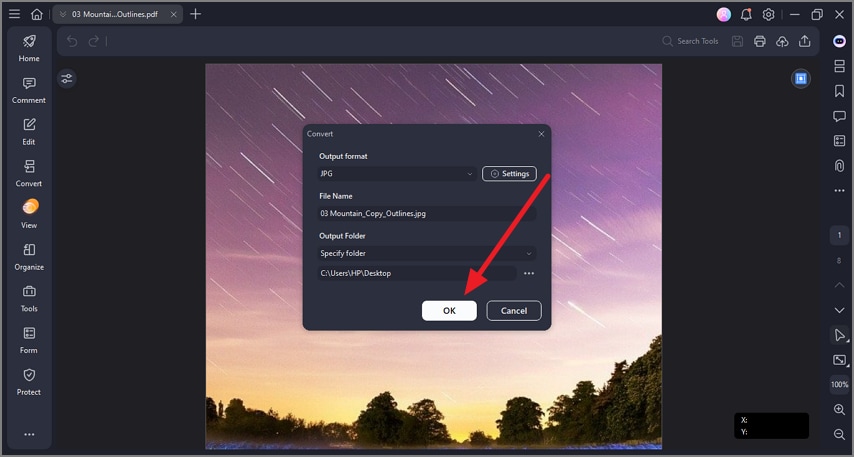
Why Choose It: It works reliably on scanned PDFs and complex layouts, eliminating guesswork around hidden layers while delivering precise results.
Part 5. Workflow B: Object-Level Export When the Image Is Selectable
If the image inside your PDF can be clicked and selected individually, object-level export should be your first attempt. This method is ideal when you want to crop a PDF image or cut a picture from a PDF without any quality loss.
Comprehensive Steps to Perform Object-Level Cropping
Having learned about this feature, let us now have a look at the step-by-step guide on how to use it:
Step 1Select Crop Tool
After importing the document to the tool's interface, click on the picture to enable a toolbar next to it. Choose the "Crop" icon and click on it to proceed.
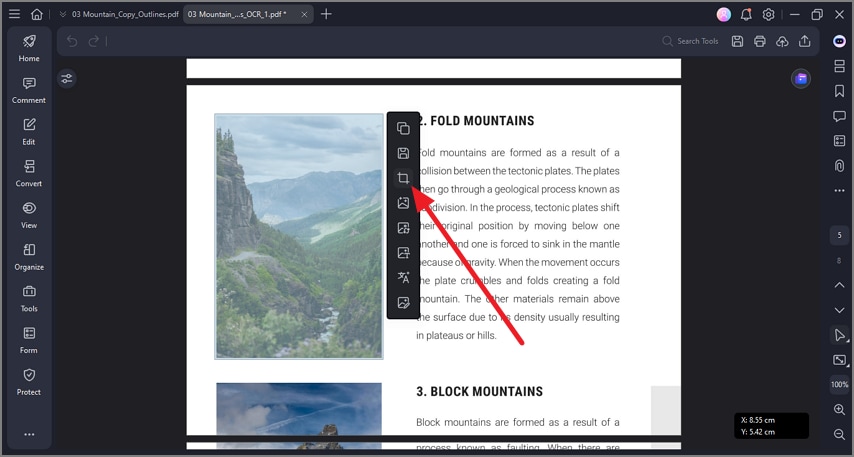
Step 2Crop the Photo
Moving forward, adjust the areas of the pictures according to your preferences. Once the picture is cropped, right-click on it and choose "Save As" to export the image as a separate object right to your device.
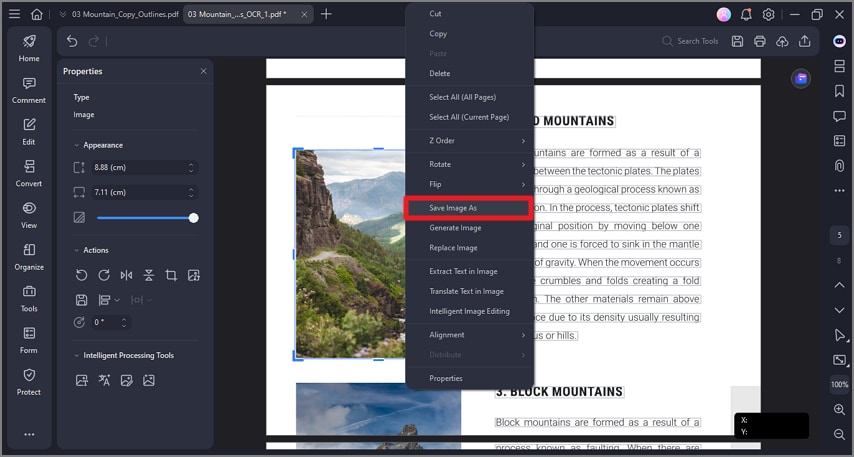
Note: Object-level export avoids re-rasterizing images, making it the best choice for logos, diagrams, and placed photos where clarity matters most.
Part 6. Workflow C: Batch Cropping with a Reusable Template for Consistent Results
When you need to cut a picture from a PDF repeatedly or perform a PDF image crop at scale, a batch workflow saves significant time and effort. This approach is designed for situations where the image appears in the same position across multiple files. By using PDFelement's batch crop feature with a reusable template, you define the crop zone once and apply it everywhere automatically.
Steps for Cropping Images in Batch
As discussed, PDFelement lets you crop images in batches. Let us have a look at the step-by-step guide on how to crop an image in a PDF in a batch with PDFelement:
Step 1Acquire Batch PDF
To initiate, launch PDFelement and access its "Tools" section to click on the "Batch PDFs" option. Next, press the "Crop" option located within the interface.
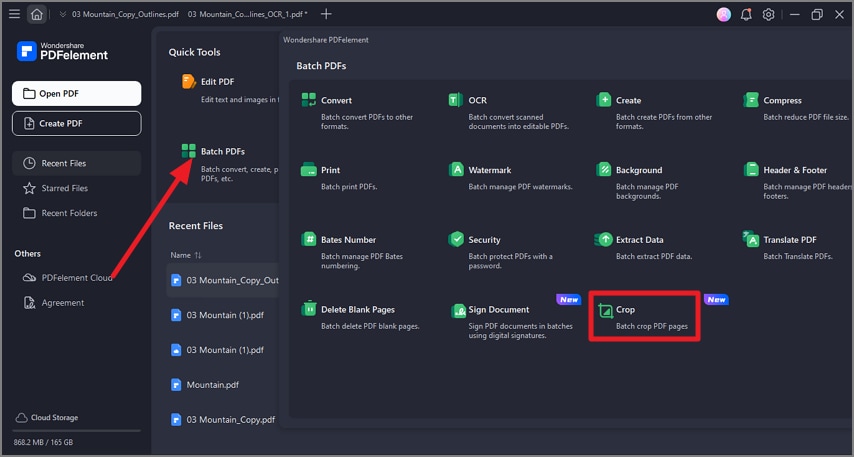
Step 2Import PDFs Add Template
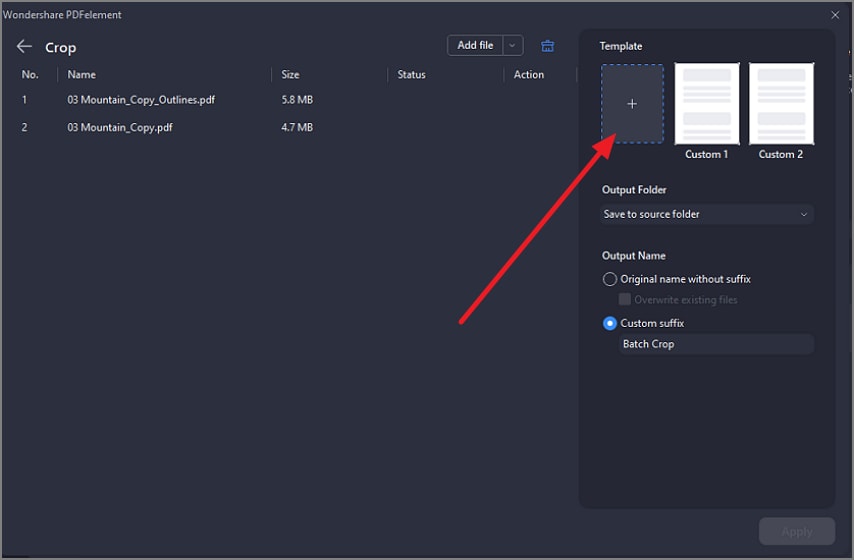
Next, import multiple PDF documents and press the "+" tab to add a template.
Step 3Apply Customized Template
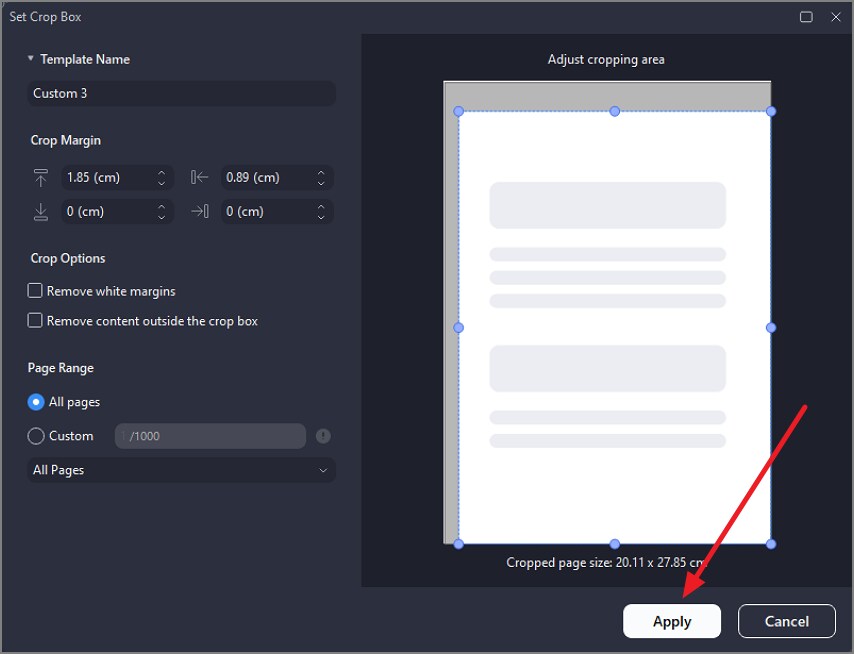
Now, adjust the cropping area according to your preferences and click the "Apply" button to add the template.
Step 4Configure Other Settings and Apply
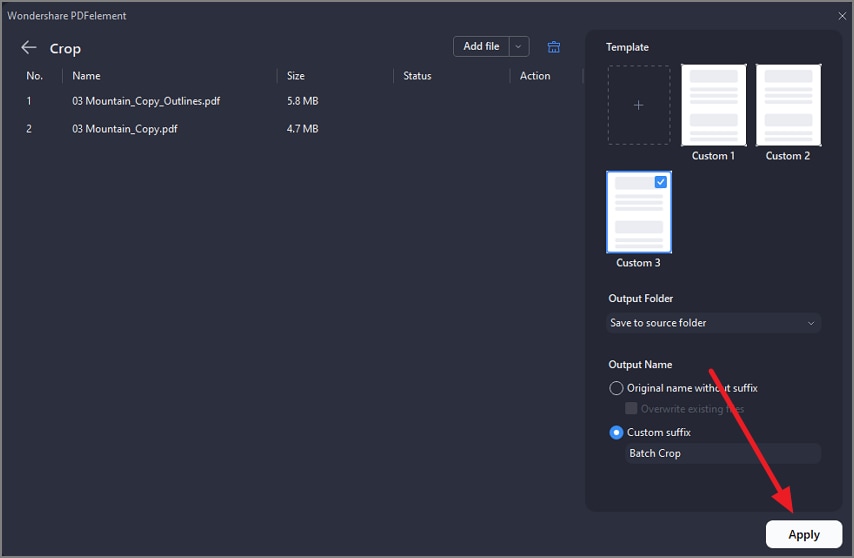
Configure other settings, such as output folder and name, and press the "Apply" button to apply the crop.
When to Use: This workflow is ideal for newsletters, reports, brochures, or catalogs where images appear in the same location on every page and consistency is critical.
Part 7. Workflow D: Online Shortcut for Quick, Non-Sensitive Files
If speed matters more than precision and privacy isn't a concern, an online tool can be a convenient way to crop an image from a PDF online. Smallpdf is one of the online tools that provides the utility of cropping images in your document in no time. To learn how to cut an area of a picture in your document using this online tool, read the steps provided next:
Step 1
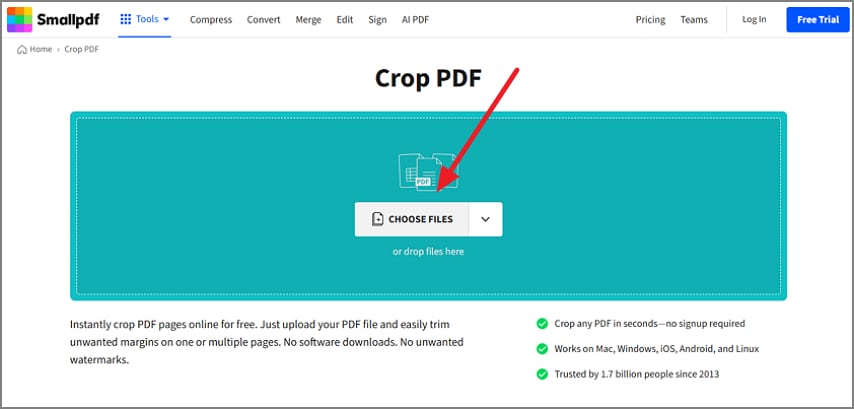
Begin by acquiring the tool on your browser and uploading your PDF file using the "Choose Files" option.
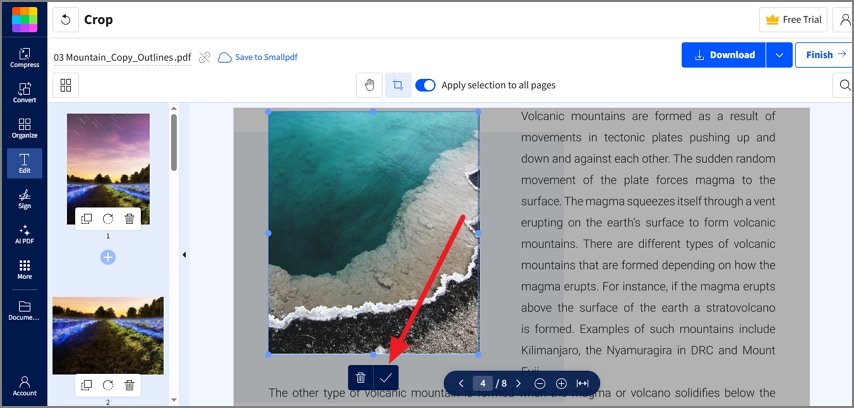
Step 2
Now select the area of the picture in the PDF that you want to keep and press the "Tick" icon.
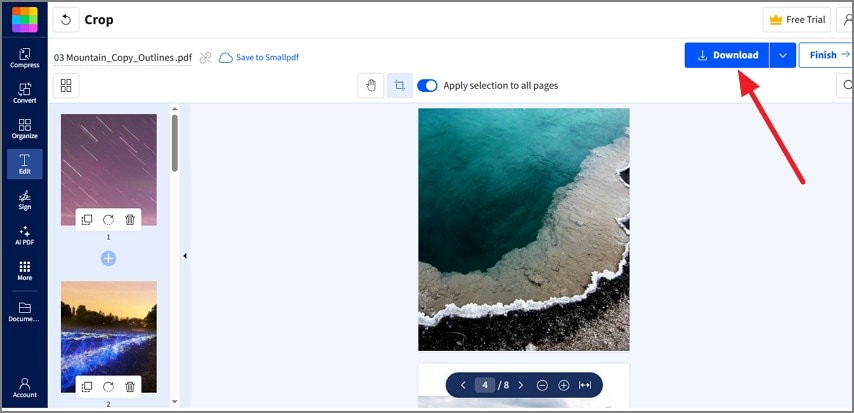
Step 3
Once the crop is applied, press "Download" to download the cropped image to your device.
Part 8. Quality & Format Playbook to Avoid Rework
Once you've finished cropping the PDF image, choosing the right output settings is just as important as the crop itself. Following a simple quality playbook helps prevent unnecessary edits later and ensures your cropped images are ready:
- PNG (Logos & Graphics): Ideal for logos, line art, and signatures where sharp edges and transparency matter.
- JPG (Photographs): Best suited for photos, offering smaller file sizes with good visual quality.
- Resolution Guidelines: Aim for a 300–600 DPI equivalent for print; scale down thoughtfully for web use to balance clarity and loading speed.
- Color Space Management: Keep the original color space unless your printer specifically requires a different profile.
- Consistent File Naming: Use a clear structure like {Project}{AssetName}{YYYYMM}_{v01}.png to stay organized and avoid confusion.
Part 9. Extract vs. Crop vs. Convert: Quick Distinctions You Should Know
Before choosing a method, it helps to understand how crop, extract, and convert differ when working with PDF images. The table below breaks it down clearly so you can pick the right approach for PDF image crop without trial and error:
| Crop | Extract | Convert | |
| What it Does | Trims the visible page canvas around the picture | Pulls the image out as a standalone file | Changes the file format after cropping or extraction |
| Best Results | A picture-only or tightly cropped PDF | PNG or JPG image asset | Cropped image converted to PDF or image-based PDF |
| Best For | Isolating a picture visually while keeping it inside a PDF | Reusing images in slides, web pages, or design tools | Creating one-page deliverables or standardized outputs |
Frequently Asked Questions
-
How do I crop an image in a PDF without quality loss?
Use object export when selectable to preserve original pixels perfectly without degradation. If unavailable, crop carefully using PDFelement and export in PNG format. -
Can I cut a picture from a PDF if it's part of a scan?
Yes, scanned PDFs require page-area cropping since images aren't selectable directly there. After cropping, export the page as an image using PDFelement locally and safely offline. -
What's the fastest way to crop an image from a PDF online for free?
Online tools like Smallpdf let you crop an image from a PDF quickly without installation hassles. Avoid sensitive files online; local tools like PDFelement are always safer and recommended. -
How do I get a transparent logo after cropping?
Cropping PDFs doesn't remove backgrounds; white paper remains visible by default. Export PNG, then remove the background using a graphics editor or PDFelement tools afterward. -
Can I automate PDF image crop across many PDFs?
Yes, batch cropping works using templates for consistent image placement across files. PDFelement batch crop applies identical zones across dozens of PDFs automatically.
Conclusion
To wrap it up, this article provided a complete guide on how to crop an image from a PDF using different methods. Pick the path matching your goal: page-area crop for accuracy, object export when selectable, batch templates for scale, and online tools for quick public files. However, for proper formats, resolution, and consent, cropping PDFs becomes effortless with PDFelement.


 G2 Rating: 4.5/5 |
 100% Secure