

Uneven margins and excess white space often make PDFs look unprofessional and difficult to read. Therefore, manual cropping wastes time, creates inconsistencies, and frustrates users handling long documents or many files. This guide introduces Auto Crop PDF as a more innovative approach for achieving clean, uniform pages efficiently.
Moreover, setting margins once allows consistent cropping across pages, sections, or entire PDF collections. As a result, documents stay uniform while the need for repeated page editing disappears completely. Ultimately, readers gain practical techniques that improve presentation quality and save time during everyday PDF tasks.
In this article
- What Does "Auto Crop PDF" Really Mean?
- When To Auto-Crop PDF: Choosing the Right Scenario
- Method A: "Auto" For One Document: Set It Once, Apply to All (PDFelement)
- Method B: Auto-like at Scale: Batch Crop PDFs with a Reusable Template (PDFelement)
- Method C: Production Accuracy: Set Page Boxes (Crop/Trim/Bleed/Art)
- Method D: Online "Auto Trim" for Quick, Non-Sensitive Jobs
- Layout Recipes (Copy & Adapt)
- Output Hygiene (Names, Folders, Repeatability)
Part 1. What Does "Auto Crop PDF" Really Mean?
Auto crop PDF does not mean adjusting every page manually. Instead, it refers to applying one intelligent cropping action that produces clean, consistent margins across an entire document. The goal is to "crop PDF automatically" without dragging a crop box on each page, saving time while improving layout quality. Below are the two practical ways auto crop PDF works:
- Template-Based Cropping: You set margins once and apply them to all pages, selected page ranges, or even multiple PDFs at the same time. This method ensures accurate, consistent results across all pages and documents.
- Online Auto-Trim Tools: These tools automatically detect white borders and crop them. They are fast and convenient, but best used for small, non-sensitive documents.
Part 2. When To Auto-Crop PDF: Choosing the Right Scenario
This section helps you choose the most effective auto-crop PDF method based on your document needs:
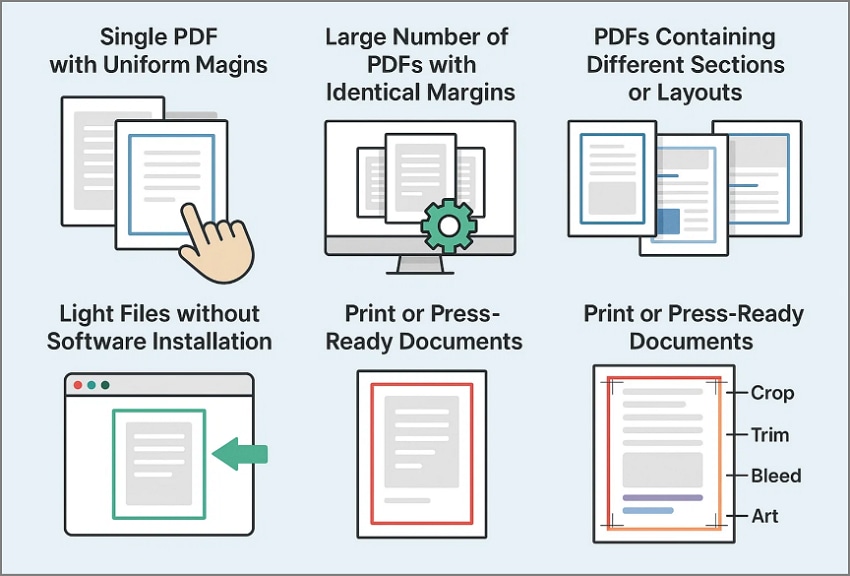
- Single PDF with Uniform Margins: Apply one crop to all pages so every page follows the same clean layout.
- Large Number of PDFs with Identical Margins: Use batch cropping to process many files at once with consistent results.
- PDFs Containing Different Sections or Layouts: Create separate templates and apply them to specific page ranges for accuracy.
- Light Files without Software Installation: Use an online PDF auto-crop tool that detects and removes white margins.
- Print or Press-Ready Documents: Define page boxes such as Crop, Trim, Bleed, and Art to meet production standards.


 G2 Rating: 4.5/5 |
 100% Secure
Part 3. Method A: "Auto" For One Document: Set It Once, Apply to All (PDFelement)
It is very frustrating to deal with uneven margins and to have to deal with repeated cropping unless you have the correct tool. Thus, PDFelement is a robust and trustworthy PDF editing tool that makes document management easier for everyone. In addition, it enables one to edit text, change file formats, arrange pages, annotate materials, and protect sensitive documents easily.
With the release of PDFelement 12, users can auto-crop PDF files using precise margin controls and time-saving automation tools. In addition, batch-ready features reduce repetitive work and maintain consistent layouts across documents. These smart capabilities make PDFelement ideal for offices, educators, designers, and anyone who needs fast, accurate, and professional PDF results daily.
Understanding The Steps To Apply One Crop Setting
Follow these steps below to apply one crop setting across an entire PDF without repeating the process page by page:
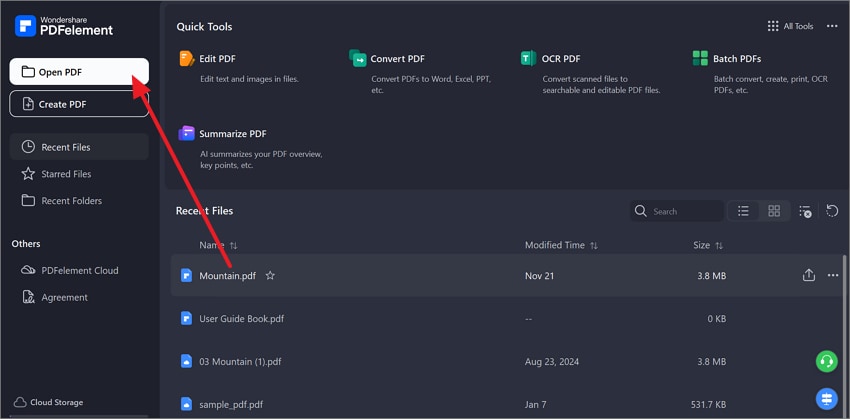
Step 1Open the PDF in PDFelement
First, launch PDFelement and click "Open PDF" from the left navigation panel. Then, select the document you want to edit and open it in the workspace.
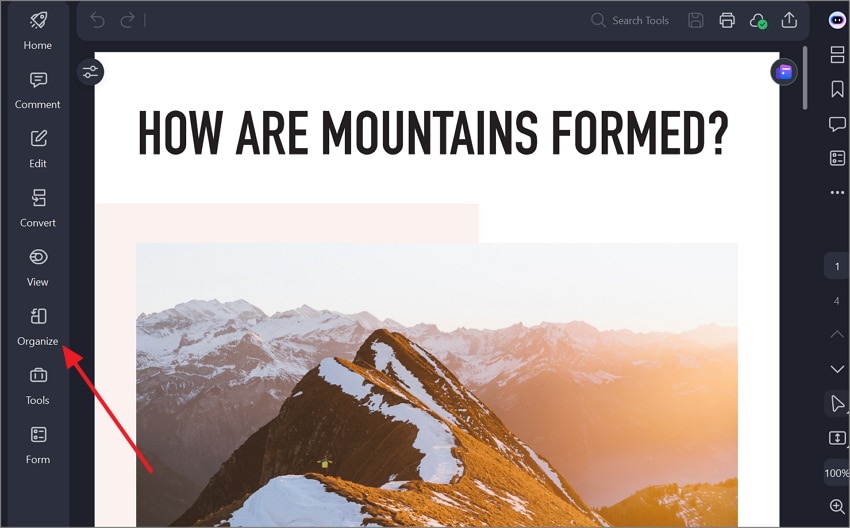
Step 2Access the Crop tool to Proceed
Next, click "Organize" from the left toolbar to reveal page management options. After that, select "Crop" to open the crop settings and margin controls.
G2 Rating: 4.5/5 |100% Secure
Step 3Set Margins and Apply to All Pages
Now, adjust the crop area using the on-screen handles or enter exact values in the "Crop Margin" fields. Then, under "Page Range," select "All pages" and press "Apply" to crop the entire document at once.
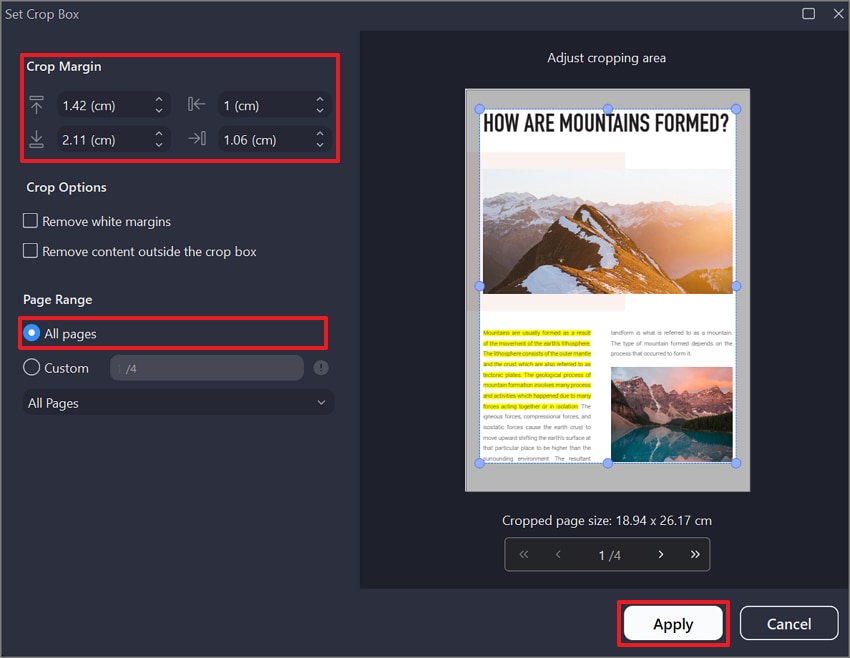
Tip: In case your document has parts with varying margins, use a second crop on a new set of pages, such as "1-50" and "51-120." This method automates the process by eliminating manual cropping of individual pages.
Part 4. Method B: Auto-like at Scale: Batch Crop PDFs with a Reusable Template (PDFelement)
This method is designed for situations where many PDFs share the same layout and margins. Instead of editing each file separately, batch processing allows you to crop PDFs automatically across multiple documents at once. It is the most efficient PDF auto-crop solution for large-scale file collections.
How to Crop Multiple PDFs With Reusable Templates: Guide
Now, follow the steps below to crop multiple PDFs at once using a reusable template:
Step 1Access the Batch PDFs tool
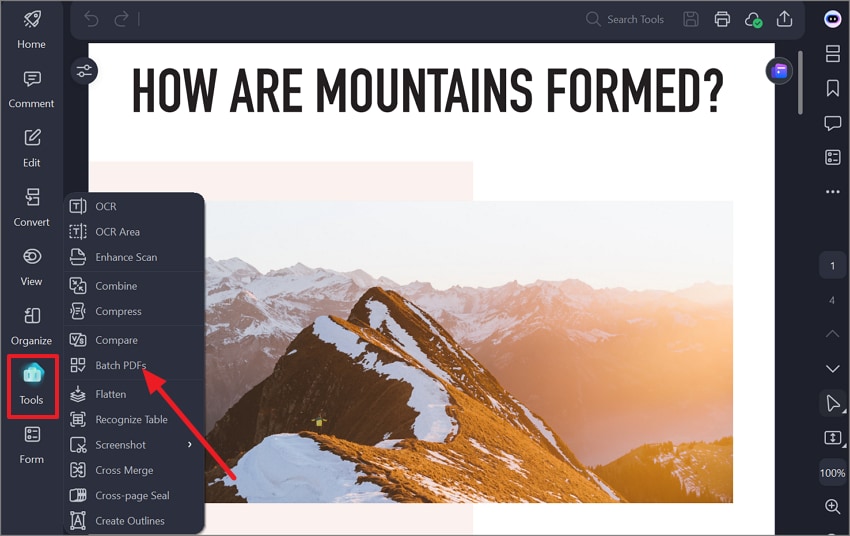
To start, open the PDF and navigate to the "Tools" option from the left panel. Then, choose the "Batch PDF" option from the list to proceed.
G2 Rating: 4.5/5 |100% Secure
Step 2Choose the Crop Option to Proceed
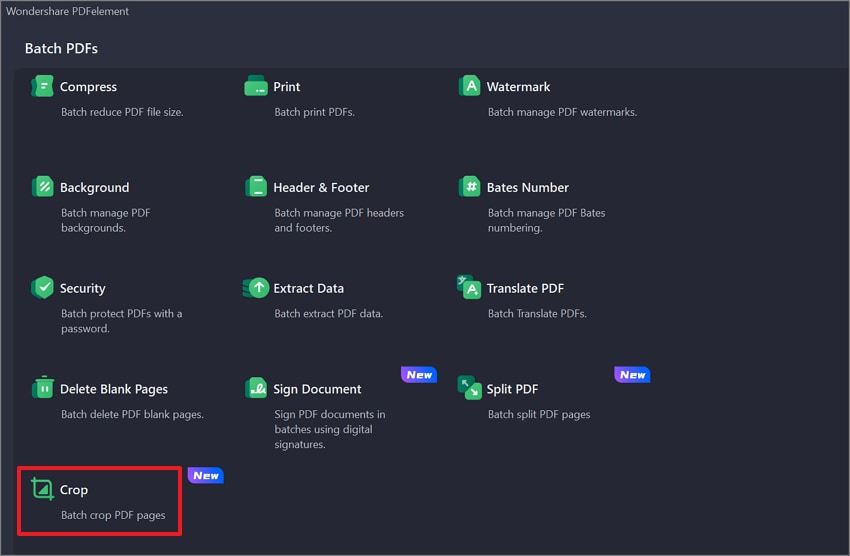
Afterwards, within the "Batch PDFs" window, select "Crop" from the available batch actions. This opens the dedicated batch crop interface for configuring templates and output settings.
Step 3Add Files and Set Output Options
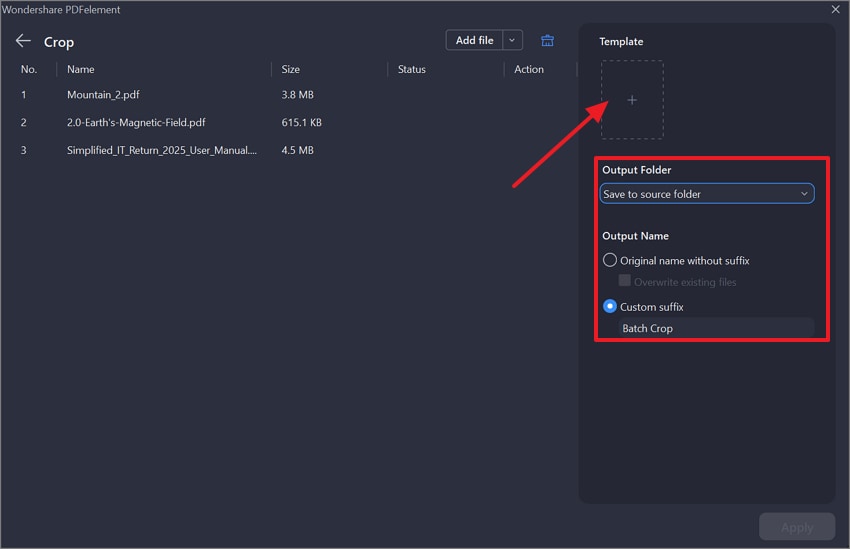
Now, click "Add file" to import the PDFs you want to crop. After the files appear in the list, move to the right panel to choose the "Output Folder" and set the "Output Name" option. Later, click the "Plus" icon under the template to set the Crop Box.
Step 4Adjust Crop Template and Apply the Batch Crop
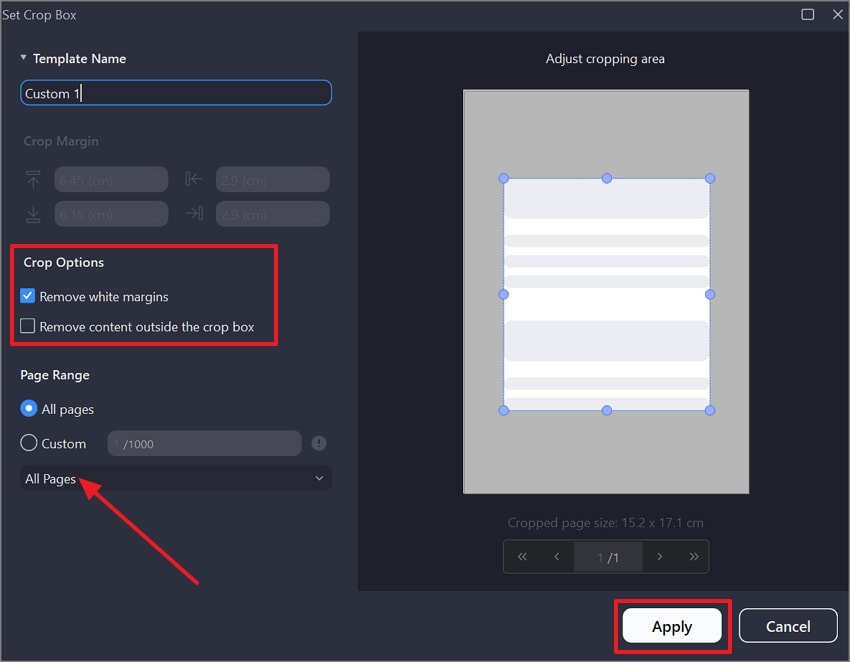
In the "Set Crop Box" screen, adjust the cropping area using the on-screen handles. If needed, enable "Remove" white margins under "Crop Options." Next, set "Page Range" to "All pages" so the crop applies consistently. Finally, click "Apply" to confirm the template and start processing.
Why Is It Ideal?
One reusable template delivers consistent margins without repetitive effort. This approach is ideal for course materials, proofing rounds, and scanned document cleanups where uniform results matter most.
G2 Rating: 4.5/5 |100% Secure
Part 5. Method C: Production Accuracy: Set Page Boxes (Crop/Trim/Bleed/Art)
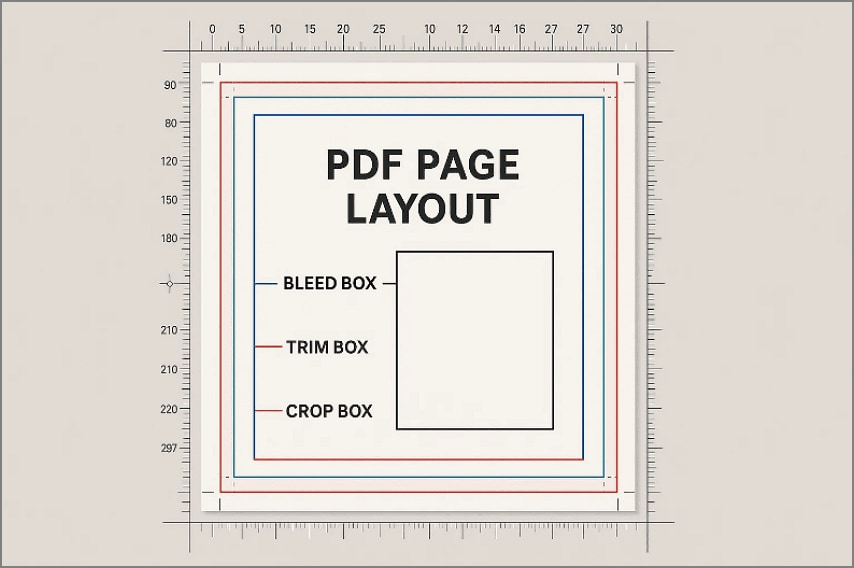
Production-ready PDFs demand more than visually trimming margins. This approach focuses on achieving spec-accurate auto crop behavior by explicitly defining all PDF page boxes instead of relying on eyeballed cropping. By setting exact box values, the final document behaves correctly in professional print and prepress systems.
When to Use It
In professional workflows, this is handled through "Organize" > "Page Boxes." Here, page boxes can be adjusted numerically or with margin controls. Print and design teams rely on this method when preparing final PDFs that must meet strict printer specifications or combine files from different sources.
What Each Page Box Controls
- CropBox: Defines the visible display area and often matches the trim size in print workflows.
- TrimBox: Represents the final page size after trimming and guides press positioning.
- BleedBox: Extends beyond the trim to carry artwork past cut lines for clean edges.
- ArtBox: Marks the safe boundary where important content and artwork should always remain.
Applying Boxes to Sections
Page boxes can be applied to all pages or specific page ranges. This is essential for documents with covers, inserts, or sections requiring different trims or bleed values. Range-based control keeps everything accurate without splitting the PDF.
Combining With Fixed Page Sizes
When a job requires exact A4 or Letter dimensions, the page size is normalized first. Afterward, page boxes define precise crop, bleed, and art areas. This ensures consistent automatic cropping across viewers, printers, and production systems.
G2 Rating: 4.5/5 |100% Secure
Part 6. Method D: Online "Auto Trim" for Quick, Non-Sensitive Jobs
This method focuses on speed and convenience rather than deep control. Online tools automatically detect white margins and auto-crop PDF pages without manual setup. It works best for low-risk files where speed is more important than production accuracy.
When This Method Fits
Online auto-trim is ideal for non-sensitive documents such as drafts, research articles, or reference PDFs. These tools match common searches such as "pdf auto crop" or "crop PDF automatically" by using margin detection rather than precise box settings.
Basic Online Auto-Trim Flow
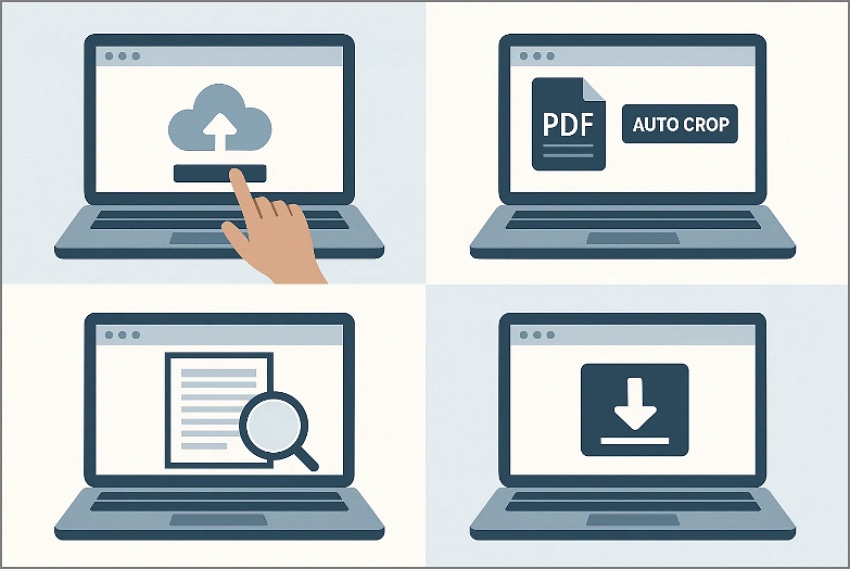
- First, upload the PDF file to a trusted online trimming service.
- Next, select an option such as "auto crop" or "trim white margins."
- Then, preview each page to confirm clean edges and intact content.
- Finally, export and download the PDF file from the trusted online trimming service.
Privacy, Limits, and Best Practices
Online auto-trim tools may store uploaded files temporarily and impose file size limits. These restrictions can affect large reports, scanned books, or high-resolution PDFs. For confidential or sensitive files, local editors provide stronger privacy and better control.
Fixing Minor Auto-Trim Errors
When online auto-trim results are not perfectly accurate, the following small corrections can be applied easily:
- Start by downloading the trimmed PDF and opening it in PDFelement.
- Afterwards, apply a quick corrective crop only where margins appear uneven.
- Finally, select the affected page range rather than re-cropping the entire document.
G2 Rating: 4.5/5 |100% Secure
Part 7. Layout Recipes (Copy & Adapt)
These layout recipes provide practical workflows you can reuse to PDF auto crop files efficiently. Each of the following approaches applies consistent methods that improve layout accuracy and reduce repetitive manual editing:
Scanned Reports with Gray Borders
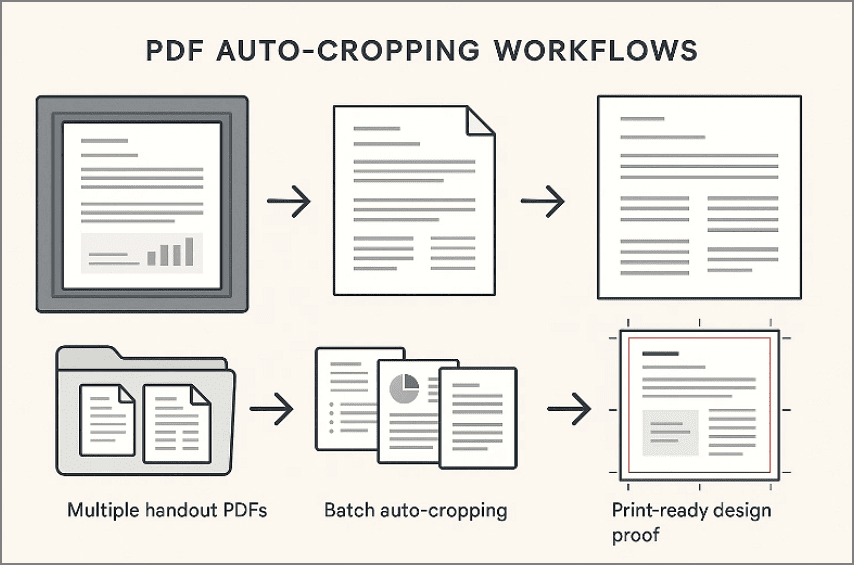
- Single-Document Cropping removes scanner borders by trimming approximately ten to fifteen pixels from each edge.
- Page Size Normalization then resizes every page to A4, ensuring consistent alignment and predictable printing results.
- Result: The result is clean reports that print neatly without uneven gray margins around content
Mixed Handouts from Different Classes
- Batch Cropping with Reusable Templates applies one defined margin template across all PDFs inside a folder.
- Consistent Layout Control ensures every handout shares identical visible areas and page dimensions.
- Result: A unified packet with all pages aligned professionally and visually consistent.
Design Proofs Headed to Press
- Page Boxes Configuration defines Crop, Trim, Bleed, and Art boundaries in accordance with printer specifications.
- Press-Ready Export preserves correct page box settings so printing systems interpret layouts accurately.
- Result: The result is production-accurate proofs that printers can process without trim or bleed errors.
Part 8. Output Hygiene (Names, Folders, Repeatability)
Keeping your output organized makes any crop PDF automatically workflow easier to repeat and share. A clear structure ensures others can understand which files are ready for review or final production.
Folder Structure
Use a predictable folder pattern to separate raw files from processed outputs. A structure like "/Project/Edition/YYMM/Cropped/" keeps each production cycle clearly versioned. This approach helps teams locate the latest cropped or press-ready PDFs quickly.
File Naming Conventions
Adopt simple, descriptive suffixes that explain exactly what was done to each file.
- Use "{filename}_cropped.pdf" for basic margin or white-border removal.
- Use "{filename}_trim.pdf" for files prepared with press-specific trim and bleed settings.
These names make batch outputs easy to recognize and safe to share.
Reusable Crop and Page Box Templates
Maintain a small template library named by specification, not by guesswork. Examples like A4_10mm_margins or Press_3mm_bleed enable one-click reuse later. Clear template names turn repetitive cropping into fast, consistent automation.
People Also Ask
-
Can I truly auto-crop a PDF without touching each page?
Yes, you can set one crop and apply it to all pages automatically without repetition. Batch cropping templates also process multiple PDFs together, eliminating manual page-by-page work completely. -
What's the difference between cropping and setting Page Boxes?
Cropping changes only the visible page area for viewing and basic printing purposes today. Page Boxes define trim, bleed, and safe boundaries required for accurate professional print production workflows. -
Is an online auto crop PDF tool safe for confidential files?
Online auto crop tools may temporarily store uploaded files, creating potential privacy risks for sensitive documents. Local PDF editors keep files offline, offering stronger security control for confidential documents and compliance.
Conclusion
To conclude, Auto-crop PDF workflows eliminate repetitive margin fixes and ensure consistency across all document types. By choosing the right method, users can clean pages faster, improve readability, and meet print standards confidently. From single documents to large batches, automation simplifies the entire process. For reliable results with precise control, PDFelement offers an efficient, user-friendly solution that supports everyday tasks and professional PDF production needs.




