

Imagine a student seated in a crowded lecture hall where ideas move fast and words fade before notes form. A single app opens that turns confusion into structure, as every concept finds a clear and lasting place on screen. This new wave of AI note-taking apps now helps capture lectures, summarize lessons, and arrange topics categorically.
This guide explores the options for the best note-taking app for students for Windows, web, and mobile users. In the end, you’ll be able to select one that fits your study and turn every lecture into organized knowledge for exams.
In this article
- Part 1. Quick Answer
- Part 2. The Student Note-Taking Landscape in 2026
- Part 3. Best Note-Taking Apps for Students (Shortlist & Verdicts)
- Part 4. Best Free Note-Taking Apps for Students (Editor’s Picks)
- Part 5. Best Note-Taking App for Students on Windows
- Part 6. Best Note-Taking Websites for Students (Free)
- Part 7. Buyer’s Guide (Choose by Course & Study Style)
- Part 8. Student Study Playbooks (Copy-Ready Mini-Guides)
- Part 9. Academic Integrity & Privacy (Important)
Part 1. Quick Answer
PDFelement Mobile remains the best note-taking app for students in 2026 with organized notes, cross-device access, and all-around document management features. Moreover, Notion is the best option when using AI features and customization in both a free and paid plan for complex projects. Evernote’s paid tier excels in lecture recording, multimedia, and advanced search.
Part 2. The Student Note-Taking Landscape in 2026
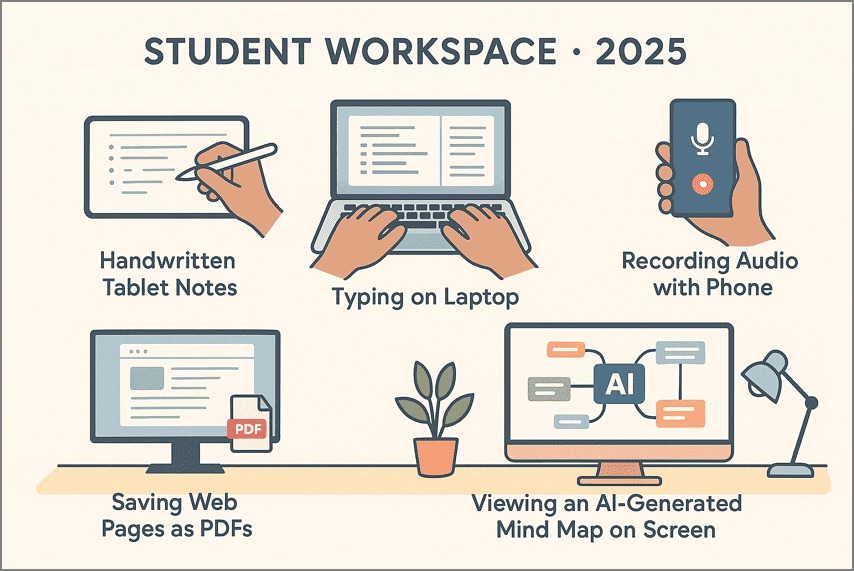
In 2026, learners combine classic study methods with note-taking AI for students to improve focus and academic performance. Let’s explore how modern students capture ideas through handwriting, typing, audio summaries, and AI tools while keeping learning authentic.
Capture Mode
- Handwriting/Tablet: Visual learners prefer stylus apps like GoodNotes or Notability to sketch diagrams, highlight formulas, and store clear visual notes.
- Typing/Outline: Fast typists use structured layouts on Notion or OneNote to build organized outlines and searchable lesson archives with minimal effort.
- Audio → AI Summary: Lecture-focused students use PDFelement Mobile to record sessions, transcribe speech accurately, and summarize complex explanations into concise study points.
- Web Clip → PDF: Research-heavy learners save webpages or online readings through HTML-to-PDF tools that preserve sources and allow easy highlighting for references.
- Mind Map Visualizers: Analytical students use AI tools to convert summaries into dynamic mind maps that reveal topic links and key subject relationships.
What AI Should Do and Shouldn’t Do?
Students should use AI to summarize lessons, highlight terms, create study questions, and translate text for multilingual learning while preserving personal comprehension. It must never compose essays, finish graded work or duplicate copyrighted material without the instructor's consent. If used ethically, AI improves real understanding and allows students to strengthen knowledge through fair and mindful study practices.
Part 3. Best Note-Taking Apps for Students (Shortlist & Verdicts)
Now, we’ll explore the smartest options for a note-taking app for students that define modern study habits. Each app below supports a different learning style and helps students capture lectures, organize notes, and refine understanding.
PDFelement Mobile - AI audio to Notes (Android | iOS)
Best For: Recording, transcribing, and organizing lecture, seminar, or interview notes on campus with limited Wi-Fi.
It is a hero pick AI note taker for on-device use where internet access is limited or privacy is essential. This app enables users to record conversations, transcribe spoken content into editable text, and generate AI-driven summaries right on their device. Annotated stickers, customizable page templates, and an infinite free canvas built-in features empower various workflows in taking notes and studying.
Under OCR, the scanned documents can be searched and edited to make additional annotations or to organize them. PDFelement Mobile lets you organize notes with tags and folders, making everything easy to find. You can also share notes instantly with others. All your important details stay secure and organized, so it works perfectly for learning, private meetings, or fieldwork.
Extras
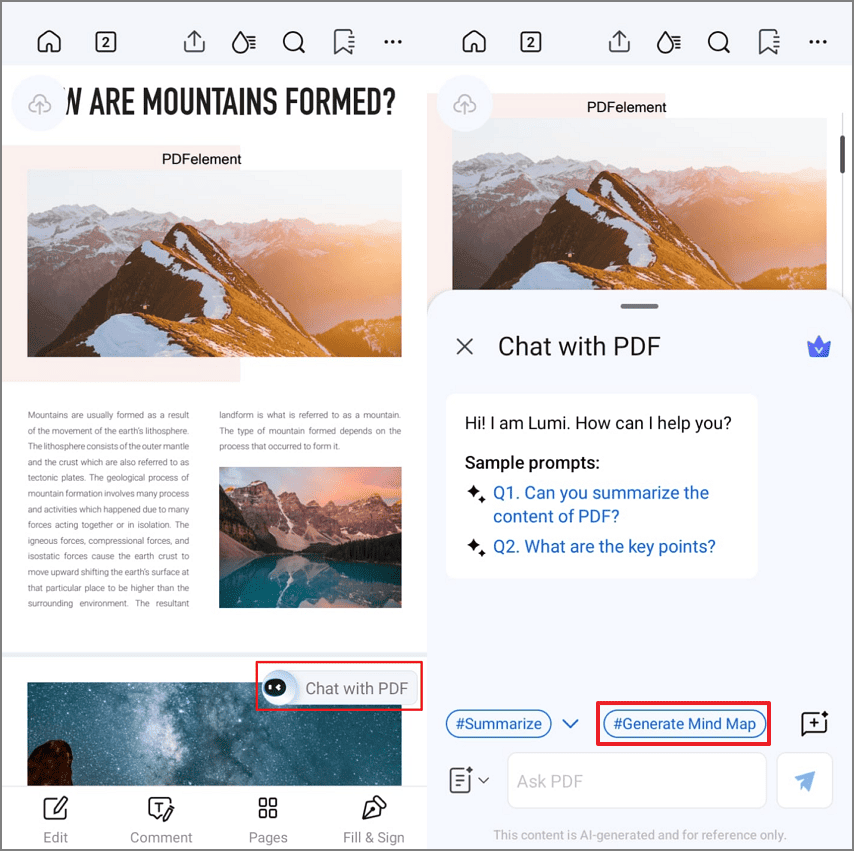
- AI-Generate Mind map: Converts meeting summaries and notes into visual mindmaps for fast reference and brainstorming.
- AI Translate: Translates entire meeting transcripts and summaries into any major language while preserving tone and formatting.
- Switch AI Models: Switches instantly between AI models like DeepSeek-V3, GPT-4o, or Gemini 1.5 Pro for tailored responses.
- HTML→PDF for Course Pages: Converts online course materials, lecture notes, or agendas into clean PDFs for easy sharing or offline study.


 G2 Rating: 4.5/5 |
 100% Secure
Flow: How PDFelement Mobile Takes AI Notes
Follow the steps below to see how the best AI note-taking app for students records and summarizes content.
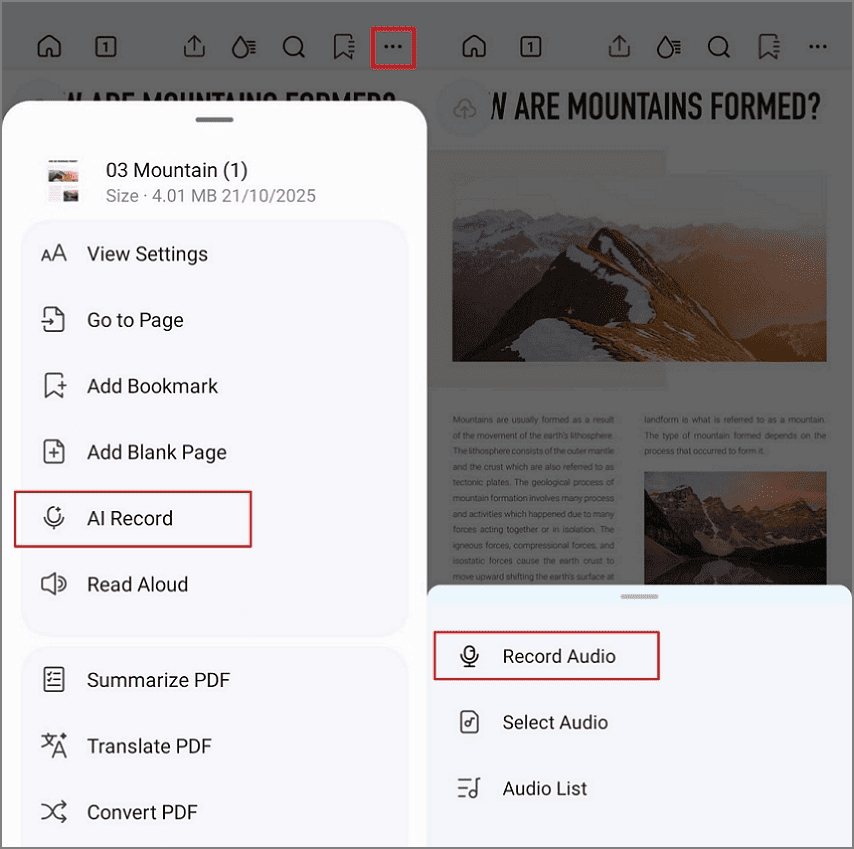
Step 1.Open The PDF File and Choose The AI Record
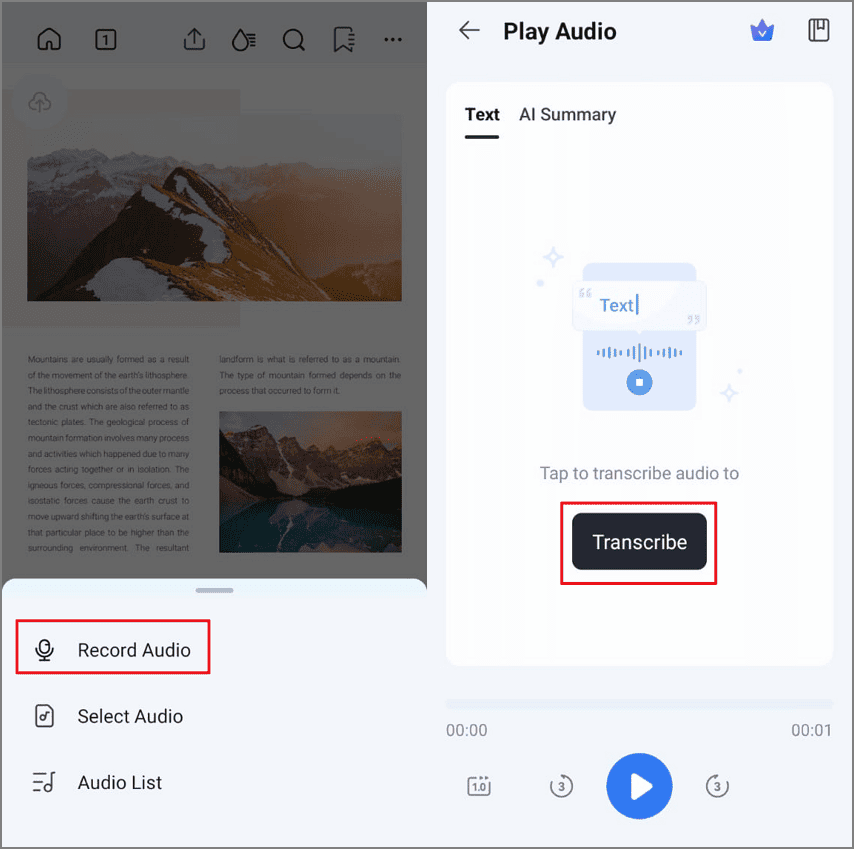
Open your PDF on the mobile app and tap on the “Three-Dots” at the top. Hit the “AI Record” option and the “Record Audio” button to record your voice.
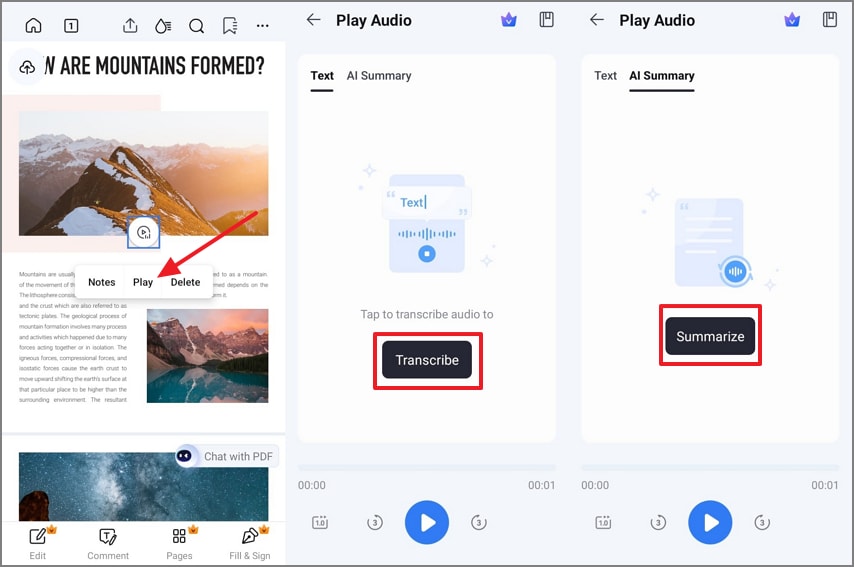
Step 2.Transcribe and Summarize with AI
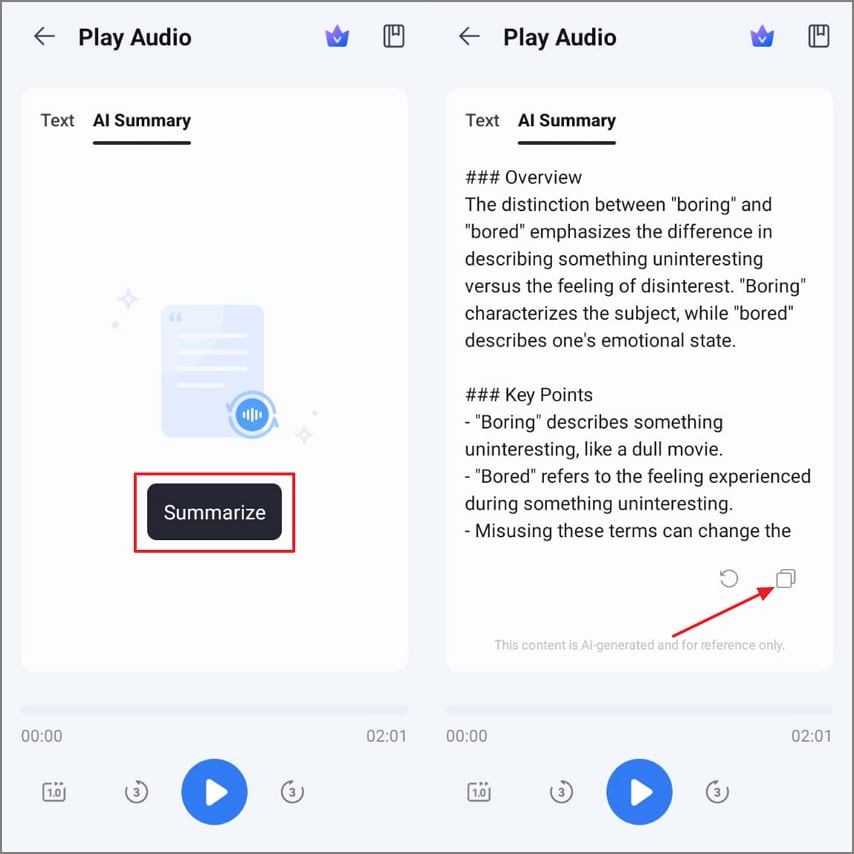
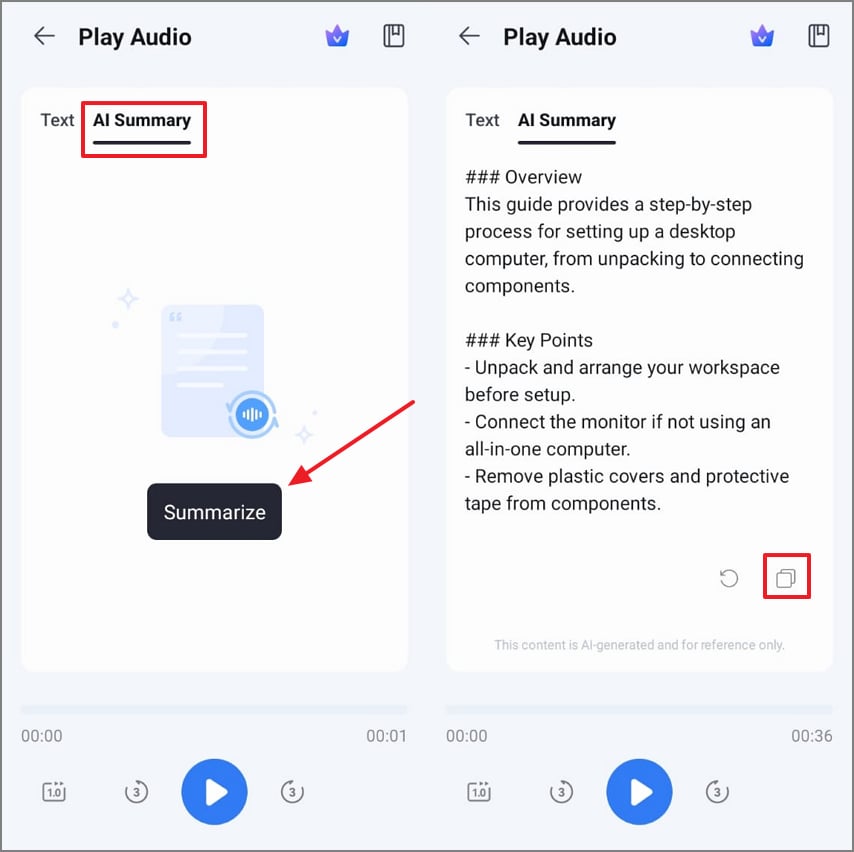
After you record the audio, tap on the “Play” button on the audio and tap on the “Transcribe” option to convert the voice to text. Now, hit the “Summarize” button to have AI summarize the recorded voice.
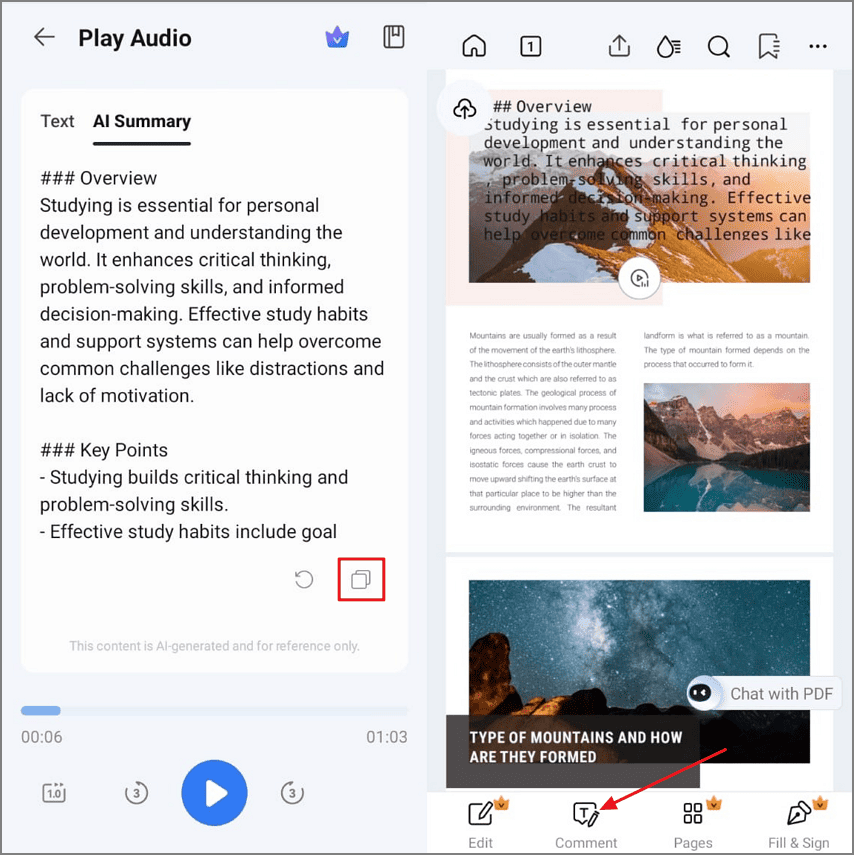
Step 3.Copy Summarized Content and Paste into PDF
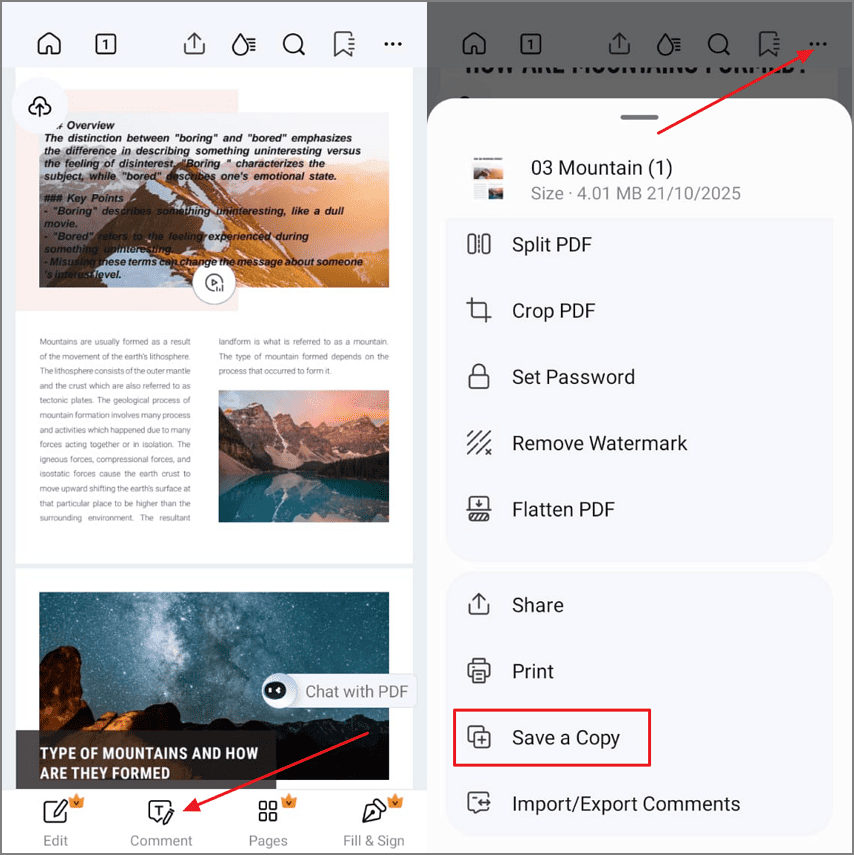
Then, hit the “Copy” icon under the summarized text to copy the content. Open the PDF file again and hit the “Comment” option to paste the summarized content.
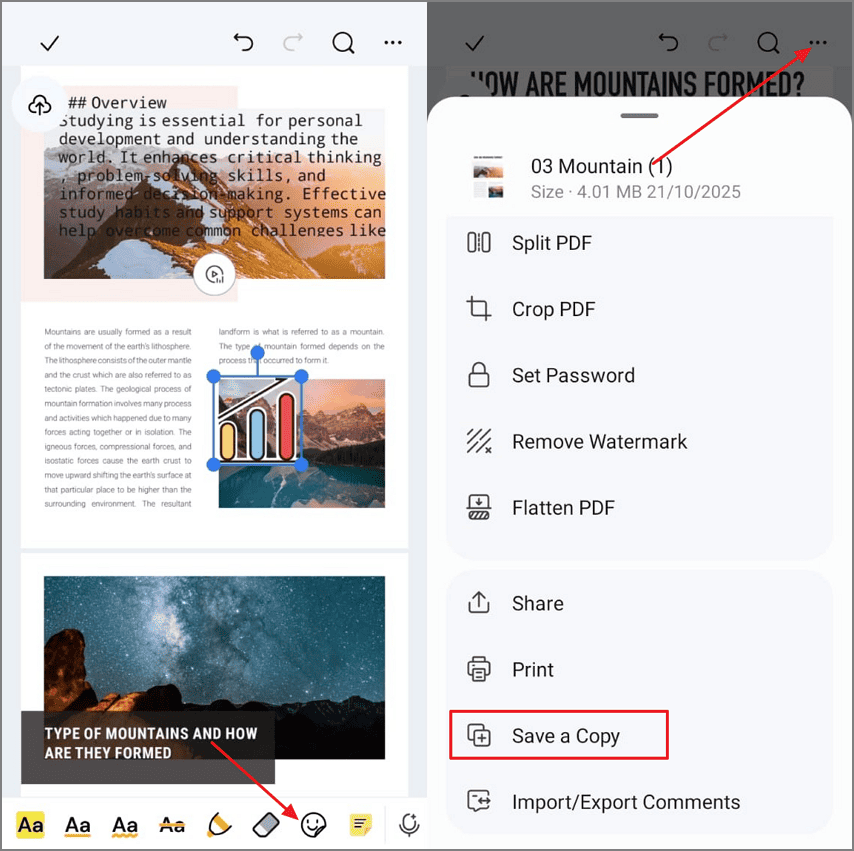
Step 4.Add Stickers and Save PDF File
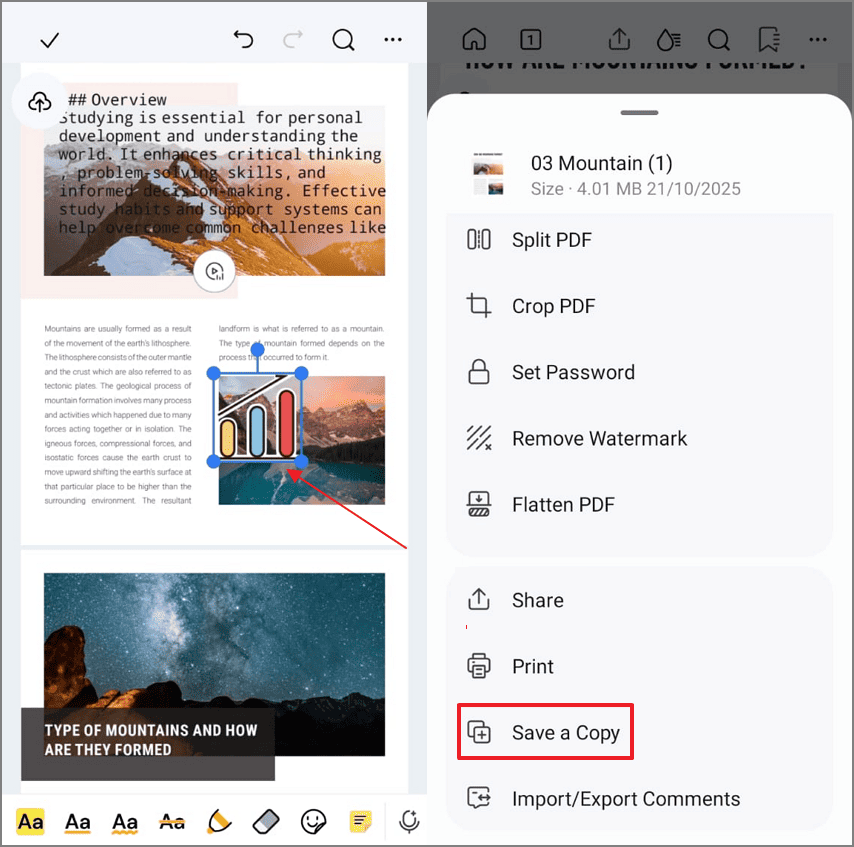
In the last step, add stickers to the PDF file by pressing the “Sticker” icon. Hit the “Three-dots” option and tap the “Save a Copy” option to save the PDF file.
Otter.ai - AI Audio to Notes (On-Device)
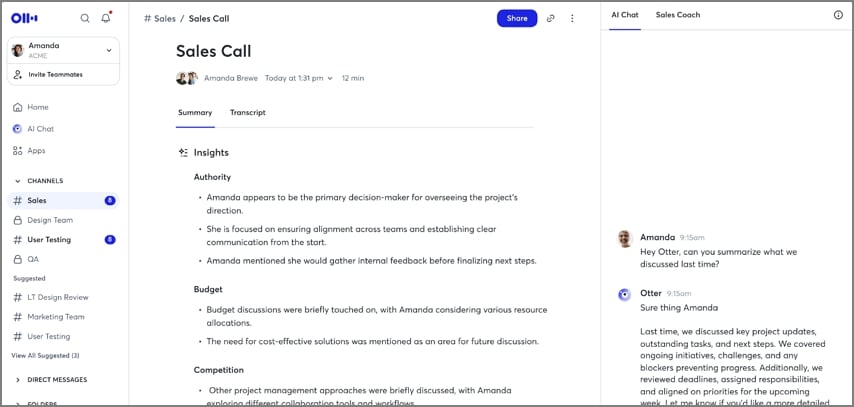
Best For: Those who aim for audio recording and live transcription in Spanish, English, or French.
Key Features
- Generate live transcripts, automated summaries, and action items for meetings automatically.
- Integrate transcriptions and notes with Zoom, Teams, and Google Meet for easy team collaboration.
- Extract and share key insights from conversations or uploaded files using AI tools.
Who Should Pick it
Lecture-heavy learners can rely on the best AI note-taking app for students to review transcripts for accurate study and exam preparation.
GoodNotes 6 - Handwriting Centric (iOS | Android)
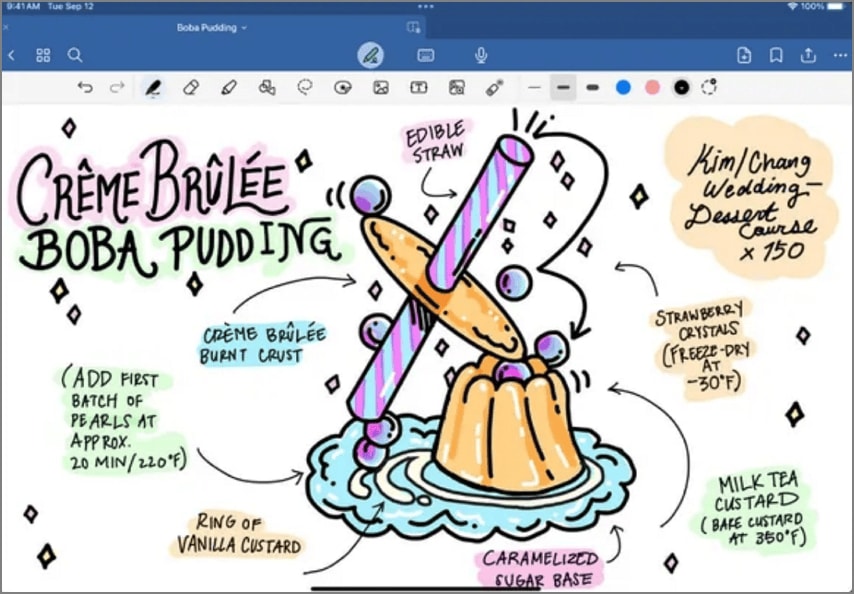
Best For: Handwritten note-takers who want advanced math, interactive whiteboards, and smart AI study features.
Key Features
- Convert handwritten notes to text with AI handwriting recognition for major languages.
- Ask GoodNotes questions related to your own written notes and documents.
- Math Assist solves equations in handwriting and suggests steps for trigonometry or calculus.
Who Should Pick it
Students who take visual or math-heavy notes by hand or on iPad and Mac can consider using it.
Notability - Handwriting Centric
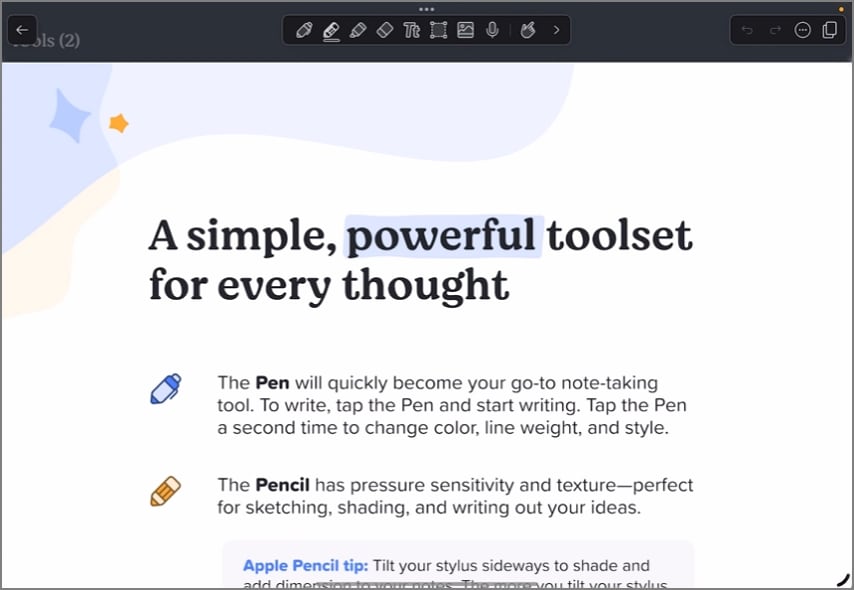
Best For: Students who want integrated handwritten, audio, and AI-powered study notes in one place.
Key Features
- Sync lecture audio recordings directly with handwritten notes for seamless full context review.
- AI-generated summaries, personalized quizzes, and flashcards boost studying.
- Import and annotate PDFs, slides, or textbooks and search within handwriting and scanned documents.
Who Should Pick it
This note-taking software for students suits anyone who values AI-assisted study tools within a multimedia workspace.
Notion - Knowledgebase
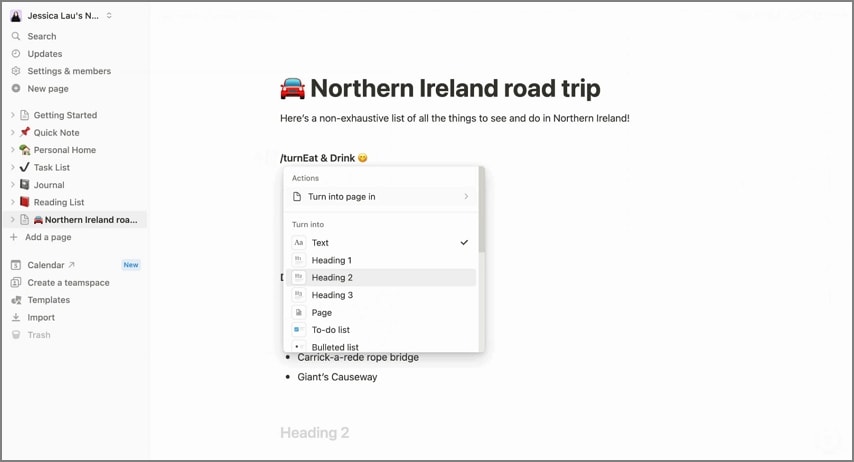
Best For: Best for those who want all-in-one workspaces that combine notes, tasks, and AI-powered workflows.
Key Features
- Automate repetitive tasks to summarize, assign, and organize meeting notes and project action points.
- Create flexible databases with tables, calendars, and kanban boards to manage study tasks.
- Collaborate in real-time by sharing documents, tagging team members, and adding comments.
Who Should Pick it
Notion fits students and groups needing one app for notes, tasks, and collaboration. It works best for those who want deep customization and flexible project setups.
Obsidian - Knowledgebase
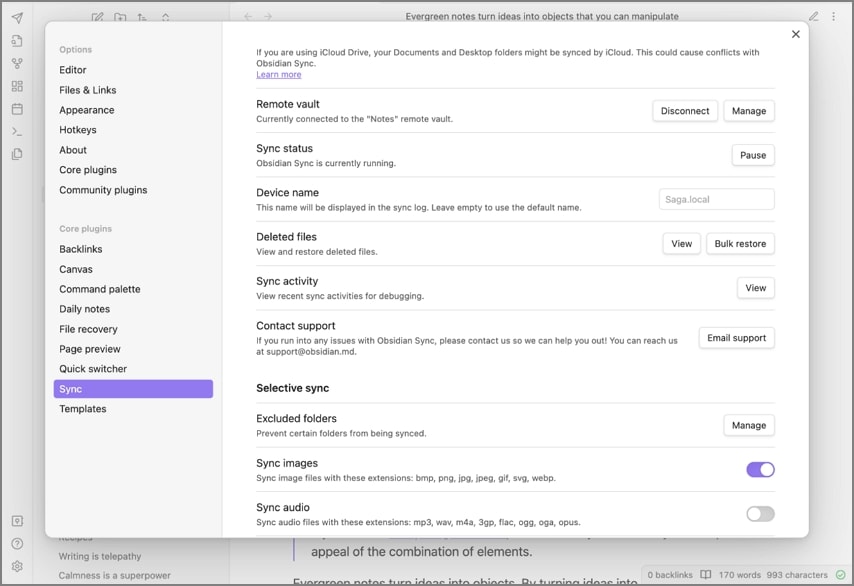
Best For: This tool is best for connecting and organizing ideas in a personal knowledge base or academic wiki.
Key Features
- Link notes to build a networked knowledge graph that visually maps related ideas and concepts.
- Customize your entire workspace by installing themes and dozens of specialized plugins.
- Publish notes as a wiki or digital garden to share your structured knowledge online.
Who Should Pick it
Researchers and professors who need structured and reference-rich note-taking for students benefit most.
Mem.ai - Web Extension
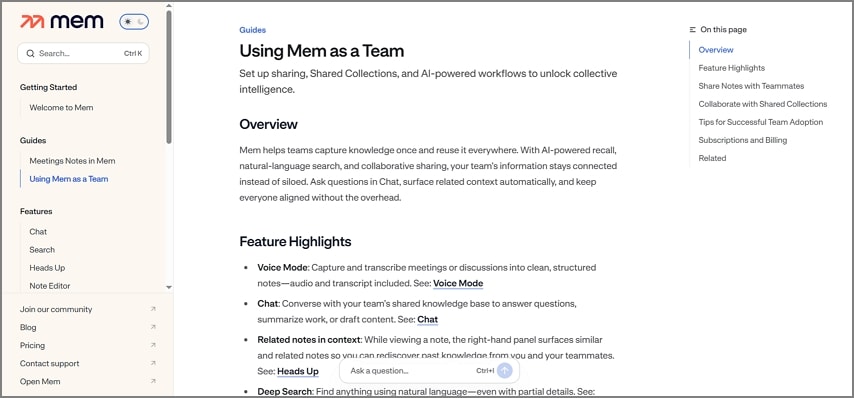
Best For: Works best for organizing large volumes of notes, connecting ideas, and retrieving context.
Key Features
- Organize notes into collections using AI-powered sorting by topic and project.
- Retrieve related notes instantly with AI contextual matching for seamless discovery.
- Answer questions about saved notes using Mem Chat and receive new content suggestions.
Who Should Pick it
Those who value automated organization and linking will appreciate Mem.ai advanced features.
Evernote - Browser-First
Best For: Best for managing notes, tasks, and schedules in one workspace.
Key Features
- Organize notebooks and spaces to categorize ideas, projects, and information clearly.
- Search and surface specific notes quickly using AI-powered retrieval across all your devices.
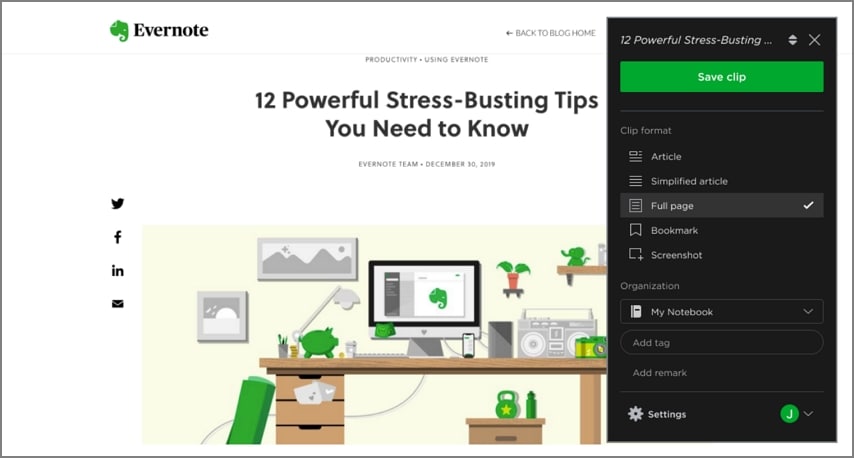
- Clip, scan, and record information from anywhere using Evernote’s Web Clipper and content tools.
Who Should Pick it
Individuals seeking organized and searchable note solutions will benefit most from this note-taking AI for students free extension.
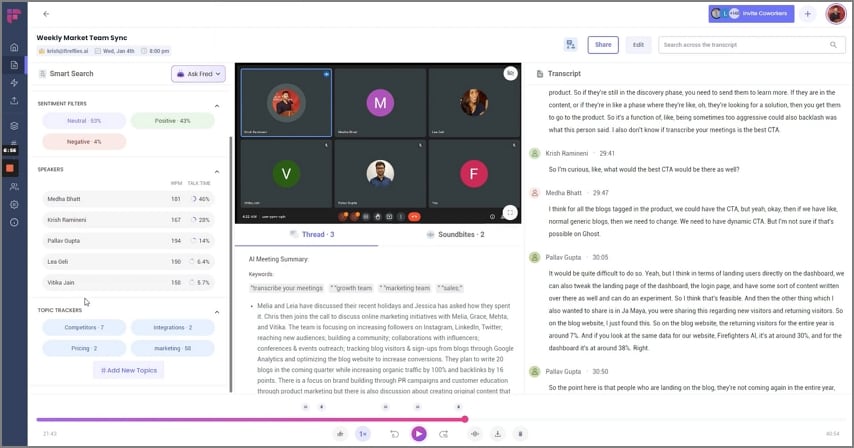
Fireflies.ai - Meeting-Integration Note Takers
Best For: For performing tasks like transcribing meetings, analyzing conversations, and generating shareable notes.
Key Features
- Record meetings and lectures, transcribe spoken content, and generate structured action items from conversations.
- Summarize lengthy meetings with AI to extract key points and follow-ups for quick reviews.
- Integrate recordings and transcripts with workflow tools and CRMs for tracking.
Who Should Pick it
Those who attend meetings, lectures, or study groups needing automated transcripts and meeting analysis will find value.
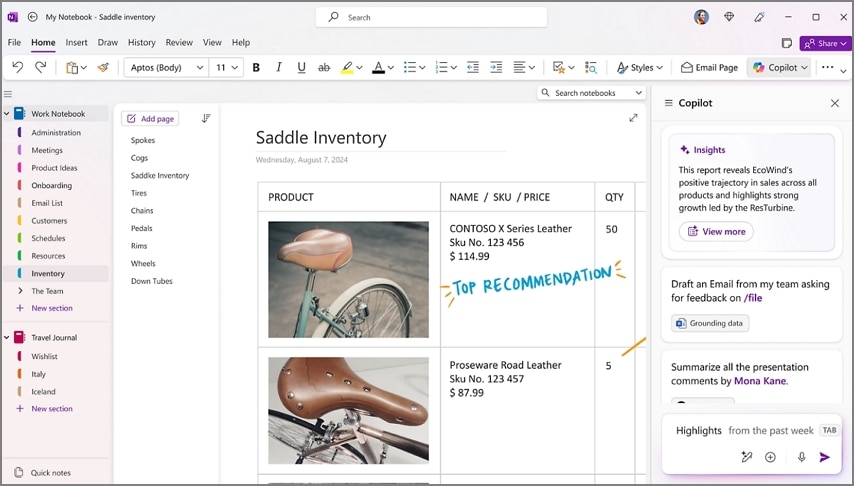
Microsoft OneNote - Windows Desktop Favorites
Best For: Centralizing class notes, assignments, and collaborative work in a single workspace.
Key Features
- Organize class materials, assignments, and personal notes into color-coded notebooks and sections.
- Allows users to collaborate by sharing notebooks, editing in real time, and interacting with classmates.
- Annotate directly onto notes using ink, stylus, or touch screen for creative input.
Who Should Pick it
Those who need a flexible digital binder for typed and multimedia notes should opt for Microsoft OneNote.
Comparison Between Best Note-Taking Apps for Students
Now, we’ll compare all the options discussed for the best AI note-taking app for students to help you decide which works best for you.
| Tools | Works Offline | AI Summary | Audio Record → STT | Windows App | Free Tier | Exports (PDF/Doc/MD) | Best For |
| PDFelement Mobile | ✓ | ✓ | ✓ | ✓ | ✓ | PDF editing, annotation | |
| Otter.ai | ✗ | ✓ | ✓ | Browser | ✓ | PDF, TXT | Meetings, lectures, interviews |
| GoodNotes 6 | ✓ | Partial | ✗ | ✗ | Limited | PDF, Image | Handwriting, creative notes |
| Notability | ✓ | ✗ | ✓ | ✗ | Limited | PDF, Image | Lectures, handwriting |
| Notion | ✗ | ✓ | (Beta) | ✓ | ✓ | PDF, Markdown | Team collaboration, research |
| Obsidian | ✓ | Plugin | Plugin | ✓ | ✓ | MD, PDF | Writers, researchers |
| Mem.ai | ✓ | ✓ | ✓ | ✓ | Limited (no PDF/MD) | Journaling, quick capture | |
| Evernote | Partial | ✗ | ✓ | ✓ | ✓ | PDF, Docx | Long-form notes, archives |
| Fireflies.ai | ✗ | ✓ | ✓ | Web only | ✓ | PDF, Docx | Meeting transcription |
| Microsoft OneNote | ✓ | Preview | ✓ | ✓ | ✓ | PDF, Docx | Students, professionals |
G2 Rating: 4.5/5 |100% Secure
Part 4. Best Free Note-Taking Apps for Students (Editor’s Picks)
For students on a budget, several note-taking apps offer free plans, though some come with trade-offs. Let’s look into some options for the best note-taking app for students free, including storage restrictions, limited recording minutes, and export limitations.
| App Name | Minutes | Storage (Free Plan) | Export |
| PDFelement Mobile | Unlimited | 1 GB cloud storage | PDF & Several Other Formats |
| Notion | Unlimited | 5 MB/file upload | PDF, Markdown |
| Obsidian | Unlimited | Local device only (no free sync) | Markdown, PDF (via plugins) |
| Evernote Basic | Unlimited | 50 notes, 1 notebook, 60 MB/month | PDF, Docx, HTML (limits apply) |
How to Build a Free Study Workflow with PDFelement Mobile
Now, let’s look at the steps below to see how you can transcribe, summarize, and format your lectures locally, without relying on the cloud:
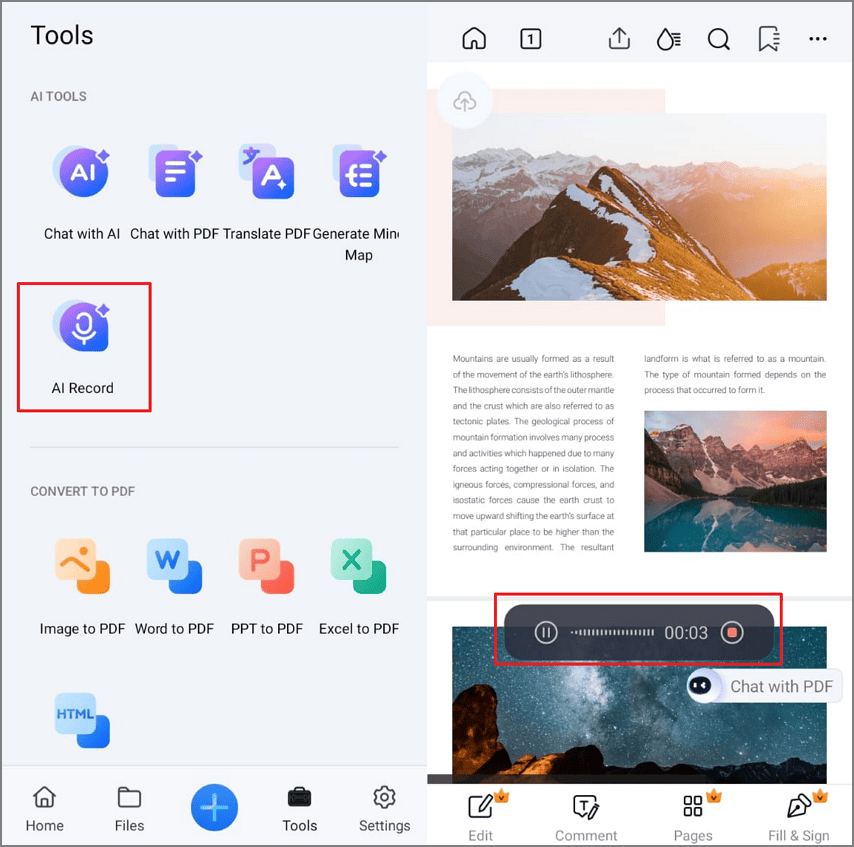
Step 1.Access The AI Record Feature and Open PDF File
Firstly, tap on the “Tool” tab at the bottom and hit the “AI Record” option. It’ll ask you to open your PDF file. Open the PDF on your mobile app and start recording your lecture.
Step 2.Run Speech to Text
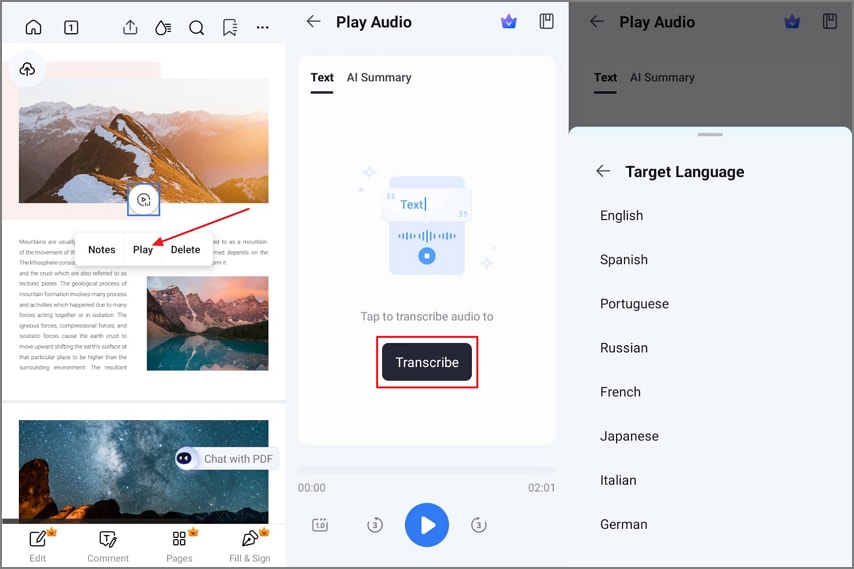
Once the lecture is recorded, tap on the “Play” button and hit the “Transcribe” option. Choose a particular language and the app will turn your lecture into text.
Step 3.Summarize The Content
Next, tap on the “AI Summary” option and hit the “Summarize” option to initiate the summarization process. Once summarized, hit the “Copy” icon to copy the summarized content.
Step 4.Put Summary on PDF and Save File
Lastly, open the PDF file again and hit the “Comment” option to paste the copied content onto the PDF file. Tap on the “Three-Dots” and hit the “Save a Copy” option to export the PDF file.
Part 5. Best Note-Taking App for Students on Windows
When looking for the best note-taking app for students Windows users, it is important to choose one that helps organize and manage study materials.
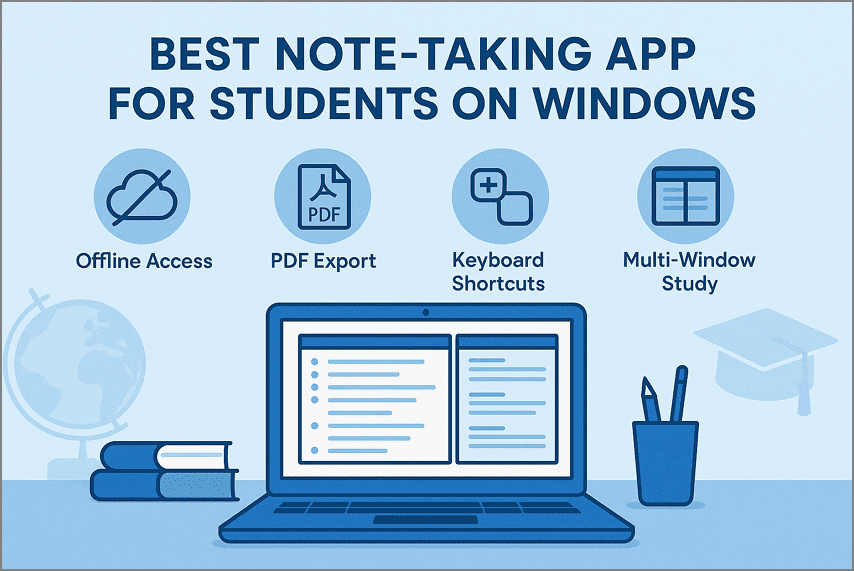
Offline Availability: Many students study in places that don’t have a stable internet connection. An offline-capable app ensures your notes, highlights, and summaries are always accessible.
PDF Export: This feature lets you easily convert class notes or summaries into shareable and printable PDFs for revision or submission.
Keyboard Shortcuts: Quick commands for formatting, highlighting, or switching notebooks help you work faster and stay focused during lectures or study sessions.
Multi-Window Study: Being able to open multiple windows or split-screen views allows students to compare lecture notes, reference materials, and assignments side-by-side.
Top Windows-Ready Note-Taking Apps for Students
If you prefer studying and organizing notes directly on your laptop, let’s explore some Windows-ready apps that combine performance and flexible note organization.
- Zoho Notebook: Free to download for Windows, works offline, supports multiple note types, and offers an ad-free experience.
- Joplin: An open-source desktop app for Windows that supports Markdown and local storage. It’s ideal for students who prefer open tools and value privacy.
- Zettlr: A free desktop app for Windows (also macOS and Linux), Markdown-based, and designed for deeper study workflows that involve linking ideas or organizing research.
- Wondershare PDFelement Desktop (Optional Finalizer): Once your notes are ready, PDFelement helps you format and finalize them professionally.
[Optional] Finalization with Wondershare PDFelement
Step 1.Open PDF File and Redact Personal Data
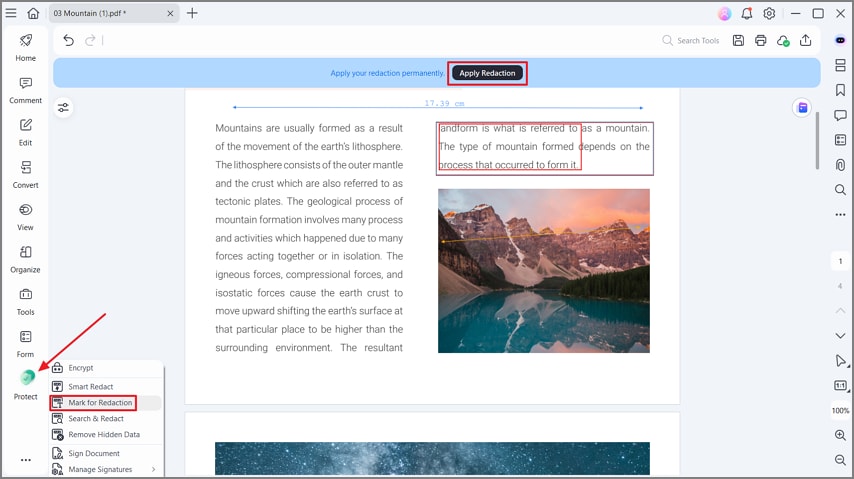
First off, open your PDF file and hit the “Protect” option from the left bar. Next, click on the “Mark for Redaction” option, select the text, and hit the “Apply Redaction” button to hide personal data.
Step 2.Add Page Numbers on PDF
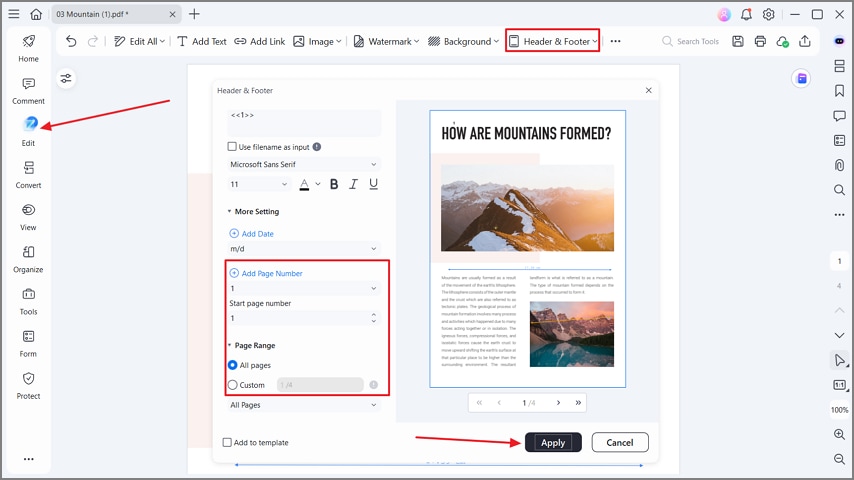
Hit the “Edit” button and click on the “Header & Footer” option. Next, click on the “Add Page Number” option and choose “All Pages” to add page numbers. After setting, hit the “Apply” button to apply the settings.
Step 3.Batch Combine Readings into Revision Pack
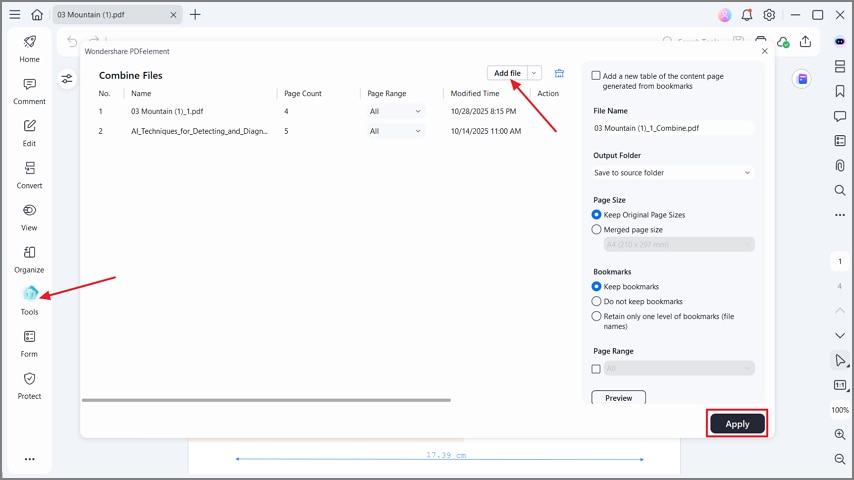
Lastly, hit the “Tool” button and press the “Add Files” option in the pop-up window to add other readings. Click on the “Apply” button to combine readings into a revision pack.
G2 Rating: 4.5/5 |100% Secure
Part 6. Best Note-Taking Websites for Students (Free)
If installing apps isn’t an option, several note-taking websites for students free make it easy to capture and organize notes directly in the browser. Look into some platforms that work best for students without any complex installations.
| Website Name | Storage | Export | Collaboration |
| PDFelement Online | 1 GB cloud storage (free plan) | PDF & Several Other Formats | Yes (e-sign, templates, comments) |
| Notion Web | Unlimited blocks, 5 MB/file | PDF, Markdown, HTML | Yes (real-time) |
| Zoho Notebook Web | Unlimited notes, 100 MB/file | PDF, Text | Yes (share, workspaces) |
| Simplenote Web | Unlimited notes | TXT, ZIP | Yes (note sharing) |
Edit and Share Notes Instantly with PDFelement Online
For quick touch-ups, PDFelement Online lets students open exported PDF notes right in the browser. Students can make light edits, highlight key points, and share or download updated notes within seconds, no installation needed. Follow the steps below to edit, finalize, and share your notes:
Step 1.Open Exported PDF File
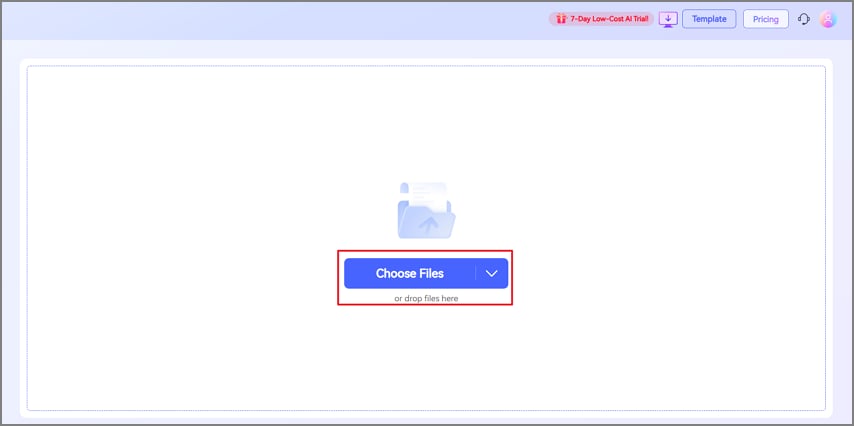
First off, click the “Choose File” button on the main interface to upload the PDF file.
Step 2.Edit Text in PDF
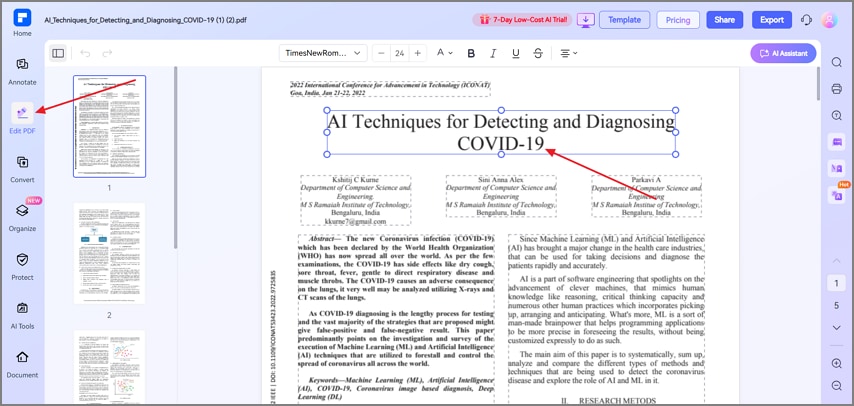
Next, hit the “Edit PDF” button on the left panel and select any text to start editing the text.
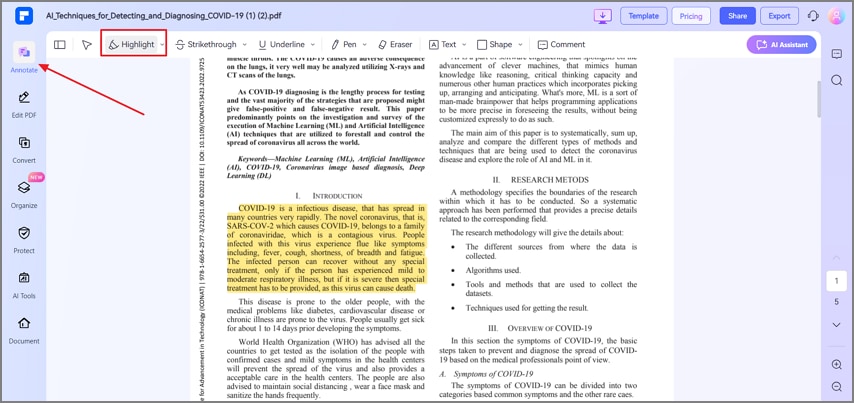
Step 3.Highlight Important Points
Now, press the “Annotate” option and click on the “Highlight” tab. Select the text that you want to highlight.
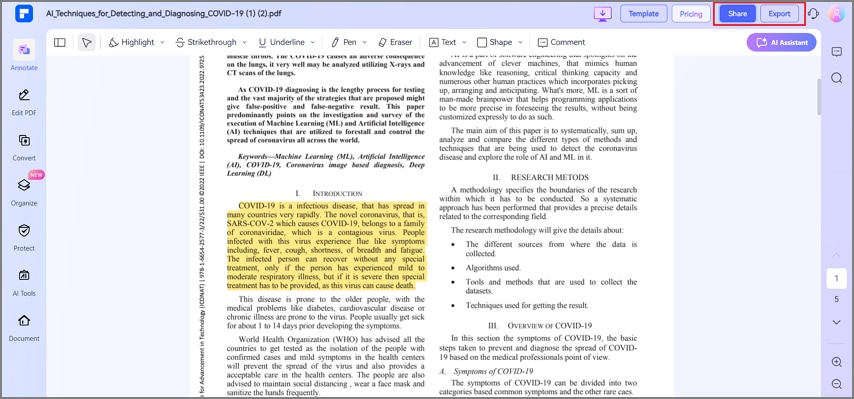
Step 4.Share or Export PDF File
Hit the “Share” option to share the PDF directly via Email or press the “Export” button to download the updated version of the PDF.
Part 7. Buyer’s Guide (Choose by Course & Study Style)
Different study styles demand different tools, and the right note-taking software for students can make all the difference. Let’s explore how to choose the best one based on your course type and learning approach.
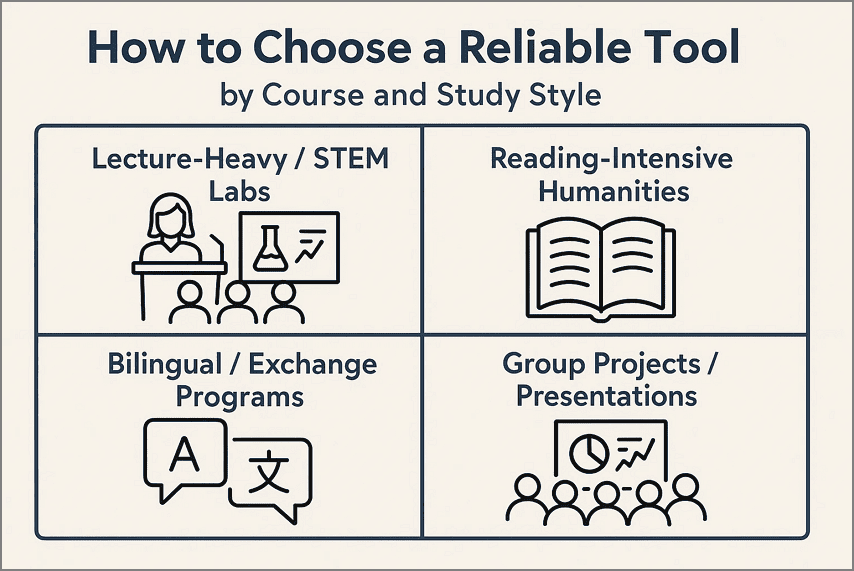
Lecture Heavy / STEM Labs: Record audio in lectures, AI transcribe and summarize those lectures to understand technical concepts. Use diagrams or mind maps after class to visualize complex relationships, structures, or sequences often found in STEM fields and laboratory work.
Reading-Intensive / Humanities: Save web articles or academic readings as PDFs or HTML to preserve structure and access. Summarize and extract main points from multiple texts via AI to review large volumes of material in less time.
Bilingual / Exchange Programs: AI translation tools let you switch between languages instantly to help you keep up with lectures and written assignments in both tongues. Keep your notes in both the original and translated versions, so you can cross-reference easily.
Group Projects / Presentations: Organize responsibilities with task templates and deadlines to ensure everyone knows their role and the project timeline. Track progress using visual stickers and checklists and share final deliverables.
Part 8. Student Study Playbooks (Copy-Ready Mini-Guides)
Now, explore how note-taking for students can adapt to different study styles with these mini-guides.
Lecture to Study Pack (On-Device)
Follow the steps below for a quick overview of turning lectures into a study pack.
Step 1.
Tap on the “Record Audio” option to record a live lecture and use the "Transcribe" button to turn speech into text afterward.
Step 2.
Hit the “AI Summarize” tab and “Summarize” button to create lecture highlights. Next, tap on the “Copy” icon to copy the summarized lecture.
Step 3.
Lastly, paste the generated content on the PDF and add “Stickers.” Next, tap on the “Save a Copy” button to export a PDF file.
Turn Lecture Notes into a Mind Map
Now, adhere to the steps below to generate mind maps of PDFs:
Step 1.
Open the PDF file, tap on the “Chat With PDF” button, and hit the “Generate Mind Map” option to start generating a Mind Map.
Step 2.
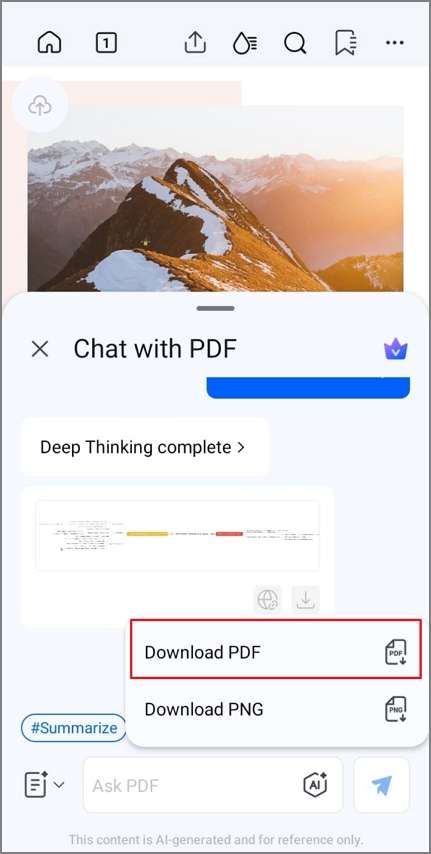
Once the Mind Map is generated, hit the “Download PDF” option to export a PDF copy of your Mind Map.
Build a Bilingual Study Set
If you want to translate a specific portion of your notes into another language, follow the steps below:
Step 1.
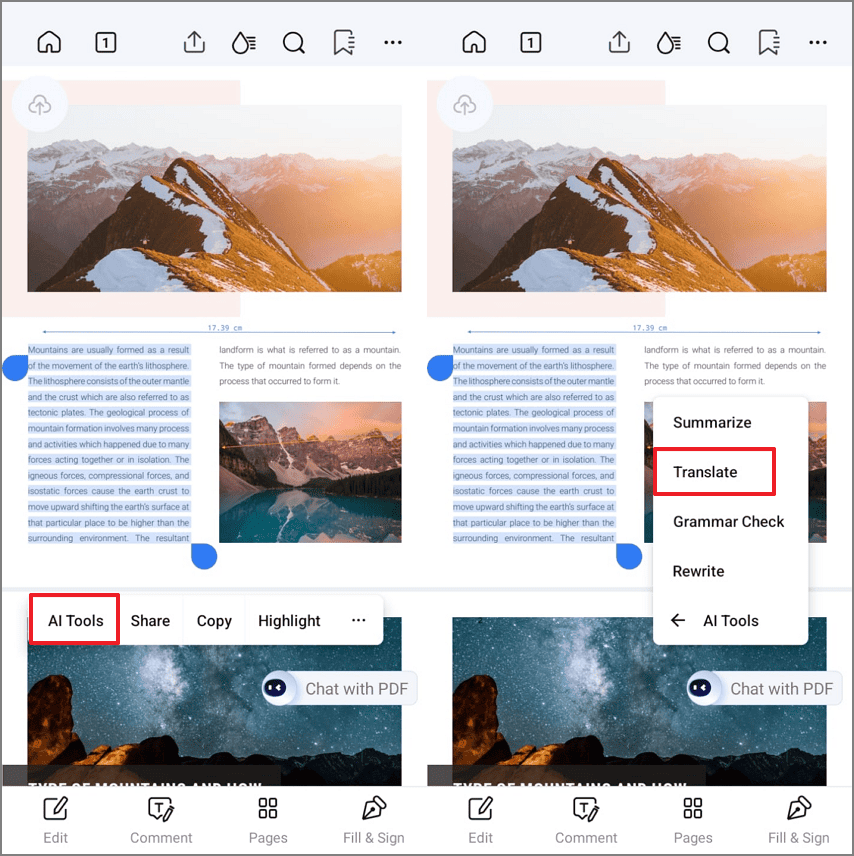
Select a key paragraph of your PDF file and hit the “AI Tools” option from the pop-up menu. Next, tap on the “Translate” button from the sub-menu.
Step 2.
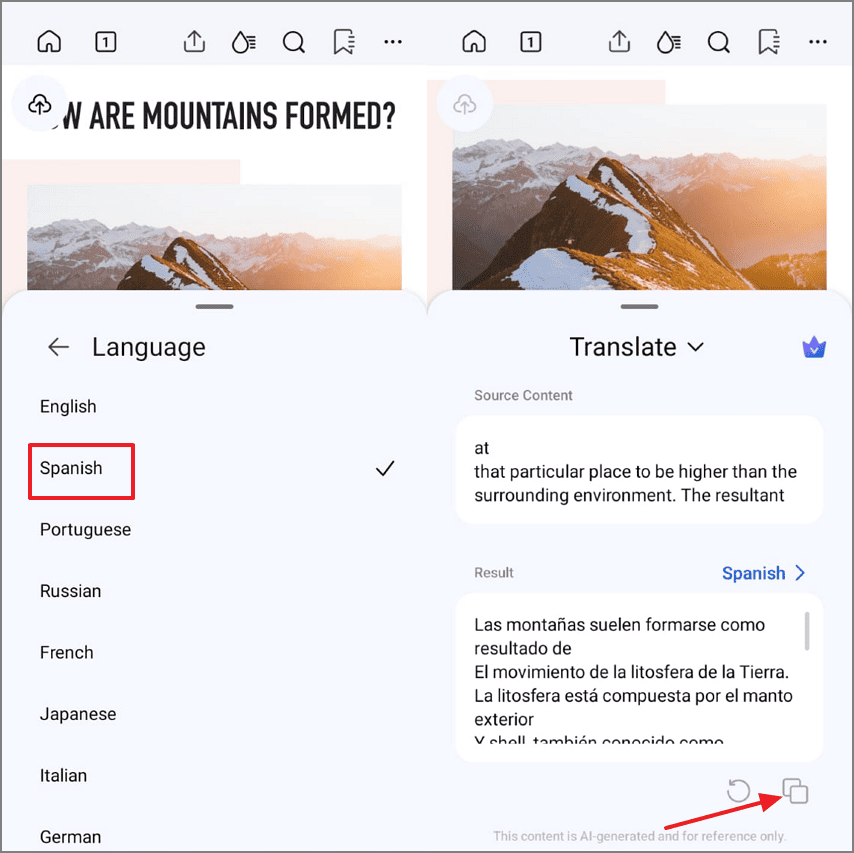
Choose a preferred language and tap on the “Copy” icon to generate a translation.
Step 3.
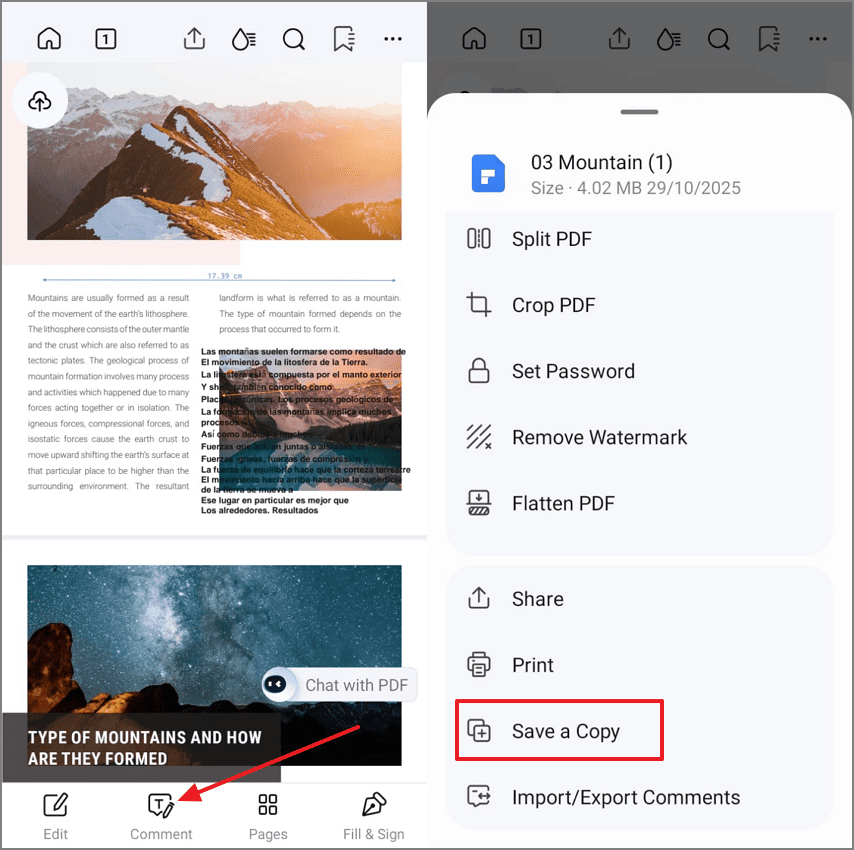
Hit the “Comment” option to paste the translated content beside the original content. Next, tap on the “Save a Copy” option to export a PDF file.
Save Course Pages as Clean PDFs
Go through the steps below to extract the course page as a PDF and edit that:
Step 1.
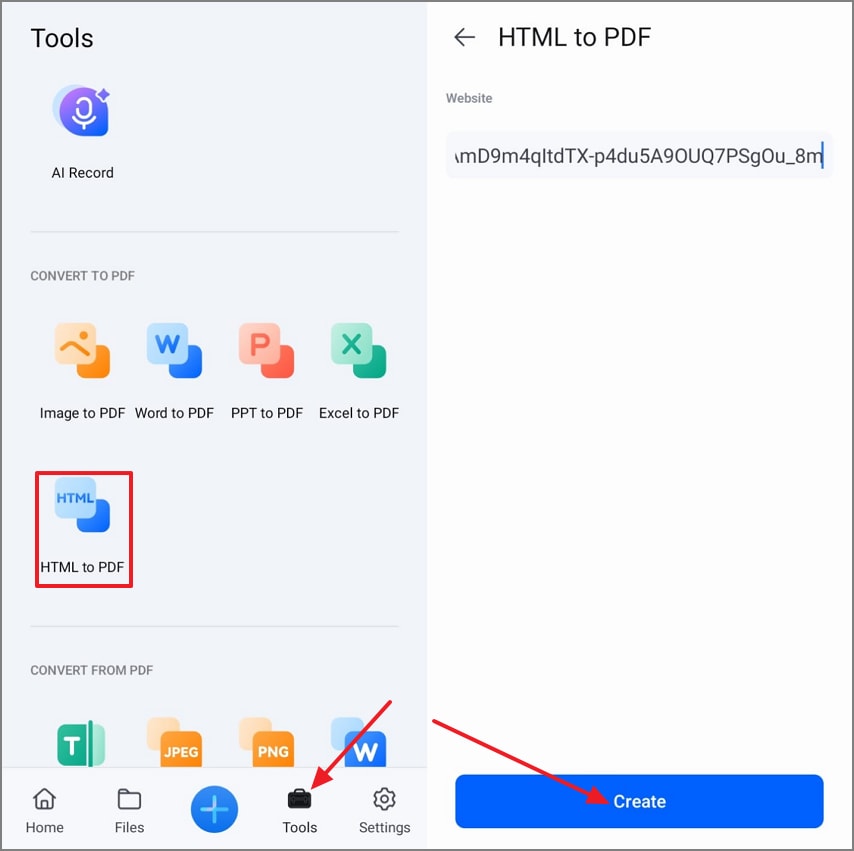
Tap on the “Tools” option in the bottom panel and hit the “HTML to PDF” tool. Next, paste the link of the course page and hit the “Create” button to create a PDF.
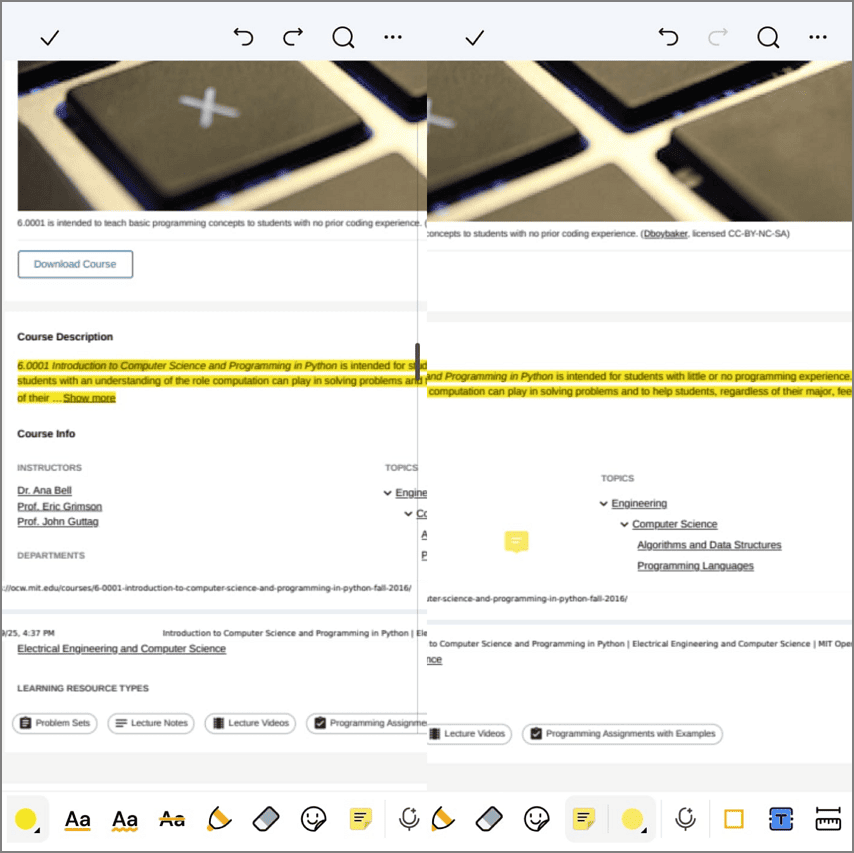
Step 2.
Once the PDF is created, highlight the content and add a comment to the PDF for any revisions.
Step 3.
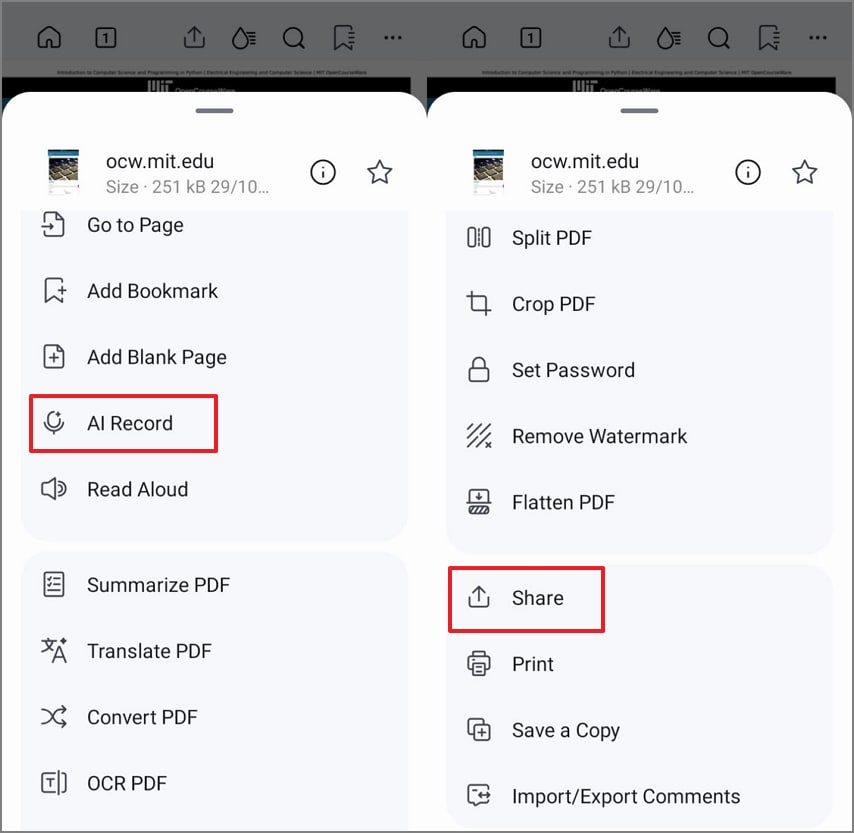
Next, tap on the “AI Record” option to attach class audio and hit the “Share” option to share the PDF with classmates.
Part 9. Academic Integrity & Privacy (Important)
Before choosing a tool for note-taking AI for students, it’s essential to understand how your data is handled, since recordings and summaries may contain sensitive academic information.
Permission for Recording: Always ask for permission before recording instructors or classmates during lectures, seminars, or group discussions to respect privacy.
Responsible AI Use: Use AI tools to help you learn, summarize, and study prompts are fine, but don’t submit AI-generated work as your own without credit.
Secure Note Storage: Keep all your notes in secure, trusted apps or devices. For sensitive audio or data, consider storing notes on your own device to maintain privacy.
FAQs
-
What is the best note-taking app for students overall?
PDFelement Mobile serves as the best AI note-taking app for students that offers annotation and summarization features. It helps students organize, export, and study smarter, which makes it a top choice for all academic needs. -
What’s the best free note-taking app for students?
Microsoft OneNote is fully free, works on every device, and handles typed or handwritten notes with ease. It works best for syncing, organizing multiple subjects, and quick reference whenever you need it. -
What’s the best note-taking software for Windows?
OneNote works perfectly on Windows and supports stylus input and offline note-taking for study or meetings. It syncs easily with mobile devices and lets you organize notes by notebooks, topics, or projects. -
Are AI note takers allowed in class?
Check with your syllabus or instructor before using AI note takers in lectures or discussions. Use AI only for study support, not for graded work, and always follow classroom guidelines carefully. -
Can I take notes offline and summarize later?
Yes, you can take notes offline during class or study sessions where the internet is not available. Summarize your notes later using AI tools or apps once the internet becomes accessible. -
How do I quickly turn notes into a study guide or mind map?
Choose an app with built-in templates and mind map tools for instant conversion of your notes. Export notes to mind map software for quick visual organization and easier test preparation. -
Best way to share notes if others can’t install apps?
Export notes as PDF or TXT so everyone can access them on any device, no extra app needed. Share using email or a simple cloud link to make collaboration and review easy for everyone.
Conclusion
In conclusion, the best note-taking app for students depends on your study style. Choose an on-device tool like PDFelement Mobile for lecture-heavy courses to protect privacy and use AI summaries for quick reviews. For flexibility, keep a browser-based option and a desktop finisher like PDFelement to organize, annotate, and export clean PDFs.




