

Microsoft Teams has transformed this process by automating the process of taking notes through Copilot and Intelligent Recap. Designed to record, summarize, and organize discussions, this AI-powered tool keeps teams focused on action instead of transcription.
Whether you prefer classic notes or want to enable AI-generated summaries, Teams simplifies document decisions and key insights. This article explores how to enable and use Microsoft Teams AI Meeting Notes, troubleshoot issues, and discover top alternatives to simplify your collaboration experience.
In this article
- Quick Answer
- What "AI Meeting Notes" Means in Teams?
- Prerequisites for Using AI Meeting Notes in Teams
- How to Enable AI Notes in Teams (Step-by-Step)
- Use AI Meeting Notes During & After Meetings
- Classic "Meeting Notes" (Loop) if You Don't Have Copilot
- Automated Transcription Basics (Foundation)
- Troubleshooting & "Why I Don't See AI Notes"
- Best AI Note Takers for Teams (Alternatives Roundup)
- How to Take Meeting Notes in Teams (Playbooks)
Part 1. Quick Answer
Microsoft Teams AI meeting notes let you automatically capture and summarize your meetings using built-in Copilot and Intelligent Recap features. These notes indicate the points of interest and to-dos in the Recap tab after your meeting is over, to see what has been discussed or what has been assigned. If you want an offline, on-device note-taking for any meeting type or in-person session, see PDFelement Mobile below.
Part 2. What "AI Meeting Notes" Means in Teams?
In Microsoft Teams, AI meeting notes are the meeting note writing features that store, summarize, and provide the information that occurred during a meeting, rather than manually writing meeting notes. The existence of these AI meeting notes is supported by several key principles that collaborate and produce summaries and highlights on their own.
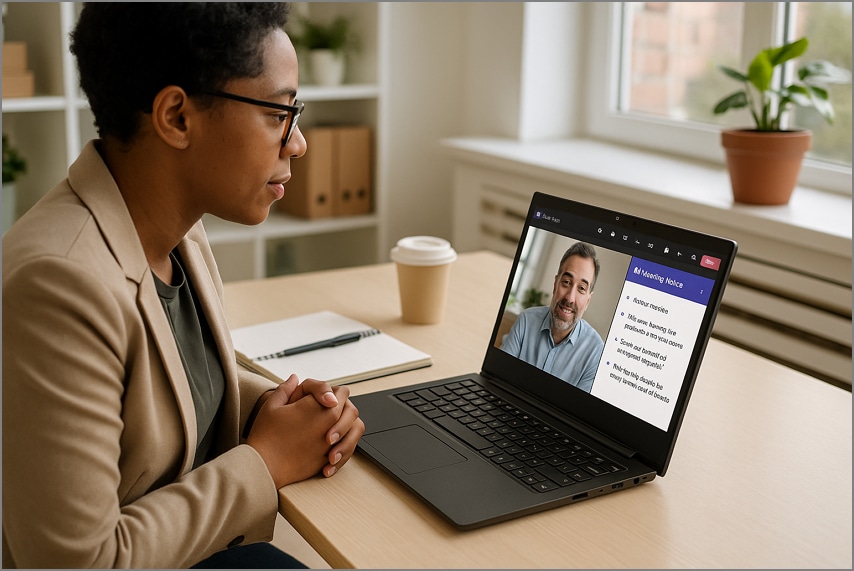
Intelligent Recap: After a meeting ends, Teams adds a Recap tab in the meeting chat or calendar event. It includes AI-generated meeting notes, suggested tasks, highlights, and topic chapters that show what was discussed.
Copilot in Teams: When Microsoft 365 Copilot is enabled, Teams gives deeper summaries. It shows key discussion points, who said what, points of agreement, disagreements, and action items. It can also answer questions about the meeting.
Where it Stores Information: Teams builds the Recap using the meeting transcript, attendance data, and shared content such as slides or files.
Without AI: If you don't have an AI license, you can still use the Meeting Notes feature inside Teams. It is a manual note space powered by Microsoft Loop and works well for agenda tracking but does not generate automated summaries.


 G2 Rating: 4.5/5 |
 100% Secure
Part 3. Prerequisites for Using AI Meeting Notes in Teams
Before you can start using Microsoft Teams AI meeting notes, there are a few important setup steps and requirements you need to meet first.
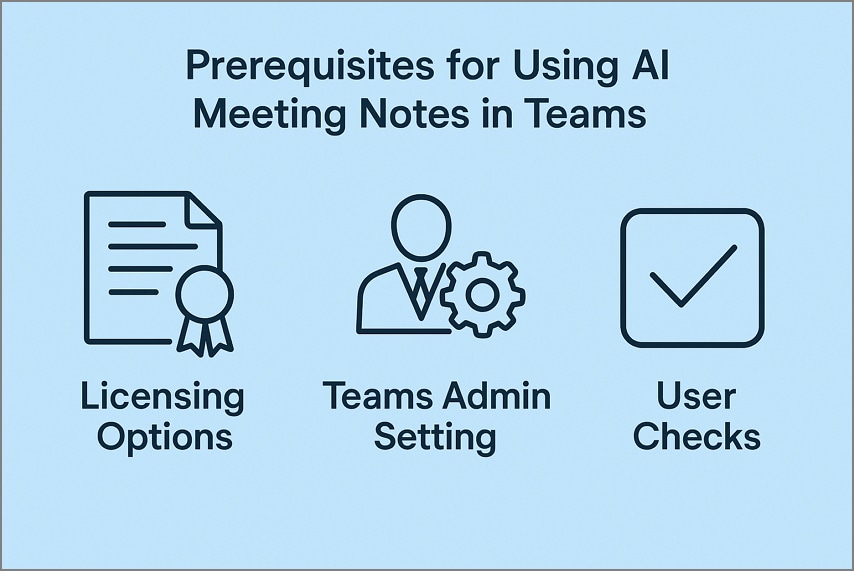
Licensing Options
To access AI meeting notes, users must have either a Teams Premium or Microsoft 365 Copilot license. These plans include Intelligent Recap and other AI-powered meeting tools. Without one of these licenses, the AI note-taking and summarization features will not appear in Teams.
Teams Admin Setting
The admin needs to turn on both recording and transcription in the Teams Admin Center. Copilot in meetings must also be enabled so the AI can analyze transcripts and generate summaries automatically.
User Checks
Meeting organizers should always schedule sessions using the Teams calendar. Before the meeting starts, confirm that transcription and recording options are allowed. This ensures that AI notes are captured correctly once the meeting ends.
Part 4. How to Enable AI Notes in Teams (Step-by-Step)
Once you know the prerequisites required for using Teams note-taking AI, let's see how you can enable them on Teams as an Admin or Organizer.
For Admin
To turn on AI meeting notes in your organization, follow the steps below:
Step 1
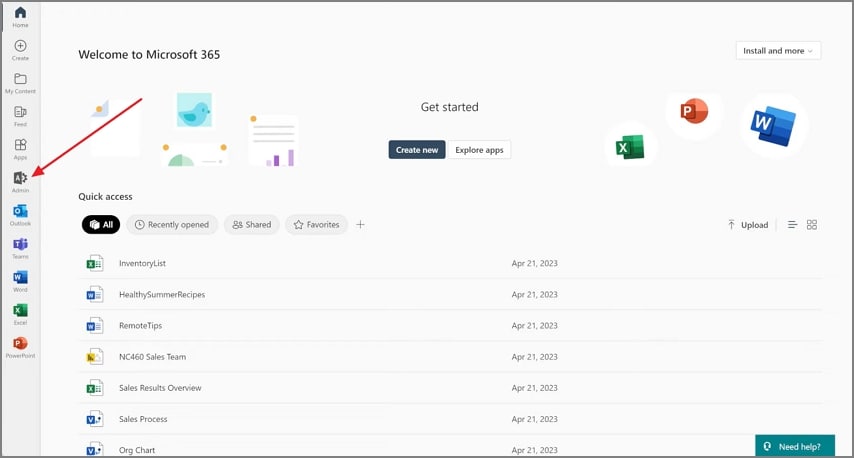
First, go to the "Admin" option in the left menu bar to proceed further.
Step 2
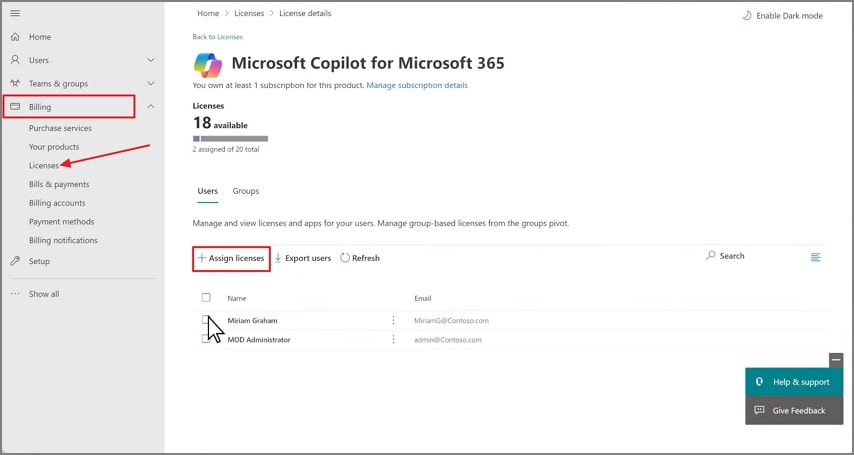
Press on the "Billing" option to expand it and click on the "Licenses" button. Next, hit your purchased license and press the "Assign License" option to assign the eligible license.
Step 3
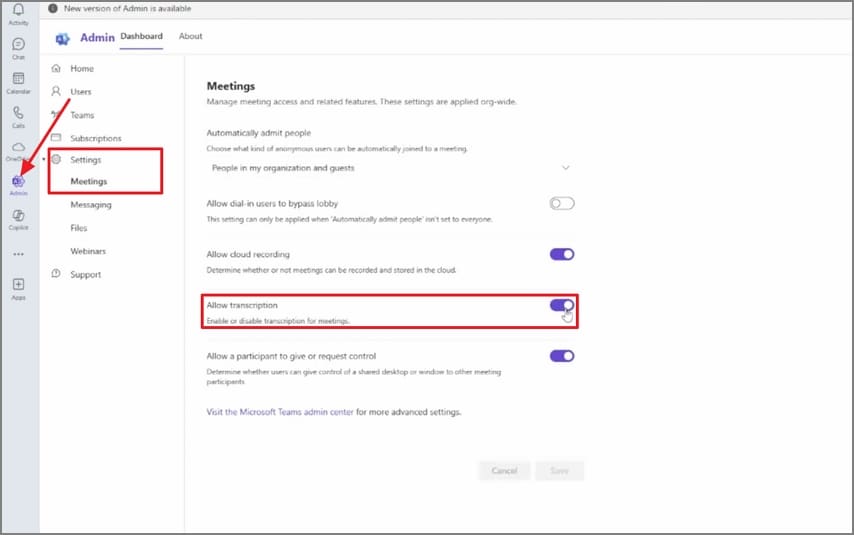
Open the "Teams" app and go to the "Admin" option in the left bar. Next, hit the "Settings" button to expand and click on the "Meetings" option. Toggle the "Allow Transcription" to enable it.
Step 4
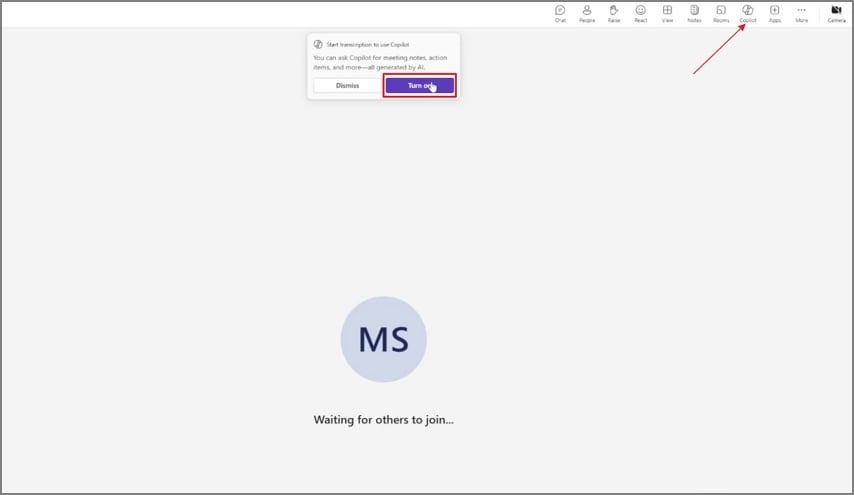
Lastly, start a meeting and hit the "Copilot" option from the top menu. It will ask for confirmation, so hit the "Turn on" button to confirm. The policy changes save automatically. After that, assign the updated policy to the right users or groups.
For Host/Organizer
Once the admin setup is done, meeting organizers can follow these simple steps to use AI notes during and after meetings.
Step 1
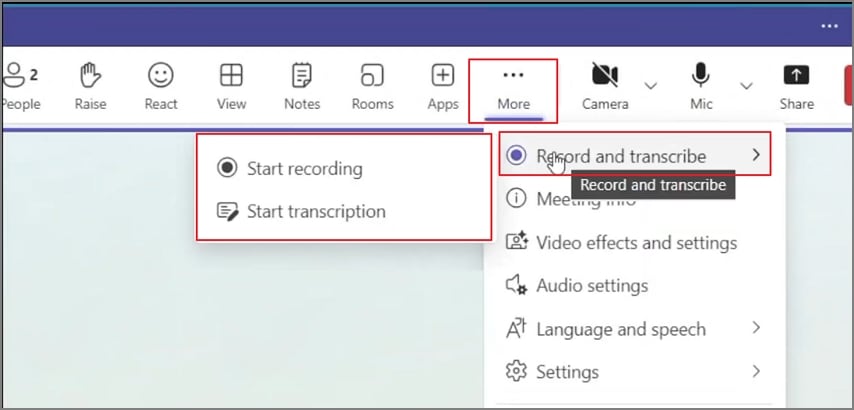
First, start a meeting in the Teams app and click on the "More" tab in the upper bar. Hover your mouse pointer over the "Record and Transcribe" option and click on the "Start Recording" and Start Transcription" options to enable both.
Step 2
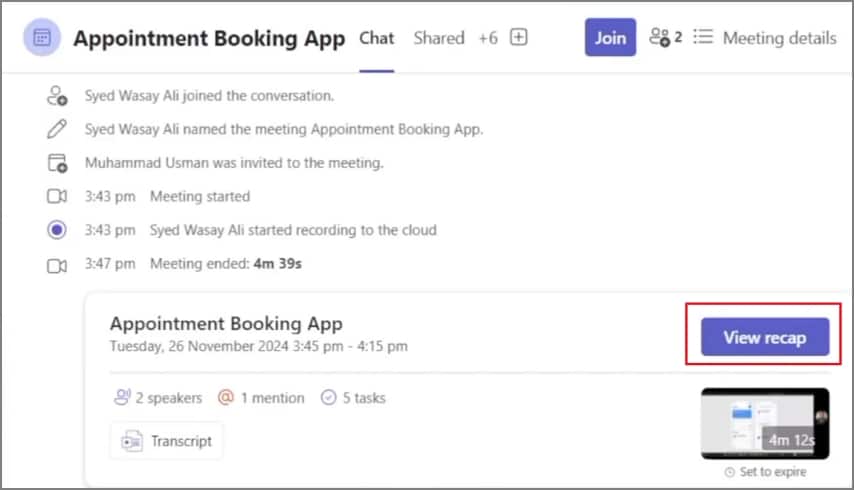
Once the meeting is ended, click on the "View Recap" button to access AI-generated transcripts.
Part 5. Use AI Meeting Notes During & After Meetings
You can automate note-taking in Microsoft Teams with meeting transcription. After each meeting, Teams organizes key details into a summary in the Recap tab. This feature, powered by Intelligent Recap and Copilot, helps participants catch up on follow-up tasks and major talking points without rewatching the entire recording.
Where to Access Recap
After the meeting ends, adhere to the instructions below to see everything captured by AI in one place:
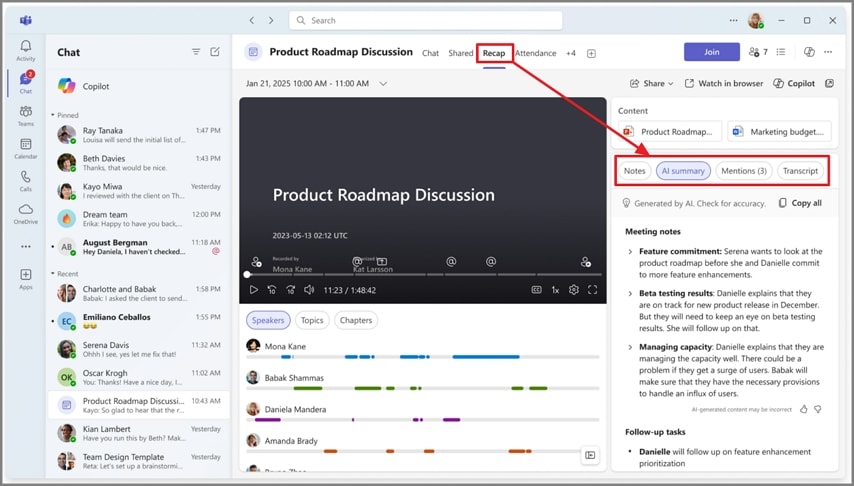
Instructions. To access the Recap after your meeting in Microsoft Teams, open the meeting chat, then click the "Recap" tab at the top. In this view, you can select options like "Notes," "AI summary," "Mentions," and "Transcript" to review all meeting highlights and insights in one place.
What Will You Find in The Recap Tab?
The Recap tab serves as a single workspace containing AI-enhanced insights and details:
AI Meeting Notes: Automatically generated summaries that outline discussions and main decisions.
Highlights: Shows the key takeaways and important comments flagged by AI.
Suggested Tasks: Action items extracted from spoken commitments or next steps.
Speaker Timeline and Chapters: A segmented view showing when someone spoke and the topics covered, divided into easy navigation chapters.
Personalized Markers: Include mentions of your name, contributions, or when you joined or left.
Sharing and Export Option
Depending on your organization's Teams policy configuration and license type, sharing options for Recaps vary. Internal meeting participants can view and share Recaps directly in Teams, while external users may receive summaries through Outlook emails. Export and integration options rely on whether Intelligent Recap or Copilot is enabled for your account.
Part 6. Classic "Meeting Notes" (Loop) if You Don't Have Copilot
If you don't have Copilot, Microsoft Teams still lets you capture and share meeting outcomes using the classic AI Meeting Notes Teams feature, powered by Microsoft Loop. Follow the steps below to see how you can use this feature:
Step 1
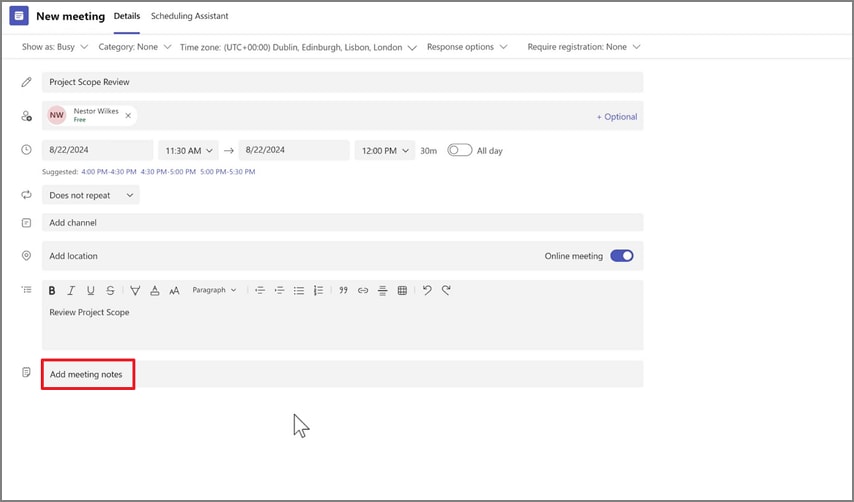
Go to your "Teams calendar" and select the scheduled meeting. Then, click "Add meeting notes" at the bottom of the invitation. This launches the Meeting Notes as a Loop component pre-attached to your meeting.
Step 2
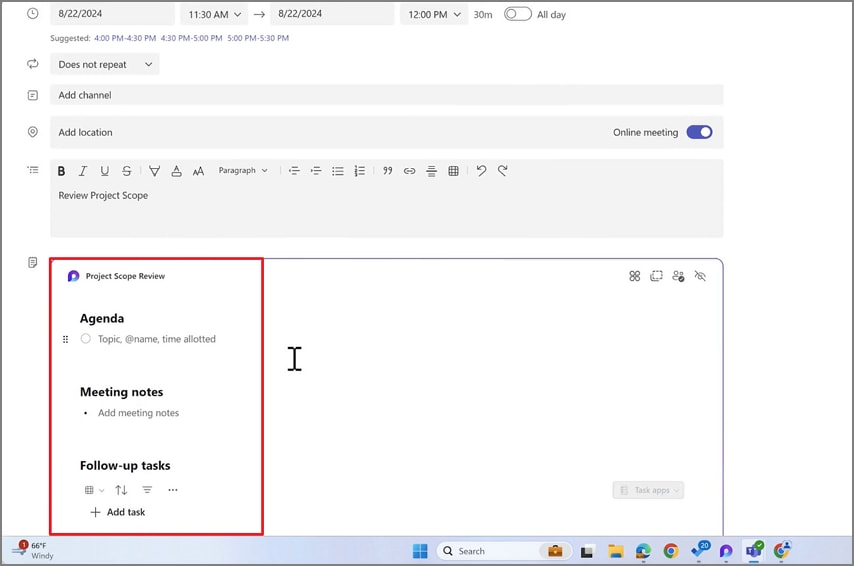
Enter your agenda for the meeting directly in the notes section. Add action points by typing them in and tagging participants with "@mention".
Step 3
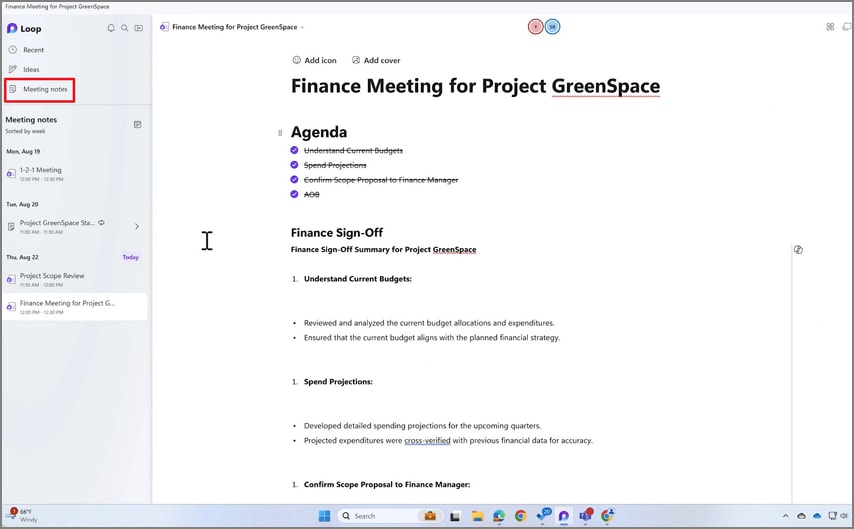
Open the Loop app and hit the "Meeting Notes" option to access the linked notes in your Loop workspace. Here you can add more tasks and expand your notes, while keeping everything synced.
Part 7. Automated Transcription Basics (Foundation)
To build on AI notes, it helps to understand how automated meeting notes in Teams work.
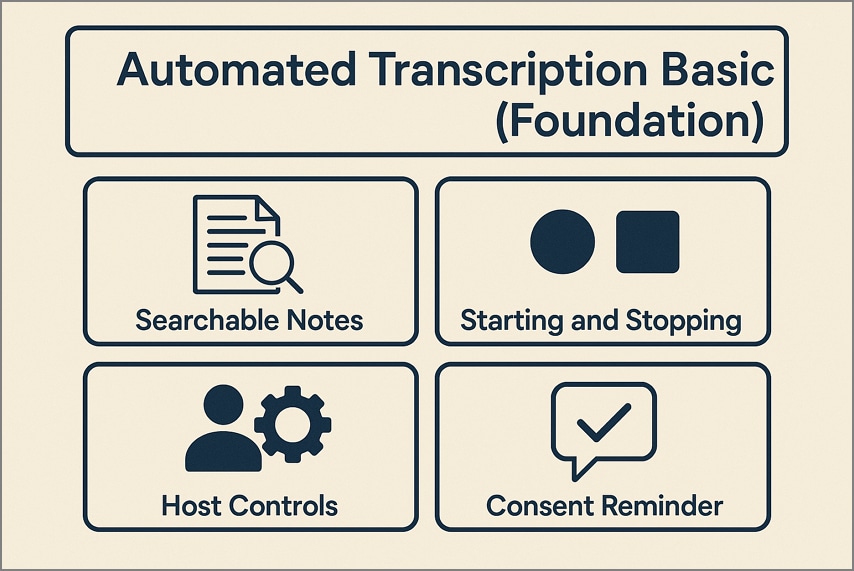
Searchable Notes: Teams transcription creates a live transcript with speaker names and timestamps. After the meeting, anyone can search for specific speakers or keywords to quickly find what was said and by whom.
Starting and Stopping: The organizer or presenter uses the "More actions" menu to begin the transcription process. They can stop transcription at any time, and the transcript is visible to all attendees either live or after the session.
Host Controls: The host manages transcription settings, such as who can access or download transcripts for compliance. These controls help make sure privacy, retention, and sharing policies are respected for all participants.
Consent Reminder: When transcription starts, Teams displays a clear notification to everyone. This ensures all attendees know their speech is being transcribed and can opt out or leave as needed for privacy.
Part 8. Troubleshooting & "Why I Don't See AI Notes"
If your Teams AI notes aren't appearing as expected, follow these tips to troubleshoot and ensure your meetings are captured correctly.

Recap Missing: Check your Teams license and meeting policy. Make sure "Start transcription" or "Start recording" was enabled before or during the call.
Buttons/Features Missing: Your administrator may have disabled Copilot or transcription. Try the latest desktop Teams app or check for updates if options are missing.
Privacy or Consent Issues: Always follow your company's privacy practices before recording meetings or transcribing. Policies and consent requirements may be different for each organization.
Part 9. Best AI Note Takers for Teams (Alternatives Roundup)
Here are some top alternatives for a Teams meeting AI note taker to help capture and organize meeting notes.
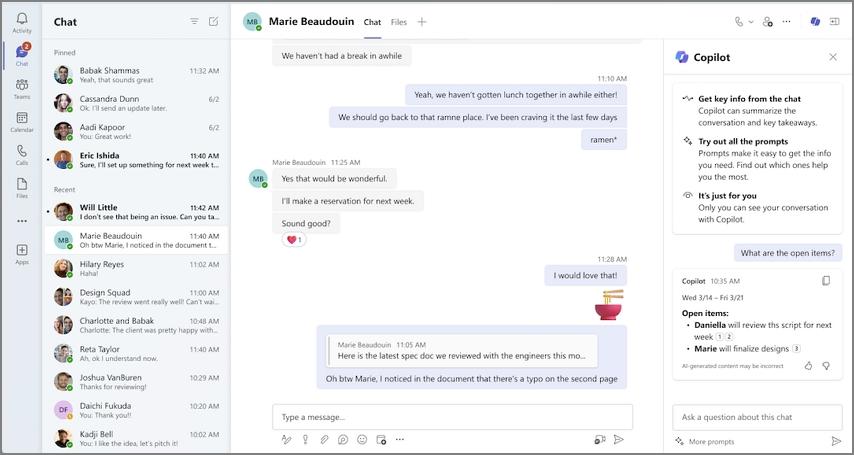
Microsoft Teams Copilot
Best For: Collaborative team environments, especially where meetings generate lots of action items and information.
Key Features
- Creates meeting thread summaries for channel conversations, grouped by key topic updates.
- Facilitator AI agent keeps meetings running, tracks time, and captures real-time structured notes.
- Smart screen capture prevention blocks unauthorized meeting screenshots to protect confidential shared content.
- Generate meeting notes during calls, even if transcription or recording features are not enabled.
Who Should Pick it: It's ideal for teams who want automated and actionable notes instantly.
PDFelement Mobile (Android | iOS)
While Microsoft Teams offers AI-powered meeting notes through Copilot and Intelligent Recap, not every scenario allows cloud-based AI or constant internet access. This is where PDFelement Mobile comes in, designed for on-device and in-person meetings. It lets you record conversations, convert speech to text, and generate AI summaries directly on your device.
Teams in classrooms, interviews, and privacy-sensitive environments can capture every detail securely without relying on cloud bots. PDFelement Mobile provides an offline-friendly alternative for a free AI note taker for Teams scenarios where connectivity and privacy are major concerns. It improves secure documentation with extra tools like AI Mindmap, AI Translate, and Model Switcher to make notes more organized and actionable.
Features to Keep Mindful Of
- AI-Generate Mindmap: Transforms condensed meeting summaries or notes into easy-to-navigate visual mindmaps for fast reference and brainstorming.
- AI Translate: Translates entire meeting transcripts or summaries into any major language and preserves tone and formatting.
- Switch AI Models: Switches instantly between AI models like DeepSeek-V3, GPT-4o, or Gemini 1.5 Pro for tailored responses.
- HTML→PDF for Web Agendas: Converts web-based agendas or meeting notes into polished PDF documents for sharing or offline use.
G2 Rating: 4.5/5 |100% Secure
How PDFelement Mobile Captures Meeting Notes
Adhere to the steps below to see how PDFelement Mobile can help you capture and organize AI notes for Teams.
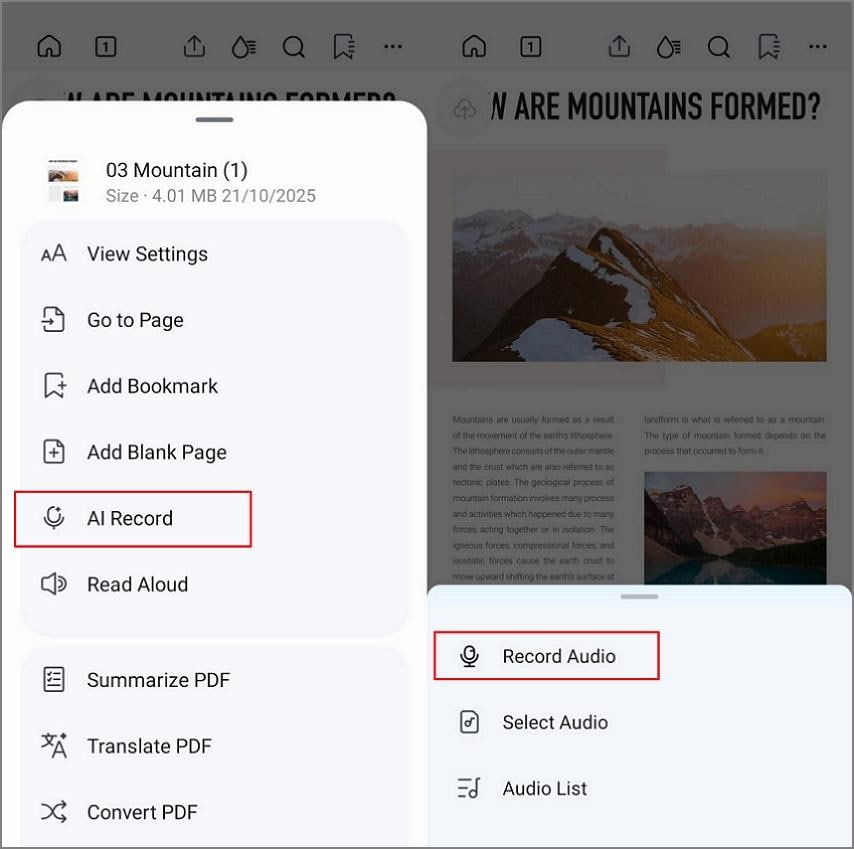
Step 1Open PDF File and Choose AI Record
First off, open a PDF document in PDFelement Mobile and tap on the "Three-Dots" at the top. Next, hit the "AI Record" button to start recording your voice.
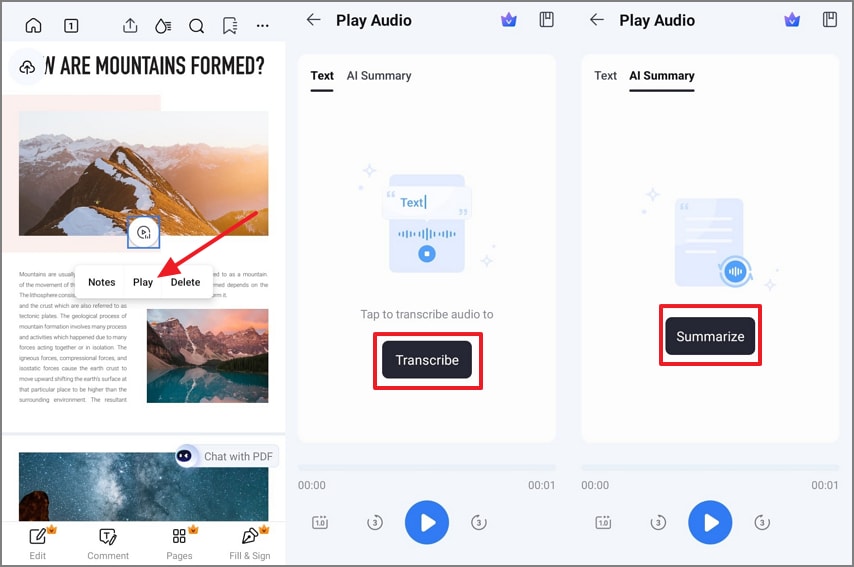
Step 2Transcribe and Summarize with AI
Once you record the audio, hit the "Play" button on the audio and tap on the "Transcribe" option to convert voice to text. Next, hit the "Summarize" button to have AI summarize the recorded voice.
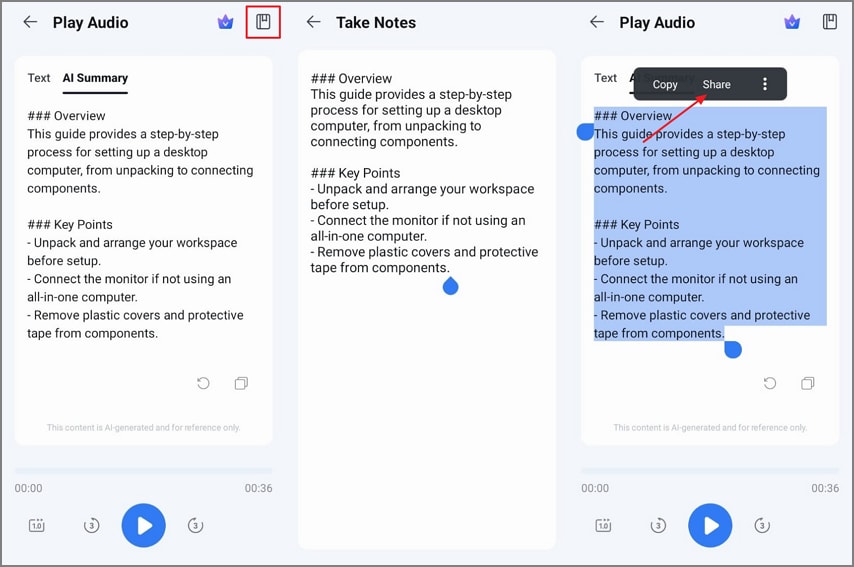
Step 3Save Summarized Text in Notes and Share
After the recorded voice is summarized, tap on the "Notes" icon and paste the summarized content in the notes. Next, select the text and hit the "Share" option to share the summary via Teams chat or Email.
Read.ai
Best For: Modern teams needing automatic meeting summaries, action items, and collaboration analytics across platforms.
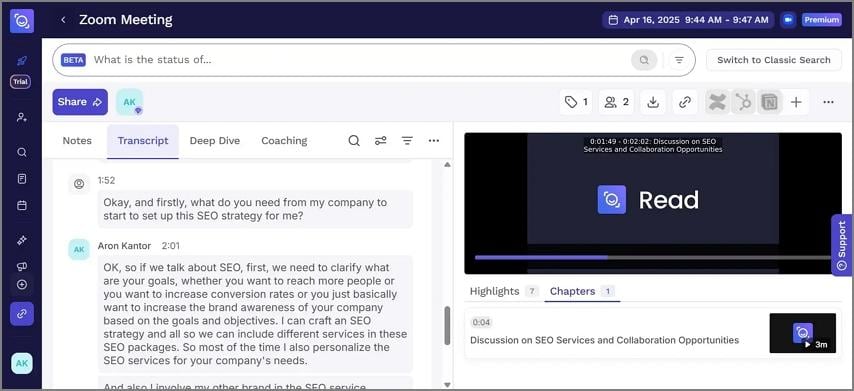
Key Features
- Automated meeting summaries with key actions, unresolved questions, and instant keyword search.
- Sentiment and engagement analytics reporting on participation, emotional tone, and meeting energy.
- Instant transcription in multiple languages, including export and custom vocabulary support.
- Integrates with Teams, Slack, Notion, and CRM tools for workflow automation.
Who Should Pick it: It's a match for collaborative teams wanting detailed summaries and fast search after meetings.
MeetGeek
Best For: Teams with frequent client calls, interviews, sales, or cross-department meetings.
Key Features
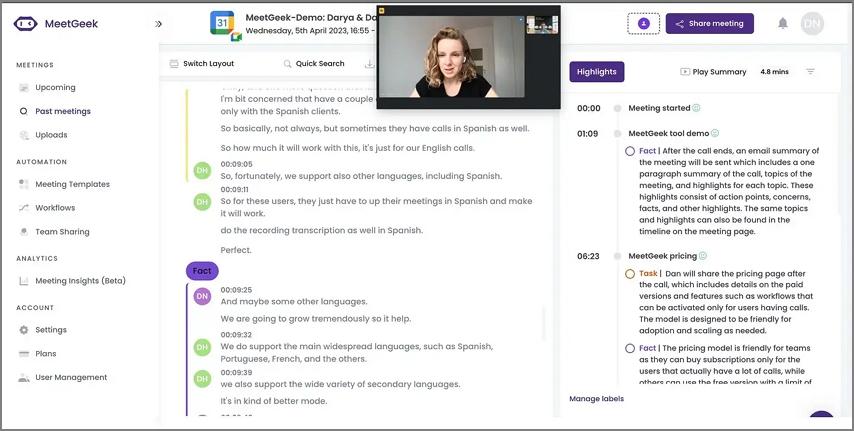
- Generates speaker-tagged transcripts and meeting summaries for instant review and tracking.
- Extracts, assigns, and syncs real action items from any meeting to project tools.
- Visualizes engagement and speaker participation trends through automatic analytics dashboards.
- Users can share searchable highlights and client agreements instantly with all meeting participants.
Who Should Pick it: Should be picked by organizations that run sales or hiring calls and want AI-generated automated follow-ups.
Tactiq
Best For: Users needing instant meeting transcripts and Teams AI meeting notes with automated post‑meeting actions.
Key Features
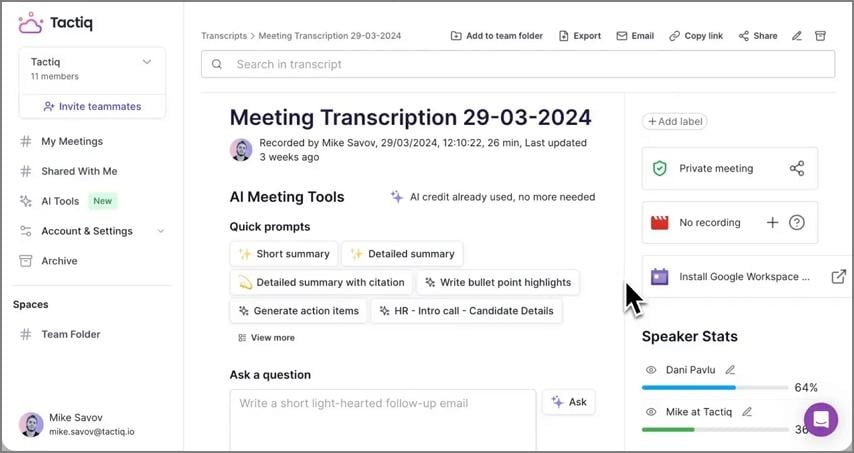
- Transcribes meeting conversations live and automatically identifies each speaker for accurate review.
- Summarizes each discussion into action items and searchable notes right after your meeting ends.
- Uses AI prompts to convert transcripts into emails, tasks, or project updates at your request.
- Let users save and reuse automated follow-up templates from meeting actions for future use.
Who Should Pick it: It is perfect for teams who want quick automation without a complicated setup.
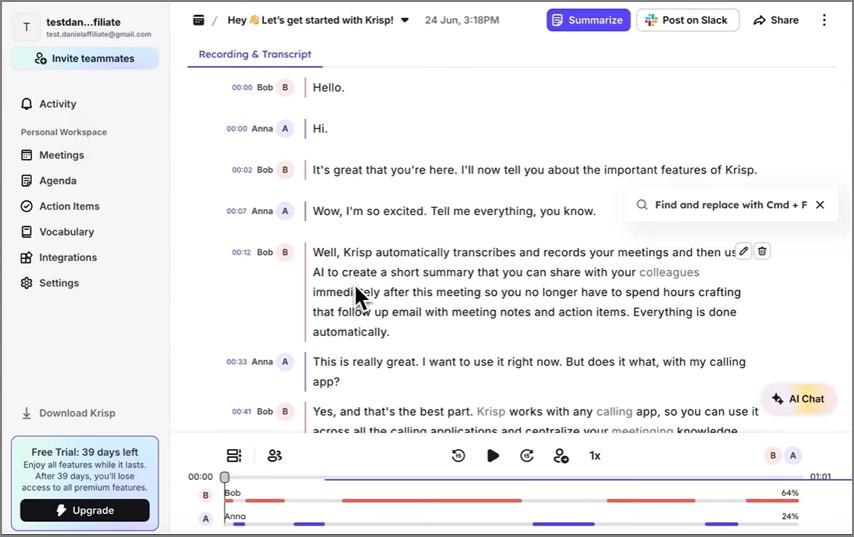
Krisp
Best For: Distributed teams who need secure, clear meetings with automated meeting notes in Teams.
Key Features
- Removes background noise and echo for clear conversations in every meeting.
- Converts accents for easy understanding among global teams and remote workers.
- Generates transcripts, meeting summaries, and tracks action items directly in connected CRM tools.
- Records audio and video from desktop or mobile for flexible walk-and-talk meeting capture.
Who Should Pick it: Krisp Notes should be picked by teams who want accurate meeting transcripts and summaries during virtual or in-person calls.
Comparison of Best AI Note Takers for Teams
Next, we compare the best tools to help you take AI notes in Teams, so you can choose the right solution for your meetings and workflows.
| Tool | Works Without Bot | In-person Offline | Deep Teams Integration | Free Tier | Exports (PDF) | Privacy | Best For |
| Microsoft Teams Copilot | Upload/cloud | Microsoft 365, Teams organizations | |||||
| Read AI | Upload/cloud | Managers, meeting analytics | |||||
| MeetGeek | Upload/cloud | Teams, auto summaries | |||||
| Tactiq | Upload/cloud | Chrome, fast transcripts | |||||
| Krisp Notes | Upload/cloud | Global teams, clarity, summaries | |||||
| PDFelement Mobile | Best in class | On-device | Mobile, secure PDF |
G2 Rating: 4.5/5 |100% Secure
Part 10. How to Take Meeting Notes in Teams (Playbooks)
Now, let's explore practical playbooks on Teams note-taking AI to capture meeting insights.
With Copilot/Intelligent Recap
To get automated, organized meeting notes in Teams, just follow these steps:
- Step 1 First, check that you have a Copilot license and meet policies.
- Step 2 Next, click on the "Start transcription" or "Start recording" in meeting controls.
- Step 3 After the meeting, select the "Recap" tab to view summary notes and tasks.
- Step 4 Once you review everything, use the "Share" button to send as needed.
Without Copilot (Manual/Free)
For manual, collaborative notes in Teams meetings, use the instructions below:
- Step 1 During the meeting, click the "Meeting Notes" button.
- Step 2 Next, add your agenda, notes, or tasks in the Meeting Notes window.
- Step 3 Lastly, enable transcription for reference using "Start transcription."
In-Person / No-Bot Workflow (On-Device)
For meetings held offline or on-device, try these easy steps using PDFelement Mobile:
- Step 1 First, tap on the "Record Audio" option to capture audio live and use the "Transcribe" option to turn audio into text afterward.
- Step 2 Next, hit the "AI Summarize" button to create meeting highlights.
- Step 3 Now, tap on the "Export" and choose a PDF template and sticker for PDF.
- Step 4 Share the PDF in Teams by attaching it to a channel or chat.
People Also Ask
-
Does Microsoft Teams have an AI note taker?
Yes, Teams offers AI note-taking through Copilot and Intelligent Recap features. You'll need a license and meeting policies set up by your admin before the smart notes will show up automatically during meetings. -
How do I enable AI notes in Teams?
Your Microsoft Teams administrator must first enable Copilot and transcription policies in your organization. Then, schedule meetings through Teams, and during each meeting, click to start transcription or recording so AI notes activate automatically. -
Where do AI notes live?
All Teams AI notes are stored after your meeting in the Recap tab of the Teams calendar. When meetings end you'll find summaries, tasks, and highlights directly in that Recap section for quick reference. -
Free options without Copilot?
You can use Meeting Notes powered by Loop, plus the standard Teams transcription for digital notes. Alternatively, explore free trial or free tier options from trusted third-party note-taker apps to capture your meetings. -
Best in-person (no bot) workflow?
For offline, on-device note-taking without any bots, record and summarize meetings with PDFelement Mobile. Then, save and share a polished PDF summary through your Teams chat or channel instantly.
Conclusion
In conclusion, for Microsoft Teams meeting notes, the native path is Copilot and Intelligent Recap, if you have the right licensing and setup. If you need a free or fallback option, use Meeting Notes with Loop and transcription. For in-person meetings or bot-free workflows, PDFelement Mobile helps capture, transcribe, and summarize on-device, then easily share the final notes as a PDF with your Teams group.




