Meetings often move fast, and taking notes can distract you from honest conversations. The Google Meet AI Note Taker helps by automatically recording key ideas, decisions, and summaries. It ensures every important point stays captured and shared accurately, and the call ends with Gemini and built-in transcripts. This innovative feature turns lengthy discussions into organized notes within minutes.
Furthermore, it is also perfect in the case of professionals, teachers, and teams to make documentation. In case you are hosting an online meeting, the AI Notes tool offered by Google can assist in turning a messy conversation into a clear outline.
In this article
- Quick Answer
- What "AI Notes" Means in Google Meet (Gemini & Transcripts)
- Prerequisites (Licenses, Admin Policies, Permissions)
- How to Enable AI Notes in Google Meet (Step-by-Step)
- Using Read AI on Google Meet (Brand Add-On)
- Best AI Note Takers for Google Meet (2026 Alternatives)
- Free vs Paid: What You Actually Get
- Troubleshooting & Controls (Why You Don't See AI Notes)
- Playbooks (Copy-Ready Mini-Guides)
Part 1. Quick Answer
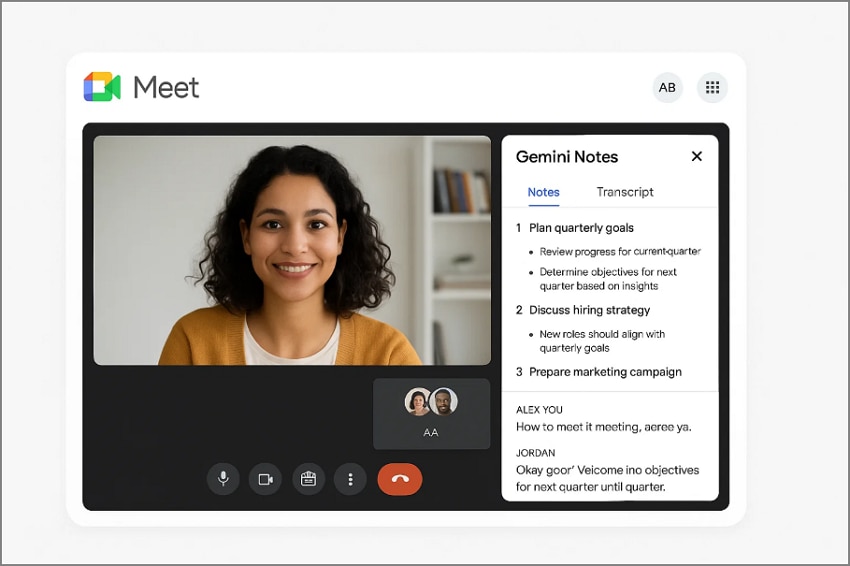
Google Meet now includes AI-powered notes through Gemini's "Takes notes for me" feature. It automatically opens a Google document with meeting highlights, meeting summary, and action items. After the session, the participants will receive an email containing the summary and recommendations. In tandem with this, the Google Meet AI notes are linked to the live transcripts, which generate text to be searched.
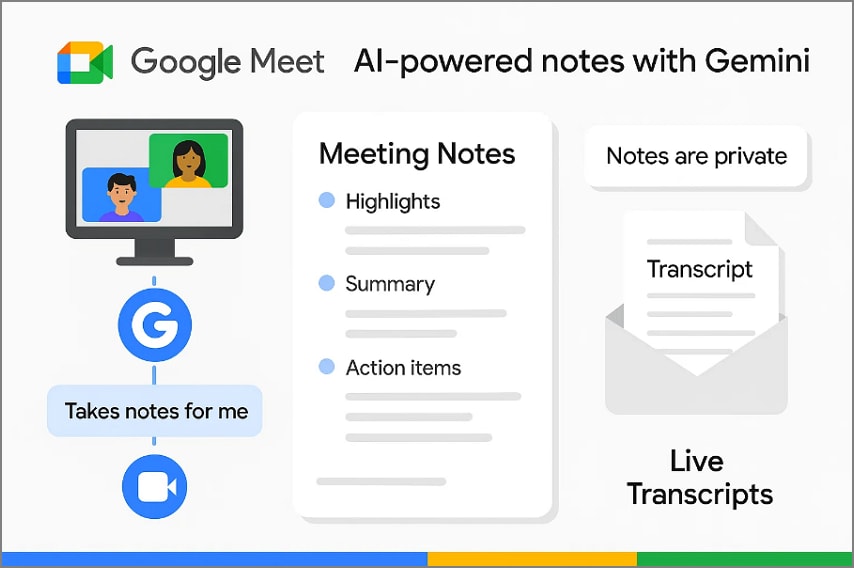
In addition, organizers can control sharing settings, deciding whether notes remain private or visible to attendees. Together, Gemini Notes and Transcripts simplify meetings by ensuring every important discussion point is recorded without needing manual note-taking during calls.
Part 2. What "AI Notes" Means in Google Meet (Gemini & Transcripts)
In Google Meet, AI note-taking Gemini's smart meeting assistant automatically captures, transcribes, and summarizes discussions in real time. It combines the "Take Notes for Me" feature with an auto transcript and better recap email feature that will be launched in mid-2025. The combination of these tools helps teams record conversations correctly and take subsequent actions effectively, as it is not necessary to take notes manually.
What "Take Notes for Me" Produces
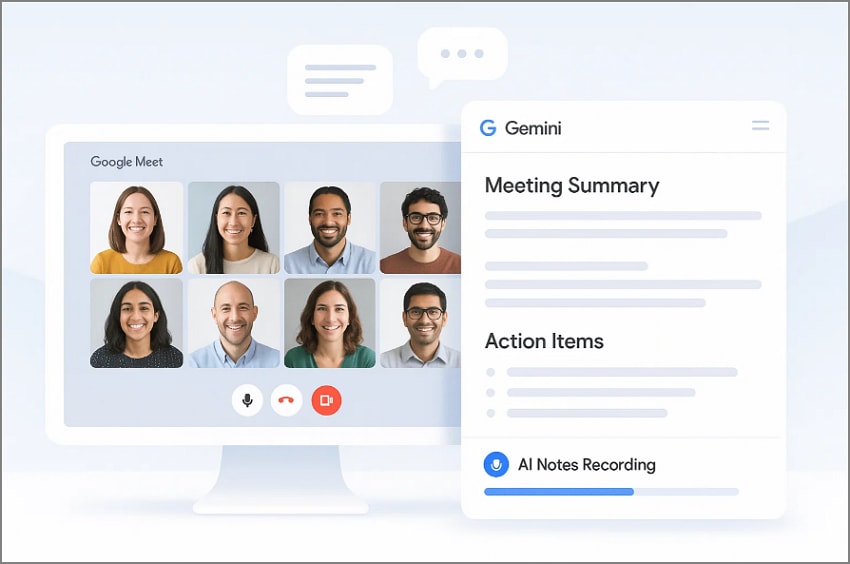
When "Takes Notes for Me" is turned on, Gemini listens intelligently throughout the meeting and creates organized documentation for everyone involved:
- A Google Docs file, summarizing discussions, decisions, and assigned action items.
- The structured recap email that includes an embedded summary and a "Suggested Next Steps" section, showing clear follow-ups and owners.
- Optional attachments like full meeting transcripts or recordings, if enabled by the organizer.
Sharing and Recap Distribution
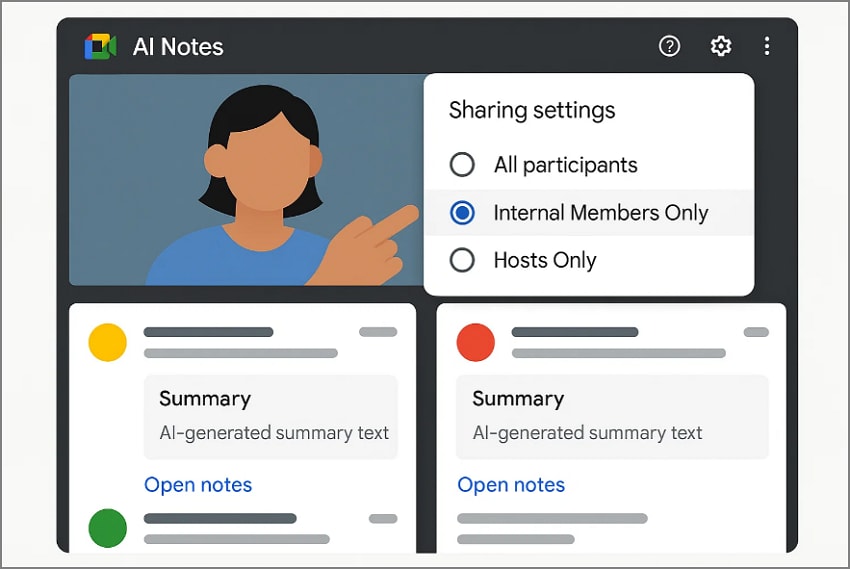
Google gives full control over who can view the recap and notes file. Within Meet's sharing options, organizers can choose from the following:
- All invited guests, including external attendees.
- Internal organization members only.
- Hosts and co-hosts only, for private internal documentation.
Recipients receive an email containing either a direct link to the generated notes documents or an embedded summary and next step within the email body.
How Transcripts Work
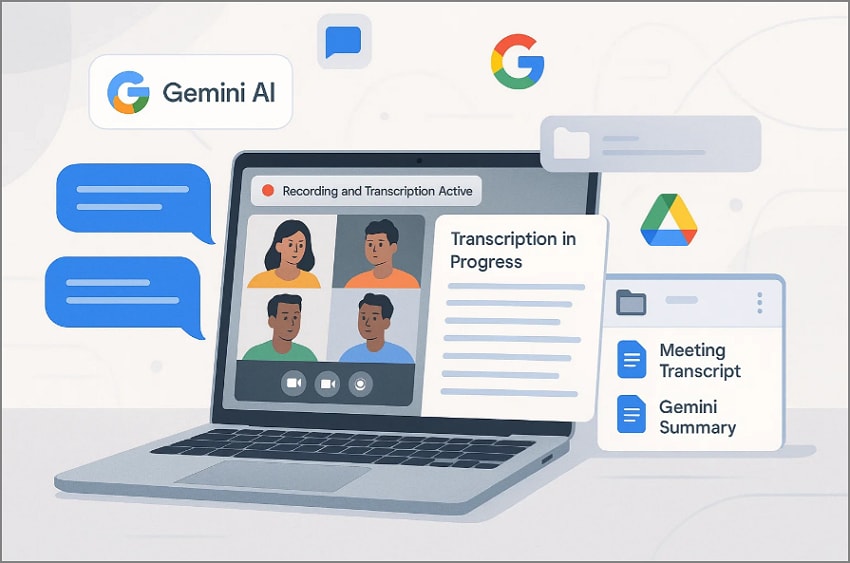
The Transcripts feature works alongside Google Meet AI note taking to capture every spoken word. It can be accessed in the majority of Google Workspace Business and Enterprise plans and provides additional information to view longer sessions with the following essential details:
- Availability: Transcripts appear after the meeting ends; real-time viewing isn't supported yet.
- Storage: Each transcript is saved automatically in the host's Google Drive and linked to the same recap email that includes Gemini's summary.
- Access Control: Only participants within the same Workspace domain (or those granted permission) can open the transcript file.
- Delays: Larger or longer meetings may take extra time to process, sometimes equal to the meeting's duration.
- Consent: Every participant receives an on-screen notification when transcription starts, in line with Workspace privacy rules.
Quality-of-Life Update: Embedded Email Summaries
A major update in mid-2025 refined how recaps are delivered. Gemini now embeds summaries directly inside recap emails, so you don't need to open a separate Google Doc:
- Each email clearly lists discussion highlights, decisions, and next steps with responsible participants and timeframes.
- The design makes scanning follow-ups effortless while keeping sharing controls intact.
- These controls remain unified across both Drive and email, ensuring enterprise users maintain compliance while enjoying faster, more actionable recaps.


 G2 Rating: 4.5/5 |
 100% Secure
Part 3. Prerequisites (Licenses, Admin Policies, Permissions)
Before enabling the automatic AI note taker for Google Meet, a few setup steps are required. Each ensures that Gemini's note-taking and recording features run smoothly:
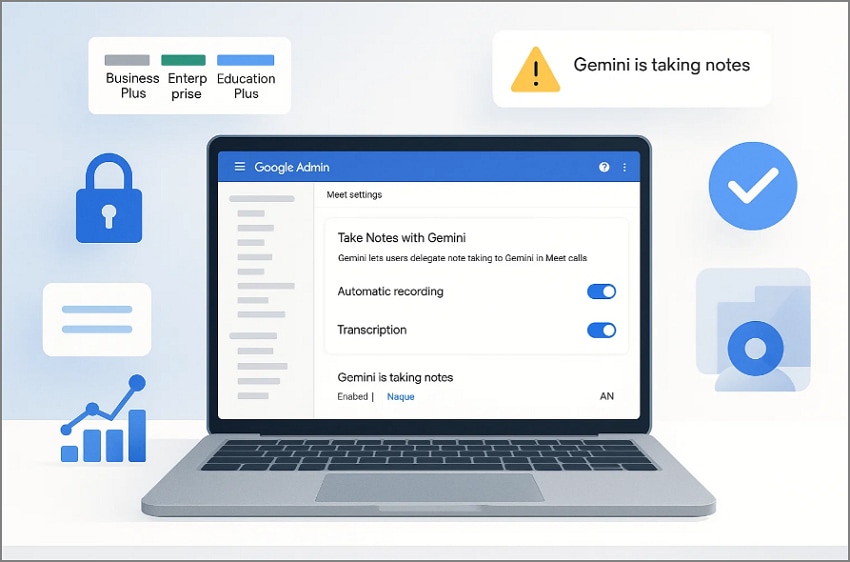
- Workspace License Activation: Automatic note-taking, recording, and transcription only work with Business Plus, Enterprise, or Education Plus licenses. Free or individual Workspace tiers lack automation access, so users must upgrade to enable these premium AI functions.
- Admin Policy Configuration: Admins must open "Admin Console" > "Apps" > "Google Workspace" > "Google Meet" > "Video setup" settings. They must toggle on automatic recording, transcription, and "Take Notes with Gemini" to activate meeting automation properly.
- Host or Co-Host Presence: Automation begins only when a verified host or co-host joins through a web browser. If the host joins from mobile, Gemini remains inactive until another authorized browser user connects.
- Permission and Domain Controls: Admins can set permissions across domains, organizational units, or groups for greater policy control. These settings decide who may enable or disable AI note-taking during meetings without affecting automation consistency.
- Participant Notifications: Meet displays clear alerts before and after AI automation starts capturing meeting details. Attendees see banners and messages like "Gemini is taking notes" to ensure privacy awareness.
Part 4. How to Enable AI Notes in Google Meet (Step-by-Step)
Here is the complete stepwise procedure for enabling Google Meet AI notes, including both admin and host below:
Organizer/Admin Checklist
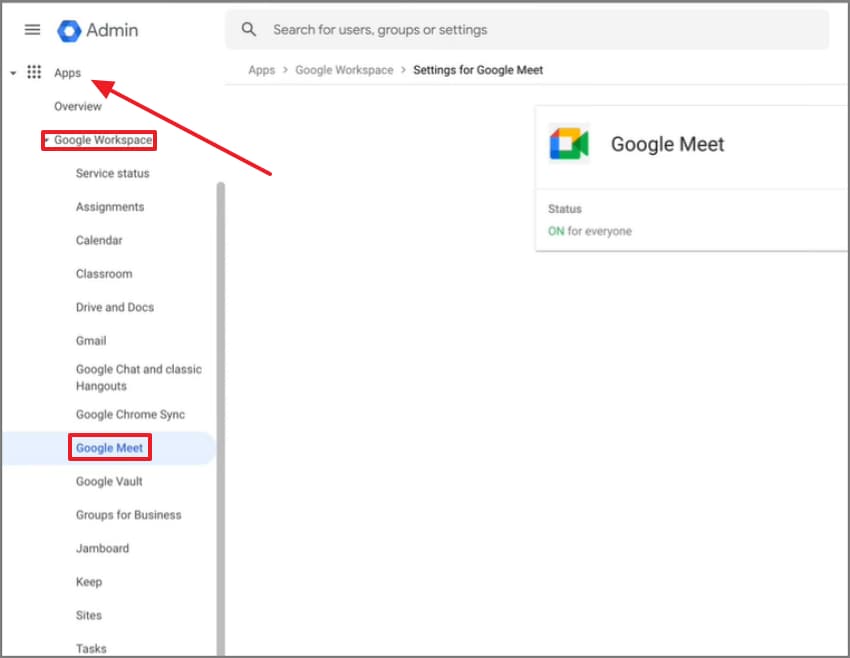
Step 1First, sign in to "Google Admin Console" using an administrator account
Sign in to "Google Admin Console" using an administrator account, navigate to "Menu> Apps> Google Workspace> Google Meet".
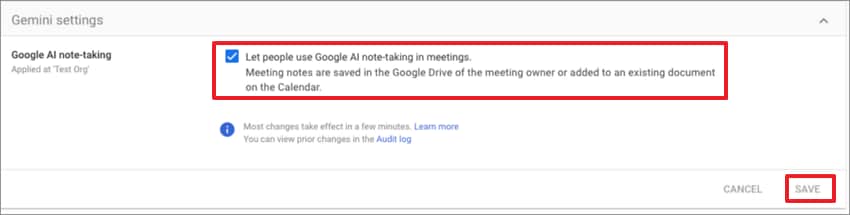
Step 2Next, click on the "Gemini Settings"
Click on the "Gemini Settings", locate "Google AI Note-taking" and check the box next to "Let People Use Google AI Note-Taking in Meetings". After setting the feature on, select the "Save" option to proceed.
During the Meeting (Host)
Step 1First, join the Google Meet meeting
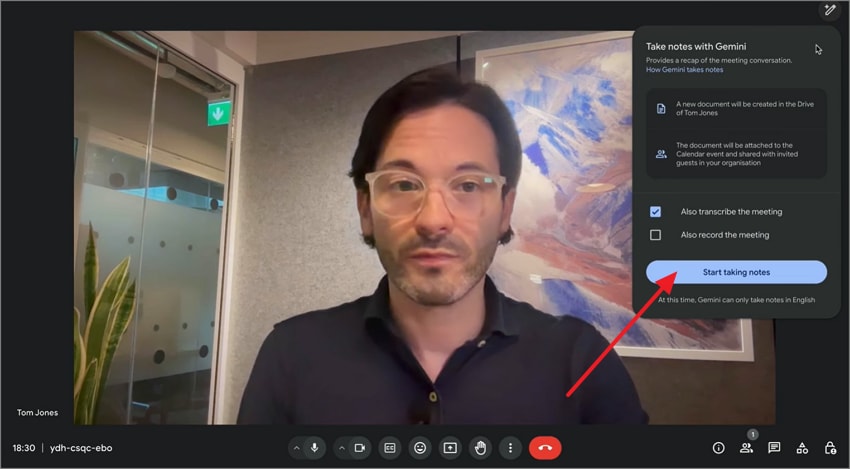
Join the Google Meet meeting, click on the "Pencil" icon, and select the "Start taking notes" option there.
Step 2A "Pencil" icon will appear for all participants
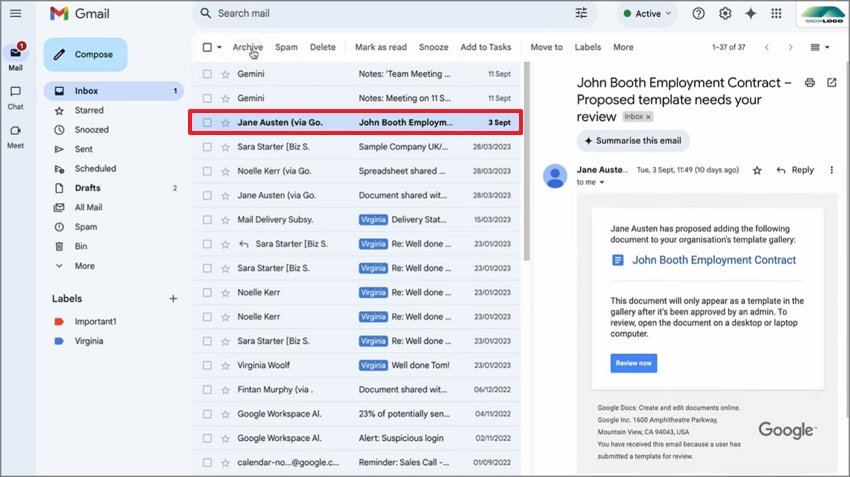
A "Pencil" icon will appear for all participants, confirming that AI note-taking is active. After the meeting, you will receive an email with the meeting notes.
Part 5. Using Read AI on Google Meet (Brand Add-On)
Read AI is an integrated add-on for Google Meet that captures summaries, transcripts, and insights automatically, without using a visible bot. It works natively within Meet, keeping your discussions secure while generating detailed meeting reports and follow-up notes.
Value of Native Capture
- Works directly inside Google Meet, no external recording bot required.
- Its AI instantly produces concise recaps of main topics and decisions.
- Generates searchable transcripts and highlights key discussion points for your ease.
- Offers an insights dashboard to display analytics like speaking time and participation trends.
How to Get it
To access and install the Read AI, follow the stepwise instructions below:
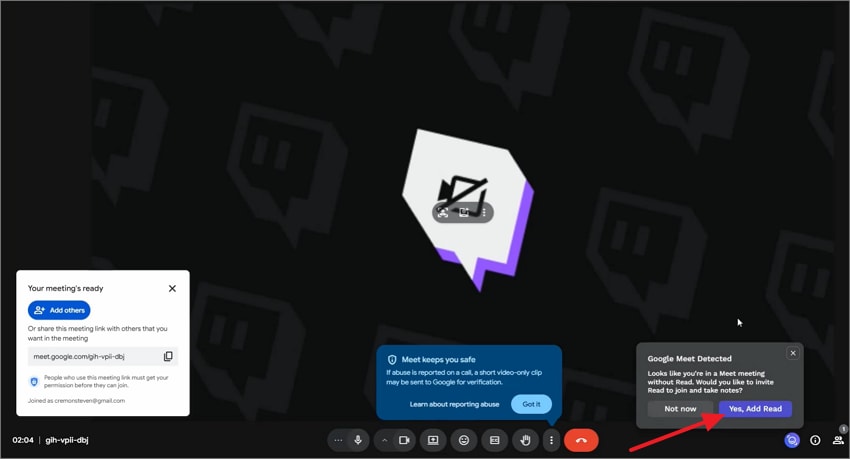
Step 1First, install and grant permission to "Read AI"
Install and grant permission to "Read AI," then open "Google Meet" and from the pop-up select "Yes, Add Read," to start taking notes.
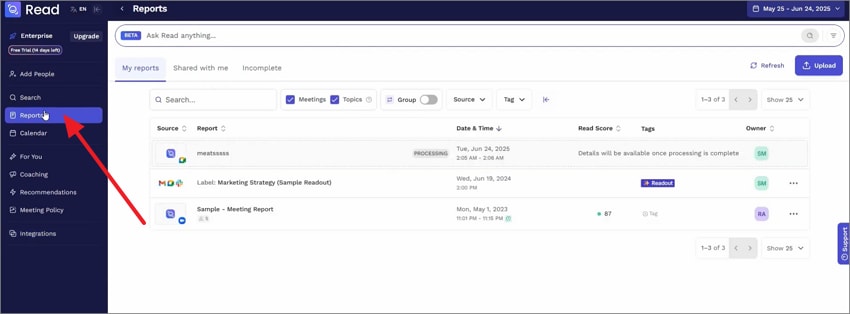
Step 2Next, after the meeting, you can see your meeting notes in the Read AI
After the meeting, you can see your meeting notes in the Read AI by hovering over the "Report" in the left side panel.
Part 6. Best AI Note Takers for Google Meet (2026 Alternatives)
1. Otter.ai
Others would like to use built-in Google Meet automation, whereas some would desire cross-platform flexibility or offline privacy rather than the same note-taking setup. The following are the most recommended AI note takers in Google Meet, which are designed to fit a particular workflow and collaboration style:
Best For: Teams needing real-time transcription and versatile device support
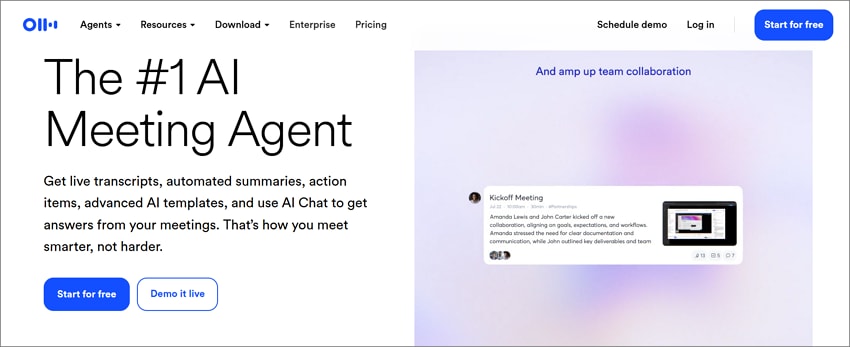
Otter.ai, being an AI notetaker of Google Meet, provides captions and automatic word-to-text transcription in real-time during conversations. It recognizes who speaks, focuses on action items, and organizes the notes in such a way that they can be recalled at any time. Supporting cross-platform desktop/mobile syncing would be helpful with cross-functional teams that need fast, shareable records of any meeting on any device.
Key Features
- Offers real-time transcription of meetings with speaker identification and caption support.
- Provides automated summary generation after meetings that highlights action items clearly.
- Searchable transcript archive accessible across devices for review and collaboration.
Who Should Pick It: Students, journalists, and freelancers needing live meeting transcripts.
2. Fireflies.ai
Best For: Sales and project teams needing detailed meeting intelligence and integrations.
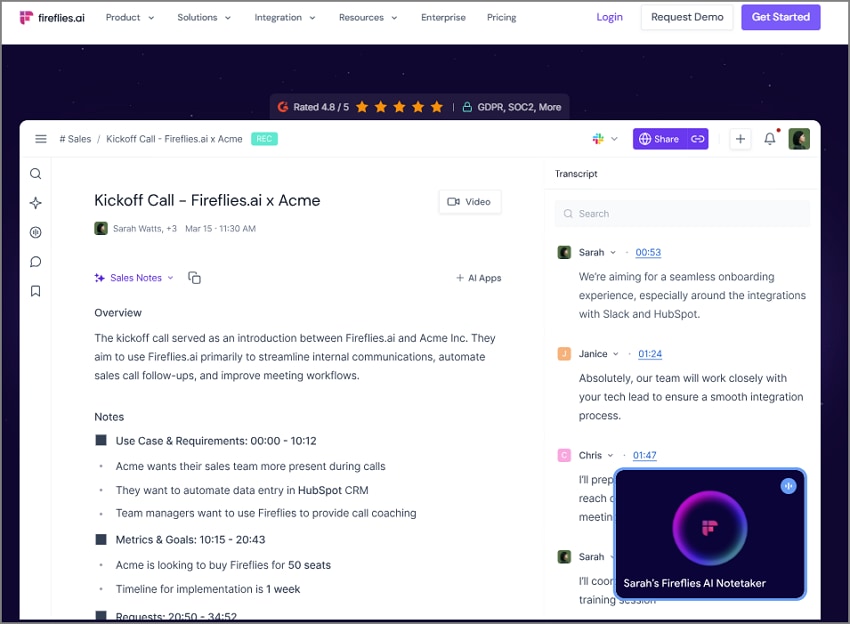
The Google Meet AI note taker free plan from this tool records and transcribes meetings automatically through a virtual assistant. It captures every word, detects follow-ups, and syncs notes with CRM platforms. Fireflies.ai helps busy teams document insights, shorten review time, and improve post-meeting collaboration without manual effort.
Key Features
- Live meeting note capture and transcription across platforms, including Google Meet.
- Supports automatic extraction of action items, bookmarks, and decision highlights.
- Integrates with CRM and productivity tools to funnel meeting data into workflow.
Who Should Pick It: Sales team managing CRM-linked meeting intelligence efficiently.
3. MeetGeek
Best For: Teams seeking automated recordings, summarization, and knowledge-sharing across platforms.
The Google Meet AI notes from MeetGeek give users clean, organized summaries automatically after every call. It identifies key themes, follow-ups, and speakers, then uploads results to your workspace. Its advanced tagging and analytics let teams review insights faster and store knowledge in one searchable meeting hub.
Key Features
- It auto-records meetings and generates summaries, decisions, and action points.
- Offers customizable templates that detect meeting type and adapt summary format accordingly.
- Sync transcripts and notes to tools like Microsoft Outlook, Google Drive, and CRMs.
Who Should Pick It: Managers organizing searchable, topic-tagged meeting knowledge bases.
4. Supernormal AI
Best For: Hybrid work teams wanting automatic Google Meet summaries and sharing.
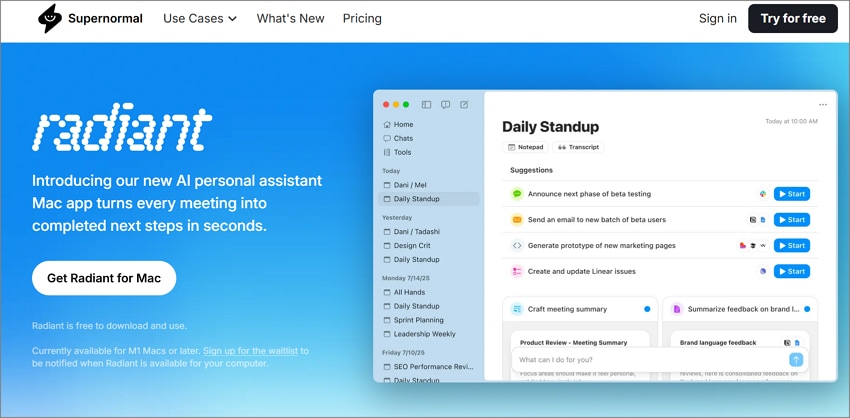
This AI Google Meet note taker creates professional summaries immediately after each meeting ends. It compiles action points, highlights, and decisions, then shares them through Docs or Slack. It's fast, consistent, and perfect for teams wanting organized documentation without wasting time rewriting meeting notes manually.
Key Features
- Captures meetings and produces summary notes and next-steps delivered automatically
- Shares meeting notes directly to Google Docs, Slack, or email for seamless collaboration.
- Designed for remote or hybrid teams needing instant post-meeting documentation.
Who Should Pick It: Remote teams automating summaries and task follow-ups effortlessly.
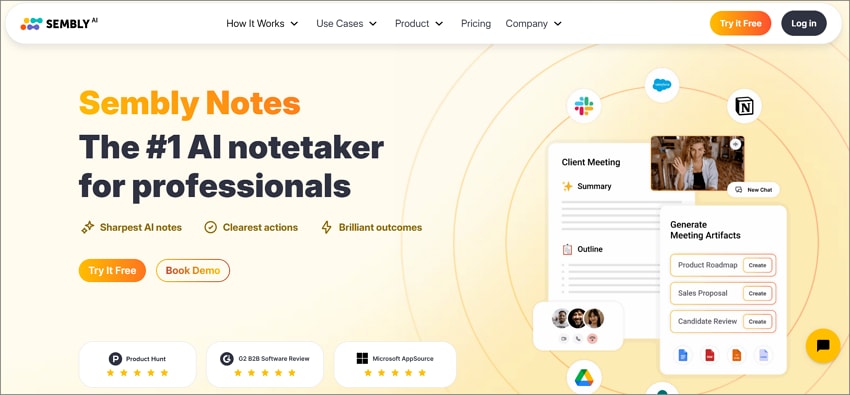
5. Sembly AI
Best For: Teams wanting advanced meeting insights and AI-based minutes.
With Google Meet's AI notes powered by Sembly AI, meetings become smarter and more organized automatically. It detects decisions, assigns follow-ups, and generates summaries within minutes. It transforms conversation data into structured meeting minutes that help managers lead confidently and review progress afterward.
Key Features
- Records and transcribes meetings in over 45 languages with speaker labels.
- Generates actionable meeting minutes with tasks, deadlines, and assignees automatically
- Integrates with project tools and exports summaries and reports effortlessly.
Who Should Pick It: Corporate teams seeking structured, actionable meeting summaries.
6. PDFelement Mobile
Best For: On-site interviews, privacy-sensitive sessions, and no-WiFi environments.
If you have wondered, does Google Meet have an AI note taker for offline work, PDFelement Mobile (iOS/Android) is your solution. It operates fully on-device, letting users record voice, transcribe speech, and generate summaries anywhere. There's no Wi-Fi needed, just clear, private note-taking that stays secure within your phone's local storage.
Furthermore, under the newest edition of this tool, one can turn speech into text, summarize using artificial intelligence, use templates, and export a professional-looking PDF. It is a great partner to a secure, AI-based documentation because of additional tools, such as AI Mindmap, Translate, and Model Switcher.
More Features to Ponder On
G2 Rating: 4.5/5 |100% Secure
- AI Generate Mindmap: Instantly turns summarized meeting content into visual mindmaps for quick review and creative planning.
- AI Translate: Translates entire meeting transcripts or summaries into multiple languages while preserving tone and formatting accurately.
- Switch AI Models: Let users toggle between DeepSeek-V3, GPT-4o, GPT-4o-mini, or Gemini 1.5 Pro for precision.
- HTML→PDF for Agendas: Converts online meeting agendas or notes webpages into polished, shareable PDF documents within seconds.
Flow: How PDFelement Mobile Handles AI Note Creation
This smart workflow helps you capture, summarize, and export meetings efficiently without needing cloud storage or bots.
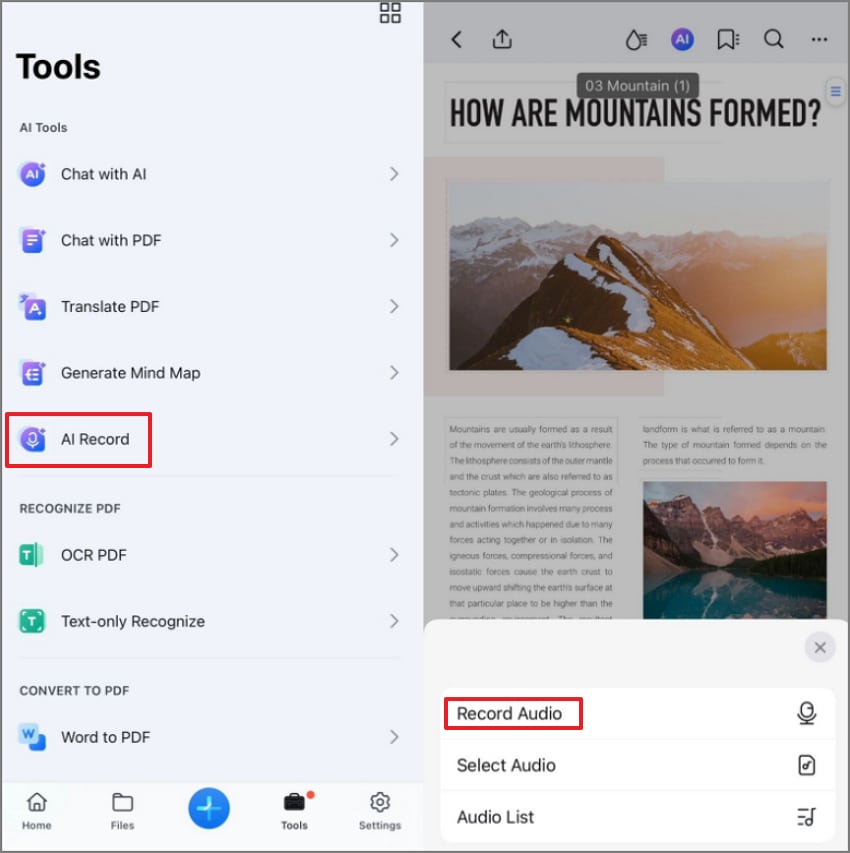
Step 1Choose AI Record and Proceed
To start, tap on the "Tools" to further select "AI Record" to begin setup. Then press "Record Audio" to capture the voices of your meeting to proceed further.
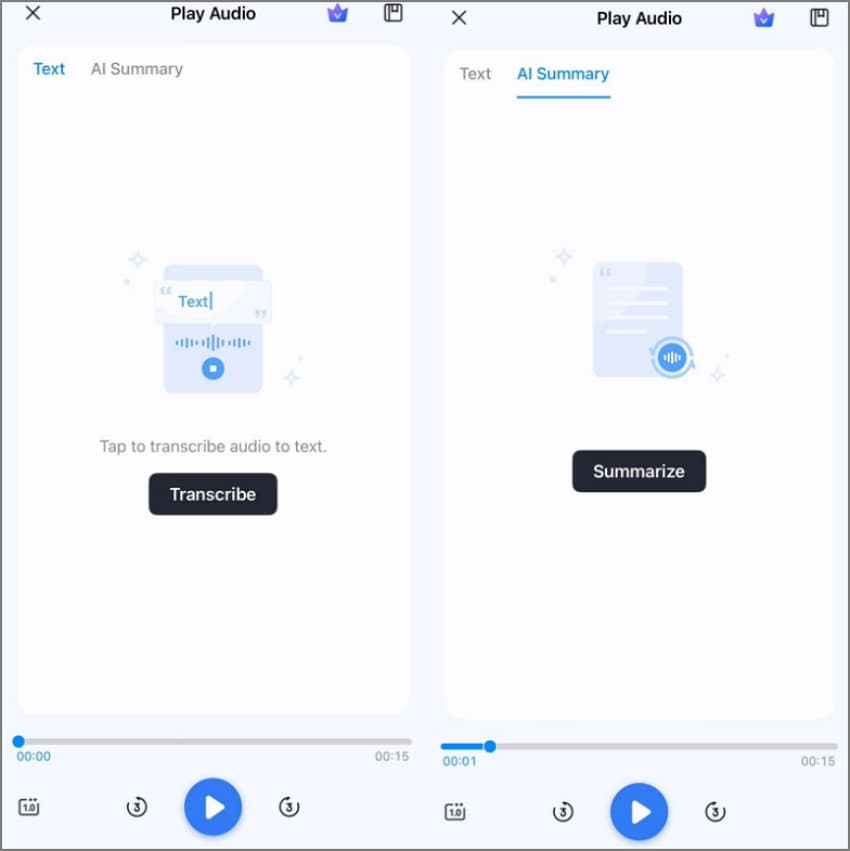
Step 2Summarize with AI
After recording, choose "Transcribe" to convert your audio into editable, readable text. Then switch to the "AI Summary" tab and tap "Summarize" for automatic brief note generation.
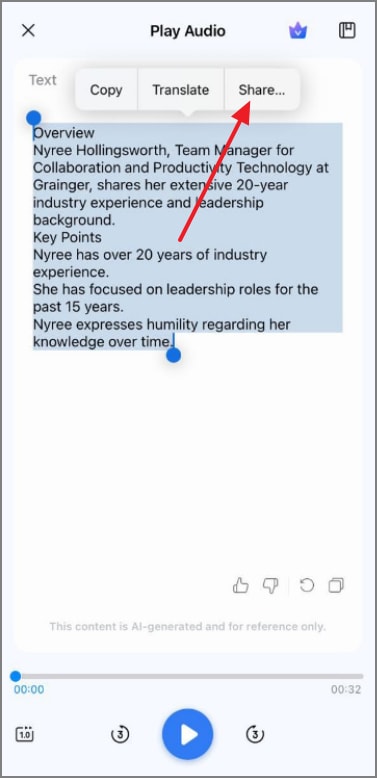
Step 3Share the Summarized Notes
Lastly, once the AI summary is generated, review your notes and tap "Share" at the top to distribute and export the summarized content.
G2 Rating: 4.5/5 |100% Secure
To choose the best among all mentioned AI note takers for Google Meet, review the comparison table below:
| Tool | Works Without Bot | In-Person Offline | Native Meet Integration | Free Tier | Export PDF | Privacy (Uploads vs On-Device) | Best For |
| Otter.ai | Cloud Storage | Teams need live transcription and cross-device syncing. | |||||
| Fireflies.ai | Cloud Upload | Sales or project teams needing CRM-linked meeting insights. | |||||
| MeetGeek | Cloud Based | Managers organizing searchable, topic-tagged meeting knowledge bases. | |||||
| Supernormal AI | Cloud Storage | Hybrid teams are automating summaries and task follow-ups. | |||||
| Sembly AI | Cloud Upload | Corporate teams seeking structured, actionable meeting minutes. | |||||
| PDFelement Mobile | On-Device & Cloud Upload | Users record meetings offline with maximum security and control. |
Part 7. Free vs Paid: What You Actually Get
Choosing between free and Paid Google Meet AI not-taking tools depends on collaboration frequency. It also depends on how complex your meetings are and your desired data privacy. Review the comparison table below to choose the one that suits your requirements well:
| Feature | Free Tier | Paid Tier |
| Recording Length | Short (≤ 30 minutes) | Unlimited or extended durations |
| Summary Quality | Basic keyword extraction | Detail AI-driven summaries with actions |
| Integrations | Few (Google Meet only) | CRM, Slack, Drive, Teams, Notion |
| Privacy | Cloud storage only | Encrypted, on-device or enterprise storage |
| Support | Community help | Priority support and admin controls |
Final Verdict
If you hold occasional calls, free tiers are enough for you. But for long meetings, multi-platform collaboration, or confidential projects, investing in paid AI note takers helps accuracy. It also ensures automation, better organization, and complete control over sensitive data sharing.
Part 8. Troubleshooting & Controls (Why You Don't See AI Notes)
If your Google Meet AI notetaker isn't showing notes or transcripts, here's how to troubleshoot it:
- Notes or Transcripts Missing: Confirm the host manually started "Takes notes with Gemini" or transcription before leaving. If auto-start failed, ensure the meeting host or co-host joined from a web browser.
- Recap Email Not Received: Only organizers and note initiators get recap emails with summaries and next steps. Check your spam folder and Google Drive access permission for the attached meeting documents.
- Feature Unavailable: Your Google Workspace plan might lack Gemini or transcription privileges for AI notes. Ask the admin to enable "AI Note Taking" and "Transcribe meeting" in policy settings.
- Privacy Pop-up Missing: Participants must see on-screen reminders when recording or AI note-taking starts automatically. If not visible, update your browser or clear Meet cache before joining again.
- Delayed Summaries: Large meetings or unstable connections may delay Gemini's processing of AI meeting notes. Wait a few minutes; summaries appear in Drive and recap emails once processing finishes.
Part 9. Playbooks (Copy-Ready Mini-Guides)
After fixing common issues, you're ready to try these quick Google Meet AI note-taking playbooks:
Native Google Meet AI Notes (Gemini)
- Step 1: Join or start a Google Meet using an eligible Google Workspace account.
- Step 2: Click the "Take Notes with Gemini" pencil icon, then press "Start Taking Notes".
- Step 3: Enable "Transcription" if you want linked timestamps and voice mapping.
- Step 4: After meeting, open the recap email and share the Google Doc.
Read AI on Google Meet
- Step 1: Install Read AI from the Google Workspace Marketplace or Chrome Web Store.
- Step 2: Next, in Meet, open Add-ons> Read AI, then authorize access.
- Step 3: After that, let it capture transcripts and create live summaries during the meeting.
- Step 4: Then, access the recap and transcript from your Read dashboard or Gmail sync.
In-Person / No-Bot Workflow (On-Device)
- Step 1: First, open PDFelement Mobile and tap "Record Audio" to capture your discussion.
- Step 2: Convert the audio to text using the built-in Speech-to-Text tool.
- Step 3: Then, use "AI Summarize" to generate concise meeting notes automatically.
- Step 4: Apply a PDF template and export or share via Drive, Calendar or Chat.
People Also Ask
-
Does Google Meet have an AI note taker?
Yes, Google Meet includes Gemini's "Take Notes for Me" feature for automated summaries. It records discussions, creates structured notes, and emails meeting recaps with action steps. -
How do I enable AI notes in Google Meet?
Open Meet settings or Calendar, then activate "Take notes with Gemini" before joining. Hosts must have supported Workspace licenses and join via web for the features to start. -
What is Read AI meeting notes in Google Meet?
Read AI is a native Google Meet add-on that automatically captures notes. It summarizes conversations, identifies action items, and provides transcripts without visible bot participants. -
What is the best free AI note taker for Google Meet?
Otter.ai and MeetGeek offer strong free tiers with transcription and summary generation. PDFelement Mobile is ideal for offline use, providing privacy and professional PDF summaries. -
Where do the notes/transcripts go?
Gemini stores generated notes in the meeting host's Drive automatically after sessions. Attendees also receive recap emails containing summaries, links, and next-step recommendations.
Conclusion
To conclude, meetings become smarter with the Google Meet AI note-taking feature. In this article, we explained setup steps, workflow guides, and troubleshooting tips for seamless note automation. For simple offline summaries and file exports, PDFelement App offers a straightforward and secure option. It works well for users who prefer local recording without complex integrations.