

We know that PDF is the standard file-sharing format across many educational and professional settings. When you send an official file with comments and markings, there is a chance that those annotations will be deleted or edited. To prevent this action, you must flatten comments in the PDF. Flatten files also encourage print-safe results, ensuring high-quality. The article below provides details on flattening comments in PDFs and the tools that help you do so.
In this article
Part 1. What "Flatten" Means (and What It Affects)
This section explains what flattening really means in practical terms and how it affects your PDF content. Understanding this helps you decide when to apply it safely and effectively.
Plain English: Flattening converts active annotations and form elements into fixed page graphics. They look the same visually but lose all editing and interactive functionality permanently.
What's Included: Items like highlights, notes, text boxes, shapes, stamps, and freehand marks become part of the page image. Form fields and digital signatures may also be embedded, depending on chosen settings.
Why You'd Flatten: Flattening annotations PDF ensures annotations always appear correctly when printed or shared across devices. It also prevents unwanted changes and helps finalize documents for official use.
Irreversible: Once content is flattened, it cannot be edited or separated from the page. Always save an original, editable copy before proceeding to avoid permanent loss.
Part 2. Pick Your Strategy (Option Matrix)
Choose a flattening approach based on the level of control, speed, and security your document requires. Each method offers different advantages depending on how final and protected your PDF must be:
| Your Goal | Method | Scope | Pros | Watch-Outs |
| Hard, standards-ready flatten | Acrobat Preflight (Print Production) | Whole file/specific types | Precise, professional-grade control | Requires Acrobat Pro and correct profile selection |
| Fast "good enough" flatten | Print to PDF (Adobe PDF / Microsoft Print to PDF) | Current print view | Quick and universally available | May rasterize content; hyperlinks and tags can change |
| One-click in the editor | Dedicated Flatten tool (PDFelement, Bluebeam) | Whole document or page range | Simple, repeatable, and selective | Features depend on the software used |
| Lock only certain pages | Partial/page-range flatten | Selected pages | Keeps draft areas editable | Requires careful page selection |
| Lock forms/signatures | Flatten forms/fields | Whole or selected areas | Prevents editing of form elements | Removes form interactivity |


 G2 Rating: 4.5/5 |
 100% Secure
Part 3. Top Methods to Flatten PDF Comments & Annotations
Having understood the significance of flattening a document, it is important to choose the right PDF tool for it. The following section explores the process of making annotations static in a file using various tools:
Method 1 — Adobe Acrobat Pro (Preflight in Print Production)
Using Adobe Acrobat Pro's Preflight flattening method embeds annotations and form fields permanently, preventing edits and data loss. Preflight analyzes the PDF structure, ensuring a consistent appearance across devices, printers, and various professional environments. This process enhances document security, maintains visual integrity, and supports accurate final submissions for official distribution purposes confidently.
Flattening through Preflight also eliminates compatibility issues caused by unsupported interactive elements during long-term archiving and storage. The following steps include a guide on how to flatten comments in PDF Acrobat DC:
Step 1
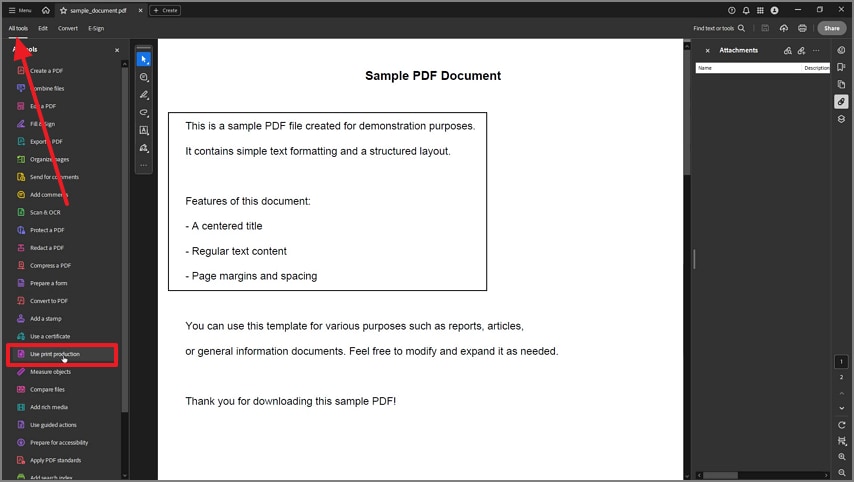
Open the document in Adobe Acrobat Pro and access the "All Tools" tab to select the "Use Print Protection" option.
Step 2
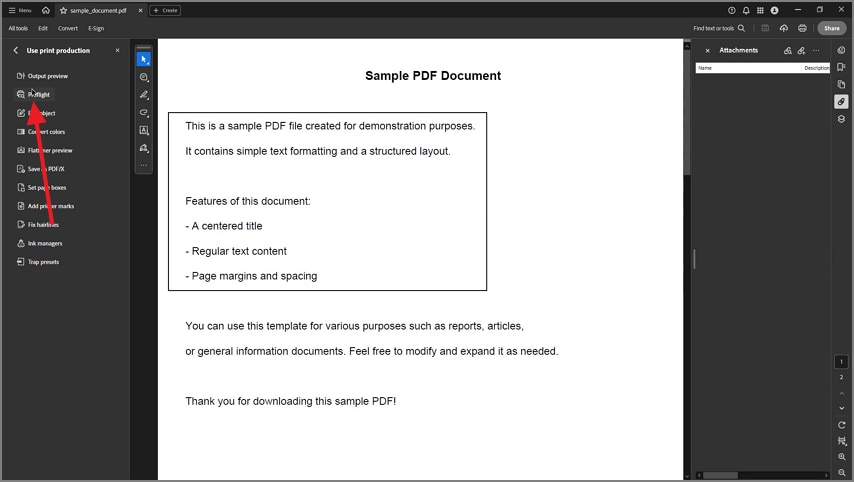
From the panel on the left, select the "Preflight" option and wait for a small window to open.
Step 3
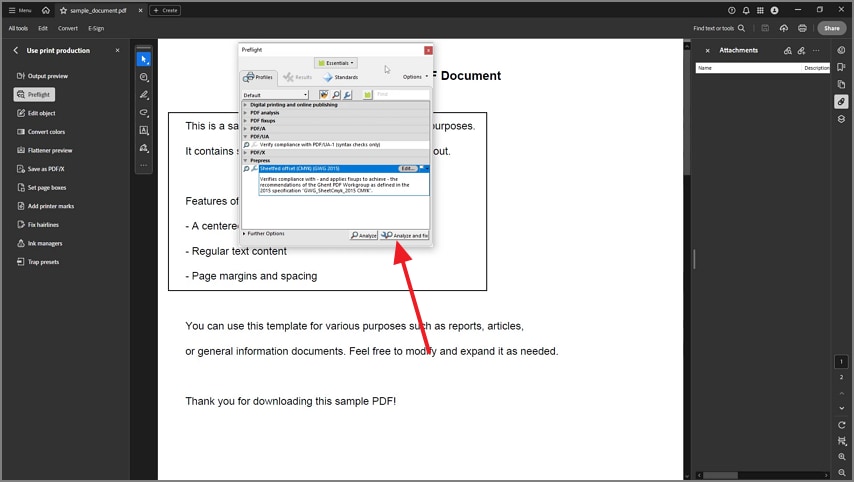
In this window, search for the "Flatten Annotations and Form Fields" option and hit the "Analyze and Fix" button to save the changes.
Note: Preflight gives granular control (annotations vs form fields). Use when you need consistent, press-ready output.
G2 Rating: 4.5/5 |100% Secure
Method 2 — Print to PDF (Soft Flatten, Fast)
Using the Print to PDF method creates a stable, non-editable document suitable for professional final sharing. It ensures a consistent appearance across devices while reducing risks of accidental changes or formatting distortions during critical distribution processes. This approach simplifies file handling and supports reliable archiving for long-term documentation requirements.
It provides a clean, secure version ideal for printing, storage, and controlled organizational record-keeping purposes in sensitive business environments. If you are wondering how to use the Microsoft Print to PDF method to flatten PDF comments, follow this guide:
Step 1
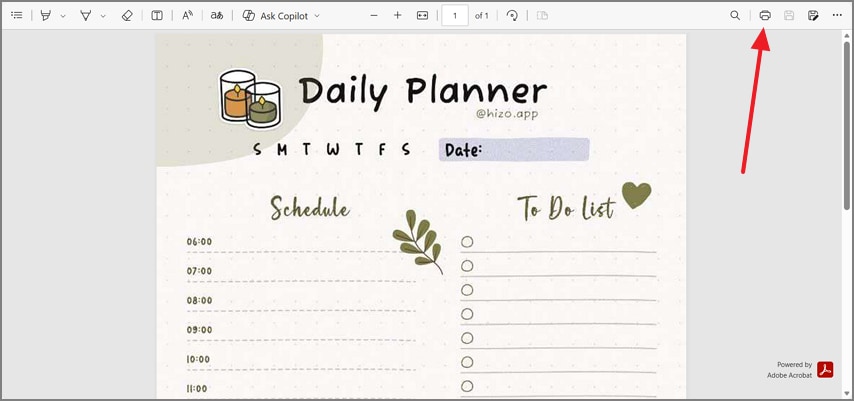
To begin with, open a PDF file on your desired reader and select the "Print" option to open the Print window.
Step 2
In this window, select the "Microsoft Print to PDF" option as the "Printer" and hit the "Print" button. From the Save window, name the file and save the fattened version in your desired location.
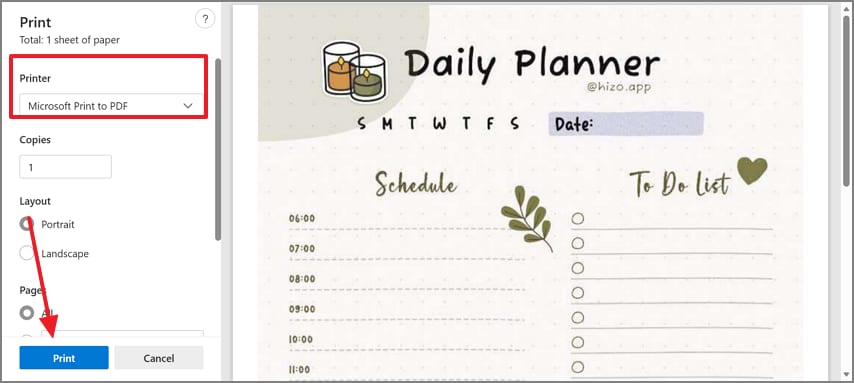
Note: This produces a flattened print rendition. It's quick but may rasterize some elements; links/tags may not survive.
Method 3 — Third-Party Editors (Dedicated Flatten)
When looking for a dedicated PDF tool with all important document-related features, consider using PDFelement. With its powerful utility suite, users can execute many processes using it. From making a document from scratch to editing existing files, you can do a lot on this platform. It has an extensive comment mode that offers a comprehensive collection of markup tools. Whether you want to add comments or highlight, there is nothing you can't do.
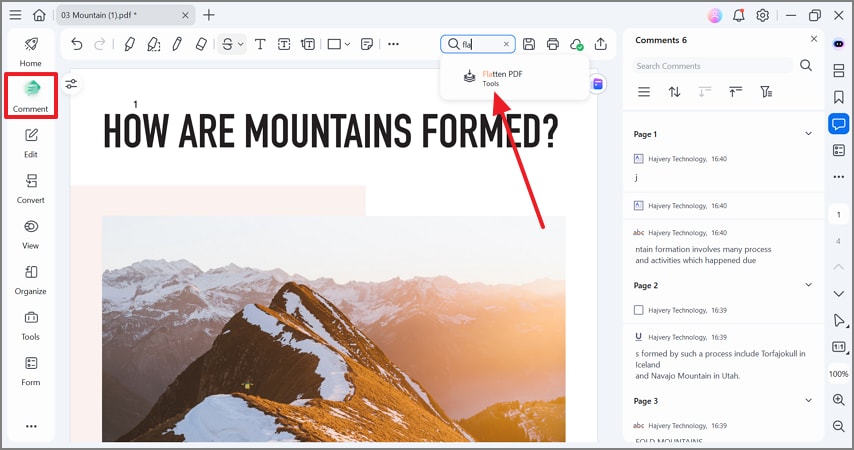
If you want to make drawings on notes, you can do so using the Pen or Pencil tool in custom colors. In case of a mistake, the drawing can be removed with the eraser. Users who do not want to leave comments editable can use the flatten PDF annotations utility to make them static. You can access the flattening feature through 2 navigations: in the Comment mode or the Tools tab in the left panel.
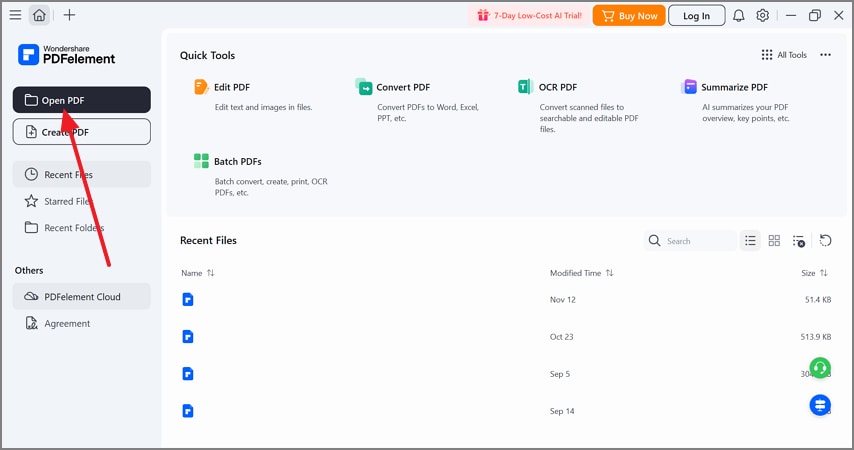
Step 1Open a PDF File with Annotations
Select the "Open PDF" option at the top left to see the file on the main page of the tool.
Step 2Use the Comment Mode to Find the Flatten PDF Feature
When the file opens, enter the "Comment" tab from the left panel and select the search bar. In this bar, search for "Flatten PDF" and save the file if you want. As the annotations are flattened, export the file or print it.
Best practice: To get the best outcomes, run Comment Summary first (author/date/page/text) if you need an audit record, then flatten the copy.
G2 Rating: 4.5/5 |100% Secure
Part 4. Transparency & Rendering (What to Check When Flattening)
Before flattening, review how visual elements behave to avoid quality loss or unexpected layout changes. These checks help maintain clarity, colour accuracy, and functional consistency as you flatten comments in PDF:
Transparency Flattener: Complex pages may split into vector and raster sections when flattened, affecting clarity. Always preview a sample page to confirm the visual result remains clean and accurate.
Quality: Small text in callouts can appear blurry if anti-aliasing is weak. Slightly increase font size to maintain sharpness after flattening.
Color Paths: Highlighter shades may look different when printed in black and white. Test a page to ensure contrast and readability stay intact.
Links/Metadata: Proper flattening preserves vector content, while Print to PDF can remove live links. Always verify links and metadata after exporting the final file.
Part 5. Troubleshooting Issues With Flattening Annotations in PDF
This section helps identify common flattening problems and shows how to resolve them quickly. Use these fixes to restore visibility, clarity, and proper document behavior while you flatten annotations PDF:
Recipient Can't See Comments
The comments are usually unprinted or hidden annotations that do not appear by default. This causes recipients to believe no feedback was added. Flatten the document and resend it so all comments become permanently visible.
Annotations Don't Print
Some PDF viewers exclude annotations from standard print settings. This results in missing notes on the physical copy. Switch to "Document and Markups" or flatten the file to force their visibility.
Only Some Notes Flattened
Hidden or filtered annotations are skipped during the flattening process. This creates inconsistency across the document. Reveal all annotations first, then apply flattening again for complete coverage.
Form Fields Still Editable
The flattened method selected did not include form fields or signatures. As a result, users can still modify these elements. Choose a flattening option that specifically locks form components.
Text Looks Fuzzy After "Print to PDF"
Printing to PDF often rasterizes the page into an image format. This reduces text sharpness and overall clarity. Use Preflight flatten or a dedicated tool to maintain vector quality.
Links Disappeared
Raster-based flattening removes the data behind clickable links. This breaks navigation within the document. Use vector flattening or manually reinsert critical links after processing.
G2 Rating: 4.5/5 |100% Secure
Part 6. Quick Reference: Important Points to Note
This part provides a quick reference for the various labels and locations you'll encounter when flattening annotations PDFs across different platforms:
Acrobat: In Adobe Acrobat, flattening options are found under Print Production and Preflight tools. These provide precise control over annotations and form fields, while printing to Adobe PDF offers a faster alternative.
System: Built-in system options include Microsoft Print to PDF on Windows and Save as PDF on macOS. These are convenient but may affect link functionality and visual quality.
Editors: Many third-party editors label this feature as Flatten Annotations or Flatten Markups. The effectiveness and level of control depend on the specific software used, such as in PDFelement.
Do Not Confuse With: Redaction and Sanitize remove content entirely rather than making it permanent. Optimizing only reduces file size without flattening annotations.
Frequently Asked Questions
-
What does flattening annotations do?
Flattening converts comments and markups into static page content, preventing further edits. It ensures the annotations become a permanent part of the PDF. -
Is flattening reversible?
Flattening cannot be undone, so always keep an editable original. Once flattened, annotations and markups are permanently embedded. -
Does "Print to PDF" truly flatten?
Printing to PDF soft-flattens the print view, which works for many purposes. However, it may rasterize content and remove clickable links. -
How do I flatten only certain pages?
Use page-range flattening in tools like PDFelement or Bluebeam to target specific pages. Alternatively, export the pages you want and flatten them separately. -
Can I flatten form fields and signatures, too?
Select a flattening profile or option that includes forms and signatures. This embeds them into the page as un-editable content. -
Why mention transparency?
Flattening may split transparent content into vector and raster layers, affecting appearance. Always proof a page after flattening to ensure quality is maintained.
Conclusion
Flattening comments in PDF secures all PDF annotations and form fields, ensuring they print consistently while preventing any accidental edits or modifications afterward. Preflight offers precise professional control for complex documents. Whereas Print to PDF enables fast soft-flattening, and dedicated editor tools provide simple repeatable flattening with page-range options.
Always back up your editable original file before applying irreversible changes to preserve future editing flexibility and document integrity. Preview at least one page to check transparency and quality and generate a Comment Summary first if an audit trail is required for accountability.

